Android FRP vs Screen Lock vs SIM Lock: What’s the Difference?
Screen Lock is device-level security, FRP Lock protects Google accounts after reset, and SIM Lock restricts carrier use; each lock requires a different solution based on the situation.
When you are locked out of an Android phone, figuring out exactly what is blocking you is the first step to fixing it. In short, these three locks operate at completely different levels: device, account, and network.
- Screen Lock (Device-Level): This is your local security barrier—the PIN, pattern, password, face, or fingerprint lock you enter to wake up and use the phone.
- FRP Lock (Account-Level): Factory Reset Protection (FRP) is a Google security shield. It triggers automatically after an unauthorized factory reset (like wiping the phone in recovery mode) to prevent anyone from using a stolen or lost phone without the original owner’s Google account.
- SIM Lock (Network-Level): Also known as a Carrier Lock, this restriction is placed by your mobile provider (like AT&T, Verizon, or Vodafone). It ties the phone’s hardware to their specific network, preventing you from using a SIM card from a different carrier.
The solution you need depends entirely on which level of lock is currently active on your phone.
How to Identify Your Lock: A Symptom-Based Diagnostic Checklist
Applying the wrong fix to a locked phone is not just a waste of time—it can actually trigger stricter security measures. Many secondhand phone buyers purchase unlock tools only to find out they bought a screen unlocker for a carrier issue. This is why people often ask Can frp lock be removed or look for Samsung FRP removal, or try tools like Revive frp and Samsung FRP methods after a reset.
To avoid this, use the diagnostic table below to visually identify which lock is restricting your phone right now.
| Lock Type | Visual Indicator / Error Message | When It Happens |
|---|---|---|
| Screen Lock | The phone turns on normally but asks for a PIN, Pattern, or Password immediately upon waking the screen. | Every time you press the power button to wake the device, or after restarting the phone. |
| FRP Lock (Google Lock) | The screen shows “Verify your account” or “Sign in with a Google account that was previously synced on this device.” | Immediately after the phone has been factory reset via recovery mode and you are trying to set it up again. |
| SIM Lock (Carrier Lock) | The phone works perfectly on Wi-Fi, but shows “SIM Network Unlock PIN,” “Invalid SIM,” or “Network locked” when a new SIM is inserted. | When you insert a SIM card from a mobile carrier different from the one that originally sold the phone. |
Before you proceed: Verify your exact lock state using the symptoms above. Once you know whether you are dealing with a device, account, or network lock, you can find the correct official or third-party solution.
Screen Lock Explained: The Device-Level Barrier
A screen lock is your first line of defense. Whether you use a PIN, pattern, password, fingerprint, or face recognition, this lock encrypts and protects the local data stored on your physical device.
Because of modern Android encryption, officially bypassing a forgotten screen lock almost always requires performing a factory reset. This means that removing a forgotten screen lock will usually wipe all local data, photos, and apps from the device unless they are backed up to the cloud. While some users look for ways to unlock Android without losing data, this is typically only possible on older devices or with specific brand backups.
The Lock Sequence Warning:
Many users attempt to bypass a forgotten screen lock by forcing a “hard reset” (wiping the phone using the volume and power buttons in Android Recovery Mode). While this does erase the screen lock, you must understand the lock sequence: forcing a factory reset via recovery mode to remove a screen lock will immediately trigger the FRP lock. If you do not know the Google account credentials synced to the phone, solving the device-level lock will instantly trap you in an account-level lock.
FRP Lock (Google Lock) Explained: The Account-Level Shield
Factory Reset Protection (FRP) is an account-level security measure designed by Google to make stolen phones useless to thieves. It is completely separate from your daily screen PIN. Many users only realize this when searching for Can frp lock be removed after a reset.
FRP automatically activates the moment you add a Google account to your Android device. If the phone is wiped using an unauthorized method—like a hard reset in recovery mode—FRP kicks in.
If you are a secondhand phone buyer facing this “Verify your account” screen, the official recovery paths are strict:
1. Contact the original seller or owner and ask them to log in or remotely remove previously synced Google account from Android.
2. Use the official Google Account Recovery page if you own the account but forgot the password.
Bypassing FRP manually without the original credentials is intentionally difficult. Success is highly dependent on your specific phone brand, model, Android OS version, and security patch level. More importantly, any FRP bypass method or tool requires you to be the lawful owner of the device.
SIM Lock Explained: The Network-Level Restriction
A SIM lock (or Carrier Lock) has absolutely nothing to do with your device’s local security or your Google account. It is a network-level restriction placed directly by your mobile provider, which is why users sometimes confuse it with Samsung FRP after a reset.
Carriers lock phones to their network to ensure a device remains on their service, usually until a device payment plan or contract is fully paid off. Because this lock is tied to your phone’s unique IMEI number on the carrier’s backend servers, factory resetting your phone will NOT remove a SIM lock.
Do not waste your money buying Android screen unlockers or FRP bypass tools hoping to fix an “Invalid SIM” or “SIM Network Unlock PIN” error. Software tools cannot bypass carrier database restrictions. The only official way to remove a SIM lock is to contact your carrier (or use their official unlocking portal) to request an unlock once your contract obligations are met.
Finding the Right Solution: How DroidKit Helps with Screen and FRP Locks
Because Screen Locks and FRP Locks operate on completely different levels, using a single, generic “unlock” tutorial often leads to confusion, especially when people search for Samsung FRP removal and end up following the wrong method. If you have diagnosed your lock and you have lawful ownership or permission to access the device, you need a tool that targets your exact problem.
This is where DroidKit comes in. DroidKit is a guided Android toolkit with dedicated, separate modules tailored for specific lock types, often recommended by users dealing with Can frp lock be removed issues.

DroidKit
As a complete Android solution, DroidKit can easily help you recover lost data with/without backup, unlock Android screen, bypass FRP lock, fix system issues, etc. within minutes.
Here is how to match your diagnosis to the right DroidKit workflow:
1. For a Device-Level Screen Lock:
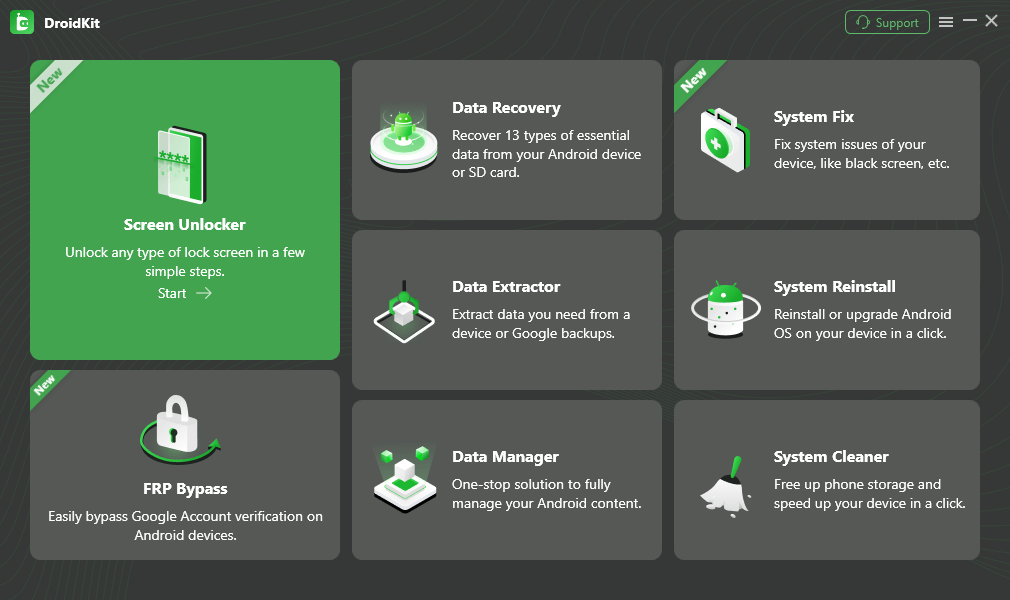
If you forgot your PIN, pattern, or password, choose the DroidKit Screen Unlocker module.
How the workflow looks:
1. Open DroidKit on your PC or Mac and select the “Screen Unlocker” module.
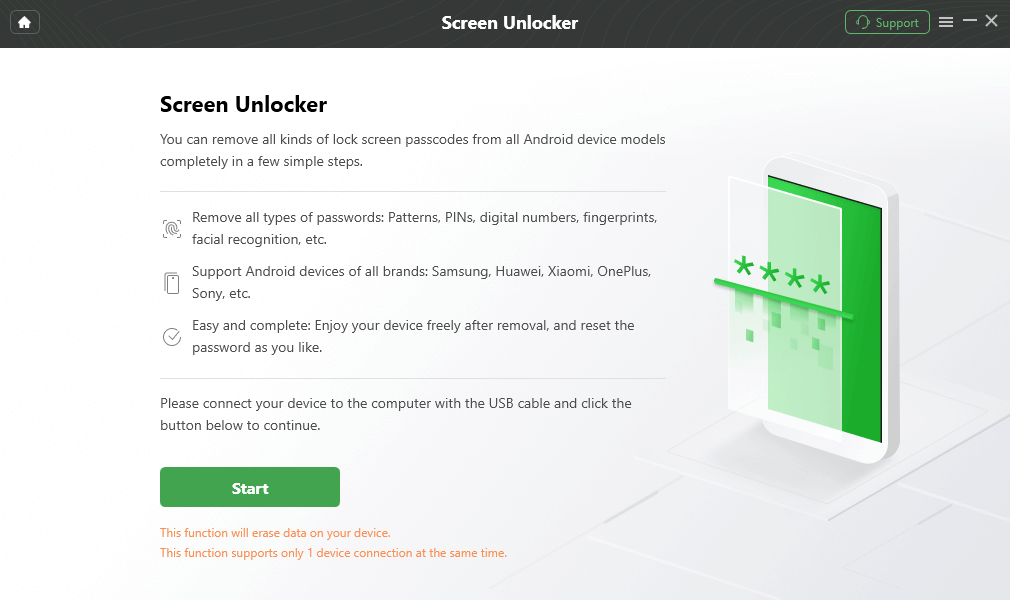
2. Connect your locked Android phone to the computer via a USB cable.
3. Follow the on-screen guided prompts to safely remove the device-level barrier.
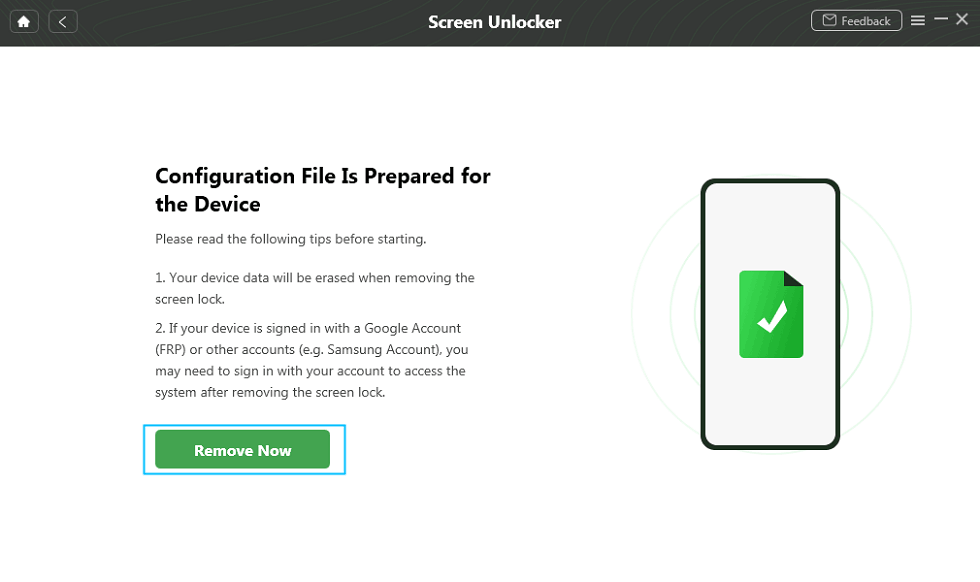
Limitation to know: As with official methods, bypassing a screen lock without the PIN will require a factory reset, resulting in local data loss.
2. For an Account-Level FRP Lock:
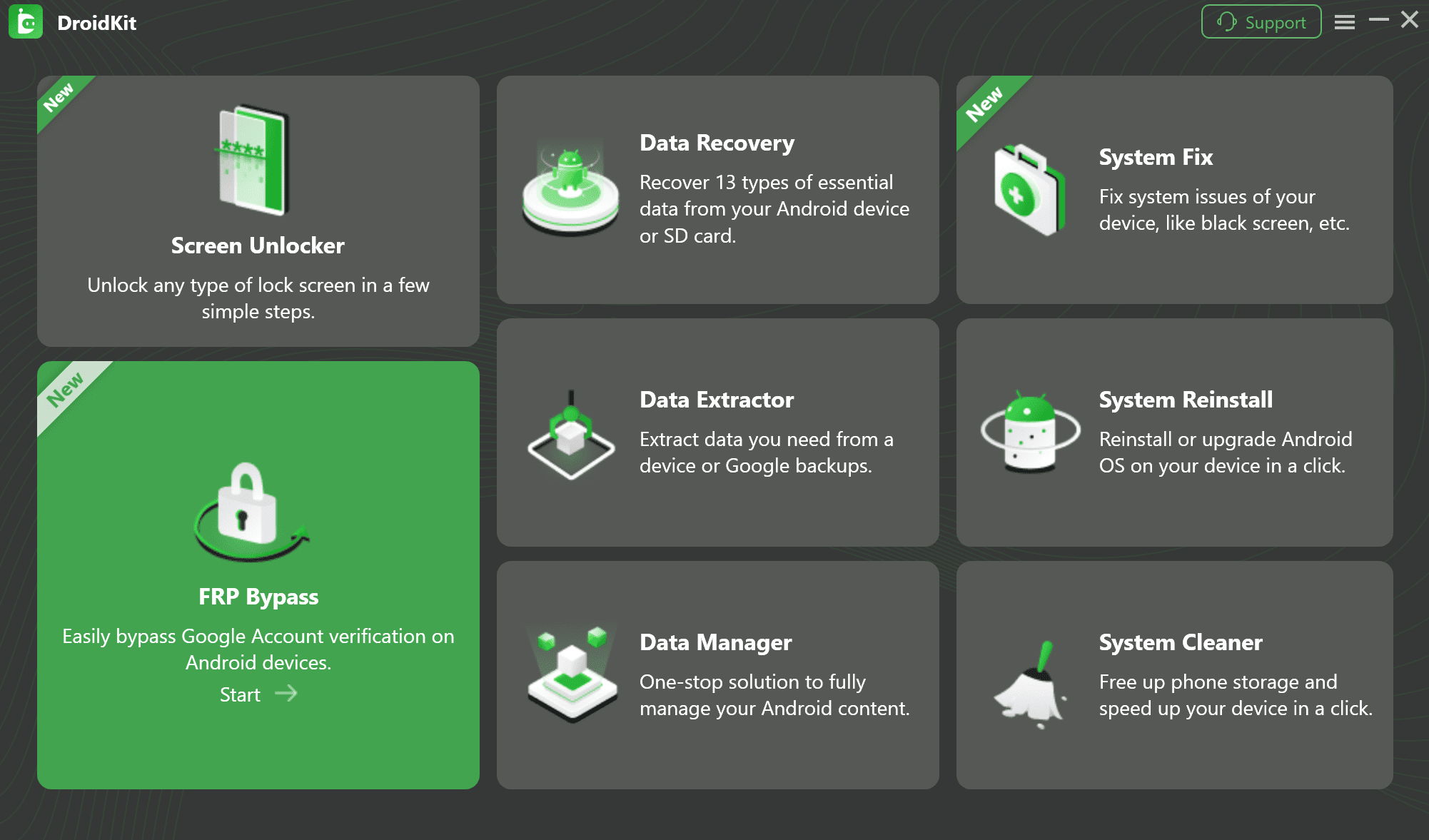
If you are stuck on the Google “Verify your account” screen after a reset, choose the DroidKit FRP Bypass module.
How the workflow looks:
1. Launch DroidKit on your computer and select the “FRP Bypass” module.
2. Connect your device and choose your specific phone brand from the menu.
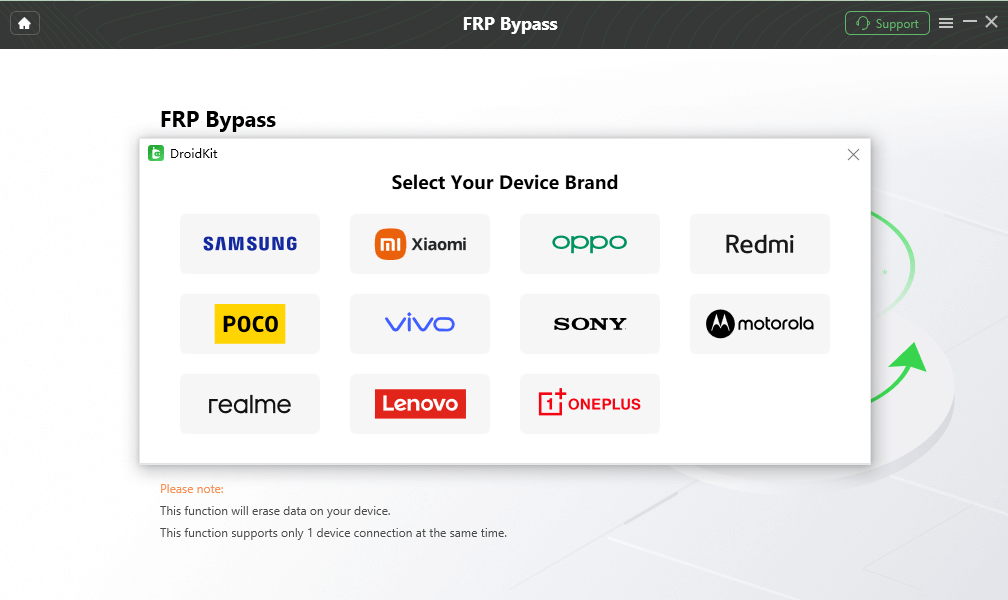
3. Follow the tailored, step-by-step sequence to bypass the Google verification screen.
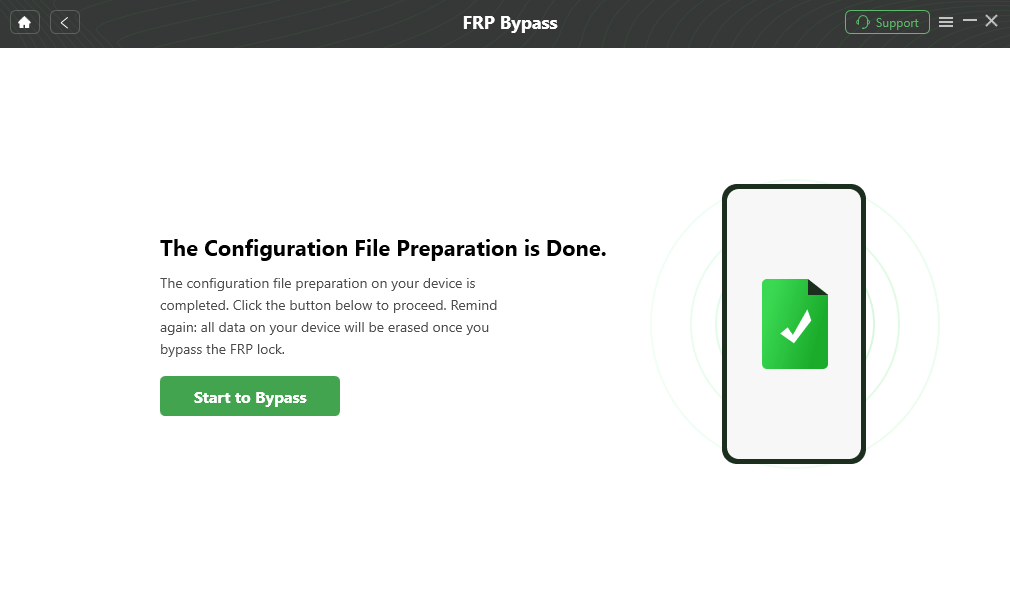
Limitation to know: FRP bypass success depends strictly on your device brand, model, Android OS version, and security patch level. Check compatibility before starting.
3. For a Network-Level SIM Lock:
Stop here. DroidKit DOES NOT unlock carrier-locked SIMs. If you have a SIM lock, you must contact your mobile carrier.
By separating these tools into distinct modules, DroidKit prevents the common mistake of applying an account-level fix to a device-level problem.
Frequently Asked Questions
What is the difference between FRP and screen lock?
A screen lock is a local, device-level security (like a PIN or pattern) that stops strangers from opening your phone. FRP (Factory Reset Protection) is an account-level security that stops unauthorized users from setting up the phone again after it has been wiped via recovery mode.
Does a factory reset remove SIM lock?
No. A SIM lock is tied to your phone’s hardware (IMEI) on your mobile carrier’s network servers. Erasing your phone’s local software through a factory reset does not affect network restrictions.
How do I know if my phone is FRP locked or carrier locked?
If your phone is FRP locked, it will ask you to “Verify your account” or sign in with a previously synced Google account during the initial Wi-Fi setup screen. If it is carrier locked, the phone will reach the home screen normally on Wi-Fi, but will show “Invalid SIM” or ask for a “SIM Network Unlock PIN” when you insert a new SIM card.
Can a tool bypass both screen lock and Google account verification?
No single button does both simultaneously because they are different security layers. However, modular toolkits like DroidKit provide separate tools for each step: one module (Screen Unlocker) for the device-level lock, and another module (FRP Bypass) for the account-level verification.
Why is my phone still locked after entering my PIN?
If you recently performed a reset and the phone asks for your old PIN, it is actually part of the FRP security check. Google sometimes allows you to enter the previous screen PIN as an alternative to the Google account password to prove ownership.
Does unlocking my screen trigger the Google FRP lock?
If you unlock your screen by forcing a hard reset in recovery mode, yes, it will immediately trigger the Google FRP lock if a Google account was still signed in. If you unlock your screen normally using your correct PIN, it does not trigger FRP.
Can DroidKit unlock a carrier-locked SIM?
No. DroidKit is designed for device-level (screen) and account-level (FRP) software issues on owned devices. It cannot alter carrier databases or IMEI network restrictions.
Final Verdict: Match Your Lock to the Right Solution
Being locked out of an Android device is stressful, but understanding the difference between Android FRP, Screen Locks, and SIM Locks makes finding a fix much easier.
To summarize:
- Screen Lock is device-level. It blocks local access until you enter a PIN, pattern, or face scan.
- FRP Lock is account-level. It blocks the setup process after a hard reset until you verify the original Google account.
- SIM Lock is network-level. It blocks the use of other mobile carriers until your original provider unlocks the IMEI.
Always diagnose your exact lock before trying any fixes. If you have a SIM lock, contact your mobile carrier directly. If you are dealing with a forgotten screen lock or a Google FRP verification screen on an authorized device, download DroidKit to choose the right matching module and follow a guided, safe workflow tailored to your exact problem.
DroidKit – Unlock Android Screen in 1 click
- Can unlock multiple screen locks like digital password, PIN, pattern, Touch/Face ID, etc.
- Only need to click buttons. No root requirement. As simple as possible.
- Compatible with almost all Android brands such as Huawei, Samsung, Sony, etc.
Free Download for all windows & 100% safe
Free Download for all mac & 100% safe
Free Download 100% Clean & Safe
Related Articles:
* Android phone unlocking software
* Android FRP bypass tool
* Backup locked Android phone



Jeremy Feron is a writer for iMobie with a deep passion for Android. He specializes in creating clear guides on Android tips and the latest updates, helping users navigate their devices and get the most out of new features.
Product-related questions? Contact Our Support Team to Get Quick Solution >
