Samsung Galaxy S10 5G FRP Bypass: Odin Limits and Real Options
Odin can help reinstall official firmware on a Samsung Galaxy S10 5G, but it cannot remove Google FRP by itself. This guide explains what Odin can do, what still blocks access, and which recovery paths are safer to try next.
If your Samsung Galaxy S10 5G asks for Google account verification after a factory reset, you are seeing Factory Reset Protection, also called FRP. This is an Android security feature designed to verify the owner of a device after an unauthorized reset. It can also block legitimate owners who forgot the previously synced Google account or bought a used phone that was not properly removed from the seller’s account.
Quick Answer: Can Odin Bypass FRP on Samsung S10 5G?
Quick Answer: Odin cannot bypass FRP on a Samsung Galaxy S10 5G. Odin can flash official Samsung firmware, but Google FRP is an ownership-verification lock tied to the Google account previously synced on the phone. Start by recovering the original Google account or contacting Samsung with proof of purchase. If you own the device and those options are unavailable, a supported FRP bypass tool may help, but compatibility, security patch date, and data-loss risks must be checked first.
What FRP Means on Samsung Galaxy S10 5G
FRP stands for Factory Reset Protection . On a Samsung Galaxy S10 5G, it can appear after the phone is reset without first removing the Google account from the device. During setup, Android may ask for the Google account that was previously synced on the phone to verify ownership.
This is different from a screen lock. A screen lock protects access to the phone before reset, while FRP appears after reset and checks account ownership. Flashing firmware with Odin may reinstall Android, but it does not automatically prove that you own the device.
Compare Your Options Before Trying Odin or FRP Tools
| Option | Best For | Will It Remove FRP? | Data / Risk Notes |
|---|---|---|---|
| Recover original Google account | Owners who remember the account but forgot the password | Yes, if you can sign in successfully | Safest first step; may require a waiting period after password reset |
| Samsung Support with proof of purchase | Legal owners who cannot access the Google account | May help through official service path | Requires purchase proof and may vary by region |
| Odin firmware flash | Preparing or repairing the firmware environment | No | Can erase data; wrong firmware can cause boot or network problems |
| DroidKit FRP Bypass | Supported Samsung devices when official recovery is unavailable | May help in supported cases | Check model, Android version, security patch, and data-loss warnings first |
| Random FRP APK or cracked tool | Not recommended | Uncertain | High malware, privacy, and failure risk |
Why Odin Cannot Remove Google FRP Lock
Odin is a Samsung firmware flashing tool. It can install firmware files such as BL, AP, CP, and CSC onto Samsung devices. This can help restore official software, fix failed firmware changes, or prepare the phone for a cleaner recovery process.
However, Odin is not a Google account verification tool. If FRP is active, the phone can still ask for the Google account previously used on the device after a successful flash. In other words, Odin can change the system firmware, but it does not automatically remove the ownership-verification requirement.
What Odin can do
- Flash official firmware that matches your Galaxy S10 5G model and region.
- Repair some boot, software, or firmware mismatch problems.
- Prepare a cleaner software environment before another recovery step.
What Odin cannot do
- Show or recover the previous Google account password.
- Remove FRP just because the firmware flash shows PASS .
- Guarantee compatibility if the firmware model, CSC, or binary version is wrong.
Before You Continue: Ownership, Data Loss, and Security Patch Limits
Only attempt FRP recovery on a Samsung Galaxy S10 5G that you own or are authorized to unlock. If you bought the phone used, contact the seller first and ask them to remove the Google account from the device.
- Check your Google account first: Try account recovery before flashing or using third-party tools.
- Prepare for data loss: Odin flashing with CSC and FRP bypass attempts may erase data.
- Check the exact model: Galaxy S10 5G variants include models such as SM-G977U, SM-G977B, and SM-G977N. Firmware must match the device.
- Check security patch limitations: FRP bypass support can change by Android version and Samsung security patch. Review the current DroidKit guide before starting.
- Avoid random APK files: FRP APKs or cracked tools from unknown sources can contain malware or fail on newer Android versions.
Option 1. Recover the Original Google Account
The safest recovery path is to use the Google account that was previously synced on the Galaxy S10 5G. If you forgot the password, use Google Account Recovery and wait if Google requires a security delay after changing the password.
After recovery, set up the phone using the same Google account. This is the preferred method because it verifies ownership without relying on firmware flashing or third-party tools.
Option 2. Contact Samsung Support with Proof of Purchase
If you are the legal owner but cannot recover the previous Google account, contact Samsung Support or an authorized Samsung service center with proof of purchase. Samsung’s support path is safer than downloading unknown APKs or trying random YouTube methods.
This option is especially important for used phones. If a seller cannot remove the account or prove ownership, treat the device as high risk and avoid attempting unauthorized bypass methods.
Option 3. Prepare the Phone with Odin Firmware Flash
Odin flashing is a preparation or repair step, not the final FRP solution. Use it only when you need to restore clean official firmware before trying a supported recovery option.
What you need before flashing
- A Windows PC.
- Samsung USB Driver for Mobile Phones from the official Samsung Developer site.
- Official firmware that matches your exact Galaxy S10 5G model and region.
- Odin and a reliable USB cable.
- Enough battery power to prevent shutdown during flashing.
Odin file slots explained
| Odin Slot | Firmware File Starts With | Purpose |
|---|---|---|
| BL | BL_ | Bootloader files that help the device start before Android loads |
| AP | AP_ | Main Android system and application package |
| CP | CP_ | Modem and network-related files |
| CSC | CSC_ or HOME_CSC_ | Regional and carrier settings; CSC_ usually wipes data, HOME_CSC_ may preserve data |
Odin flash steps for Galaxy S10 5G
Step 1. Download the correct firmware package, Odin, and Samsung USB drivers. Unzip the firmware files into a dedicated folder.
Step 2. Power off your Galaxy S10 5G. Enter Download Mode using the button combination for your exact model. If the combination does not work, confirm it with Samsung or your device documentation.
Step 3. Open Odin on your PC. A highlighted ID:COM box means the phone is detected by the computer.
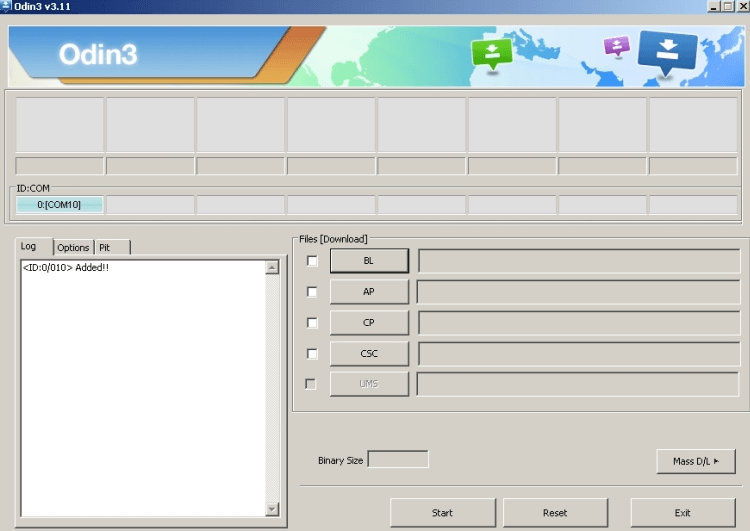
Open Odin on a Windows PC
Step 4. Load the firmware files into the matching BL, AP, CP, and CSC slots. Use CSC only if you understand that it can wipe data.
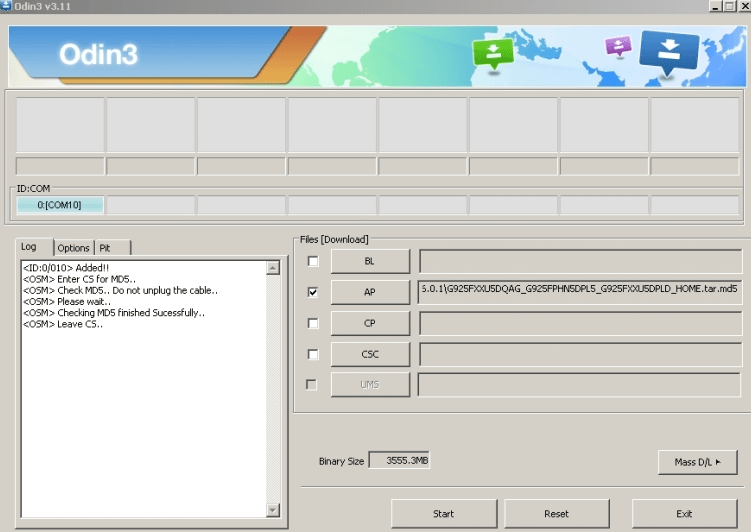
Select the corresponding firmware files in Odin
Step 5. In Odin options, leave only the required default options enabled, then click Start . Do not disconnect the phone during flashing.
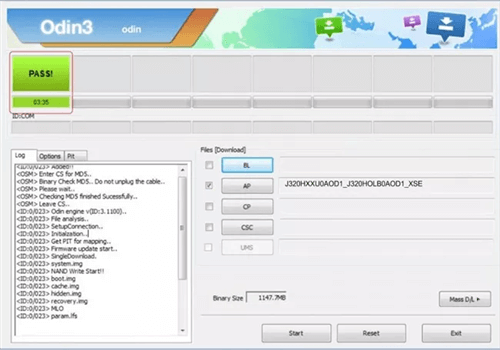
Start the firmware flash in Odin
Step 6. If Odin shows PASS , the firmware flash is complete. If FRP still appears after reboot, that is expected. Odin has prepared or restored the firmware, but it has not removed Google verification.
Option 4. Use DroidKit FRP Bypass on Supported Samsung Devices
If you own the Samsung Galaxy S10 5G and cannot pass Google verification through account recovery or Samsung support, DroidKit FRP Bypass may help on supported Samsung devices. Check your Android version, Samsung security patch date, and data-loss warning before starting.
DroidKit should not be described as a guaranteed fix for every S10 5G FRP case. FRP bypass support can depend on the exact model, Android version, region, and security patch level.
Free Download * 100% Clean & Safe
Steps to use DroidKit FRP Bypass
Step 1. Download and install DroidKit on your Windows or Mac computer. Launch it and choose FRP Bypass .
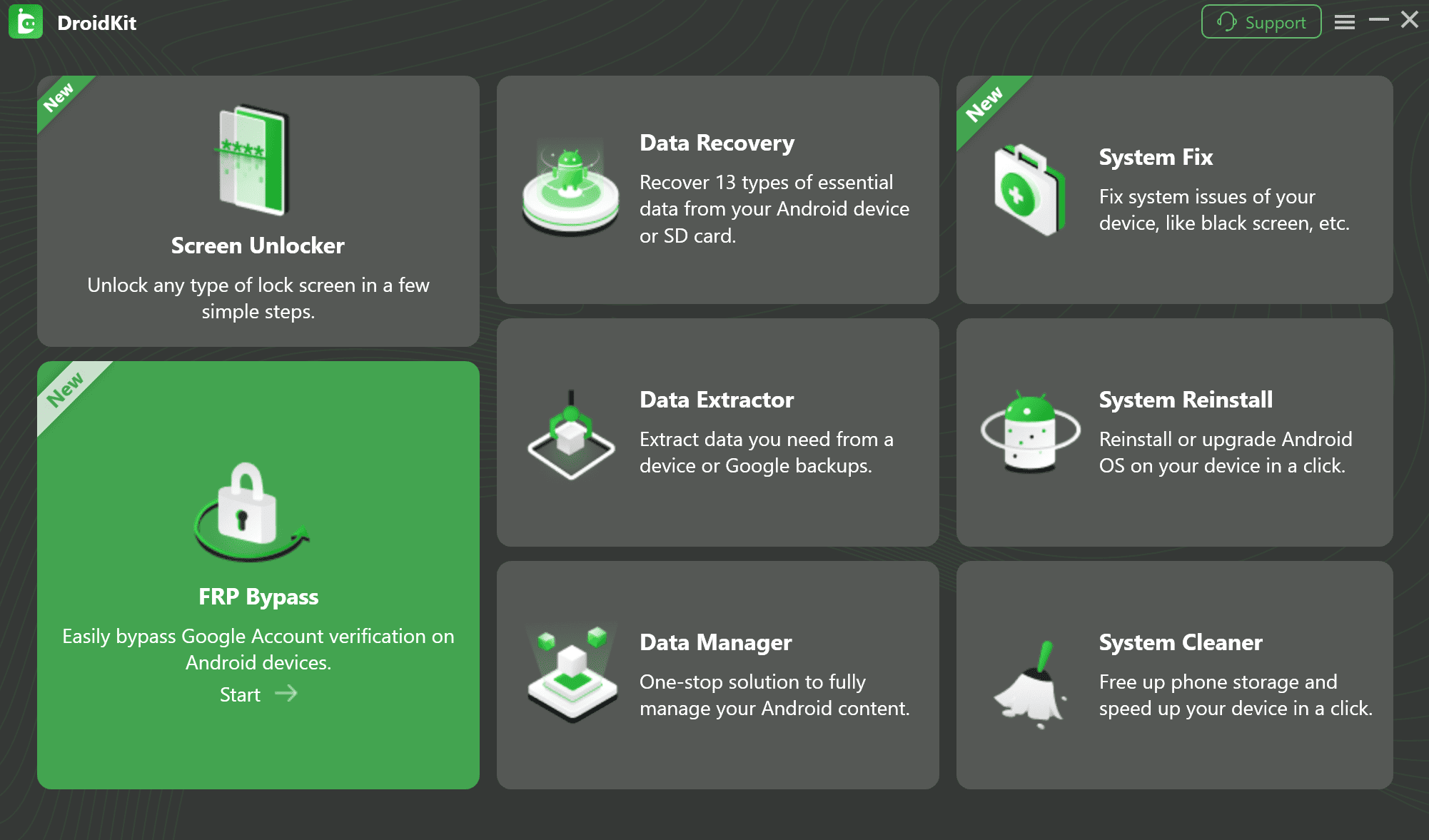
Choose FRP Bypass in DroidKit
Step 2. Connect your Samsung Galaxy S10 5G to the computer and click Start .
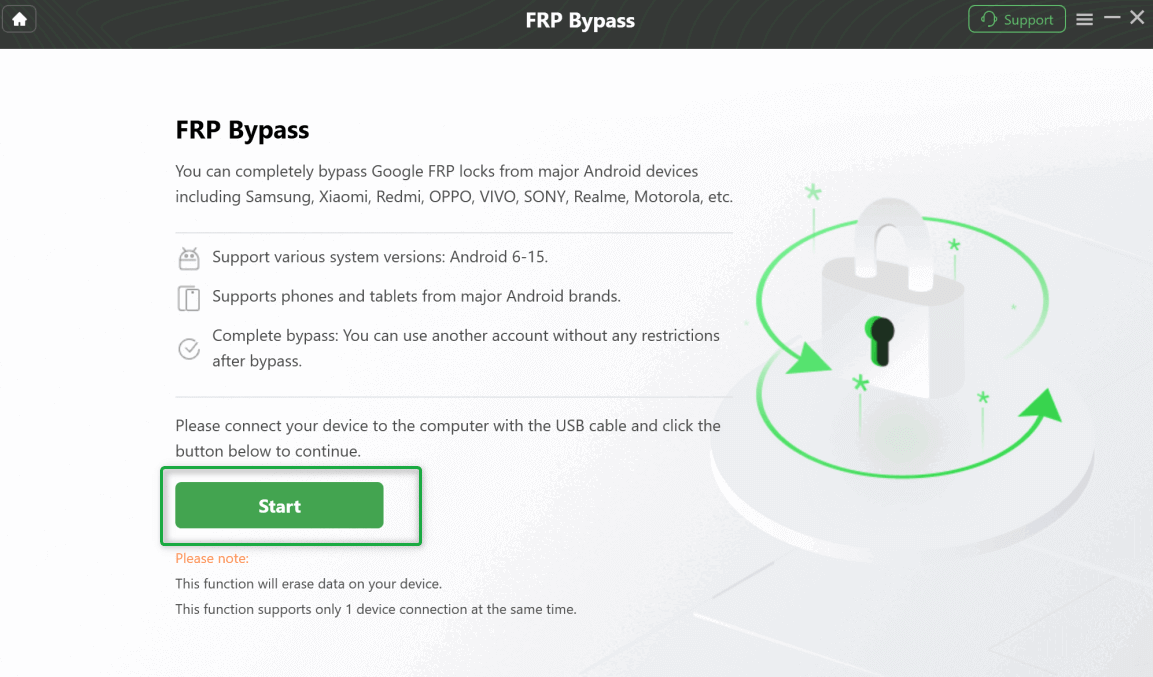
Connect Samsung Galaxy S10 5G and click Start
Step 3. DroidKit will prepare a configuration file for the device. Follow the on-screen instructions carefully.
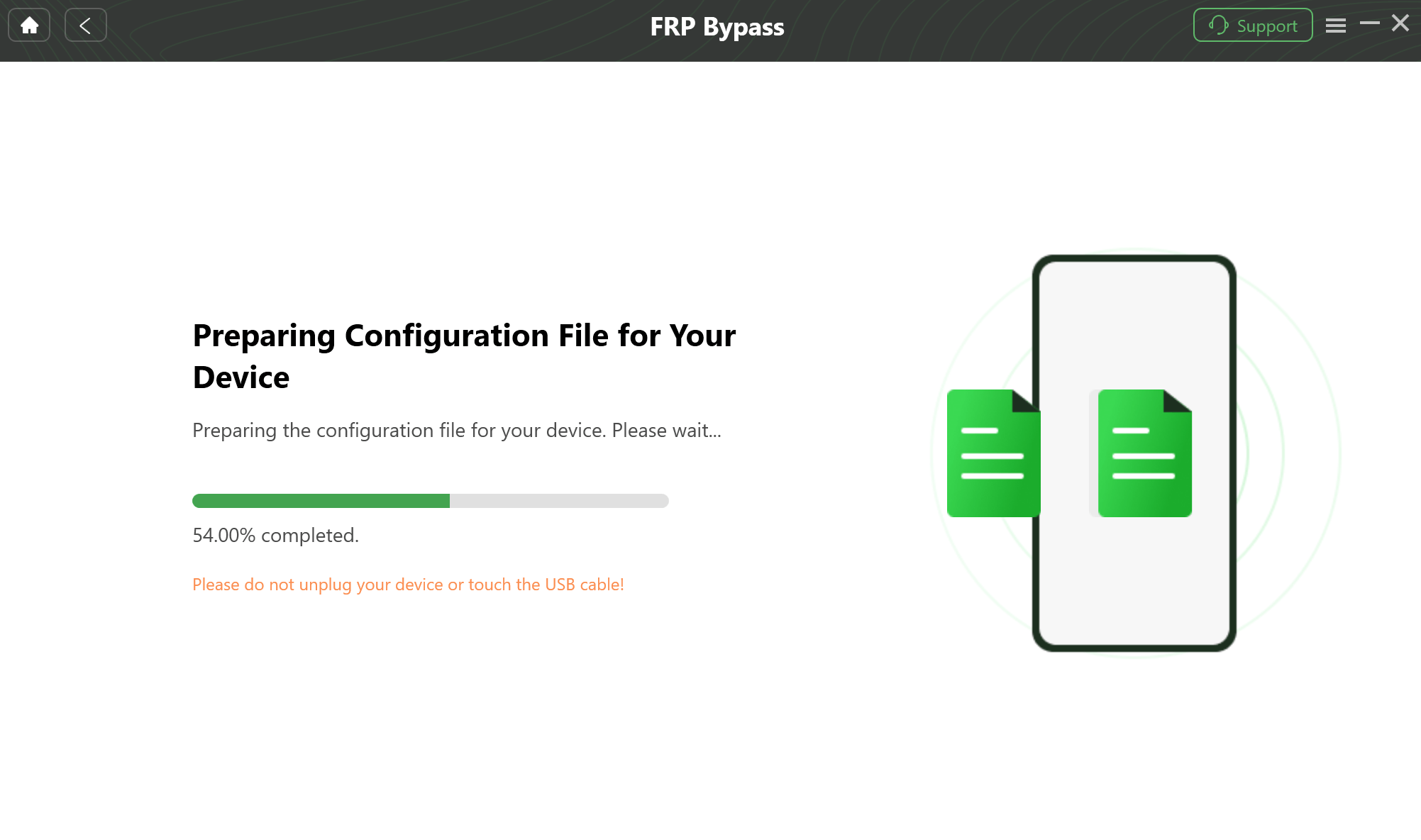
Prepare the configuration file
Step 4. Complete the required device steps as shown in DroidKit. Do not disconnect the device until the process ends.

FRP bypass process completed
What If Odin PASS Shows but FRP Still Appears?
This is normal. Odin PASS confirms that firmware flashing completed, not that FRP was removed. If the Google verification screen still appears, continue with one of these steps:
- Try the original Google account or Google Account Recovery.
- Ask the seller to remove the device from their Google account if you bought it used.
- Contact Samsung Support with proof of purchase.
- Use a supported FRP bypass tool only if you own or are authorized to unlock the device.
FAQs About Samsung S10 5G FRP Bypass
Can Odin bypass FRP on Samsung Galaxy S10 5G?
No. Odin can flash Samsung firmware, but it does not remove Google Factory Reset Protection. If FRP is active, the phone may still ask for the Google account previously synced on the device after the flash.
Why does FRP still appear after Odin shows PASS?
Odin PASS only means the firmware flashing process completed. FRP is an ownership-verification feature tied to the previous Google account or screen lock, so it can remain even after a clean firmware flash.
Will flashing Samsung firmware with Odin erase data?
It can erase data, especially if you use the CSC file instead of HOME_CSC. Odin flashing and FRP bypass attempts should be performed only after understanding the data-loss risk.
What should I try before using an FRP bypass tool?
First try recovering the original Google account, checking whether the device appears under your Google account, and contacting Samsung Support with proof of purchase. These are safer recovery paths.
Does DroidKit support every Samsung S10 5G FRP case?
No. DroidKit may help in supported cases, but the result can depend on the device model, Android version, region, and Samsung security patch date. Check the current DroidKit guide before starting.
Is it safe to download random FRP bypass APKs?
No. Random APKs or cracked FRP tools can contain malware, fail on newer Android versions, or create privacy risks. Use official account recovery or trusted software sources only, and only on a device you own or are authorized to unlock.
What if I bought a used S10 5G and it is FRP locked?
Contact the seller first and ask them to remove the Google account from the device or provide proof of ownership. If the seller cannot help, use Samsung’s official support path with purchase proof before trying any third-party method.
The Bottom Line
Odin is useful for flashing official firmware on a Samsung Galaxy S10 5G, but it is not an FRP bypass solution. If FRP remains after Odin shows PASS, the phone still needs ownership verification through the original Google account, Samsung support, or a supported FRP bypass method.
If you own the device and official recovery options do not work, DroidKit FRP Bypass can be considered for supported Samsung models. Check compatibility, security patch limits, and data-loss warnings before you start.
Free Download * 100% Clean & Safe
Related Guides You May Need


Roger Smith is a senior technical writer with years of experience in providing Android solutions. He loves to help users solve various problems such as Android unlock, Android data recovery, and Android system repair.
Product-related questions? Contact Our Support Team to Get Quick Solution >
