FRP Bypass Android 13: No-PC Methods, APK Risks & PC Fix
Android 13 FRP bypass is not one universal trick. The working route depends on your phone brand, security patch, setup menus and whether a PC tool is supported. This guide compares no-PC limits, APK risks, brand differences and practical fixes.
Android 13 FRP bypass is not one universal method that works on every phone. The route that fits your device depends on the phone brand, Android build, security patch, setup environment, and whether the first screen required by a tutorial is actually available.
A Samsung One UI 5 phone, a Google Pixel, a Xiaomi or Redmi device, an OPPO phone, and a Motorola device can all run Android 13 while exposing very different setup menus after a factory reset. A method demonstrated on one brand should not automatically be applied to another.
Before trying an Android 13 FRP bypass method, check four things: whether you can recover the Google account previously synced to the phone, whether the guide matches your exact brand, whether its required browser or accessibility route still appears, and whether any PC tool you are considering currently supports your device scenario.
If you need Android-wide background instead of Android 13-specific guidance, use the Android FRP bypass guide. If your main goal is comparing software, see the FRP bypass tool comparison.
Important: Use account-recovery or FRP-removal methods only on a phone you own or are authorized to service. If the device was purchased second-hand, ask the previous owner to help complete Google verification before testing another route.
Table of ContentsHide
Quick Answer: Which Android 13 FRP Route Fits Your Phone?
Why Android 13 FRP Methods Differ by Brand and Security Patch
Can You Bypass FRP on Android 13 Without a PC?
Android 13 FRP Methods Compared
FRP Bypass APK Android 13: Required Checkpoints
Android 13 FRP Notes by Brand
Choosing a PC-Based Android 13 FRP Tool
How to Use DroidKit After Checking Compatibility
Android 13 FRP Bypass Not Working: Diagnose the Failure
Android 13 vs Android 12 vs Android 14 FRP
FAQs About Android 13 FRP Bypass
Conclusion
Quick Answer: Which Android 13 FRP Route Fits Your Phone?
The best Android 13 FRP route starts with what you can still verify. If you know a Google account previously synced with the phone, recover or sign in with that account first. If you cannot use the account, identify the brand and check whether the method’s first required setup screen exists before following the rest of the tutorial.
| Your Situation | Recommended Direction | What to Verify |
| You know the previously synced Google account | Recover or sign in with that account | No bypass route is needed if the account can complete ownership verification. |
| You want Android 13 FRP bypass without a PC | Check the exact setup entry point first | The browser, accessibility, QR, share, or app-opening path must actually exist on your phone. |
| You are trying an FRP bypass APK | Check file access and installation controls | An APK route needs access to the file, installer, and permission for that source to install apps. |
| You use Samsung One UI 5 / 5.1 | Use Samsung-specific FRP guidance | Do not transfer Pixel, Xiaomi, or Motorola setup steps to Samsung. |
| Several manual routes fail at the same screen | Diagnose that missing entry point | Repeating different videos that all require the same unavailable screen will not solve the mismatch. |
| You want a PC FRP tool | Check current vendor compatibility first | Confirm the supported brand, model route, Android version, and any security-patch restriction before starting. |
Why Android 13 FRP Methods Differ by Brand and Security Patch
Android 13 is an important compatibility checkpoint, but it is not the only reason an FRP method works or fails. The same Android generation can behave differently across Samsung One UI, Google Pixel software, Xiaomi MIUI, OPPO ColorOS, Motorola builds, and other OEM environments.
The first useful question is therefore not “Did Android 13 patch this method?” but “Which part of this method is unavailable on my phone?”
| Factor | Why It Matters |
| Phone brand | Each manufacturer can use a different Setup Wizard, dialer behavior, accessibility flow, account screen, and device mode. |
| Android 13 build | The major Android version defines the general software environment, but OEM software changes how setup behaves. |
| Security patch | A later firmware update can change a setup shortcut or tool-compatible route without changing the phone’s Android 13 label. |
| Carrier / regional firmware | Two devices with the same model name can still expose different menus or diagnostic behavior. |
| Setup-screen access | Manual FRP tutorials stop as soon as the required browser, Settings, accessibility, installer, or app handoff cannot be reached. |
Restricted Settings and Sideloaded Apps
Some Android 13 FRP APK tutorials depend on installing an app and then enabling accessibility or another sensitive setting. Even if the APK itself installs, the app may still be unable to use the permission or activity expected by an older tutorial.
The more useful checkpoint is whether your locked setup environment provides all of the controls the method needs. If the route cannot reach the installer, the required permission, or the next app activity, stop that APK sequence instead of assuming a different APK filename will solve the problem.
TalkBack and Accessibility Routes
TalkBack, Help & Feedback, YouTube, keyboard settings, and accessibility menus appear in many older FRP tutorials. Their availability is not identical across Android 13 phones. If the TalkBack shortcut works but the next menu shown in the guide is absent, that specific route no longer matches your current setup flow.
Use the first mismatch as your diagnosis. A missing menu is more useful information than the tutorial’s title. It tells you that the route depends on an entry point your device does not currently expose.
Can You Bypass FRP on Android 13 Without a PC?
An Android 13 FRP bypass without a PC is possible only when the phone itself exposes every screen required by that route. Some tutorials depend on accessibility, a browser, QR sharing, Quick Share or Nearby Share, an emergency screen, a file manager, or APK installation.
Do not judge a no-PC method only by whether the first tap works. Check the entire dependency chain.
| No-PC Checkpoint | If Available | If Missing |
| Accessibility / TalkBack shortcut | Continue only if the next menu in the same guide also appears | Stop that accessibility-based route. |
| Browser or external app handoff | Check whether it reaches the exact destination required by the method | A browser-based route cannot continue. |
| QR / sharing route | Verify that the share target or settings screen remains accessible | Do not substitute an unrelated sharing menu. |
| APK file access | Check the installer and source permission next | The APK route stops before installation. |
| Install unknown apps control | Confirm permission can be granted for the relevant source | The APK cannot be installed through that route. |
| Settings access | Verify what the guide actually requires once Settings opens | Do not keep repeating a shortcut that never reaches Settings. |
If your phone is running a different Android generation, use the corresponding guide instead: Android 12 FRP bypass, Android 11 FRP bypass, or Android 14 FRP bypass.
Android 13 FRP Methods Compared
Use the comparison below to decide whether a route actually fits your device instead of trying every FRP method in sequence.
| Method | PC Needed? | Best For | Main Limitation |
| Google account recovery | No | Owners who can identify and recover the account previously synced with the phone | Requires access to Google’s account-recovery options. |
| TalkBack / Accessibility route | No | Phones where the exact accessibility chain shown in the guide still exists | A missing Help, browser, Settings, or app handoff stops the route. |
| FRP APK / FRPFile route | Usually no | Setup environments that expose file access, installer access, and the required app permissions | Unknown APK sources, incompatible packages, or unavailable permissions can stop the method. |
| Brand-specific FRP method | Depends on the brand | Samsung, Xiaomi, Motorola, OPPO, and other devices with a route documented for that OEM | Instructions for one brand should not be copied to another. |
| PC-based FRP software | Yes | Users whose device is explicitly supported by the current tool workflow | Requires a compatibility check, stable USB connection, and the correct device mode. |
FRP Bypass APK Android 13: Required Checkpoints
Users often search for FRP bypass APK Android 13, FRPFile Android 13, or similar downloads because they want a no-PC option. The important issue is not the APK name. The route needs several permissions and transitions before the file can do anything.
| APK Checkpoint | What You Need | Failure Signal |
| Browser or download access | A setup route that can reach the APK source | The browser, share target, or download page cannot be opened. |
| File access | A file manager or installer that can open the downloaded package | The file downloads but cannot be launched. |
| Install unknown apps permission | Permission for the specific source attempting the installation | The required permission screen cannot be reached. |
| Package compatibility | An APK that can run in the current Android/device environment | “App not installed,” package errors, crashes, or missing activities. |
| Required post-install permission | The app must be able to reach the setting or activity expected by the tutorial | The APK installs but cannot enable or open the required function. |
| File trust | A download source you can identify and evaluate | Unknown mirrors, repacked APKs, fake buttons, or instructions to disable security software. |
Android devices already require user approval for apps installed from non-store sources. For an FRP tutorial, the key question is whether the locked setup environment lets you reach the source-specific installation permission and package installer at all.
If you are considering this route, read the FRP bypass APK guide before downloading unknown packages.
If an APK says “App not installed”: do not immediately download five different copies of the same tool. First determine whether the problem is package compatibility, source permission, installer access, or the fact that the tutorial was built for another Android/OEM environment.
Android 13 FRP Notes by Brand
Android 13 FRP behavior is highly brand-specific. Use the table below to decide where a generic Android 13 guide should hand off to a brand page.
| Brand / System | Android 13 Checkpoint | Recommended Direction |
| Samsung One UI 5 / 5.1 | Check the exact Samsung model, One UI build, security patch, and whether the route depends on a Samsung-only dialer, Test Mode, Galaxy Store, or accessibility path | Use the Samsung FRP bypass guide or compare Samsung FRP tool options. |
| Google Pixel | Do not use Samsung diagnostic codes or Samsung-specific setup instructions | Use Google account recovery and Pixel-specific guidance for the exact device. |
| Xiaomi / Redmi | Check MIUI/HyperOS setup behavior and Xiaomi-specific account or settings paths | Use a Xiaomi/Redmi-specific route instead of a generic Samsung APK tutorial. |
| OPPO / OnePlus / Realme | Check the ColorOS/OxygenOS/Realme UI setup flow and whether the issue is Google FRP or another account lock | Use brand-specific instructions and verify PC-tool support before connecting the phone. |
| Motorola | Check Motorola-specific accessibility, Emergency Information, and setup behavior | Use a Motorola FRP route when the device is a Moto model. |
| Honor | Identify whether the phone uses MagicOS, Magic UI, or a legacy software environment before following a generic Android 13 tutorial | Use Honor-specific account and FRP guidance rather than assuming Samsung or Xiaomi screens apply. |
| Vivo | Verify the exact Vivo/Funtouch OS route and tool compatibility | Do not assume a generic APK or Samsung setup sequence matches the phone. |
Samsung Android 13 Checklist
Samsung is one of the largest Android 13 FRP search clusters, so it deserves a more specific decision check than “old tricks may fail.”
- Confirm the Samsung model. Galaxy phones and tablets do not all expose the same setup path.
- Confirm Android 13 / One UI 5 or 5.1. Do not assume a video labeled Android 13 is showing the same One UI environment.
- Check the security patch. Tool and setup-route compatibility can change after Samsung firmware updates.
- Identify the dependency. Does the method require a dialer, diagnostic/Test Mode, Galaxy Store, browser, accessibility, or another Samsung component?
- Stop at the first missing Samsung screen. Do not substitute a menu from another Galaxy model just to keep the tutorial moving.
Choosing a PC-Based Android 13 FRP Tool
If account recovery is unavailable and the setup screens required by a no-PC route do not match your phone, a desktop FRP tool may be worth evaluating. The key word is evaluating: Android 13 does not automatically make a phone compatible with every Android FRP program.
Before downloading a PC tool, check:
- Supported brand: Is your phone brand explicitly listed in the current vendor documentation?
- Supported Android version: Does the tool provide a route for the Android/software generation on your phone?
- Security-patch restrictions: Does the vendor document any patch-related limits?
- Connection requirements: Which USB driver or device mode does the workflow need?
- Data impact: Does the vendor state that the FRP process erases device data?
DroidKit Compatibility Check
According to the current DroidKit FRP User Guide, its FRP feature lists Samsung, Xiaomi, OPPO, Motorola, Lenovo, VIVO, Redmi, POCO, Realme, SONY, and OnePlus devices running Android 6 and above. Google Pixel is not included in that listed brand group.
The same current guide also states that Samsung devices with security patches dated August 2023 or later are currently unable to use its FRP bypass workflow. If you have a Samsung Android 13 phone, check the security patch before treating DroidKit as the fallback route.
| Android 13 Device | DroidKit Check | Recommended Action |
| Samsung with August 2023 or later security patch | Current DroidKit Guide lists this Samsung patch range as unsupported for FRP bypass | Do not present DroidKit as the solution for that device; use Samsung-specific alternatives or account recovery. |
| Samsung outside that documented restriction | Check the current device/version route before proceeding | Follow only the instructions displayed for the connected Samsung device. |
| Xiaomi / Redmi / POCO | These brands are listed in the current DroidKit FRP Guide | Confirm the exact connected-device route before starting. |
| OPPO / OnePlus / Realme | These brands are listed | Use the brand-specific workflow shown by the software. |
| Motorola / Lenovo / VIVO / SONY | These brands are currently listed | Confirm device detection and follow the current route. |
| Google Pixel | Pixel is not in the current listed DroidKit FRP brand group | Do not assume DroidKit compatibility from a generic “Android FRP” description. |
Compatibility first, CTA second: If your phone is not covered by the current tool documentation, use another route. Do not download or purchase a PC tool solely because the phone runs Android 13.
For a wider product comparison, see the best FRP bypass tools guide.
How to Use DroidKit After Checking Compatibility
The steps below apply only after you have confirmed that the Android 13 phone belongs to a currently supported DroidKit FRP brand and does not fall under a documented restriction.
Step 1. Download and install DroidKit on your Windows PC or Mac, then launch the program.
Install DroidKit on Your Windows or Mac
Free Download * 100% Clean & Safe
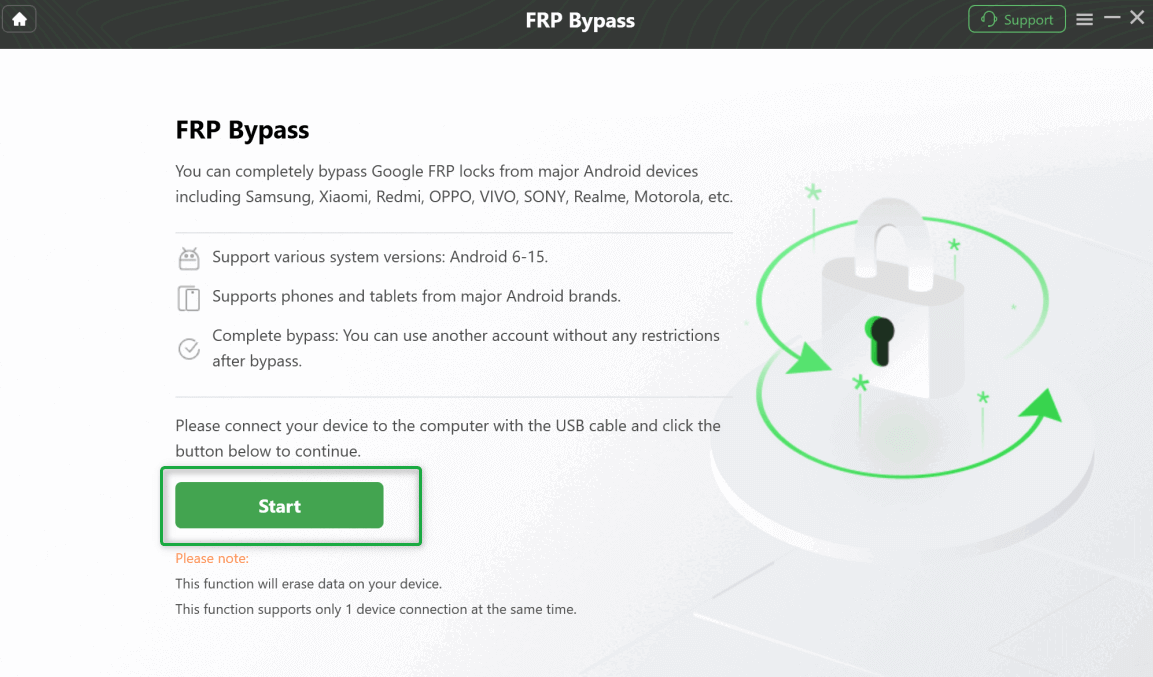
Step 2. Choose FRP Bypass. Connect the locked Android 13 phone to the computer with a reliable USB data cable, then click Start.
Connect the Android 13 Device and Click Start
Step 3. Select the correct device brand when prompted. Do not choose another brand profile just because the phone is not detected under its actual brand.
Step 4. Follow the brand- and device-specific instructions shown by DroidKit. The required mode and settings can differ between Samsung, Xiaomi, OPPO, Motorola, and other supported brands.
Step 5. Keep the phone connected while DroidKit prepares and runs the selected device workflow. The current DroidKit Guide states that its FRP function erases device data, so do not represent this process as data-preserving.
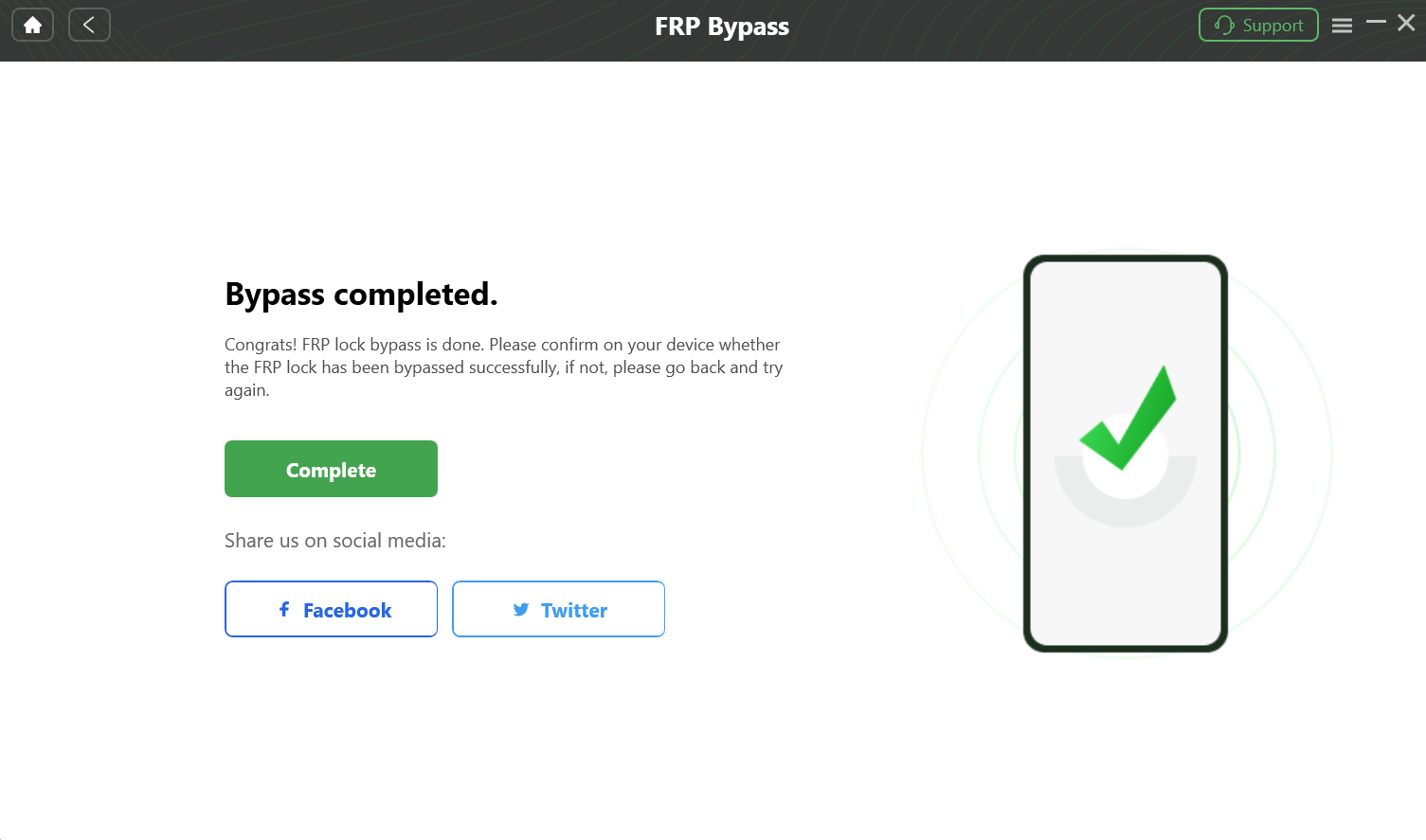
Step 6. When the supported workflow completes, allow the phone to restart and verify the result through normal device setup.
Complete the Supported FRP Workflow
Connection tip: If the phone is not detected, first check the USB data cable, USB port, required driver, and device mode. A connection failure does not automatically mean the FRP feature supports or does not support the phone.
Android 13 FRP Bypass Not Working: Diagnose the Failure
If an Android 13 FRP method fails, identify exactly where it stops before switching to another tutorial. The failure point usually tells you whether the problem is a missing setup entry, APK restriction, brand mismatch, PC connection issue, or unsupported tool route.
| Problem | What It Suggests | What to Check Next |
| TalkBack opens but Help / browser does not | The accessibility route is incomplete on the current setup flow | Stop that route and check brand/build-specific guidance. |
| TalkBack shortcut does nothing | The tutorial’s first accessibility entry point does not match your phone | Do not continue with later TalkBack steps from that guide. |
| FRP APK cannot be opened | The setup environment cannot reach the package installer | Check browser/file access instead of downloading another copy immediately. |
| APK says “App not installed” | Package compatibility, file integrity, source permission, or installer restrictions may be the cause | Identify which checkpoint failed before trying another APK. |
| APK installs but cannot enable the required permission | The old FRP helper workflow does not match the current Android 13 permission environment | Stop that APK route and use another applicable method. |
| Samsung dialer / diagnostic route is unavailable | The Samsung-specific method does not match the device/build | Use the Samsung FRP guide or compare Samsung-specific tool options. |
| DroidKit is considered for Samsung with an August 2023 or later patch | The device falls under the current Samsung restriction documented by DroidKit | Do not keep retrying that DroidKit FRP route. |
| You are using Google Pixel with DroidKit | Pixel is not in the current DroidKit FRP supported-brand list | Use Google account recovery or Pixel-specific guidance instead. |
| PC tool does not detect the phone | Cable, driver, USB port, device mode, or unsupported hardware may be responsible | Resolve connection detection before evaluating the FRP workflow. |
| Google verification returns after another reset | The ownership-verification requirement remains active | Use a previously synced Google account, previous-owner assistance, or another supported route. |
If several routes fail, use the FRP bypass not working guide before testing more APK files or repeating the same no-PC shortcut.
Android 13 vs Android 12 vs Android 14 FRP
The Android version helps narrow your search, but avoid treating each version as a fixed “easy / hard” ranking. OEM software and security patches still determine which setup routes are available.
| Android Version | What to Check | Recommended Direction |
| Android 11 | Check whether the older TalkBack, browser, SIM, or APK path shown in the guide still exists on the specific phone | Use Android 11-specific FRP guidance rather than an Android 13 tutorial. |
| Android 12 | Verify the brand, patch, and setup menus before relying on older routes | Use the Android 12 FRP guide. |
| Android 13 | Check OEM setup behavior, security patch, APK access, and current PC-tool compatibility | Use the decision and troubleshooting flow on this page. |
| Android 14 | Re-check every setup-screen entry point rather than assuming an Android 13 sequence carries over | Use the Android 14 FRP guide. |
FAQs About Android 13 FRP Bypass
Can you bypass FRP on Android 13 without a PC?
Only when the exact setup screens required by the no-PC route are available on your phone. TalkBack, browser, QR, sharing, emergency-screen, and APK methods all depend on the device brand, build, and current Setup Wizard behavior.
Why does a TalkBack FRP method work in a video but not on my Android 13 phone?
The video may use another phone brand, firmware build, security patch, or setup environment. If the first required Help, browser, Settings, or accessibility screen is missing, that TalkBack route does not match your current device.
Can an FRP bypass APK work on Android 13?
An APK route is only relevant when you can reach the file, launch the package installer, grant installation permission for the source, and access the app activity or permission the tutorial requires afterward. If one of those checkpoints is unavailable, downloading another APK will not automatically fix the route.
Why does an Android 13 FRP APK say “App not installed”?
Possible causes include an incompatible package, damaged or modified APK, unavailable source permission, installer restrictions, or a file designed for another Android/device environment. Check those conditions before looking for another copy.
Is Android 13 FRP different on Samsung One UI 5?
Yes. Samsung uses its own setup environment and device-specific services. A Samsung One UI 5 / 5.1 FRP route should be checked against the exact Galaxy model, security patch, and Samsung-specific screen it requires rather than against a generic Android 13 tutorial.
Can Android 12 FRP methods work on Android 13?
Only when the Android 12 method’s required setup screens are still present on the Android 13 device. Do not assume that a successful route carries over after an OS or security update.
What is the best Android 13 FRP method?
There is no single best route for every Android 13 phone. Use the previously synced Google account when available. Otherwise, identify the brand, security patch, and first required setup entry point before choosing a no-PC or PC-based option.
Does DroidKit support every Android 13 phone?
No. The current DroidKit FRP Guide lists Samsung, Xiaomi, OPPO, Motorola, Lenovo, VIVO, Redmi, POCO, Realme, SONY, and OnePlus device families. It does not list Google Pixel, and it currently documents a Samsung restriction for security patches dated August 2023 or later.
Will FRP come back after I add a Google account?
Factory Reset Protection is tied to Android device protection and Google account use. Once a Google account is added again, the device can be protected against unauthorized reset and setup in the future.
Will Android 13 FRP bypass recover data erased by a factory reset?
No. If the phone was already factory reset, local data may already be erased. A FRP removal workflow should not be presented as a data-recovery method.
What should I do with a second-hand Android 13 phone that asks for the seller’s Google account?
Contact the previous owner first and ask them to help complete Google verification or properly remove their account relationship with the device. This is preferable to testing unrelated FRP tools when the ownership issue can still be resolved directly.
Conclusion
Android 13 FRP bypass is mainly a compatibility problem, not a search for one universal trick. A method that depends on TalkBack, an APK, a browser redirect, Samsung-specific menus, or a PC tool is useful only while every required checkpoint matches your phone.
Start with the Google account and device brand. If a no-PC route fails, identify the first missing menu instead of repeating it. If an APK cannot install, diagnose file access, source permission, package compatibility, and post-install permissions before downloading more files. If you move to a desktop tool, check its current supported-brand list and any security-patch restrictions first.
For supported devices, DroidKit can provide a guided PC workflow, but it should be used only after checking the current compatibility information for your Android 13 phone. That keeps the tool decision tied to the actual device rather than treating “Android 13” as a blanket support claim.
Free Download * 100% Clean & Safe
More Related Articles


Roger Smith is a senior technical writer with years of experience in providing Android solutions. He loves to help users solve various problems such as Android unlock, Android data recovery, and Android system repair.
Product-related questions? Contact Our Support Team to Get Quick Solution >
