How to Use UMT Dongle [2026 Setup, Driver & Error Fix Guide]
A complete 2026 guide to setting up UMT Dongle safely, installing drivers, fixing errors, and ensuring legal use.
Setting up the UMT (Ultimate Multi Tool) Dongle correctly is essential for professional mobile repair tasks. However, many users run into driver errors, detection issues, or complicated setup steps.
This guide shows you how to safely download, install, and use UMT Dongle — and what to do if it doesn’t work.
Table of ContentsHide
Quick Answer: UMT Dongle Not Working or Too Complicated?
Is UMT Dongle Legal? Responsible and Compliant Usage Explained
What is a UMT Dongle and What Does It Do?
UMT Dongle Setup Guide: Step-by-Step Instructions (2026)
UMT Dongle Not Working and Common Issues
Best Alternative to UMT Dongle
Frequently Asked Questions (FAQ)
Conclusion: Use UMT Dongle Safely and Professionally
Quick Answer: UMT Dongle Not Working or Too Complicated?
If you’re trying to set up UMT Dongle, here’s the reality:
- UMT requires manual driver installation and technical setup
- Many users encounter issues like “dongle not detected” or driver conflicts
- It is mainly designed for professional technicians
If your goal is simply to fix an Android device (bootloop, system error, locked screen), a simpler solution may save you hours:
✔ No dongle required
✔ No driver installation
✔ Beginner-friendly
You can explore an easier Android repair solution here
Is UMT Dongle Right for You?
UMT Dongle is a powerful tool — but not for everyone.
✔ Suitable for:
- Mobile repair technicians
- Users familiar with flashing tools
- Advanced troubleshooting scenarios
✘ Not ideal for:
- Beginners
- Users fixing their own phones
- Anyone who wants a quick, hassle-free solution
👉 If you fall into the second group, consider using a simpler tool before going through a complex setup.
What is a UMT Dongle?
UMT Dongle is a hardware-based USB security device used to unlock access to licensed mobile diagnostic and maintenance tools for qualified technicians. It supports operations such as:
- Flashing Firmware: Restore or update Android operating systems to resolve issues such as boot loops, lag, or soft-bricks.
- Carrier Configuration Tools: Reconfigure network settings or restore factory carrier firmware when permitted.
- Data Management: Assist with backing up, resetting, or wiping user data when devices are in the technician’s possession.
- Security Credential Reset Assistance: In some approved cases, help authorized users regain access to locked devices (e.g., PIN reset), provided they are the rightful owners.
- Hardware Diagnostic Access: Enables testing of internal systems via EDL (Emergency Download) and other boot modes for Qualcomm or MTK-based devices.
Some modules in the UMT software suite may allow deeper access to protected system areas. These tools must never be used to bypass security measures, unlock stolen devices, or alter device identifiers (like IMEI). Doing so may be illegal in your country and can result in criminal penalties.
UMT Dongle Setup Guide: Step-by-Step Instructions (2026)
Getting your UMT Dongle running correctly is the most crucial step to unlocking its full potential.
Step 1: Download UMT Dongle Software from the Official Source
Most guides fail at this step. The only trusted source for the software is the official UMT support forum.
1. Go to the Official Source: The primary and most up-to-date source is the official UMT support section on GSM-Forum. Do not trust random download sites.
2. Download the “UMT Support Access” Tool: On the forum, look for the latest software release thread. In that post, you will find a direct link for the UMT_Support_Access_vX.X.exe installer. This small utility is your gateway—it downloads, updates, and manages all other modules.
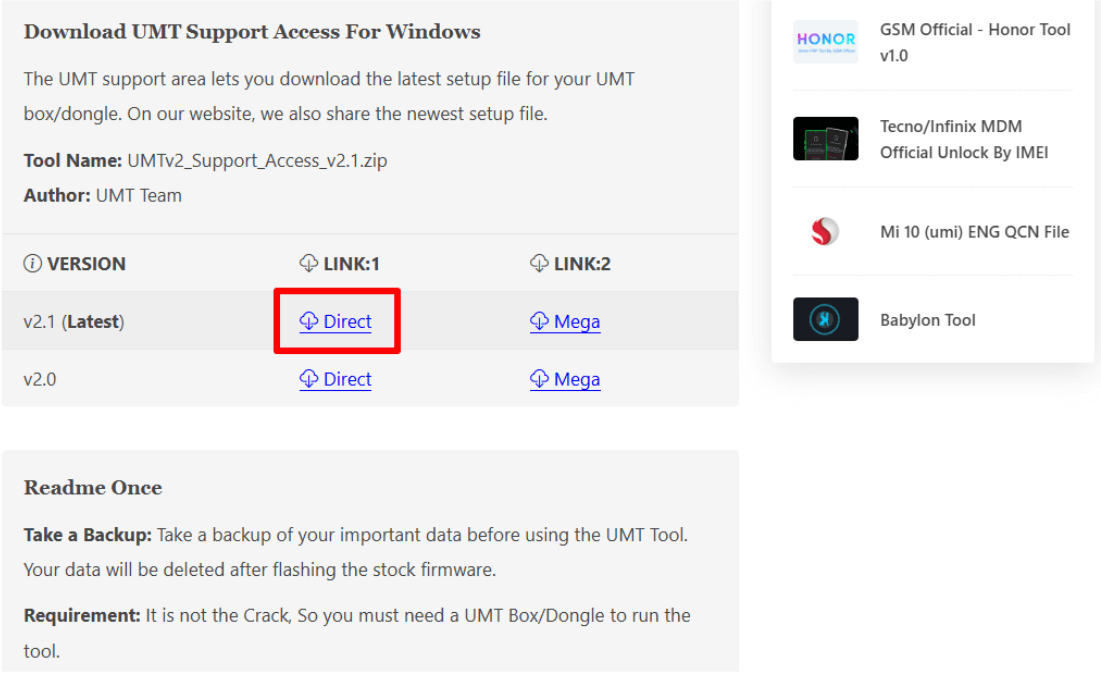
Download the “UMT Support Access” Tool
3. Register Your Dongle: Your reseller should have provided instructions. Often, the UMT Support Access tool will prompt you to register your dongle’s serial number if it’s new. Have the serial number handy.
Bookmark the official GSM-Forum UMT section. Updates for the UMT Dongle’s latest version are released frequently to support new security patches and phone models. Always check for the latest “UMT Support Access” tool before starting a complex job.
Step 2: Install UMT Dongle Drivers Correctly on Windows 10/11
Driver conflicts cause over 90% of UMT errors. Install them in the correct order with the dongle unplugged from your computer.
Preparation: Use the Right USB Port
- Plug the dongle into a rear-panel USB 2.0 port directly connected to the motherboard.
- Avoid front panel ports, USB 3.0 (blue), or USB hubs.
Disable Driver Signature Enforcement (for Windows 10/11)
1. Go to Settings > Update & Security > Recovery > Advanced Startup > Restart Now.
2. Navigate to Troubleshoot > Advanced options > Startup Settings > Restart.
3. When prompted, press F7 to disable driver signature enforcement temporarily.
Install the Drivers (with Dongle Unplugged)
1. UMT Card Driver: Find and run the UMTv2_Card_Driver.exe (or a similar name), which often comes with the Support Access tool.
2. Qualcomm Drivers: Search for and download the official “Qualcomm HS-USB QDLoader 9008” driver. This is essential for servicing devices in Emergency Download (EDL) mode.
3. MediaTek (MTK) Drivers: Search for and download the “MTK USB All-in-One” or “VCOM” driver pack. This is crucial for MTK devices.
Verify Driver Status
Now, plug your UMT Dongle into a rear USB 2.0 port.
1. Open Device Manager in Windows (right-click the Start button to find it).
2. Under “Smart card readers,” you must see Microsoft Usbccid Smartcard Reader (WUDF) or similar, with no yellow exclamation mark.
3. Under “Universal Serial Bus controllers,” you should also see your dongle listed without errors.
This confirms your PC sees the dongle correctly!
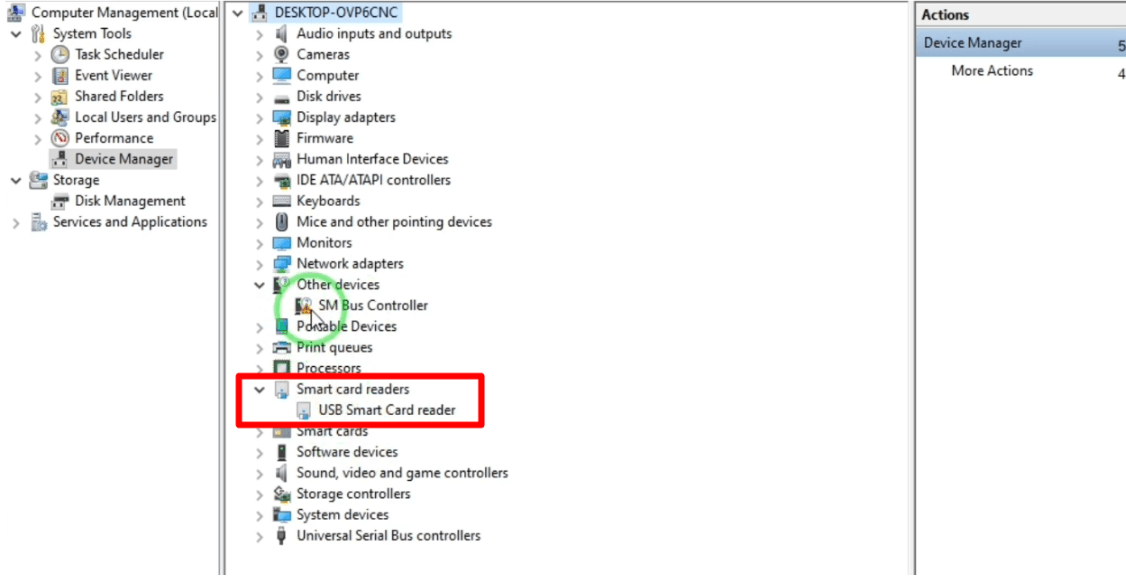
Verify Driver Status
Step 3: Activate UMT Dongle & Install Tool Modules
Once drivers are correctly installed and the dongle is detected:
1. Open the UMT Support Access app.
2. If prompted, click “Update Card Firmware” to sync your dongle with the official servers.
3. Navigate to the Installers tab.
4. Download tools that suit your use case:
- UMT Pro – QCfire (Qualcomm device operations)
- UMT Pro – UltimateGSM (MediaTek device diagnostics)
Again, these modules should only be used in accordance with the law and for authorized device servicing.
UMT Dongle Not Working and Common Issues
Many users get stuck at this stage.
Common problems:
- Dongle not detected
- Driver installation failed
- Device not recognized in EDL mode
- Software crashes
Main causes:
- Driver conflicts
- Windows security restrictions
- Unsupported devices
👉 If you’ve already spent hours troubleshooting, continuing manually may not be the most efficient path.
Instead, many users switch to tools that:
- Don’t require driver setup
- Work without hardware dongles
- Offer guided repair workflows
Best Alternative to UMT Dongle
If you prefer a faster and less technical solution, an alternative tool may be a better fit. One well-known option is DroidKit by iMobie, a professional toolkit designed for Android system repair, data extraction, and cache cleanup. Unlike traditional flashing tools, DroidKit offers a visual interface and automated workflows for users with limited technical knowledge.
Key Features (Legal Uses Only):
– System repair for Android boot issues
– Remove Android Screen Locks Easily without Root
– Selective data recovery from broken or inaccessible devices
– Safe Android OS reinstallation using official firmware
UMT Dongle vs DroidKit
| Feature | UMT Dongle | Easier Tools |
| Setup Difficulty | High | Low |
| Requires Hardware | Yes | No |
| Driver Installation | Required | Not required |
| Beginner Friendly | No | Yes |
| Time to Use | 30–60 mins | 5–10 mins |
⚠️ Disclaimer: Use third-party tools like DroidKit only on devices you legally own or are authorized to repair. Do not attempt to use any “unlock” or “removal” features to bypass security protections such as FRP or PIN locks. Doing so may violate laws or Google’s security policy.
Frequently Asked Questions (FAQ)
Q: Is it legal to use UMT Dongle?
A: Yes—provided you use it only for legitimate repair or service tasks on devices you own or are servicing with consent. Unauthorized use, such as bypassing FRP or changing IMEI, is illegal in most regions.
Q: Is there a good alternative to UMT Dongle?
A: Yes. UnlockTool is a modern, software-only alternative—no physical dongle needed. It covers popular brands and chipsets and is well-suited for shops that want to scale seats quickly or avoid hardware logistics.
Q: I’m seeing “Dongle Not Detected” errors. What should I do?
- Use a USB 2.0 port on the rear of your PC.
- Ensure drivers are installed in the correct order.
- Temporarily disable antivirus if it blocks driver signatures.
- Verify the dongle status in Device Manager.
Q: Can UMT remove FRP or PIN locks?
A: Certain UMT modules offer recovery features that may assist in specific locked scenarios. However, you must be the rightful owner and must comply with your region’s laws. This guide does not instruct or endorse any form of security bypass.
Conclusion
UMT Dongle is a powerful tool for professional technicians — but it comes with a steep learning curve.
If you are experienced with mobile repair, it can be highly effective.
However, if you’re looking for a faster and simpler way to fix Android issues, using an easier tool like DroidKit may save you significant time and frustration. Choose the method that matches your skill level and urgency.

DroidKit
As a complete Android solution, DroidKit can easily help you recover lost data with/without backup, unlock Android screen, bypass FRP lock, fix system issues, etc. within minutes.



Joy Taylor is a seasoned technical writer with over a decade of experience in mobile technology. At iMobie, she specializes in producing in-depth content on iOS data recovery, iPhone unlocking solutions, and iOS troubleshooting.
Product-related questions? Contact Our Support Team to Get Quick Solution >
