How to Unlock Android If You Forgot PIN, Pattern, or Password
Forgot your Android PIN, pattern, or password? This guide explains safe ways to unlock or reset your Android phone, what may erase data, and how to avoid Google verification problems after a reset.
Being locked out of an Android phone can feel urgent, especially when important photos, contacts, work files, or messages are still on the device. But modern Android lock screens are designed to protect that data, so there is usually no simple backdoor that removes the lock without verifying ownership.
This updated guide focuses on realistic options. You will learn when data can be saved, when a reset is required, how Google Find Hub and Recovery Mode work, and when a guided tool such as DroidKit may help on supported devices.
Quick Answer: Can You Bypass the Android Unlock Screen?
Quick Answer: If you forgot your Android PIN, pattern, or password, there is usually no safe backdoor to bypass the lock screen without verification. First try fingerprint, face unlock, Extend Unlock, or a Samsung remote unlock option if it was enabled before you got locked out. If those are unavailable, you may need to erase the phone with Google Find Hub, reset it from Recovery Mode, or use a supported screen unlock tool such as DroidKit. Most reset or unlock methods erase local device data and may trigger Google verification after reset.
Before You Start: Will Unlocking Erase Your Data?
On most modern Android phones, removing a forgotten screen lock means resetting the device. A reset removes the PIN, pattern, or password, but it also erases local files, apps, messages, settings, and app data stored only on the phone.
Before you erase anything, check whether your data is already backed up:
- Open Google Photos on a computer and sign in with the Google Account used on the locked phone.
- Open Google Contacts and confirm whether your contacts are synced.
- Check Google Drive, Samsung Cloud, WhatsApp, or app-specific backups if you used them before the lockout.
If your data is backed up, you can usually restore much of it during setup after the reset. If it is not backed up, be cautious: most lock removal paths cannot recover local-only data.
Compare Android Unlock Screen Methods
| Method | Best For | Will It Erase Data? | Important Condition |
|---|---|---|---|
| Fingerprint / Face Unlock / Extend Unlock | Phone still accepts biometric or trusted unlock | No | Must have been enabled before lockout |
| Samsung SmartThings Find / Find My Mobile | Some Samsung devices with remote unlock available | Usually no, if Unlock is available | Availability varies by region, model, account, and prior settings |
| Google Find Hub | Remote erase when the device is online | Yes | Requires the Google Account linked to the phone |
| Recovery Mode Factory Reset | Phone is offline or remote erase fails | Yes | May trigger Google FRP after reset |
| DroidKit Screen Unlocker | Users who prefer guided lock removal | Usually yes; some early Samsung models may differ | Use only on supported devices you own or are authorized to unlock |
Method 1. Try Fingerprint, Face Unlock, or Extend Unlock First
Before resetting the phone, check whether any previously enabled unlock method still works. Fingerprint or face unlock may help if the phone has not restarted and Android still allows biometric authentication.
You can also try Extend Unlock , formerly known to many users as Smart Lock, if it was already enabled. This may keep the phone unlocked in trusted situations, such as when it is near a trusted device or in a trusted place.
Important: Biometric unlock and Extend Unlock do not replace your PIN or password forever. Android may still require the original PIN, pattern, or password after restart, after a security timeout, or when changing lock settings.
Method 2. Try Samsung SmartThings Find / Find My Mobile If Available
Some Samsung users may be able to unlock a Galaxy device remotely through SmartThings Find , previously known as Find My Mobile. This is one of the few cases where screen lock removal may not erase data.
However, this method is not guaranteed. Samsung support information differs by region, and availability can depend on device model, software version, Samsung account status, and whether remote unlock was enabled before you got locked out.
Requirements before you try
- The Samsung device is powered on and connected to Wi-Fi or mobile data.
- The same Samsung Account is registered on the locked phone.
- Remote unlock, Find My Mobile, or the related SmartThings Find setting was enabled before the lockout.
- The Unlock option is available in your region and for your device.
Basic steps if the Unlock option appears
- Open the official SmartThings Find / Find My Mobile website on a computer or another phone.
- Sign in with the Samsung Account linked to the locked device.
- Select the locked Galaxy phone from the device list.
- Choose Unlock if the option appears.
- Confirm the action and re-enter the Samsung Account password if requested.
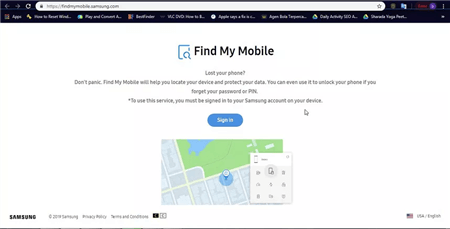
Open Samsung Find My Mobile
If the Unlock option is missing, do not keep trying random PINs. Check Samsung Support for your region, verify backups, and move to a reset option only after you understand the data loss risk.
Method 3. Erase the Phone with Google Find Hub
Google Find Hub , formerly known as Find My Device, can help you find, lock, or erase an Android device connected to your Google Account. It does not reveal your old PIN or directly unlock the screen. The option that removes the lock is Erase , which factory resets the phone and deletes local data.
This method is useful when the locked phone is online and linked to a Google Account you can access.
- Open Google Find Hub in a browser.
- Sign in with the Google Account linked to the locked Android phone.
- Select the locked device from the list.
- Choose Erase device and confirm.
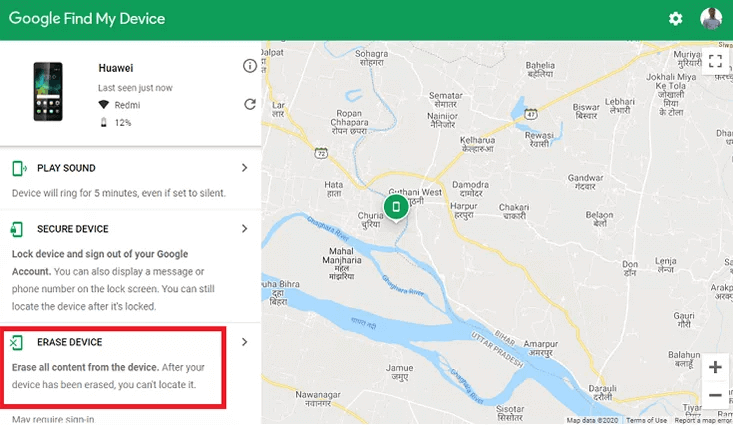
Choose Erase Device
After the erase finishes, set up the phone again and restore data from available backups. If Google verification appears, use the same Google Account that was previously synced on the phone.
Need a more detailed guide? Read our Google Find My Device unlock guide.
Method 4. Factory Reset Android from Recovery Mode
If the phone is offline, Google Find Hub cannot reach it, or remote erase does not work, Recovery Mode may let you manually reset the device. This removes the screen lock but erases local data.
Button combinations vary by brand and model. The examples below are common, but you should check your exact device model if they do not work.
- Force restart the device. If the phone asks for a PIN before powering off, hold Power + Volume Down for about 15 to 20 seconds until the screen goes black.
- Enter Recovery Mode immediately. Common examples include Power + Volume Up on many Samsung and Pixel devices, or Power + Volume Down on some Motorola and LG devices.
- Select wipe data/factory reset. Use the volume keys to move and the power button to confirm.
- Reboot the phone. Select Reboot system now after the reset completes.
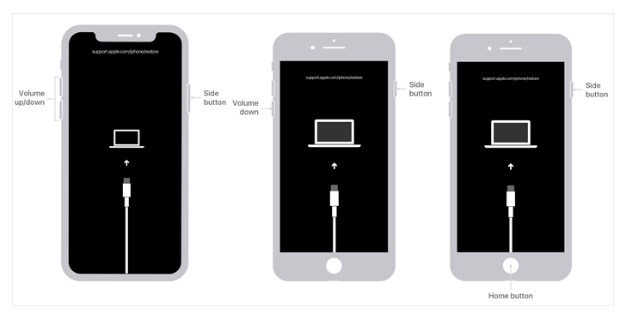
Enter Recovery Mode
FRP warning: After a factory reset, many Android phones require the Google Account previously synced on the device. If you do not know that account and password, the phone may remain locked at the setup screen.
Method 5. Use DroidKit Screen Unlocker on Supported Devices
If you own the Android phone and prefer a guided process instead of key combinations or Recovery Mode menus, DroidKit Screen Unlocker may help remove PIN, pattern, password, fingerprint, or face lock on supported Android devices.
Important: For most Android phones, screen lock removal with DroidKit will erase device data. Some specific early Samsung models may support unlocking without data removal, but compatibility must be checked before use. This tool should be used only on a device you own or are authorized to unlock.
Basic steps:
- Download and install DroidKit on your computer.
- Open DroidKit and choose Screen Unlocker .
- Connect the locked Android phone with a USB cable.
- Follow the on-screen instructions to prepare the device.
- Click Remove Now and wait for the process to complete.
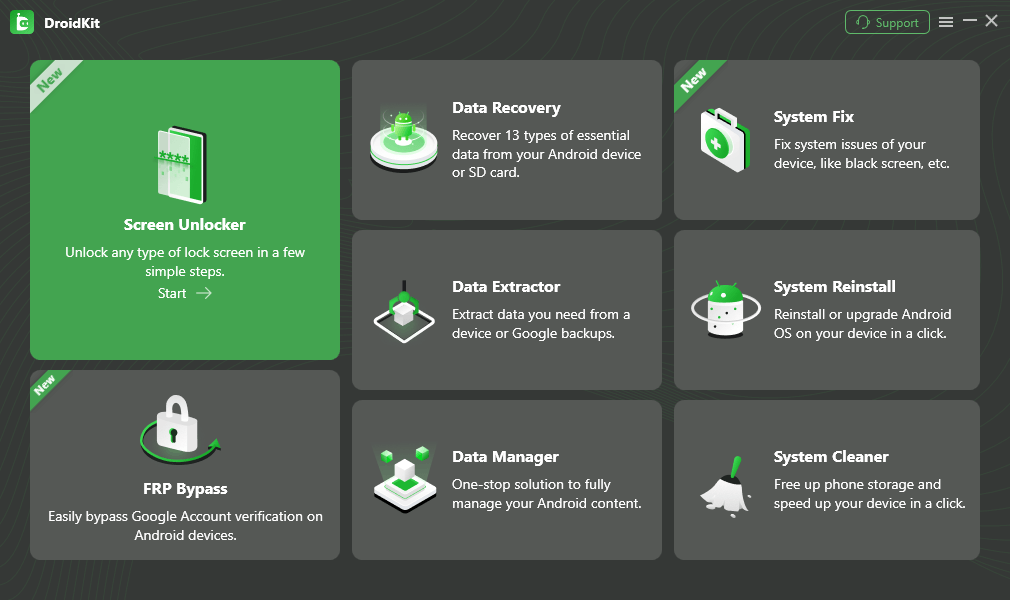
Choose Screen Unlocker
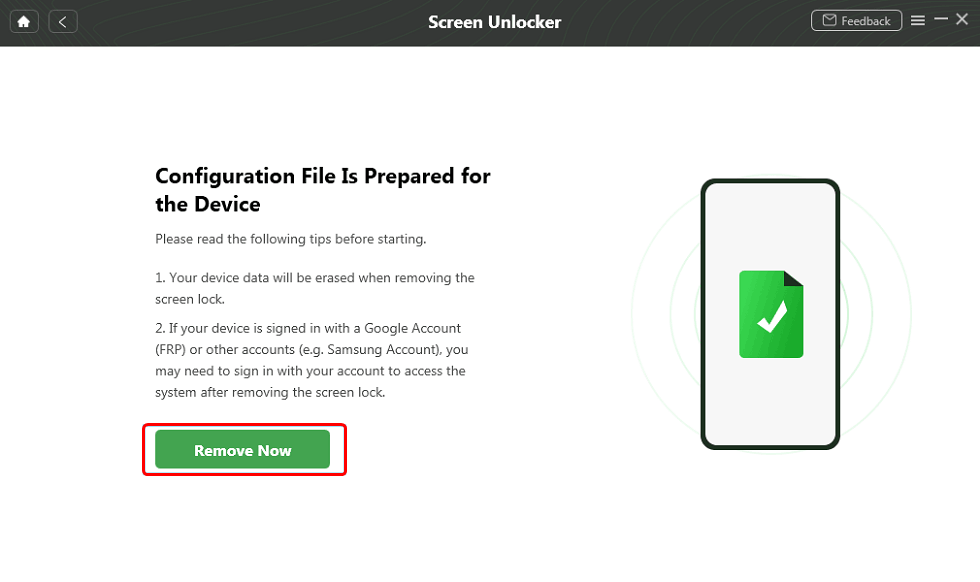
Click Remove Now Button
For more software options, see our guide to Android phone unlocking software or learn how to remove screen lock PIN on Android .
What If Google Verification Appears After Reset?
If your phone asks for the previous Google Account after a reset, that is Factory Reset Protection, also called Google Device Protection. It is designed to prevent someone from resetting and reusing a phone without the owner’s permission.
To continue, sign in with the Google Account previously synced on the device. If you recently changed the Google password, you may need to wait before signing in again. If you bought the phone used, contact the seller and ask them to remove their account from the device.
Helpful follow-up guides:
- What FRP lock means
- Bypass Google account verification after reset
- Cannot login Google after factory reset
FAQs About Android Unlock Screen
Can I bypass the Android unlock screen without losing data?
Sometimes, but only under limited conditions. You may keep data if biometric unlock, Extend Unlock, or a Samsung remote unlock option is available. Most reset or lock removal methods erase local device data.
Can Google Find Hub unlock my Android PIN?
No. Google Find Hub can help locate, secure, or erase your device, but it does not reveal or remove your old PIN. Erasing the phone removes the lock screen and also deletes local data.
What happens after I factory reset a locked Android phone?
The screen lock is removed, but local files, apps, and settings are erased. On protected devices, you may also need to verify ownership with the Google Account previously synced on the phone.
Can Samsung SmartThings Find still unlock my phone?
It depends on your region, model, Samsung account settings, and whether remote unlock was enabled before you were locked out. Some Samsung support pages state remote unlock is no longer available, while other regional pages still describe it for supported devices.
Does DroidKit unlock Android without data loss?
For most Android devices, DroidKit Screen Unlocker removes the lock by erasing device data. Some specific early Samsung models may support unlocking without data removal, but compatibility must be checked first.
Why does my Android phone ask for Google verification after reset?
That is Factory Reset Protection, also called Google Device Protection. It helps prevent unauthorized use after a reset and may require the previously synced Google Account.
Can Recovery Mode bypass the lock screen?
Recovery Mode can factory reset the phone, which removes the screen lock. However, it also erases local data and may trigger Google verification afterward.
What should I do before resetting a locked Android phone?
Check Google Photos, Google Contacts, Google Drive, Samsung Cloud, or other backups first. Also make sure you know the Google Account and password previously used on the device.
The Bottom Line
If you forgot your Android PIN, pattern, or password, start with the options that may preserve data: biometric unlock, Extend Unlock, or Samsung remote unlock if it is available and was enabled before the lockout. If those do not work, you will likely need to erase the phone through Google Find Hub, Recovery Mode, or a guided tool such as DroidKit Screen Unlocker.
Before resetting, check cloud backups and make sure you know the Google Account previously used on the device. That one step can prevent data loss surprises and Google verification problems after reset.
Related Guides You May Need


Roger Smith is a senior technical writer with years of experience in providing Android solutions. He loves to help users solve various problems such as Android unlock, Android data recovery, and Android system repair.
Product-related questions? Contact Our Support Team to Get Quick Solution >
