How to Bypass FRP on Redmi A5 Android 15: HyperOS Limits & Tool Fix
Redmi A5 FRP bypass is harder on Android 15 because HyperOS blocks many old no-PC shortcuts. See why Activity Launcher, ShareMe, and Second Space methods fail, and what safer recovery or PC-based options remain.
Redmi A5 FRP bypass is much harder on Android 15 than on older MIUI phones. Many no-PC tricks that once worked on Redmi devices, such as Activity Launcher, ShareMe, Second Space, TalkBack gestures, or browser shortcuts, are now blocked by newer Android 15 and HyperOS security restrictions.
This guide explains what still makes sense for an owned Redmi A5: start with official Google account recovery, understand why old manual tutorials fail, check whether your error means the method is patched, and use a guided PC-based FRP workflow only when recovery options are unavailable and the device is legally yours.
Table of ContentsHide
Quick Answer: Can You Bypass FRP on Redmi A5 Android 15?
Choose the Right Redmi A5 FRP Recovery Path
Start with Official Google and Xiaomi Recovery
Why Redmi A5 Android 15 Blocks Older FRP Tricks
When Older Redmi Tutorials Do Not Match Redmi A5
Redmi A5 FRP Unlock Tool: DroidKit Guided Workflow
How to Use DroidKit for Redmi A5 FRP Bypass
Common Redmi A5 Android 15 FRP Errors and Fixes
FAQs About Redmi A5 FRP on Android 15
Final Thoughts: Best Path for Redmi A5 FRP
Quick Answer: Can You Bypass FRP on Redmi A5 Android 15?
Yes, there are recovery paths for an owned Redmi A5, but Android 15 makes old no-PC FRP bypass tricks much less reliable. If your tutorial depends on Activity Launcher, ShareMe, Second Space, TalkBack gestures, or a hidden browser window, it may fail because HyperOS and current Android 15 patches restrict those setup-stage shortcuts.
- Best first step: Recover the previous Google account through official Google recovery.
- Best PC-free option: Use the original Google account or ask the previous owner to remove it.
- Old manual tricks: Activity Launcher, ShareMe, Second Space, and TalkBack routes are often patched on Redmi A5 Android 15.
- Tool fallback: A guided PC-based FRP workflow can be considered when official recovery is unavailable and the device is legally yours.
If your Redmi A5 keeps returning to the Wi-Fi screen, refuses APK installation, or blocks the Settings shortcut, stop repeating the same old tutorial. The method is likely patched on your Android 15 build.
Choose the Right Redmi A5 FRP Recovery Path
Use this table before trying random APK files, outdated YouTube steps, or repeated screen-tapping tricks.
| Path | PC Needed? | Best For | Main Limitation on Redmi A5 Android 15 |
| Google Account Recovery | No | Users who still control the previous Google account | Requires recovery email, phone number, or a trusted device |
| Ask Previous Owner | No | Second-hand Redmi A5 devices | Requires the previous owner to remove the Google account |
| Xiaomi Support | No | Original owners with proof of purchase | May require receipt and ownership verification |
| Activity Launcher / APK Tricks | No | Older MIUI tutorials | Usually blocked by Android 15 / HyperOS setup restrictions |
| ShareMe / Second Space | No | Older Redmi methods | Often patched or inaccessible during Redmi A5 setup |
| DroidKit FRP Bypass | Yes | Authorized users who need a guided PC workflow | Compatibility depends on model, Android 15 build, and security patch |
Start with Official Google and Xiaomi Recovery
Before trying any third-party workaround, confirm that the Redmi A5 is yours or that you are authorized to unlock it. FRP is a security feature that protects the phone after a factory reset, so the safest path is still official account recovery.
Try these official options first:
- Check trusted devices: If you are still logged into the Google account on another phone, tablet, or computer, use that trusted device to reset the password.
- Use Google Account Recovery: Open Google Account Recovery on another device and verify the account with a backup email, phone number, or other recovery option.
- Wait after a password reset: If you recently changed the Google password, Android may require a waiting period before the new password works on the reset Redmi A5.
- Ask the previous owner: For a second-hand Redmi A5, ask the previous owner to remove the Google account from the device or from their Google account settings.
- Contact Xiaomi support: If you are the original owner and have proof of purchase, official support may be able to verify ownership and advise the next step.
If your main issue is being unable to sign in after a reset, see this guide on cannot log into Google account after factory reset. If the phone asks for the previously synced Google account, this guide to remove a previously synced Google account from Android can help you understand the lock scenario.
Why Redmi A5 Android 15 Blocks Older FRP Tricks
Most Redmi A5 users searching for a no-PC FRP bypass are following older MIUI tutorials. Those tutorials often depend on small setup-stage loopholes, such as opening a browser from YouTube Terms, installing Activity Launcher, transferring an APK with ShareMe, or reaching Second Space from a temporary Settings screen.
On Redmi A5 Android 15, these paths are much less likely to work because newer Android and HyperOS builds restrict what can happen before setup is complete. The system may block APK installation, close the Settings shortcut, stop peer-to-peer app transfers, or loop back to the Wi-Fi page when it detects an unauthorized setup path.
That does not always mean you followed the steps incorrectly. In many cases, the loophole itself has been closed. When the required menu or shortcut is missing, repeating the same tutorial usually wastes time and may expose you to unsafe APK files.
When Older Redmi Tutorials Do Not Match Redmi A5
Redmi A5 is a newer Android 15 case, so many Redmi tutorials made for MIUI 13 or MIUI 14 no longer match the setup flow. If your screen blocks Open Settings, rejects Activity Launcher, or sends you back to Wi-Fi after a ShareMe attempt, compare your situation with the main Redmi FRP bypass guide before trying another outdated shortcut.
The broader Redmi guide is useful when you need to understand which Redmi methods are tied to older MIUI builds and which ones are affected by newer HyperOS or Android security patches.
Redmi A5 FRP Unlock Tool: DroidKit Guided Workflow
When manual screen-tapping routes are blocked by Android 15 security patches, DroidKit FRP Bypass can be used as a guided PC-based workflow for supported Android FRP scenarios. It is best suited for authorized Redmi A5 users who have already tried official account recovery or cannot make older no-PC tutorials match the current setup screen.
Use DroidKit if:
- Your Redmi A5 is stuck on Google verification after a factory reset.
- Activity Launcher, ShareMe, Second Space, TalkBack, or browser shortcuts are blocked.
- You want to avoid random FRP APK files from unknown websites.
- You have a Windows PC or Mac and a stable USB cable.
- You understand that compatibility depends on the exact Android 15 build and security patch.
You can also compare more best FRP bypass tools before choosing a tool.
Free Download * 100% Clean & Safe
How to Use DroidKit for Redmi A5 FRP Bypass
The exact on-screen prompts may vary by Redmi A5 model, Android 15 build, and security patch. Follow the guidance shown inside the tool and verify compatibility before starting.
Step 1. Download and install DroidKit on your Windows PC or Mac.
Step 2. Open DroidKit and choose the FRP Bypass module from the main interface.
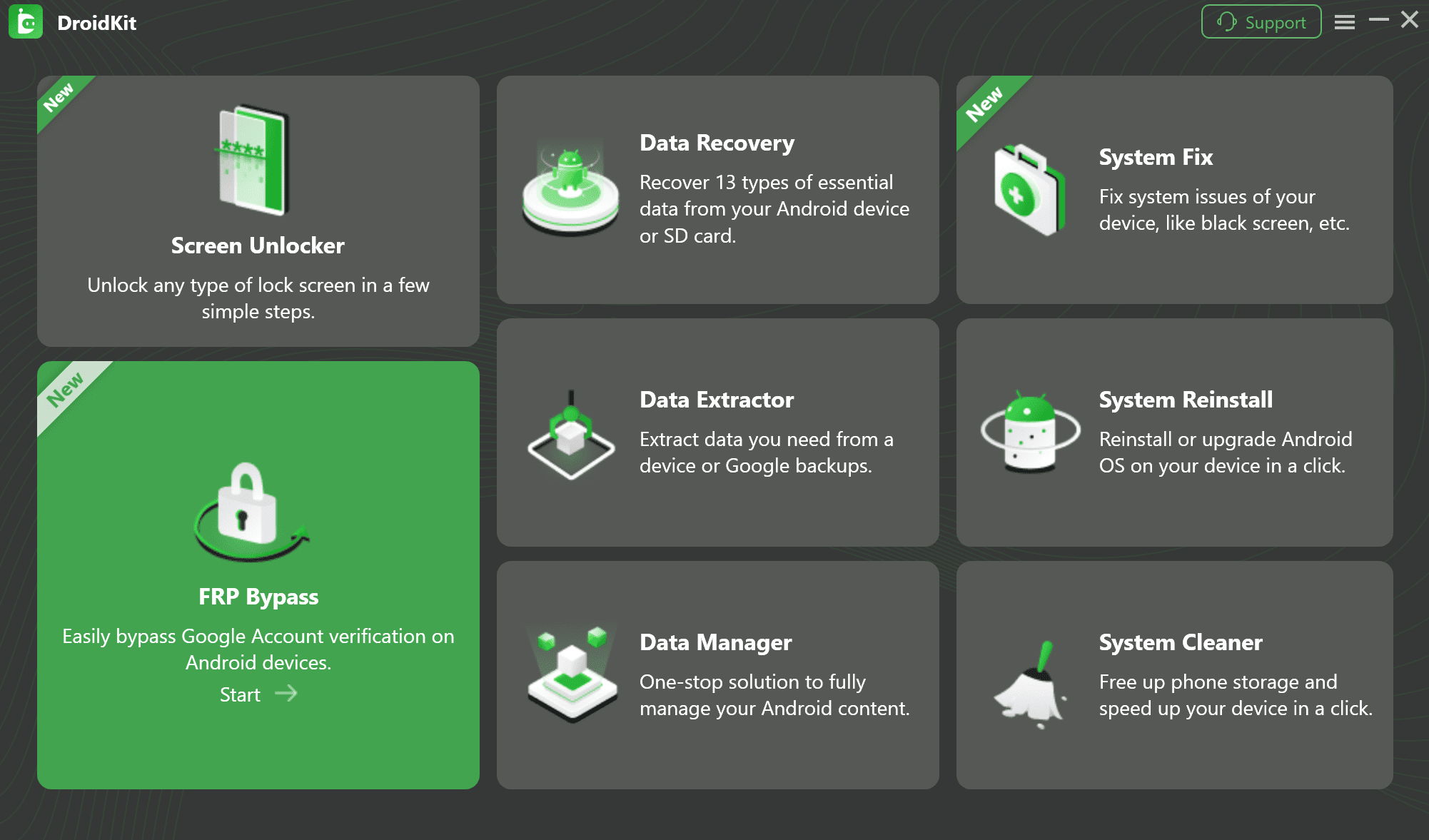
Step 3. Connect your Redmi A5 to the computer with a reliable USB cable.
Step 4. Allow the software to detect the device and prepare the corresponding configuration file when supported.
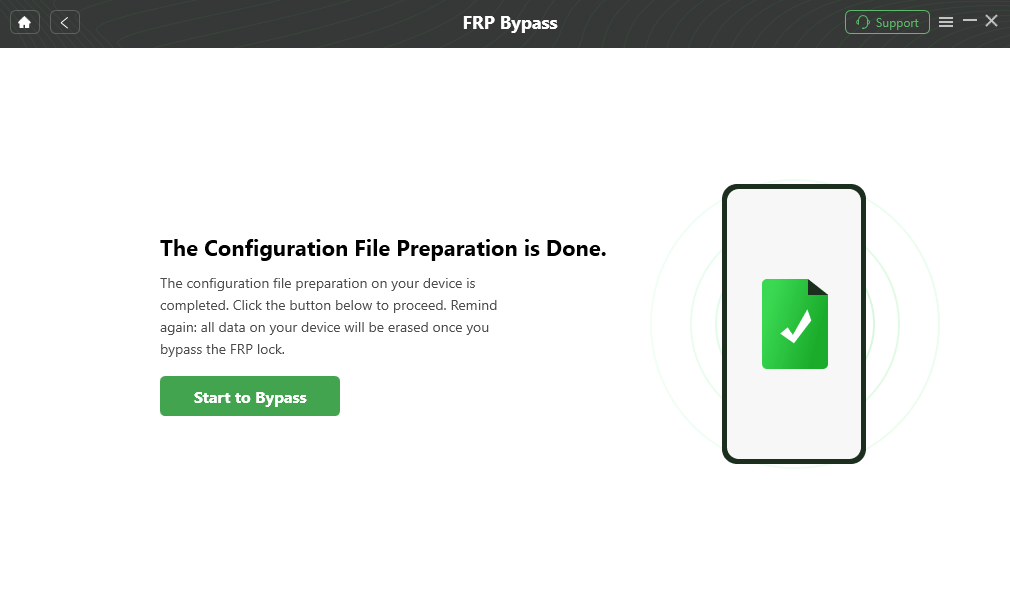
Step 5. Follow the on-screen instructions to put the Redmi A5 into the required mode. Do not disconnect the phone during the process.
Step 6. After the guided steps finish, wait for the phone to reboot and check whether setup can continue.
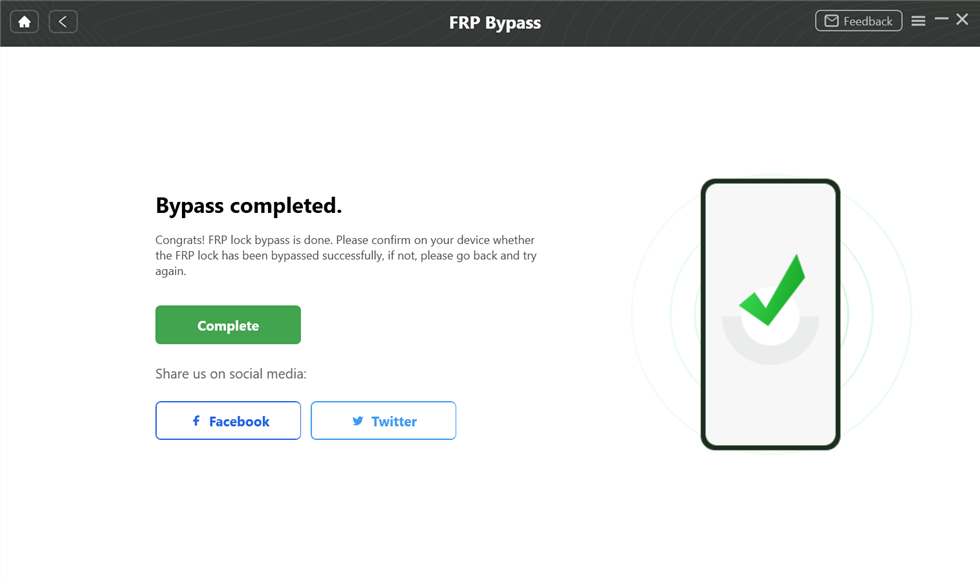
DroidKit is a premium tool. Use it only on a device you own or are authorized to unlock. FRP support can vary by Android version, security patch, and model status.
Common Redmi A5 Android 15 FRP Errors and Fixes
If you are still testing manual no-PC methods, the symptoms below can help you decide when to stop and switch to a safer path.
| Symptom / Error | Likely Cause | Next Action |
| “App not installed” when downloading Activity Launcher | Android 15 / HyperOS blocks APK sideloading during the setup phase. | Stop using browser APK tricks. Use account recovery or a supported PC workflow. |
| ShareMe transfer fails or crashes | File transfer and app installation paths are restricted before setup is complete. | Do not keep retrying ShareMe. The method is likely patched. |
| Second Space does not appear | The setup-stage shortcut cannot access Xiaomi Special Features on this build. | Skip the Second Space route on this Redmi A5 firmware. |
| TalkBack gestures are ignored | The accessibility shortcut used by older FRP tutorials is blocked or changed. | Turn off TalkBack and switch to account recovery or another supported method. |
| Phone loops back to the Wi-Fi screen | The setup wizard detected an unsupported or unauthorized path. | Verify the Google account on another device and avoid repeated shortcut attempts. |
| Browser opens but Settings shortcut fails | HyperOS restricts system activity access from the setup browser. | Avoid unknown APKs and use a safer recovery or PC-based workflow. |
FAQs About Redmi A5 FRP on Android 15
Can I bypass FRP on Redmi A5 Android 15 without a PC?
Official Google account recovery is the only reliable no-PC path. Most Activity Launcher, ShareMe, browser, TalkBack, and Second Space tricks are blocked on updated Android 15 / HyperOS builds.
Why does Activity Launcher fail on Redmi A5?
Android 15 and HyperOS often block APK installation or system activity access during setup, so Activity Launcher cannot open the settings pages used in older Redmi FRP tutorials.
Does ShareMe still work for Redmi A5 FRP bypass?
Usually not on updated Android 15 builds. ShareMe-based tricks depend on file transfer and app installation paths that are commonly restricted during the FRP setup phase.
Does the Second Space method work on Android 15?
It is unlikely on updated Redmi A5 firmware. Second Space methods were more common on older MIUI builds, but Android 15 and HyperOS often block access to that feature during setup.
Can DroidKit remove FRP on Redmi A5?
DroidKit provides a guided PC-based FRP workflow for supported Android devices. Compatibility depends on your exact Redmi A5 model, Android 15 build, and security patch.
Will FRP bypass recover my deleted data?
No. If the phone was already factory reset, local data may already be wiped. FRP bypass only helps you continue setup; it does not restore erased data.
Why do free Redmi A5 FRP tutorials fail so often?
Free tutorials often depend on specific software bugs. Once Google or Xiaomi patches those bugs, the same steps stop working even if the video still appears online.
Final Thoughts: Best Path for Redmi A5 FRP
Being locked out of a Redmi A5 after a factory reset is frustrating, especially when older no-PC tutorials no longer match Android 15. But on newer HyperOS builds, Activity Launcher, ShareMe, Second Space, browser shortcuts, and TalkBack routes are often patched by design.
Your safest starting point is official Google account recovery. If the phone is second-hand, ask the previous owner to remove the Google account first. If you legally own the Redmi A5, official recovery is unavailable, and manual routes are blocked, a guided PC-based workflow such as DroidKit can be a practical fallback for supported Redmi A5 FRP scenarios.
Free Download * 100% Clean & Safe
More Related Articles


Roger Smith is a senior technical writer with years of experience in providing Android solutions. He loves to help users solve various problems such as Android unlock, Android data recovery, and Android system repair.
Product-related questions? Contact Our Support Team to Get Quick Solution >
