Google FRP Bypass on Redmi in 2026: HyperOS & MIUI Fixes
A Redmi phone asking for a previously synced Google account after reset is a Google FRP problem, not a Mi Account lock. The next step depends on your model, HyperOS or MIUI build, and whether Share, TalkBack, Settings, Second Space, or another required setup entry point is actually available.
If your Redmi phone shows “Verify your account” after a factory reset, you are dealing with Google Factory Reset Protection (FRP). The phone is asking for a Google account that was previously added and synced before the reset.
On Redmi phones, the next step is not decided by the word “HyperOS” or “MIUI” alone. Two Redmi devices can expose different Setup Wizard screens depending on model, Android version, regional firmware, system build, and security update. The useful checkpoint is whether the first screen required by a method—such as Share, YouTube Terms, TalkBack, Settings, or Second Space—actually appears on your phone.
This page focuses specifically on Google verification after reset on Redmi. For the broader ownership-verification problem across Android brands, see the Google account verification after factory reset guide. For Xiaomi, Redmi, and POCO brand-level FRP navigation, model coverage, and other device routes, use the Xiaomi, Redmi and POCO FRP guide.
Redmi ownership check: If this is a second-hand phone and setup requests another person’s Google account, contact the seller or previous owner first. The manual and PC options below are intended for a Redmi device you own or are authorized to service. A phone that says “This device is locked” and requests a Mi Account is a different problem.
Table of ContentsHide
Quick Answer: Google FRP on Redmi After Reset
Choose the Right Redmi Google FRP Route
Choose a Model-Specific Redmi FRP Guide
Google FRP vs Mi Account Lock on Redmi
Check These Redmi FRP Conditions First
Redmi FRP Without a PC: Check the Required Entry Point
Method 1: Check Whether the Second Space Route Is Available
Method 2: Check the TalkBack / Accessibility Route
Why Open Settings Does Not Work on Some Redmi Builds
When a Redmi FRP PC Tool Makes Sense
How to Use DroidKit for a Supported Redmi FRP Scenario
Why ADB or Flashing Is Usually Not the First FRP Option
Manual Redmi FRP vs a Guided PC Workflow
FAQs About Google FRP on Redmi
Which Redmi Google FRP Route Should You Choose?
Quick Answer: Google FRP on Redmi After Reset
If your Redmi is already at the Google verification screen, start with the account rather than the bypass method. If a previously synced Google account can be recovered, use it. If not, identify your exact Redmi model and test only a route whose first required setup screen is actually present.
- You know the previous Google account: Recover or sign in with that account instead of using a bypass route.
- You bought the Redmi used: Ask the previous owner to resolve the Google account relationship first.
- Share, browser, TalkBack, Settings, or Second Space appears: Evaluate only the manual method that depends on that exact entry point.
- The first required menu is missing: Stop that method. Repeating later steps cannot restore an entry point that your Setup Wizard does not expose.
- You want to use a PC: Check that the FRP software currently lists Redmi/Xiaomi and that its workflow matches your connected device before downloading or purchasing it.
Do not use “HyperOS = PC tool” or “MIUI 14 = no-PC method” as a rule. The system name helps narrow the search, but the actual setup screens on your Redmi are a better compatibility signal.
Choose the Right Redmi Google FRP Route
Use this table before trying a long YouTube sequence or downloading an APK. It separates account recovery, manual entry-point methods, and PC software without assuming that every Redmi on the same MIUI or HyperOS generation behaves identically.
| Your Redmi Situation | Recommended First Move | PC Needed? | Stop or Switch When |
| You can identify a Google account previously synced to the phone | Recover the account and use it at the verification screen | No | Use another route only if the account cannot be recovered. |
| The phone came from another owner | Ask the previous owner to complete or remove the account relationship | No | Do not treat unknown ownership credentials as a normal software compatibility problem. |
| The manual guide requires Share or browser access | Check whether Share and the expected browser handoff actually appear | No | Stop the route when the first required handoff is absent. |
| The guide requires TalkBack or Accessibility | Check whether the shortcut and next menu match your Redmi | No | Stop when TalkBack opens differently or Settings cannot be reached. |
| The guide requires Second Space | Confirm that your model has the feature and that Settings exposes it from the current route | No | Do not continue if Second Space is missing or inaccessible. |
| Several manual routes stop at unavailable setup menus | Evaluate a current Redmi-compatible FRP PC workflow | Yes | Do not proceed if the vendor cannot match your device or current route. |
| The screen asks for a Mi Account instead of Google verification | Switch to Mi Account guidance | Depends | This page is no longer addressing the lock shown on your screen. |
Choose a Model-Specific Redmi FRP Guide
A model page is more useful when it covers the Android and MIUI combinations commonly seen on that exact Redmi. Use one of the confirmed model guides below when it matches your phone; otherwise stay on this page for the Google-verification decision flow or move to the broader Xiaomi/Redmi FRP hub linked above.
- Redmi Note 11 FRP bypass guide — useful when Settings, Second Space, SIM notification, or no-TalkBack routes are part of the problem.
- Redmi 10 / 10 Prime FRP bypass guide — focuses on Redmi 10-specific Android and MIUI conditions.
- Redmi A5 Android 15 FRP bypass guide — use this when the device is a Redmi A5 running its newer Android/HyperOS environment.
Why there are fewer model links here: A generic Redmi Google-FRP page should not become a second Xiaomi/Redmi model directory. Model links are included only when they directly help identify the setup route for the phone in front of you.
Google FRP vs Mi Account Lock on Redmi
Redmi phones can display more than one type of account-related lock. Before using FRP steps, read the wording on the screen.
| Lock Type | Typical Screen | Account Involved | Correct Direction |
| Google FRP | “Verify your account” or a request to sign in with an account previously synced to the device | Google Account | Continue with this page. |
| Mi Account / Xiaomi activation lock | “This device is locked” or a request for a Mi Account | Mi Account / Xiaomi Account | Use Mi Account-specific recovery or unlock guidance. |
| Screen PIN / pattern / password | The normal Android lock screen appears before you can reach the phone | Local screen credential | This is a screen-lock problem, not post-reset FRP. |
If your Redmi says “This device is locked” and asks for a Xiaomi/Mi Account rather than a Google account, use the Mi Account “This device is locked” guide. Trying Google FRP steps against a Mi Account screen wastes time because the two verification systems are separate.
Check These Redmi FRP Conditions First
Manual FRP tutorials often look like one long sequence, but their compatibility can usually be judged from the first two or three screens. Check these conditions before starting.
| Checkpoint | What to Look For | Why It Matters |
| Exact Redmi model | Redmi Note, Redmi numbered series, Redmi A-series, regional variant | Features and Setup Wizard behavior can differ even within Redmi. |
| System environment | MIUI or HyperOS, plus Android version when known | A tutorial made for another software environment may expose different menus. |
| Share access | Can selected Wi-Fi text open Share, Messaging, Gmail, or another expected target? | If not, a share-dependent route ends immediately. |
| Browser handoff | Can YouTube Terms or another permitted link leave Setup Wizard and open a browser? | Many manual sequences need browser access before Settings can be reached. |
| TalkBack / Accessibility | Does the expected shortcut open, and does its menu contain the next required item? | Opening TalkBack alone does not prove the full accessibility route is available. |
| Second Space | Does the Redmi model expose Second Space and can Settings reach it? | Second Space is not a universal Redmi feature or a guaranteed setup-stage option. |
| APK dependency | Does the method require downloading and installing a launcher or helper APK? | Unknown APK mirrors add risk and the setup environment may block installation anyway. |
For Android-wide FRP concepts rather than Redmi-specific Google verification, the Android FRP bypass guide explains how brand, version, Setup Wizard, and tool compatibility fit together.
Redmi FRP Without a PC: Check the Required Entry Point
No-PC Redmi FRP searches commonly lead to Second Space, TalkBack, YouTube Terms, Share, launcher APK, or Open Settings methods. Instead of labeling all of them “working” or “patched” by system version, use the first missing entry point to decide whether the sequence belongs on your device.
The two existing routes below are retained because they match common Redmi search behavior and the page’s current screenshots. Treat them as conditional setup routes, not universal instructions for every HyperOS or MIUI phone.
Method 1: Check Whether the Second Space Route Is Available
This route depends on several separate things being available: selecting text in the Wi-Fi setup screen, opening a Share target, reaching YouTube or another external app, opening a browser, reaching Settings, and finally finding Second Space on the Redmi model.
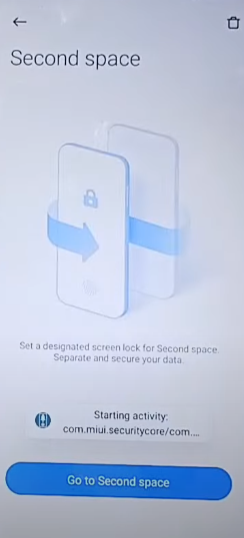
Check Whether Second Space Is Available
Step 1. On the Redmi Setup Wizard, continue until you reach the Wi-Fi screen. Tap Add network if that option is available.
Step 2. In the SSID field, enter a web address such as www.youtube.com. Select the text and check whether a Share action appears.
Step 3. If Share is available, check whether one of the displayed apps can open the selected link. Do not substitute unrelated apps or permissions simply to force the sequence forward.
Step 4. If YouTube opens, go to its settings or About area and check whether YouTube Terms of Service can hand off to a browser.
Step 5. If the browser does not open, stop here. The browser-dependent version of the Second Space route does not match your current setup environment.
Step 6. Some older versions of this method use a launcher APK to reach the home screen or Settings. Do not install a package from an unknown mirror, video comment, shortened link, or repacked download simply because the tutorial requires one.
Step 7. If you legitimately reach the main Settings app, search for Second Space or the corresponding Xiaomi feature on your device.
Step 8. Continue only if Second Space actually exists and Settings allows you to open it. If the feature is absent, greyed out, or unavailable from the current setup route, stop the method.
Step 9. Follow only the options that are visibly available on your own Redmi build. Do not assume screenshots from another Redmi model represent your phone.
Second Space checkpoint: A missing Second Space menu does not prove that every Redmi FRP route is blocked. It only tells you that a method depending on Second Space is not a match for the current phone.
Method 2: Check the TalkBack / Accessibility Route
TalkBack methods depend on more than turning the screen reader on. The relevant question is whether the same TalkBack menu, accessibility shortcut, voice action, and Settings handoff required by the tutorial are available in the current Redmi Setup Wizard.
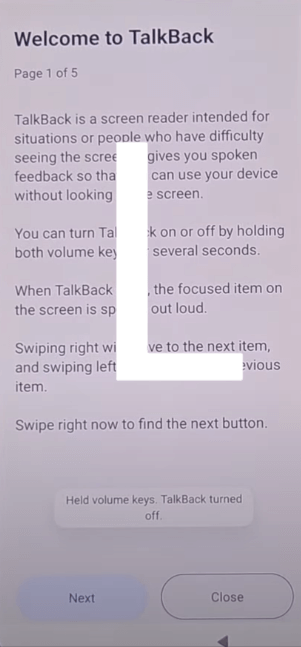
Check the TalkBack Route on Your Redmi
Step 1. Return to the initial Redmi setup screen.
Step 2. Press and hold Volume Up + Volume Down only if your setup screen offers the accessibility shortcut. If the key combination does nothing, stop the TalkBack-dependent method.
Step 3. If TalkBack starts, follow the accessibility gestures shown by your device and check whether the TalkBack menu can be opened.
Step 4. Look for TalkBack Settings only if it is present on your screen. Menus can differ by Android and accessibility-service version.
Step 5. If you need to turn TalkBack off again, use the shortcut offered by the phone rather than assuming every Redmi uses the same behavior.
Step 6. Check whether the Accessibility Menu or another route required by the tutorial can actually be enabled.
Step 7. Return to Google verification and test the next documented handoff only when that accessibility control is available.
Step 8. If the route expects Open Settings but no Settings activity opens, stop. The important result is that the Settings handoff is unavailable—not that you need to repeat the gesture more times.
Do not classify the whole phone by one failed gesture. If TalkBack opens but the next menu is different, you have diagnosed a route mismatch. If TalkBack itself is unavailable, you can eliminate the entire TalkBack-dependent sequence immediately.
Why Open Settings Does Not Work on Some Redmi Builds
“Open Settings FRP Xiaomi” is a common search because many older Redmi tutorials use Settings as the bridge between Setup Wizard and account-related controls. On a different Redmi build, however, the same Share, browser, accessibility, launcher, or app-activity handoff may not expose the Settings app.
| What Fails | What It Tells You | Next Decision |
| Share does not appear when Wi-Fi text is selected | The method cannot leave setup through that Share action | Drop the Share-dependent route. |
| YouTube opens but Terms does not launch a browser | The expected browser handoff is unavailable | Do not continue to later browser/APK steps. |
| TalkBack opens but there is no path to Settings | The accessibility chain differs from the tutorial | Stop that TalkBack sequence. |
| Voice or accessibility action does not open Settings | The requested Settings activity is not exposed from setup | Use another route rather than repeating the same command. |
| Launcher APK installs but cannot open system Settings | The APK does not provide the activity access expected by the guide | Do not keep installing replacement APKs from unknown sources. |
| Second Space does not appear inside Settings | The feature is unavailable, hidden, or inaccessible on this model/build | Eliminate the Second Space route. |
Notice that none of these failures requires guessing that “all HyperOS is patched” or that “old MIUI always works.” The screen itself gives you a more specific answer: the particular route you are following does not have the entry point it needs.
When a Redmi FRP PC Tool Makes Sense
A PC tool becomes relevant after you have identified why the manual route does not fit. For example, Share never appears, YouTube Terms cannot leave Setup Wizard, TalkBack cannot reach Settings, or Second Space is not available on the Redmi model.
Before moving from one of those failure points to software, check three things:
- Brand support: The current FRP documentation should explicitly include Xiaomi or Redmi.
- Device matching: The program should detect or provide the appropriate route for the connected phone rather than relying on a generic “supports Android” claim.
- Data impact: Read the erase notice before starting. A PC FRP workflow should not be presented as a data-preserving route unless the vendor explicitly documents that for the exact situation.
DroidKit’s current FRP documentation lists Xiaomi and Redmi devices running Android 6 and above among its supported device families. This is a brand-level compatibility statement, not a promise that every Redmi model, build, or route will behave identically. The same guide also states that the FRP Bypass function erases data on the device.
You can review the current DroidKit FRP compatibility and operation guide before proceeding. If you are deciding between different desktop programs rather than specifically choosing DroidKit, use the FRP bypass tool comparison.
Why DroidKit is relevant on this Redmi page: It is not because a phone says HyperOS. It becomes relevant when this Redmi is stuck at Google verification, the manual Share/TalkBack/Settings/Second Space chain does not match the device, and the current DroidKit FRP workflow can identify a supported Redmi route.
How to Use DroidKit for a Supported Redmi FRP Scenario
Use the steps below only after checking the current DroidKit FRP documentation and accepting the data-erasure notice. The screens shown in the program can vary by phone, so the instructions displayed for the connected Redmi take priority over a screenshot from another model.
Step 1. Download and install DroidKit on your Windows PC or Mac. Launch the program.
Step 2. Choose FRP Bypass from the DroidKit dashboard.
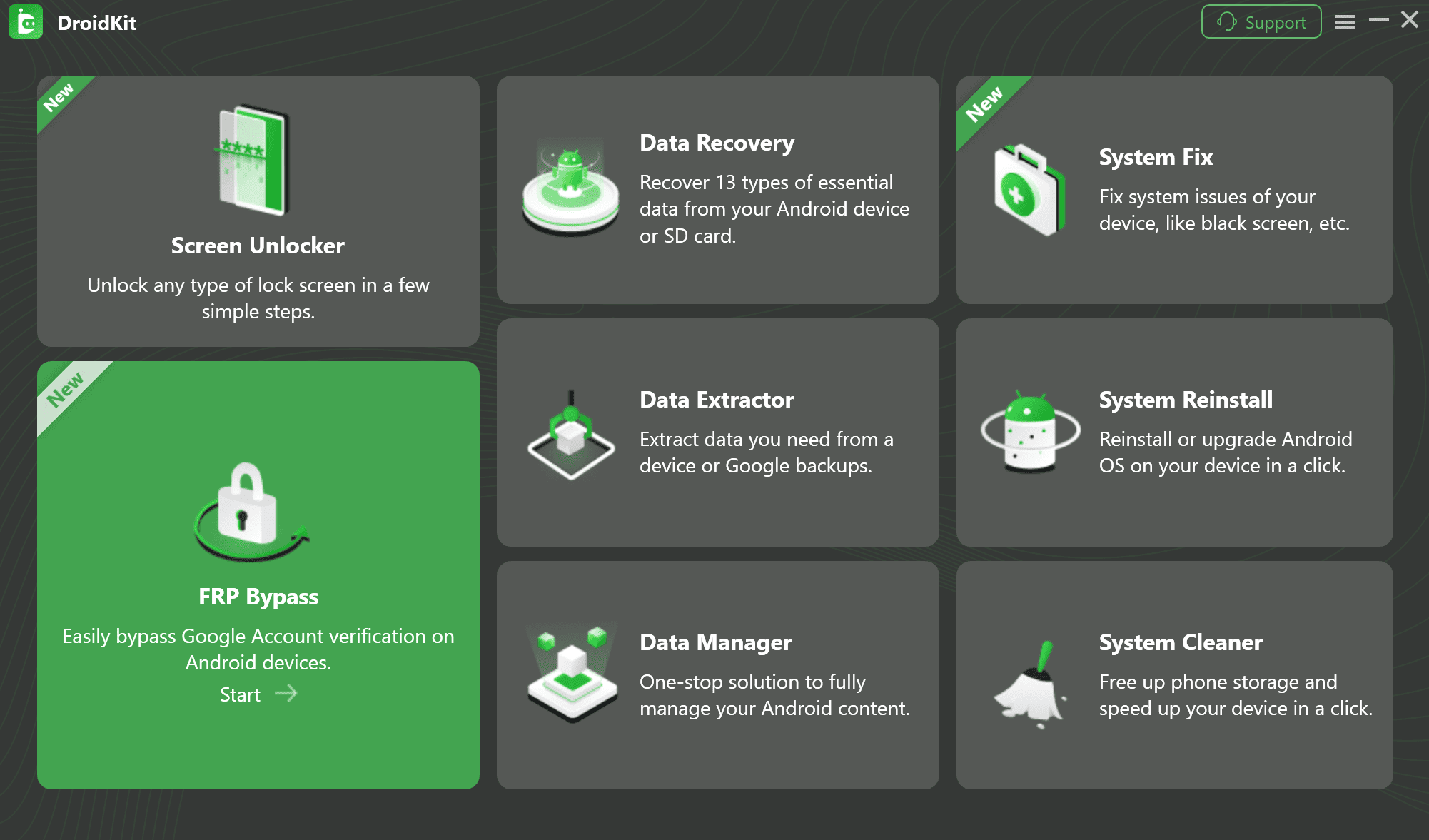
Choose FRP Bypass in DroidKit
Step 3. Connect the Redmi phone to the computer with a reliable USB data cable and click Start. If the phone is not detected, check the USB cable and port before treating the problem as an FRP compatibility failure.
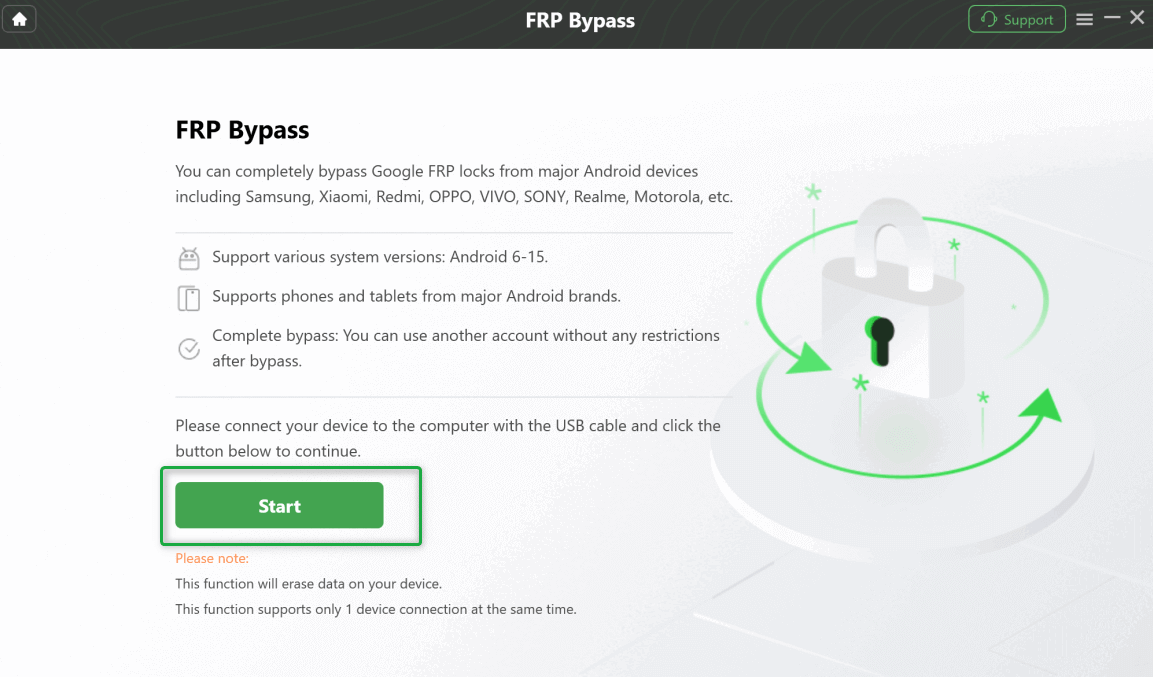
Connect the Redmi Phone and Start
Step 4. Select the device brand or version requested by DroidKit and follow the instructions displayed for the connected Redmi. Do not deliberately select another brand or system route just to advance to the next screen.
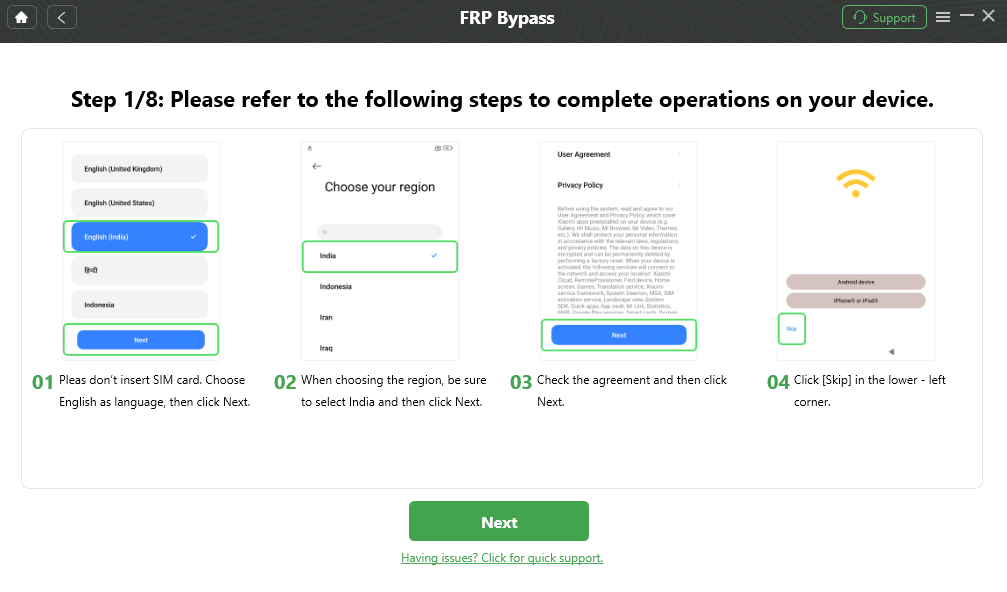
Follow the Redmi-Specific Instructions Shown by DroidKit
Step 5. Keep the Redmi connected while the selected FRP process runs. Do not disconnect the USB cable during the active workflow.
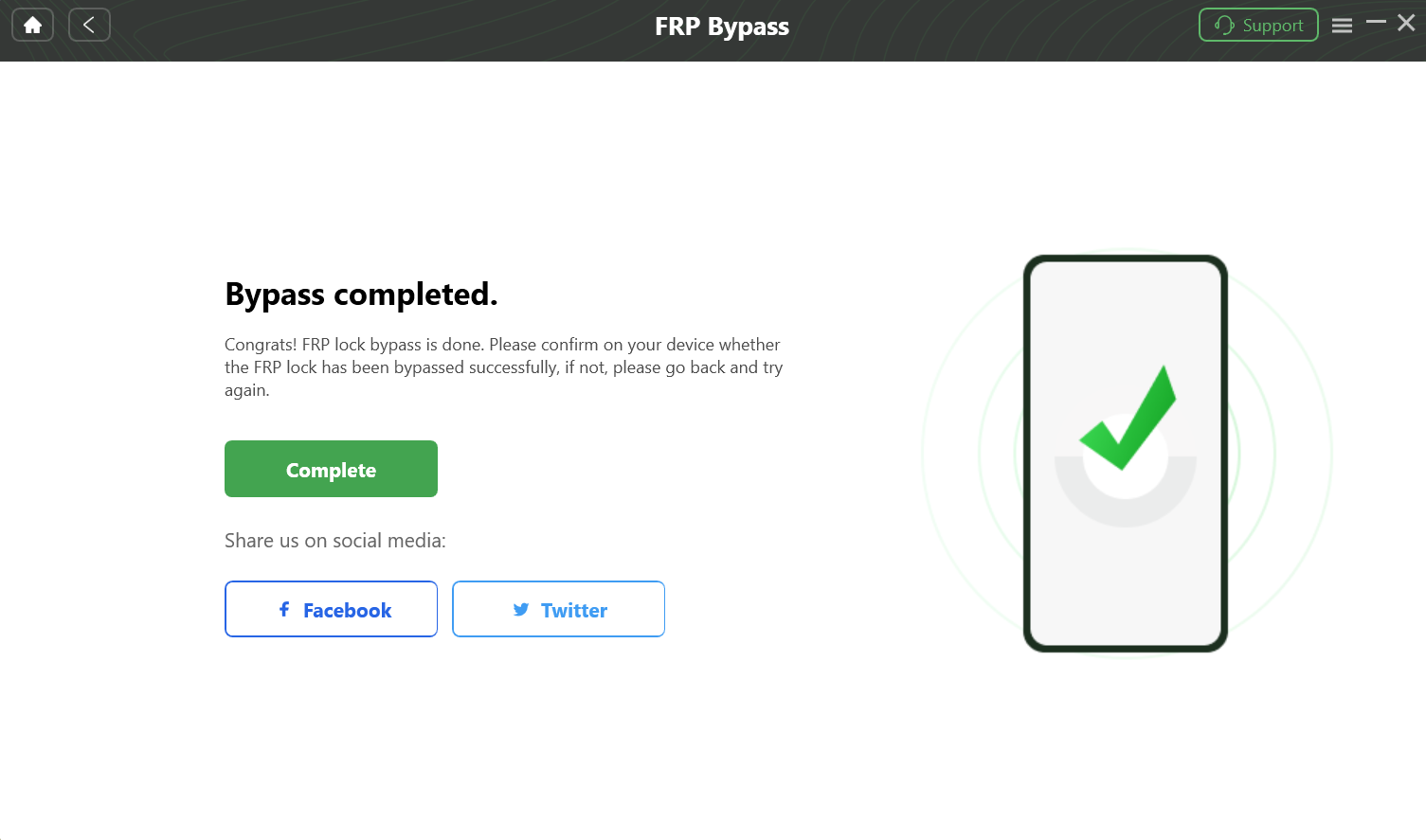
Complete the Supported Redmi FRP Workflow
Data notice: The current DroidKit FRP Guide states that FRP Bypass erases device data. If this Redmi was already factory-reset before Google verification appeared, local data may already have been removed by that reset as well.
Why ADB or Flashing Is Usually Not the First FRP Option
ADB, Fastboot, and Xiaomi flashing utilities appear in many technical Redmi searches, but they should not be presented as guaranteed ways to remove Google FRP.
ADB Requires Access That a Reset Phone Often Does Not Have
ADB is useful when the Android device exposes debugging access and the computer has the required authorization. A Redmi sitting in the post-reset Setup Wizard normally should not be assumed to provide that access. If an online command requires ADB but your device is not already visible and authorized to the computer, copying the command does not solve the missing prerequisite.
Fastboot and Firmware Flashing Solve a Different Class of Problem
Fastboot and Xiaomi firmware tools are designed for device and firmware operations. They can involve model-specific ROM packages, device modes, bootloader conditions, and data erasure. Flashing the correct firmware is not the same thing as proving that Google FRP has been removed.
For this page’s user intent—a Redmi requesting a previously synced Google account after reset—account recovery, a matching setup route, or an explicitly supported FRP workflow should be evaluated before turning the problem into a firmware-flashing project.
Technical-user rule: Do not run a random ADB command or flash a ROM solely because a tutorial labels it “FRP.” First verify that the required device mode and access already exist and that the operation actually addresses Google verification on your exact Redmi model.
Manual Redmi FRP vs a Guided PC Workflow
The difference between the two routes is not simply “free versus paid.” Manual routes depend on setup entry points; desktop tools depend on current device compatibility and USB communication.
| Decision Factor | Manual Redmi Route | PC-Based FRP Workflow |
| First compatibility check | Share, browser, TalkBack, Settings, Second Space, or another required setup entry point | Vendor-supported Redmi/Xiaomi route and successful device detection |
| Best fit | A Redmi whose setup screens still match the exact manual sequence | A Redmi where the current PC software documents an applicable FRP workflow |
| PC required | No | Yes |
| Typical failure signal | The expected menu, share target, browser handoff, Settings activity, or Second Space option is absent | The phone cannot be matched, detected, or routed through the required device workflow |
| APK exposure | Some routes ask for launcher/helper APK files, which adds source and compatibility risk | No need to rely on random FRP APK mirrors when using official desktop software |
| Data expectation | Depends on the actual route; the phone may already have been erased by the factory reset | Check the vendor notice; DroidKit’s current FRP Guide states that its FRP function erases device data |
| Cost | Usually free | FRP execution may require paid/activated software depending on the product |
If a manual method reaches all of its required screens, there is no reason to abandon it simply because the phone runs HyperOS. Conversely, if the very first Share, Settings, TalkBack, or Second Space checkpoint is absent, continuing to copy the rest of that tutorial is unlikely to help.
FAQs About Google FRP on Redmi
Why does my Redmi say “Verify your account” after a factory reset?
Google FRP is active because a Google account had been added and synced on the Redmi before it was reset. During setup, Android can require a previously synced account before the device can be used again. If you can identify that account, recover and use it before evaluating a bypass route.
Does Redmi FRP bypass work on HyperOS?
HyperOS by itself does not tell you whether a manual FRP route will work. Check the exact Redmi model and the first entry point required by the method. If Share, browser access, TalkBack, Settings, Second Space, or another required screen is missing, that particular route does not match the current HyperOS setup environment.
Why can’t I open Settings during Redmi FRP bypass?
The method may depend on a Share target, YouTube Terms browser handoff, accessibility action, launcher activity, or another setup shortcut that your current Redmi build does not expose. Identify which handoff failed and stop that sequence instead of repeatedly issuing “Open Settings.”
Is Second Space a reliable Redmi FRP bypass method?
No. Second Space is only relevant when the Redmi model provides the feature and the manual route can actually reach it from Settings. If Second Space is missing or cannot be opened from the current setup flow, use that as a signal to eliminate this method rather than assuming the phone was configured incorrectly.
Can I use TalkBack to bypass Google verification on Redmi?
Only a route whose full accessibility chain matches your device is worth evaluating. Turning TalkBack on is not enough. The required TalkBack menu, accessibility control, Settings handoff, and subsequent screens must also be available on that Redmi build.
What if Share or YouTube Terms does not open during the Redmi FRP method?
That is the failure point for any route depending on that handoff. If Share is absent, stop the Share-based method. If YouTube Terms cannot launch the expected browser, stop the browser-dependent steps instead of moving directly to APK downloads shown later in the tutorial.
Can I bypass Redmi FRP without the previous Google account?
If the Google account can be recovered, using it is the direct ownership-verification route. When the account is unavailable, other options depend on the Redmi model, Setup Wizard, and current tool support. For a second-hand phone, contact the previous owner before using a third-party route.
Does DroidKit support Redmi FRP?
DroidKit’s current FRP Guide lists Redmi and Xiaomi among the device families supported by its FRP feature for Android 6 and above. That does not guarantee every Redmi model or software build follows the same route, so check the current program and documentation for the connected phone before proceeding.
Will DroidKit Redmi FRP bypass erase data?
Yes. The current DroidKit FRP Guide states that the FRP Bypass function erases device data. A Redmi already reset to the Google verification screen may also have lost its previous local data during the factory reset that triggered FRP.
Is a Mi Account lock the same as Redmi Google FRP?
No. A Google FRP screen asks for a Google account previously synced with the phone. A Mi Account lock can display “This device is locked” and requests Xiaomi/Mi Account credentials. Use the method that matches the wording on the screen rather than mixing the two account systems.
Which Redmi Google FRP Route Should You Choose?
For this Redmi problem, the decisive question is not simply whether the phone runs MIUI 14 or HyperOS. Start with what the setup screen actually allows. If a previously synced Google account can be recovered, use it. If you are evaluating a manual method, check the first required Share, browser, TalkBack, Settings, or Second Space entry point before investing time in the rest of the sequence.
When one of those entry points is missing, you have learned something specific: that manual route does not fit this Redmi build. You do not need to prove that every Redmi method is “patched,” and you do not need to cycle through random launcher APKs looking for a different result.
If the phone is yours, the account cannot be recovered, the manual setup chain does not match, and DroidKit currently identifies an applicable Redmi FRP route, its PC workflow is an option to evaluate. Check the erase notice first, keep the phone connected during the device-specific instructions, and use the current software workflow rather than screenshots from another Redmi model.
More Related Articles


Roger Smith is a senior technical writer with years of experience in providing Android solutions. He loves to help users solve various problems such as Android unlock, Android data recovery, and Android system repair.
Product-related questions? Contact Our Support Team to Get Quick Solution >
