Samsung A03s FRP Bypass: Android 11/12/13 & No-PC Options
Galaxy A03s FRP steps change with the Android build and the setup menus still available after reset. This guide separates older Google Keyboard routes from Android 13 scenarios, explains when APK or no-PC methods stop matching the phone, and shows what to try next.
If your Samsung Galaxy A03s stops at Google account verification after a factory reset, Factory Reset Protection (FRP) is active. The important detail is that an A03s FRP method is not determined by the model name alone: Android version, software build, security patch, and the setup menus still available on the phone can all change the route.
This guide focuses on Samsung A03s scenarios across Android 11, Android 12, and Android 13. It also explains what to check if your phone reports a newer build, why older Google Keyboard or APK tutorials may stop matching the setup screen, and when a computer-based option becomes relevant.
For Samsung-wide FRP behavior beyond the A03s, use the Samsung FRP bypass guide.
Before continuing: Use account-recovery or FRP-removal options only for a Galaxy A03s you own or are authorized to service. If the phone was purchased second-hand, ask the previous owner to help remove or verify the Google account before trying another route.
Table of ContentsHide
Quick Answer: Which Samsung A03s FRP Route Fits Your Phone?
Check Your A03s Android Version Before Trying a Method
Samsung A03s FRP Methods Compared
Try Account Recovery or Previous-Owner Removal First
Older Google Keyboard / Help & Feedback Route
Samsung A03s FRP on Android 13
Can You Bypass Samsung A03s FRP Without a Computer?
APK and OTG Methods: Why They May Fail
PC-Guided Samsung A03s FRP with DroidKit
A03s FRP Method Not Working? Check the Failure Point
How to Avoid FRP Before Resetting Your A03s
Samsung A03s FRP FAQs
Quick Answer: Which Samsung A03s FRP Route Fits Your Phone?
If you still know the Google account previously used on the Galaxy A03s, recover or sign in with that account first. If you do not have access to it, identify your Android version and check whether the setup screens required by the method you found are actually present.
| Your A03s Situation | Best Next Step | What to Watch For |
| You know the previously synced Google account | Use Google account recovery or sign-in | No bypass route is needed if the account can still be verified. |
| Older A03s and the Google Keyboard / Help route still appears | Evaluate the older setup-screen route | Stop if the menus in the guide do not match your phone. |
| A03s on Android 13 | Check the exact setup path before following an older tutorial | Do not assume Android 11/12 keyboard or browser steps remain available. |
| You want Samsung A03s FRP bypass without PC | Check whether the required browser, keyboard, file, or APK entry point exists | A no-PC method cannot continue when its required setup screen is missing. |
| APK says “App not installed” or the file manager never opens | Stop the APK route | Downloading more unknown APK files does not solve a blocked installation path. |
| You prefer a computer-guided process | Check a Samsung FRP tool or DroidKit | Use the instructions shown for the detected device and system route. |
If your main problem is understanding why the phone requests an old Google account after reset, this Google account verification after reset guide explains that situation in more detail.
Check Your A03s Android Version Before Trying a Method
Older Samsung A03s tutorials often present one sequence as if it applies to every software version. That is where many FRP attempts go wrong. A route built around Google Keyboard, Help & Feedback, YouTube, an APK installer, or a particular Settings shortcut is useful only while those screens remain accessible on your build.
| Software Situation | What to Check | Do Not Assume |
| Android 11 | Whether the keyboard, Help & Feedback, browser, or Settings path shown in the guide still appears | That every A03s on Android 11 has the same security patch or setup flow |
| Android 12 | Whether an older Android 11 sequence still matches the current menus | That repeating a missing shortcut will make it appear |
| Android 13 | Whether the tutorial was actually created for Android 13 and whether its required entry points exist | That an Android 10/11 keyboard tutorial automatically applies |
| Android 14 or another newer build | Confirm the exact software version and current setup behavior first | That this article has a universal A03s-specific Android 14 bypass sequence |
Do not guess the version just to follow a tutorial. If you are unsure which build is installed, focus on what you can verify: the exact Galaxy A03s model, the setup screen in front of you, and whether the required menu or connection route exists.
Samsung A03s FRP Methods Compared
The best route is the one that matches your actual A03s setup environment. The table below separates account recovery, older manual methods, APK routes, Samsung FRP utilities, and a more guided PC workflow.
| Method | PC Needed? | Best For | Main Limitation |
| Google Account Recovery | No | Owners who can identify and recover the account previously used on the phone | Does not help if the previous account cannot be recovered |
| Google Keyboard / Help & Feedback Route | No | Older A03s builds where every required setup menu still appears | The route can stop as soon as one expected menu is missing |
| FRP APK / OTG | Usually no | Users whose setup environment can actually open and install the required file | APK source, installation, file access, and build compatibility are common failure points |
| Samsung FRP Tool | Yes | Users comparing Samsung-specific utilities and connection methods | Support depends on the tool, device, connection mode, and software build |
| DroidKit FRP Bypass | Yes | A03s owners who prefer an on-screen computer workflow instead of combining old keyboard or APK routes | Requires a Windows PC or Mac and an applicable device route |
If tool selection is your main concern, compare the Samsung FRP tool options rather than assuming one utility supports every Samsung build.
A03s Keyboard or APK Route Missing?
If Help & Feedback no longer opens, the browser route is missing, or an FRP APK cannot be installed on your A03s, DroidKit provides a separate computer-based FRP workflow for supported Samsung scenarios.

Try Account Recovery or Previous-Owner Removal First
Before testing a setup-screen workaround, check whether the Google account problem can be solved directly. This is especially important if the phone belongs to you but you simply forgot the password, or if the A03s was purchased used.
- You remember the Google address but not the password: use Google’s account recovery process.
- You bought the phone second-hand: contact the previous owner and ask them to help remove or verify their account.
- You have proof of ownership: keep that documentation available if you need manufacturer or service assistance.
- You are not sure which Google account was used: identify the account before performing more resets.
Another factory reset should not be treated as an FRP-removal method. If the device continues requesting a previously associated Google account, resetting it again does not automatically satisfy that verification.
Older Google Keyboard / Help & Feedback Route
Many older Samsung A03s FRP tutorials use a chain built around Google Keyboard settings, Help & Feedback, YouTube or a browser, and then an attempt to reach additional settings. This search intent is still important, but the route should be treated as build-dependent, not as a guaranteed Android 11 or Android 12 procedure.
Before following one of these guides, check the following checkpoints:
- Does tapping the Google account field open the same keyboard shown in the tutorial?
- Can you reach the keyboard settings or Help & Feedback screen?
- Does the tutorial rely on YouTube, Gmail, a browser, or another app that your setup screen cannot open?
- Does the Settings screen shown in the guide match the one available on your A03s?
If the answer becomes “no” at one of these checkpoints, that specific route no longer matches your phone. Do not continue by substituting random menus from a different Samsung model.
Important: Reaching Settings and performing another factory reset should not be described as proof that FRP has been removed. The relevant result is whether the device can complete setup without requesting the previously associated Google account.
Samsung A03s FRP on Android 13: What Needs to Match
Android 13 is where an A03s owner should be especially cautious with tutorials created for much older setup screens. A video labeled “Samsung A03s FRP” may still demonstrate a keyboard, Help & Feedback, browser, or APK path from a different Android build.
Before trying an Android 13 route, verify these points:
- The guide is actually showing an A03s or a closely matching Samsung setup flow.
- The required keyboard menu is visible on your phone. If it is not, the rest of that keyboard-based route is irrelevant.
- The browser or external app entry point exists. A tutorial cannot continue through YouTube, Gmail, or a browser if that handoff is unavailable.
- APK installation is actually accessible. Do not assume an Android 11 APK sequence remains usable just because the filename is the same.
- The screen shown after each action matches your phone. A mismatch early in the process is a reason to reconsider the method, not to improvise with unrelated menus.
This is more useful than relying on a claim such as “Android 13 supported” without explaining what the method depends on. The A03s model, Android build, security patch, and available setup screens all need to line up with the instructions you are using.
Can You Bypass Samsung A03s FRP Without a Computer?
A no-PC route is possible only when the phone itself exposes all of the screens needed by that method. On an A03s, no-PC tutorials commonly depend on the keyboard, Help & Feedback, a browser, accessibility options, a file picker, or an APK installer.
Use this quick test before investing time in a no-PC guide:
| Checkpoint | If It Works | If It Does Not |
| The required keyboard menu opens | Continue evaluating that exact route | Do not follow the rest of a keyboard-based tutorial |
| The guide reaches a browser or external app | Check that the next screen also matches | The route stops at that point |
| The file manager sees an APK | Check source and installation availability | An OTG/APK route is not currently usable |
| The APK installer opens | Review the file source and permissions before proceeding | Do not keep downloading different APK files to solve a blocked installer |
For many users, the real question is therefore not simply “Can A03s FRP be bypassed without PC?” but “Does my A03s build still expose the exact entry point this no-PC method requires?”
APK and OTG Methods: Why They May Fail
The previous version of this page listed FRP Bypass APK, Pangu, and D&G Password Unlocker as if installing one of them were enough to bypass the lock. That approach misses the most important A03s checkpoints: whether the setup environment can access the file at all, whether installation is allowed, and whether the APK source can be trusted.
Before using an APK or OTG route, check:
- File access: Does connecting the OTG drive actually open a usable file manager?
- Installation access: Can the current setup environment launch the APK installer?
- Source quality: Do you know where the APK came from, or are you downloading a repackaged file from an unknown mirror?
- Build fit: Was the APK route documented for a software build similar to the one on your A03s?
- Failure message: If you see “App not installed,” a package error, or no installer at all, treat that as a compatibility or access problem.
Do not keep switching between Pangu, D&G, and other APK names when the underlying problem is that the A03s setup environment cannot open or install APK files in the first place.
PC-Guided Samsung A03s FRP with DroidKit
If the Google Keyboard route does not match your A03s, the APK installer is inaccessible, or you would rather follow a computer workflow than combine several old setup-screen tricks, DroidKit provides an FRP Bypass feature for supported Samsung scenarios.
This route makes the most sense for an A03s owner when:
- Help & Feedback or the browser step shown in an older tutorial is missing.
- The APK route stops at file access or installation.
- You have a Windows PC or Mac and a reliable USB connection.
- You prefer instructions presented by the software for the selected device route.
Compatibility note: Do not interpret “Samsung support” as a guarantee for every A03s firmware or security patch. Follow the route shown for the detected device and software environment.
Step 1: Install DroidKit
Step 1. Download DroidKit and install it on your Windows PC or Mac.
Free Download * 100% Clean & Safe
Step 2: Open FRP Bypass and Connect the A03s
Step 2. Launch DroidKit, choose FRP Bypass, and connect the Samsung Galaxy A03s to the computer with a stable USB cable.
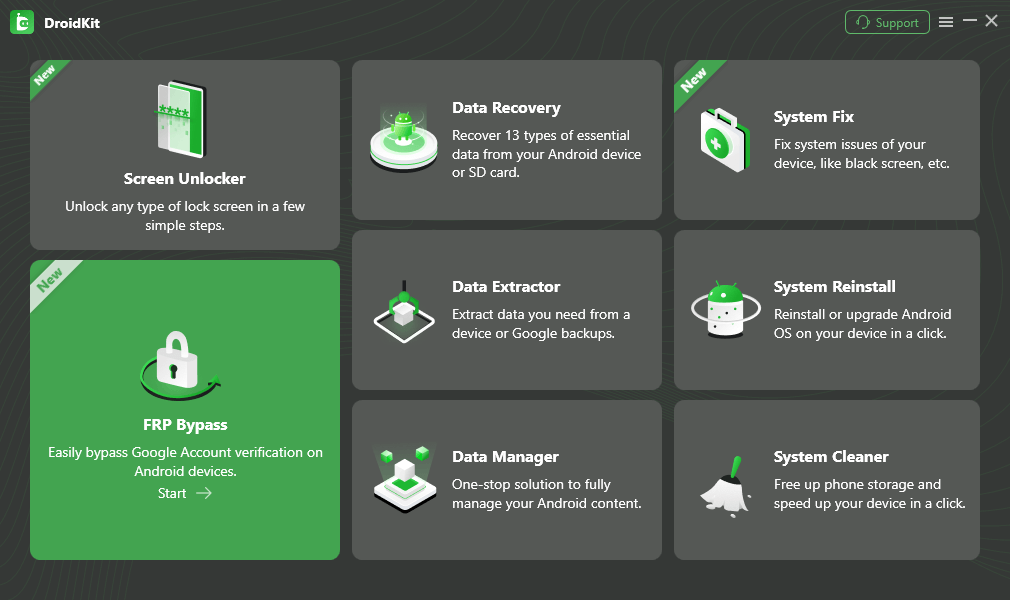
Choose FRP Bypass Mode in DroidKit
Step 3: Follow the Route Shown for the Connected Device
Step 3. Continue with the on-screen instructions shown by DroidKit. Do not replace the displayed steps with instructions from another Samsung model or Android version. Keep the phone connected while the selected process is running.
Complete the Selected FRP Process
After the process, verify the result during normal setup. The meaningful checkpoint is whether the Galaxy A03s can proceed without returning to the previous Google account verification screen.
A03s FRP Method Not Working? Check the Failure Point
When an A03s FRP attempt fails, identify the exact screen where it stops before switching methods. That usually reveals whether the problem is the Android build, an unavailable setup shortcut, an APK restriction, or a PC connection issue.
| Problem | What It Usually Means | What to Do Next |
| Long-pressing the keyboard does not open the menu shown in the tutorial | The older keyboard route does not match your setup screen | Stop that sequence and check another route for your build |
| Help & Feedback is missing | The tutorial depends on an entry point that is unavailable | Do not continue to the YouTube/Gmail steps from that guide |
| YouTube, Gmail, or browser does not open | The app-handoff part of the route is blocked or different | Use a method that does not depend on that handoff |
| APK says “App not installed” | The file, package, permissions, or software build may not fit | Stop downloading random replacements and evaluate another route |
| OTG drive is connected but no usable file manager appears | The APK/OTG route cannot reach its required file-access step | Switch away from that no-PC approach |
| DroidKit or another PC tool does not detect the A03s | Cable, USB port, driver, or connection-state issue | Reconnect the phone, check the USB cable and port, then follow the tool’s detection instructions |
| Google verification returns after another factory reset | The account-verification requirement is still active | Use account recovery, previous-owner assistance, or another applicable FRP route |
The key is to change methods because you identified a concrete mismatch—not simply because the same instructions failed several times.
How to Avoid FRP Before Resetting Your A03s
If you still have normal access to the Galaxy A03s and plan to sell, trade in, give away, or factory-reset it, remove your account relationship before the reset instead of dealing with Google verification afterward.
Step 1. Confirm that you know the Google account and password currently used on the A03s.
Step 2. Open the account settings on the phone and select the Google account associated with the device.
Step 3. Remove the Google account from the A03s before transferring ownership.
Step 4. Perform the factory reset through the normal Settings menu while you still have access to the phone.
Step 5. If you are giving the device to someone else, confirm that initial setup no longer asks for your previous Google account before handing it over.
For a second-hand A03s, ask the seller to complete account removal before you pay whenever possible. It is much easier to solve the account relationship while the previous owner can still access the phone.
Samsung A03s FRP FAQs
Can I bypass Samsung A03s FRP without a computer?
Only if your A03s build still exposes every entry point required by the no-PC method. Older routes may depend on Google Keyboard, Help & Feedback, a browser, file access, or APK installation. If one of those screens is missing, that particular no-PC route cannot continue.
Does the old Google Keyboard FRP method work on Samsung A03s?
It depends on the software build and the menus available during setup. If the keyboard settings, Help & Feedback, or browser handoff shown in the tutorial does not appear on your phone, do not assume the rest of the sequence still applies.
What changes for Samsung A03s FRP on Android 13?
The important change is not a single guaranteed Android 13 method. You need to verify whether the older keyboard, app-handoff, Settings, or APK entry points used by a tutorial are actually present on your Android 13 setup screen. If they are not, choose a route that does not depend on them.
What if my Samsung A03s reports Android 14 or a newer build?
Verify the exact software version and current setup behavior before following an older A03s tutorial. This guide does not claim one universal A03s-specific Android 14 bypass sequence. Use the model, build, security patch, and available setup screens to decide whether a method is relevant.
Why does my FRP APK say “App not installed” on A03s?
The APK may not match the software environment, installation may be restricted during setup, the package may be invalid, or the required permissions may not be available. Do not treat another random APK download as the automatic fix; first determine whether APK installation is usable on your build at all.
Will another factory reset remove FRP from Samsung A03s?
Not automatically. If the phone still requires a previously associated Google account, resetting it again does not by itself satisfy that verification. Check account recovery or another applicable FRP route instead.
Which Samsung A03s FRP method should I try first?
If you can recover the previous Google account, use that route. Otherwise, identify the Android build and compare it with the method’s required screens. An older keyboard method makes sense only when those menus still exist; an APK route makes sense only when file access and installation are available; a PC tool is more relevant when those setup-screen routes do not match.
Why is my PC not detecting the Samsung A03s?
Check the USB cable, USB port, connection state, and any driver requirements of the software you are using. Device detection is a separate issue from FRP itself, so solve the connection problem before assuming the FRP method is unsupported.
Conclusion
Samsung A03s FRP is not one fixed sequence for every Android version. The older Google Keyboard and Help & Feedback route is relevant only when those exact screens still exist; APK and OTG routes depend on both file access and installation; Android 13 users should verify the tutorial’s setup flow instead of assuming an Android 11 method still applies.
Start with the account and software-build facts you can verify. If a keyboard menu is missing, an APK cannot install, or a browser handoff never appears, that failure tells you which route not to keep repeating. A computer-based option such as DroidKit is most relevant when those A03s-specific setup paths are unavailable and you prefer a guided software workflow.
Free Download * 100% Clean & Safe
More Related Articles



Joy Taylor is a seasoned technical writer with over a decade of experience in mobile technology. At iMobie, she specializes in producing in-depth content on iOS data recovery, iPhone unlocking solutions, and iOS troubleshooting.
Product-related questions? Contact Our Support Team to Get Quick Solution >
