Samsung A10/A10s FRP Bypass: Android 11, No PC & Tools
Galaxy A10 and A10s users often land on the same FRP tutorials even though the phones belong to different model families. Android 11 adds another compatibility checkpoint: keyboard, browser, APK, and no-PC paths shown in older guides may no longer match the setup screen, while tool searches need model- and version-aware decisions.
Samsung A10 FRP bypass searches now split into several different problems. Some users have the Galaxy A10, others have the A10s, many are specifically running Android 11, and another large group is looking for a Samsung A10 or A10s FRP unlock tool download.
Those searches should not all lead to one generic three-method tutorial.
The Galaxy A10 belongs to the SM-A105 family, while the Galaxy A10s belongs to the SM-A107 family. Both device lines have official Android 11 support documentation in Samsung’s regional support system, which explains why older Android 9-era keyboard and APK videos can look very different from the phone currently in front of you.
For this article, the useful dividing line is simple: first identify A10 or A10s, then identify whether the phone is running an older setup environment or Android 11, and only then decide whether account recovery, a no-PC route, Odin-related research, or an FRP tool belongs in the workflow.
For nearby Galaxy A models and series-level guidance, the Samsung Galaxy A-Series FRP guide connects model-specific routes across the A-series. This page remains focused on A10, A10s, Android 11, no-PC intent, and FRP unlock tool searches.
Table of ContentsHide
A10 or A10s? Check the Model Before the Method
Why Android 11 Changes the A10/A10s FRP Decision
Recover the Previous Google Account First
Samsung A10/A10s FRP Bypass Without PC
What Does “A10/A10s FRP Unlock Tool Download” Mean?
A PC FRP Route for a Compatible A10/A10s
What Odin Can and Cannot Do for A10/A10s FRP
What an A10/A10s FRP APK Route Actually Requires
A10/A10s FRP Bypass Not Working: Read the Failure Point
How to Avoid FRP Before the Next Factory Reset
FAQs About Samsung A10/A10s FRP Bypass
A10 or A10s? Check the Model Before the Method
The names look similar, but Galaxy A10 and Galaxy A10s should not be treated as one undifferentiated FRP target.
| Device | Model Family | FRP Research Check |
| Samsung Galaxy A10 | SM-A105 family | Confirm the regional model, Android version, setup screen, and security state before following an old A10 guide |
| Samsung Galaxy A10s | SM-A107 family | Do not assume an SM-A105 tutorial, driver workflow, or device route is automatically interchangeable |
| A10/A10s on Android 11 | Depends on the exact model family | Check whether keyboard, browser, APK installation, TalkBack, or other setup transitions shown in older guides still exist |
This is particularly important because current search demand is split almost evenly between A10 and A10s tool and bypass queries.
An A10s owner searching for a free unlock tool can easily land on an A10 tutorial. An A10 owner on Android 11 can also land on a video recorded when that device was running an older Android build.
Before doing anything else, record:
- The complete model code if available.
- Whether the phone is A10 or A10s.
- The Android version when known.
- The regional variant when relevant.
- The exact wording on the current lock or verification screen.
For wider Samsung FRP logic across Galaxy series, Android versions, free methods, and current tool categories, use the Samsung FRP bypass guide. The distinction here is narrower: whether an A10/A10s method matches the model and Android environment.
Why Android 11 Changes the A10/A10s FRP Decision
Samsung A10 FRP bypass Android 11 and Samsung A10s FRP bypass Android 11 are both strong query patterns for this page.
That matters because many older A10-family tutorials were recorded around earlier Android releases. They can depend on setup-screen behavior such as:
- Opening keyboard settings from the Google verification screen.
- Entering Help & Feedback from the keyboard interface.
- Launching Web Search, Chrome, YouTube, or another external application.
- Installing an APK from a browser or file location.
- Opening a Settings activity through a shortcut app.
- Using an accessibility route whose menus have since changed.
On Android 11, the first useful question is not whether someone uploaded a newer video. It is whether the same transition still appears on your A10 or A10s.
Android 11 checkpoint: if the tutorial cannot reproduce the first transition—keyboard to Help, Help to browser, browser to APK install, or app to Settings—the rest of that tutorial is not a usable route for the current phone state.
The Android 11 FRP guide goes deeper into why old keyboard, TalkBack, browser, share-menu, and APK paths can diverge across brands and security patches. Use it for the Android-version layer; keep this page for A10/A10s model-specific decisions.
Recover the Previous Google Account Before Turning an Account Problem into a Tool Problem
If the Galaxy A10 or A10s was factory-reset and now asks for a Google Account previously associated with the device, check whether that account can be recovered before downloading unlock utilities.
Step 1. On another trusted phone, tablet, or computer, open Google’s account recovery process.
Step 2. Recover the Google Account email first if the username is forgotten.
Step 3. If the email address is known but the password is forgotten, complete password recovery using the recovery information available for that account.
Step 4. Return to the A10 or A10s setup flow after access to the correct account has been restored.
Step 5. For a second-hand phone that remains linked to another person’s account, contact the seller or previous owner instead of entering unknown account information into third-party pages.
This route and an FRP unlock tool solve different situations. Account recovery restores access to the identity Android is asking to verify; a third-party FRP workflow should not be the automatic first answer to a recoverable account.
Samsung A10/A10s FRP Bypass Without PC: Check the Entry Point, Not Just the Video Title
No-PC intent is especially strong for A10 and A10s because many videos show keyboard, browser, TalkBack, SIM, QR, APK, or account-manager routes.
Rather than list each one as a guaranteed “method,” it is more useful to examine the entry point.
Keyboard Method: Can You Still Leave the Keyboard Interface?
Some older Samsung guides use the keyboard as the starting point. The complete sequence may require access to keyboard settings, Help & Feedback, Web Search, or another external screen.
Check the first two transitions before going any further:
- Does the same keyboard interface appear?
- Is the required settings icon or menu present?
- Does Help & Feedback open?
- Does the tutorial’s search or browser action still appear?
A keyboard opening successfully does not mean the remaining route still exists.
TalkBack Method: Accessibility Access Is Only the First Door
A TalkBack-based video can start successfully and still fail later.
The route may also require:
- A TalkBack menu that matches the guide.
- Access to Help content.
- An external application transition.
- Browser or YouTube access.
- A Settings or application activity that can still be opened.
If the A10s on Android 11 turns on TalkBack but cannot reach the next screen shown in the tutorial, diagnose that missing transition instead of repeating the accessibility gestures.
Browser-Based Route: The Browser Is the Dependency
Many so-called no-PC methods are really browser-access methods.
The phone must first escape the restricted setup flow and reach a browser. Only then can the guide attempt to obtain another file or open another service.
If Chrome, Web Search, or the required external application never opens, the problem is not the name of the APK you planned to download.
Should You Keep Trying No-PC Routes on Android 11?
Only when the exact A10/A10s guide matches the device state closely enough to justify continuing.
Compare:
- A10 versus A10s.
- Android version.
- Regional model where relevant.
- Visible Setup Wizard screens.
- The first external-app transition.
- The final state after restart, not merely temporary Settings access.
That is a much better compatibility signal than a title claiming “Samsung A10s Android 11 FRP bypass no PC 2026.”
What Does “Samsung A10/A10s FRP Unlock Tool Download” Actually Mean?
The current query data shows strong tool-download intent, including:
- Samsung A10 FRP unlock tool download.
- Samsung A10s FRP unlock tool.
- Samsung A10s FRP unlock tool free download.
- Samsung A10 FRP unlock tool.
Those searches can lead to several different tool categories, and they should not be treated as identical.
| Tool Type | What It Usually Requires | Main A10/A10s Check |
| Samsung FRP desktop tool | PC, USB driver, supported Samsung workflow, and model/version fit | Confirm A10 or A10s and Android version before starting |
| FRP APK | A usable route to download, install, open, and use the package during setup | Android 11 may block the path before the APK is even installed |
| Odin workflow | Samsung Download Mode, exact firmware or procedure files, and technical flashing knowledge | Do not treat normal stock flashing as a universal one-click FRP removal action |
| Guided FRP application | Computer connection and a supported device route | Select the actual Samsung version route shown by the software |
For a wider comparison of Samsung-specific utilities, including free programs and technician tools, see the Samsung FRP tool guide. This A10/A10s page does not need to duplicate a fourteen-tool comparison.
A PC FRP Route for a Compatible Samsung A10 or A10s
The most relevant PC-tool scenario on this page is not simply that a user prefers software.
It is the A10/A10s situation where the phone is still at Google verification, but the Android 11 tutorial cannot open the required keyboard menu, browser transition, APK installer, or Settings activity.
For a compatible device route, DroidKit provides a Samsung FRP workflow on Windows and Mac. Check the current compatibility route and data impact before starting; the FRP process removes device data.
Start the Samsung FRP Workflow
Step 1. Install DroidKit on the computer, launch it, and choose FRP Bypass.
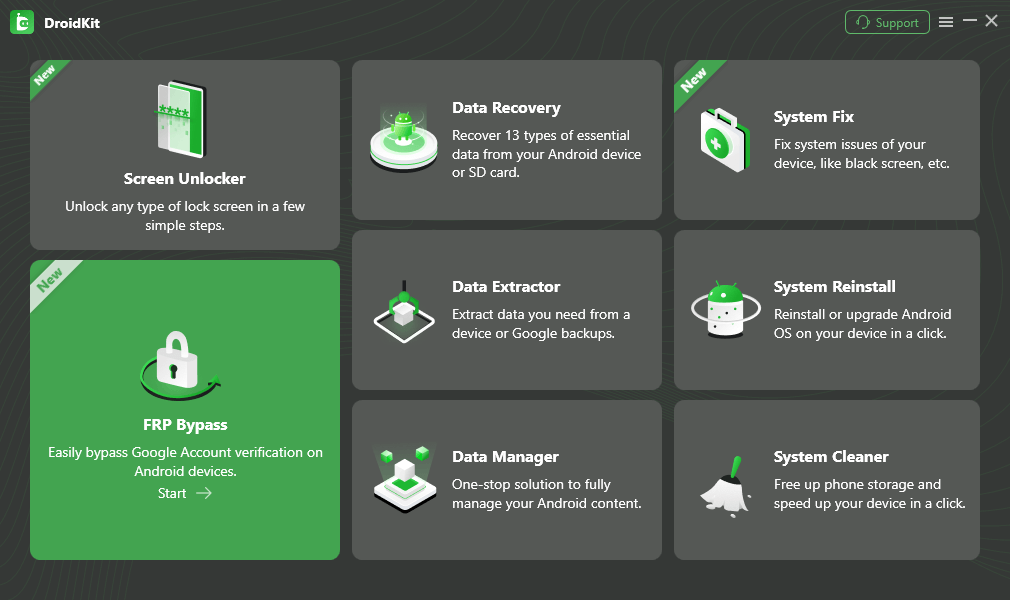
Open the FRP Bypass module.
Before continuing: confirm that the phone is an A10 or A10s, check the Android version when known, and review the software’s current device route. FRP removal erases device data.
Step 2. Connect the Galaxy A10 or A10s using a data-capable USB cable, start the FRP process, and choose Samsung when prompted for the device brand.
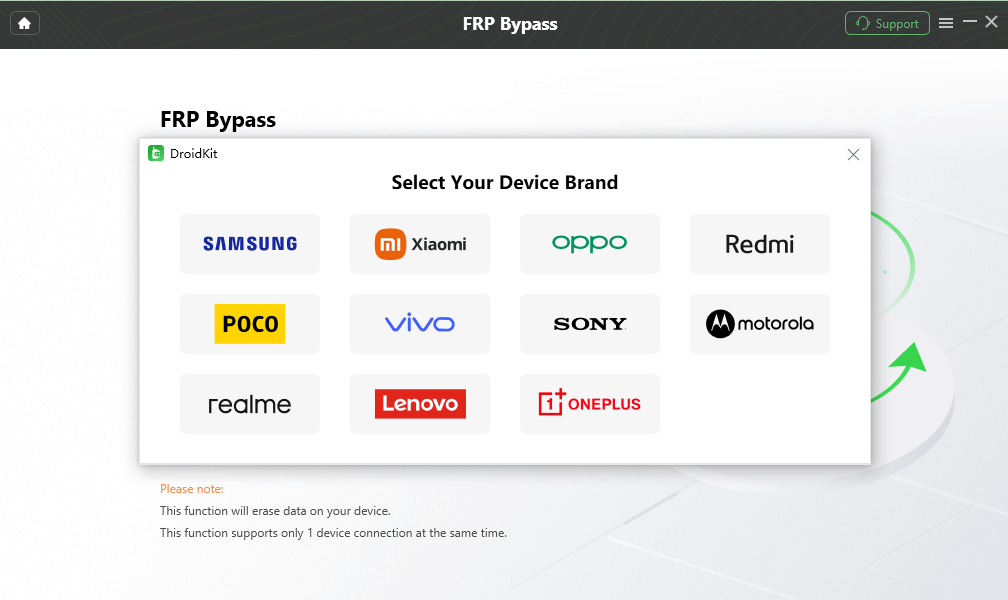
Choose Samsung when prompted.
Step 3. Select the Samsung device-version route requested by the software. Do not choose only from memory of an old tutorial; use the information available for the actual phone.
Step 4. Follow the device-side instructions shown by the application for the selected Samsung route.
Step 5. Keep the phone connected until the application displays the final result.
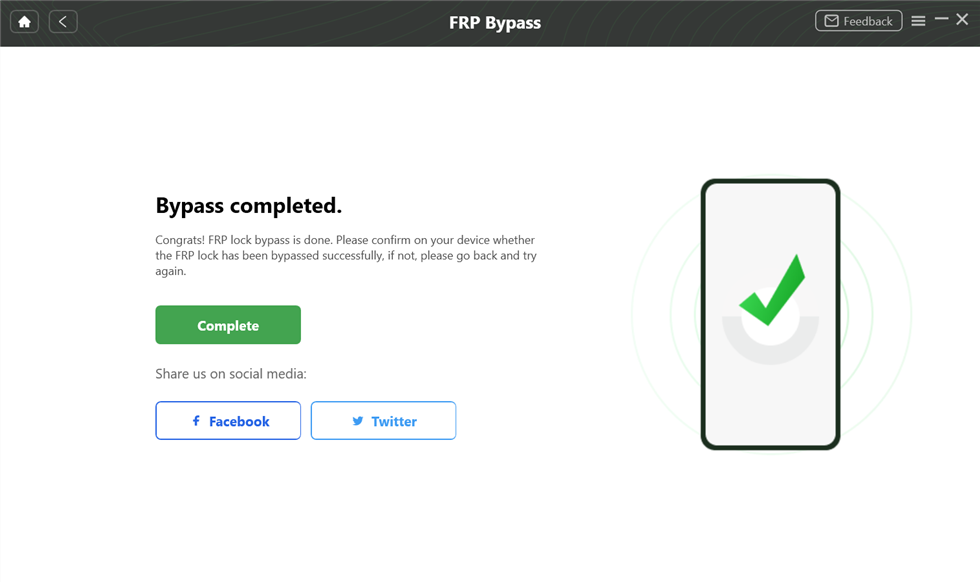
Review the completion result before continuing device setup.
DroidKit is commercial software. Its relevance to this page is tied to a specific A10/A10s problem: the setup path in the no-PC guide is missing, but the device still needs a compatible Samsung FRP route rather than another copied APK tutorial.
What Odin Can and Cannot Do for A10/A10s FRP
The original article presented Odin as though downloading firmware, loading an AP file, and clicking Start would directly remove FRP.
That description is too broad.
Odin belongs to Samsung firmware flashing workflows. FRP-related Odin procedures discussed online can involve specific device states, firmware packages, combination or service files, Download Mode, binary compatibility, and model matching.
That means two separate statements should not be confused:
- Odin can flash compatible Samsung firmware packages.
- Flashing normal stock firmware is not automatically a universal FRP removal process.
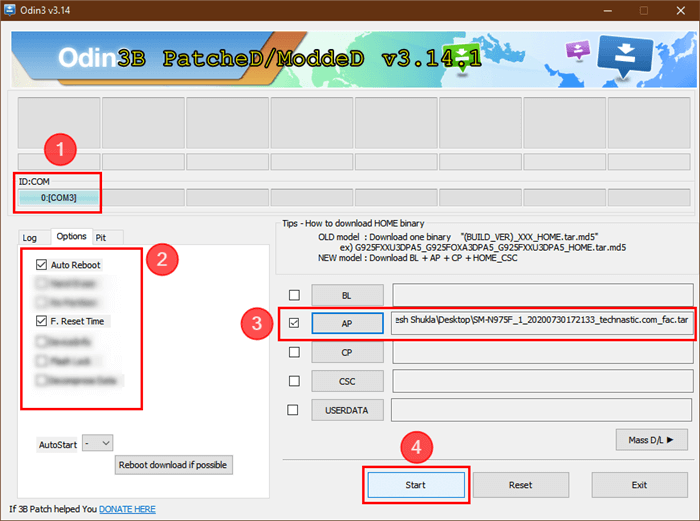
An Odin workflow requires exact Samsung device and firmware matching.
Before Researching an Odin Route for A10/A10s
Check:
- The exact A10 or A10s model code.
- The regional variant.
- The firmware binary or bootloader compatibility required by the procedure.
- The actual package contents, not only the filename.
- The Download Mode instructions for the exact device.
- The purpose of the file being flashed.
For detailed AP/BL/CP/CSC matching, Download Mode preparation, Odin FAIL errors, and firmware risks, use the Odin FRP guide rather than compressing a flashing workflow into six generic A10 steps.
Do Not Choose Odin Only Because It Is Free
An A10s user searching for a free FRP unlock tool may see Odin mentioned frequently. The lack of a software purchase price does not remove the need for exact firmware matching and recovery knowledge.
If the user’s real problem is a blocked Android 11 setup path rather than firmware recovery, a firmware flashing route may add complexity without addressing the reason the original no-PC method stopped.
What an A10/A10s FRP APK Route Actually Requires
The old article described the APK method as:
download the file → transfer it → install it → follow the prompts.
For an FRP-locked A10 or A10s, the difficult part is usually the access chain before installation.
A complete APK-oriented route may depend on all of the following:
Step 1. The current Setup Wizard exposes a route to a browser, file manager, OTG storage, or another usable file source.
Step 2. The APK file can actually be obtained on the phone.
Step 3. The device allows the package-installation process to start from that setup state.
Step 4. The APK is compatible with the software environment and opens successfully.
Step 5. The activity, Settings screen, or account-management path required by the guide is still available.
Step 6. The final setup state is verified after restart rather than assuming that temporary Settings access equals completed FRP removal.
If an A10s Android 11 guide stops at Step 1 or Step 3, downloading another APK with “latest” in the filename does not repair the missing setup transition.
A10/A10s FRP Bypass Not Working: Read the Failure Point
The Guide Is for A10, but You Have an A10s
Return to the model code. SM-A105-family and SM-A107-family devices should not be treated as interchangeable merely because both contain “A10” in the commercial name.
The Video Says Android 11, but the Screens Still Do Not Match
Android version alone is not a complete compatibility description. Compare the exact model, region, setup interface, and the first transition required by the method.
Keyboard Settings Open, but Help & Feedback Is Missing
The failure point is the missing transition out of the keyboard environment. Do not continue with later Chrome or APK steps from the video as though the missing screen were optional.
TalkBack Turns On, but There Is No Browser Route
The accessibility feature and external-app access are separate parts of the route. If the next menu is absent, repeating gestures does not create the browser path shown in another build.
The APK Says “App Not Installed”
Check package compatibility, file integrity, installation state, and whether the guide was written for the same A10/A10s Android environment. Do not solve an installation mismatch by downloading random renamed copies.
Odin Detects the Phone, but Flashing Fails
Device detection proves that the USB and Download Mode connection reached Odin. It does not prove that the firmware or procedure files match the phone.
Return to the exact model, region, binary compatibility, and package selection before flashing again.
The Phone Restarts and Still Requests the Previous Google Account
The preceding procedure did not change the FRP verification state. Do not respond by repeatedly factory-resetting the A10 or A10s.
Recheck account recovery, the exact device environment, and whether the chosen route was actually intended for that model and Android version.
The PC FRP Tool Does Not Recognize the Phone
Check the data cable, USB port, computer detection, and instructions shown for the selected Samsung route. Do not select another Galaxy model just to force the workflow forward.
How to Avoid FRP Before the Next Factory Reset
For an A10 or A10s that is still accessible before a future reset, remove the Google Account through normal Android account settings before performing the factory reset.
The menu wording can vary with Android and One UI version, but the process generally involves:
Step 1. Open Settings.
Step 2. Open the account-management section used by the current One UI version.
Step 3. Select the Google Account associated with the device.
Step 4. Choose the account-removal option and complete the requested verification.
Step 5. Confirm that the account has been removed before beginning the factory reset.
This is preparation for a phone you can still legitimately access. It is not a method for an A10 or A10s already stopped at the post-reset Google verification screen.
FAQs About Samsung A10/A10s FRP Bypass
Is Samsung A10 the same as Samsung A10s for FRP bypass?
No. Galaxy A10 uses the SM-A105 model family, while Galaxy A10s uses the SM-A107 family. A guide should be checked against the actual model and Android environment rather than assuming that every A10-named phone follows the same setup route.
Can Samsung A10 FRP be bypassed on Android 11 without a PC?
Older keyboard, TalkBack, browser, and APK routes are worth evaluating only when the A10 setup screens still expose every transition required by the guide. If Keyboard Help, browser access, APK installation, or the required Settings activity is missing, that particular no-PC route does not match the phone state.
Why is Samsung A10s Android 11 a strong compatibility checkpoint?
A10s was originally sold in an earlier Android environment, while Samsung support resources also include Android 11 documentation for the SM-A107 family. Tutorials recorded on earlier software should therefore not be assumed to match an updated A10s setup screen.
Where can I download a Samsung A10/A10s FRP unlock tool?
First decide what type of tool the search result represents. A Samsung FRP desktop utility, APK, Odin package, and guided FRP application have different file types, device requirements, and compatibility checks. Use a Samsung FRP tool comparison before downloading an unknown package solely because it contains A10 or A10s in the title.
Is there a free Samsung A10s FRP unlock tool?
Free Samsung utilities and APK-oriented routes exist, but “free download” does not establish A10s compatibility. Check whether the tool supports the exact model and Android environment, and distinguish a Windows executable from an APK or firmware package before following installation instructions.
Does Odin automatically remove FRP from Samsung A10?
No universal one-click assumption should be made. Odin is used for Samsung firmware flashing workflows. FRP-related Odin procedures depend on the exact model, package, firmware or binary compatibility, Download Mode connection, and the purpose of the files being used.
Why does the keyboard FRP method fail on my A10s?
The keyboard may still open while the next required screen—such as Help & Feedback, Web Search, Chrome, or another application transition—is unavailable. Diagnose the first missing transition rather than continuing with later steps copied from another build.
Why will the FRP APK not install on Samsung A10 Android 11?
The package may be incompatible, damaged, or blocked by the current setup state. The route can also fail earlier because the phone does not allow browser access, unknown-source installation, or the Settings activity expected by the tutorial.
Does another factory reset remove FRP from A10 or A10s?
No. FRP is designed to appear after a protected device has been reset when ownership verification is still required. Repeating the reset is not equivalent to recovering the previously associated Google Account.
Does DroidKit erase data during FRP bypass?
Yes. DroidKit’s current FRP documentation states that the FRP workflow erases device data. Check the current device route and expected outcome before beginning the process.
On A10/A10s, Android 11 Is Where the Tutorial Needs to Prove Itself
The Galaxy A10 and A10s sit in an awkward part of FRP search history. They were released in an earlier Android era, received later software documentation and updates, and now appear in search results alongside years of keyboard, TalkBack, APK, Odin, and desktop-tool tutorials.
That is why an old A10 video can begin correctly and still become useless halfway through. The keyboard appears, but Help is missing. TalkBack starts, but the browser route is gone. The APK downloads, but installation never starts. Odin sees the phone, but the package does not match.
For these two phones, the useful question is not simply whether an FRP method exists. It is whether the method survives the exact checkpoint shown by your A10 or A10s on its current Android build.
On A10/A10s, Android 11 is where the tutorial needs to prove itself—screen by screen.
More Related Articles



Joy Taylor is a seasoned technical writer with over a decade of experience in mobile technology. At iMobie, she specializes in producing in-depth content on iOS data recovery, iPhone unlocking solutions, and iOS troubleshooting.
Product-related questions? Contact Our Support Team to Get Quick Solution >
