FRP Bypass Android 11: No PC, APK & Tool Options
Android 11 FRP routes vary by phone brand, security patch, and setup wizard. Older TalkBack, browser, and APK methods may still appear in tutorials but can stop at different points on Samsung, Xiaomi, OPPO, Vivo, and other Android 11 phones. Use this guide to identify which route matches your device before repeating steps that your current setup no longer supports.
Android 11 sits in an awkward middle ground for FRP guides. Many tutorials still reference Android 10-era TalkBack, browser, SIM, share-menu, or APK routes, but the same sequence may look completely different on a Samsung One UI phone, a Xiaomi device running MIUI, an OPPO with ColorOS, or a Vivo with Funtouch OS.
If an Android 11 phone stops at Google verification after a factory reset, start with the exact brand, model, build, and security patch instead of choosing a method only because a video says “Android 11.” The more useful question is whether the route shown in that guide still exists on your phone.
FRP, or Factory Reset Protection, asks for a Google account that was previously synced with the device. If you can recover that account, or if a second-hand phone is still tied to its previous owner, resolve the account first. The bypass and tool routes below are relevant when legitimate account access is unavailable and the method matches the phone you are authorized to manage.
For FRP routes that are not specific to Android 11, see the Android FRP bypass guide.
Table of ContentsHide
Android 11 FRP Bypass: Which Route Fits Your Phone?
What Does FRP Look Like on Android 11?
Android 10 vs Android 11 FRP: Why Old Guides May Not Match
Can You Bypass Android 11 FRP Without a PC?
Why Android 11 No-PC Routes Stop Working
Android 11 FRP APK: What to Check Before Installing Anything
Samsung Android 11 FRP: Model, One UI & Patch Checks
Android 11 FRP Differences by Brand
Compare Android 11 FRP Recovery Options
Android 11 FRP Not Working? Diagnose the Failure Point
Check These Details Before Choosing a Method
When a PC-Based FRP Route Makes More Sense
Android 11 FRP FAQ
Android 11 FRP Bypass: Which Route Fits Your Phone?
There is no single Android 11 FRP route for every phone. A method is worth considering only when its required menus, shortcuts, or connection steps match the Android 11 device in front of you.
| Your Android 11 Situation | First Route to Check | Why |
| You can access the previously synced Google account | Recover or sign in to the Google account | No bypass route is needed if the original account can complete verification. |
| The phone is second-hand and still linked to another account | Ask the previous owner or seller to remove the account | The problem is account ownership rather than Android 11 method compatibility. |
| You have a Samsung phone on Android 11 | Check the exact model, One UI build, and security patch | Samsung setup behavior can differ from generic Android 11 instructions. |
| You have Xiaomi, Redmi, OPPO, Realme, Vivo, or another OEM | Use a brand-specific route first | MIUI, ColorOS, Funtouch OS, and other OEM setup wizards expose different paths. |
| An old TalkBack, browser, SIM, or share-menu route still appears | Compare the exact screens with a model-specific guide | The presence of Android 11 alone does not prove the rest of the route will work. |
| The browser cannot open or the APK will not install | Stop the APK/no-PC route and diagnose the failure point | The access required by that method is already blocked on your setup. |
| Manual instructions no longer match the phone | Consider account support, device-specific guidance, or a compatible PC route | Repeating an unavailable menu path will not make it reappear. |
What Does FRP Look Like on Android 11?
Factory Reset Protection can appear during Android setup after a reset. When FRP is active, Android may ask you to sign in with a Google account that was previously synced with the phone before setup can continue.
On an Android 11 device, the verification screen itself may look straightforward, but the routes used in older bypass tutorials depend on other parts of the setup wizard: accessibility menus, browser access, notifications, share panels, APK installation, Settings shortcuts, or OEM-specific screens.
This is why two phones both running Android 11 may not behave the same way. Samsung’s One UI setup flow can differ from MIUI, ColorOS, Funtouch OS, and other manufacturer interfaces even before security patch differences are considered.
If the real problem is access to the account that was previously synced with the phone, see how to deal with a previously synced Google account before spending time on bypass instructions.
Android 10 vs Android 11 FRP: Why Old Guides May Not Match
Android 10 FRP instructions are still widely referenced in Android 11 searches, particularly guides involving TalkBack, Chrome, YouTube, Google Account Manager, or APK installation. The problem is that these routes depend on setup screens and permissions that may not appear the same way on an Android 11 build.
| Checkpoint | Older Android 10-Era Guide | What to Verify on Android 11 |
| TalkBack or accessibility | The guide may expect a shortcut into another app or Settings. | Check whether the same menu and action are actually present on your phone. |
| Browser access | The sequence may depend on opening Chrome, YouTube, Help, or a web page. | If no browser or external app can open, the rest of that route cannot continue. |
| APK installation | The guide may download Google Account Manager or another FRP APK. | Confirm that downloading and installing an APK is possible before looking for a package version. |
| Share or notification route | A share sheet, SIM notification, or app shortcut may expose Settings. | Check whether that exact shortcut exists on your OEM setup wizard. |
| Security patch | The tutorial may have been recorded on an earlier software state. | Use the patch as a compatibility clue, not as a guarantee that the method works. |
A useful stopping rule is simple: if the Android 10 guide depends on a menu that your Android 11 phone does not show, do not keep repeating earlier steps hoping that the missing screen will eventually appear.
Can You Bypass Android 11 FRP Without a PC?
A no-PC route is worth checking only when the phone still exposes the shortcut that the method requires. This can include a TalkBack action, browser entry, share panel, SIM notification, keyboard route, QR screen, or another setup-wizard path.
The term Android 11 FRP bypass no PC is therefore too broad on its own. Before attempting one, answer these questions:
- Does the guide match your exact brand and model?
- Does the setup screen on your phone look like the one shown in the guide?
- Can the required accessibility, browser, share, or notification path still be opened?
- Is the guide relying on an APK that you cannot actually install?
- Was the tutorial created for a different OEM interface or an earlier software state?
If one of the essential checkpoints is missing, switch methods rather than spending more time on timing variations or repeated restarts.
Why Android 11 No-PC Routes Stop Working
No-PC tutorials usually fail at a specific checkpoint. Finding that checkpoint is more useful than treating the entire phone as “unsupported.”
| Where the Route Stops | What the Method Expected | What That Failure Means |
| TalkBack opens but no browser or Settings path appears | An accessibility shortcut into another app | The TalkBack sequence shown in that guide does not match your setup. |
| Chrome, YouTube, or Help cannot open | External app or browser access during setup | A browser-dependent route cannot continue. |
| The SIM or notification trick shows no useful shortcut | A notification or Settings entry from the lock/setup screen | The notification behavior required by that method is absent. |
| The share panel is missing or limited | A route from Share into another app or Settings | The share-menu method does not apply to this build or OEM flow. |
| A keyboard or language trick stays inside setup | A hidden shortcut or external link | The sequence does not expose the access needed for later steps. |
| The instructions show a screen your phone never reaches | A particular OEM/build setup path | You are probably following the wrong device or software variant. |
Do not interpret these failures as a reason to try random combinations from several different tutorials. Mixing Samsung, Xiaomi, OPPO, Vivo, and generic Android steps can make it harder to identify which checkpoint is actually unavailable.
Android 11 FRP APK: What to Check Before Installing Anything
Searches such as FRP bypass Android 11 APK, FRP bypass APK Android 11, and Google Account Manager APK Android 11 often lead to old files or download pages. The first question should not be “Which APK should I install?” It should be whether the current Android 11 setup allows the APK route to function at all.
| APK Failure Point | What It Tells You | Better Next Step |
| The browser cannot open | You cannot reach the download stage required by that workflow. | Stop using a browser-dependent APK route. |
| The download completes but “App not installed” appears | The package, version, install permissions, or current setup may not match. | Do not keep installing random older APK versions. |
| The APK opens and immediately closes or crashes | The package may not match the Android version or device environment. | Return to a device-specific route rather than stacking more APKs. |
| The APK opens but cannot reach Settings or account controls | Installing the file did not provide the access the tutorial depends on. | The method has reached its compatibility limit. |
| The download source is unclear or makes unrealistic claims | You cannot establish whether the file is trustworthy or appropriate. | Avoid the file rather than disabling more security controls. |
For a deeper look at file-source, install, and compatibility risks, see the FRP bypass APK guide. If you are comparing desktop software instead of APK files, the Android FRP tool guide covers that intent separately.
Samsung Android 11 FRP: Model, One UI & Patch Checks
Samsung deserves a separate Android 11 check because many tutorials are written for a particular Galaxy model and One UI setup flow rather than Android 11 as a whole. A Galaxy A-series video, for example, should not automatically be applied to another Samsung series just because both phones report Android 11.
| Samsung Detail | Why It Matters |
| Exact model number | Regional and model variants may expose different setup behavior. |
| One UI version | The setup wizard and accessible shortcuts can differ between One UI builds. |
| Security patch | An older tutorial may depend on a route no longer exposed on your software state. |
| TalkBack/browser availability | Many older Samsung no-PC tutorials depend on these checkpoints. |
| Previously synced account | If the account can be recovered, there is no reason to rely on a bypass route. |
If you have a Samsung rather than a generic Android device, use the Samsung FRP bypass guide to narrow the route by device. If you specifically need software rather than a manual method, compare Samsung FRP tool options.
Android 11 FRP Differences by Brand
Android 11 identifies the Android generation, but the setup wizard is still shaped by the phone manufacturer. That is why brand is often the next filter after confirming the Android version.
| Brand / Interface | What to Match Before Following a Guide | Where to Go Next |
| Samsung / One UI | Model number, One UI version, patch, TalkBack and browser behavior | Use the Samsung-specific section and Samsung FRP guide above. |
| Xiaomi / Redmi / MIUI | MIUI version, region firmware, account status, available setup shortcuts | Use a Xiaomi or Redmi route rather than Samsung instructions. |
| OPPO / Realme / ColorOS | ColorOS build, setup screen, browser/file access, Google account state | See the OPPO FRP guide. |
| Vivo / Funtouch OS | Funtouch OS build, setup restrictions, account state, security patch | Check Vivo FRP methods. |
| Redmi-specific device | Exact Redmi model, MIUI region/build, recovery and setup behavior | Use the Redmi FRP guide. |
| Other Android 11 brands | OEM interface, model, build, patch, and whether the tutorial matches the same setup wizard | Stay with brand/model-specific instructions whenever available. |
Compare Android 11 FRP Recovery Options
Rather than ranking every option as “working” or “not working,” compare what each route requires and where its limits appear on Android 11.
| Route | PC Needed | Best Fit | Main Limitation |
| Previously synced Google account | No | You still control or can recover the account | Requires access to the original account recovery options. |
| Previous owner / seller removal | No | A used phone remains tied to another person’s account | Depends on the previous owner’s cooperation. |
| TalkBack, browser, SIM, share, or other no-PC route | No | The exact model/build still exposes the required path | Highly dependent on OEM setup screens and software state. |
| FRP APK route | Usually no | The setup flow allows browser/file access and the required package can install | Download source, package compatibility, and blocked setup access can stop the route. |
| Advanced firmware/flashing route | Yes | Experienced users who understand exact firmware and device requirements | Wrong files or procedures can cause data loss or device problems. |
| Guided desktop FRP software | Yes | Users whose phone is covered by the software and whose manual route no longer matches | Compatibility still needs to be checked for the exact device situation. |
Android 11 FRP Not Working? Diagnose the Failure Point
If an Android 11 FRP method fails, identify the screen where it stops. That usually tells you whether the problem is the tutorial, the APK, the device brand, or the PC connection.
| Where You Get Stuck | Likely Mismatch | What to Do |
| TalkBack does not open the expected menu | The accessibility route in the guide is not exposed on your setup. | Stop repeating the same gesture or shortcut and move to device-specific guidance. |
| Chrome, YouTube, Help, or a share link will not open | The tutorial requires external-app access that your setup does not provide. | Do not continue with a browser-dependent sequence. |
| FRP APK shows “App not installed” | Package/version mismatch or an installation restriction | Do not solve it by downloading multiple random APK versions. |
| The APK installs but cannot reach the required Settings page | The package works, but the setup route it depends on does not. | Move away from that APK workflow. |
| The steps work on Samsung in the video but not on your Xiaomi, OPPO, or Vivo | The guide is using another OEM’s setup wizard. | Switch to a brand-specific Android 11 route. |
| The phone still returns to Google verification after another reset | FRP remains active | Recover the synced account, contact the previous owner, or use another authorized route. |
| A desktop tool cannot detect the device | Cable, port, driver, device mode, or unsupported workflow | Check the tool’s connection instructions and device compatibility before retrying. |
If you have already identified the failed checkpoint but are not sure what it means, see the FRP bypass not working guide.
Check These Details Before Choosing a Method
Use this short pre-check to avoid mixing Android 11 instructions intended for different phones.
| Check | What to Confirm |
| Device ownership | The phone belongs to you or you have permission to service it. |
| Google account status | Whether the previously synced account can still be recovered. |
| Second-hand status | Whether the previous owner can remove the device from their account. |
| Exact brand and model | Do not rely only on the words “Android 11.” |
| OEM interface | Check One UI, MIUI, ColorOS, Funtouch OS, or the equivalent manufacturer build. |
| Security patch / build | Compare the software state with the guide, without treating a patch date as a success guarantee. |
| Required checkpoint | Confirm that TalkBack, browser, share, SIM notification, APK installation, or other required access actually exists. |
| PC availability | If manual routes are unavailable, decide whether a compatible computer-based option is practical. |
When a PC-Based FRP Route Makes More Sense
A computer-based route becomes more relevant on Android 11 when the specific path required by a manual tutorial has disappeared. Examples include TalkBack no longer exposing the expected screen, Chrome or a share link refusing to open, or an FRP APK repeatedly returning “App not installed.”
In that situation, DroidKit can be evaluated as a computer-based FRP option. Do not assume that the Android 11 label alone means the phone is supported; check the device and workflow shown by the software before relying on it.
iMobie DroidKit – FRP Option for Compatible Android Devices
DroidKit provides an on-screen FRP workflow from a Windows or Mac computer. It is most relevant here when Android 11 no-PC, browser, or APK routes no longer match the device and the phone is covered by the available DroidKit workflow.

Step 1. Install and open DroidKit on your computer.
Step 2. Choose FRP Bypass from the main interface.
Step 3. Connect the Android phone and follow the device-selection prompts shown by the software.
Step 4. Continue only when the workflow presented by DroidKit applies to your connected device.
Step 5. Follow the on-screen instructions rather than substituting steps from a different Android brand or tutorial.
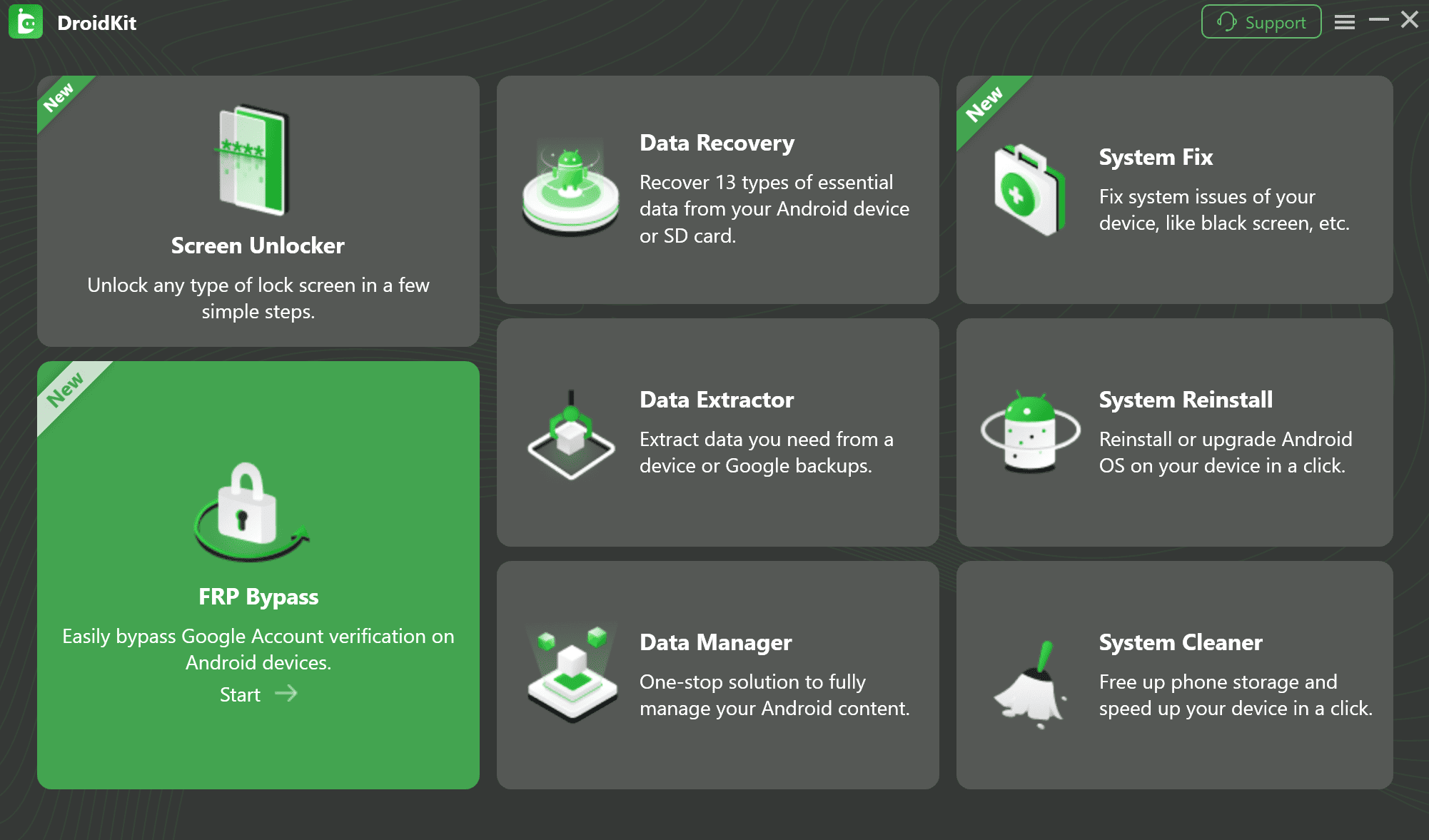
Compatibility note: DroidKit should not be described as covering every Android 11 phone. Check the current device workflow before starting, especially when the phone uses an OEM-specific setup process.
Android 11 FRP FAQ
Can FRP be bypassed on Android 11?
It depends on the phone rather than Android 11 alone. Check the brand, model, OEM interface, security patch, and whether the route required by the guide is still accessible. A Samsung One UI method, for example, should not be assumed to work on Xiaomi, OPPO, or Vivo simply because all of the phones run Android 11.
Can I bypass Android 11 FRP without a computer?
A no-PC route is relevant only if your phone still exposes the required TalkBack, browser, share, SIM notification, keyboard, or other setup shortcut. If the method stops because that checkpoint is missing, repeated timing attempts do not change the compatibility problem.
Does an Android 10 FRP method work on Android 11?
Do not assume it does. Android 10-era guides often depend on specific accessibility, browser, APK, or share-menu access. Compare those checkpoints with your Android 11 phone before following the rest of the sequence.
Does TalkBack FRP bypass work on Android 11?
TalkBack alone is not enough. A TalkBack-based guide usually needs a later shortcut into a browser, another app, or Settings. If your Android 11 phone does not expose that next screen, the route shown in the tutorial does not match your setup.
Why does an Android 11 FRP APK say “App not installed”?
The package may not match the phone or Android environment, or the current setup may restrict installation. Avoid solving the error by installing a series of unverified Google Account Manager or FRP APK versions from unknown sources.
Why can I not open Chrome or YouTube from an Android 11 FRP guide?
The tutorial is relying on external-app access that your setup wizard does not expose. Because the browser is a required checkpoint for that method, continue with a different device-specific route rather than repeating the earlier shortcut.
Why does a Samsung Android 11 method not work on my phone?
Check the exact Samsung model, One UI version, security patch, and screens shown in the tutorial. “Samsung Android 11” still covers many device and software combinations, so a method recorded on one Galaxy variant may not match another.
Why is my phone still asking for a Google account after another reset?
Another reset does not necessarily remove FRP. If the verification screen still requests a previously synced account, recover that account when possible or contact the previous owner when the device was purchased used.
Should I use SP Flash Tool for Android 11 FRP?
Firmware and flashing utilities require device-specific knowledge and can create additional problems if the wrong files or procedure are used. They are better left to users who understand the exact chipset, firmware, and recovery requirements of the phone.
Can DroidKit bypass FRP on every Android 11 phone?
No. Android 11 spans many brands and OEM setup environments. DroidKit is relevant only when the connected device is covered by the FRP workflow available in the software, so check compatibility instead of assuming Android 11 alone is sufficient.
Android 11 FRP is best approached as a compatibility problem, not a hunt for one universal trick. First identify the account situation and the phone’s exact OEM/build. Then check whether the TalkBack, browser, APK, notification, or other checkpoint required by a method is actually present. Once that checkpoint disappears, a different device-specific or compatible computer-based route is a better use of time than repeating the same outdated sequence.
More Related Articles


Roger Smith is a senior technical writer with years of experience in providing Android solutions. He loves to help users solve various problems such as Android unlock, Android data recovery, and Android system repair.
Product-related questions? Contact Our Support Team to Get Quick Solution >
