Samsung A71 FRP Bypass: 5 Methods and Unlock Tool Guide
This guide explains how to bypass FRP on Samsung Galaxy A71 after a factory reset. Compare official Google account verification, DroidKit, OTG APK, Odin, and Samsung Support, and learn which Samsung A71 FRP unlock method fits your device.
DroidKit – Samsung A71 FRP Unlock Tool for Supported Devices
If your Samsung A71 is stuck on Google verification after reset, DroidKit provides a guided FRP bypass process for supported Samsung models and Android versions.

If your Samsung Galaxy A71 is stuck on the Google verification screen after a factory reset, it is usually caused by FRP, or Factory Reset Protection. This security feature asks for the Google account previously synced to the phone before setup can continue.
This guide focuses on Samsung A71 FRP bypass and Samsung A71 FRP unlock tool options. You will compare Google account verification, DroidKit, OTG/APK, Odin, and Samsung Support, so you can choose a method that fits your device condition, Android version, security patch, and technical level.
Quick Answer: The safest way to unlock Samsung A71 FRP is to sign in with the Google account previously synced to the phone. If you own the device but cannot access that account, you can try a supported Samsung A71 FRP unlock tool such as DroidKit, an OTG/APK method on older builds, Odin for advanced users, or Samsung Support with proof of ownership.
What to Know Before Samsung A71 FRP Bypass
Samsung Galaxy A71 may trigger FRP after a factory reset if the previous Google account was not removed before resetting. This is a security check, not a normal screen lock. The available bypass method depends on your A71 model, Android version, security patch, Wi-Fi setup screen, and whether you can access settings or APK installation entry points.
If you are the original owner, the official solution is to sign in with the Google account that was used on the device before the reset. If you bought a second-hand Samsung A71, ask the seller to remove the device from their Google account first. You can also review a broader Samsung FRP bypass guide or learn more about Google account verification after reset.
Before You Start: Use FRP bypass only on a device you own or have permission to unlock. Samsung A71 FRP bypass steps may change after Android or security patch updates.
Which Samsung A71 FRP Method Should You Choose?
Not every A71 FRP bypass method works on every Android version or security patch. Use the table below to choose the method that best matches your situation.
| Method | Best For | Needs PC? | Main Limitation |
| Google Account Login | Original owner who knows the synced account | No | Requires previous Google credentials |
| DroidKit FRP Unlock Tool | Users who want guided Samsung A71 FRP steps | Yes | Compatibility depends on model, Android version, and security patch |
| OTG + APK | No-PC attempt on older Android builds | No | Often blocked by newer security patches |
| Odin | Advanced users with correct Samsung files | Yes | Wrong files may cause boot or setup issues |
| Samsung Support | Users with proof of ownership | No | Requires verification documents |
If you are comparing tools, check these Samsung FRP tool options before choosing a Samsung A71 FRP unlock method. For non-Samsung devices, see broader Android FRP bypass methods.
Method 1. Samsung A71 FRP Bypass with DroidKit
If you want a guided Samsung A71 FRP unlock tool, DroidKit can be a practical option for supported Samsung devices. It walks you through the FRP bypass process on a Windows or Mac computer, which is easier than manually finding OTG/APK routes or flashing files with Odin.
DroidKit does not replace official Google account recovery. It is intended for users who own the device and cannot pass Google verification after reset. Availability depends on your Samsung A71 model, Android version, and security patch.
DroidKit – Samsung A71 FRP Unlock Tool
- Guided FRP bypass process for many Samsung devices.
- Useful when manual OTG/APK or Odin methods are too complex.
- Works through a desktop process with USB connection.
- Availability depends on model, Android version, and security patch.
Free Download100% Clean & Safe
Free Download100% Clean & Safe
Free Download * 100% Clean & Safe
Follow the steps below to bypass Samsung A71 FRP with DroidKit:
Step 1. Download and install DroidKit on your PC or Mac. Open the software and select FRP Bypass.

Choose FRP Bypass Mode
Note: FRP usually appears after a factory reset, which already erases local data. FRP bypass does not restore previous local data. Use backups if you need your files after setup.
Step 2. Connect your Samsung A71 to your computer with a USB cable and click Start. Choose the device brand when prompted.
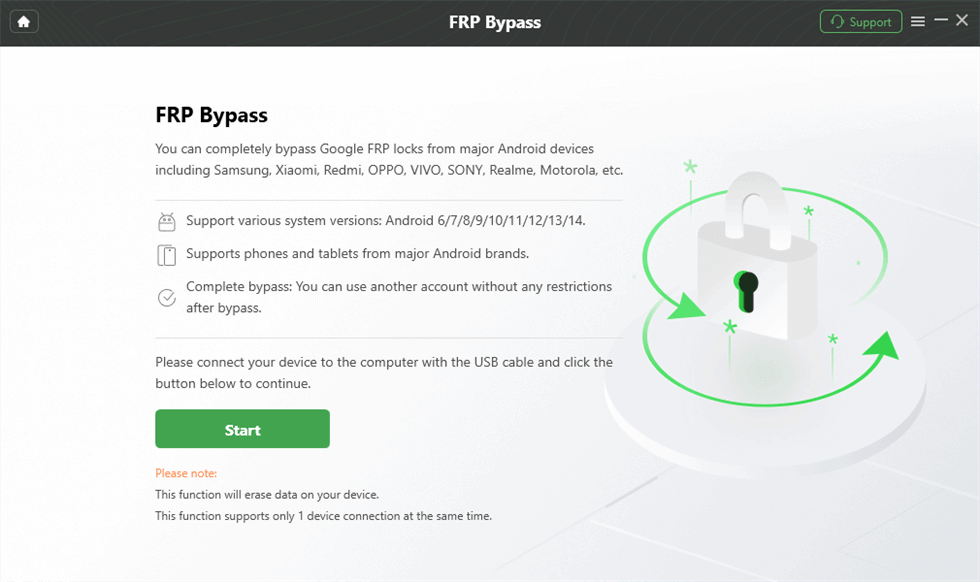
Connect Device and Click Start
Step 3. DroidKit will prepare a configuration file for your device. Keep your phone connected during this process. Click Start to Bypass after preparation.
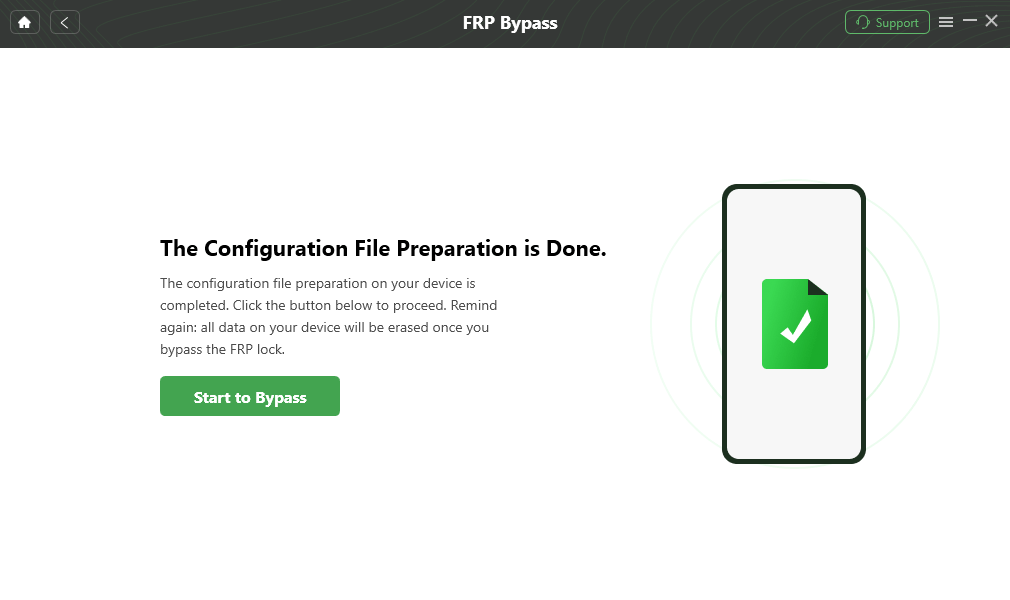
Click Start to Bypass
Step 4. Select the Android system version from the options provided and click Next.
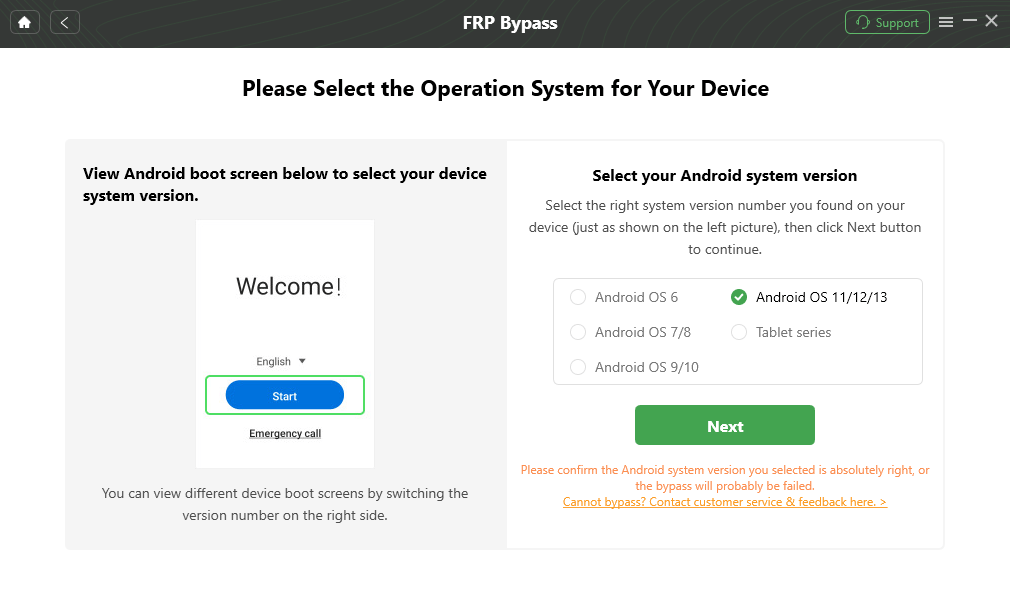
Choose System Version
Step 5. Follow the on-screen instructions on the DroidKit interface to complete the required settings on your device.
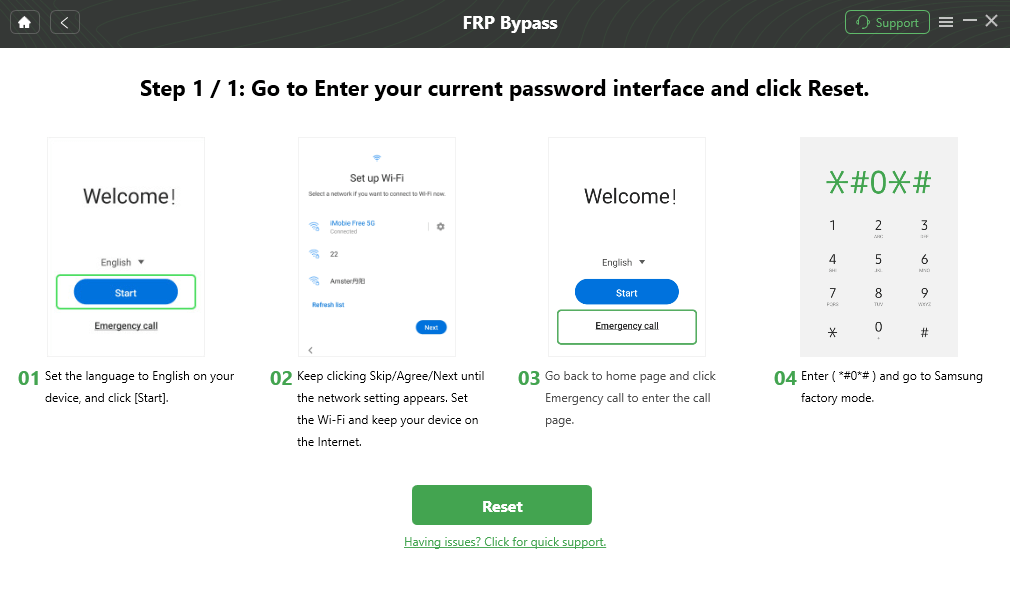
Complete Corresponding Settings
Step 6. When the process is complete, DroidKit will show the FRP bypass completion screen. Continue setting up your Samsung A71.

FRP Bypass Complete
Method 2. Bypass Samsung A71 FRP with Google Account
The official and safest way to bypass Samsung A71 FRP is to sign in with the Google account previously synced to the phone. If you know the email and password, connect the device to Wi-Fi during setup and enter the credentials when prompted.
Step 1. On the Google verification screen, connect your Samsung A71 to a stable Wi-Fi network.
Step 2. Enter the Google account that was used on the phone before the factory reset.
Step 3. Follow the on-screen instructions to complete verification and continue setup.
If you forgot the password, recover the Google account first. If you bought the phone second-hand, ask the previous owner to remove the Samsung A71 from their Google account or provide the correct account information.
Tip: If Google account login does not work because the phone was recently reset or the password was changed, wait for the required verification period and try again.
Method 3. Samsung A71 FRP Bypass without PC via OTG/APK
Some users try an OTG cable and a USB drive with an FRP bypass APK to bypass Samsung A71 FRP without a computer. This method may work on some older Android builds, but it is often blocked by newer Samsung security patches.
Before You Try: OTG/APK methods may work only on some older Samsung A71 builds. Newer security patches may block file installation, browser access, or Google Account Manager entry points. Avoid APK files from unknown sources.
Step 1. Prepare an OTG cable and a USB drive.
Step 2. Copy the FRP bypass APK file to the USB drive. Use only a source you trust.
Step 3. Connect the OTG cable to your Samsung A71 and plug in the USB drive.
Step 4. If the file manager opens, locate the APK file and try to install it.
Step 5. Follow the APK instructions to access settings or add an account if the method is still available on your build.
Step 6. Restart the Samsung A71 and check whether the Google verification screen is cleared.
Tip: If OTG/APK is blocked by your security patch, use the previous Google account, a guided FRP unlock tool, Odin for advanced users, or Samsung Support with proof of ownership.
Method 4. Samsung A71 FRP Bypass with Odin
Odin is a Windows-based Samsung flashing tool used for firmware-related operations. Some advanced users try Odin for Samsung A71 FRP bypass when they have the correct files for the exact device model and region.
Warning: Odin is for advanced users. Use only files that match your exact Samsung A71 model number and region. Flashing the wrong file may cause boot issues, setup errors, or data loss.
Step 1. Download and install Odin, Samsung USB drivers, and the required Samsung files that match your exact A71 model.
Step 2. Power off the Samsung A71 and enter Download Mode using the required button combination for your model.
Step 3. Connect your Samsung A71 to the PC with a USB cable and launch Odin as administrator.
Step 4. In Odin, select the correct file fields, such as AP, CP, and CSC, according to the file instructions.
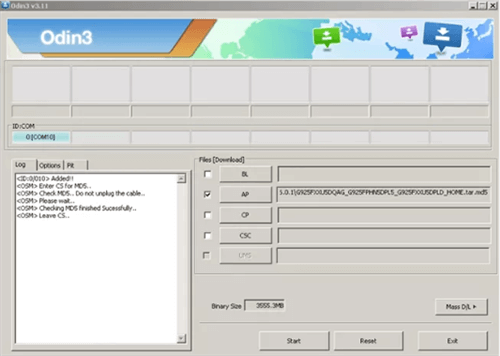
Click AP/CP/CSC Options
Step 5. Click Start in Odin to begin the process.
Step 6. Wait for Odin to show a PASS message. Restart the phone and check whether setup can continue.
If Odin files are hard to verify or you are not comfortable with Download Mode and firmware flashing, consider a guided Samsung FRP unlock tool instead.
Method 5. Contact Samsung Support
If you cannot use the previous Google account and do not want to try manual bypass methods, contact Samsung Support or visit an authorized service center. This is especially useful if you have proof of purchase or the device is still under warranty.
Step 1. Prepare proof of ownership, such as the receipt, order record, IMEI/SN information, or carrier documents.
Step 2. Contact Samsung Support and explain that your Samsung A71 is stuck on Google verification after a factory reset.
Step 3. Follow the instructions from Samsung Support. They may ask for ownership verification before helping with the device.
What If Samsung A71 FRP Bypass Fails?
If one method fails, do not repeat random APK downloads or flash unverified files. Check the most common causes below:
- Wrong Google account: Make sure you use the account previously synced to the Samsung A71.
- Recent password change: You may need to wait before using the new password during setup.
- OTG/APK blocked: Newer security patches often block no-PC bypass routes.
- Odin file mismatch: Files must match the exact model number and region.
- Unsupported tool path: Tool availability depends on Android version, One UI version, and security patch.
If you need to compare other FRP tools, review this FRP bypass tool comparison.
Samsung A71 FRP Bypass FAQs
Q1. What is the best Samsung A71 FRP unlock tool?
A guided Samsung FRP unlock tool is usually easier for non-technical users than OTG/APK or Odin methods. DroidKit is one option for supported Samsung devices, while Odin is better for advanced users who can verify correct files.
Q2. Can I bypass Samsung A71 FRP without a computer?
You can try OTG/APK methods without a computer on some older builds, but newer Samsung security patches often block these routes. If the no-PC method fails, a computer-based method may be needed.
Q3. Can I bypass Samsung A71 FRP without OTG?
Yes. You can try signing in with the previous Google account, using a guided Samsung FRP tool, using Odin, or contacting Samsung Support with proof of ownership.
Q4. Will Samsung A71 FRP bypass erase data?
FRP usually appears after a factory reset, which already erases local data. FRP bypass does not normally restore previous data. Use backups if you need data after setup.
Q5. Why does Samsung A71 ask for the previous Google account?
This happens because Factory Reset Protection was triggered after the phone was reset without first removing the Google account. Android asks for the previously synced account to verify ownership.
Q6. What should I do if OTG or Odin fails?
Check your Android version, security patch, model number, and file compatibility. If manual methods fail, use a supported Samsung FRP unlock tool or contact Samsung Support.
Conclusion
Samsung A71 FRP bypass should start with the official Google account login whenever possible. If you own the device but cannot access the synced account, you can compare DroidKit, OTG/APK, Odin, and Samsung Support based on your device condition and technical level.
DroidKit can be a guided Samsung A71 FRP unlock tool for supported devices, while OTG/APK methods are limited by security patches and Odin requires correct model-specific files. Choose the method carefully, and use FRP bypass only on a device you own or have permission to unlock.
Free Download * 100% Clean & Safe
More Related Articles



Joy Taylor is a seasoned technical writer with over a decade of experience in mobile technology. At iMobie, she specializes in producing in-depth content on iOS data recovery, iPhone unlocking solutions, and iOS troubleshooting.
Product-related questions? Contact Our Support Team to Get Quick Solution >
