How to Unlock Samsung S22 Without Password: Screen Lock & SIM Lock
If you are locked out of your Samsung Galaxy S22, the right unlock method depends on what is locked: the phone screen or the carrier network. This guide explains the safest ways to unlock a Samsung S22 screen, what will erase data, why the old Google Account unlock method no longer works on modern Android phones, and how a SIM Network Unlock PIN works when your phone is carrier-locked.
Quick Answer: Best Ways to Unlock a Samsung S22
If you forgot the screen password on your Samsung Galaxy S22, most official recovery methods either require a previously enabled recovery option or erase the phone. If your Galaxy S22 runs One UI 6.1 or later and you changed the lock within the last 72 hours, try Samsung’s previous screen lock method first. If that is unavailable, you can erase the device with Google Find Hub or use a tool-assisted option such as DroidKit in supported cases. If your issue is a SIM or carrier lock, you need a network unlock process from your carrier instead of a screen unlock method.
Important: Use these methods only on a phone you own or have permission to unlock. Factory reset, Find Hub erase, and most Android screen unlock tools may delete the data on your Galaxy S22. If the phone asks for a Google Account after reset, you may need the Google Account previously synced to the device.
Before choosing a method, identify whether you are dealing with a screen lock or a SIM/network lock . A screen lock stops you from entering the phone. A SIM or carrier lock stops the phone from using another carrier’s SIM card. These are different problems and need different solutions.
Screen Lock vs SIM Network Lock on Samsung S22
The phrase “Samsung S22 unlock” can mean two different things. Use the table below to choose the right path.
| Problem | What It Means | Best Starting Point | Data Loss Risk |
|---|---|---|---|
| You forgot the PIN, password, or pattern | The phone screen is locked and you cannot access the device | Try Samsung’s previous screen lock method if eligible, then consider Find Hub, factory reset, or a supported unlock tool | Medium to high, depending on method |
| The phone asks for “SIM Network Unlock PIN” | The phone is locked to a carrier and may not accept another SIM | Contact the original carrier and check unlock eligibility | Usually no phone data loss |
| The phone asks for Google Account after reset | Factory Reset Protection is active | Sign in with the Google Account previously used on the device | The phone was already reset; data on the phone is usually gone |
Method 1: Use Samsung’s Previous Screen Lock Method
If you recently changed your Galaxy S22 screen lock and forgot the new one, this should be the first method to try. On Samsung Galaxy devices running One UI 6.1 or later , the previous PIN, password, or pattern may be kept for 72 hours after the change.
When this method works
- Your Samsung S22 runs One UI 6.1 or later.
- You changed the screen lock within the last 72 hours.
- The lock method is PIN, password, or pattern.
- You still remember the previous PIN, password, or pattern.
- You did not choose to delete the previous screen lock when setting the new one.
Steps to reset the lock with the previous screen lock
- On the lock screen, enter the wrong PIN, password, or pattern several times.
- When the Forgot PIN/password/pattern? option appears, tap it.
- Enter your previous PIN, password, or pattern.
- Set a new screen lock that you can remember.
This method is the safest option if it is available because it can help you regain access without immediately erasing the phone. If the 72-hour window has passed or you do not remember the previous lock, move to the next methods.
Method 2: Erase Samsung S22 with Google Find Hub
Google Find Hub can locate, lock, or erase an Android device remotely. For a locked Samsung S22, the erase option can remove the screen lock by factory resetting the phone. However, this permanently deletes data stored on the device and may require the Google Account previously synced to the phone during setup.
Before you erase: Google says the device must have power, be connected to mobile data or Wi-Fi, be signed in to a Google Account, have Find Hub turned on, and be visible on Google Play. Erasing the device permanently deletes phone data, though it may not delete SD card data.
Steps to erase Samsung S22 with Find Hub
- Open Google Find Hub in a browser or the Find Hub app.
- Sign in with the Google Account used on your Samsung S22.
- Select your Samsung Galaxy S22 from the device list.
- Choose the option to factory reset or erase the device.
- Confirm the action and wait for the reset to complete.
- Set up the phone again and sign in with the Google Account previously used on the device if prompted.
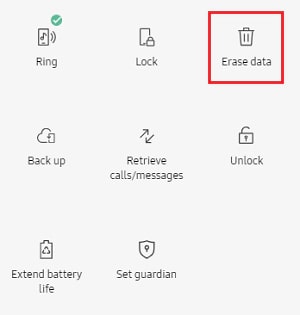
Erase Samsung S22 remotely
For more details about this method, you can also read: How to Remove Android Device Lock with Find My Device .
Method 3: Factory Reset Samsung S22 with Buttons
If you cannot use Samsung’s previous lock method or Google Find Hub, a hardware-button factory reset can remove the screen lock by erasing the phone. This is a last-resort method because it deletes data stored on the device.
Before using recovery mode
- Make sure the phone has enough battery.
- Know that all phone data may be deleted.
- Prepare the Google Account previously used on the device because Factory Reset Protection may appear after reset.
- Button combinations may vary slightly by model, region, and software version.
General steps to factory reset a Samsung S22
- Power off your Samsung Galaxy S22.
- Connect the phone to a computer with a USB cable if recovery mode does not appear normally.
- Press and hold the Volume Up and Side buttons together until the Samsung logo appears.
- In recovery mode, use the volume buttons to highlight Wipe data/factory reset .
- Press the Side button to confirm.
- Select Factory data reset , then choose Reboot system now after the reset finishes.
If you want a dedicated guide for this reset path, see how to factory reset Samsung S22 without password .
Method 4: Use DroidKit Screen Unlocker for Supported Devices
If official methods are unavailable, an Android screen unlocker can be a tool-assisted option. DroidKit Screen Unlocker is designed to remove Android screen locks such as PIN, password, pattern, fingerprint, and face recognition in supported cases. DroidKit’s official compatibility information lists Screen Unlocker support for Android 5.0 and later, but you should still check the latest compatibility notes before using it on a Samsung S22.
Data loss notice: DroidKit states that its Screen Unlocker removes the lock screen by erasing data on most Android devices. Treat this method as a data-erasing solution for Samsung Galaxy S22 unless the product interface confirms otherwise.
Samsung S22 Screen Unlocker
If manual recovery options are unavailable, DroidKit can be considered as a tool-assisted option to remove Android screen locks in supported cases. Check device compatibility and data-loss notes before using it on your Samsung Galaxy S22.

This is for screen locks only. It does not unlock a carrier SIM/network lock.
How to unlock Samsung S22 screen with DroidKit
Step 1. Download and install DroidKit on your computer. Open DroidKit and choose Screen Unlocker .
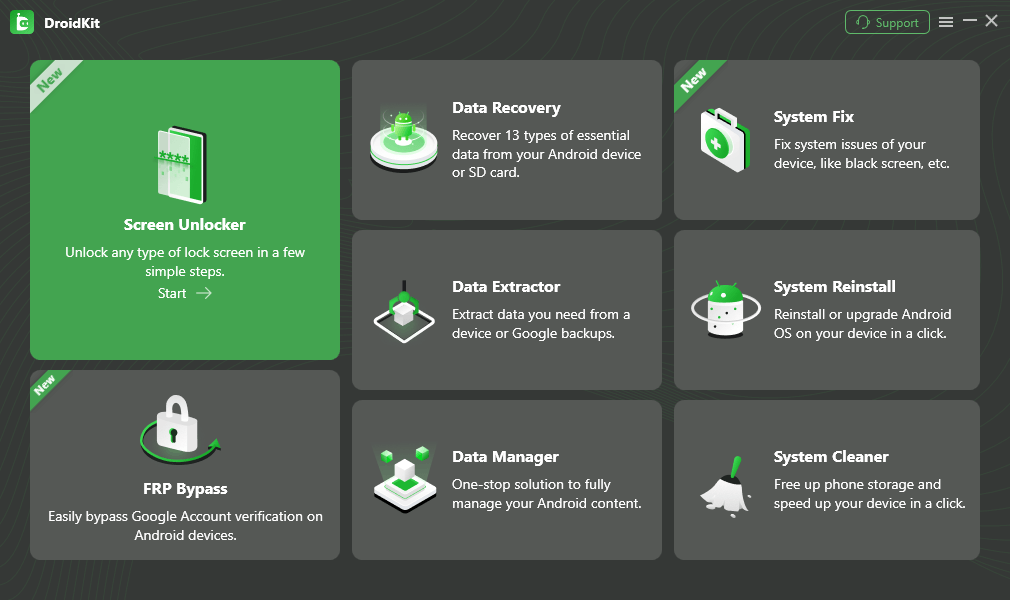
Choose Screen Unlocker
Step 2. Connect your Samsung S22 to the computer with a USB cable and follow the on-screen instructions.
Step 3. Put the device into recovery mode as instructed by DroidKit. The exact process may vary by device status and software version.

Put Your Android Phone into Recovery Mode
Step 4. Confirm the device information and start the screen lock removal process. Read any data-erasing warning before continuing.
Step 5. When the process is complete, restart your Samsung S22 and set it up again.
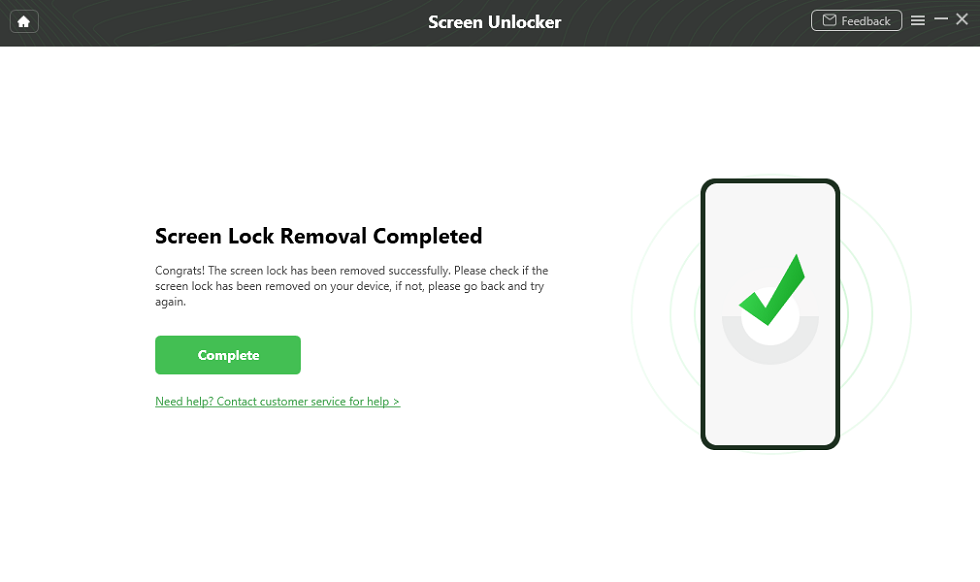
The Lock Screen Is Removed Successfully
If you are comparing tool options, see Samsung unlock tools to remove Samsung lock .
Method 5: Unlock Samsung S22 Carrier Lock with Network Unlock PIN
If your Samsung S22 displays SIM Network Unlock PIN after you insert another carrier’s SIM card, this is not a screen lock problem. It usually means the phone is locked to a carrier network. A screen unlocker cannot remove this type of carrier restriction.
What you need before carrier unlocking
- The original carrier name.
- The device IMEI number.
- Proof that the device is paid off or eligible for unlocking, if required by the carrier.
- An account in good standing, depending on carrier policy.
- A carrier-provided unlock code or carrier-side unlock approval.
Carrier unlock rules vary. For example, AT&T, T-Mobile, Verizon, and other carriers have different eligibility requirements and unlock flows. Some phones ask you to enter a SIM Network Unlock PIN, while some carrier models use a built-in network unlock menu or are unlocked automatically after meeting policy requirements.
General steps to use a SIM Network Unlock PIN
- Contact the original carrier and request a device unlock.
- Provide the IMEI number and any account information the carrier requires.
- Wait for the carrier to approve the request and provide an unlock code if your model requires one.
- Power off your Samsung S22.
- Insert a SIM card from another carrier.
- Power on the phone and wait for the SIM Network Unlock PIN prompt.
- Enter the unlock code from your carrier and tap Unlock .

SIM Network Unlock PIN
If the code fails, stop trying repeatedly and contact the carrier again. Too many wrong unlock attempts may cause extra carrier-side restrictions.
Samsung S22 Unlock Methods Compared
| Method | Best For | Needs Account? | Deletes Data? | Works for Carrier Lock? |
|---|---|---|---|---|
| Samsung previous screen lock | Forgot a newly changed PIN/password/pattern within 72 hours | No Google account needed during the unlock step | No, if eligible | No |
| Google Find Hub erase | Phone is online and linked to your Google Account | Yes, Google Account | Yes | No |
| Recovery mode factory reset | Last-resort screen lock removal | May need previous Google Account after reset | Yes | No |
| DroidKit Screen Unlocker | Tool-assisted screen lock removal in supported cases | No account for the tool workflow; previous Google Account may be needed after reset | Usually yes for modern Android devices | No |
| Carrier network unlock PIN | SIM/network carrier lock | Carrier account or eligibility may be required | Usually no | Yes |
Why the Old Google Account Unlock Method Does Not Work on Samsung S22
You may see older guides saying that you can tap Forgot pattern and unlock an Android phone with your Google Account. That method applies only to very old Android versions, specifically Android 4.4 or earlier. Samsung Galaxy S22 runs a much newer Android version, so this should not be treated as a working Samsung S22 unlock method.
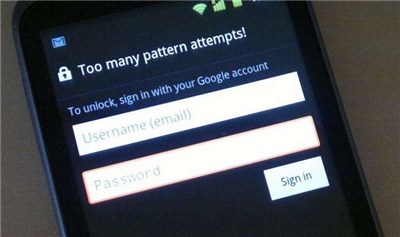
Old Google Account unlock method for earlier Android versions
If your Samsung S22 is locked, use the methods above instead. If your phone accepts the correct password sometimes but not always, read how to fix Samsung won’t accept my password .
FAQs About Samsung S22 Unlock
1. Can I unlock Samsung S22 without losing data?
Sometimes, but only in limited situations. If your Galaxy S22 supports Samsung’s previous screen lock method and you are within the 72-hour window, you may unlock it without erasing data. Google Find Hub erase, recovery mode factory reset, and most modern Android screen unlock tools usually erase device data.
2. Does Google Account unlock work on Samsung Galaxy S22?
No. The old Google Account “Forgot pattern” unlock method only applies to Android 4.4 or earlier. Samsung Galaxy S22 uses a much newer Android version, so this old method should not be listed as a normal solution for S22 users.
3. What is the difference between screen unlock and network unlock?
Screen unlock removes or resets the PIN, password, pattern, fingerprint, or face lock used to access the phone. Network unlock removes a carrier SIM restriction so the phone can use another carrier’s SIM card. DroidKit and factory reset methods are for screen locks, not carrier SIM locks.
4. Will Google Find Hub erase my Samsung S22?
Yes. The erase option in Google Find Hub factory resets the phone and permanently deletes data stored on the device. After erasing, you may need to sign in with the Google Account previously used on the Samsung S22 because of Android device protection.
5. What is a SIM Network Unlock PIN on Samsung S22?
A SIM Network Unlock PIN is a carrier-provided code used to remove a network lock from your Samsung S22. You usually need to contact the original carrier and provide the IMEI number. Whether the carrier provides a code depends on its unlock policy, device status, and account eligibility.
6. Can DroidKit unlock Samsung S22 without password?
DroidKit may help remove Android screen locks in supported cases, including many Samsung devices running Android 5.0 or later. However, for Samsung Galaxy S22, treat the process as data-erasing unless the product interface states otherwise. It does not unlock carrier SIM restrictions.
7. What if my Samsung S22 asks for a Google Account after factory reset?
That is usually Factory Reset Protection. It helps prevent unauthorized use after a reset. You need to sign in with the Google Account previously synced to the phone or recover that account through Google’s official account recovery options.
8. Which Samsung S22 unlock method should I use if I do not know the Google Account?
If you do not know the Google Account previously synced to the Samsung S22, avoid factory reset unless you understand the FRP risk. First check whether Samsung’s previous screen lock method is available. If not, a tool-assisted option such as DroidKit may help remove the screen lock in supported cases, but it does not remove carrier locks and may still erase device data.
Conclusion
The safest way to unlock a Samsung S22 depends on the type of lock. If you recently changed the lock screen and your phone runs One UI 6.1 or later, try Samsung’s previous screen lock method first. If you cannot use it, Google Find Hub, recovery mode, or a supported screen unlock tool can remove the lock by erasing the phone. If your problem is a SIM Network Unlock PIN, contact the original carrier because carrier unlock rules vary and cannot be solved by a screen unlocker.



Senior writer of the iMobie team as well as an Apple fan, love to help more users solve various types of iOS & Android-related issues.
Product-related questions? Contact Our Support Team to Get Quick Solution >
