How to Stop iPhone Camera from Shaking [New!]
Why is my back camera shaking? The shaking issue is becoming more and more common after the iPhone is updated. How to solve this problem? Don’t worry, this post lists 7 efficient methods to fix the iPhone camera shaking issue.
AnyFix – Fix All iPhone Errors Quickly
iPhone camera shaking? How to stop iPhone camera shaking! Free download AnyFix to fix iPhone camera shaking 1-click! AnyFix can solve 130+ iPhone system errors. Try AnyFix to fix the iPhone camera shaking problem with one click.

With the boost of mobile phone camera performance, Apple is also gradually strengthening the performance of iPhone cameras. And the newest operating system – iOS 26, which is expected to be released in the fall this year, also introduces many new features. Nevertheless, no matter how far the technology goes, the giant won’t get over complaining about the bugs that appeared on the iPhone used for a long time, like the camera shaking breakdown.
Though Apple launched an iSight Camera replacement program that was dedicated to replacing some iPhone 6 Plus units, there is no such program for iPhone 7, iPhone 8, or iPhone SE. The question is whether there is any solution to fix the shaking problem that happened on those iPhones? In this post, we discussed why the iPhone camera shaking issue happened, and also listed some tips that might help you eliminate the problem and get your iPhone back to normal.
And if you meet some other iOS issues, you can check this list to find out quick fixes: How to Fix the iOS 26 Update Issues [Quick Fixes] >
Why Is My iPhone Camera Shaking?
Why is my iPhone camera shaking? From some technicians’ perspective, the iPhone gets shakes while taking pics and videos due to interference. There is a metal shield above the camera which owns two screws on the opposite corners. It also works as the EMI shield. However, once your iPhone gets a problem with the grounding, the interference will cause the iPhone camera to shake. In other words, the iPhone has lost its stability with cameras.
Dirty lenses might cause the camera-shaking as well. You can fix the iPhone camera shaking issue by removing the culprit. But this conjecture is quite personal and the disassembly of an iPhone is difficult. You can give some other tips a try before you have to disassemble an iPhone.
Here is a bonus tip for you to fix iPhone camera won’t focus issue: How to Fix iPhone Camera Won’t Focus on iPhone >

If your iPhone is eligible for the Apple iSight replacement program, you can replace the iPhone 6s plus for free. But if the problem is still there, the following 7 ways will help most users who are stuck in this problem.
Quick Checks: Preliminary iPhone Camera Shake Troubleshooting
Before assuming your device requires complex repair or downloading tools, it is essential to rule out external factors and confirm the health of your hardware. The Optical Image Stabilization (OIS) system inside your iPhone uses magnets to float the lens; if this physical component is snapped or jammed, software cannot fix it.
Follow these four rapid diagnostic steps in order.
1. The “Ear Test” (Hardware Reality Check)
This is the most critical diagnostic step. It determines if your issue is software (fixable at home) or hardware (requires repair).
Method: Launch the Camera app. Place your ear directly against the rear camera module while the screen is shaking.
The Verdict:
Silence: If the camera shakes but is silent, it is likely a software or configuration issue. Proceed with the fixes below.
Buzzing/Clicking Sound: If you hear a mechanical buzzing, rattling, or rapid clicking, the OIS electromagnet or spring is likely physically broken. Software cannot repair this. You will likely need a hardware replacement (see the Hardware Diagnosis section).
2. The Multi-App Test
Is your iphone camera unstable everywhere, or just in specific apps? Third-party apps like TikTok, Instagram, or Snapchat often use their own camera drivers which may conflict with iOS updates.
Method: Open the native Apple Camera app. Does it shake? Now, open Instagram or Snapchat.
The Verdict: If it shakes in Instagram but works fine in the native Camera app, the issue is an app-specific bug. Update that specific app or reinstall it. If it shakes everywhere, it is a system-level issue.
3. Remove Magnetic Accessories
This is a common, overlooked culprit. Heavy-duty cases, magnetic car mounts, or wallet attachments (especially MagSafe accessories not certified by Apple) can interfere with the OIS magnets inside the phone.
Action: Remove your case and any magnetic accessories. Launch the camera app again. If the shaking stops, your accessory was the cause.
1. Fix Corrupted System Causing iPhone Camera Shaking [SAFE]
Since you may have tried all the common ways to solve this problem but didn’t work. And sometimes, it is the system problems that cause the iPhone camera to shake. Therefore, we give you a one-stop tool to fix the iPhone system first. AnyFix – iOS System Repair is a wonderful tool that provides some professional solutions to get the iPhone out of problems, including the iPhone camera shaking problem.
Designed to fix iOS devices’ systems, AnyFix can fix all the system errors you may encounter. Except for camera shaking, iPhone stuck in Recovery mode, iPhone stuck on a black screen, Apple white logo issue, and iPhone no response, etc. can all be fixed by AnyFix with simple steps. Let’s see some of its main features below.
AnyFix – iOS System Recovery
- Support solving over 130 iPhone system issues.
- Provide a 1-click solution to get rid of system issues for iPhone/iPad.
- Solve problems in a few clicks, no skills required & no data loss.
- Support to downgrade or update the iOS system without effort.
Free Download100% Clean & Safe
Free Download100% Clean & Safe
Free Download * 100% Clean & Safe
Now, follow the steps below to fix the iPhone camera shaking problem.
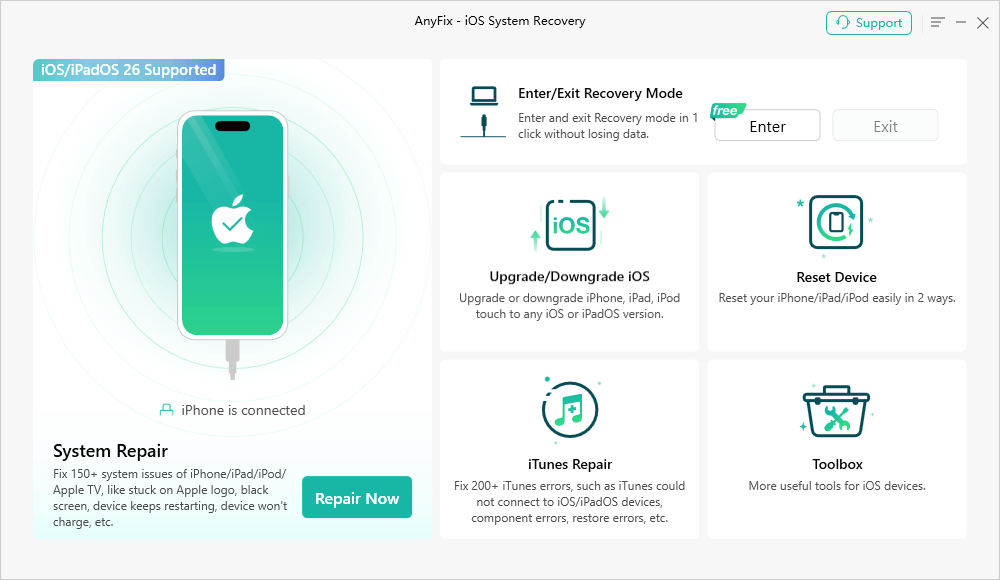
Step 1. Go to the AnyFix website and get the newest AnyFix > Connect your iPhone to the computer > Choose the System Repair function on the top of the page.
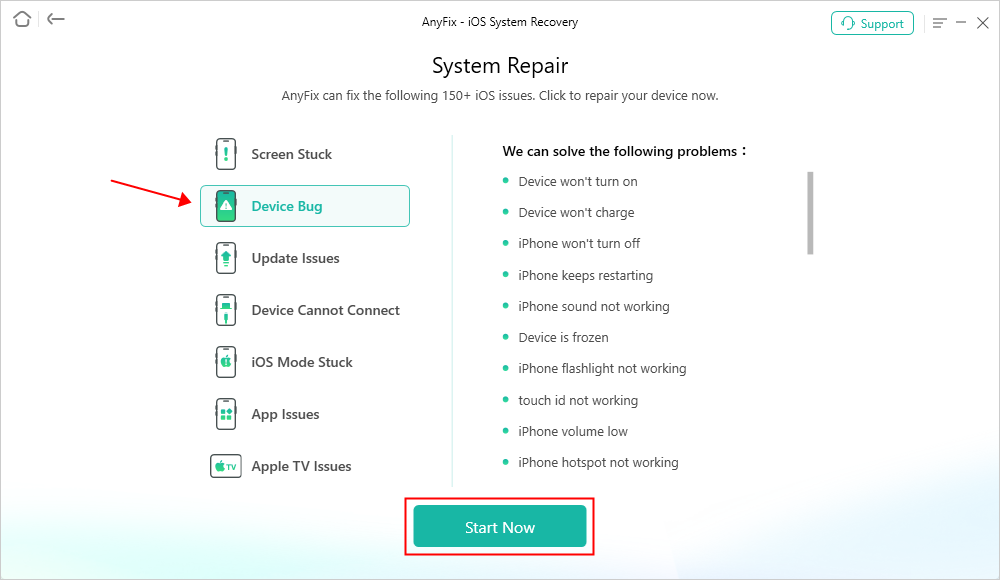
Step 2. Click the Device Bug button > Tap on Start Now to the next step.
Step 3. Here are listing 3 modes for you to repair your iPhone. In most cases, the Standard Repair mode can solve your problem. If not, try the other two modes.

Step 4. All you need to do is to wait for a while. Once the repair journey is finished, you will see the Repair Completed message on the screen.

2. Clean the Lens to Stop iPhone Camera Shaking
What do you do when your iPhone camera is glitching? Cleaning the lens will be the simplest way to fix the camera shaking issue. As the dust will increase the weight of the camera which could affect the stability of the camera, you can use clean tissue to weep off the dust. No liquid cleaners! It will cause a lot of acute malfunctions if water seeps into the iPhone. You can check if the iPhone camera’s shaking issue has gone. If not, you can try the next way.
If you want to clean the inside camera’s lens yourself, you need to prepare the right tools and professional access to the iPhone components as wrongdoing will cause severe problems on the iPhone.
3. Restart the iPhone to Stop iPhone Camera Shaking
Generally speaking, restarting the iPhone will solve most of the device problems. As the iOS system is closed which only works on Apple’s ecosystem, it means when you restart your iPhone, the system will automatically delete some expired cached contents. At the same time, the iOS system will restart all the software on the iPhone. While the iPhone reopened again, it should work fine.
For iPhone 12/X/XR or later:
- Long press a volume button and the side button until the power off slider appears. Turn off the iPhone and wait for a moment to turn on it.
- Press the side button until you see the Apple logo.
For iPhone SE (2nd generation), 8, 7, or 6:
- Long press the side button, drag the power off slider to turn off your iPhone. You may need to wait for a while to turn on your iPhone.
- Press and hold the side button until the Apple logo appears.
For iPhone SE (1st generation), 5, or earlier:
- Long press the top button and then drag the slider of the power off. Put your iPhone aside and wait for a while to open it.
- Press the top button until you see the Apple logo appear.

Force Reboot Your iPhone
If you fail to restart your device, you can read this guide: iPhone Won’t Restart or Force Restart Not Working? How to Fix >
4. Wipe and Reset the iPhone to Stop My iPhone Camera from Shaking
Before you erase and reset your iPhone, we highly recommend that you back up the device, because the wipe-and-reset of an iPhone will erase all the content on your iPhone. It means this tip will cause data loss.
If the two tips mentioned above are both failing to remove the iPhone camera shaking problem, you can give the reset-an-iPhone a try. To wipe and reset the iPhone will wipe all the content on the device, which will also cause the camera shaking problem.
Follow the next steps to wipe and reset your iPhone.
- Go to Settings on your phone.
- Click on the General button.
- Choose Reset and select Erase All Content and Settings.
Once you tap on the Erase All Content and Settings, the device will ask you to ensure you have backed up your iPhone or you can ignore the backup step. If you haven’t synced your data via iCloud, you can choose the Finish Uploading Then Erase; Or you can just click on Erase Now to reset the iPhone.
5. Restore and update your iPhone via iTunes
Restoring an iPhone will fix many software-related problems. If your iPhone encountered a sluggish performance, no response on the touchscreen, or was stuck on a black screen, it would be a software issue.
Surprisingly, the iPhone camera shaking can be the result of a software problem that can be fixed through restoring via iTunes. Follow the steps list below to restore your iPhone.
- Open your iTunes and connect your iPhone to the computer.
- After iTunes detects your device, click on the device icon.
- Click Restore on the screen.
If you’re signed in to Find My Phone, you need to sign out before you click Restore.

The computer will erase your device and install the latest iOS, iPad OS, or iPod software to your device. After the Restore journey is finished, the device will restart as a new.
6. Use A Magnet to Stop My iPhone Camera Is Shaking
The iPhone camera shaking problem may be caused by the disability of the camera as we talked about previously. Therefore, you can use a magnet to balance the gyroscope.
You can glue a magnet on the back of your iPhone camera or if you have a phone case, you can glue the magnet on it to eliminate the problem. Some users have reported this method did work well on removing the shaking of a camera.
7. Get Help from Apple Service
Some might suggest you replace a camera by yourself. Well, this is sure to be okay if you are a professional on iPhone components. If not, we don’t recommend you to DIY an iPhone camera yourself. As the iPhone is a very sophisticated instrument, any careless operation can cause irreversible damage.
Here is the typical tip to ask for help from iPhone after-sale support. You can just call them for help, or you can get online consultation from Apple.support.
Frequently Asked Questions About Image Stabilization Issues
Why is my iPhone camera shaking even when I hold it steady?
Internal image stabilization issues create a feedback loop. If the OIS system receives incorrect data from the gyroscope (software glitch) or cannot physically hold the lens steady (hardware break), it will vibrate on its own, regardless of how steady your hand is.
Can I fix a buzzing camera with a software update?
No. A buzzing or clicking sound indicates the physical mechanism is broken. No amount of software updates or reset tools can physically repair a snapped spring or magnet. You will need a hardware repair.
Does the “Reset All Settings” delete my photos?
No. Resetting all settings only reverts system configurations like Wi-Fi passwords, Apple Pay cards, and home screen layouts. Your photos, videos, notes, and apps remain safe.
Should I use a magnet to stop the shaking?
Do not do this. While some older internet forums suggest placing a magnet near the camera to “lock” it, this is a temporary and dangerous hack. It can permanently magnetize other components inside the iPhone or damage the compass and NFC (Apple Pay) sensors.
The Bottom Line
Considering the iPhone shaking issue is one of the software problems, you can follow the 7 methods mentioned above to solve the problem at home during the quarantine. Among all the methods above, using AnyFix to solve your problem is the most cost-effective approach since it can solve all system errors with one click. Now, download AnyFix and fix the iPhone camera shaking issue!
Free Download * 100% Clean & Safe



Wanda Norris is a junior author in iMobie specializing in iOS tips and solutions. She keeps a close eye on every iOS update to provide practical, easy-to-understand guides that help users solve problems and master their Apple devices.
Product-related questions? Contact Our Support Team to Get Quick Solution >
