For web developers and QA testers, the need to spoof location in Chrome is a frequent and practical requirement. If you’re building an application that shows users nearby services—like developer Ethan, who needed to test his store locator for users in Tokyo, London, and New York—you understand the challenge. Testing location-dependent features accurately requires a reliable way to change your location in the Chrome browser. Finding a straightforward method can be surprisingly difficult. This guide cuts directly to the most reliable solution: using Chrome’s powerful built-in Developer Tools.
You may also like: Do You Have to Manually Change Your Location on Hinge >
This procedure has been verified on the latest versions of Chrome across three distinct operating systems (Windows 11, macOS Sonoma, Ubuntu 22.04) to ensure its universal applicability for developers.
Table of ContentsHide
DevTools vs. VPNs: Choosing the Right Tool for Geolocation Testing
Before changing your location, it’s crucial to select the correct tool. The two most common options, Chrome Developer Tools (DevTools) and a Virtual Private Network (VPN), operate on fundamentally different principles. Understanding this distinction is key to successful testing.
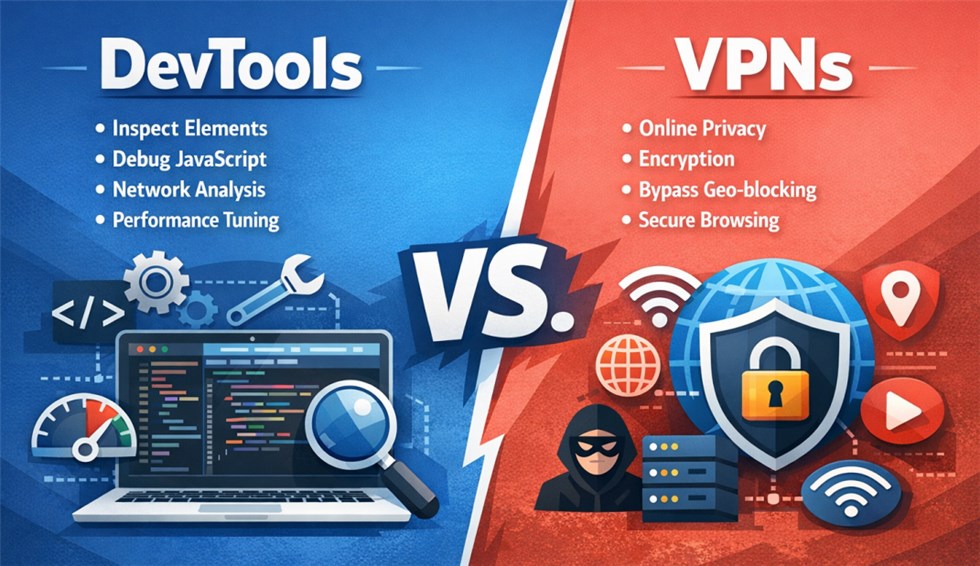
DevTools directly manipulates the browser’s Geolocation API, which is what modern websites use to ask your browser, “Where are you?” It feeds the website-specific GPS coordinates you define. A VPN, in contrast, changes your public IP address by routing your entire internet connection through a server in another country.
For a developer performing web location testing, DevTools is the precise instrument for the job. While some legacy websites might infer location from an IP address, most modern applications rely on the Geolocation API. Using a VPN for this kind of testing will not work, as the browser will still report your device’s true coordinates when asked.
To help you decide, here is a clear comparison:
| Criterion | Chrome DevTools | VPN |
|---|---|---|
| Primary Use Case | Web development and testing of Geolocation API features. | Privacy, security, and bypassing IP-based regional content blocks. |
| Success Rate (for Web Apps) | High. Directly controls the data sent to the website’s Geolocation API request. | Low. Does not affect the Geolocation API response in Chrome. |
| Time Cost | Low. Built into Chrome and takes only seconds to configure per tab. | Medium. Requires installing and configuring third-party software. |
| Technical Skill | Low. Basic familiarity with browser tools is sufficient. | Low. Modern VPN applications are generally user-friendly. |
| Scope of Change | Affects only the specific browser tab where DevTools is open and active. | Affects the entire computer’s internet connection. |
For testing location-based APIs across regions, the Chrome DevTools location override is the correct, professional-grade solution.
Step-by-Step: How to Simulate Location in Chrome with DevTools
The most direct and reliable technique to simulate location in Chrome is by using the built-in Developer Tools. This feature is specifically designed for developers to provide custom GPS coordinates to any website, making it the standard for professional testing.
Follow this procedure precisely to set your virtual location.
1. Open Chrome Developer Tools
Navigate to the webpage where you need to test the location feature. Press the following keyboard shortcut to open the DevTools panel:
- On Windows or Linux: Ctrl+Shift+I
- On Mac: Cmd+Option+I
Alternatively, you can right-click anywhere on the page and select “Inspect” from the context menu.
2. Access the Command Menu and Open the Sensors Tab
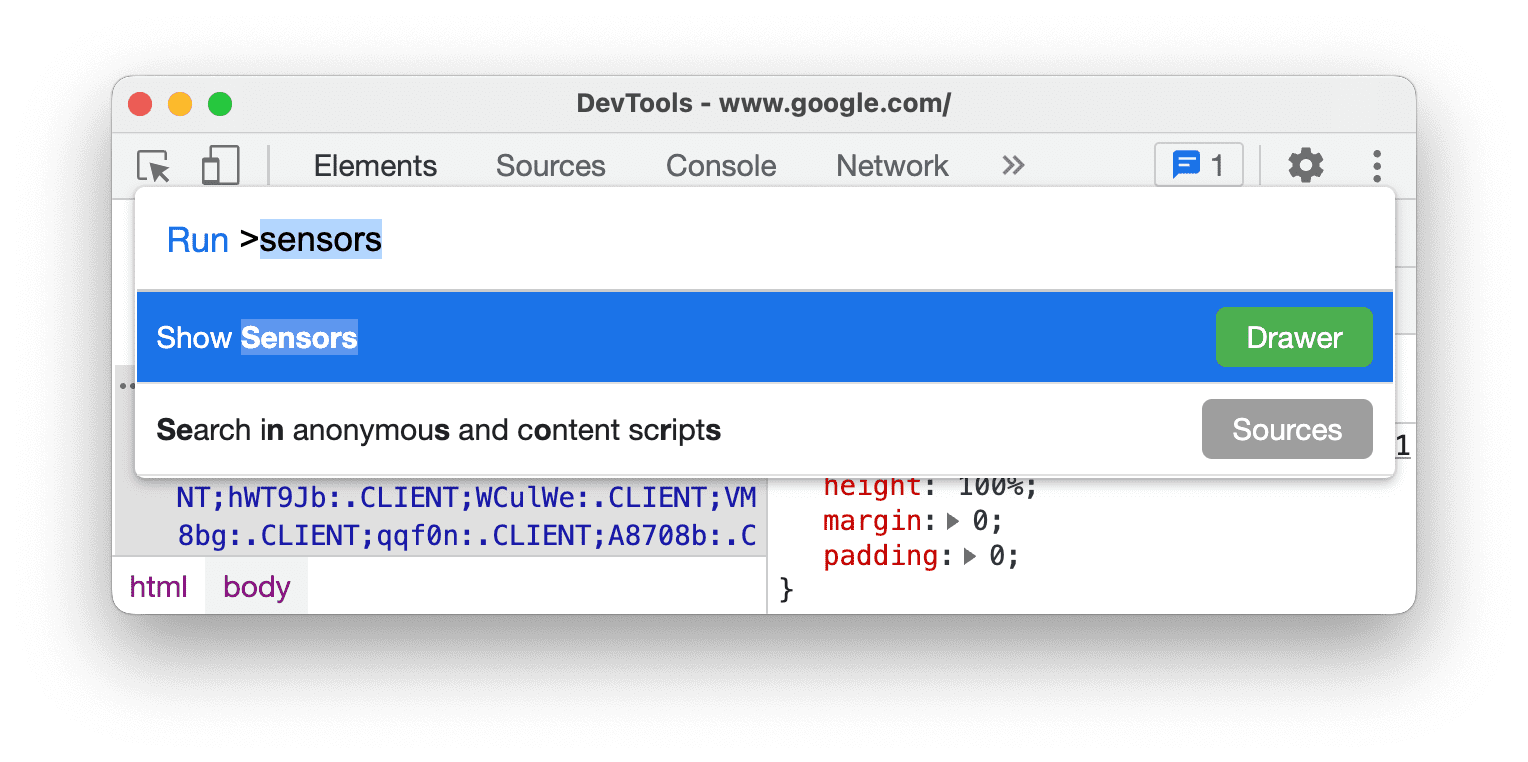
With the DevTools panel open, you need to find the “Sensors” tab, which isn’t always visible by default. The fastest way to access it is with the Command Menu:
- On Windows or Linux: Ctrl+Shift+P
- On Mac: Cmd+Shift+P
A search bar will appear. Start typing the word Sensors, and select “Show Sensors” from the list that appears. This command will open the Sensors tab in the lower panel of DevTools.
3. Set Your Geolocation Override
In the Sensors tab, locate the “Geolocation” section. You will see a dropdown menu that is set to “No override” by default. Click this menu to reveal a list of preset major cities, such as London, Mumbai, or Tokyo. You can select one of these for a quick test.
4. Enter Custom Latitude and Longitude Coordinates
For precise GPS coordinates testing, you need to provide your own values.
- Select “Other…” from the Geolocation dropdown menu.
- This will activate input fields for Latitude and Longitude.
- Enter the exact coordinates you wish to test with. For example, to set your location to the Statue of Liberty in New York, you would enter Latitude 40.6892 and Longitude -74.0445.
To find the coordinates for any location, open Google Maps, right-click on your desired spot, and the latitude and longitude will be the first item in the context menu. Click them to copy to your clipboard.
You can also optionally set a Timezone ID (e.g., America/New_York) and Locale (e.g., en-US) to more accurately simulate a user from that region.
5. Reload the Page to Apply the Changes
With your new coordinates set in the Sensors tab, you must reload the webpage for the change to take effect. Keep the DevTools panel open and press F5 or Ctrl+R (Cmd+R on Mac), or click the browser’s reload button.
When the site now requests your location, Chrome will provide the spoofed coordinates you entered instead of your device’s actual data.
Pro Tips for Accurate Testing
Here are a couple of crucial points that often trip up developers:
- The Override is Temporary: Your simulated location is only active for the specific tab as long as the DevTools panel remains open. The moment you close DevTools for that tab, the override is disabled, and the browser will revert to using your real location.
- Testing Error States: Robust applications should handle cases where a user’s location is unavailable. You can test this scenario directly in DevTools. From the same Geolocation dropdown, select “Location unavailable” to simulate an error and verify your application’s fallback behavior.
Verification: How to Confirm Your Location Spoof Is Working
After configuring a Chrome geolocation override, you must confirm it’s working as expected. This crucial verification step removes guesswork and ensures your tests are valid. The most straightforward way to check your new virtual location is to use a website that displays your browser’s coordinates on a map.
First, with the DevTools override turned off (“No override”), open a new tab and navigate to a location-aware service like Google Maps or a simpler tool. When prompted, allow the site to access your location. The map should pinpoint your actual, physical location. This is your baseline.
Now, return to the tab with the map, open DevTools (Ctrl+Shift+I), and follow the steps from the previous section to set a custom location (e.g., Tokyo: Latitude 35.6895, Longitude 139.6917). With DevTools still open, reload the map website.
The map should now immediately center on your chosen coordinates in Tokyo. This confirms that your virtual location is being broadcast correctly by the browser and that the Geolocation API is receiving the overridden values.
How Chrome Geolocation Works: The API and Your Privacy
To manage your location data effectively, it helps to understand how browser location services function. When a website wants to know where you are, it doesn’t access your device’s GPS hardware directly. Instead, it sends a standardized request to the browser through the Geolocation API.
Here is a critical expert insight: The DevTools location override feature does not change your computer’s actual location. It works by intercepting the website’s API request inside Chrome and returning the fake coordinates you specified. Your operating system’s location services are completely unaffected. This makes it a safe and isolated method for browser location simulation that only impacts the specific tab where it is active.
Managing Your Location Permissions in Chrome
For everyday browsing, privacy concerns related to location tracking are valid. Websites request your location to provide relevant content, like local weather, store finders, or targeted advertisements. You have complete control over these permissions.
To manage your location permissions in Chrome:
Step 1. Navigate to Chrome Settings.
Step 2. Click on Privacy and security in the left-hand menu.
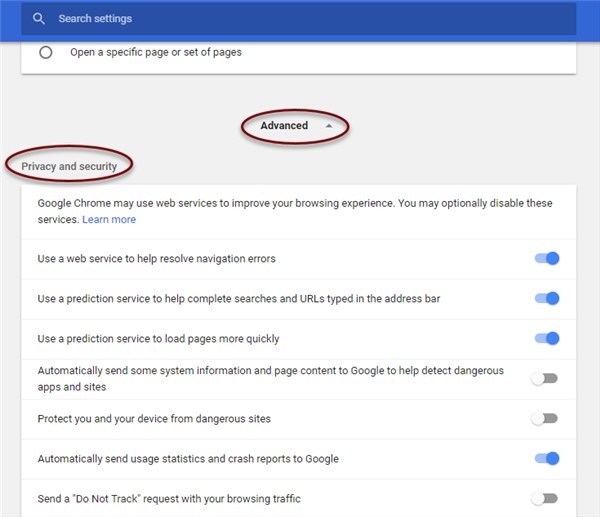
Step 3. Select Site Settings.
Step 4. Under the “Permissions” section, click Location.
Here, you can set the default behavior to “Don’t allow sites to see your location” and manage specific exceptions for websites you trust. Taking a moment to configure your browser privacy settings can give you peace of mind.
The Chrome DevTools method described here is a core browser feature, ensuring it will remain a stable and reliable solution maintained by Google. We regularly update this guide to reflect any changes in the DevTools interface.
Recommended Tool: FoneLora Location Changer
When using Chrome-based location spoofing tools, some users may also want a more flexible and system-wide solution for changing GPS location across apps and services. In such cases, a dedicated location-changing tool can provide broader functionality beyond the browser environment.
FoneLora Location Changer is a GPS spoofing tool that allows users to change their device location instantly with a map interface. It supports both iOS and Android devices and can be used to simulate movement or set a fixed virtual location anywhere in the world. This makes it useful not only for browser-based scenarios but also for location-based apps and testing purposes.

Frequently Asked Questions (FAQ)
- How do you spoof a location in Chrome?
- The most reliable method for developers is using Chrome DevTools. Press Ctrl+Shift+I (or Cmd+Option+I on Mac), open the Command Menu with Ctrl+Shift+P (or Cmd+Shift+P), search for the “Sensors” tab, and set a custom location under the Geolocation section. This override is temporary and only works while DevTools is open.
- How do developers simulate location in Chrome DevTools?
- Developers use the “Sensors” tab within Chrome DevTools. By accessing this panel, they can override the default Geolocation API response. They can choose from a list of preset cities, enter custom latitude and longitude values, or even simulate an error state to test how their web applications behave for users anywhere in the world.
- Can Chrome change your GPS location?
- No, Chrome cannot change your device’s physical GPS location. The DevTools override feature is a simulation tool that only affects the data Chrome’s Geolocation API sends to websites. It is isolated to the specific browser tab where it is active and does not modify your computer’s system-wide location settings.
- What is Chrome geolocation override?
- The Chrome geolocation override is a feature within Developer Tools that lets you manually specify the geographic coordinates (latitude and longitude) that the browser reports to a website. Instead of using your device’s real location data, Chrome provides the overridden values, which is an essential function for web location testing.
Take Control of Your Geolocation Testing
In conclusion, Chrome location spoofing methods can be useful for browser-based testing and access control scenarios, especially when working with web applications that rely on geolocation data.
For users who require more advanced or system-wide location control, tools such as FoneLora Location Changer can serve as a practical alternative by enabling global GPS simulation across multiple apps and environments.
Ultimately, choosing the right approach depends on whether you need simple browser-level spoofing or a more comprehensive device-level location modification solution.


Hot Topics
