What Is MDM Lock on iPhone? Remote Management Explained
MDM (Mobile Device Management) is a system used by organizations like schools and companies to remotely manage iPhones via Apple Business or School Manager. If you see the “Remote Management” screen, the device is still enrolled and must be removed by the original organization before it can be used normally.
Mobile Device Management (MDM) shows the “Remote Management” screen on iPhones. If you see an MDM lock iPhone check, it means the device is still enrolled in an organization’s system.
The MDM lock iPhone meaning is that the phone is managed by a school or company through Apple Business or School Manager. An MDM key Apple refers to the authorization used to control or release the device.
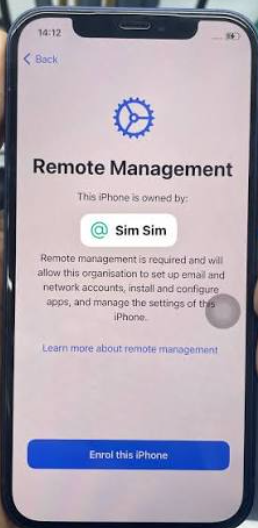
MDM is used for security and app management, but the device must be removed from the organization to be used normally.
Privacy Boundary: Can My Company or School Read My Texts?
The single most common fear users have when they see an MDM profile on their iPhone is privacy. It is easy to assume that “Remote Management” means your employer or school is spying on your every move. Fortunately, Apple has strict privacy boundaries built into iOS device management. MDM is designed for device compliance, not personal surveillance.
Here is a definitive breakdown of what an IT administrator can and cannot see on an MDM-enrolled iPhone:
What IT Cannot See (Your Personal Privacy is Safe)
- Your personal text messages and iMessages
- Your personal photos and camera roll
- Your Safari browsing history or personal bookmarks
- The contents of your personal emails
- Your personal passwords or biometric data (Face ID/Touch ID)
What IT Can See and Do
- See the device name, model, and operating system version
- See a list of installed apps (to ensure compliance)
- View the device location (only if specifically authorized and put into “Lost Mode”)
- Enforce password rules (like requiring a 6-digit PIN)
- Remotely wipe the device if it is reported lost or stolen
If you are using a company-issued device, you can rest assured that your private conversations remain private. MDM simply ensures the phone itself stays secure.
Identifying Your MDM Lock State: Setup Screen vs. Settings Profile
Before you can decide how to handle an MDM restriction, you need to diagnose exactly what kind of lock state your iPhone is in. An MDM lock iPhone meaning refers to a device managed by an organization’s Mobile Device Management system, but “MDM” is a broad term and can appear in different ways on iOS devices.
Review the decision table below to determine whether you are dealing with a localized profile or a complete setup lock:
| Lock State | What It Looks Like | Impact on Device Use | Next Step to Resolve |
|---|---|---|---|
| Scenario A: Settings Profile | A downloaded “Management Profile” is visible in your iPhone’s Settings app. | You have full access to the home screen and most apps, but certain features (like camera or App Store) might be restricted by the profile. | Can often be removed manually in Settings if you have the required removal PIN from your organization. If you have forgotten the PIN, a guided desktop toolkit like AnyUnlock can also help remove this local profile safely. |
| Scenario B: Setup Screen Lock | Your device is stuck on a “Remote Management” screen during the initial iOS setup process. | You are completely locked out of the device. You cannot reach the home screen, download apps, or use the phone. | This means the device’s serial number is registered on Apple’s servers. Requires IT admin removal or a specialized bypass tool. |
If you are dealing with Scenario B—often encountered by people who buy second-hand iPhones—you are facing a server-level registration that prevents normal activation. Removing this requires a specific approach depending on whether you can contact the original owner.
The Official Method: Permanent MDM Removal via IT Admin
If your device is stuck on the Remote Management screen, it is important to understand the official baseline for removing it: the only official, permanent way to remove an MDM lock is for the original IT administrator to release the device.
Because MDM enrollment is tied to the iPhone’s unique serial number on Apple Business Manager or Apple School Manager servers, a simple factory reset will not delete it. If you are an active employee or student, the correct path is to contact your IT department. Once they verify your request, they can log into their Apple portal and remotely unenroll your device. After they release the serial number, you can restart your iPhone and set it up normally without the Remote Management screen ever returning.
However, this official method relies entirely on having a direct line of communication with the managing organization. But what if you bought a used phone legally from a third-party seller, eBay, or a refurbished market, and you have absolutely no way to contact the original IT admin? For many second-hand buyers, this leaves them with a “bricked” device. If you find yourself in this situation, you will need a practical alternative to regain access to your phone.
How to Bypass the Remote Management Screen on a Second-Hand iPhone
If you are a second-hand buyer stuck on the Remote Management screen with no way to contact the original organization, your best practical option is a local tool-assisted bypass. When comparing the top MDM removal tools for iPhone, it is important to find software that guides you safely through the process. This is where a desktop toolkit like AnyUnlock becomes incredibly useful for authorized device owners.
AnyUnlock is designed to help users bypass the MDM setup screen locally, allowing you to skip the Remote Management block and gain full access to your iPhone’s home screen, apps, and features.
An Honest Look at the “Local Bypass” Limitation
Many tools online falsely promise “permanent” MDM removal without admin credentials. To be completely transparent: AnyUnlock performs a local bypass. It safely navigates your phone past the lock screen so you can use it daily as your own device. However, because AnyUnlock cannot hack into Apple’s backend servers to delete the serial number, the MDM lock is only bypassed on the device itself.
This means if you ever perform a full factory reset or hard-flash the iOS firmware in the future, the Remote Management screen will reappear during setup. As long as you understand this limitation—and simply avoid factory resetting your phone—AnyUnlock provides a highly effective, immediate way to rescue a second-hand iPhone from being an unusable brick.

AnyUnlock – One-stop iOS Unlocker
What if you get locked out of your iPhone? Or what if you forgot your Apple ID and its password? No worries, AnyUnlock unlocks any iOS lock for you with 1 click. No technology required. Only 3 steps.
Steps to Bypass MDM Locally Using AnyUnlock
Unlike complicated manual methods or attempting a tricky 3uTools MDM bypass, navigating past the MDM screen with AnyUnlock does not require technical expertise. The software provides a straightforward, guided desktop workflow. Before starting, ensure your locked iPhone is powered on and you have a compatible USB cable ready.
Here is how to bypass the Remote Management screen locally:
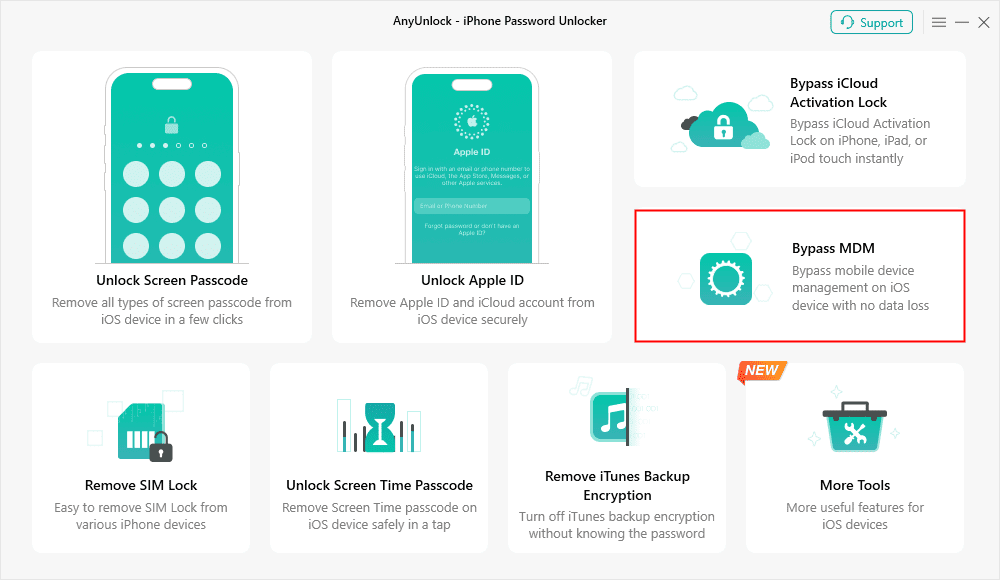
1. Download and Open AnyUnlock: Install AnyUnlock on your PC or Mac. Launch the software and select the Bypass MDM module from the main dashboard.
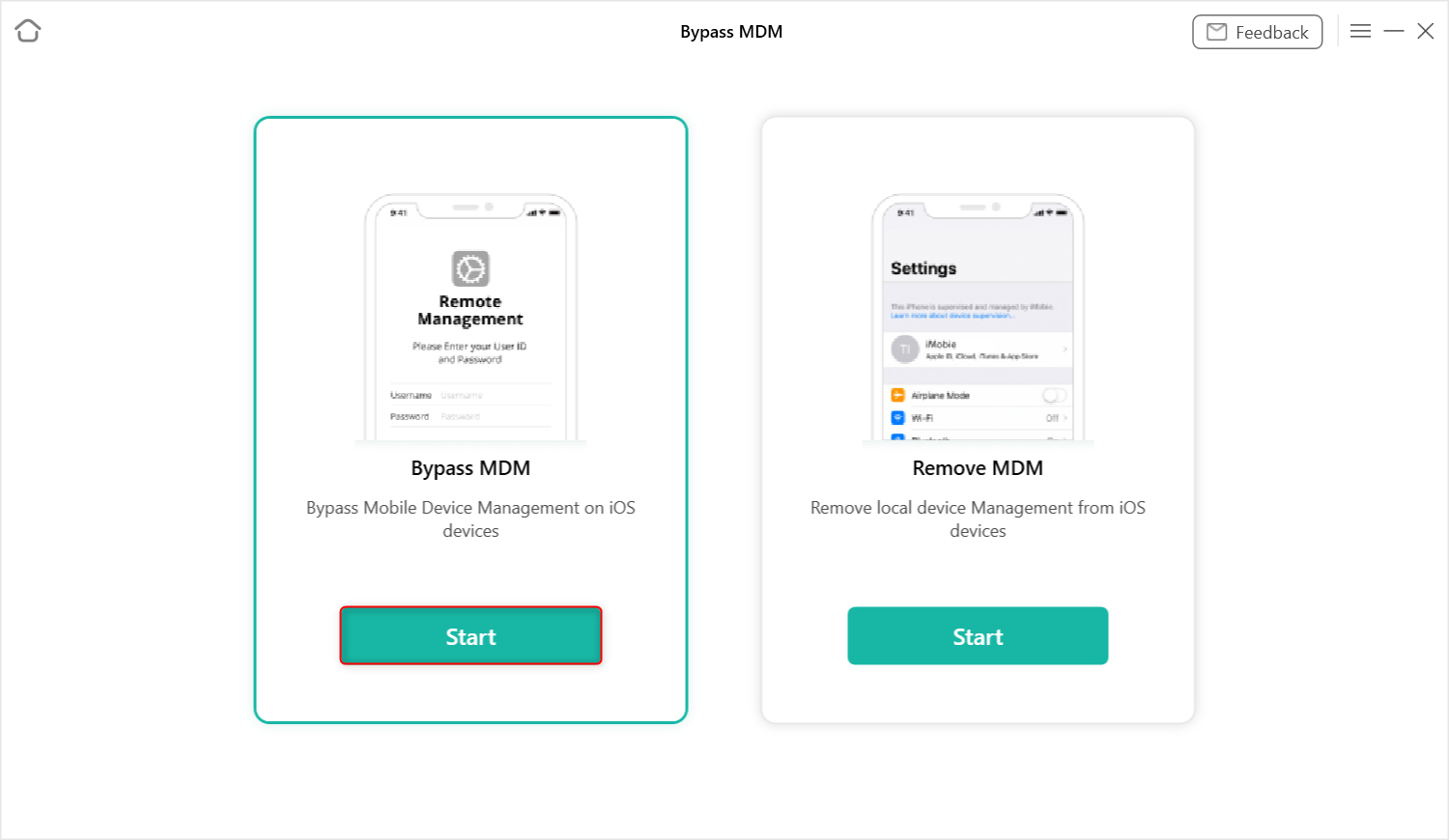
2. Connect Your iPhone: Use a USB cable to connect your iPhone to the computer. Choose the option to bypass the MDM lock screen and click start.
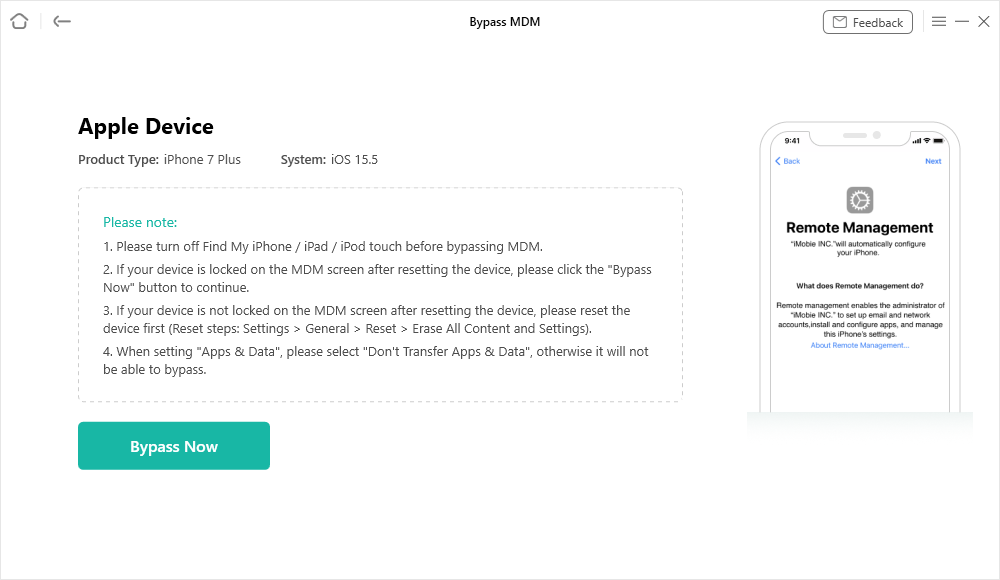
3. Follow On-Screen Instructions: Ensure your iOS device is on the Remote Management screen. Click Bypass Now in the AnyUnlock interface.
4. Wait for the Bypass to Complete: The software will configure the local bypass automatically. Within a few minutes, your iPhone will restart, skipping the management screen and allowing you to set up your passcode and Apple ID.
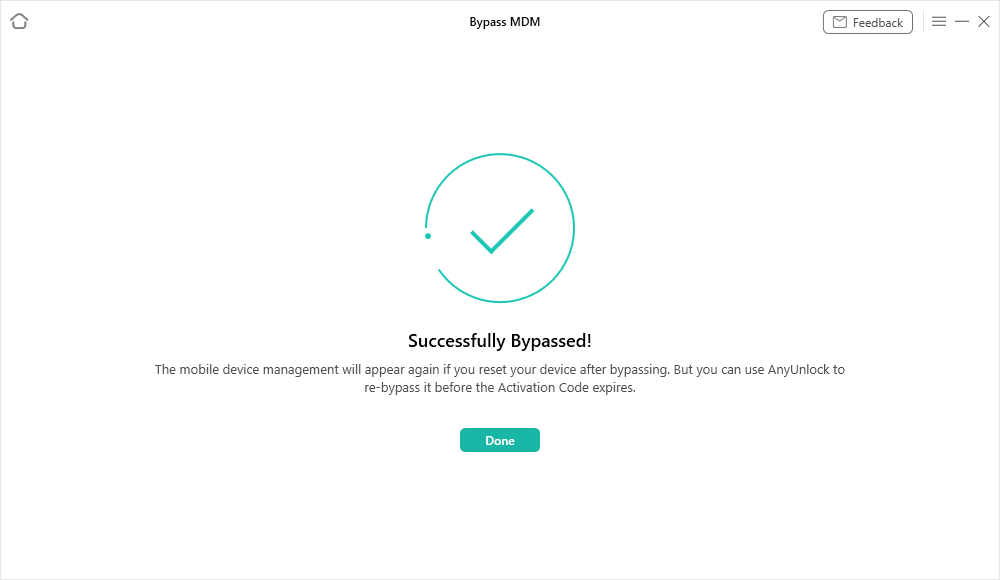
Once the process is finished, you will have full access to all device features. Just remember the key limitation: use the phone normally, but avoid executing a factory data reset unless you are prepared to connect it to AnyUnlock and run this bypass workflow again.
Ready to regain access? Check your device compatibility and download AnyUnlock to rescue your second-hand iPhone from the Remote Management screen today.
Frequently Asked Questions About iPhone MDM
What happens if my iPhone has MDM?
If your iPhone has an active MDM profile, the managing organization can enforce specific security rules, push app installations remotely, restrict certain hardware features (like the camera), and potentially monitor your device’s general compliance. If you are stuck on the setup screen, the device cannot be used until the MDM is bypassed or removed.
What is the difference between MDM and iCloud Activation Lock?
MDM (Remote Management) is a corporate or educational management tool tied to Apple Business/School Manager to enforce company policies. iCloud Activation Lock is a personal anti-theft security feature tied directly to an individual user’s personal Apple ID. They are two entirely different locks that require different recovery methods.
How do I remove remote management without the password?
If you do not have the administrative credentials to officially unenroll the device, you cannot permanently remove it from Apple’s servers. However, you can use a local bypass tool like AnyUnlock to skip the Remote Management setup screen and gain full access to the device for daily use.
Will a factory reset permanently remove MDM from my iPhone?
No. A factory reset only wipes the local data on the device. Because MDM enrollment is linked to your iPhone’s hardware serial number on Apple’s cloud servers, the moment the wiped phone connects to Wi-Fi during setup, it will download the MDM profile again and lock you out. This is why a bypass tool is necessary if you cannot contact the original admin.
Summary: Choosing the Right Way to Handle MDM
Encountering an MDM lock can be frustrating. An MDM lock iPhone check helps confirm device enrollment. The MDM lock iPhone meaning is that the iPhone is managed by an organization. An MDM key Apple refers to admin authorization for removal.
When it comes to removing the lock, your path depends entirely on your situation. If you have an active relationship with the managing organization, contacting the original IT administrator is always the best route, as they hold the power to permanently release your device’s serial number from Apple’s servers.
However, if that official route is impossible—such as when you legitimately purchase a second-hand iPhone and find yourself locked out on the setup screen—you still have options. Using a guided desktop tool like AnyUnlock provides a practical, straightforward local bypass. While it won’t erase the server-side registration, it will successfully get you past the Remote Management screen, allowing you to actually use the phone you paid for. If you are exploring all options, feel free to check our MDMPatcher Universal review or try AnyUnlock to regain access today.
AnyUnlock – Unlock Any iOS Password
Quickly and easily unlock your iPhone/iPad/iPod touch from various locks such as screen lock, MDM lock, iCloud activation lock, Apple ID, iTunes backup password, and more.
Free Download for all windows & 100% safe
Free Download for all mac & 100% safe
Free Download 100% Clean & Safe
Related Articles



Wanda Norris is a junior author in iMobie specializing in iOS tips and solutions. She keeps a close eye on every iOS update to provide practical, easy-to-understand guides that help users solve problems and master their Apple devices.
Product-related questions? Contact Our Support Team to Get Quick Solution >
