Best Android Unlock Tools for 2026: Screen Lock, FRP & Free Options
Compare Android unlock tools for screen locks, FRP, and free official recovery. See what each option can and cannot do, data-loss limits, device compatibility, and when a PC-based tool makes sense.
Searching for the best Android unlock tool can lead to very different products because “unlock Android” is not one problem. You may be trying to remove a forgotten PIN or pattern, get past Google verification after a factory reset, unlock a carrier-restricted SIM, or regain access to a second-hand phone.
The correct tool changes with the lock type. A screen unlocker cannot remove a carrier SIM restriction, and a factory reset that removes a screen password can leave you at Google Factory Reset Protection afterward. For that reason, this 2026 comparison looks at what each option is designed to do, when data is erased, how clearly compatibility is documented, and whether the software focuses only on unlocking or provides additional Android utilities.
If you want a broader catalog of screen-unlock software rather than this best-tool comparison, see the Android phone unlocking software guide. If the phone is already showing Google account verification after reset, start with the Android FRP bypass guide.
How this comparison is built: The feature and compatibility differences below are based on currently published vendor documentation. They should not be read as a claim that every listed Android model was independently hands-on tested for this article. Always confirm your exact model, Android version, and the data-loss notice shown by the software before proceeding.
Quick Answer: Best Android Unlock Tool by Situation
If you already know what type of Android lock you have, this table gives you the shortest path to the right category of solution.
| Your Situation | Best Starting Point | Why |
| Forgot PIN, pattern, or password and data can be erased | Google Find Hub or Recovery Mode | A factory reset may solve the screen-lock problem without buying software, although Google verification can appear afterward. |
| Need guided screen-lock software | DroidKit, 4uKey for Android, Dr.Fone Screen Unlock, LockWiper Android, or UnlockGo Android | These products provide PC-based screen-lock workflows for supported Android devices. |
| Stuck at Google FRP after a reset | Recover the previously synced Google account first; otherwise compare current FRP compatibility | FRP support varies more by brand, Android version, and security patch than normal screen-lock removal. |
| Want screen unlock plus FRP and other Android utilities | DroidKit | Its toolkit combines Screen Unlocker and FRP Bypass with Android recovery, system repair, reinstall, and data-management functions. |
| Want a focused screen-lock and FRP utility | Compare 4uKey, LockWiper, and UnlockGo | These products concentrate more heavily on unlocking and FRP rather than being primarily Android recovery suites. |
| Already use a broader phone-management suite | Dr.Fone Screen Unlock | Screen Unlock is part of the larger Dr.Fone ecosystem that also includes recovery, repair, transfer, and other mobile utilities. |
| Phone has a SIM or network lock | Original carrier | Consumer Android screen unlockers are not substitutes for carrier network-unlock approval. |
| Need unlock without losing data | Check your exact device before choosing anything | No-data-loss support is restricted to particular models or workflows; it should never be assumed for a modern Android phone. |
Our best fit for an all-in-one Android toolkit: DroidKit. It makes the most sense when you need screen unlocking or FRP support and also value having Android recovery and repair functions in the same program. If your only goal is one specific lock type, compare the compatibility of the focused alternatives before choosing.
First, Identify Your Lock Type
Before comparing brands or prices, identify the lock that is actually blocking you. Choosing software before this step is one of the easiest ways to pay for a feature you do not need.
| Lock Type | What You See | Best First Direction | Important Limitation |
| Screen lock | The phone asks for a PIN, pattern, password, or biometric fallback before you can reach the Home screen. | Use an enrolled unlock method if available; otherwise evaluate reset or screen-unlock options. | Removing a forgotten lock on most current Android devices can erase local data. |
| FRP / Google verification | After a factory reset, setup asks for a Google account previously synced with the device. | Recover and use a previously synced Google account first. | A screen-lock removal tool does not automatically remove FRP. |
| SIM / network lock | The phone works normally but rejects another carrier’s SIM or asks for a network unlock code. | Contact the original carrier and check its unlock requirements. | Screen unlock and FRP programs are the wrong category of tool. |
| Bootloader / OEM lock | You are trying to flash firmware, modify the operating system, root the phone, or unlock the bootloader. | Follow the manufacturer’s developer or service documentation. | A consumer lock-screen utility should not be treated as a bootloader-unlock tool. |
A factory reset can connect two of these problems. It may remove a forgotten screen lock, but Android device protection can then require a Google account that was previously added to the phone. Knowing that before resetting is more useful than discovering it at the setup screen.
Free vs Paid Android Unlock Tools
“Free Android unlock tool” can mean three very different things: an official reset function, a technical command-line route, or an unofficial download that claims to unlock everything. The first two can be legitimate in the right circumstances; the third deserves much more caution.
| Option | Cost | Useful For | What It Does Not Do |
| Google Find Hub | Free | Remotely factory-resetting an eligible Android device linked to your Google account | It does not reveal the forgotten PIN or provide a no-data-loss remote screen unlock. |
| Android Recovery Mode | Free | Factory-resetting a phone when you can enter the device’s recovery menu | It erases data and may require previous Google-account verification afterward. |
| Samsung SmartThings Find | Free | Locating, ringing, locking, or managing a registered Galaxy device | Samsung no longer provides the old remote screen-unlock function through SmartThings Find. |
| Carrier unlock support | Often free when eligibility requirements are met | SIM and network locks | It does not remove Android screen passwords or Google FRP. |
| ADB / Fastboot | Free | Advanced service or developer scenarios when the required access was already available | It is not a universal forgotten-password solution and often depends on prior configuration or device-specific prerequisites. |
| Professional Android unlock software | Trial-based or paid | Guided screen-lock or FRP workflows on supported devices | No product should be assumed to support every model, patch, or no-data-loss scenario. |
| Cracked or unknown “free unlock” downloads | Advertised as free | Not recommended | They can introduce malware, modified drivers, fake installers, outdated scripts, or stolen-license risks. |
Who Is This Guide For?
This comparison is useful when you are choosing software rather than searching for one phone-specific button sequence. Typical cases include a forgotten Android PIN or pattern, FRP after a factory reset, uncertainty about data loss, or deciding whether a dedicated unlock utility is more appropriate than an all-in-one Android toolkit.
If you already know the exact FRP problem and only want FRP software, the narrower FRP bypass tool comparison will be more relevant than comparing general Android screen unlockers.
Part 1. Free and Official Android Unlock Options
Paid software is not automatically the first answer. For a normal forgotten screen lock, an official erase-and-reset route may be enough when losing local data is acceptable and you know the Google credentials that may be required afterward.
Google Find Hub: Remote Reset, Not Password Recovery
Google’s current lost-device service is called Find Hub. On an eligible phone that is powered on, connected, signed in to a Google account, and available to Find Hub, you can remotely factory-reset the device.
The distinction matters: Find Hub does not tell you the forgotten PIN and should not be described as a no-data-loss Android screen unlocker. A remote factory reset permanently deletes device data, and Google device protection can require a previously synced Google account during setup afterward.
For the iMobie walkthrough, see the Google Find Hub and remote reset guide.
Samsung SmartThings Find: Do Not Rely on the Old Remote Unlock Advice
Older Android articles often recommend Samsung Find My Mobile or SmartThings Find as a way to remotely remove a forgotten Galaxy screen password. That advice should not be carried into a 2026 tool comparison.
Samsung’s current support documentation states that SmartThings Find can no longer remotely unlock a Galaxy phone. The service remains useful for locating, ringing, locking, and protecting registered Galaxy devices, but it should not be presented as the old remote screen-unlock feature.
Recovery Mode Factory Reset
If remote erase is unavailable, many Android phones can be factory-reset from Recovery Mode with hardware-button combinations. The exact sequence differs by manufacturer and model.
A Recovery Mode reset removes local data along with the screen lock. On a protected device, expect Android to request previous Google-account information during setup. If you do not know that account, resetting first can simply change the problem from “forgot screen password” to “stuck at Google verification.”
SIM and Carrier Unlock
If the phone opens normally and only rejects another carrier’s SIM, stop comparing Android screen unlockers. Ask the original network provider about its carrier-unlock policy, device-payment status, account requirements, and IMEI eligibility.
ADB and Fastboot
ADB and Fastboot are useful Android service tools, but they are poor generic recommendations for someone who simply forgot a current phone’s lock screen. ADB commonly depends on USB debugging and computer authorization that had to exist before the phone was locked; Fastboot capabilities vary by manufacturer and bootloader state.
If those prerequisites were not already in place, downloading command-line tools does not create access that the locked phone never authorized.
Part 2. When an Android Unlock Tool Makes Sense
A desktop unlock utility becomes worth comparing when you have ruled out the simpler account or reset options and want a guided workflow tailored to a supported device. The useful question is not “Which tool unlocks every Android?” but “Which tool documents a route for this lock type, brand, Android version, and data-loss condition?”
| Scenario | Why PC Software May Help | Check Before Starting |
| Forgot screen lock and Recovery Mode is difficult to navigate | The software can provide brand-specific prompts and configuration steps. | Confirm the exact device and whether the workflow erases data. |
| FRP appears after reset | A dedicated FRP module may provide a supported device route. | Check brand, Android version, security patch, and current FRP compatibility separately from screen-lock support. |
| You need both screen unlock and FRP functions | One desktop program may contain separate modules for both problems. | Do not assume support in one module guarantees support in the other. |
| You also need Android repair or recovery tools | An all-in-one toolkit may reduce the need to install several separate utilities. | Compare which additional functions are actually relevant to your phone. |
| Second-hand phone still requests another person’s credentials | Software may only be relevant after ownership and device support are clear. | Ask the seller or previous owner to remove their account first whenever possible. |
Part 3. How to Compare Android Unlock Tools Safely
For this page, “best” is not based on the biggest device-count claim. Five factors are more useful when comparing Android unlocking software.
1. Match the Lock Type
Check whether you need Screen Unlock or FRP Bypass. They are normally separate workflows even when both are included in the same program.
2. Check Compatibility at the Feature Level
A vendor may say its toolkit supports a particular Android brand while one specific module supports fewer brands, Android versions, or security patches. Verify the feature you intend to use, not only the software’s overall compatibility page.
3. Read the Data-Loss Notice
On modern Android devices, screen-lock removal commonly involves resetting or erasing the phone. Several commercial products document limited no-data-loss routes for selected older Samsung models, but that should not be generalized to current Samsung, Pixel, Motorola, Xiaomi, or other devices.
4. Look for a Current Support Matrix or User Guide
A useful vendor tells you the required operating system, supported brands or models, device mode, and whether the process erases data. “Unlock all Android phones in one click” is less informative than a compatibility table that exposes limitations.
5. Use the Official Installer
Screen-unlock software often installs USB drivers or communicates with the phone in Recovery, Download, or another service mode. Use the developer’s official website rather than a cracked build, third-party mirror, password-protected archive, or repacked installer.
Comparison rule: If two tools both claim to support your Android brand, prefer the one whose current documentation clearly covers your exact lock type and device environment. A longer feature list is not useful when the one function you need is unsupported.
Part 4. Best Android Unlock Tools Comparison 2026
The five products below represent different approaches to Android unlocking. The comparison focuses on publicly documented functions and limitations rather than assigning an arbitrary 1-to-5 ranking.
| Tool | Best Fit | Screen Lock | FRP | Data-Loss Note | Main Difference |
| DroidKit | Users who want unlocking plus Android recovery and repair functions | Yes, for supported Android devices | Dedicated multi-brand FRP module | Most screen-unlock workflows erase data; selected older Samsung devices have a documented keep-data route | Broad Android toolkit rather than unlock-only software |
| Tenorshare 4uKey for Android | Users who want a focused screen-lock and FRP utility | Yes | Multi-brand FRP workflows | No-data-loss screen unlock is limited to selected early Samsung models; other screen-unlock cases can erase data | Unlock-focused interface with separate screen and FRP routes |
| Dr.Fone Screen Unlock | Users who already prefer a larger phone utility ecosystem | Yes | Current product documentation includes multi-brand Android FRP | Vendor support documentation limits no-data-loss screen unlock to selected Samsung/LG scenarios; other devices may require data removal | Unlock module inside a broader cross-platform phone toolkit |
| iMyFone LockWiper (Android) | Users comparing another focused screen-lock and Google-lock utility | Yes | Google lock / FRP functions are included for documented device routes | Its standard Remove Screen Lock guide warns that device data is erased | Focused Android unlocking product with screen-lock and FRP modes |
| iToolab UnlockGo (Android) | Users who want a detailed brand-and-version FRP compatibility matrix | Yes | Brand-specific FRP support documented by Android version | Normal screen-lock removal erases data; its keep-data mode is limited to listed early Samsung models | Detailed public FRP compatibility table by OEM and Android version |
DroidKit: Best for an All-in-One Android Toolkit
DroidKit stands apart from the more focused unlock utilities because Screen Unlocker and FRP Bypass are only two parts of the program. The same toolkit also contains Android data recovery, system repair, OS reinstall, data extraction, data management, and cleaning functions.
That breadth is useful when your problem is not guaranteed to end when the lock is removed. For example, a phone may also need system repair, or you may want recovery options after resolving an Android issue. The trade-off is that users who want only one narrow unlocking function may not need the rest of the toolkit.
Choose DroidKit when: screen unlock or FRP is part of a broader Android troubleshooting need and your device matches the relevant module’s current compatibility.
Check before using it: Screen Unlocker removes data in most current-device cases. The no-data-loss workflow is limited to specific older Samsung families documented by iMobie.
Tenorshare 4uKey for Android: Best for a Focused Unlock Workflow
4uKey for Android concentrates on two jobs users commonly search together: removing Android screen locks and bypassing FRP on supported brands. Its current documentation separates screen-lock and FRP routes and provides brand-specific FRP instructions.
Its no-data-loss claim also needs the same qualification as other unlockers: Tenorshare documents that feature for selected early Samsung devices, while ordinary screen-lock removal on other Android devices can erase data.
Choose 4uKey when: you want a dedicated unlock interface and its current compatibility information covers your exact device and lock type.
Check before using it: Do not treat broad Android support as proof that every FRP version or security patch is covered.
Dr.Fone Screen Unlock: Best for Users in the Dr.Fone Ecosystem
Dr.Fone Screen Unlock handles Android screen locks and currently advertises FRP workflows across multiple Android brands. It sits inside the larger Dr.Fone suite, which also includes recovery, transfer, repair, backup, and other phone-management tools.
This makes it closer to DroidKit in product breadth than a single-purpose unlocker, although its ecosystem also spans iOS. Wondershare’s support documentation distinguishes selected no-data-loss device routes from standard screen unlock, where data removal may be required.
Choose Dr.Fone when: you already use or prefer the Dr.Fone suite and its current Android unlock compatibility matches your device.
Check before using it: Vendor pages and older support FAQs can change over time, so use the current feature page and supported-device information rather than an old tutorial.
iMyFone LockWiper (Android): A Focused Screen Lock and FRP Alternative
LockWiper Android provides separate functions for Android screen passcodes and Google FRP. Its published screen-lock guide explicitly warns that the standard Remove Screen Lock process erases device data.
That clarity is useful when comparing products: if preserving local data is your top requirement, confirm whether the software presents a specific supported keep-data workflow for your model instead of assuming the normal removal process is non-destructive.
Choose LockWiper when: its current Android or FRP route covers your device and you prefer a focused unlocking utility.
Check before using it: Read the erase warning before starting Screen Lock removal and verify current brand support for FRP separately.
iToolab UnlockGo (Android): Best for Checking FRP Compatibility by Brand
UnlockGo Android publishes a relatively detailed compatibility table. Its FRP entries break support down by brands such as Samsung, Xiaomi/Redmi, OPPO, Motorola, Realme, OnePlus, Huawei, Lenovo, and others, with Android-version notes for individual routes.
The same tech-spec page clearly states that normal screen-lock removal erases data, while its no-data-loss mode applies to a defined list of early Samsung models.
Choose UnlockGo when: its public matrix clearly includes your brand and Android version and you want a screen-lock/FRP-focused product.
Check before using it: A brand listed for screen unlocking does not necessarily have the same Android-version range under FRP.
Which Android Unlock Tool Should You Choose?
| Priority | Tool Direction |
| One Android toolkit for screen unlock, FRP, recovery, and repair | DroidKit |
| Focused screen-lock and FRP utility | 4uKey, LockWiper, or UnlockGo |
| Broader Android/iOS utility ecosystem | Dr.Fone |
| Detailed public FRP brand/version matrix | UnlockGo |
| No-data-loss screen unlock | Do not choose by brand name alone; compare the exact supported model list first |
| SIM/network lock | None of the above should replace your carrier’s network-unlock process |
Part 5. Best for an All-in-One Android Toolkit: DroidKit
DroidKit is our recommended fit when the goal extends beyond a single unlock operation. Its Screen Unlocker addresses common Android screen-lock types, while FRP Bypass is a separate workflow for supported Google-verification scenarios. The same application also includes recovery and system-related modules.
| DroidKit Function | When It Is Relevant |
| Screen Unlocker | You forgot an Android PIN, password, pattern, fingerprint fallback, or face-lock backup and the connected device is supported. |
| FRP Bypass | The phone has already been reset and is stopped at Google account verification on a supported FRP device. |
| Data Recovery | You also need to evaluate recovery options for lost Android files. |
| System Fix | The Android device has system problems in addition to an access issue. |
| System Reinstall | You need a guided Android OS reinstall workflow for supported scenarios. |
| Data Manager / Extractor | You need additional Android data-management or extraction functions. |
Before downloading: DroidKit’s current Screen Unlocker guide states that the normal unlock process erases device data. Only specifically supported older Samsung device families have a documented unlock-without-data-removal route. Confirm that condition before treating “Samsung” as a no-data-loss guarantee.
If your device matches the documented route and you want the broader toolkit rather than an unlock-only program, you can start with DroidKit below.
Step-by-Step: How to Unlock Android with DroidKit
The steps below cover DroidKit’s general Screen Unlocker workflow. The exact recovery or device-mode instructions can change by Android brand and model, so follow the configuration displayed for the connected phone.
Step 1. Download and install DroidKit on your Windows PC or Mac. Launch the program and choose Screen Unlocker.
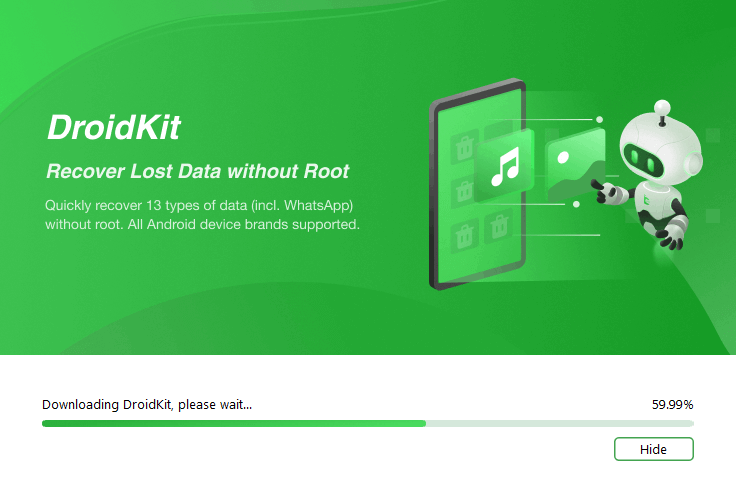
Install DroidKit on Your Windows or Mac
Step 2. Connect the locked Android phone to the computer with a USB data cable. After DroidKit recognizes the connection, click Start.

Connect Your Android Device
Step 3. Wait while DroidKit prepares the device configuration file. Read the data-removal notice for your selected workflow. If the conditions match your device and you accept them, click Remove Now.
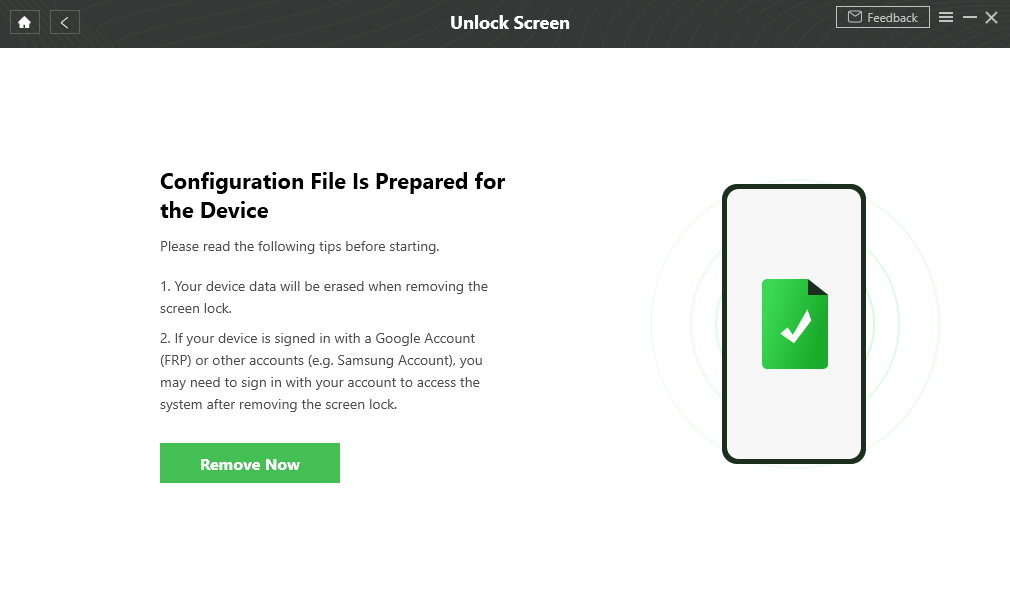
Click Remove Now
Step 4. Follow the on-screen instructions for your Android model. DroidKit may ask you to enter Recovery Mode or perform another device-specific sequence. Use the exact button combination displayed for the connected phone.
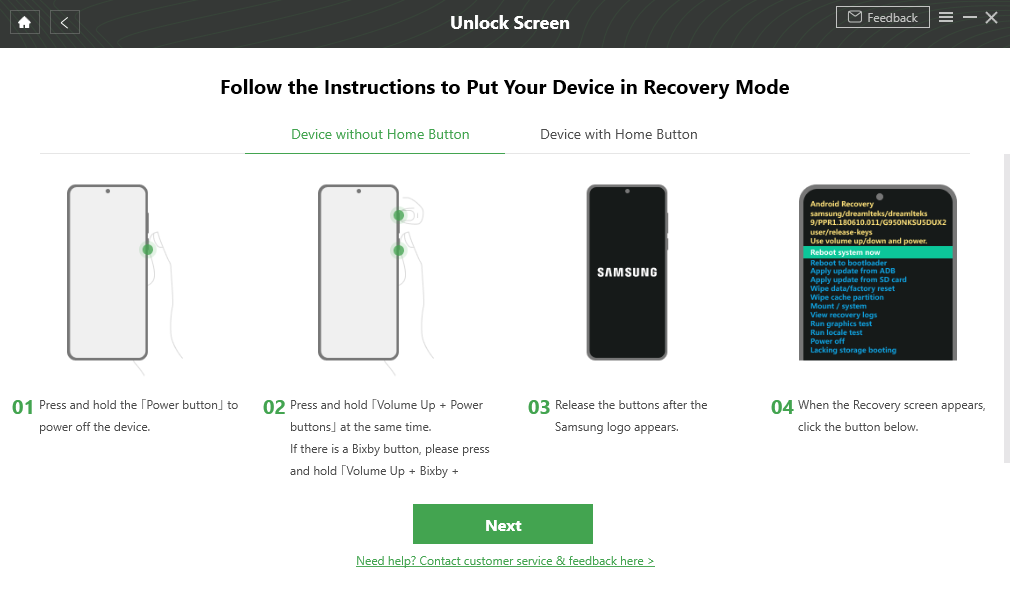
Follow the Device-Specific Recovery Mode Instructions
Step 5. Keep the phone connected while the screen-lock removal process runs. When DroidKit reports completion, allow the device to restart and complete Android setup.
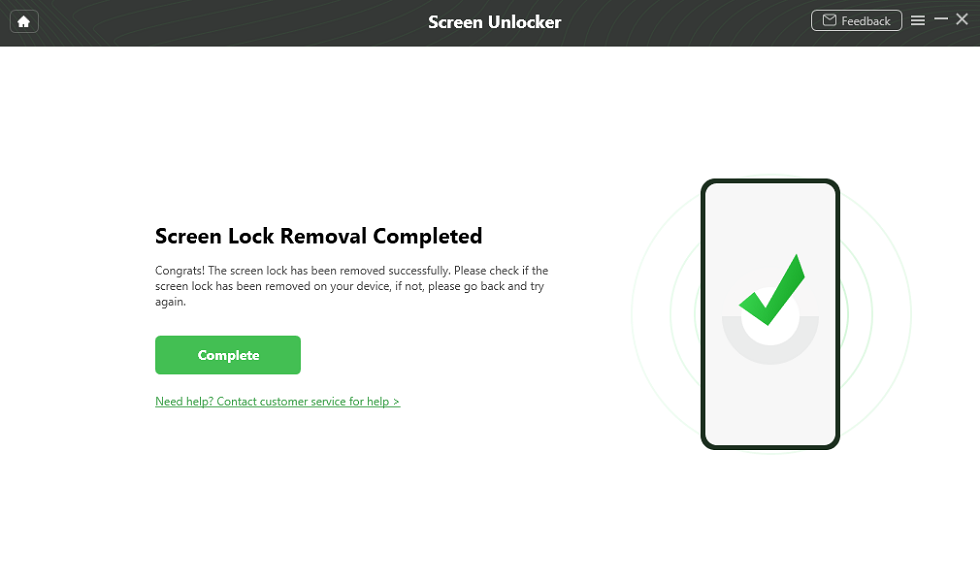
Screen Lock Removal Completed
Do not confuse screen unlock with FRP: If Android asks for a previously synced Google account after the phone restarts, you have reached Factory Reset Protection. Use the Google account associated with the phone or evaluate FRP support separately instead of repeating Screen Unlocker.
Part 6. What to Do After Unlocking Android
What happens next depends on whether the screen-lock workflow reset the phone.
- If Android starts at the setup screen: connect to Wi-Fi and be prepared to verify a Google account previously synced with the phone.
- If the device was erased: restore available photos, contacts, apps, and settings from your existing Google, Samsung, or other backups.
- If FRP appears: do not assume the screen-unlock process failed. FRP is a separate post-reset ownership check.
- Set a new screen lock: choose a PIN, pattern, or password you can recover and then re-enroll fingerprints or face recognition.
- Review account recovery: confirm that your Google-account recovery email, phone number, and backup sign-in methods are current.
- For a second-hand phone: make sure the previous owner’s accounts are properly removed before another factory reset or resale.
FAQs About Android Unlock Tools
What is the best Android unlock tool in 2026?
There is no single best choice for every lock type. DroidKit is our best fit for users who want screen unlocking and FRP functions inside a broader Android recovery and repair toolkit. 4uKey, LockWiper, and UnlockGo are more focused unlock alternatives, while Dr.Fone Screen Unlock fits users who prefer the wider Dr.Fone phone-utility ecosystem. Your exact model and lock type should decide the final choice.
What is the best free Android unlock option?
If erasing the phone is acceptable, Google Find Hub or the manufacturer’s Recovery Mode may let you factory-reset a locked device without purchasing unlock software. These are reset options rather than password-recovery tools, and Google verification can still be required after the reset.
Can Google Find Hub unlock an Android phone without erasing it?
No. Google Find Hub can locate, secure, and remotely factory-reset an eligible Android device, but it should not be described as a way to reveal or remove a forgotten screen PIN while preserving local data. A factory reset permanently erases device data.
Can Samsung SmartThings Find remotely unlock a forgotten Galaxy password?
No. Samsung’s current support documentation states that remote phone unlocking through SmartThings Find is no longer available. SmartThings Find can still help locate, ring, lock, or manage supported Galaxy devices, but old tutorials showing its remote screen-unlock function are outdated.
Will an Android unlock tool erase my data?
For most current Android screen-lock removal workflows, you should expect data removal unless your exact model is explicitly listed for a keep-data method. DroidKit, 4uKey, Dr.Fone, and UnlockGo all document no-data-loss support only for particular device scenarios rather than every modern Android phone; LockWiper’s standard Remove Screen Lock guide also warns that data is erased.
Can one Android unlock tool remove screen lock, FRP, and SIM lock?
Do not treat those as the same feature. Several desktop programs include separate Screen Unlock and FRP modules, but SIM or network unlocking is controlled by the mobile carrier and should normally be handled through the original network provider.
Which Android unlock tool is best for FRP?
Choose by the FRP compatibility table for your exact brand and Android version rather than by the tool’s general screen-unlock claims. DroidKit, 4uKey, Dr.Fone, LockWiper, and UnlockGo all provide FRP-related functions, but their supported brands, versions, and device workflows are not identical.
Is DroidKit better than 4uKey, Dr.Fone, LockWiper, or UnlockGo?
DroidKit has the clearest advantage when you want an all-in-one Android toolkit because it combines screen unlock and FRP with recovery, system repair, reinstall, extraction, and management functions. If you only need one unlock workflow, another product may be equally or more suitable when it documents stronger compatibility for your exact device.
Can I unlock a second-hand Android phone?
If a used phone is still tied to the seller’s screen credentials or Google account, contact the previous owner first. Ask them to remove their accounts and ownership locks properly. Resetting a second-hand phone without that preparation can leave it at Google FRP verification even after the screen lock is gone.
Conclusion
The best Android unlock tool in 2026 depends on a decision that comes before the download: screen lock, Google FRP, SIM lock, or another device restriction? For a forgotten screen password where data can be erased, Google Find Hub or Recovery Mode may be enough. For a SIM/network lock, the carrier is the correct destination. For FRP, the deciding factor is current brand- and version-specific support.
Among desktop products, DroidKit is the strongest fit when you want screen unlock and FRP inside the same Android toolkit as recovery and system repair. 4uKey, LockWiper, and UnlockGo are worth comparing when your priority is a focused unlock workflow, while Dr.Fone is suited to users who prefer a wider phone-management suite.
Whichever program you choose, read its current compatibility and erase notice for the exact device before clicking Remove, Bypass, or Start. On modern Android, the difference between a useful unlock tool and the wrong one is often not the number of advertised features—it is whether the software documents the specific lock and phone in front of you.
More Related Articles


Roger Smith is a senior technical writer with years of experience in providing Android solutions. He loves to help users solve various problems such as Android unlock, Android data recovery, and Android system repair.
Product-related questions? Contact Our Support Team to Get Quick Solution >
