RomFW Tool Latest Version: Download, Safety & FRP Guide
Looking for RomFW Tool latest version or a free FRP bypass download? Learn what RomFW Tool is used for, how to evaluate a download source, Windows and USB requirements, common FRP failure points, and how it compares with a guided alternative.
Looking for the latest RomFW Tool download for Android FRP bypass? Before installing a ZIP or executable from a third-party page, check three things first: whether the package version can be identified, whether your exact phone and connection mode are supported by the workflow, and whether the download source can be trusted.
RomFW Tool is commonly described online as a Windows servicing utility with FRP, flashing, lock-related, and device-maintenance functions. The difficulty is that versions and repackaged downloads circulate through third-party sites, so a filename such as “RomFW latest,” “V6,” or “V6.6” does not by itself prove that the package is current, original, or compatible with your phone.
Quick Answer: Treat RomFW Tool as a technical Windows utility rather than a universal one-click FRP solution. Verify the package source and version before running it, identify your exact phone model and chipset, install only the drivers required by the workflow, and confirm that the tool actually detects the device before starting an FRP or flashing operation. If the phone is not detected, the function is missing, or Google verification returns after restart, diagnose the failure instead of downloading another random copy.
If your main goal is to understand FRP rather than RomFW specifically, the Android FRP bypass guide organizes recovery and tool options by Android version, brand, verification state, and method type.
What Is RomFW Tool?
RomFW Tool is a Windows-based phone servicing utility commonly discussed in FRP, firmware, screen-lock, and device-repair communities. Depending on the build being used, its interface may expose functions related to Android device detection, FRP servicing, flashing, reset operations, or manufacturer-specific modes.
The important limitation is that the name RomFW Tool can appear on third-party mirrors and tutorials that do not clearly document the original developer, build history, supported models, or current maintenance status.
For that reason, this page does not treat every claimed RomFW function as guaranteed across every package.
Common RomFW Tool Use Cases
- Android FRP-related servicing.
- USB, ADB, MTP, Fastboot, Download Mode, or chipset-based device communication where supported by the particular build.
- Firmware or reset-related operations on supported devices.
- Technical servicing workflows that require a Windows computer and phone drivers.
Who Is RomFW Tool Better Suited For?
RomFW makes more sense for users who already understand Windows drivers, Android servicing modes, model identification, firmware differences, and the risk of low-level operations.
It is less suitable when you:
- do not know the exact phone model or chipset;
- are unsure which USB or servicing mode the workflow requires;
- cannot identify the RomFW package source;
- are following instructions written for another phone;
- need guaranteed compatibility with a current Android security patch; or
- prefer guided instructions over technical servicing controls.
RomFW Tool Latest Version: What Can You Verify?
Search results may refer to RomFW Tool V6, V6.6, or simply “RomFW Tool latest version.” Version labels should be verified against the package and source you are actually using rather than copied from another download page.
| Version Check | What to Verify |
| Filename | Confirm that the archive name corresponds to the version claimed by the page. |
| Extracted application | Check whether the program interface or About screen identifies a version. |
| Publish date | A recently updated download page does not necessarily mean the executable itself is new. |
| Interface screenshots | Make sure the buttons and functions shown by the tutorial match the package you installed. |
| Supported models | Do not infer support for your phone solely from a newer version number. |
| Security patch | A newer package may still fail if the FRP route it uses has been restricted by current firmware. |
Version warning: This guide does not provide an unverified direct RomFW executable link or claim that a particular third-party archive is the official latest release. Verify the installer before running it.
Is RomFW Tool Free?
RomFW Tool is frequently distributed as a free download through third-party Android servicing and file-hosting websites. However, “free download” should be separated from three other questions:
- Is the file original?
- Is the version current?
- Are all functions in that build available without registration, authorization, or another service requirement?
| Claim | What It Actually Tells You |
| Free download | The archive or installer can be obtained without an upfront download charge. |
| No dongle | The particular workflow may not require a physical service dongle; this does not prove universal device support. |
| Latest version | A page is advertising a newer build; verify the package itself. |
| One-click FRP | The interface may expose an FRP function, but device detection and compatibility still matter. |
| All models supported | Do not accept this claim without a current model list or device-specific evidence. |
Is RomFW Tool Safe to Download?
The main safety issue is not simply whether RomFW Tool is “safe” or “unsafe.” The bigger problem is that third-party Windows utilities can be repackaged, modified, bundled, renamed, or redistributed through mirrors.
Check These Before Running a RomFW Download
- Identify who hosts the file and whether the source explains where the package came from.
- Check the archive name, size, version, and contents against the tutorial you are using.
- Scan the archive and extracted executable before running it.
- Do not disable Windows security protections simply because a download article tells you to.
- Be cautious with password-protected archives when the source cannot be verified.
- Do not install unrelated programs bundled with the tool.
- Back up accessible data before using reset, format, flash, or partition-related functions.
Important: An antivirus alert can be a false positive for some servicing utilities, but it can also indicate a modified or unsafe package. The correct response is to investigate the file and source, not automatically turn protection off.
RomFW Tool Requirements Before FRP Bypass
FRP tool failures often start before the actual FRP operation. Prepare the device and computer first.
| Requirement | Why It Matters |
| Windows computer | RomFW Tool is generally used as a Windows servicing utility. |
| Data-capable USB cable | A charge-only cable can prevent the phone from being detected. |
| Correct USB driver | Samsung, MediaTek, Qualcomm, and other device environments can require different drivers. |
| Exact phone model | Similar marketing names can still use different hardware or firmware. |
| Chipset information | Some technical workflows are chipset-specific. |
| Required device mode | MTP, ADB, Fastboot, Download Mode, BROM, META, or another state may be required depending on the operation. |
| Ownership authorization | Use FRP and servicing functions only on a device you own or are authorized to repair. |
If the phone asks for a Google Account previously synced with it after reset, first make sure you are dealing with FRP rather than a normal screen lock, MDM, carrier restriction, or manufacturer account lock.
For users who still have access to the original account or need to understand why that account remains relevant, see the previously synced Google account guide.
How to Use RomFW Tool for FRP Bypass
The exact RomFW interface can vary by package and build, so use the steps below as a general verification workflow, not as a promise that every RomFW version has identical buttons.
Step 1. Obtain the RomFW package from a source you can evaluate. Verify the version information and scan the archive before extraction.
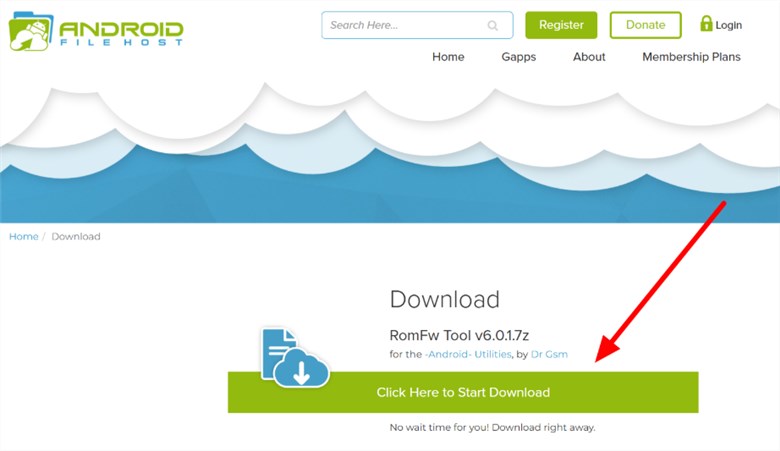
Verify the RomFW package source and version before installation.
Step 2. Extract the package and check that the files match the guide you are following. Do not run unexplained executables included in an unrelated bundle.
Step 3. Open RomFW Tool and complete any registration or sign-in that the particular build legitimately requires.
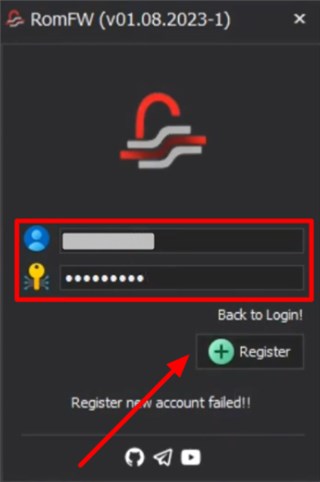
The login flow can differ by RomFW build.
Step 4. Install the correct driver for the phone and connect it with a data-capable USB cable.
Step 5. Put the phone into the exact device mode required by the RomFW workflow. Do not select Fastboot, ADB, MTP, Download Mode, or another mode merely because an unrelated tutorial uses it.
Step 6. Confirm that RomFW detects the phone correctly before starting an FRP operation.
Step 7. Select the function that corresponds to the device state and follow the instructions shown by that particular tool build.
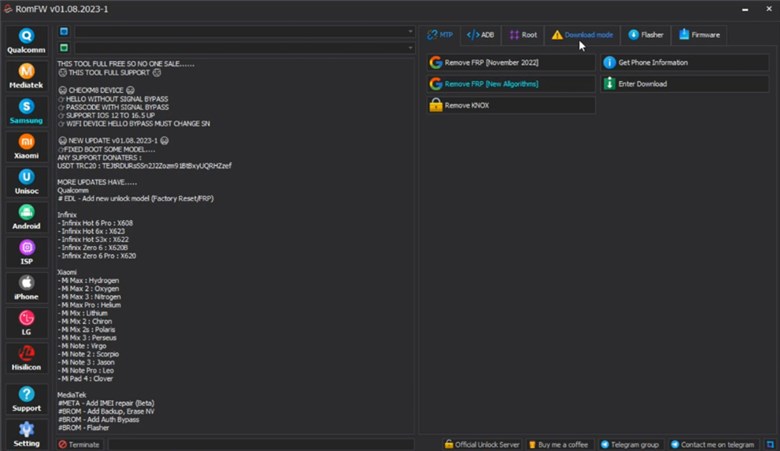
Use only the RomFW function that matches the connected device and lock type.
Step 8. When the operation finishes, restart or continue setup only as instructed. If Google verification returns unchanged, do not immediately repeat every reset or FRP command.
Stop point: If RomFW does not detect the phone, the listed model is wrong, the required mode is unavailable, or the interface does not match the tutorial, stop before running a low-level operation.
RomFW Tool Not Working: Common Fixes
If RomFW Tool fails, use the first visible error to identify the real blocker.
| Problem | Likely Area to Check | Better Next Step |
| RomFW Tool will not open | Corrupted archive, missing runtime, blocked executable, or unsafe package | Verify the source and package before changing Windows security settings |
| Login or registration fails | Old build, unavailable service, incorrect credentials, or changed authorization | Check whether the tutorial and package belong to the same RomFW build |
| Phone is not detected | USB driver, cable, port, device mode, or unsupported phone | Fix device detection before starting FRP |
| ADB shows unauthorized | ADB access was not enabled or authorized for the current device state | Do not keep running ADB-dependent functions |
| FRP function is missing | The installed build differs from the tutorial | Verify the RomFW version instead of guessing another menu |
| FRP operation reports an error | Model, chipset, firmware, security patch, or mode mismatch | Recheck the exact device environment |
| Google verification returns after restart | The selected workflow did not resolve the active FRP state | Switch from repeating RomFW to account recovery or a compatible FRP route |
| Tool worked on another phone but not yours | Device support differs by model, chipset, firmware, or patch | Do not generalize support across phone families |
For a broader troubleshooting map covering device detection, security patches, ADB, Setup Wizard restrictions, APK failures, and methods that stop working after updates, use the FRP bypass not working guide.
RomFW Tool Does Not Detect the Phone
Start with the connection, not another FRP command. Change to a known data-capable cable, try another USB port, verify the correct driver, and confirm that the phone is in the mode expected by the function.
RomFW Login Is Not Working
If a tutorial tells you to register or log in but the current tool no longer accepts those credentials, the build or service shown by the tutorial may no longer match your package. Do not download several unknown executables solely to find one that accepts the old login.
FRP Remains After RomFW Finishes
Check whether the device returned to the Google verification screen. If it did, the operation did not resolve the verification state for this device. Repeating factory resets can leave you in the same FRP loop.
RomFW Tool vs DroidKit
RomFW and DroidKit serve different users. RomFW is better understood as a technical servicing utility distributed through third-party channels, while DroidKit provides an iMobie-maintained guided Android workflow.
| Feature | RomFW Tool | DroidKit FRP Bypass |
| Primary style | Technical servicing utility | Guided FRP workflow |
| Platform | Primarily Windows | Windows and Mac versions are available |
| Download source | Often distributed through third-party sites | Official iMobie source |
| Version verification | Can vary by mirror and package | Maintained through the official product distribution |
| User preparation | May require more knowledge of drivers, models, chipsets, and servicing modes | Uses on-screen device instructions for supported workflows |
| FRP support | Depends on the particular RomFW build and device route | Depends on the FRP workflow available for the connected device |
| Best fit | Technical users evaluating a specific RomFW-compatible servicing route | Users who prefer a guided workflow when the device is supported |
This comparison deliberately does not assign unsupported “high” or “moderate” success rates. A meaningful comparison should be based on the exact device and workflow rather than an invented universal percentage.
How to Use DroidKit After a RomFW Failure
If RomFW cannot detect the phone, its source or version cannot be verified, or the available FRP workflow does not fit your device, you can check whether DroidKit FRP Bypass provides an applicable guided route.
When the Alternative Is Worth Checking
- You own the device or are authorized to service it.
- The phone is actually stopped at Google FRP after reset.
- You have already ruled out recovering the previously synced Google Account.
- RomFW does not recognize the phone after driver and connection troubleshooting.
- You prefer on-screen instructions instead of chipset or servicing-mode selection.
- The connected phone matches an available DroidKit FRP workflow.
Step 1. Install DroidKit and choose FRP Bypass.

Choose FRP Bypass.
Step 2. Connect the Android phone using a stable USB data cable and click Start.
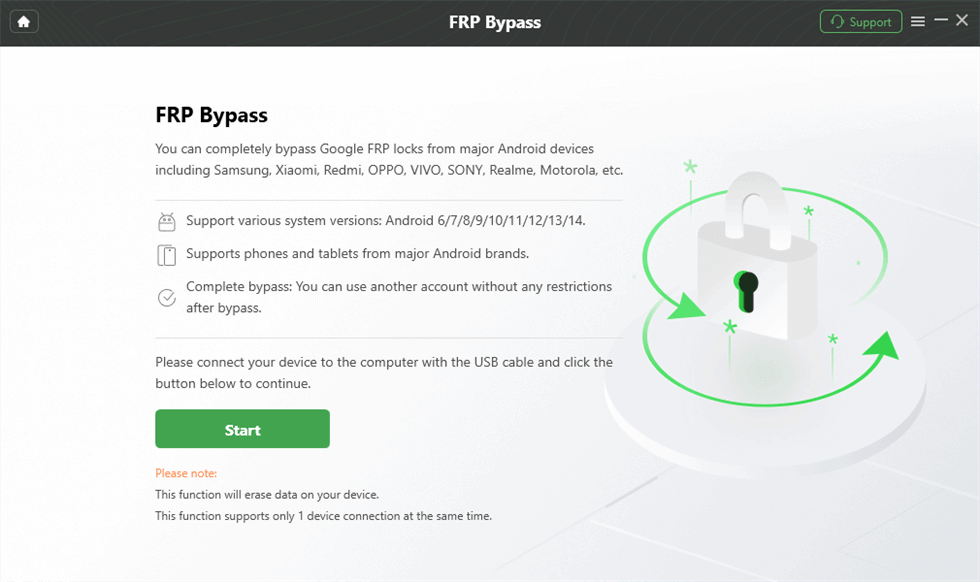
Connect the device and start the available workflow.
Step 3. Continue only if DroidKit provides an applicable device route, then follow the on-screen preparation instructions.
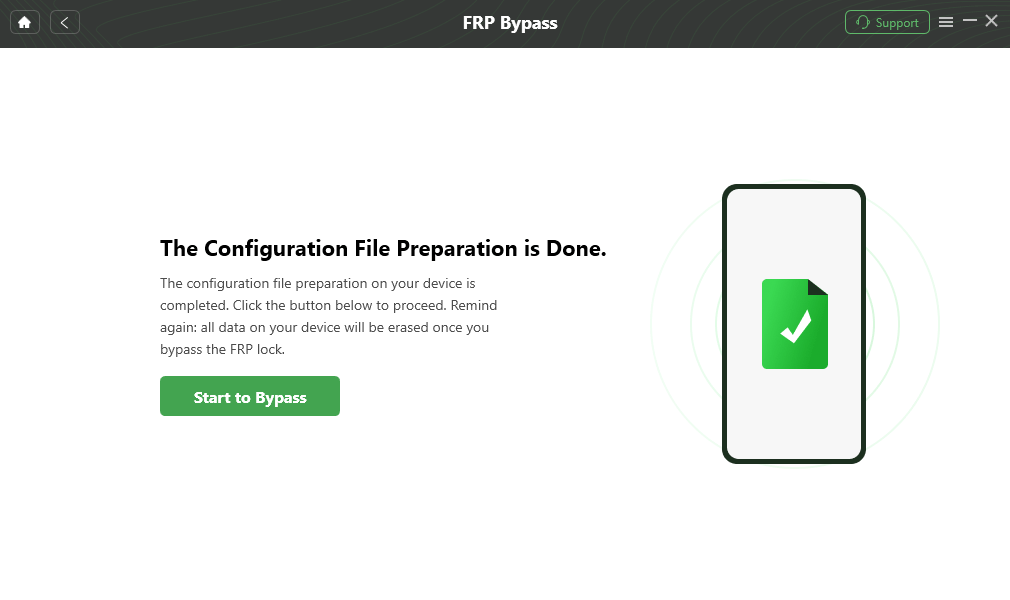
Continue with the available FRP workflow.
Step 4. Complete the device-specific settings requested by the software.
Step 5. Keep the phone connected until the available workflow reports completion, then continue setup.

Complete the available FRP workflow.
FAQs About RomFW Tool
What is RomFW Tool used for?
RomFW Tool is commonly described as a Windows phone-servicing utility with functions related to FRP, device communication, flashing, reset operations, and other technical servicing tasks. The exact functions depend on the particular RomFW build.
What is the latest version of RomFW Tool?
Search and download pages may advertise versions such as V6 or V6.6, but a version number should be confirmed from the actual package or a trustworthy maintained source. A recently updated web page does not prove that the executable itself is the newest release.
Is RomFW Tool free to download?
RomFW Tool is commonly distributed as a free download through third-party sites. Free availability does not verify that a specific archive is original, current, safe, or compatible with your phone.
Where can I download RomFW Tool?
This page does not provide a direct unverified RomFW executable link. If you obtain a package from a third-party host, verify its source, version, archive contents, and security scan before running it.
Is RomFW Tool safe?
Safety depends heavily on the package source and whether the executable has been modified or repackaged. Do not automatically disable antivirus protection to install an unknown copy, and back up accessible data before running reset or flashing operations.
Does RomFW Tool work on all Android phones?
No universal compatibility should be assumed. Results can depend on the phone model, chipset, Android version, firmware, security patch, driver, required servicing mode, and the RomFW build being used.
Why is RomFW Tool not detecting my phone?
Check the USB driver, data cable, port, Windows Device Manager, required phone mode, and whether the installed RomFW build supports the device workflow. Detection should be resolved before starting an FRP or flashing function.
Why does FRP remain after using RomFW Tool?
The selected function may not match the current phone, firmware, security patch, or FRP state. Do not keep repeating the same operation. Recheck the previously synced Google Account and move to a compatible device-specific or guided FRP route.
Is DroidKit the same as RomFW Tool?
No. RomFW Tool is commonly distributed as a technical servicing utility through third-party channels, while DroidKit is an iMobie Android toolkit with a guided FRP workflow for supported device situations.
Conclusion
RomFW Tool can be relevant to technical users searching for a free Windows FRP and servicing utility, but the most important questions are not simply whether a ZIP is available or whether the filename says “latest.” Verify the package source, version, exact phone, chipset, drivers, and connection mode first.
If RomFW does not detect your device or Google verification remains after the operation, diagnose that failure instead of downloading multiple unknown copies. A missing driver, unsupported device, security-patch difference, or mismatched servicing mode will not be fixed by renaming the executable.
For a phone you own or are authorized to service, account recovery should remain the first option when the previously synced Google Account is still accessible. When RomFW does not provide a compatible path, compare an officially distributed guided FRP workflow before proceeding with additional technical operations.
More Related Articles



Joy Taylor is a seasoned technical writer with over a decade of experience in mobile technology. At iMobie, she specializes in producing in-depth content on iOS data recovery, iPhone unlocking solutions, and iOS troubleshooting.
Product-related questions? Contact Our Support Team to Get Quick Solution >
