DFT Pro Tool Review 2026: Download, Price, Crack Risks & Alternative
This DFT Pro Tool review explains what DFT Pro does, whether it is free, how to download and use it for FRP bypass, why cracked versions are risky, and when DroidKit can be a safer alternative.
DFT Pro Tool is an Android service utility used by technicians and advanced users for tasks such as FRP bypass, screen lock removal, firmware flashing, bootloader operations, and some chipset-related repair functions. If you are locked out after a factory reset and the phone asks for the previously synced Google account, DFT Pro may help in some supported cases.
However, many users also search for DFT Pro free download, DFT Pro crack, or DFT Pro tool crack. These versions can be risky because unofficial files may contain malware, fail activation, or damage phone software. In this guide, you will learn what DFT Pro Tool can do, whether it is free, how to use it safely, and when a guided alternative like DroidKit may be easier for FRP bypass.
DFT Pro Tool is built more for advanced Android service tasks, so users who only need FRP removal should compare it with a dedicated Android FRP tool before using cracked packages or complex service functions.
Quick Answer: Should You Use DFT Pro Tool?
DFT Pro Tool can be useful for technicians or advanced users who need Android FRP bypass, firmware flashing, screen lock removal, bootloader functions, or Qualcomm-related service features on a Windows PC. It is more suitable for users who understand device modes such as Download Mode, Fastboot Mode, or EDL Mode.
However, DFT Pro Tool is not fully free. The official version usually requires paid activation, and cracked DFT Pro downloads can bring malware, data loss, activation failure, and no support. If you only need a guided FRP bypass process and do not want to handle complex service-tool setup, DroidKit can be a simpler alternative for Android FRP removal.
What Is DFT Pro Tool V6.2.6?
DFT Pro Tool V6.2.6 is a Windows-based Android service program designed to unlock Android phones and fix certain software-related problems. It can help users remove FRP locks, bypass some screen locks, flash firmware, repair selected device functions, and perform advanced service operations on supported Android models.
It supports many Android brands and chipsets, including Samsung, Xiaomi, Vivo, OPPO, Realme, Nokia, and other models, depending on the tool version and the selected function. Some features are mainly designed for professional repair technicians, so beginners may find the setup more difficult than common Android unlock software.
Key Features of DFT Pro Tool:
- FRP Lock Removal: It can remove Factory Reset Protection on supported Android phones when users cannot verify the original Google account.
- Screen Lock Bypass: It may help remove pattern, PIN, or password locks on supported models.
- Bootloader Unlock/Relock: It provides bootloader-related operations for advanced users who need deeper device access.
- Firmware Flashing: It can install or update firmware to fix certain software problems.
- Chipset Service Functions: It includes functions for selected Qualcomm, MediaTek, and other device platforms, depending on version support.
Pros:
- Supports multiple Android brands and models.
- Includes FRP bypass, firmware flashing, screen lock removal, and repair-related functions.
- Useful for technicians who handle different Android service tasks.
- Can work with several device modes, including Download, Fastboot, and EDL modes.
Cons:
- It requires a Windows PC and may not work directly on Mac or Linux.
- Some features require technical knowledge and correct drivers.
- The official version usually needs paid activation.
- Cracked versions can be unsafe and may contain modified or harmful files.
Is DFT Pro Tool Free to Use?
DFT Pro Tool is not fully free if you want to use the official activated version. It usually requires a paid activation license, and the price may vary depending on the version, seller, and license duration.
Many users search for DFT Pro free download or DFT Pro tool free, but it is important to understand the difference between an official version, an unknown free download, and a cracked version.
| Version | Cost | Risk Level | Support |
| Official DFT Pro Tool | Paid activation | Lower | May include updates and seller support |
| DFT Pro free download from unknown sites | Free or unclear | Medium to high | Usually no official support |
| DFT Pro crack | Free | High | No support and possible security risks |
If you are a technician and need DFT Pro’s advanced service functions, the official activated version is safer. If you only need to bypass FRP and prefer a guided process, you may want to consider an easier FRP bypass alternative.
Is DFT Pro Crack Safe? What to Know Before Downloading
Many users search for DFT Pro crack, DFT Pro tool crack, or DFT Pro crack download because they want to avoid paid activation. However, cracked versions can be risky. They may include modified files, malware, hidden installers, or outdated modules that can fail during FRP bypass or damage the phone software.
- Cracked files may contain malware or unwanted programs.
- You may lose access to updates, activation support, and bug fixes.
- The tool may fail to detect your phone or stop during the FRP process.
- Using modified tools can increase the risk of data loss or system errors.
- Some downloads may ask you to disable antivirus, which increases security risk.
For safety, avoid unofficial crack downloads. Use the official DFT Pro version if you are an advanced user, or try a guided FRP bypass alternative if you only need to remove Google verification after a reset.
Before You Download DFT Pro Tool
Before downloading DFT Pro Tool, check the source, version, and activation details carefully. FRP and repair tools often require deep system access, so downloading files from unknown websites can put your PC and phone at risk.
- Use the official source or a trusted seller whenever possible.
- Confirm whether the tool version supports your phone brand and chipset.
- Check whether the license is active and valid.
- Avoid password-protected crack archives or suspicious installers.
- Scan downloaded files before opening them on your PC.
- Do not disable antivirus unless you fully trust the source.
- Back up important data if the phone is still accessible before trying any unlock operation.
If the download source looks suspicious or the file asks for unnecessary permissions, stop and choose a safer method.
How to Download & Use DFT Pro Tool?
DFT Pro Tool offers features such as FRP removal, firmware flashing, and screen unlock support. It works with popular Android brands and chipsets, but the actual process depends on your device model, connection mode, and the function you select.
Steps to download and use DFT Pro Tool:
Step 1. Visit the DFT Pro Tool website or a trusted seller page and download the official tool package.
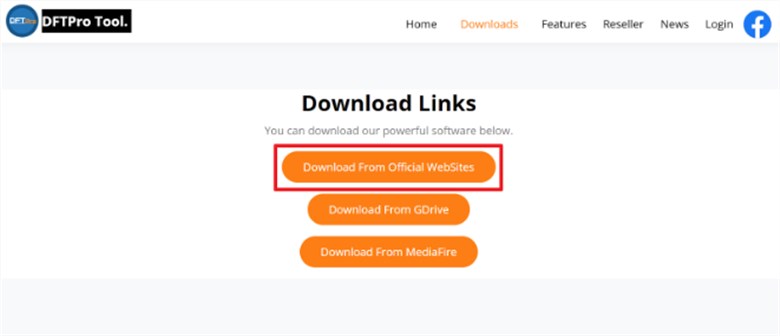
Download DFT Pro tool
Step 2. Install or extract the DFT Pro Tool package on your Windows PC.
Step 3. Launch DFT Pro Tool and log in with your account credentials or activated license.
Step 4. Connect your FRP-locked Android device to the computer using a USB cable.
Step 5. Put your phone into the correct mode, such as Download Mode, Fastboot Mode, or EDL Mode, based on its brand and chipset.
Step 6. In the tool, select your device brand and navigate to the FRP or Remove FRP function.
Step 7. Click the Remove FRP button and wait for the tool to complete the bypass process.
Step 8. Once done, restart your device and check whether the FRP lock has been removed.
Note: Do not disconnect the phone during the process. If the tool cannot detect your device, check the USB driver, cable, phone mode, and activation status before trying again.
What If DFT Pro Tool Is Not Working?
DFT Pro Tool may fail if the device mode is wrong, USB drivers are missing, the activation is invalid, or the phone model is not supported by the selected function. Check the common issues below before trying again.
| Problem | Possible Reason | What to Try |
| Device not detected | Missing USB drivers or wrong connection mode | Install the correct drivers and retry Download, Fastboot, or EDL mode |
| Activation failed | Invalid account, expired license, or unofficial version | Check license status or contact the seller |
| Remove FRP option fails | Unsupported model, chipset, or security patch | Try another supported mode or use a guided FRP bypass alternative |
| Antivirus blocks the tool | The tool package or crack file is flagged as risky | Avoid running suspicious files from unofficial sources |
| The tool stops during the process | Unstable USB connection or incorrect device mode | Use another USB cable, reconnect the phone, and restart the process carefully |
If you keep running into FRP removal errors, see this guide on FRP bypass not working for more troubleshooting ideas.
Best Alternative to DFT Pro Tool for FRP Bypass
Due to the complex setup, paid activation, and security risks of unofficial DFT Pro downloads, DroidKit can be a simpler option for users who mainly want to remove Google account verification after a factory reset.
Unlike professional service tools that require specific device modes and technical setup, DroidKit provides a guided FRP bypass process on Windows or Mac. It is suitable for users who want clearer steps instead of handling advanced Android service functions manually.
For users who mainly need an FRP removal solution, DroidKit can work as a practical Android FRP tool alternative.
Key Features of DroidKit:
- Provides guided FRP bypass steps for Android users.
- Works on Windows and Mac computers.
- Useful when DFT Pro Tool feels too technical or cannot detect the device.
- Does not require users to manually handle complex service-tool setup.
- Also includes Android utility features such as screen lock removal and system repair.
Free Download * 100% Clean & Safe
Stepwise Guide to Bypass FRP With the Help of DroidKit:
Step 1. Free download and launch DroidKit on your computer. Choose the FRP Bypass feature and hit the Start button.

Choose FRP Bypass
Step 2. Connect your phone to the PC via USB cable and select the right phone model. Wait for DroidKit to make a configuration file. After that, press Start to Bypass to continue.
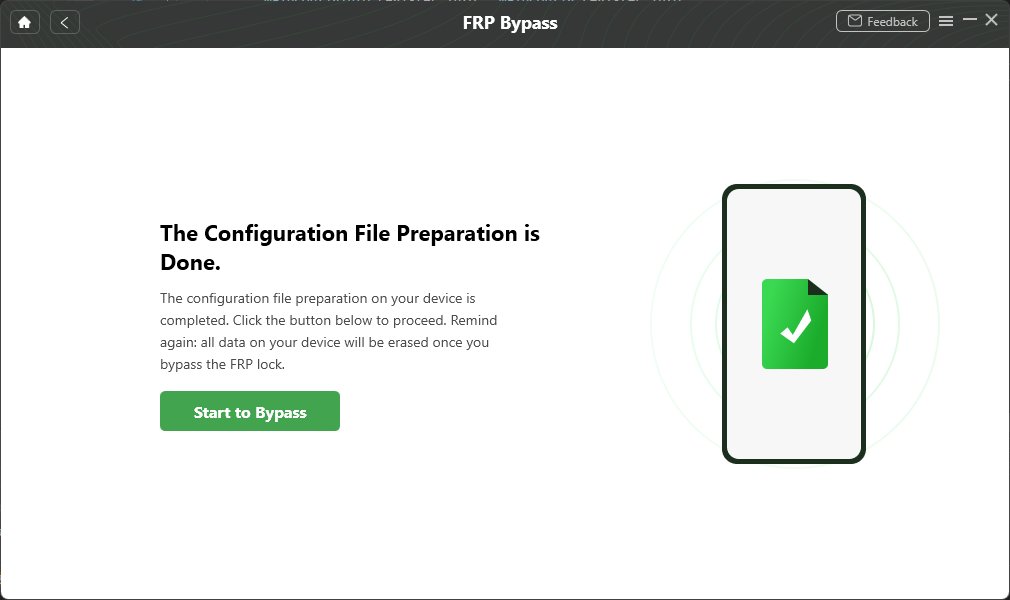
Preparing the Configuration File
Step 3. Follow the on-screen instructions to enter the required mode and complete the necessary settings on your device.
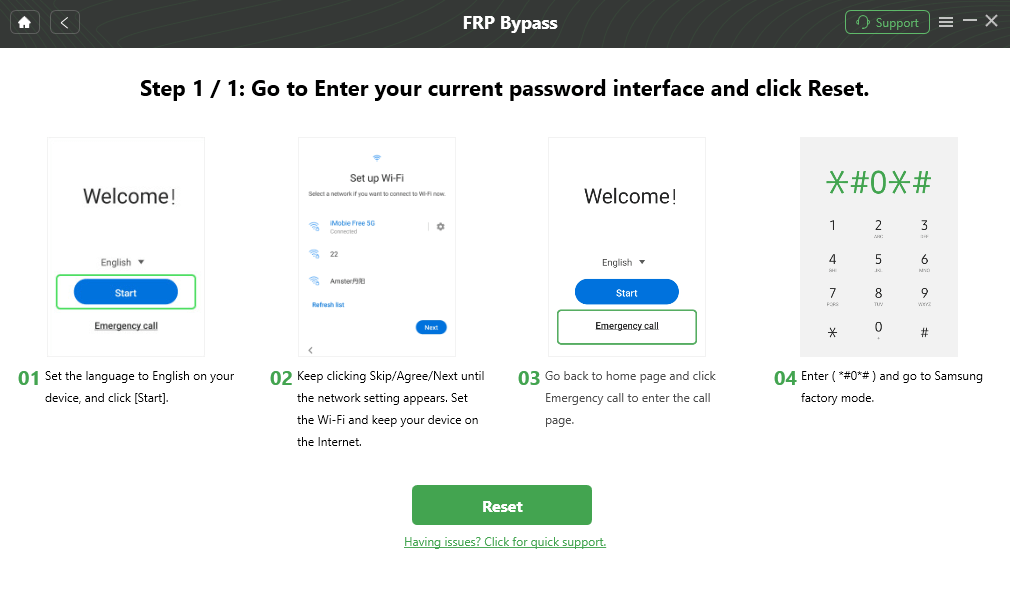
Go to Recovery Mode
Step 4. After the process is completed, you will see a confirmation screen showing that the FRP bypass process has finished.

FRP Bypass Complete
DroidKit & DFT Pro Tool Comparison Chart
When choosing between DFT Pro Tool and DroidKit, it is important to compare their use cases, safety, and technical difficulty. DFT Pro is more suitable for advanced service tasks, while DroidKit is easier for users who mainly need guided FRP bypass.
| Feature / Aspect | DroidKit | DFT Pro Tool |
| Main Use | Guided Android FRP bypass and Android utility features | Professional Android service functions, including FRP, flashing, and repair tasks |
| Ease of Use | Beginner-friendly guided steps | Requires manual setup and technical knowledge |
| Platform | Windows and Mac | Windows only |
| Activation | Free download available; feature use depends on product plan | Usually requires paid activation license |
| Crack Risk | Use official download source | Cracked versions may contain malware or unstable files |
| Setup Complexity | Straightforward installation with on-screen instructions | Needs drivers, correct device mode, account login, and manual configuration |
| Best For | Users who want a guided FRP bypass process | Technicians and advanced users who need multiple service functions |
While DFT Pro Tool offers many professional service functions, DroidKit is easier for users who mainly want to remove Google account verification with guided steps.
FAQs about DFT Pro Tool
Q1. What is DFT Pro Tool used for?
DFT Pro Tool is used for Android service tasks such as FRP bypass, screen lock removal, firmware flashing, bootloader functions, and some chipset-related repair features. It is mainly used on Windows computers by technicians or advanced users.
Q2. Is DFT Pro Tool free?
The official DFT Pro Tool usually requires a paid activation license. Some free downloads are available online, but they may be unofficial, outdated, or unsafe.
Q3. Is DFT Pro crack safe to download?
No. DFT Pro crack downloads can contain malware, modified files, or unstable modules. They may also fail activation, damage phone software, or provide no support or updates.
Q4. How do I download DFT Pro Tool safely?
Use the official source or a trusted seller, check the version and license details, avoid password-protected crack archives, and scan files before installing them on your PC.
Q5. Why is DFT Pro Tool not detecting my phone?
The common reasons include missing USB drivers, wrong device mode, faulty USB cable, unsupported chipset, expired license, or an incorrect FRP function selected in the tool.
Q6. What is the best DFT Pro Tool alternative for FRP bypass?
If DFT Pro Tool is too technical or risky, DroidKit can be a simpler FRP bypass alternative for users who prefer guided steps on a Windows or Mac computer.
Conclusion
DFT Pro Tool is a powerful Android service tool for users who need FRP bypass, firmware flashing, screen lock removal, and other advanced repair functions. It can be useful for technicians and experienced users, but it is not fully free and may require paid activation, correct drivers, and technical setup.
If you are searching for DFT Pro crack or free download, be careful. Unofficial cracked versions can bring malware, activation failure, data loss, and device software problems. If your main goal is to remove FRP with clearer steps, DroidKit can be a safer and more user-friendly alternative.
Free Download * 100% Clean & Safe
More Related Articles



Joy Taylor is a seasoned technical writer with over a decade of experience in mobile technology. At iMobie, she specializes in producing in-depth content on iOS data recovery, iPhone unlocking solutions, and iOS troubleshooting.
Product-related questions? Contact Our Support Team to Get Quick Solution >
