Android Utility Tool Latest Version Download and FRP Bypass [Updated]
Android Utility Tool searches usually fail at the same checkpoints: version-source mismatch, ZIP password errors, antivirus blocks, MTK/META/BROM mode confusion, or FRP steps that do not match the phone’s chipset and security patch. This guide helps you verify the download, understand the tool’s core functions, and choose a safer next step when Android Utility does not work.
Android Utility Tool is a Windows-based Android service utility often searched for FRP bypass, MTK / META functions, BROM operations, ADB enabling, bootloader tasks, firmware repair, and Samsung FRP workflows. Users also search for the Android Utility Tool latest version, Android Utility Tool official website, Android Utility Tool ZIP password, and Android Utility Samsung FRP because the wrong file, wrong password, or wrong device mode can stop the process before the tool even opens.
This guide focuses on how to evaluate Android Utility Tool safely: where version confusion comes from, why ZIP/RAR extraction may ask for mfdl, which functions are usually discussed for MTK / Qualcomm / Samsung devices, and what to check when FRP bypass does not work. For a broader list of FRP utilities, see the Android FRP tool guide and the best FRP bypass tools comparison.
Use Android service tools only on a phone you own or are authorized to repair. Low-level actions such as FRP reset, bootloader operations, BROM mode, META mode, firmware flashing, or factory reset may erase data, affect warranty, or fail if the chipset and security patch do not match the method.
Table of ContentsHide
Quick Answer: Should You Use Android Utility Tool?
What Is Android Utility Tool?
Android Utility Tool Latest Version: What to Check
Is Android Utility Tool Free?
Is Android Utility Tool Safe to Use?
How to Get Android Utility Tool Download Safely
Android Utility Tool ZIP Password and Extraction Errors
Main Features: MTK, META, BROM, ADB, Samsung FRP
How to Use Android Utility Tool for FRP Bypass
Android Utility Tool Not Working: Common Fixes
Android Utility Tool Alternative for FRP Bypass
FAQs About Android Utility Tool
Conclusion
Quick Answer: Should You Use Android Utility Tool?
Android Utility Tool may be useful for advanced users or technicians who understand Android chipsets, drivers, USB modes, META / BROM behavior, and FRP workflows. It is not ideal if you only want a one-click unlock, cannot verify the download source, do not know the ZIP password, or cannot identify whether your phone needs ADB, MTP, BROM, META, or Recovery Mode steps.
| Your Situation | Android Utility Tool Outlook | What to Check First |
| You need Android Utility Tool latest version | Version names change often across sources. | Check file name, release date, changelog, source reputation, and password note. |
| You see a ZIP password prompt | Many Android Utility archives use a password such as mfdl. | Confirm the password from the same trusted download source. |
| You need Samsung FRP | Some builds include Samsung FRP or MTP-related functions. | Check whether your Samsung model, security patch, and USB prompt match the method. |
| You need MTK / META / BROM functions | Relevant only for supported MediaTek devices and modes. | Confirm chipset, driver, and whether the device can enter the required mode. |
| You are not comfortable with drivers or low-level modes | The tool may be too technical. | Compare a guided FRP workflow before trying low-level operations. |
What Is Android Utility Tool?
Android Utility Tool is a Windows desktop utility used by Android technicians and advanced users for service-related tasks. Commonly discussed functions include FRP bypass, bootloader operations, firmware-related tasks, factory reset, ADB enabling, META mode, BROM mode, and chipset-based service actions.
Unlike a simple Android app, Android Utility Tool usually works through a USB connection between a Windows computer and an Android phone. That means the result depends on the phone model, chipset, driver, USB cable, security patch, and the exact function selected inside the tool.
Who Is It For?
- Technicians who understand MTK, Qualcomm, Samsung, ADB, META, and BROM workflows.
- Advanced users who can verify download sources and device modes before running actions.
- Users comparing Android service tools for FRP, flashing, bootloader, or factory reset tasks.
Who Should Be Careful?
- Users who only need a beginner-friendly FRP process.
- Users who cannot verify whether the file is official or modified.
- Users who do not know their chipset, Android version, or security patch level.
- Users who are asked to disable antivirus without understanding why the file is flagged.
Android Utility Tool Latest Version: What to Check
Searches for Android Utility Tool latest version and Android Utility Tool official website are risky because different pages may promote different version labels. Some pages mention V170 builds, while others promote newer Android Utility Pro v200-style packages. Do not treat one filename as “latest” unless you can confirm the source, release date, file size, changelog, and archive password.
| Version Check | Why It Matters | Safer Action |
| File name | Similar names may point to different builds or repacks. | Compare the exact version string and extension before downloading. |
| Release date | Older versions may not support newer security patches. | Check whether the source shows a real update date and changelog. |
| Changelog | FRP, META, BROM, and Samsung features may change by build. | Look for the function you actually need, not just the newest number. |
| ZIP password | Wrong or missing password can indicate a copied or incomplete post. | Use the password only when it comes from the same trusted source. |
| Executable behavior | Service tools may trigger antivirus alerts. | Scan the file and avoid cracked or unknown modified builds. |
Is Android Utility Tool Free?
Android Utility Tool availability depends on the specific build and source. Some packages are shared as free downloads, while some functions, pro builds, or service routes may be distributed through different channels. Be cautious with pages that promise cracked, activated, or “no smart card” versions without explaining the source or risk.
For FRP and bootloader-related tasks, do not judge the tool only by whether it is free. A free but modified archive can be more dangerous than a paid or verified workflow if it includes malware, broken drivers, or unsupported commands.
Is Android Utility Tool Safe to Use?
Android Utility Tool can be risky if downloaded from unverified mirrors or used on the wrong device mode. The risk is not only the tool itself. The bigger problems are modified archives, password-protected files from unknown sources, antivirus bypass instructions, wrong drivers, and low-level operations such as BROM, META, or firmware flashing.
Safety note: Do not disable antivirus just because a tutorial says so. First scan the file, check the source, read the comments or changelog, and make sure the tool action matches your phone model and chipset.
| Risk | What Can Happen | How to Reduce It |
| Cracked or modified files | Malware, spyware, broken functions, or unsafe drivers. | Use trusted sources and scan files before running them. |
| Wrong chipset mode | The tool may not detect the phone or may run the wrong function. | Confirm MTK, Qualcomm, Samsung, ADB, MTP, META, or BROM mode first. |
| FRP / factory reset actions | Data may be erased or remain inaccessible. | Assume data loss is possible before starting. |
| Bootloader or firmware actions | Warranty impact, boot failure, or flashing error. | Do not flash or unlock unless you understand the device-specific risk. |
How to Get Android Utility Tool Download Safely
Download safety should come before FRP steps. Many ranking pages focus on the file link, but Android Utility Tool users usually fail because of a mismatched version, wrong password, blocked archive, missing driver, or unsupported chipset.
Step 1. Search for a trusted Android Utility Tool source and compare the version number, release date, changelog, and comments. Avoid pages filled with fake download buttons or forced browser notification prompts.
Step 2. Download the ZIP, RAR, or 7z package only after confirming that the file name matches the version you intended to get.
Step 3. Scan the archive before extraction. Do not ignore severe security warnings for a tool from an unknown source.
Step 4. Extract the files to a simple folder path, such as a folder on the C drive, to avoid permission problems.
Step 5. Install or update the required USB, Samsung, MTK, or Qualcomm driver only if the function you need requires it.
Step 6. Run the tool as administrator only after the file source and driver requirement are clear.
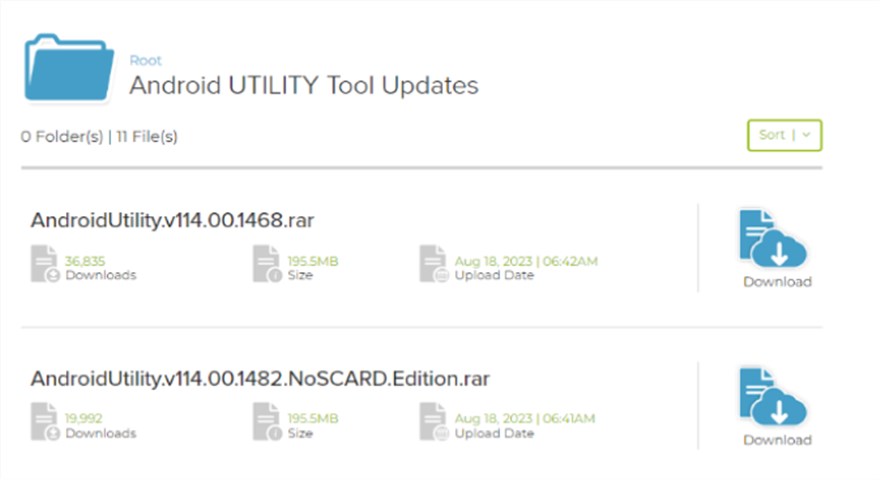
Android Utility Tool Interface
Android Utility Tool ZIP Password and Extraction Errors
One of the current query opportunities is Android Utility Tool ZIP password. Some Android Utility Tool archives are shared with the password mfdl, but the password should always be verified from the same source that provided the archive. A copied password on another page does not prove that the file is safe.
| Problem | Likely Cause | What to Do |
| ZIP password does not work | Wrong build, copied page, modified archive, or incomplete download. | Recheck the source page and do not brute-force unknown archives. |
| Archive says corrupted | Interrupted download or repacked file. | Download again from a trusted source and compare file size. |
| Antivirus deletes files after extraction | Potentially unsafe executable or false positive. | Scan with multiple tools and avoid unknown cracked packages. |
| Tool opens but functions are missing | Wrong edition or incomplete package. | Check whether the build supports the feature you need. |
Main Features: MTK, META, BROM, ADB, Samsung FRP
Android Utility Tool is not only an FRP button. Its value comes from advanced service functions, but those functions also explain why the tool can be hard for beginners.
| Feature Area | What It Is Used For | Key Risk / Requirement |
| MTK / MediaTek functions | Service actions on supported MediaTek devices. | Requires the correct driver, chipset match, and device mode. |
| META Mode | ADB enabling, diagnostics, or service actions on selected brands such as Infinix, Tecno, and iTel. | Not every model can enter META Mode or accept the same command. |
| BROM / Preloader operations | Low-level repair or service tasks on selected MTK devices. | Wrong action may cause boot or detection problems. |
| Samsung FRP / MTP functions | Samsung FRP-related workflows on supported builds. | Security patches may block MTP or browser-launch routes. |
| Firmware / factory reset tasks | Repair, reset, or service workflows. | May erase data or fail if files do not match the model. |
If your issue is specifically a Samsung FRP tool path rather than Android Utility itself, compare Samsung-focused options in the Samsung FRP tool guide.
How to Use Android Utility Tool for FRP Bypass
Use the steps below as a general workflow, not a universal promise. Android Utility Tool FRP results depend on the phone brand, chipset, Android version, security patch, USB mode, and whether the tool build supports that exact route.
Step 1. Confirm the lock type. If the phone asks for the Google account previously synced on the device after a reset, it is FRP. If it asks for a brand account or activation password, use the brand’s account recovery route instead.
Step 2. Connect the phone to a Windows PC with a reliable USB data cable. Do not use a charge-only cable.
Step 3. Open Android Utility Tool and choose the function that matches your device state, such as FRP, ADB, MTP, META, BROM, or factory reset.
Step 4. Select the device model, chipset, or mode if the tool asks for it. Do not guess if your phone is not listed or the mode does not match.
Step 5. Follow the tool prompts and keep the phone connected during the process.
Step 6. When the process finishes, set up the phone again with a Google account you control.
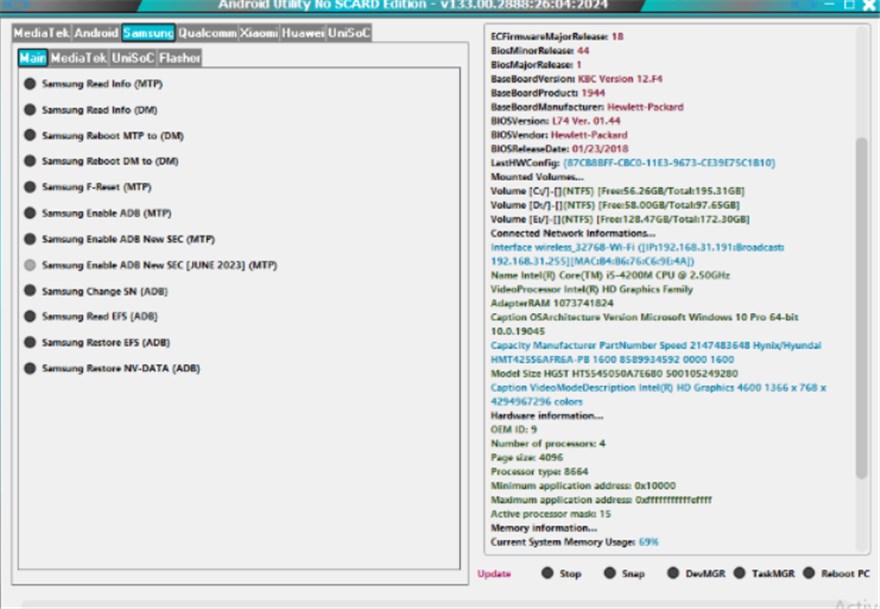
Bypass FRP via Android Utility Tool
Stop point: If Android Utility Tool does not detect the phone, the selected mode looks wrong, or the tool asks for a function you do not understand, stop and identify the failure before trying another command.
Android Utility Tool Not Working: Common Fixes
When Android Utility Tool does not work, the problem is usually source, extraction, driver, USB mode, chipset, or security patch—not just a missing button.
| Problem | Likely Cause | Fix to Try |
| Android Utility Tool will not open | Blocked executable, missing runtime, corrupted archive, or antivirus issue. | Recheck the file source, scan the archive, extract again, and run as administrator only if trusted. |
| ZIP password does not work | Wrong archive, wrong version, or copied password from another source. | Verify whether the source lists mfdl or another password for that exact file. |
| Phone is not detected | USB cable, driver, port, or wrong mode problem. | Use a data cable, change USB port, reinstall the correct driver, and check the required mode. |
| MTK / BROM action fails | Unsupported chipset, locked BootROM, wrong driver, or wrong command. | Confirm model and chipset before retrying low-level actions. |
| Samsung FRP function fails | Security patch blocks MTP, browser launch, or FRP shortcut behavior. | Use Samsung-specific troubleshooting or compare another FRP route. |
| FRP remains after reset | The method did not remove the Google verification state. | Use Google recovery, previous-owner removal, or a compatible guided FRP workflow. |
| Tool asks to disable antivirus | Possible false positive or unsafe file. | Do not disable protection until you verify the file with a trusted source and scan result. |
If you have already tried several FRP routes, use the FRP bypass not working guide to identify whether the failure is caused by a patched setup route, driver issue, APK block, or unsupported Android version.
Android Utility Tool Alternative for FRP Bypass
Android Utility Tool is powerful, but it expects the user to understand download sources, ZIP passwords, drivers, chipsets, and low-level modes. If your main problem is choosing a supported FRP route and following step-by-step prompts, DroidKit FRP Bypass can be checked as a guided alternative for supported Android FRP scenarios.
Consider a guided FRP workflow when:
- Android Utility Tool does not detect your phone;
- you cannot confirm whether the device needs ADB, MTP, META, BROM, or Recovery Mode;
- the ZIP password or archive source looks suspicious;
- you are not comfortable using bootloader, BROM, or firmware-related commands;
- you need clearer on-screen instructions for a supported device.
| Factor | Android Utility Tool | DroidKit FRP Bypass |
| Main use case | Advanced Android service tasks, FRP, META, BROM, ADB, and repair functions. | Guided FRP bypass workflow for supported Android scenarios. |
| User level | Technicians or advanced users. | Users who prefer guided steps. |
| Main risk | Wrong source, wrong mode, wrong chipset, or low-level command misuse. | Device compatibility and reset requirements still need checking. |
| Best fit | You understand the exact tool function your device needs. | You need clearer prompts after Android Utility download, password, driver, or mode problems. |
Free Download * 100% Clean & Safe
Step 1. Download and open DroidKit on your computer. Choose FRP Bypass.

Choose FRP Bypass
Step 2. Connect your supported Android device with a stable USB data cable.
Step 3. Choose the Android brand and wait while DroidKit prepares the configuration file.
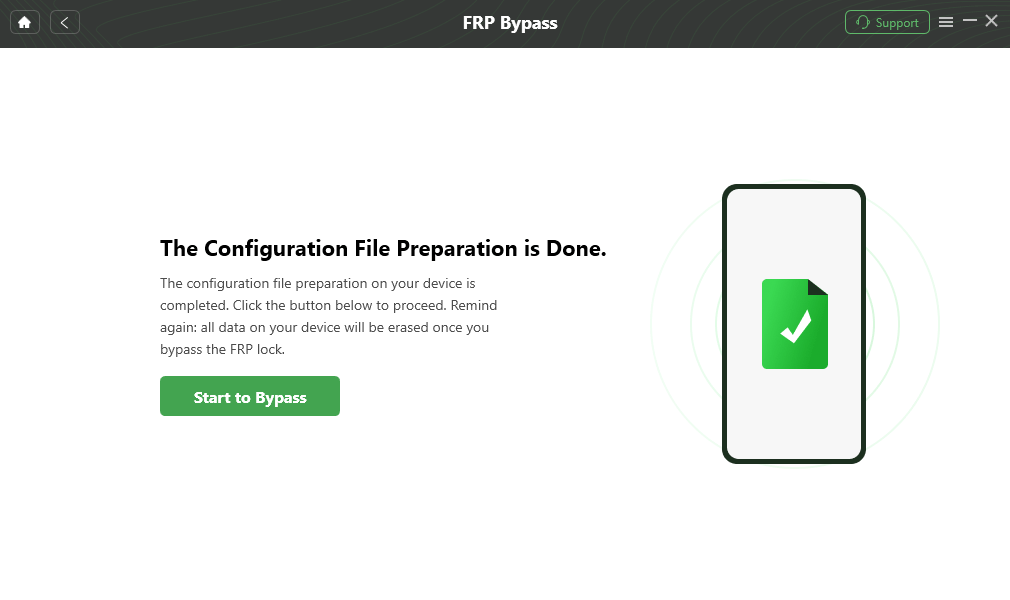
Click Start to Bypass
Step 4. Follow the on-screen steps to enter the required mode for your device.
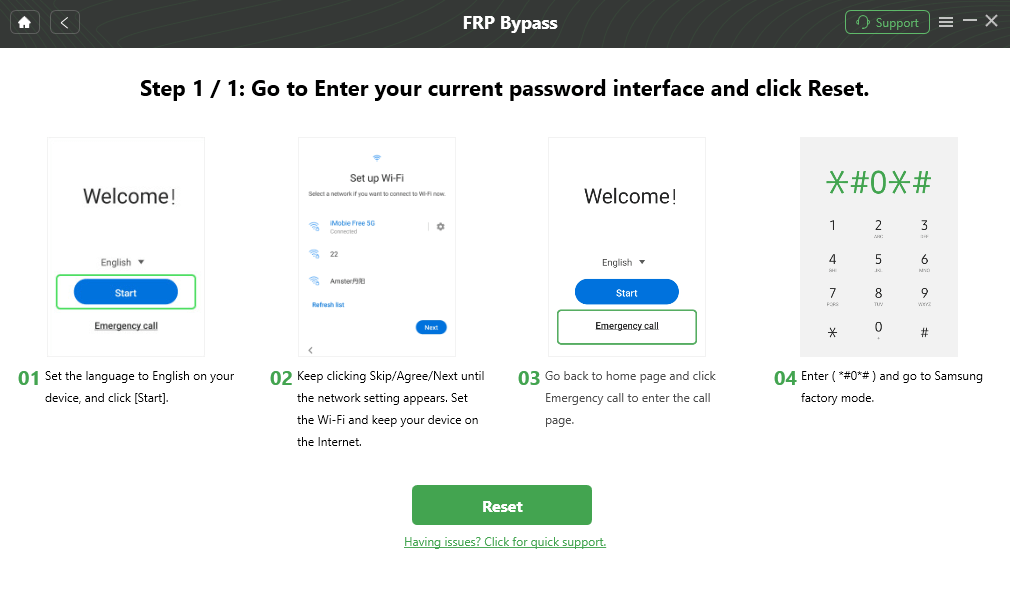
Go to Factory Mode
Step 5. Keep the phone connected until the process finishes, then set up the device with a Google account you control.
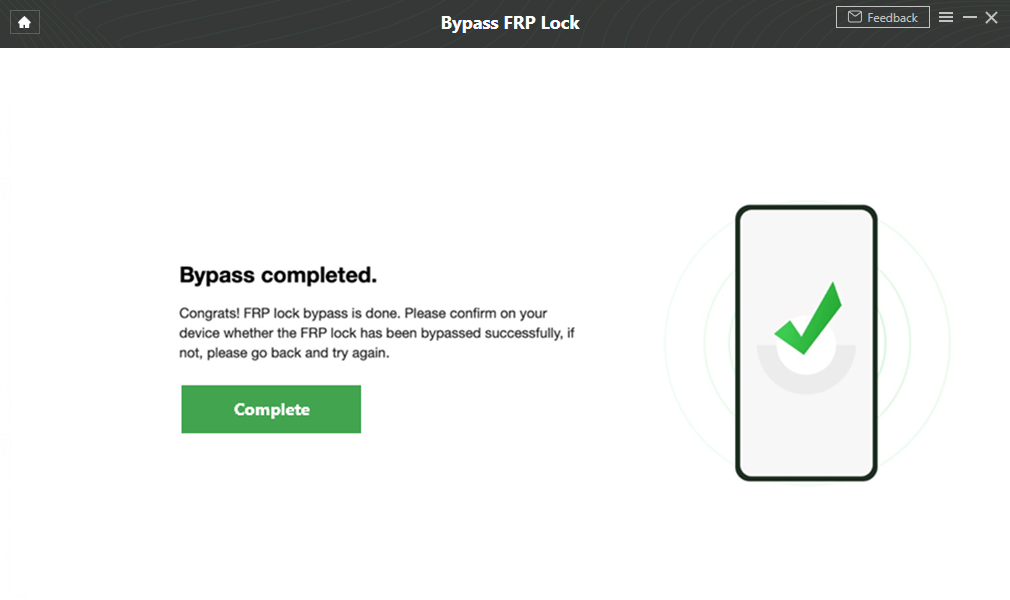
Google Account Verification Bypass Successfully
Compatibility checkpoint: Check device support before starting. FRP workflows may require reset steps and should be used only on a phone you own or are authorized to repair.
FAQs About Android Utility Tool
Does Android Utility Tool work on all Android devices?
No. Android Utility Tool does not support every Android phone or tablet. Compatibility depends on brand, chipset, Android version, security patch, driver, and whether the phone can enter the required ADB, MTP, META, BROM, or Recovery Mode path.
What is the latest version of Android Utility Tool?
Version labels change quickly across Android Utility Tool sources. Some pages mention V170 builds, while other sources promote Android Utility Pro v200-style packages. Check release date, file name, changelog, source reputation, and archive password before treating any package as the latest version.
Where can I download Android Utility Tool?
Use a trusted source that shows a clear version number, release date, changelog, file size, and password note. Avoid cracked, repacked, or mirror pages that force browser notifications, unknown extensions, or multiple redirect downloads.
What is the Android Utility Tool ZIP password?
Many Android Utility Tool archives are shared with the password mfdl, but you should confirm the password from the same source that provided the file. If the password fails, the archive may be wrong, incomplete, or modified.
Why is Android Utility Tool detected as a virus?
Android service tools can trigger antivirus warnings because they interact with drivers, USB modes, or low-level device functions. A warning may be a false positive, but it can also indicate a modified file. Scan the archive and avoid unknown cracked builds.
Can Android Utility Tool bypass Samsung FRP?
Some Android Utility Tool builds include Samsung FRP or MTP-related functions. Whether they work depends on the Samsung model, Android version, security patch, USB prompt, and tool version.
Why is Android Utility Tool not detecting my phone?
The usual causes are a charge-only cable, wrong USB driver, wrong device mode, blocked USB prompt, unsupported chipset, or a tool build that does not support your device state.
Does Android Utility Tool erase data?
It can. FRP, factory reset, flashing, bootloader, BROM, META, or repair functions may erase data or make data inaccessible. Assume data loss is possible before using advanced service functions.
Is Android Utility Tool legal to use?
Android Utility Tool should only be used on phones you own or are authorized to repair. Do not use it to access someone else’s device, account, data, or network service.
Conclusion
Android Utility Tool is useful only when the download, password, driver, chipset, and device mode all line up. The most important checks are not just “latest version” or “free download,” but whether the file source is trustworthy, whether the ZIP password matches, and whether your phone needs ADB, MTP, META, BROM, Samsung FRP, or another route.
For technicians, Android Utility Tool can be a flexible service utility. For users stuck on ZIP password errors, antivirus blocks, no-device detection, or unclear FRP steps, a guided FRP workflow may be easier to evaluate before running low-level commands.
Free Download * 100% Clean & Safe
More Related Articles



Joy Taylor is a seasoned technical writer with over a decade of experience in mobile technology. At iMobie, she specializes in producing in-depth content on iOS data recovery, iPhone unlocking solutions, and iOS troubleshooting.
Product-related questions? Contact Our Support Team to Get Quick Solution >
