Enter Password to Unlock 30/30 Attempts Remaining on LG? Fixed
If your LG phone shows “Enter password to unlock” with “30/30 attempts remaining,” it usually points to Secure startup or an encrypted startup password, not a normal app password. This guide explains what the message means, what you should try first, when a factory reset is the only realistic option, and how to avoid mixing it up with SIM network unlock or Google FRP.
Seeing “Enter password to unlock” with “30/30 attempts remaining” on an LG phone can be confusing because it appears before the normal home screen and may not look like the regular lock screen. Many users try their Google password, SIM PIN, or carrier unlock code, but those are usually not the right credentials.
This message is most commonly related to LG Secure startup or an encrypted startup password. In simple terms, the phone is asking for the password or PIN needed to start the device and decrypt its data. Some LG user guides explain that after encryption, a PIN or password may be required each time the phone powers on. That means this prompt is more serious than a normal screen lock: if the correct startup password cannot be provided, the data on the phone may not be recoverable.
Quick Answer: If your LG phone shows “Enter password to unlock 30/30 attempts remaining,” first try the actual screen PIN or password you used before the restart, including older PINs you may have set. If the touch screen or keyboard is not responding, test a USB keyboard with an OTG adapter. If you cannot remember the startup password, the realistic fix is usually a factory reset, which erases the phone. If the message appeared after inserting a new SIM card, check whether it is actually a SIM network unlock prompt instead.
What Does “Enter Password to Unlock 30/30 Attempts Remaining” Mean?
On many older LG Android phones, the 30/30 attempts remaining screen is tied to Secure startup or device encryption. It can appear after a restart, system glitch, failed update, battery drain, or factory reset attempt. Instead of asking for your Google Account or SIM PIN, the phone is asking for the password that was used to protect the device during startup.
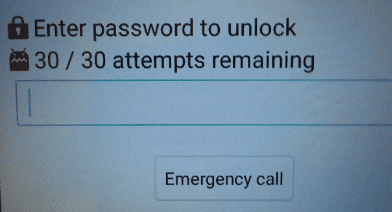
30/30 Attempts Remaining to Unlock LG
This distinction matters because different “unlock” problems require different fixes. A Google Account password will not decrypt a Secure startup password. A carrier unlock code will not unlock the phone’s encrypted storage. A DroidKit-style screen unlock tool may help in some normal Android screen lock scenarios, but it should not be treated as a guaranteed way to recover encrypted LG data.
| Prompt or Problem | What It Usually Means | Best Next Step |
|---|---|---|
| Enter password to unlock 30/30 attempts remaining | LG Secure startup or encrypted startup password | Try the actual device PIN/password; if forgotten, factory reset may be required |
| SIM network unlock PIN / network unlock code | Carrier or SIM network lock | Contact the original carrier or trusted unlock source |
| SIM PUK code | SIM card is locked after too many SIM PIN attempts | Get the PUK from your carrier; do not guess repeatedly |
| Verify your account after reset | Google FRP after factory reset | Sign in with the Google Account previously synced to the phone |
| Normal lock screen PIN/pattern/password | Standard Android screen lock | Use backup unlock method, Find Hub erase, or a supported unlock tool |
Before You Try to Fix It
Before you use more attempts, slow down and confirm what screen you are seeing. If you exhaust all attempts on an encrypted startup screen, the phone may erase data or become harder to recover. The exact behavior can vary by model, Android version, and carrier firmware.
- Do not guess random passwords. Try only PINs or passwords you actually used on this LG phone.
- Check whether the keyboard is entering correctly. If numbers or letters are not being typed as expected, the issue may be touch input rather than the password itself.
- Try old lock screen passwords. Some users see this prompt after changing from PIN to pattern, or after a firmware issue. An older PIN may still be the startup password.
- Charge the phone first. Do not attempt recovery with a low battery, especially if you plan to factory reset.
- Know the data risk. If this is an encryption password and you cannot remember it, the phone’s internal data may not be recoverable without the correct password.
Important: This guide is for your own LG phone or a device you are authorized to repair. It does not help bypass someone else’s device security or recover private data without permission.
Method 1. Try the Correct Secure Startup Password
The safest fix is also the simplest: enter the exact PIN or password that was used for Secure startup or device encryption. On some LG models, this can be the same as your screen lock. On others, it may be an older PIN or password you used before changing the lock screen method.
- Restart the LG phone and wait until the “Enter password to unlock” screen appears.
- Enter the last device PIN or password you remember using on this phone.
- If that fails, try older PINs or passwords that were previously set on the device.
- Avoid trying unrelated passwords such as your Gmail password, SIM PIN, Wi-Fi password, or carrier account password.
- If you recently changed the lock screen from PIN/password to pattern, try the old PIN or password instead of the pattern.
If one of the passwords works, immediately back up important data after the phone starts. Then go to Settings and review the lock screen and encryption-related settings. On older LG phones, you may also want to disable Secure startup if you no longer need a startup password, but the exact setting path varies by model and Android version.
Method 2. Check Input Problems Before Using Attempts
If you are confident you remember the right password but the phone still rejects it, check for input problems. A cracked screen, ghost touch, stuck digit, keyboard layout issue, or damaged digitizer can make the phone enter a different password than the one you type.
Try these checks before using more attempts:
- Clean and dry the screen. Water or dirt can cause incorrect input.
- Remove a damaged screen protector. A loose or cracked protector may create ghost touches.
- Use a USB keyboard. If your LG model supports USB OTG, connect a keyboard and type the password from the keyboard instead of the touch screen.
- Restart once. A simple restart can clear some temporary display or input glitches, but do not repeatedly reboot if the phone becomes unstable.
- Check for stuck buttons. Volume or power button issues can interfere with boot behavior on older phones.
This method is worth trying because it does not erase data. If the password is correct but the input layer is failing, an external keyboard may let you unlock the phone and back up the data before doing any reset.
Method 3. Factory Reset the LG Phone in Recovery Mode
If the Secure startup password is forgotten, a factory reset is usually the practical way to make the LG phone usable again. This removes the device lock state, but it also erases apps, photos, messages, local files, and settings stored on the phone. Data on a removable SD card may be separate, but you should remove the SD card before resetting if you want to protect it.
The exact button combination varies by LG model, but many LG phones use a process similar to this:
- Power off the LG phone completely.
- Press and hold Volume Down + Power.
- When the LG logo appears, release the Power button for one second while still holding Volume Down, then press Power again.
- When the factory data reset screen appears, use the Volume buttons to highlight Yes.
- Press the Power button to confirm.
- Confirm again if the phone asks you to continue.
- Wait for the reset to finish, then set up the phone again.
After a factory reset, the phone may ask for the Google Account previously synced to the device. This is Factory Reset Protection, also known as FRP. If you bought the phone second-hand, contact the previous owner before resetting whenever possible. A reset can remove the local lock screen, but it does not prove ownership of the Google Account tied to the phone.
Method 4. Erase the LG Phone with Find Hub
If the LG phone is still linked to your Google Account and can connect to the internet, you may be able to erase it remotely with Google’s Find Hub / Find My Device. This does not recover the Secure startup password. It erases the phone so you can set it up again.
This method usually requires:
- The LG phone is powered on.
- The phone is connected to mobile data or Wi-Fi.
- The phone is signed in to your Google Account.
- Find Hub / Find My Device is enabled.
- The device is visible in Google Play.
Steps:
- Open Find Hub / Find My Device on another phone or computer.
- Sign in with the Google Account used on the locked LG phone.
- Select the LG device from the list.
- Choose Erase device.
- Confirm the action and wait for the phone to erase when it comes online.
Use this only if you accept full data loss. If the phone is offline, the erase command may not complete until the device reconnects. After erasing, you may still need the previously synced Google Account during setup.
Method 5. Use a Tool-Assisted Option Only for Screen Lock Cases
If the screen you are seeing is a normal Android lock screen rather than a Secure startup or encrypted boot password, a screen unlock tool may be relevant. DroidKit’s Screen Unlocker is designed to remove common Android screen locks such as PIN, pattern, password, fingerprint, or face lock on supported Android devices. However, it should not be described as a guaranteed way to recover encrypted LG data from a Secure startup prompt.
Use this option only when:
- You are dealing with a normal screen lock, not a SIM network lock.
- You have the right to unlock the device.
- You accept that unlocking may erase device data.
- You understand that compatibility depends on model, Android version, and connection status.
Free Download * 100% Clean & Safe
Step 1. Install and open DroidKit on your Windows or Mac computer, then choose Screen Unlocker.
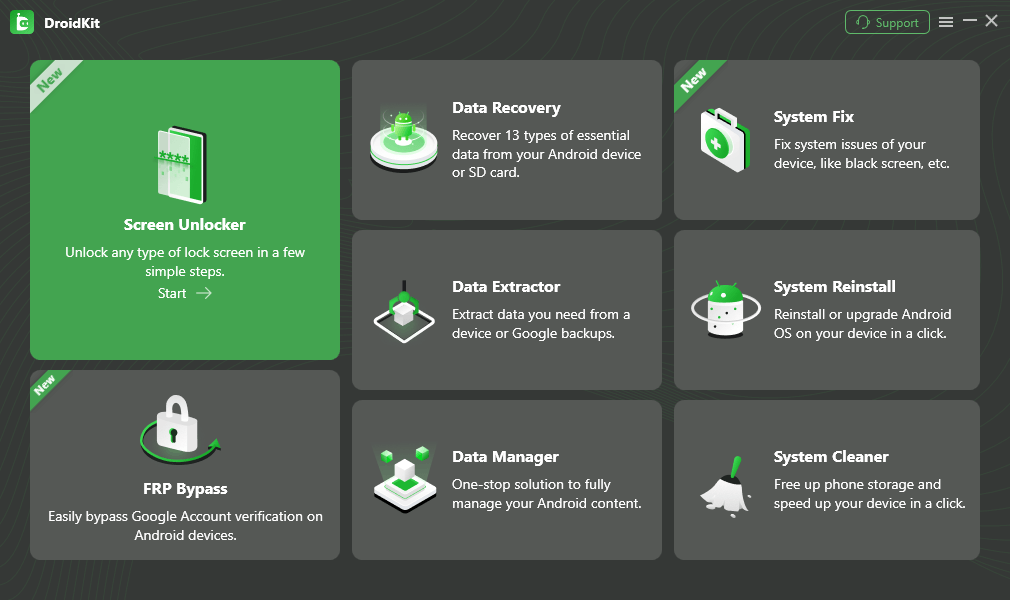
Choose Screen Unlocker
Step 2. Connect the LG phone to the computer with a USB cable. Follow DroidKit’s on-screen instructions and choose the device brand when prompted.
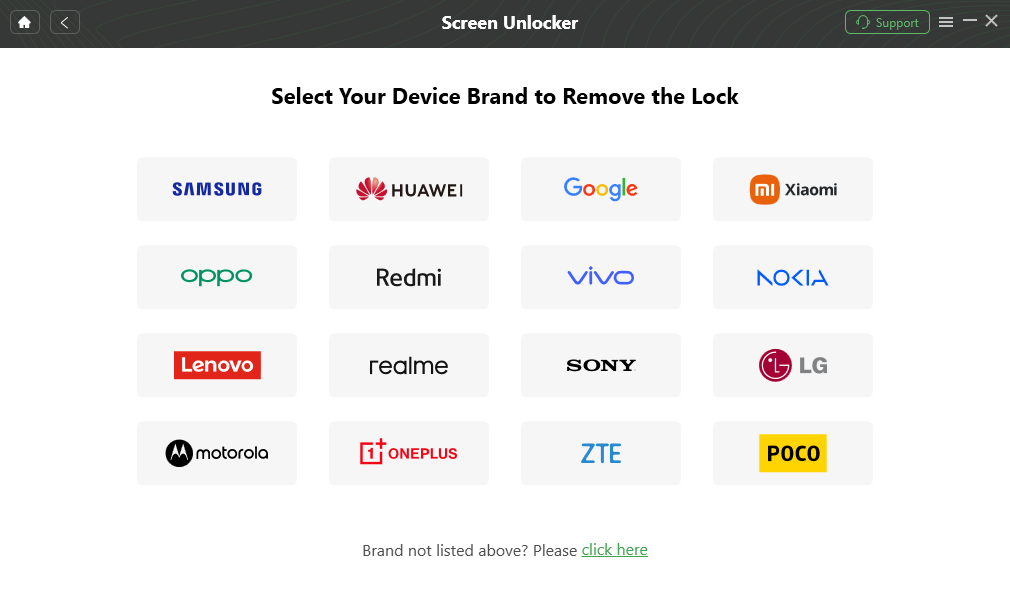
Confirm your Device Brand and Continue
Step 3. Continue with the instructions shown by the software. If the device is supported and the process completes, you can set up the phone again.
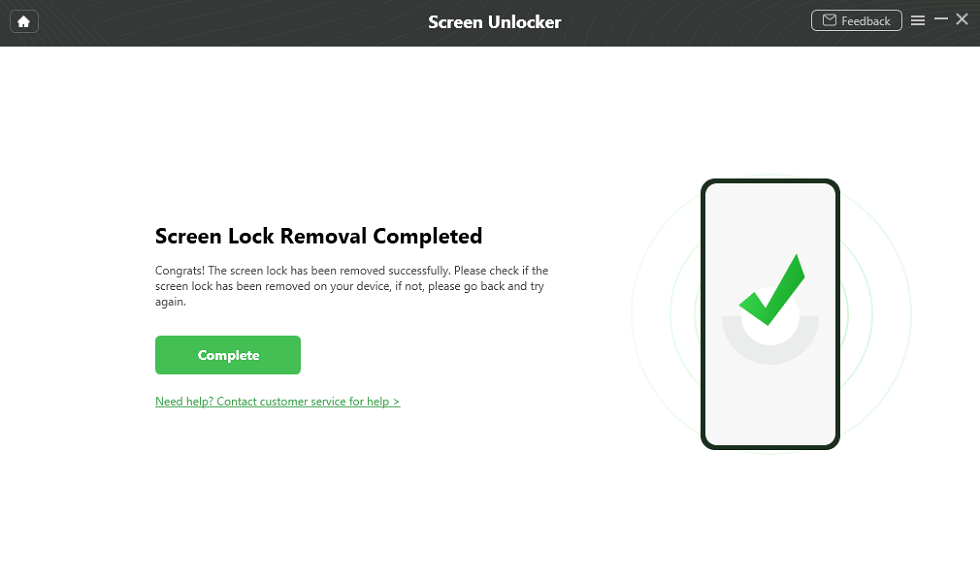
Lock Screen Removal Completed
Data note: For most Android devices, removing the screen lock may erase device data. Check the current product guide and device compatibility before using any tool-assisted method.
What If It Is a SIM Network Unlock or PUK Code?
Some users land on this article because their LG phone asks for a code after inserting a new SIM card. That is a different issue. If the prompt says SIM network unlock PIN, network unlock code, NCK, or service provider unlock code, the phone is probably carrier-locked. You need an unlock code from the original carrier or a trusted carrier unlock source. A screen lock tool will not generate a carrier unlock code.
If the prompt says PUK, stop guessing. A PUK code belongs to the SIM card, not the phone. You need to get the PUK from your mobile carrier. Entering the wrong PUK too many times can permanently disable the SIM card.
If you are not sure which code the phone is asking for, write down the exact words on the screen. “Enter password to unlock 30/30 attempts remaining” usually points to LG Secure startup or encrypted startup. “SIM network unlock PIN” points to carrier lock. “PUK” points to the SIM card.
FAQs About 30/30 Attempts Remaining on LG
1. Is “30/30 attempts remaining” the same as a normal Android lock screen?
No. On many LG phones, this message appears before the normal Android lock screen and is linked to Secure startup or device encryption. It may require the startup PIN or password used to decrypt the phone, not your Google Account password or carrier account password.
2. Can I unlock an LG Secure startup screen without losing data?
Only if you know the correct startup password or can fix an input problem that prevents the correct password from being entered. If the phone is encrypted and you cannot remember the password, the internal data usually cannot be recovered by bypassing the screen.
3. What happens if I use all 30 attempts?
The result can vary by LG model and Android version. The phone may delay further attempts, erase data, or require a factory reset. Because of that risk, do not guess random passwords. Try only passwords you actually used on the phone.
4. Will a Google Account unlock the 30/30 attempts screen?
Usually no. Google Account recovery can help you regain access to your Google services, and FRP may appear after a factory reset, but it normally does not decrypt an LG Secure startup password screen.
5. Can Find Hub remove the LG startup password?
Find Hub can erase a compatible Android device that is online and linked to your Google Account, but it does not show or recover the old startup password. Use it only if you accept data loss and are ready to set up the phone again.
6. Is this the same as SIM network unlock?
No. A SIM network unlock prompt appears when a carrier-locked phone rejects a new SIM card. The LG 30/30 attempts screen is usually a device startup or encryption password prompt. Carrier unlock and Secure startup require different solutions.
7. Can DroidKit fix the 30/30 attempts screen?
DroidKit may help with normal Android screen lock removal on supported devices, but a true LG Secure startup or encrypted boot password is different. Use DroidKit only if the issue is a supported screen lock case and you accept the possible data loss.
The Bottom Line
The “Enter password to unlock 30/30 attempts remaining” screen on LG is not something you should treat like a simple forgotten app password. In many cases, it is related to Secure startup or encryption, which means the correct device password is required to start the phone and access the data.
Start with the safest checks: try the actual LG device PIN or password, test for touch or keyboard problems, and avoid random guesses. If the password is truly forgotten, a factory reset or remote erase may be the only way to make the phone usable again, but this will erase the phone and may trigger Google FRP during setup. A tool-assisted unlock option should be reserved for normal screen lock cases, not carrier unlock or encrypted startup recovery.
More Related Articles



Senior writer of the iMobie team as well as an Apple fan, love to help more users solve various types of iOS & Android-related issues.
Product-related questions? Contact Our Support Team to Get Quick Solution >
