Lenovo FRP Bypass: Choose by Device, Android & Method
Lenovo FRP routes vary between phones and tablets, Android builds, and the setup access still available after a reset. Start with the previously synced Google account, then check your Lenovo model, Android version, browser or APK access, and whether a compatible PC workflow fits the device.
A Lenovo phone and a Lenovo tablet can both stop at Google verification after a factory reset, but the route forward is not always the same. The useful checks are the exact device type, Android build, whether the previously synced Google account is still recoverable, and whether setup still exposes browser, keyboard, Assistant, file-install, or PC connection access.
If the Google account shown on the Lenovo setup screen belongs to you and can still be recovered, there is no reason to start with an APK or FRP utility. If the device was bought second-hand and is still tied to another person’s account, ask the previous owner to remove it properly before trying another reset.
When those routes are unavailable, use the checkpoints below to narrow the problem. Lenovo tablet users should pay particular attention to the model and Android version, because a no-PC sequence that reaches a browser or APK installer on one Tab may stop much earlier on another.
For FRP guidance across other Android brands, see the Android FRP bypass guide. This page stays focused on Lenovo phones, Lenovo tablets, no-PC/APK access, and Lenovo-specific tool decisions.
Table of ContentsHide
Lenovo FRP Bypass: Which Route Fits Your Device?
What Lenovo FRP Looks Like After Reset
Lenovo Tablet FRP: Check Model, Android & Setup Access
Compare Lenovo FRP Recovery Options
Use the Previous Google Account or Previous Owner First
DroidKit FRP Workflow for Compatible Lenovo Devices
Lenovo No-PC / APK Route: Check These Access Points First
Before Downloading a Free Lenovo FRP Tool
Lenovo FRP Not Working? Find the Failure Point
Lenovo Screen Lock vs Google FRP
Lenovo FRP Bypass FAQ
Choose the Route That Matches Your Lenovo Device
Lenovo FRP Bypass: Which Route Fits Your Device?
Start with the last thing your Lenovo device still allows you to do. That tells you more than choosing a method only because it is labeled “Lenovo FRP bypass.”
| Your Lenovo Situation | Check First | Next Route |
| You know or can recover the previously synced Google account | Account access | Sign in or recover the account; a bypass route is unnecessary. |
| You bought a second-hand Lenovo phone or tablet | Previous-owner access | Ask the seller or previous owner to remove the account properly. |
| Your Lenovo phone or tablet runs Android 14 | Whether the guide matches the Android 14 setup screens | Use the Lenovo Android 14-specific guide before older TalkBack or APK instructions. |
| Browser, keyboard, Assistant, or file access is still available | Whether every checkpoint in the manual guide matches | Evaluate the no-PC route cautiously. |
| An APK will not install or the required Settings path never opens | The exact point where the route stops | Stop stacking APK files and choose another route. |
| The Lenovo device is not detected by the computer | Cable, USB port, driver, and required device state | Fix the connection before blaming the FRP software. |
| Account recovery is unavailable and the manual route no longer matches | Device compatibility with the selected PC workflow | Evaluate a compatible guided FRP option. |
What Lenovo FRP Looks Like After Reset
Factory Reset Protection can require the Google account previously synced with a Lenovo phone or tablet after a factory reset. That Google verification screen is different from a normal PIN, pattern, or screen-password prompt.
You may encounter Lenovo FRP when:
- you no longer remember the Google account used before the reset;
- a used Lenovo device still belongs to the previous owner’s Google account;
- the device was reset before its Google account was removed from Settings;
- you know the account but cannot complete recovery yet; or
- a Lenovo Tab reaches Google verification during setup and the expected manual shortcut is unavailable.
If your problem is specifically the account that was previously synced to the device, the guide to handling a previously synced Google account explains that account-recovery scenario separately.
Lenovo Tablet FRP: Check Model, Android & Setup Access
Lenovo tablet searches often include Lenovo Tab FRP unlock tool, Lenovo tablet FRP bypass, and Lenovo Tab FRP unlock tool free. Before choosing a tool, check whether the tablet actually exposes the access required by the method.
| Lenovo Tab Check | Why It Matters | What to Do |
| Exact tablet model | Lenovo tablets can use different hardware and setup flows. | Prefer instructions that match the exact model when they are available. |
| Android version / build | An older tutorial may show menus that your current setup does not expose. | Compare the actual tablet screens with the guide before continuing. |
| Google account access | The previously synced account can complete verification without a bypass route. | Recover or sign in to that account when possible. |
| Browser / keyboard / Assistant access | Many no-PC routes require one of these paths. | If the required path is absent, stop that manual method. |
| APK installation access | An APK workflow cannot continue if setup cannot download or install the package. | Do not keep trying different APK versions when the install path itself is unavailable. |
| Computer availability | A guided PC route requires a reliable USB connection and compatible device workflow. | Check compatibility before switching to software. |
If the Lenovo phone or tablet runs Android 14, use the Lenovo Android 14 FRP guide for that narrower version scenario. Keeping Android 14-specific behavior on its dedicated page avoids mixing newer setup behavior with older Lenovo APK or shortcut routes.
Compare Lenovo FRP Recovery Options
The most useful comparison is what each route requires and where it can stop.
| Route | PC Needed | Required Access | Best Fit | Main Limitation |
| Previously synced Google account | No | Account recovery or sign-in | Original owners who still control the account | Requires access to the account or its recovery options. |
| Previous-owner removal | No | Seller or previous owner cooperation | Second-hand Lenovo devices | Depends on the previous owner responding. |
| Lenovo Android/version-specific guide | Depends on guide | Exact device/build match | Users whose Lenovo has a narrower documented scenario | The guide still needs to match the screens on the device. |
| No-PC / APK route | Usually no | Browser, keyboard, Assistant, download, installation, or Settings access | Devices where all required setup checkpoints are still present | The route stops as soon as a required setup path is unavailable. |
| DroidKit FRP workflow | Windows or Mac | Compatible device connection and software workflow | Users who prefer on-screen instructions after account/manual routes are unavailable | The connected Lenovo scenario needs to be supported. |
| Generic free PC tool | Usually yes | Correct model, driver, device mode, and verified tool source | Experienced users who can verify all prerequisites | “Free” does not confirm model compatibility or file safety. |
If your main question is comparing software rather than Lenovo-specific routes, use the Android FRP tool guide.
Use the Previous Google Account or Previous Owner First
If the Lenovo setup screen is asking for an account you still control, you do not need to begin with APK files or a PC tool.
Step 1. Turn on the Lenovo phone or tablet and connect it to a stable Wi-Fi network.
Step 2. At Google verification, enter the Google account previously synced with the device.
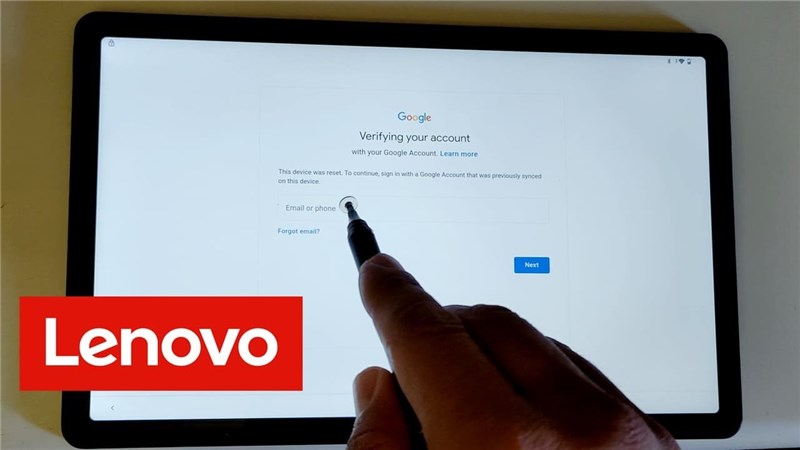
Google Account Verification on a Lenovo device.
Step 3. If the account is yours but you cannot sign in, complete Google account recovery from another device first.
Step 4. If the Lenovo device was purchased used, ask the previous owner to remove the account associated with the device.
Step 5. After verification succeeds, finish setup. If you plan to reset, sell, or transfer the device later, remove accounts from Settings while you still have access.
Reset reminder: Repeating a factory reset does not by itself resolve the Google account requirement that appeared after the previous reset.
DroidKit FRP Workflow for Compatible Lenovo Devices
DroidKit becomes relevant when account recovery is unavailable, a previous owner cannot help, and the Lenovo setup path required by a manual route no longer appears. It provides a computer-based FRP workflow with on-screen instructions for compatible device scenarios.
This Lenovo-specific decision point is important: a missing browser path, an APK that cannot install, or setup screens that no longer match the manual tutorial are reasons to stop that route. They are not proof that every Lenovo device requires the same PC workflow.
Before starting, confirm that you have a Windows or Mac computer, a data-capable USB cable, and a Lenovo device scenario covered by the workflow presented in DroidKit. Product information is available from the official DroidKit page.
Start the Lenovo FRP Workflow in DroidKit
Step 1. Install DroidKit on the Windows or Mac computer.
Step 2. Launch DroidKit and choose FRP Bypass.
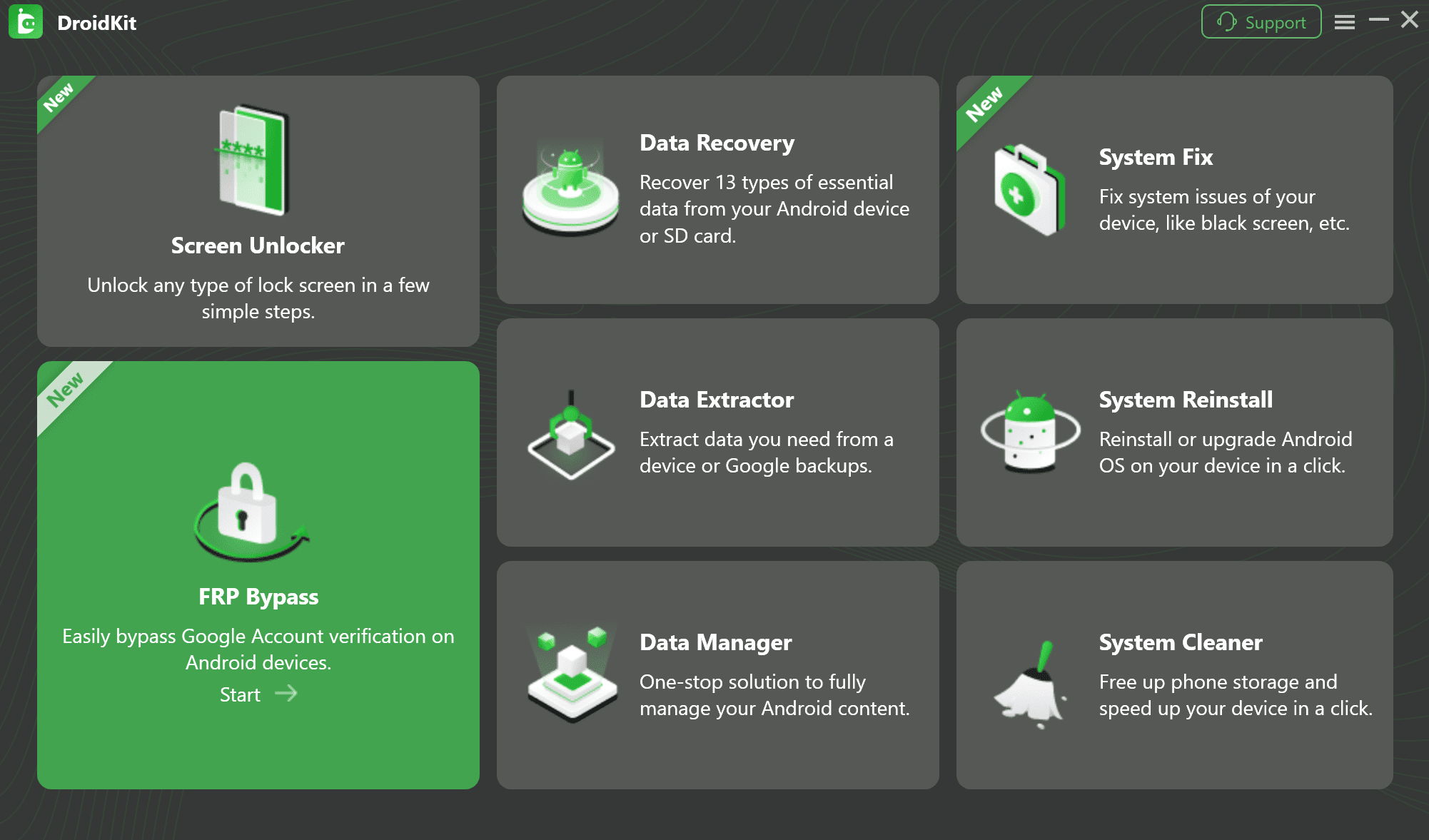
Step 3. Connect the Lenovo phone or tablet with a data-capable USB cable and click Start.
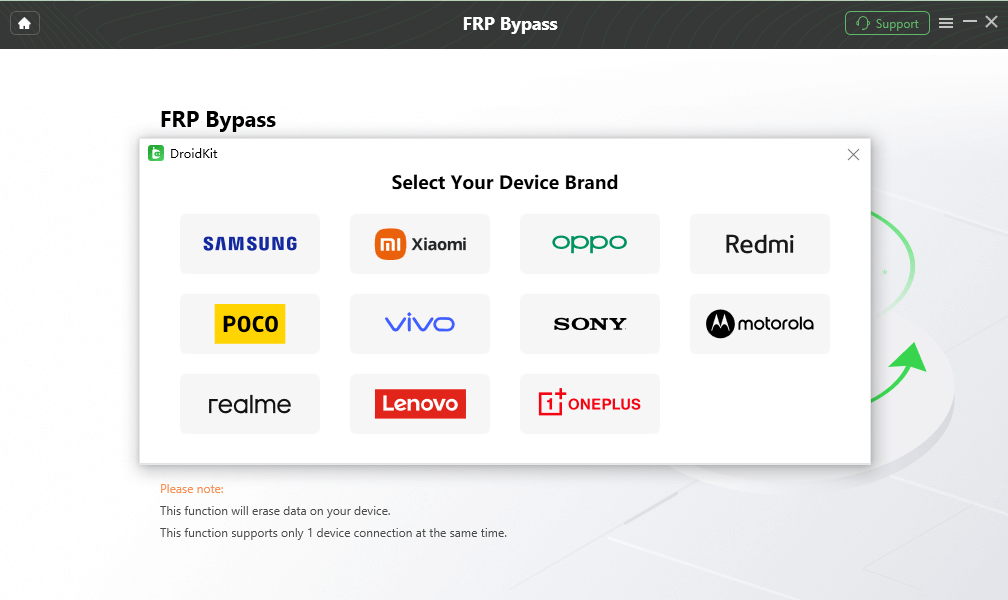
Step 4. Choose the device brand or route requested by the software and follow the instructions shown for the connected device. Do not substitute steps intended for another Android brand or model.
Step 5. Let DroidKit prepare the applicable configuration and continue with the on-screen process.
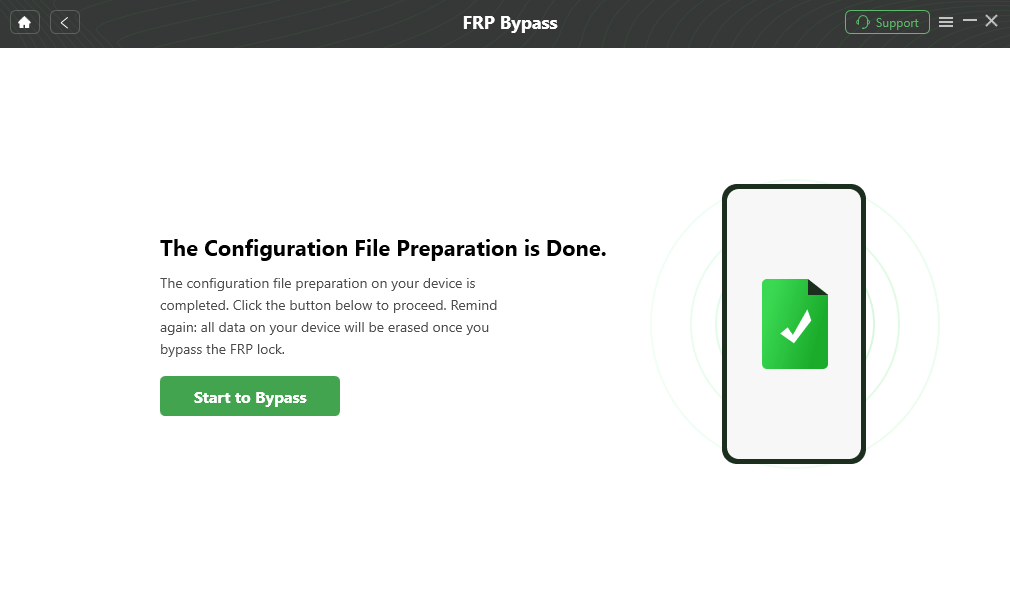
Step 6. Keep the device connected while the applicable workflow is running. When the completion screen appears, follow the setup instructions shown for the Lenovo device.
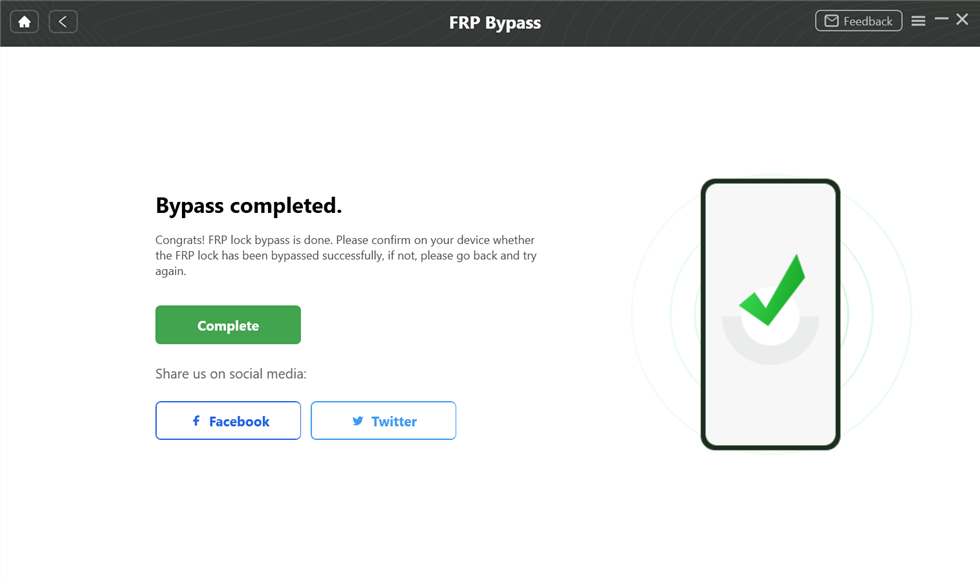
Compatibility note: DroidKit should not be described as supporting every Lenovo phone or tablet. Use the workflow only when the connected device scenario is covered by the software.
Lenovo No-PC / APK Route: Check These Access Points First
A Lenovo no-PC or APK route is only useful when setup still provides every access point required by that method. Instead of starting with an APK filename, first check whether the device can reach the browser, download a file, install it, and continue into the Settings or account screen required by the guide.
| Checkpoint | If It Works | If It Does Not |
| Keyboard / Assistant shortcut | Compare the next screen with the exact guide. | Stop that no-PC route; it depends on access you do not have. |
| Browser opens during setup | Check whether the guide still matches the Lenovo Android version. | A browser-dependent APK route cannot continue. |
| File can be downloaded | Verify the source and package before installation. | Do not use an unrelated file-transfer trick simply to force the same method. |
| APK installation begins | Continue only when the package and guide match the device scenario. | If “App not installed” appears, do not keep downloading random versions. |
| APK opens the expected Settings/account route | Follow only the device-specific instructions that match the screen. | Installing the APK alone has not solved the setup restriction. |
Technocare is one APK name commonly encountered in older FRP tutorials. If you are researching that specific route, read the Technocare APK FRP guide for its separate compatibility and file-source considerations rather than assuming the APK is a Lenovo-wide solution.
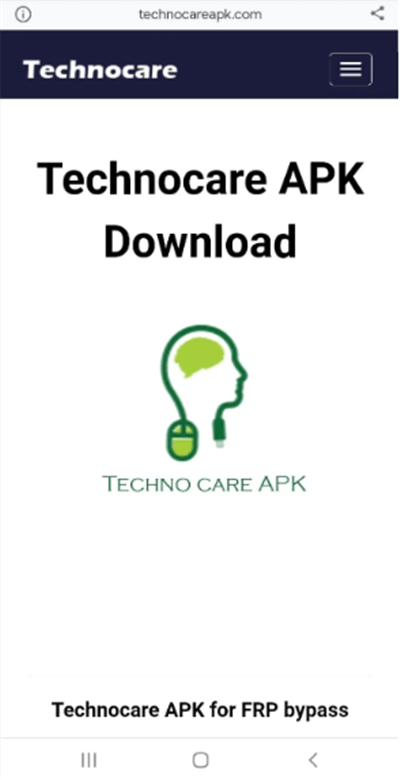
Technocare APK is one older APK route; compatibility depends on the device and setup access.
APK caution: If the Lenovo setup cannot reach a browser, installer, or required Settings page, changing APK versions does not repair the missing access point. Unknown download mirrors also add file-source risk.
For a broader explanation of package-source, installation, and compatibility issues, see the FRP bypass APK guide.
Before Downloading a Free Lenovo FRP Tool
The phrase Lenovo Tab FRP unlock tool free describes price, not compatibility. Before running a free executable or APK, verify what it supports and what access it requires.
| Tool / File Type | What to Verify | Main Risk or Limitation |
| Free Lenovo FRP APK | Source, Android fit, install path, and required setup access | The package may be outdated, incompatible, or hosted on an untrusted mirror. |
| Generic FRP PC utility | Exact Lenovo model, chipset, driver, and supported workflow | Brand-level claims do not prove your model is supported. |
| Firmware / flashing utility | Exact device and firmware requirements | Incorrect files or procedures can create a separate device-recovery problem. |
| Guided FRP software | Device support and the workflow displayed for the connected Lenovo | Requires a computer and still depends on compatibility. |
A useful screening rule is to avoid tools that cannot explain which Lenovo models or device states they support, or that instruct you to disable system security without explaining why it is necessary.
Lenovo FRP Not Working? Find the Failure Point
If a Lenovo FRP route stops, use the exact failure rather than automatically blaming a security patch.
| Where You Get Stuck | What It Means | Next Step |
| Google verification still appears after another reset | The account-verification requirement is still active. | Recover the account, contact the previous owner, or choose another authorized route. |
| Keyboard or Assistant shortcut is missing | The manual tutorial does not match the current setup environment. | Stop that no-PC route. |
| Browser will not open | A browser-dependent APK method cannot reach its next stage. | Do not keep repeating the same shortcut. |
| Technocare or another APK shows “App not installed” | The package or installation path does not match the device state. | Do not solve the error by stacking random APK versions. |
| APK installs but cannot reach the required Settings screen | The file alone does not provide the access required by that method. | Move to another Lenovo-specific route. |
| Lenovo phone or tablet is not detected by the PC | The issue may be the USB cable, port, driver, or required connection state. | Fix the connection before changing FRP software. |
| A free PC tool detects the phone but the operation is unavailable | The tool or workflow may not support the exact Lenovo model or device state. | Check documented compatibility rather than repeating the same operation. |
| The guide is for another Android version | The setup screens may not match your Lenovo build. | Use a version-specific guide such as the Lenovo Android 14 page when applicable. |
For troubleshooting that is not Lenovo-specific, the FRP bypass not working guide covers common failure categories across Android devices.
Lenovo Screen Lock vs Google FRP
Do not use an FRP method for a Lenovo device that is only asking for its PIN, pattern, or screen password.
| Lock Type | What You See | Correct Direction |
| Screen lock | PIN, pattern, password, or fingerprint prompt before normal device access | Use a screen-lock recovery route. |
| Google FRP | Google account verification during setup after a factory reset | Use Google account recovery, previous-owner removal, or an FRP-specific route. |
| Reset changed the problem | The previous screen lock is gone but Google verification now appears | Treat the current problem as FRP. |
This distinction keeps the Lenovo page focused: screen-lock recovery and post-reset Google verification are related Android unlock topics, but they are not the same user intent.
Lenovo FRP Bypass FAQ
Can I bypass FRP on a Lenovo tablet without the previous password?
If the previously synced Google account is yours, recover that account first. If it belongs to a previous owner, ask that person to remove it. Other FRP routes are relevant only when you own or are authorized to manage the device and the method matches the Lenovo model and setup state.
What should I check before choosing a Lenovo Tab FRP unlock tool?
Check the exact tablet model, Android build, whether browser or APK access still exists, whether a computer is available, and whether the tool documents support for your device situation. A tool being free or labeled “Lenovo” does not prove compatibility.
Can Lenovo FRP be bypassed without a PC?
A no-PC route is possible only when the setup screens required by that route are available. If the keyboard, Assistant, browser, download, installer, or Settings checkpoint is missing, that particular no-PC sequence does not match the current Lenovo device.
Does Technocare APK work on every Lenovo phone or tablet?
No. Technocare is associated with older APK-based FRP routes, but the device still needs the access required to download, install, open, and continue through the expected Settings path. Source and Android compatibility also matter.
Why does a Lenovo FRP APK say “App not installed”?
The package may not match the Android environment, or the current setup may restrict installation. Do not keep installing random versions when the install path or package compatibility is the actual blocker.
Why is my Lenovo tablet not detected by a PC FRP tool?
Check the data cable, USB port, required driver, and the device state expected by the tool. Solve the connection layer before assuming the Lenovo model itself is unsupported.
Can another factory reset remove Lenovo FRP?
Another reset does not by itself remove the previously synced Google account requirement. If the device returns to Google verification, use the account, previous-owner, or another appropriate FRP route.
What should I do on a Lenovo device running Android 14?
Use the dedicated Lenovo Android 14 guide when the phone or tablet is on that version. It keeps Android 14-specific setup behavior separate from older Lenovo TalkBack, OTG, or APK routes.
Does DroidKit support every Lenovo device?
No. DroidKit should be used only when the FRP workflow available in the software applies to the connected Lenovo device situation. Android version and device state can affect which route is available.
Choose the Route That Matches Your Lenovo Device
Lenovo FRP is easier to diagnose when you separate account access, device type, Android version, and setup access. A recoverable Google account is an account problem, while a missing browser or APK installer is a manual-route compatibility problem. A Lenovo tablet that is not detected by a PC tool has a connection problem before it has a software problem.
Use the Lenovo Android 14 child guide when that version applies, stop APK routes when their required access points disappear, and evaluate a PC-based workflow only after confirming that it matches the Lenovo device in front of you. That approach preserves the useful Lenovo-specific paths without treating every phone and tablet as the same FRP case.
More Related Articles


Roger Smith is a senior technical writer with years of experience in providing Android solutions. He loves to help users solve various problems such as Android unlock, Android data recovery, and Android system repair.
Product-related questions? Contact Our Support Team to Get Quick Solution >
