Redmi 9/9T FRP Bypass: Unlock Tool & No-PC Methods
Redmi 9 FRP bypass depends on MIUI version, setup access, and security patch level. Learn when phone settings or FRP website routes may work, and when a guided unlock tool is the safer fallback.
Redmi 9, Redmi 9T, and Redmi Note 9 FRP problems usually appear after a factory reset, when the setup screen still asks for the Google account that was previously synced on the phone. Some older tutorials rely on Gmail sharing, Help & Feedback, Chrome, or Set Screen Lock routes, but these paths depend heavily on the MIUI version and security patch.
This guide helps you choose a realistic path for Redmi 9 FRP bypass: recover the original Google account first, try no-PC methods only when the setup screens still match, or use a guided Redmi 9 FRP unlock tool when manual routes are blocked.
⚠ Legal Notice: Use these methods only on a Redmi 9, Redmi 9T, or Redmi Note 9 you own or are authorized to unlock. Bypassing FRP on a lost, stolen, or unauthorized device may be illegal. Some methods may erase data from the phone.
Table of ContentsHide
Quick Answer: Which Redmi 9 FRP Bypass Method Should You Use?
Choose the Right Redmi 9/9T/Note 9 FRP Method
Need More Redmi FRP Methods?
About Redmi 9, Redmi 9T, and Redmi Note 9 FRP
What Is Redmi FRP and Why Does It Appear?
Method 1: Redmi 9 FRP Unlock Tool with DroidKit
Method 2: Redmi 9 FRP Bypass via Phone Settings
Method 3: Redmi 9/9T FRP Bypass via FRP Website
What If Redmi 9 FRP Bypass Does Not Work?
How to Remove Google Account and Avoid FRP Again
Redmi 9 FRP Bypass FAQs
Final Words: Best Path for Redmi 9 FRP
Quick Answer: Which Redmi 9 FRP Bypass Method Should You Use?
The best Redmi 9 FRP bypass method depends on your exact model, MIUI version, and whether the setup wizard still allows Gmail, Help & Feedback, Chrome, or Set Screen Lock access.
- Have the previous Google account? Use Google Account Recovery first. It is the safest official route.
- Need a Redmi 9 FRP unlock tool? Use a guided PC-based workflow such as DroidKit when manual methods do not match your screen.
- Want a no-PC method? Phone Settings or FRP website routes may work on some older MIUI builds, but they often fail after security updates.
- Using Redmi Note 9? Some steps may be similar, but screens can vary by firmware and region.
If Gmail share, Help & Feedback, or Set Screen Lock does not appear on your Redmi 9, stop repeating the same no-PC route and move to a guided PC-based workflow.
Choose the Right Redmi 9/9T/Note 9 FRP Method
Use this table before trying long manual steps or downloading APK files from unknown websites.
| Method | PC Needed? | Best For | Main Limitation |
| Google Account Recovery | No | Users who can access the original recovery email or phone number | Requires account recovery information |
| DroidKit FRP Bypass | Yes | Users who need a guided Redmi 9 FRP unlock tool | Requires a Windows or Mac computer |
| Phone Settings Method | No | Older MIUI builds where Gmail share and Help & Feedback still open Settings | Often patched on newer security updates |
| FRP Website / Set Screen Lock | No | Older firmware where browser and Set Screen Lock routes still work | Website and APK safety risks; may be blocked |
| Remove Google Account from Settings | No | Users who already regained access and want to avoid FRP again | Only works after you can access Settings |
Need More Redmi FRP Methods?
This page focuses on Redmi 9, Redmi 9T, and Redmi Note 9. For a broader Redmi route map covering HyperOS, MIUI, Open Settings issues, and model-level paths, use the main Redmi FRP bypass guide. If your main problem is the Google verification screen after reset, this Google verification after factory reset guide explains the lock scenario in more detail.
About Redmi 9, Redmi 9T, and Redmi Note 9 FRP
Redmi 9 is a budget-friendly Xiaomi phone known for its large screen, battery life, and MIUI support. Redmi 9T and Redmi Note 9 are closely related user-intent targets in FRP searches, but their setup screens and security patches can differ by region.
| Item | Redmi 9 FRP Notes |
| Common Android Versions | Android 10 to Android 12, depending on updates |
| MIUI Range | Often MIUI 12 / MIUI 13 on many devices |
| Manual Method Chance | Better on older builds where Gmail share, browser, or Settings routes still open |
| Common Failure Point | Help & Feedback, Chrome, Set Screen Lock, or app settings route is blocked |
| Best Fallback | Google recovery or a guided PC-based FRP workflow |
What Is Redmi FRP and Why Does It Appear?
FRP means Factory Reset Protection. On Redmi phones, it is triggered when a Google account was synced on the device before a factory reset. After the reset, the phone may ask for the same Google account before setup can continue.
Redmi 9 FRP commonly appears when:
- The phone was reset before removing the Google account from Settings.
- You forgot the Google account ID or password used on the phone.
- You bought a second-hand Redmi 9, 9T, or Note 9 and the previous owner did not remove their account.
- You recently changed the Google password and Google temporarily blocks verification on the reset phone.
Officially, recovering the previous Google account is the safest path. Manual bypass methods should be used only on a device you own or are authorized to unlock.
Method 1: Redmi 9 FRP Unlock Tool with DroidKit
If Google recovery is not available and the no-PC routes are blocked, DroidKit FRP Bypass provides a guided PC-based workflow for supported Android FRP scenarios. It can be useful when your Redmi 9, Redmi 9T, or Redmi Note 9 is stuck on Google verification and manual methods fail.
Use DroidKit if:
- You are searching for a Redmi 9 FRP unlock tool.
- Gmail share, Help & Feedback, or Application Settings does not open.
- The FRP website method cannot set a screen lock.
- You do not want to install unknown APK files.
- You have a Windows PC or Mac and a stable USB cable.
You can also compare more best FRP bypass tools before choosing a tool.
Free Download * 100% Clean & Safe
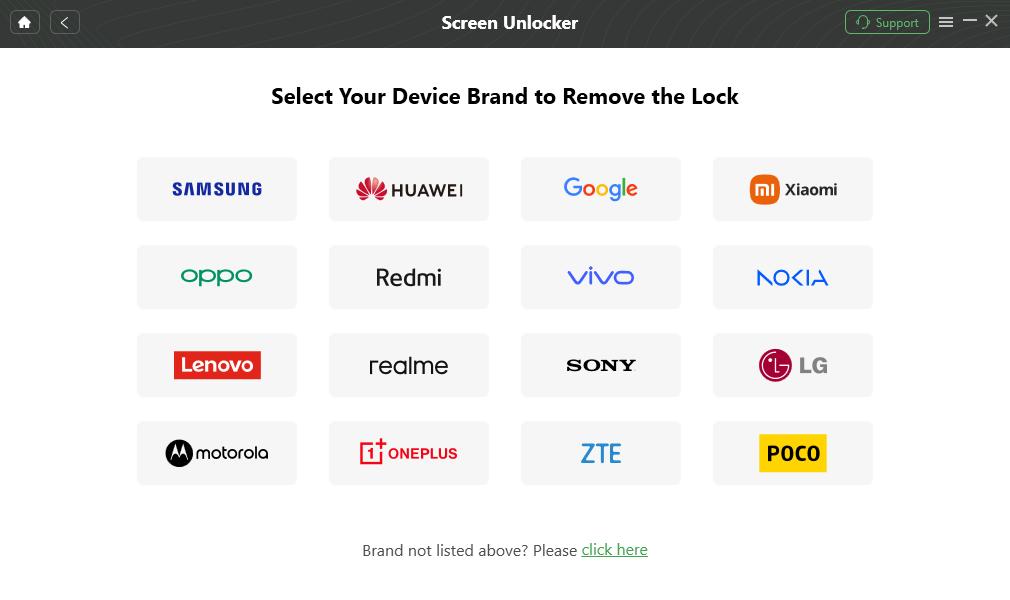
DroidKit FRP Bypass Tool Supported Brands
Steps to Bypass Redmi 9/9T/Note 9 FRP with DroidKit
Step 1. Download and install DroidKit on your Windows PC or Mac. Open the software and choose FRP Bypass from the main screen.

Choose FRP Bypass Mode
Step 2. Connect your Redmi 9, Redmi 9T, or Redmi Note 9 to the computer with a USB cable, then click Start.
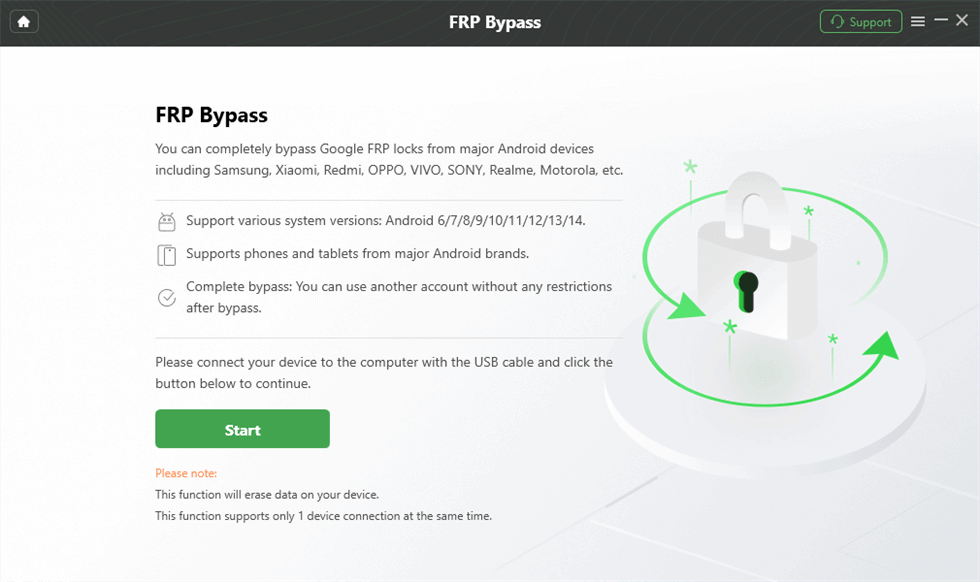
Connect Device and Click Start
Step 3. Wait while DroidKit prepares the configuration file, then click Start to Bypass when the option appears.
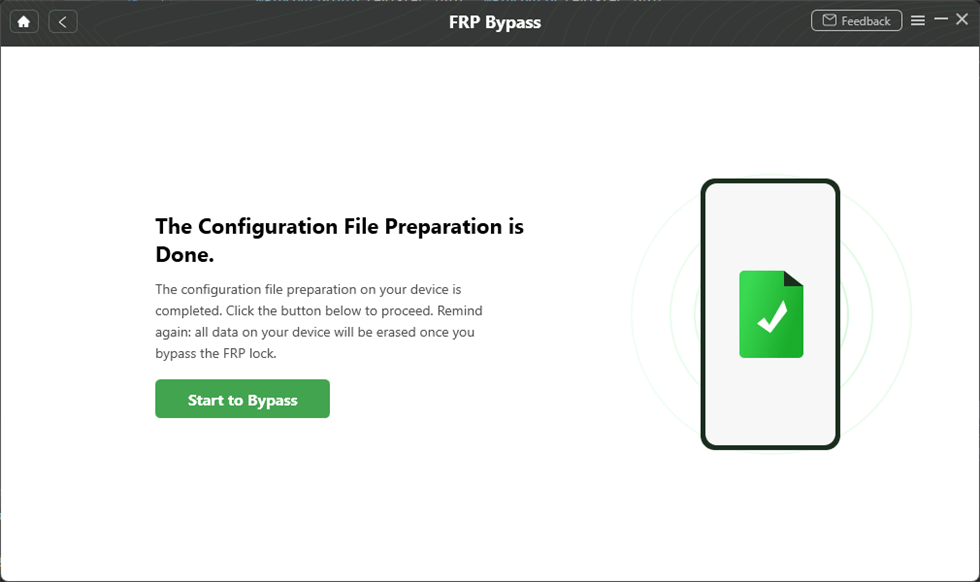
Tap on Start to Bypass
Step 4. Select the Android version according to the on-screen prompt. Use the boot screen reference if DroidKit asks you to confirm the version.
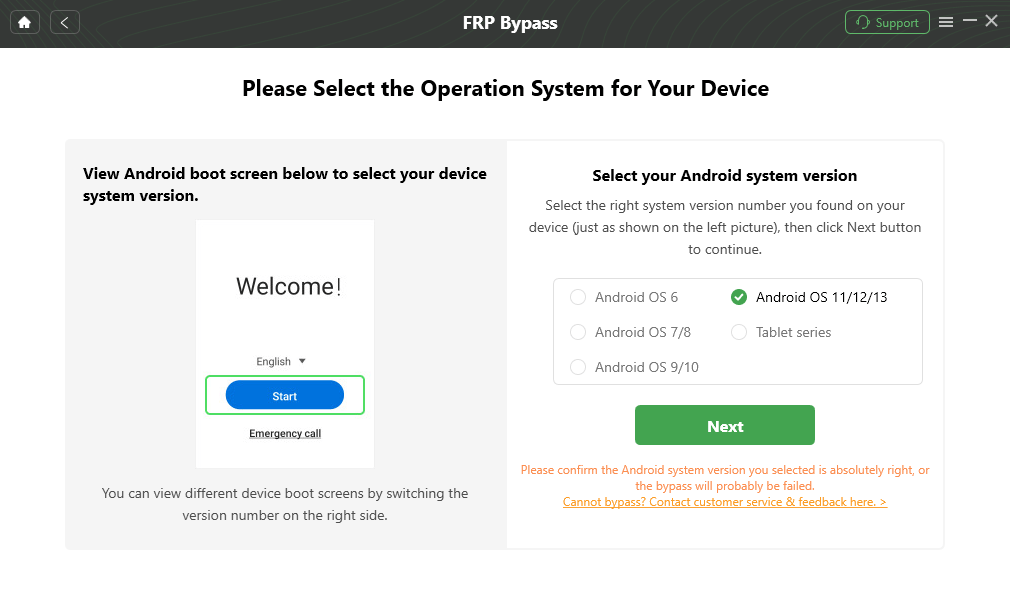
Choose System Version
Step 5. Follow the on-screen guide to complete the required settings. When the interface asks you to reset in the required mode, click Reset.
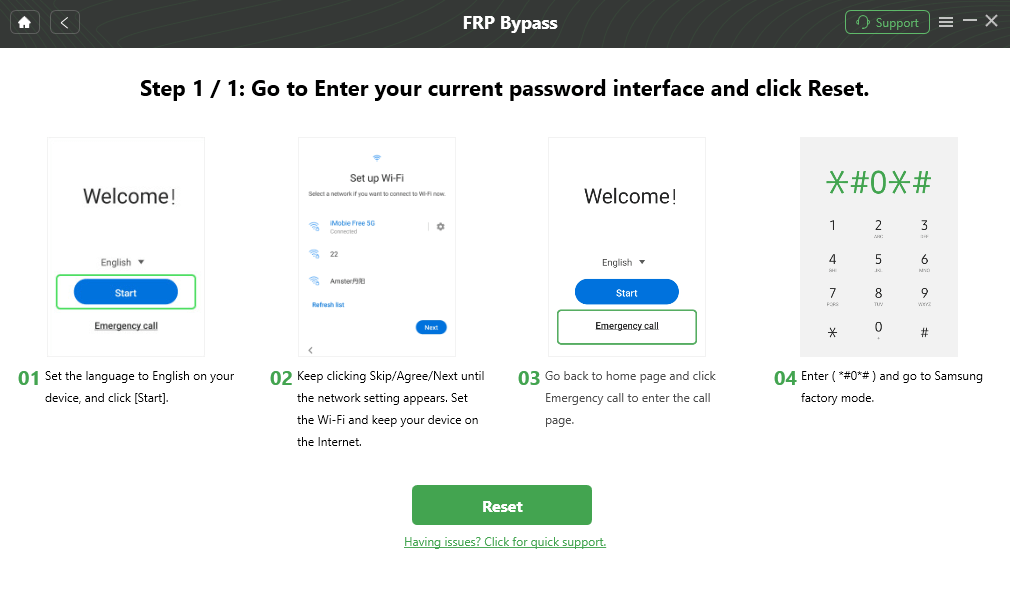
Follow the On-Screen Guide and Click Reset
Step 6. Wait for the process to finish. Your Redmi device may restart, and you can continue setup after the FRP process completes.

FRP Bypass Complete
DroidKit is a premium tool. Use it when you prefer a guided workflow or when no-PC methods no longer work on your current MIUI build.
Method 2: Redmi 9 FRP Bypass via Phone Settings
The Phone Settings method is a no-PC route that tries to open Gmail settings, Help & Feedback, Application Settings, and Accessibility Menu from the setup process. It may work on some older Redmi 9 or Redmi 9T firmware, but it is often patched on newer builds.
Compatibility Note: Try this method only if your screens match the steps below. If Gmail share, Help & Feedback, or Application Settings does not appear, the route is likely blocked.
Step 1. Start the setup process. On the Choose your region or similar setup screen, type any text in a search box if one is available. Long-press the text and tap the Share icon. Long-press the Gmail icon until a new screen appears.
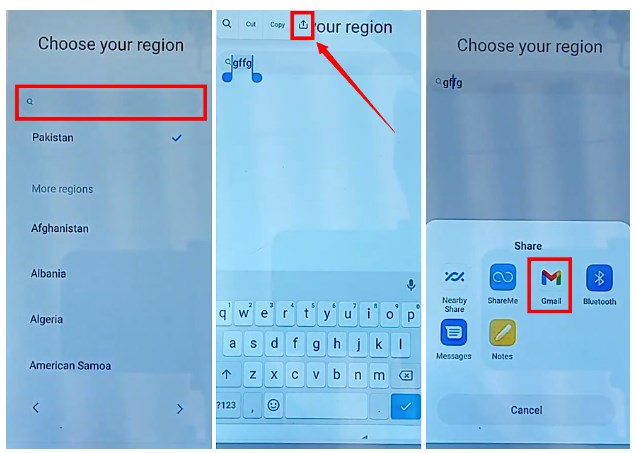
Press Share and Choose Gmail
Step 2. Tap Notifications, scroll down, and select Additional settings in the app. Tap the three-dot icon and choose Help & Feedback.
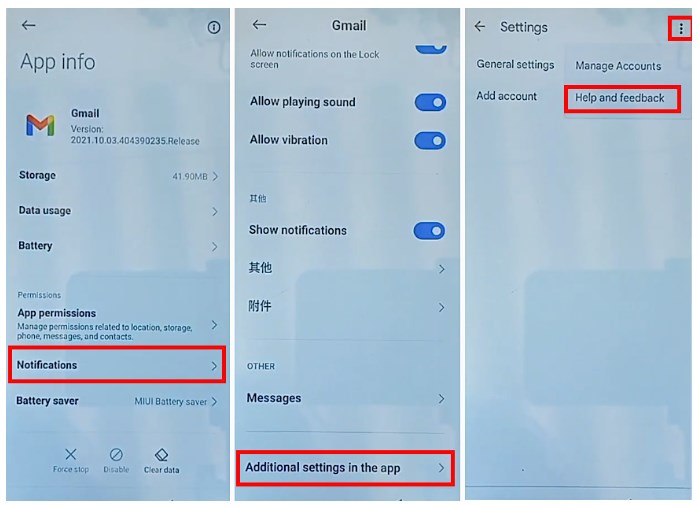
Open Gmail Settings
Step 3. Search for delete or disable apps on Android. Open the result and tap Tap to go to Application Settings if the text appears.
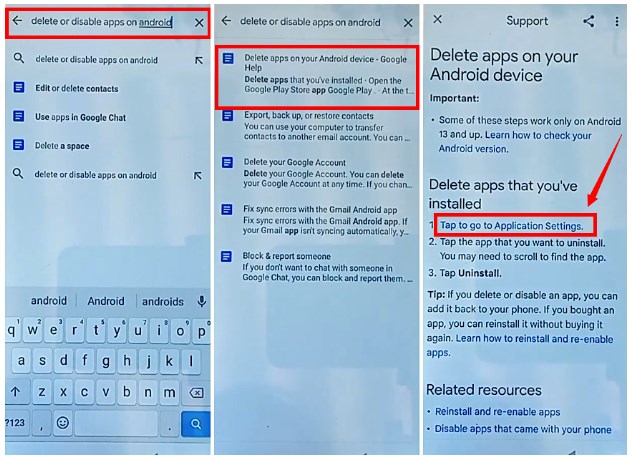
Select Tap to Go to Application Settings
Step 4. On the app info screen, select Android Setup and tap Force Stop if the option is available. Go back and tap More.
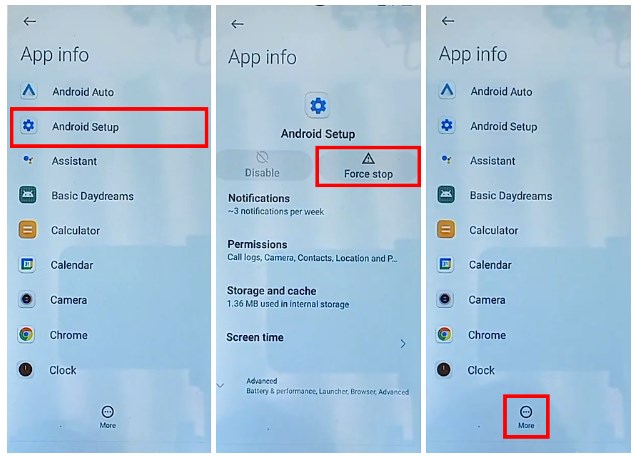
Force Stop Android Setup and Click More
Step 5. Choose Show system, then open Google Play services. Tap Force stop if the option is available.
Step 6. Go back, choose Settings, and tap Open. Then go to Additional settings.
Step 7. Go to Accessibility > Accessibility menu, then turn on the Accessibility menu shortcut.
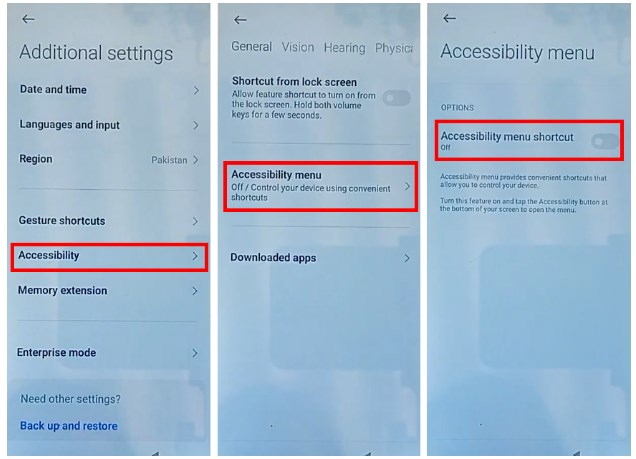
Enable the Accessibility Menu Shortcut
Step 8. Return to the start screen. Continue setup and tap Don’t copy on the Copy apps and data screen.
Step 9. When the screen is loading, tap the accessibility button and choose Google Assistant. Then tap Settings. Repeat only if your screen follows the same flow.
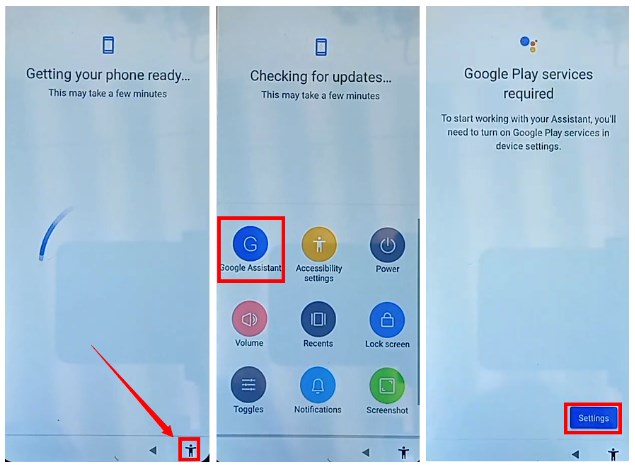
Open Settings for Google Play Services
Step 10. Tap Enable if Google Play services is disabled, then go back and continue setup. Tap Skip on the Set Password screen if the setup allows it.
If the required menus are missing or the phone returns to Google verification, stop this method and use another route.
Method 3: Redmi 9/9T FRP Bypass via FRP Website
The FRP website route tries to open Chrome from the setup screen and use a Set Screen Lock shortcut. It may work on some older Redmi 9 or Redmi 9T builds, but it is risky if it requires unknown APK files or unverified websites.
Security Warning: Avoid random FRP websites, APK collections, and short links from comments or videos. Unknown files may contain malware or may not work on your MIUI version.
Step 1. Start setup, connect to Wi-Fi, and tap Add network.
Step 2. Tap the SSID text box, type www.youtube.com, then long-press the text. If a link or share option appears, tap it.
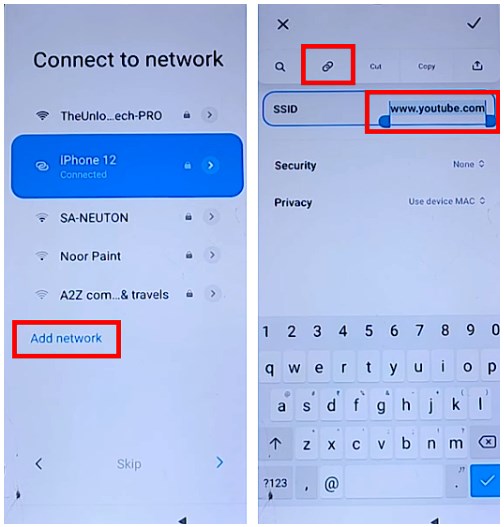
Open the YouTube Link
Step 3. If Chrome opens, tap Accept & continue, then choose No, thanks on the next screen.
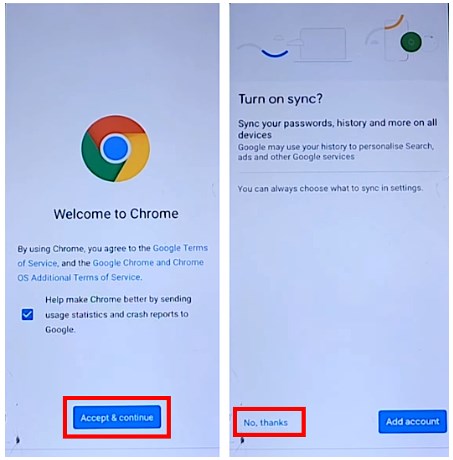
Set Up Chrome
Step 4. Use browser access only if you trust the site you open. Avoid downloading APK files unless you understand the risk.
Step 5. If a trusted utility page provides Set Screen Lock, try opening it. If the page asks for unknown APK installation, stop and choose a safer method.
Step 6. If the screen lock page opens, set a simple pattern. Restart the phone and check whether the new pattern can continue setup.
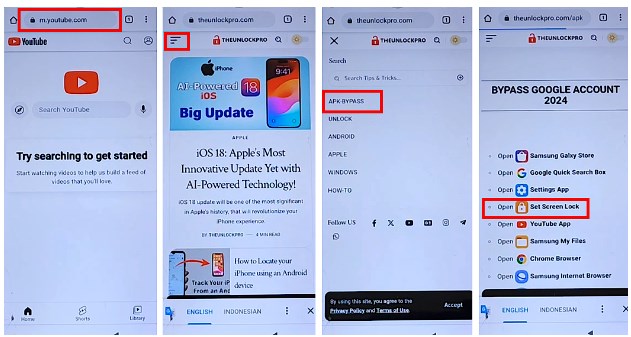
Set Screen Lock Route
If Chrome does not open, Set Screen Lock is missing, or the phone still asks for the previous Google account, this method is patched on your Redmi firmware.
What If Redmi 9 FRP Bypass Does Not Work?
If one method fails, do not keep repeating it. Use this table to find the likely reason and a safer next step.
| Problem | Likely Reason | What to Try Next |
| Gmail share does not appear | Setup sharing is restricted by MIUI security patch | Skip the Phone Settings method |
| Help & Feedback is missing | Google app route is blocked during setup | Use Google recovery or a PC-based workflow |
| Application Settings does not open | The shortcut is patched | Stop repeating the same route |
| Chrome or YouTube link does not open | Browser path is disabled in setup mode | Try another supported method |
| Set Screen Lock is not available | FRP website method no longer matches the firmware | Use a guided FRP unlock tool if account recovery is unavailable |
| Phone still asks for the old Google account | FRP is still active after reset | Recover the account or use a supported FRP workflow |
If the phone settings or FRP website path is patched, a PC-based Redmi FRP unlock tool may be the safer next step.
How to Remove Google Account and Avoid FRP Again
After you regain access, remove the Google account from Settings before performing another factory reset. This helps prevent Redmi FRP from triggering again.
Step 1. Open the Settings app on your Redmi phone.
Step 2. Tap Accounts and sync, then choose Google.
Step 3. Tap the Google account you want to remove, then press More.
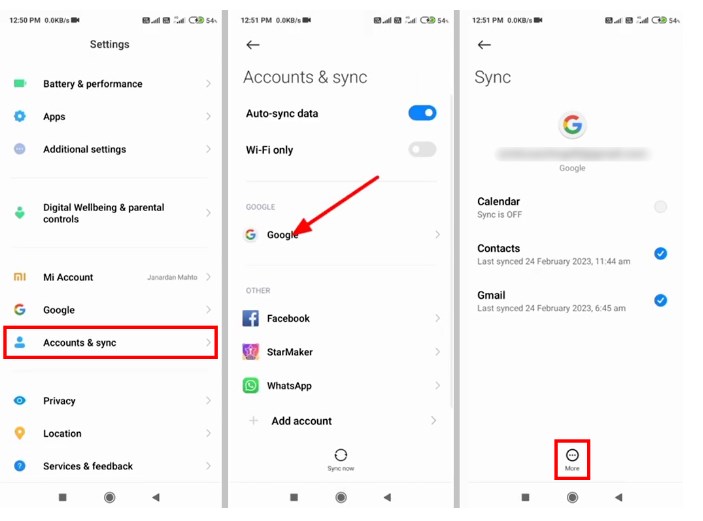
Select Your Google Account
Step 4. Choose Remove account, then tap Remove account again to confirm.
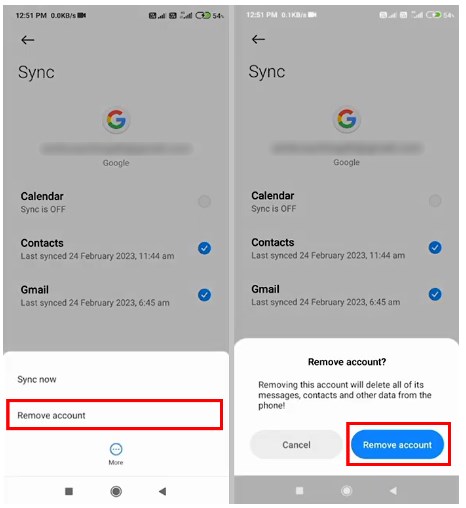
Remove the Google Account
Step 5. After the account is removed, you can reset the device without triggering the same Google verification screen.
Redmi 9 FRP Bypass FAQs
What is the best Redmi 9 FRP unlock tool?
The best tool depends on your MIUI version and security patch. DroidKit FRP Bypass is a guided PC-based option when phone settings, FRP website, or no-PC routes do not work.
Can I bypass Redmi 9 FRP without PC?
Sometimes. Phone Settings or FRP website methods may work on older MIUI builds, but they often fail when Gmail share, Help & Feedback, Chrome, or Set Screen Lock is blocked.
Does the FRP website method still work on Redmi 9T?
It may work only on some older firmware. If Chrome does not open or Set Screen Lock is missing, the method is likely patched on your Redmi 9T.
Why does Redmi 9 still ask for the Google account after reset?
FRP is still active because a Google account was synced before the reset. The phone expects that same account during setup.
Can another factory reset remove Redmi 9 FRP?
No. Resetting the phone again usually does not remove FRP. You need the previous Google account, account recovery, or a suitable FRP bypass method.
Does this guide also apply to Redmi Note 9?
Some steps may be similar, but Redmi Note 9 screens and firmware can differ by region and update. Use the method only when the screens match your device.
Will Redmi 9 FRP bypass erase data?
Some FRP bypass methods may erase data or require reset steps. If the phone was already factory reset, most local data may already be unavailable.
Final Words: Best Path for Redmi 9 FRP
Redmi 9 FRP bypass depends on your MIUI version, setup access, and security patch level. Start with Google Account Recovery if you can access the original account. Try Phone Settings or FRP website methods only when the screens match and you understand the risks of unknown websites or APK files.
If Gmail share, Help & Feedback, Chrome, Set Screen Lock, or the manual setup path is blocked, stop repeating the same steps. A guided PC-based workflow such as DroidKit is usually the more practical fallback for supported Redmi 9, Redmi 9T, and Redmi Note 9 FRP scenarios.
Free Download * 100% Clean & Safe
More Related Articles



Joy Taylor is a seasoned technical writer with over a decade of experience in mobile technology. At iMobie, she specializes in producing in-depth content on iOS data recovery, iPhone unlocking solutions, and iOS troubleshooting.
Product-related questions? Contact Our Support Team to Get Quick Solution >
