Samsung A04/A04s FRP Bypass 2026: Android 14/15, PC & No PC
Samsung A04/A04s FRP depends less on a version label than on the setup entry points still available on the phone. Check OTG storage, APK installation, Keyboard Settings, and AddROM/browser access first, then choose a route that matches the current Android/One UI Core build.
If your Samsung Galaxy A04 or A04s stops at Google verification after a factory reset, Factory Reset Protection (FRP) is active. The phone is asking for a Google account that was previously synced with the device before the reset.
For Samsung A04/A04s FRP bypass, the Android version is useful context, but it does not decide by itself whether a method will work. Two phones on the same Android generation can still expose different Setup Wizard menus because of One UI Core, security updates, regional firmware, carrier configuration, or device state.
The practical approach is to check the entry point required by each method. If OTG does not expose storage, the APK installer is blocked, Keyboard Settings or Help & Feedback is missing, or an older AddROM/browser route cannot open its next screen, stop that method instead of combining instructions from another firmware build.
Before continuing: If the previously synced Google account belongs to you and can still be recovered, use that route first. If the phone was purchased second-hand and remains linked to another person’s account, ask the seller or previous owner to resolve the account association before trying third-party FRP methods.
For Samsung models outside the A04/A04s, use the Samsung FRP bypass guide to find a closer model or setup scenario.
Table of ContentsHide
Quick Answer: Which Samsung A04/A04s FRP Method Should You Use?
Samsung A04/A04s FRP Compatibility: What to Check First
Samsung A04/A04s FRP Methods Compared
Try Google Account Recovery First
Method 1. Samsung A04/A04s FRP Bypass with DroidKit
Method 2. Check the OTG and APK Route
Method 3. Check the Legacy Google Keyboard Route
Method 4. Check Whether the AddROM Route Is Still Available
Samsung A04/A04s FRP on Android 14 and Android 15
Samsung A04 FRP File Download: Safety Checks
Samsung A04/A04s FRP Bypass Not Working
FAQs About Samsung A04/A04s FRP Bypass
Conclusion
Quick Answer: Which Samsung A04/A04s FRP Method Should You Use?
Start with what your phone actually exposes during setup rather than choosing a method only from the Android version printed in a tutorial.
| Your Situation | Route to Check First | Stop or Switch If… |
| You know or can recover the previous Google account | Google account recovery | You successfully regain access to the requested account; no bypass route is needed. |
| OTG storage opens from the locked setup flow | OTG / APK route | No usable file screen appears, the installer is blocked, or the APK cannot reach its next required screen. |
| Keyboard Settings and Help & Feedback still appear | Legacy Google Keyboard route | Any required keyboard, help, search, or Settings checkpoint is missing. |
| A browser/WAP-style handoff still opens | Legacy AddROM route | The browser or next required setup action does not open. |
| The manual setup entry points are unavailable | Applicable PC-based FRP workflow | The connected phone or system route is not supported by the software. |
If your A04/A04s is running Android 14, the Android 14 FRP guide explains why brand, One UI, security patch, and setup entry points can matter more than the Android version label alone.
Samsung A04/A04s FRP Compatibility: What to Check First
Samsung A04 and A04s belong to the Galaxy A family, but you should not treat them as one fixed FRP environment. Before following an old keyboard, APK, or browser tutorial, identify what your particular phone still allows.
| Check | Why It Matters | What to Look For |
| A04 or A04s exact model | Model-specific instructions can differ. | Confirm the model before applying a tutorial written for another Galaxy A device. |
| Android / One UI Core | It helps identify whether the tutorial belongs to the same software generation. | Use the version as context, not as a guarantee that the method works. |
| Security patch / Setup Wizard state | Older setup shortcuts can change after updates. | Compare the exact first menu shown by the tutorial with the phone in front of you. |
| OTG storage access | The APK method cannot start without a usable file route. | Check whether the locked setup environment exposes Files, File Manager, or another file picker. |
| APK installer access | Reaching the APK file does not mean Android will install it. | Check whether the installer opens and whether installation is permitted. |
| Keyboard Settings | The legacy keyboard route depends on this entry point. | Check whether the actual keyboard shown during verification exposes the required Settings menu. |
| Help & Feedback / search path | Older keyboard tutorials need another transition after Settings. | Stop if the next help, search, or Settings screen is missing. |
| Browser / WAP handoff | Legacy AddROM routes depend on leaving the immediate setup screen. | Stop if the browser or required next action never opens. |
The Android version is therefore a filtering signal, not proof of compatibility. A method should continue only while its required checkpoints still exist on the current device.
Samsung A04/A04s FRP Methods Compared
| Method | PC Needed? | Continue Only If | Main Limitation |
| Google account recovery | No | The requested account belongs to you and can be recovered. | Requires access to Google’s available verification options. |
| DroidKit FRP workflow | Yes | The software presents an applicable Samsung/device route. | Requires Windows or Mac, USB connection, and a supported scenario. |
| OTG + APK | No on the locked phone | Storage access, installer access, and the next required system screen are all available. | APK source and setup compatibility can stop the route. |
| Google Keyboard | No | Keyboard Settings, Help & Feedback, and subsequent checkpoints still exist. | Older tutorial screens may not match the current setup environment. |
| AddROM-style route | Usually not on the locked phone | The browser/WAP and next required setup transitions remain available. | Legacy, source-sensitive, and highly dependent on the current setup path. |
If your search is specifically for desktop software, compare the requirements in the Samsung FRP tool guide. For a broader cross-brand comparison, see the FRP bypass tool comparison.
Try Official Google Account Recovery First
If the Google account requested by the Samsung A04 or A04s belongs to you, recovering it addresses the credential the phone is actually requesting and should be checked before setup-screen shortcuts or third-party files.
Step 1. Identify the Google email address previously used on the A04/A04s.
Step 2. On another phone or computer, use Google’s account recovery process and complete the verification options available to you.
Step 3. Reset or confirm the password when Google allows it.
Step 4. Follow any additional account verification or waiting instructions Google displays.
Step 5. Return to the Samsung setup screen and enter the recovered account when requested.
If the account belongs to a previous owner or you are unsure which account the phone wants, read the guide to a previously synced Google account after reset.
Method 1. Samsung A04/A04s FRP Bypass with DroidKit
DroidKit provides a computer-based FRP workflow for supported Android device scenarios. On this A04/A04s page, the relevant trigger is specific: the account cannot be recovered and the manual entry point required by OTG, Keyboard Settings, or the older browser route does not match the phone.
Consider this route when:
- OTG does not expose usable storage during setup;
- the APK installer is blocked or the APK cannot reach the next required screen;
- Keyboard Settings or Help & Feedback is missing;
- the older AddROM/browser route cannot open its next checkpoint; and
- the Samsung/device route presented by DroidKit matches the connected phone.
For current product information and device-workflow details, see DroidKit FRP Bypass.
How to Start the Samsung A04/A04s FRP Workflow with DroidKit
Step 1. Install DroidKit on your Windows PC or Mac. Launch it and choose FRP Bypass.
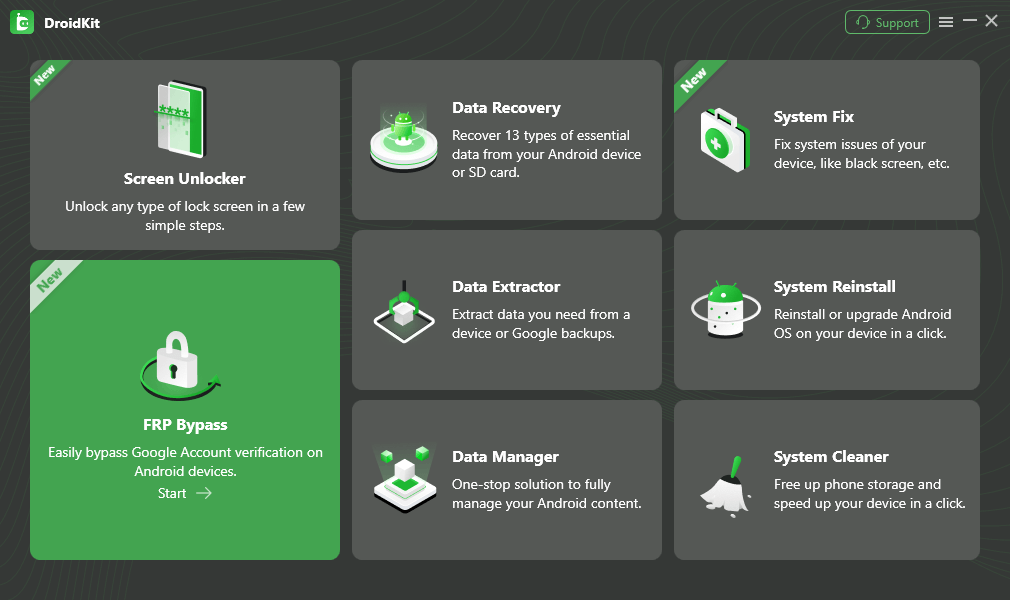
Choose FRP Bypass Mode
Step 2. Connect the Samsung A04 or A04s with a reliable data-capable USB cable, click Start, and choose Samsung when the software asks for the device brand.
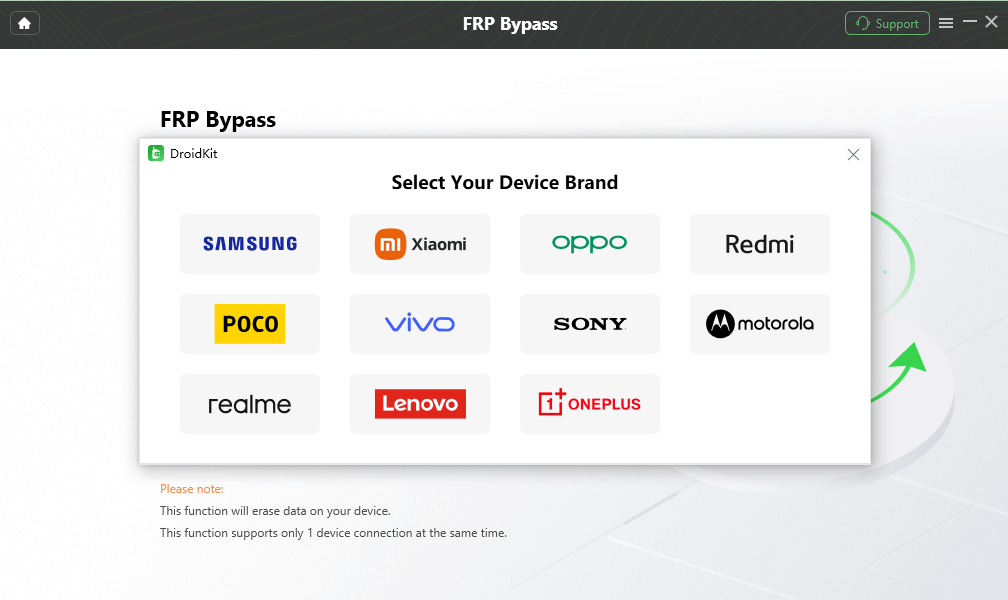
Choose Samsung as the Device Brand
Step 3. Keep the phone connected while DroidKit prepares the route required by the selected device scenario. Click Start to Bypass when prompted.
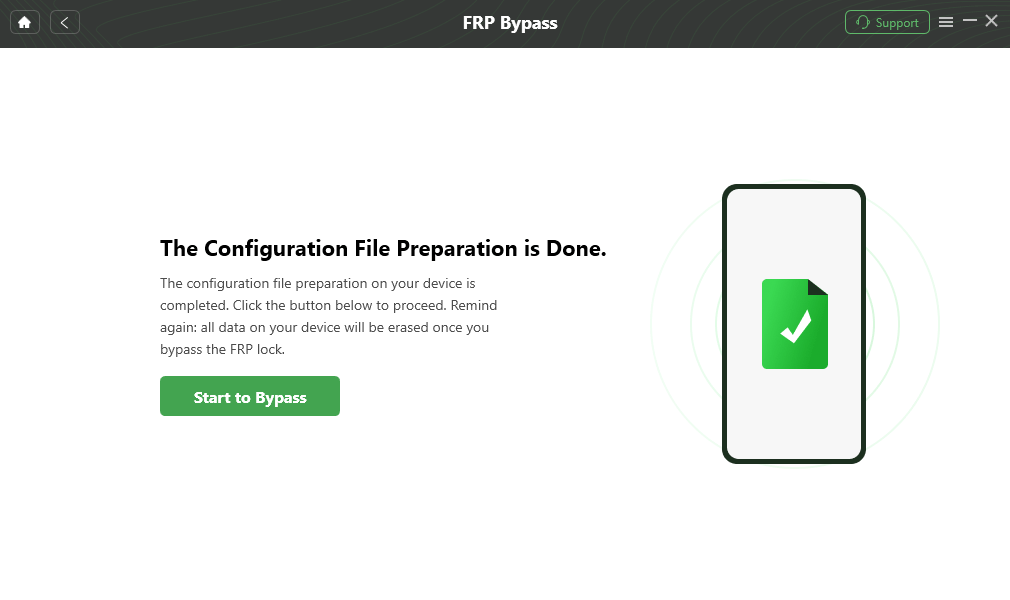
Click Start to Bypass
Step 4. Select the Samsung system/device option requested by the current DroidKit interface. Do not choose a route simply because an older A04/A04s tutorial used it.
Step 5. Follow the device-side instructions shown by the software and keep the phone connected while the selected workflow is running.
Step 6. When the process reaches its completion screen, follow the remaining setup instructions displayed for the phone.
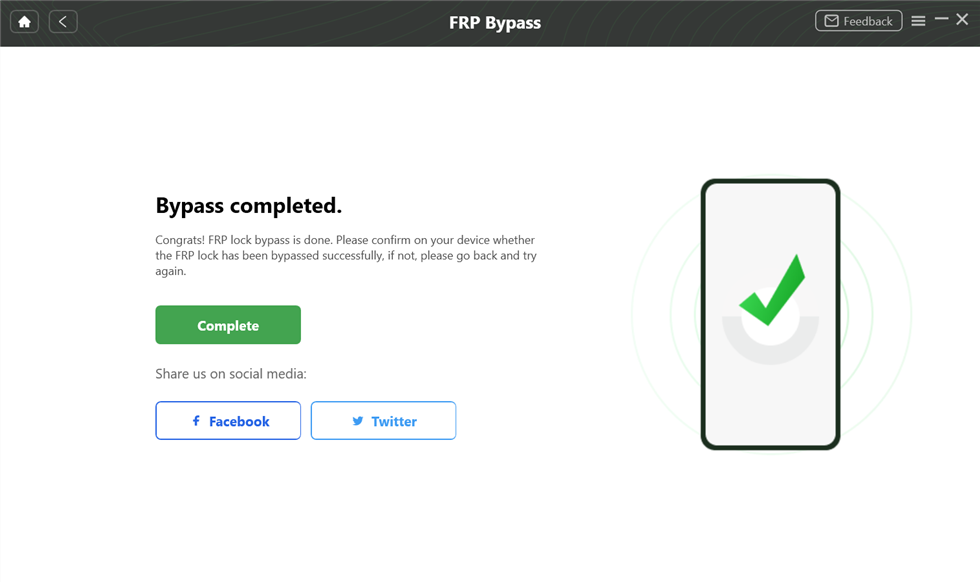
DroidKit FRP Workflow Completion Screen
Compatibility note: A guided workflow should still be evaluated against the connected phone and the route shown by the software. Do not treat any FRP application as universal support for every A04/A04s build.
Method 2. Check Samsung A04/A04s FRP via OTG and APK
The OTG/APK route depends on three separate checkpoints: storage access → APK installer → required system path. A USB drive containing an FRP APK is not useful if the locked Setup Wizard does not expose the file in the first place.
Checkpoint 1: Does OTG Expose Storage?
Step 1. Prepare a compatible OTG adapter and USB storage device.
Step 2. Connect the storage device to the Samsung A04/A04s during setup.
Step 3. Check whether a usable Files, File Manager, or file-picker interface appears.
If nothing opens, stop the OTG route. Changing the APK file will not restore a missing storage entry point.
Checkpoint 2: Can the APK Installer Open?
Step 4. If storage access is available, locate the APK you intend to evaluate.
Step 5. Check whether Android opens the installer and permits the required installation action.
If the phone displays App not installed, the installer is blocked, or the package source is unclear, stop rather than testing multiple random files.
Checkpoint 3: Can the Installed Route Reach Its Next Screen?
Step 6. If the package installs, check whether the next screen actually matches the A04/A04s route you are following.
Step 7. If the method depends on Settings, account management, or another system screen that cannot be reached, treat that as the stopping point.
For APK source checks, version claims, installation errors, and file risks, use the FRP Bypass APK safety guide before downloading additional files.
Method 3. Check the Legacy Google Keyboard Route
Google Keyboard appears in many older Samsung FRP tutorials, but the Android version alone does not confirm that the route is available on the current A04/A04s. Treat it as a sequence of compatibility checkpoints.
Checkpoint 1: Does the Required Keyboard Settings Path Exist?
Step 1. Connect the Samsung A04/A04s to Wi-Fi and continue setup until the Google verification screen.
Step 2. Tap the account field and check which keyboard appears.
Step 3. Look for the keyboard Settings entry required by the guide you are evaluating.
If the keyboard does not expose that Settings route, stop the method.
Checkpoint 2: Is Help & Feedback Available?
Step 4. If Keyboard Settings opens, check whether Help & Feedback or the equivalent next screen used by the older tutorial is still present.
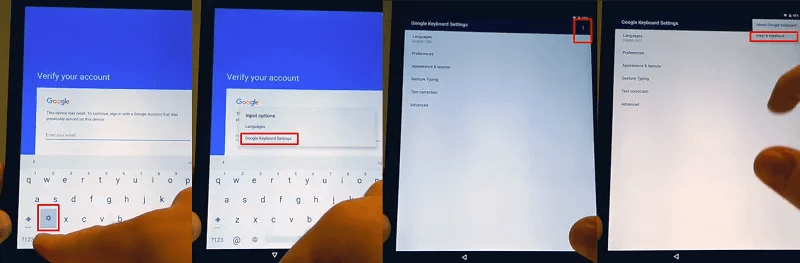
Example of a Help Page Used by an Older Keyboard Route
If the Help screen is absent or behaves differently, do not continue with later instructions copied from another build.
Checkpoint 3: Can the Route Reach Its Next Required Screen?
Step 5. Check whether the exact search, share, Settings, or other transition required by the tutorial is available.
Step 6. Stop when the setup environment diverges from the guide. Reaching a Settings page does not by itself prove that Google verification has been resolved.
This approach preserves the useful Google Keyboard search intent without implying that every A04/A04s on a particular Android version exposes the same legacy setup path.
Method 4. Check Whether the Legacy AddROM Route Is Still Available
AddROM and related HushSMS/browser workflows appear in older FRP tutorials because they attempted to move from the locked Setup Wizard into a browser or another application. On a current Samsung A04/A04s, the useful question is whether those entry points still exist—not whether an older AddROM APK can still be found online.
Checkpoint 1. Confirm that the exact browser or message handoff required by the tutorial is available on the current phone and region.
Checkpoint 2. If the setup environment never opens the required browser or external page, stop. The remaining APK instructions cannot continue as written.
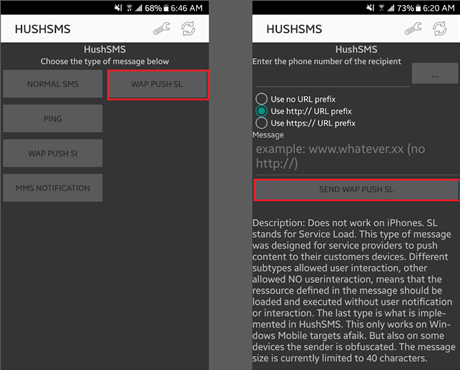
Example of an Older AddROM WAP Route
Checkpoint 3. If a browser does open, do not enter Google credentials into pages or applications whose source you cannot verify.
Checkpoint 4. If the route depends on installing an APK, apply the same source, installer, and compatibility checks described in the OTG/APK section.
Checkpoint 5. Stop if the phone displays a different screen from the tutorial or if the next required setup transition is blocked.
AddROM should therefore be treated as a legacy compatibility route rather than a guaranteed Samsung A04/A04s bypass method.
Samsung A04/A04s FRP on Android 14 and Android 15
Searches such as Samsung A04s FRP bypass Android 14 free, Samsung A04 FRP unlock tool, and Samsung A04/A04s Android 15 FRP usually indicate that the user is trying to match a method to a newer software state.
Do not use the Android version alone as the success test. On Android 14—or when you reach this page through an Android 15 query—check the actual phone and setup environment before choosing a route.
| Search Scenario | What to Check | Decision |
| A04/A04s Android 14 no-PC | OTG storage, installer access, Keyboard Settings, Help & Feedback | Continue with a manual route only if its exact entry points still exist. |
| A04/A04s Android 14 FRP tool | Exact model/device route and PC connection requirements | Use a tool only when it presents an applicable Samsung workflow. |
| A04/A04s Android 15 FRP query | Verify the actual Android/One UI information on the phone first | Do not assume compatibility from the search term alone. |
| Old keyboard or AddROM tutorial does not match | First missing menu or app handoff | Stop that route instead of combining instructions from another Android build. |
The key distinction is simple: version labels help narrow your research, but the actual setup checkpoints decide whether a particular FRP route can proceed.
Samsung A04 FRP File Download: Safety Checks
Queries such as Samsung A04 FRP file download, A04s FRP bypass file, or Samsung A04 FRP unlock tool download free often lead to APK, EXE, ZIP, or repackaged files from third-party sites. A file name containing “A04,” “A04s,” or “FRP” does not prove that the file is clean, current, or compatible with your phone.
| File Type | What Users Expect | Main Check |
| FRP APK | Open another Settings or account-related route | Verify source, Android/device fit, installer access, and the required setup path. |
| Google Account Manager APK | Use a component referenced by older Android tutorials | Do not assume a package intended for another Android generation is compatible. |
| Samsung FRP PC tool | Use USB-based desktop guidance | Confirm the software source, Samsung support, connection mode, and device route. |
| Unknown EXE / ZIP | One-click or free A04 FRP unlock | Avoid unclear publishers, forced antivirus exclusions, password archives, and repacked installers. |
If an APK shows App not installed, that does not automatically mean you need another download. The failure may come from Android compatibility, package restrictions, file integrity, or a setup path that no longer permits installation.
Likewise, a filename such as “Samsung A04 FRP latest” is not evidence that it fits your model, One UI Core build, or security state.
Samsung A04/A04s FRP Bypass Not Working: Diagnose the First Failure
If a method fails, identify the first missing checkpoint instead of restarting the entire tutorial.
| Problem | What It Suggests | Next Step |
| Google Keyboard Settings does not appear | The legacy keyboard entry point does not match the current setup environment. | Stop the keyboard route. |
| Help & Feedback is missing | The next stage of the old keyboard chain is unavailable. | Do not continue with later keyboard steps from another build. |
| OTG drive connects but File Manager does not appear | The Setup Wizard does not expose the required storage route, or the OTG hardware needs checking. | Verify the adapter separately; if setup still exposes no file path, stop the OTG method. |
| APK says “App not installed” | Possible package mismatch, install restriction, damaged file, or incompatible environment. | Do not repeatedly install random APK versions. |
| APK installs but cannot open the required Settings screen | The setup route has reached a blocked checkpoint. | Stop the APK path instead of combining another tutorial. |
| AddROM/browser route does not open | The required browser/WAP handoff is unavailable. | Stop the AddROM route. |
| DroidKit or another PC tool does not detect the phone | Possible cable, USB port, connection mode, driver, or unsupported-route issue. | Resolve detection and confirm the device workflow before continuing. |
| An Android 12/13 tutorial shows different menus | The Android version alone does not guarantee identical One UI Core, patch, or Setup Wizard behavior. | Use the screen mismatch as the stopping point. |
| An “A04 FRP file” downloads but the method still fails | The file name does not prove setup or firmware compatibility. | Identify whether failure occurs at installation, launch, Settings access, or PC detection. |
| Google verification still appears | FRP remains active. | Recover the previous account, resolve the previous-owner situation, or use another applicable authorized route. |
If several routes stop at missing menus, installation errors, or device-detection problems, use the FRP bypass not working guide before downloading more files.
FAQs About Samsung A04/A04s FRP Bypass
1. Can I bypass FRP on Samsung A04 without a PC?
A no-PC route is only worth evaluating when your A04 still exposes the entry points that route requires. For OTG/APK, check storage, installer, and the required Settings path. For Google Keyboard, check Keyboard Settings, Help & Feedback, and the next action. Stop as soon as the current phone no longer matches the tutorial.
2. Can Samsung A04s FRP bypass work on Android 14?
Android 14 is useful context, but it does not guarantee or rule out a specific route by itself. Check the A04s model, One UI Core/setup environment, security state, and whether the required storage, keyboard, browser, or PC connection checkpoint is actually available.
3. What about Samsung A04/A04s FRP on Android 15?
First verify the actual Android and One UI information shown by the phone rather than relying on the search query. If the device is on a newer build, do not assume that legacy OTG, Keyboard, APK, or AddROM instructions recorded for an older setup environment remain compatible.
4. What is the best Samsung A04 FRP unlock tool?
There is no single tool that should be treated as universally compatible. Compare the exact Samsung/device route, Android environment, connection requirements, and current software support. A guided desktop option such as DroidKit becomes relevant when account recovery is unavailable and the manual setup entry points do not match the phone.
5. Is Samsung A04 FRP file download safe?
Not automatically. APK, EXE, ZIP, or tool files from third-party mirrors may be outdated, repackaged, or unrelated to the current device environment. Check the publisher or source, scan the file, avoid suspicious archives and forced security exclusions, and do not assume compatibility from the filename.
6. Why does the Google Keyboard method not work on my Samsung A04?
The keyboard shown during setup may no longer expose the Settings, Help & Feedback, search, or next system path used by an older tutorial. A missing checkpoint means the route does not match the current setup environment.
7. Why does my FRP APK say “App not installed”?
The APK may not match the Android environment, installation may be restricted during setup, or the file may be damaged or modified. Do not assume that trying several random versions will fix the underlying setup restriction.
8. Does AddROM still work on Samsung A04/A04s?
Treat AddROM as a legacy route rather than a guaranteed method. It depends on browser or message handoffs and other setup transitions that may not exist on the current phone. If the first required handoff fails, stop the route.
9. Can another factory reset remove FRP from Samsung A04?
No additional factory reset should be expected to remove the Google verification requirement by itself. If FRP remains active, the phone can return to the same previously synced account screen after another reset.
10. What should I do if I bought a used Samsung A04s?
If the phone still requests the seller’s Google account, contact that person and ask them to resolve the account association or help complete legitimate verification. Repeated factory resets do not replace previous-owner verification.
11. Why does an Android 12 or Android 13 tutorial look different from my phone?
Android version is only one compatibility factor. One UI Core, security updates, regional firmware, carrier configuration, and Setup Wizard state can all change the available screens. Follow the actual checkpoints on your device rather than assuming the same Android number means the same route.
Conclusion
Samsung A04/A04s FRP bypass is easier to evaluate when Android 12, 13, 14, or 15 is treated as context rather than a success guarantee. What matters most is whether the current phone still exposes the entry point required by the method.
For OTG/APK, confirm storage access, the installer, and the next system screen. For Google Keyboard, confirm Settings, Help & Feedback, and the next transition. For AddROM, verify that the browser or message handoff exists before considering any file. If those manual entry points are unavailable, recover the original Google account when possible or evaluate an applicable PC-based route for the device.
The first missing checkpoint is usually more useful than another “latest FRP file.” Use it to stop an incompatible method early and avoid mixing instructions from different Samsung models, Android builds, or setup environments.
More Related Articles


Roger Smith is a senior technical writer with years of experience in providing Android solutions. He loves to help users solve various problems such as Android unlock, Android data recovery, and Android system repair.
Product-related questions? Contact Our Support Team to Get Quick Solution >
