Samsung A13 FRP Bypass [Android 14/13/12/11]
Samsung A13 FRP methods depend on the exact Android build and the setup screens still available on your phone. Check whether APK installation, TalkBack, browser access, or the required PC workflow actually matches your A13 before continuing.
Factory reset your Samsung Galaxy A13 and now see Verify your account? That means Google Factory Reset Protection (FRP) is active. If you still know or can recover the Google account previously synced with the phone, use that account first instead of trying a bypass route.
If the account is unavailable, the next step depends on more than whether your A13 says Android 11, 12, 13, or 14. Galaxy A13 variants and software builds can show different setup screens, and security updates may remove the APK, TalkBack, browser, or Settings path shown in an older tutorial. The useful question is therefore: does the checkpoint required by the method actually appear on your phone?
This guide keeps three Samsung A13 FRP routes separate: a computer-guided DroidKit workflow, an APK/OTG route, and a TalkBack-based manual route. Each section tells you when to continue and when to stop instead of repeatedly following steps that do not match your current A13.
Important: Use these methods only on a Samsung A13 you own or are authorized to manage. If you purchased the phone second-hand and it remains linked to another person’s Google account, ask the seller or previous owner to remove the account whenever possible. FRP normally appears after a factory reset, so locally stored data may already have been erased.
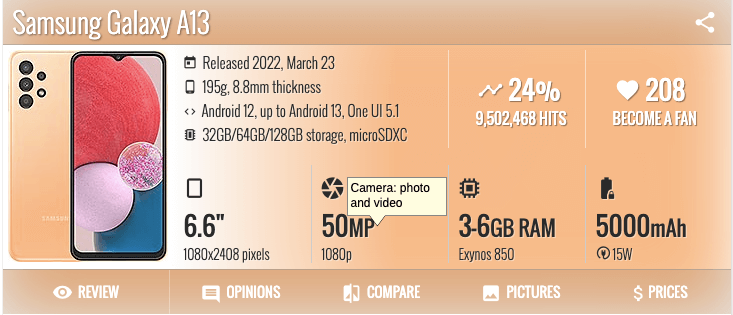
Samsung Galaxy A13
Quick Answer: Samsung A13 FRP Bypass Options
The best Samsung A13 FRP route depends on what your device still allows during setup. Android version is useful context, but it is not enough by itself to confirm that an APK, TalkBack, or PC workflow will match your phone.
| What You Can Access | What It Means | Route to Consider |
| You can recover the previously synced Google account | You do not need a bypass method | Recover or sign in with that account |
| You have a Windows PC or Mac and want an on-screen workflow | You can evaluate a computer-based Samsung FRP route | DroidKit |
| OTG storage opens and the setup environment permits the required file/install path | The APK method may still reach its next checkpoint | APK/OTG route |
| TalkBack opens and the required Assistant/browser/Settings path is available | The manual TalkBack route may still have a path forward | TalkBack method |
| A required menu, app, browser, or permission is missing | The tutorial does not match your current A13 software state | Stop that route and choose another method |
For Samsung models beyond the Galaxy A13, use the Samsung FRP bypass guide to find a model-specific route. That is more reliable than applying A13 steps to a different Galaxy phone whose One UI or setup screens may behave differently.
Samsung A13 FRP Bypass Methods Compared
Use the comparison below before starting. A method is worth trying only when its first required checkpoint exists on your phone.
| Method | PC Needed? | Use It When | Main Limitation |
| DroidKit FRP Bypass | Yes, Windows or Mac | You prefer on-screen instructions and the available Samsung workflow matches the connected device | Requires a computer and applicable device workflow |
| APK / OTG | A computer is normally useful for preparing the USB drive | OTG file access and the required installation path are still available during setup | File access or APK installation may be restricted |
| TalkBack | No | The required accessibility, Assistant, browser, and Settings path still exists | The chain can stop at several different checkpoints on updated software |
Key takeaway: do not identify a method as compatible only because another user also owns a Galaxy A13. The Android version, software build, security update, and exact setup menus all affect whether the route can continue.
If your main goal is to compare computer-based options rather than manual shortcuts, see the Samsung FRP tool comparison before choosing software.
Part 1. Samsung A13 FRP Bypass with PC [Android 14/13/12/11]
DroidKit is the computer-based option in this guide. It becomes relevant when the Galaxy A13 has already reached Google verification, the account cannot be recovered, and an older APK or TalkBack route does not match the screens currently shown by the phone.
Consider DroidKit when:
- Your Samsung A13 is already stopped at Google account verification after a reset.
- The APK route cannot reach usable file or installation access.
- TalkBack opens but the later Assistant, browser, or Settings checkpoint is unavailable.
- You have a Windows PC or Mac and prefer instructions shown by the software.
- The Samsung FRP workflow offered by DroidKit matches the device information and screen state you have.
Do not select an Android option only because the article title lists Android 11, 12, 13, and 14. Follow the device/system choices presented for the connected Samsung phone and make sure the workflow matches your A13 before proceeding.
Free Download * 100% Clean & Safe
Steps to Check the Samsung A13 FRP Workflow in DroidKit
Step 1. Install and open DroidKit on your Windows PC or Mac. Choose FRP Bypass from the main interface.

Choose FRP Bypass Mode
Step 2. Connect the FRP-locked Samsung A13 to the computer with a data-capable USB cable and click Start.
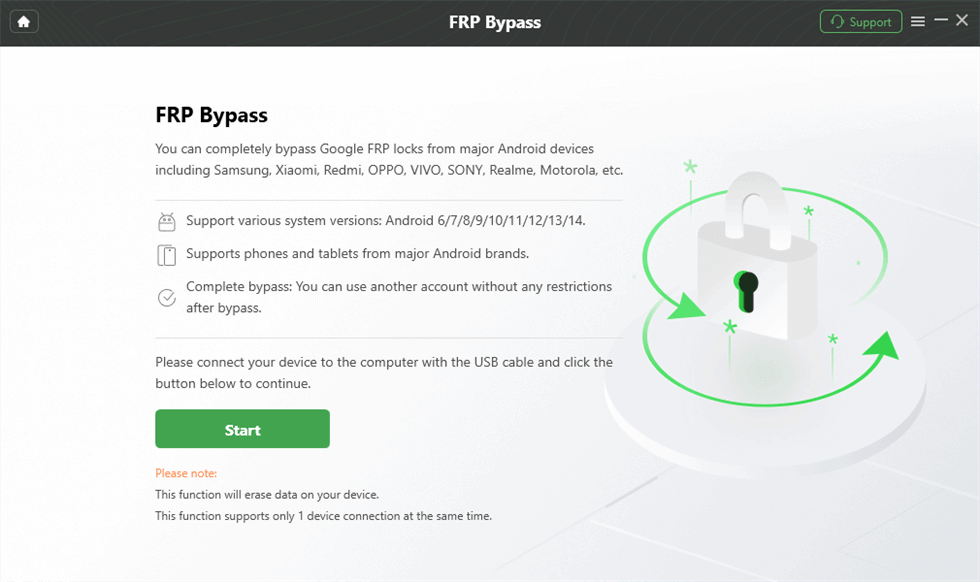
Connect the Samsung A13 and Click Start
Step 3. When DroidKit asks for the device brand, choose Samsung.
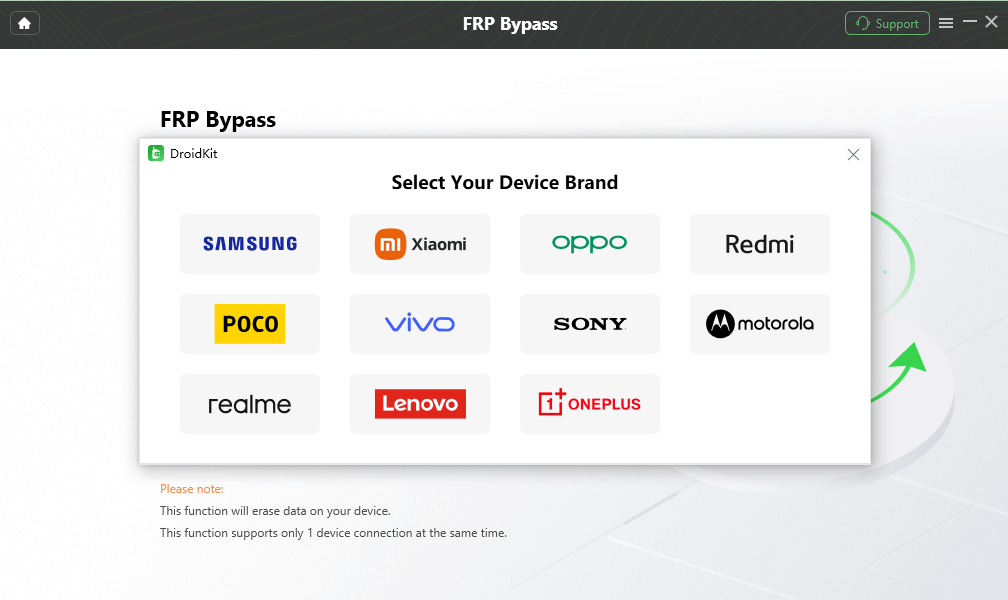
Select Samsung
Step 4. Wait while DroidKit prepares the information needed for the connected Samsung workflow. When prompted, click Start to Bypass.
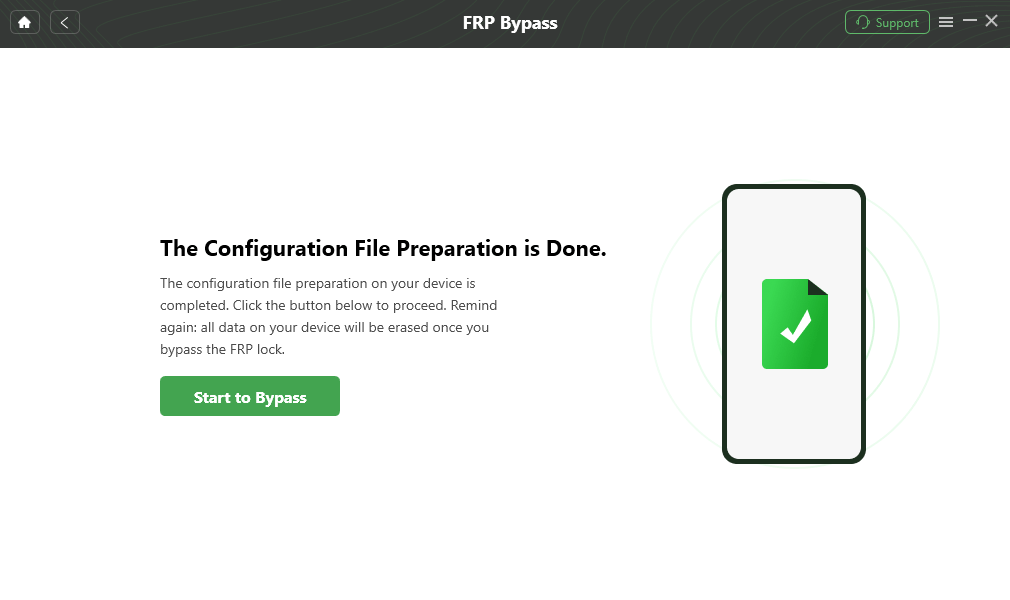
Click Start to Bypass
Step 5. Select the system or screen information requested by DroidKit. Match the choice to what the program and your phone currently show rather than guessing from the A13 model name alone.
Step 6. Follow the Samsung instructions presented by DroidKit. Complete device-side settings only when your A13 screen matches the instructions shown.
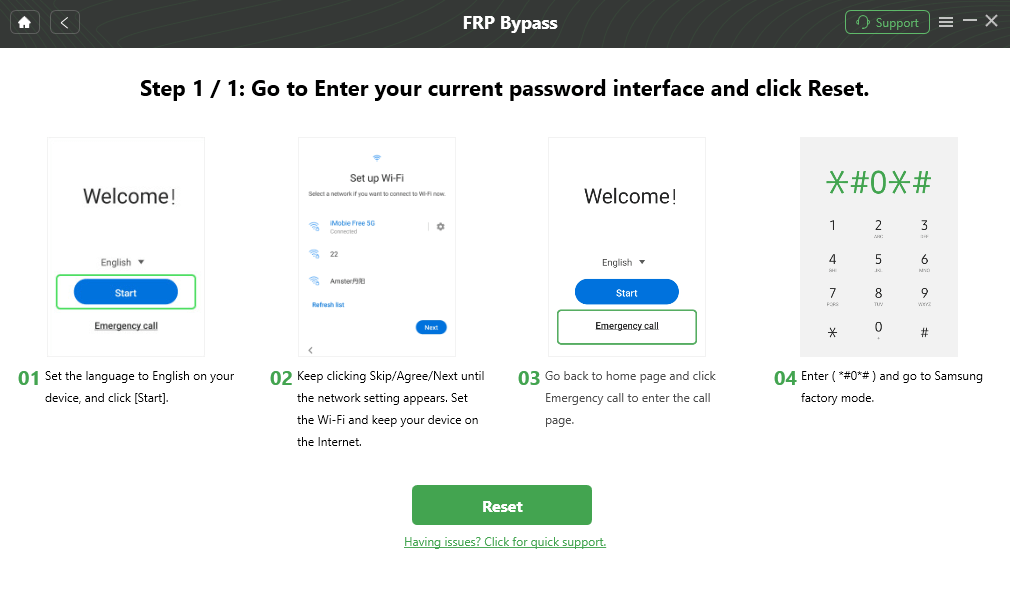
Follow the Samsung Instructions
Step 7. Continue until the software reaches its completion screen, then follow the restart and setup instructions provided for the connected device.

FRP Workflow Complete
A13 decision point: move to a PC workflow because the manual route has lost a required checkpoint, not simply because it has many steps. For example, an APK method cannot continue without usable file/install access, while a TalkBack route cannot continue if its Assistant or browser path is missing.
Part 2. Bypass FRP on Samsung A13 without PC
The two manual routes below rely on setup behaviors that may differ between Galaxy A13 software versions. Treat them as conditional options rather than universal no-PC solutions.
1. Samsung A13 FRP Bypass APK Method
An APK-based route normally depends on several things happening in sequence: the phone must recognize external storage or otherwise expose the APK file, Android must permit the relevant installation step, and the installed app must still reach the Settings path required by the tutorial.
This creates several failure points before the route ever reaches Google verification.
Check These Requirements First
| Checkpoint | Continue Only If |
| OTG / storage access | The A13 recognizes the connected storage during setup |
| File access | You can actually open or select the intended file |
| APK installation | The current setup environment allows the required installation flow |
| APK source | You trust the origin of the file and understand what you are installing |
| Settings path | The installed route can reach the exact Settings screen required by the method |
Step 1. If you choose to evaluate an APK route, obtain the file only from a source you have decided to trust and place it on the storage device required by your setup.
Step 2. Connect the storage device to the Samsung A13 using the appropriate OTG connection.
Step 3. Check whether the setup environment opens usable external-storage or file-manager access. If it does not, stop here because the first prerequisite is missing.
Step 4. If you can access the file, check whether Android permits the intended installation flow.
Step 5. Continue only if the application can reach the specific Settings or setup path required by the instructions you are following.
APK safety check: do not enter your Google or Samsung account password into an unknown app or webpage. If installation is blocked, the APK asks for unrelated permissions, or the file source is unclear, leave this route rather than downloading several alternative FRP APKs.
Also remember that another factory reset does not automatically remove FRP. If the A13 returns to Verify your account after being reset again, the Google verification stage is still active.
2. Samsung A13 FRP Bypass via TalkBack
The TalkBack route depends on accessibility and setup shortcuts that have changed across Android and Samsung software builds. It is therefore more useful to check the route screen by screen than to assume every A13 on a certain Android version follows the same sequence.
Before Trying the TalkBack Route
- Confirm that the accessibility shortcut can actually start TalkBack from your current setup screen.
- Check whether the TalkBack menu or voice-command path used by the tutorial is present.
- Confirm whether Google Assistant or another required app can open.
- Check whether the later YouTube/browser route is available.
- Continue only if the route can reach the Settings screen required by the method.
Step 1. Restart the FRP-locked Samsung A13 and connect it to Wi-Fi.
Step 2. At the setup stage, check whether the accessibility shortcut available on your A13 can start TalkBack.
Step 3. If TalkBack starts, check whether the gesture/menu sequence shown by the method opens the TalkBack controls or voice-command path.
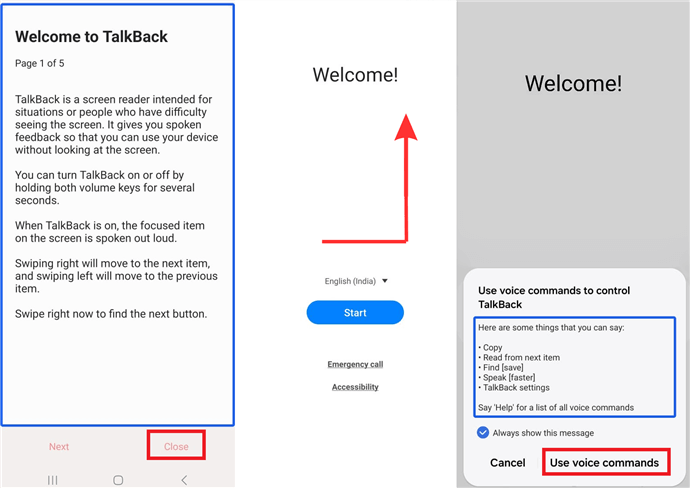
Check Whether the TalkBack Route Matches Your Screen
Step 4. Continue only if the required Assistant or application path actually opens.
Step 5. If the route requires YouTube or a browser, confirm that the setup wizard still allows that transition. If the app opens but all external navigation is blocked, the later steps cannot continue.
Step 6. If a browser becomes available, avoid downloading unrelated APK files or entering account credentials on untrusted pages.
Step 7. Continue only when the Settings path shown by the method exists on your current A13.
Step 8. If any required control is absent, stop the TalkBack route and move to troubleshooting rather than repeating gestures or rebooting the phone in the hope that a missing menu will appear.
Why old TalkBack tutorials fail: the failure can happen before TalkBack starts, after the accessibility menu opens, when Assistant is requested, when YouTube/browser access is attempted, or when Settings is supposed to open. Identify the first missing checkpoint instead of treating all failures as the same problem.
Samsung A13 FRP Bypass on Android 14/13/12/11
The Galaxy A13 family has appeared across several Android generations, but Android version alone is not a success-rate indicator. A security update or Samsung setup change can alter the available path without changing the major Android number shown in a tutorial title.
| Android Version | What to Check First | Useful Next Step |
| Android 11 | Confirm the exact A13 variant and whether the setup screens match the older method you plan to use | Use only the manual route whose required menus are actually visible |
| Android 12 | Check whether TalkBack, Assistant, browser, and Settings transitions still exist | Compare the Android 12 FRP guide when your setup differs |
| Android 13 | Check APK permission restrictions and whether older accessibility/browser paths are still exposed | Use the Android 13 FRP guide for version-specific failure points |
| Android 14 | Compare the actual setup screens with the method before attempting an older manual shortcut | See the Android 14 FRP guide when the A13 method no longer matches |
Do Not Use Android Version as the Only Compatibility Check
Before choosing a Samsung A13 FRP method, compare these details:
| Check | Why It Matters |
| Exact Galaxy A13 variant | Nearby A13 variants can have different software histories and setup behavior |
| Android / One UI information you can verify | A tutorial recorded in another software environment may show different menus |
| Security update | A shortcut used by an older manual route may no longer be exposed |
| APK file/install access | Determines whether the APK route can get past its first stages |
| TalkBack and Assistant access | Determines whether the accessibility route has a path forward |
| Browser and Settings access | Separates a working route from one that stops halfway through |
What If Samsung A13 FRP Bypass Fails?
When one of the three routes fails, identify the exact failure point. This saves more time than repeating the entire method from the beginning.
| What Happens | What It Suggests | What to Do Next |
| OTG storage does not expose usable files | The APK route cannot reach its first required checkpoint | Stop the APK route |
| The APK file opens but installation is blocked | The setup environment is restricting the installation stage | Do not try multiple unknown APK files |
| TalkBack shortcut does nothing | The accessibility entry used by the tutorial is unavailable | Skip the TalkBack route |
| TalkBack opens but Assistant does not | The next link in the manual chain is blocked | Do not continue to later browser steps |
| YouTube or browser cannot be opened | The setup wizard is preventing external navigation | Switch to another route |
| Browser opens but Settings cannot be reached | The manual path stops before its required Settings checkpoint | Leave the TalkBack route |
| DroidKit does not show a matching Samsung workflow | The selected workflow may not apply to the current device state | Re-check the device information before continuing |
| The phone still shows Verify your account after another reset | FRP is still active | Recover the original account or use an applicable FRP-specific route |
If the main issue is that the A13 continues asking for a previously synced Google account after reset, the Google account verification after reset guide explains that scenario separately.
When Should You Stop a Manual Samsung A13 Method?
Stop the method when the next required checkpoint does not exist. Examples include:
- OTG is connected but no usable file route appears.
- The APK cannot be installed from the setup environment.
- TalkBack cannot be started from the screen you have.
- The voice-command or Assistant step does not open.
- YouTube or browser access is blocked.
- The browser opens but Android Settings cannot be reached.
- The Settings option shown in the tutorial is missing.
A missing checkpoint is a compatibility signal. It is not a reason to install additional unknown files or repeat the same shortcut dozens of times.
Samsung A13 Manual Route Stops at a Missing Checkpoint?
If your A13 cannot reach the file/install stage required by the APK method or the TalkBack route stops before Assistant, browser, or Settings access, DroidKit provides a computer-based Samsung FRP workflow to evaluate when its available instructions match the connected device.

FAQs About Samsung A13 FRP Bypass
Can I bypass FRP on Samsung A13 without PC?
You can evaluate the APK/OTG or TalkBack routes without relying on a computer for the actual phone-side process, but both depend on checkpoints that may be unavailable on your current build. If OTG file access, APK installation, TalkBack, Assistant, browser access, or Settings is missing, the manual method does not match your A13.
Does Samsung A13 FRP bypass work on Android 14?
The Android 14 label alone cannot confirm whether a particular route works. Check the exact screens and permissions required by the method. If an older APK or TalkBack tutorial stops at a missing menu on your A13, use Android 14-specific guidance or evaluate another applicable route.
Does the Samsung A13 TalkBack method work on Android 12?
It depends on the software state of the individual phone. The useful test is whether the TalkBack entry, voice-command or Assistant stage, browser path, and required Settings screens actually appear. If the chain breaks, do not follow later steps that depend on the missing screen.
Is a Samsung A13 FRP bypass APK safe?
Safety depends on where the APK comes from and what it requests after installation. Avoid files from sources you do not trust, do not enter account passwords into unknown apps or webpages, and stop if the file requests unrelated permissions or Android blocks the installation.
Why does TalkBack open but Samsung A13 FRP bypass still fail?
Opening TalkBack is only the first checkpoint. The route can still fail if Assistant, YouTube, a browser, or the required Settings page cannot be opened. Identify the first missing screen instead of assuming that TalkBack activation alone means the rest of the tutorial is compatible.
Why does my Samsung A13 still ask for the old Google account?
Factory Reset Protection is still active. If you can recover the previously synced account, use it during setup. If the phone belongs to a previous owner, ask that person or the seller to remove the account properly. Otherwise, evaluate an FRP method whose prerequisites actually match the current device state.
Will Samsung A13 FRP bypass erase my data?
FRP normally appears after the phone has already been factory reset, so local data may have been removed before you reach Google verification. Additional factory resets can erase local content again but do not automatically remove FRP.
Should I use an Android 13 or Android 14 guide instead of this A13 guide?
Start with this model-specific page because it keeps the Galaxy A13 scenario narrow. Use the Android-version guides when your A13 setup screens differ and you need to understand version-specific restrictions. Model and software context should be used together rather than treating either one as a universal compatibility guarantee.
Conclusion
Samsung A13 FRP bypass is easier to troubleshoot when you stop judging methods only by Android version. The PC route needs an applicable Samsung workflow. The APK route needs real file and installation access. The TalkBack route needs accessibility, Assistant, browser, and Settings checkpoints to remain available.
If one of those checkpoints is missing, the method does not match the current A13 setup state. Recover the original Google account when possible; otherwise move to another route that fits the phone rather than repeatedly following screenshots from a different Android build.
More Related Articles


Roger Smith is a senior technical writer with years of experience in providing Android solutions. He loves to help users solve various problems such as Android unlock, Android data recovery, and Android system repair.
Product-related questions? Contact Our Support Team to Get Quick Solution >
