[2026] How to Bypass FRP on Samsung A22/A22 5G (Android 11–14)
“I broke my phone accidentally yesterday and my brother gave me his spare Samsung A22. I want to activate it to use today but it keeps asking me to enter the Google account information. My brother tried several times but in vain. How can I log into the phone without the existing Google account?” – A Samsung user asked.
Samsung A22 FRP Bypass Tool
DroidKit is one of the best Android FRP bypass tools used on Windows and Mac. It supports bypassing FRP on multiple Android brands and all Samsung models with a high success rate. Download it now and get rid of the FRP lock on your Samsung A22.

Samsung A22 has been a popular phone since 2021 running Android 11 and later. Samsung A22 is armed with some security features, including the Factory Reset Protection designed to protect your phone in case it gets lost or stolen. However, it can also become a challenge if you forget the associated Google account credentials. Then you will be locked out of your Samsung A22. Don’t worry, we’ll explore different ways to bypass FRP and provide additional tips to ensure a smooth process. Read on to learn how to bypass FRP on your Samsung A22 in 2026.
Quick Answer: Can You Bypass FRP on Samsung A22?
Yes. You can bypass FRP on Samsung A22/A22 5G if:
- You forgot your Google account credentials
- You bought a second-hand device
- The previous owner didn’t remove their account
There are two main ways to do it:
- ✔️ Use a professional FRP bypass tool (fast, stable, recommended)
- ✔️ Try a free/manual FRP tool (less reliable, more technical)
Table of ContentsHide
Samsung A22 FRP Bypass: Which Method Should You Choose?
If you’re not sure which method to use, here’s a quick breakdown:
– Forgot your Google account → use a reliable FRP bypass tool
– Bought a second-hand Samsung A22 → choose a high-success-rate method
– Tried free tools but failed → switch to a more stable solution
| Method | Difficulty | Success Rate | Requires PC | Best For |
| DroidKit (Recommended) | Easy | High | Yes | Most users |
| Easy Samsung FRP Tool | Medium | Medium | Yes | Tech-savvy users |
👉 If you want the easiest solution, jump directly to Method 1 below.
Method 1: Bypass Samsung A22 FRP with DroidKit (Recommended)
When it comes to bypassing FRP on a Samsung A22, DroidKit is one of the best solutions available in 2026. It is a comprehensive Android device toolkit designed to handle various Android issues, including Android screen lock removal, FRP bypass, Android data recovery, Android system repair, and more. Most importantly, DroidKit offers an easy and secure way to unlock your Samsung A22 without requiring technical expertise.
Why Choose DroidKit for FRP Bypass?
- No Google account password or phone purchase information is required.
- The straightforward interface and step-by-step guide make it easy to bypass FRP for users of all levels.
- DroidKit has a proven success rate for bypassing FRP locks on a wide range of Samsung models, including the A22.
- Supports bypassing FRP on Samsung A22 Android 11/12/13/14/15.
- Available to use on Windows and Mac.
How to Bypass FRP on Samsung A22 Using DroidKit
Step 1. Download and install DroidKit on your Windows or Mac computer.
Free Download * 100% Clean & Safe
Step 2. Launch DroidKit and choose the FRP Bypass option.

Choose FRP Bypass Mode
Step 3. Use a USB cable to connect your Samsung A22 to the computer. Then choose the Samsung brand.
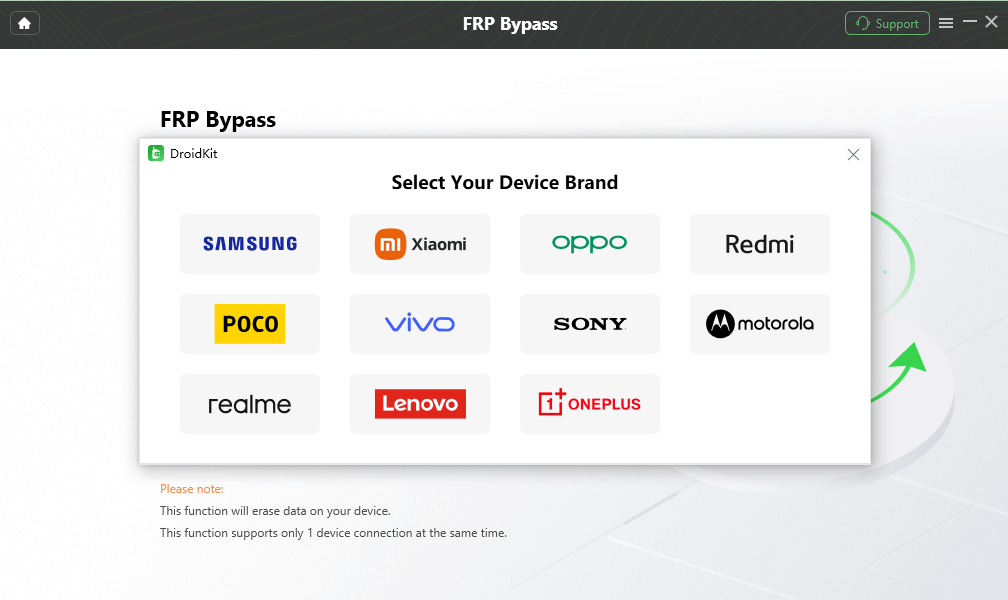
Choose Device Brand
Step 4. Follow the instructions to enter recovery mode on your Samsung A22 and start the bypass process.
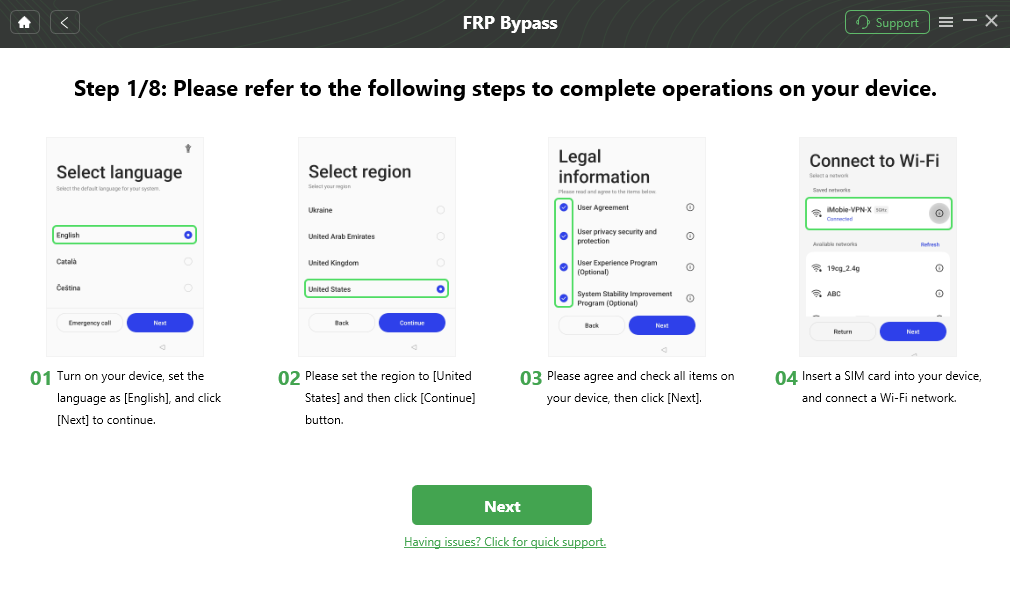
Follow the Bypass Steps
Step 5. Wait for the FRP bypass. After finishing, your Samsung A22 FRP lock will disappear and you can set up the phone using a new Google account.

FRP Bypass Complete
Method 2. Samsung A22/A22 5G FRP Bypass Using Easy Samsung FRP Tool
Easy Samsung FRP tool is another choice for Samsung A22 FRP bypass. It helps you to bypass FRP from your Samsung Galaxy A22 5G (SM-A226B) Android phone. Like DroidKit, Easy Samsung FRP tool supports all Samsung models, including Samsung A22 and A22 5G. You can follow the step below to finish Samsung A22 FRP bypass with Easy Samsung FRP tool.
Step 1. Download Easy Samsung FRP tool zip file on your computer.
Step 2. Run the exe file and click on the “Disable Driver Signature Enforcement” choice. Then restart your computer.
Step 3. Connect your Samsung A22 to the computer. Launch the exe again and follow the instructions to bypass FRP.
⚠️ Important Notes About This Method
- May not work on newer Android versions (Android 13/14)
- Requires manual setup and technical steps
- Lower success rate compared to professional tools
- May trigger antivirus warnings (common for unofficial tools)
👉 If this method fails, switching to a more stable solution like DroidKit is recommended.
What If Samsung A22 FRP Bypass Fails?
FRP bypass doesn’t always work on the first try. Here are common reasons:
- ❌ Android version mismatch
- ❌ Tool not compatible with A22 firmware
- ❌ Incorrect steps during setup
- ❌ USB connection issues
What You Can Do:
- Try a different USB cable or port
- Restart the device and retry
- Switch to a higher-success-rate tool (recommended)
- Check your Android version before choosing a method
Bonus Tips for Samsung A22 FRP Bypass
Here are some essential tips to consider when attempting to bypass FRP on your Samsung A22:
1. Backup Your Data
While some methods may bypass FRP without erasing data, it’s always a good practice to back up your device beforehand. This ensures that in case of any unexpected issues, your important files, contacts, and apps remain safe.
2. Ensure the Phone Is Charged
Make sure your Samsung A22 is fully charged or at least has more than 50% battery before starting the FRP bypass process. This prevents the phone from shutting down during the procedure, which could cause errors or even damage to the device.
3. Use a Reliable Tool
Not all FRP bypass tools are reliable or safe. Always choose a trusted and proven tool, like DroidKit, to avoid any complications. Using unverified methods could lead to additional issues such as bricking your phone or exposing it to malware.
4. Follow the Instructions Carefully
When using DroidKit or any other method, it’s essential to follow the instructions carefully. Skipping a step or performing actions out of order could prevent the bypass from succeeding or lead to unintended consequences.
5. Update Your Device’s Software
If possible, keep your device’s software updated to avoid any potential security vulnerabilities. This can also improve the phone’s performance after the FRP bypass.
6. Be Mindful of Legal Considerations
While FRP bypass is a legitimate option for users who have forgotten their Google credentials, it’s important to note that bypassing FRP on a device you don’t own or have permission to access is illegal. Always ensure you are authorized to bypass FRP on any device.
FAQs About Samsung A22 FRP Bypass
Can I bypass FRP without a Google account?
Yes. Tools like DroidKit allow you to remove FRP without needing the original account.
Does this work on Samsung A22 5G?
Yes. Both methods support Samsung A22 and A22 5G models.
Do I need a computer?
Yes. Most reliable methods (including DroidKit) require a PC or Mac.
Will FRP bypass erase my data?
In most cases, your device is already reset. The process usually won’t restore old data.
What is the easiest way to bypass FRP on Samsung A22?
Using a dedicated tool like DroidKit is the easiest and most stable option.
Conclusion
Bypassing FRP on Samsung A22 or A22 5G is completely possible — even without the original Google account. If you want a fast, safe, and beginner-friendly solution, DroidKit is the best choice. It works across Android versions and simplifies the entire process.
Free tools like Easy Samsung FRP Tool can also work, but they require more technical effort and may fail on newer systems.
👉 Choose the method that fits your situation, follow the steps carefully, and you’ll regain access to your device in minutes.
Free Download * 100% Clean & Safe
More Related Articles



Joy Taylor is a seasoned technical writer with over a decade of experience in mobile technology. At iMobie, she specializes in producing in-depth content on iOS data recovery, iPhone unlocking solutions, and iOS troubleshooting.
Product-related questions? Contact Our Support Team to Get Quick Solution >
