Samsung J5/J5 Prime FRP Bypass 2026: Android 6.0.1 & Tool
Samsung J5 and J5 Prime FRP bypass depends on your exact model, Android 6.0.1/7 build, and whether Google Keyboard, TalkBack, Odin, or a PC route still opens the required menus. This guide helps you choose a realistic method before downloading files or repeating patched steps.
If your Samsung Galaxy J5 or J5 Prime asks for the previously synced Google account after a factory reset, Factory Reset Protection is active. This is usually called FRP or Google lock. It can happen when you forgot the Google account, received the phone from a family member, or bought a second-hand J5 that was not properly removed from the previous owner’s account.
This guide focuses on Samsung J5 FRP bypass, Samsung J5 Prime FRP bypass, Samsung J5 FRP unlock tool, and Samsung J5 FRP bypass 6.0.1 intent. You will compare Google account recovery, DroidKit, Odin, Google Keyboard, and TalkBack, then learn what to do when old no-PC routes no longer open Settings.
Use FRP bypass methods only on a Samsung phone you own or are authorized to repair. If you need methods for other Samsung models, start with the Samsung FRP bypass guide. If you are comparing PC tools, check the Samsung FRP tool options.
Table of ContentsHide
Quick Answer: Which Samsung J5 FRP Method Should You Try?
Samsung J5 vs J5 Prime: What to Check First
Samsung J5/J5 Prime FRP Methods Compared
Samsung J5/J5 Prime FRP Bypass with PC
Method 1: Use DroidKit FRP Bypass Tool
Method 2: Bypass FRP on Samsung J5 with Odin
Samsung J5/J5 Prime FRP Bypass without PC
Method 3: Using Google Keyboard
Method 4: Using TalkBack
Samsung J5 FRP Bypass Not Working: Common Fixes
Tips to Avoid FRP Lock on Samsung J5/J5 Prime
Samsung J5/J5 Prime FRP Bypass FAQs
Conclusion
Quick Answer: Which Samsung J5 FRP Method Should You Try?
The best Samsung J5 FRP bypass method depends on your model, Android version, security patch, and whether you can still open old setup routes such as Google Keyboard Help, TalkBack settings, Samsung Internet, or Download Mode.
| Your Situation | Best First Method | What to Know |
| You know or can recover the previous Google account | Google Account Recovery | This is the safest official route and should be tried first. |
| You need Samsung J5 FRP bypass 6.0.1 | Google Keyboard or TalkBack may be worth checking | These routes are more likely on older Android builds, but not guaranteed. |
| You have a Windows PC and firmware experience | Odin | Use only matched Samsung firmware files to avoid boot or flashing issues. |
| Manual methods are blocked | DroidKit FRP Bypass | Use a guided PC workflow for supported Samsung FRP scenarios. |
| Phone is second-hand | Ask the seller to remove the Google account | This is safer than using random APK or firmware files. |
Samsung J5 vs J5 Prime: What to Check First
Samsung J5 and J5 Prime are older Samsung models, but their FRP behavior can differ by exact model number, region, Android version, and firmware update. Before choosing a method, check what you can still access on the phone.
| Check | Why It Matters | What It Means for Method Choice |
| Exact model number | J5, J5 Prime, and regional variants may use different firmware. | Important for Odin and firmware-based methods. |
| Android version | Many J5 searches mention Android 6.0.1 or Android 7. | Old Google Keyboard and TalkBack routes are more relevant to older builds. |
| Keyboard Help & Feedback access | Some no-PC routes depend on opening Help or Web Search. | If this route is missing, Google Keyboard bypass is unlikely to work. |
| TalkBack menu access | TalkBack methods need accessibility menus to open Settings or browser paths. | If Help, Galaxy Store, or browser access is blocked, stop using this route. |
| Download Mode access | Odin requires Download Mode and correct USB detection. | If the PC cannot detect the phone, fix drivers and cable first. |
Samsung J5/J5 Prime FRP Methods Compared
Use this comparison before trying a method. It helps you avoid using a patched no-PC route or flashing a mismatched Odin file.
| Method | PC Needed? | Best For | Main Limitation |
| Google Account Recovery | No | Users who can recover the previous Google account. | Requires recovery email, phone number, or verification access. |
| DroidKit FRP Bypass | Yes | Users who want guided steps for supported Samsung J5/J5 Prime FRP scenarios. | Requires Windows or Mac and device compatibility check. |
| Odin | Yes, Windows PC | Advanced users who know how to match Samsung firmware files. | Wrong firmware can cause flashing failure or device problems. |
| Google Keyboard | No | Older Android 6.0.1/7 builds where Help and Web Search still open. | Often fails if keyboard Help, Web Search, or Settings access is blocked. |
| TalkBack | No | Older Samsung setup screens where TalkBack can open extra menus. | Complicated and commonly blocked by updates or missing menu paths. |
Samsung J5/J5 Prime FRP Bypass with PC
A PC-based method is usually more practical when Google Keyboard, TalkBack, or APK routes no longer open the required menus. For Samsung J5 and J5 Prime, the two common PC routes are DroidKit and Odin. DroidKit provides a guided workflow for supported devices, while Odin is a firmware flashing tool for advanced users.
Method 1: Use DroidKit FRP Bypass Tool
DroidKit FRP Bypass can be used as a guided PC-based option for supported Samsung FRP lock scenarios. It is more suitable if you do not want to match Odin firmware files manually or if old no-PC methods are blocked on your Samsung J5/J5 Prime.
Use this method if:
- You cannot recover the previous Google account.
- Google Keyboard does not open Help or Web Search.
- TalkBack does not open the needed settings or browser path.
- Odin feels too risky or technical.
- You have a Windows or Mac computer and a reliable USB cable.
Free Download * 100% Clean & Safe
Step 1. Open DroidKit on your computer and select FRP Bypass.
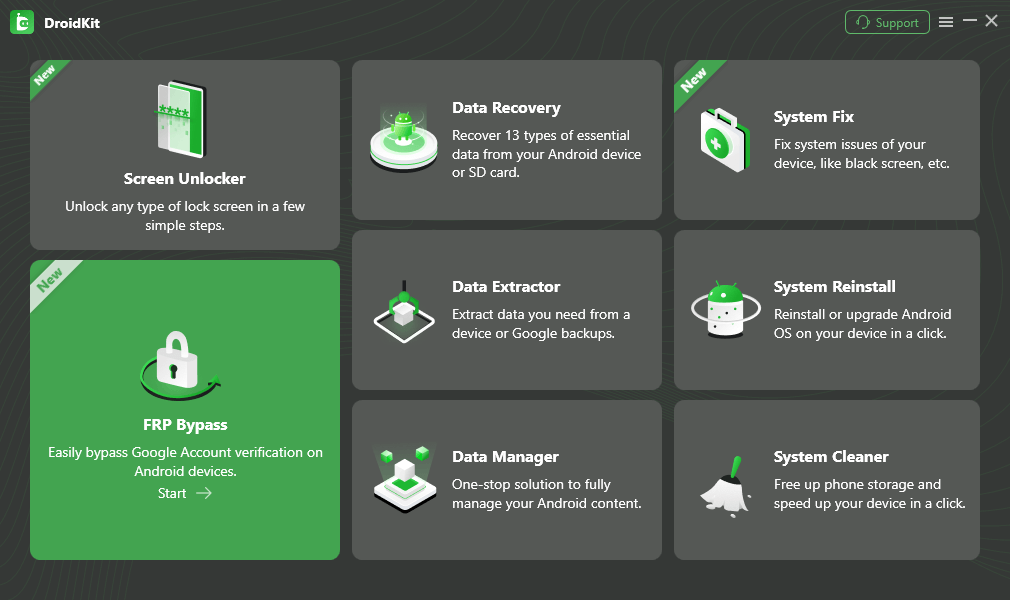
Choose FRP Bypass Mode
Step 2. Connect your Samsung J5 or J5 Prime to the computer with a USB cable. Click Start and select Samsung as the device brand.
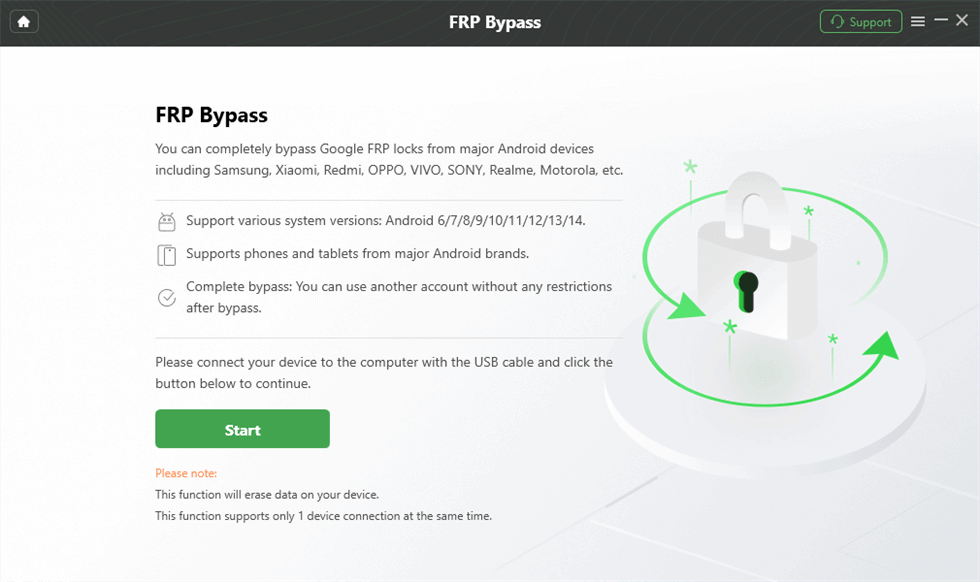
Click Start
Step 3. Wait while DroidKit prepares the configuration file for your device. When it is ready, click Start to Bypass.
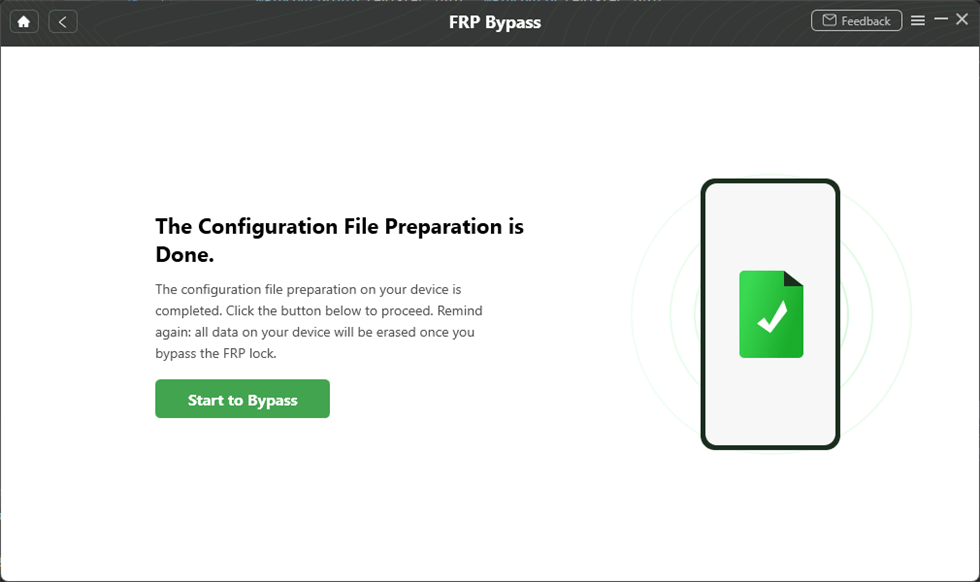
Tap on Start to Bypass
Step 4. Choose the Android version according to the on-screen guide. If your J5/J5 Prime is on Android 6.0.1 or Android 7, select the matching option shown in the interface.
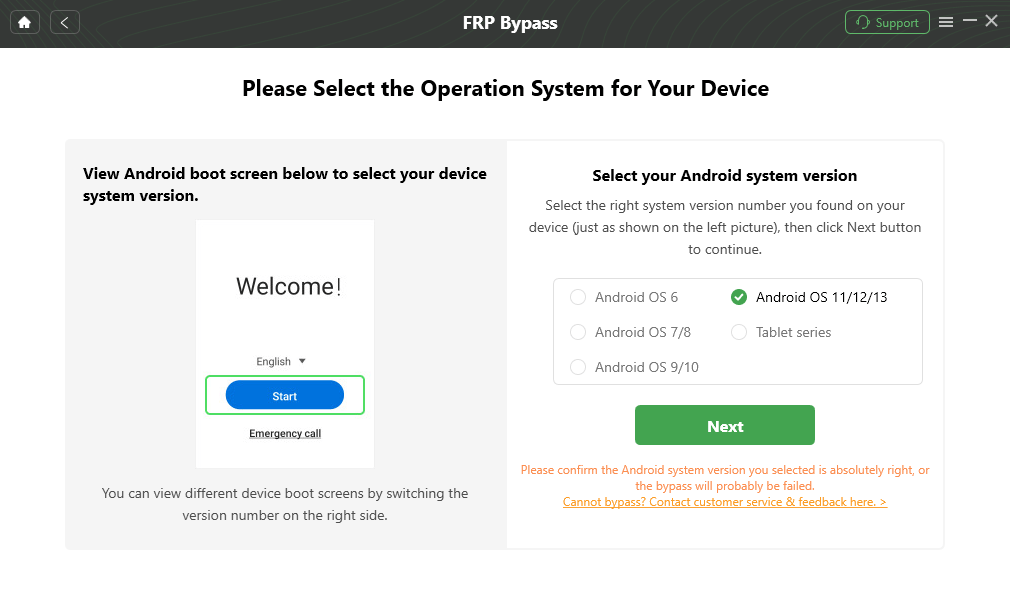
Choose System Version and Click Next
Step 5. Follow the on-screen steps for the selected Samsung system version. The required settings may vary by Android version and device state.
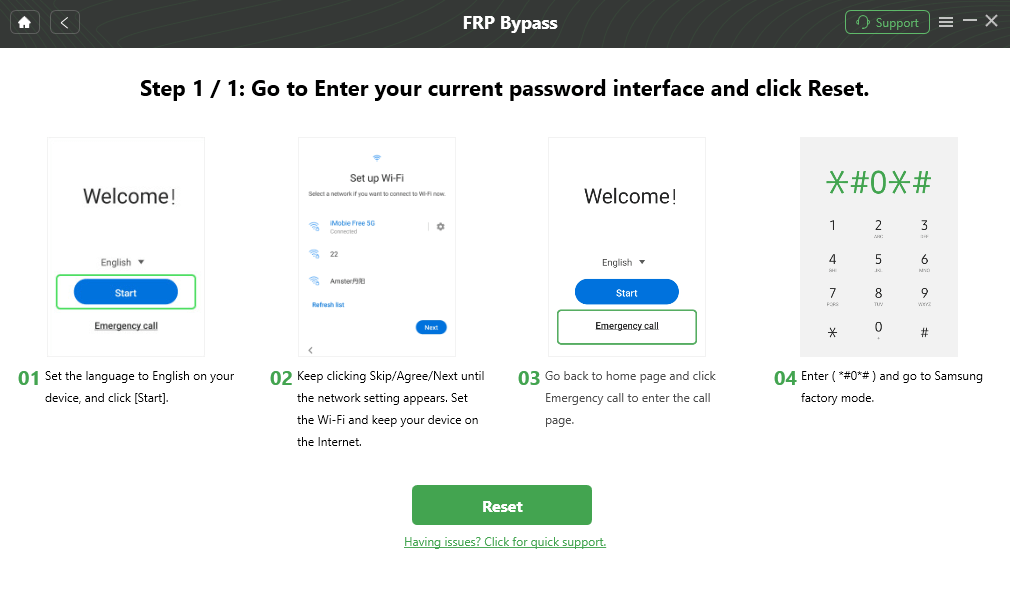
Follow the On-Screen Guide and Click Reset
Step 6. Wait for the process to finish. The phone may restart after the FRP workflow is complete.
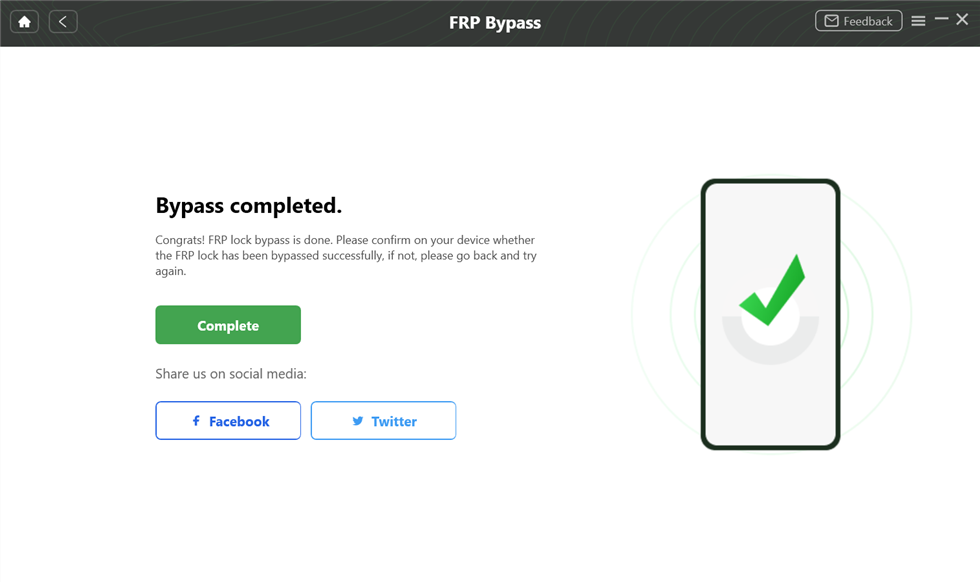
FRP Bypass Complete
Compatibility note: No FRP tool should be described as working on every Samsung phone or every firmware. Check device support first and use FRP tools only on your own or authorized device.
Method 2: Bypass FRP on Samsung J5 with Odin
Odin is a Samsung firmware flashing tool. It can be useful for advanced users who know how to match firmware files to the exact model. It is not a simple one-click method, and using the wrong file can cause boot loops, failed flashing, or device damage.
For a deeper explanation of Odin risks and firmware file matching, see this Odin FRP bypass guide.
Before using Odin, prepare:
- A Windows PC.
- Samsung USB drivers.
- The correct firmware or combination file for your exact J5/J5 Prime model.
- A reliable USB data cable.
- Enough battery power to avoid interruption.
Warning: Do not flash a random Samsung J5 FRP file. Confirm the model number, region, Android version, and binary version before using Odin.
Step 1. Download the correct firmware or combination files for your Samsung J5/J5 Prime model from a trusted source. Do not use files made for a different model.
Step 2. Install the Samsung USB drivers and the Odin tool on your Windows PC.
Step 3. Turn off your J5/J5 Prime. Press Home + Volume Down + Power until the warning screen appears, then press Volume Up to enter Download Mode.
Step 4. Open Odin as administrator and connect the phone to the PC. Wait until Odin detects your device and shows an ID:COM connection.
Step 5. Click the matching Odin slots, such as AP, CP, or CSC, and load the correct files according to your firmware package.
Step 6. Click Start only after confirming the files match your exact model. Keep the phone connected until the process finishes.
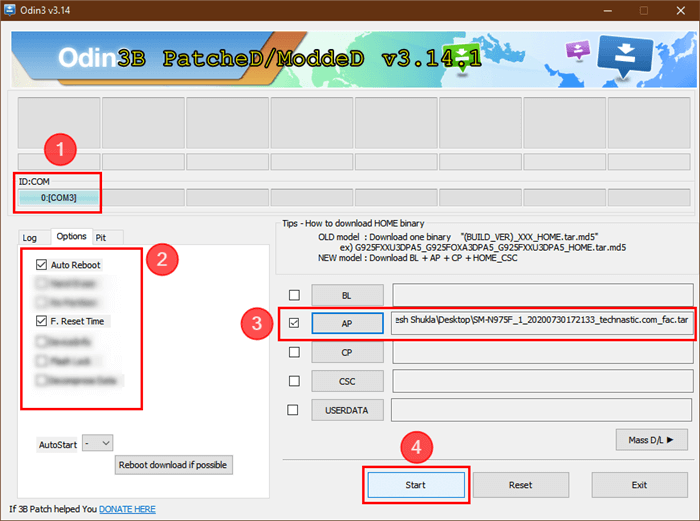
Bypass FRP on PC with ODIN
If Odin does not detect your phone, shows FAIL, or your J5 gets stuck in Download Mode, stop flashing files and troubleshoot first. Repeating random firmware attempts can make the problem worse.
Samsung J5/J5 Prime FRP Bypass without PC
No-PC methods such as Google Keyboard and TalkBack are most relevant to older Samsung J5/J5 Prime firmware, especially when users search for Samsung J5 FRP bypass 6.0.1. These methods may fail if Help, Web Search, Galaxy Store, browser access, or APK installation is blocked.
Method 3: Using Google Keyboard
Google Keyboard methods try to open Help, Web Search, or Settings from the keyboard menu during setup. This may work only on older Android builds where the required menu is still available.
Step 1. Turn on your Samsung J5/J5 Prime and connect it to Wi-Fi.
Step 2. On the Google sign-in screen, tap the email field to open the keyboard.
Step 3. Tap and hold the @ key until the keyboard settings menu appears. Choose Keyboard Settings, then tap the three-dot menu and select Help & Feedback.
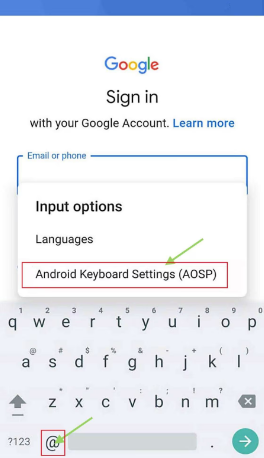
Open Keyboard Settings
Step 4. Choose a help article such as Using Google Keyboard. Long-press text on the page and check whether Web Search appears.
Step 5. If Web Search opens, search for Settings and try to open the Settings app.
Step 6. Go to About device, tap Build number several times, and check whether Developer options becomes available.
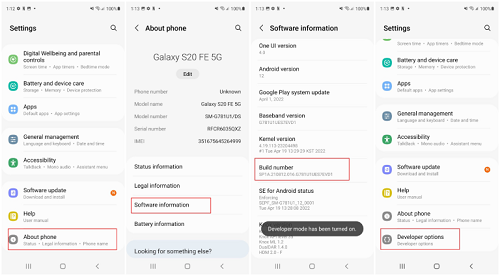
Click on Developer Options
Step 7. If OEM unlocking or reset options are available on your firmware, follow the visible on-screen options carefully. Restart the phone and test setup again.
Checkpoint: If Help & Feedback, Web Search, or Settings does not open, the Google Keyboard route is blocked on your J5/J5 Prime firmware. Do not keep repeating the same steps.
Method 4: Using TalkBack
TalkBack methods use Android accessibility menus to reach Settings, Galaxy Store, Samsung Internet, or APK paths. This route is more complicated and may not work on every Samsung J5 or J5 Prime firmware.
Step 1. On the welcome screen, press and hold two fingers to enable TalkBack if the shortcut is available.
Step 2. Draw an L gesture on the screen to open the TalkBack menu, then choose TalkBack Settings.
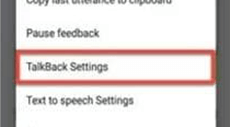
Tap on TalkBack Settings to Proceed
Step 3. Open Text-to-speech Settings, then tap the gear icon next to Samsung text-to-speech if it appears.
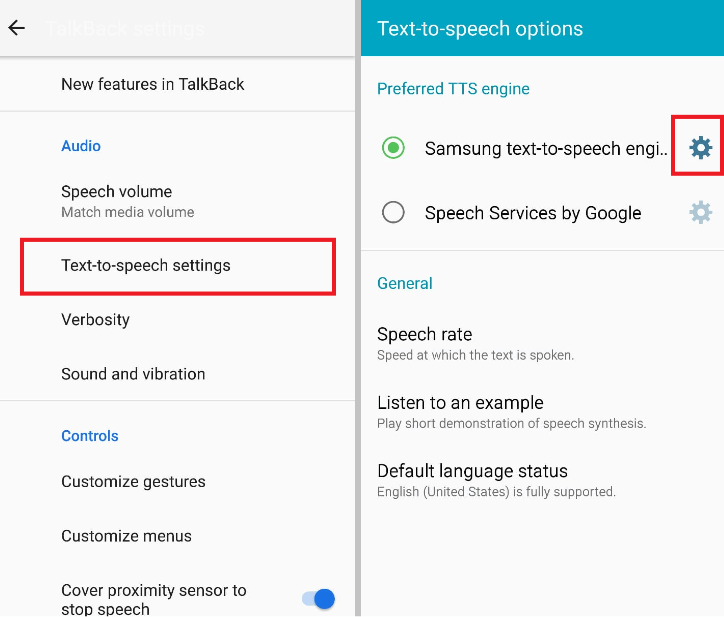
Open Samsung Text-to-Speech Settings
Step 4. Tap the version code if your firmware allows it to open Galaxy Store. Press the Home button three times to turn off TalkBack if needed.
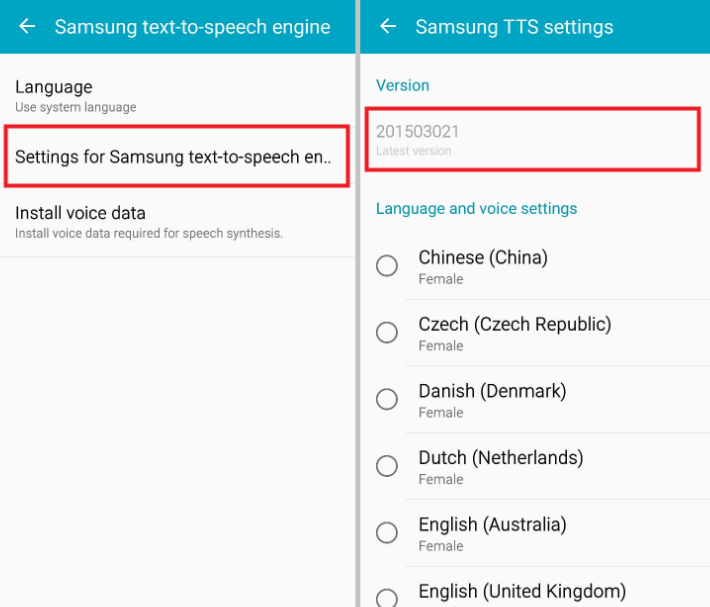
Press the Version Code
Step 5. Search for Samsung Internet Browser in Galaxy Store and open it if the route is available.
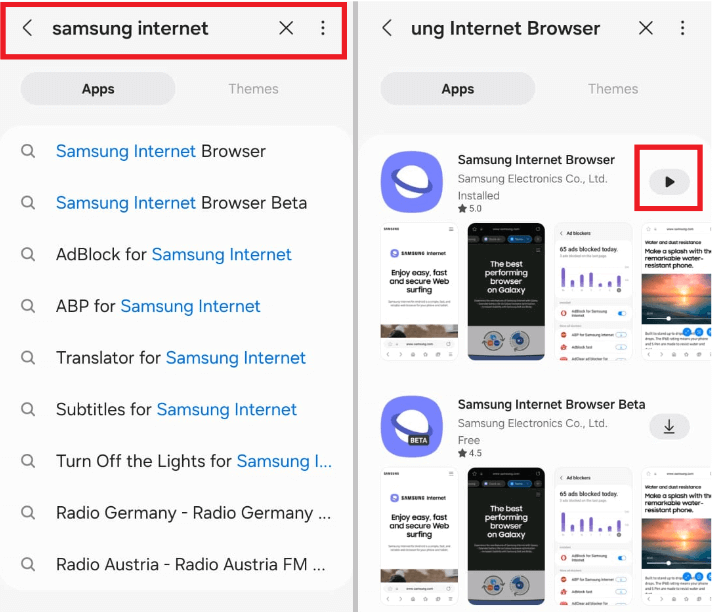
Search and Open Samsung Internet
Step 6. If you are asked to download an FRP APK or Google Account Manager file, check the source carefully. Read this FRP Bypass APK safety guide before installing random files.
Step 7. If the app opens and gives a valid account or settings path, follow the visible instructions. If the file fails to install or crashes, stop using this route.
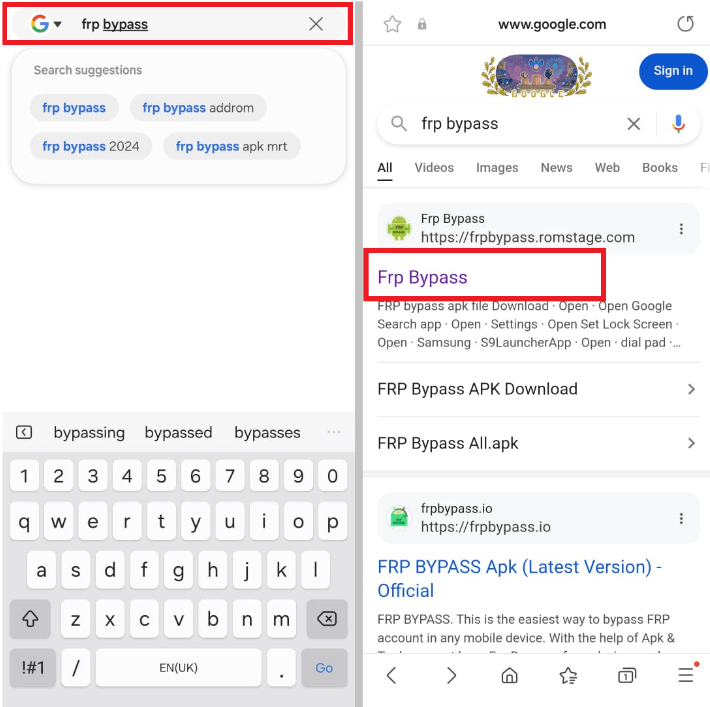
Go to the FRP Bypass Website
Safety note: Some old TalkBack tutorials ask users to download Google Account Manager APK. The wrong version can fail or create security risk, so use Google Account Manager APK guidance before trying files from unknown sources.
Samsung J5 FRP Bypass Not Working: Common Fixes
If Samsung J5 FRP bypass does not work, identify the reason before trying another method. Old J5/J5 Prime methods are highly dependent on firmware behavior.
| Problem | Likely Cause | What to Try Next |
| Google Keyboard does not open Help | The keyboard route is blocked or unavailable on this firmware. | Try TalkBack, account recovery, or a supported PC-based method. |
| Web Search does not appear | The setup screen blocks text selection or search. | Stop using the Google Keyboard route and choose another method. |
| TalkBack menu does not open | The accessibility shortcut is disabled or patched. | Use PC-based options or Google account recovery. |
| Galaxy Store or Samsung Internet will not open | The TalkBack route is incomplete on this device. | Do not download APK files blindly; switch methods. |
| FRP APK or Google Account Manager will not install | Wrong APK version, blocked unknown-source install, or damaged file. | Check Android version and avoid repeated random downloads. |
| Odin does not detect the J5 | Driver, cable, USB port, or Download Mode issue. | Install Samsung USB drivers, use another data cable, and retry Download Mode. |
| Phone still asks for Google account after reset | FRP is still active. | Recover the previous account, ask the seller, or use supported FRP guidance. |
If several methods fail, read this FRP bypass not working guide before downloading more files or repeating patched steps.
Tips to Avoid FRP Lock on Samsung J5/J5 Prime
After you regain access to the Samsung J5 or J5 Prime, take these steps to avoid being locked out again.
- Keep Google account details safe. Store your Google account email, password, recovery phone, and backup email in a secure place.
- Remove the Google account before factory reset. Go to Settings and remove your Google account before resetting or giving away the phone.
- Update recovery information. Keep your Google account recovery phone number and email current.
- Avoid unknown firmware files. Flashing unofficial or mismatched files can trigger more problems.
- Ask the seller to remove their account. For second-hand phones, the previous owner should remove the account properly before resale.
If you need more context, see this guide on how to remove a previously synced Google account from Android.
Samsung J5/J5 Prime FRP Bypass FAQs
Can Samsung J5 FRP be bypassed?
Samsung J5 FRP may be bypassed in some legitimate ownership situations, but the method depends on the exact model, Android version, security patch, and available setup menus. Official Google account recovery should be tried first.
What is the best Samsung J5 Prime FRP bypass method?
If you can recover the previous Google account, use official account recovery. If not, compare whether Google Keyboard, TalkBack, Odin, or a supported guided PC workflow fits your J5 Prime firmware and access level.
Does Samsung J5 FRP bypass 6.0.1 still work?
Some older Android 6.0.1 methods may still work if keyboard Help, Web Search, TalkBack, or browser access is available. If those menus are missing, the method is blocked on your firmware.
Can I bypass Samsung J5 FRP without a PC?
Sometimes. No-PC methods such as Google Keyboard and TalkBack are more relevant to older Samsung J5 firmware, but they often fail if setup routes are patched or restricted.
Can Odin remove FRP on Samsung J5?
Odin may help advanced users in some Samsung J5 firmware workflows, but it requires correct model-specific firmware files. Using the wrong file can cause flashing failure or device problems.
Why is TalkBack not working on Samsung J5 FRP?
TalkBack may fail because the accessibility shortcut, Help route, Galaxy Store, Samsung Internet, or APK installation path is blocked. If the required menus do not appear, switch methods.
Is FRP Bypass APK safe for Samsung J5?
APK files can be risky if downloaded from unknown sources. Some are outdated, modified, or incompatible with your Android version. Avoid suspicious APK mirrors and never enter Google credentials into untrusted apps.
Will Samsung J5 FRP bypass erase data?
FRP usually appears after a factory reset, so most local data may already be erased or inaccessible. Odin or other reset-based workflows may also affect data and settings.
Is Samsung J5 FRP bypass legal?
FRP bypass should only be used on a Samsung J5 or J5 Prime that you own or are authorized to repair. Do not use FRP tools to access someone else’s device, Google account, or data.
Conclusion
Samsung J5 and J5 Prime FRP bypass depends on the device’s Android version, firmware state, and available setup menus. On older Android 6.0.1 or Android 7 builds, Google Keyboard and TalkBack may still be worth checking if Help, Web Search, Galaxy Store, or Samsung Internet opens. If those routes are blocked, repeating the same steps will not help.
For PC methods, Odin is suitable only for advanced users who can match firmware files correctly. If you prefer guided steps and your device scenario is supported, DroidKit can be a more practical option after account recovery and old manual methods fail.
Free Download * 100% Clean & Safe
More Related Articles



Joy Taylor is a seasoned technical writer with over a decade of experience in mobile technology. At iMobie, she specializes in producing in-depth content on iOS data recovery, iPhone unlocking solutions, and iOS troubleshooting.
Product-related questions? Contact Our Support Team to Get Quick Solution >
