FRP Bypass APK Download 2026: Safety, Versions & Fixes
Searching for FRP Bypass APK download or the latest version? This guide helps you evaluate file sources, Android version fit, APK names, and “App not installed” errors before trying any FRP file on a device you own or are authorized to service.
Quick Answer: FRP Bypass APKs are third-party Android files often searched by users stuck on Google verification after a factory reset. They may still work only in limited older Android scenarios, but results depend on the phone brand, Android version, security patch, APK source, browser access, and setup path. Newer Android versions often block APK-based methods, so you should check safety and compatibility before downloading anything.
FRP, or Factory Reset Protection, is designed to protect Android devices after a reset by asking for the previously synced Google account. Use FRP-related methods only on a device you own or are authorized to service. If the phone is second-hand and still linked to the seller’s account, ask the seller to remove the account first.
This guide is not a random APK mirror. Instead, it explains what FRP Bypass APK means, how to judge “latest version” download claims, which APK names users commonly see online, why “App not installed” happens, why APK methods often fail on Android 12, 13, 14, 15, and 16, and when to use official recovery, device-specific guidance, or a supported desktop workflow.
For background, read what is FRP lock. For broader routes beyond APK files, see the Android FRP bypass guide and the best FRP bypass tools comparison.
Table of ContentsHide
What Is FRP Bypass APK?
Is FRP Bypass APK Safe to Download?
FRP Bypass APK Download: What to Check First
FRP Bypass APK Latest Version Claims
Common FRP Bypass APK Tools Users Search For
Which FRP Bypass APK Should You Check First?
Does FRP Bypass APK Still Work?
Android Version Compatibility Guide
Samsung, Xiaomi, OPPO, Vivo, and Other Brand Limits
FRP Bypass APK App Not Installed: Fixes and Limits
Why FRP Bypass APK Is Not Working
Before You Try Any FRP Method
FRP Bypass APK vs DroidKit
When to Consider a Guided FRP Tool
FAQs About FRP Bypass APK
What Is FRP Bypass APK?
An FRP Bypass APK is a third-party Android APK file that users may find online when trying to deal with Google account verification after a factory reset. These APK files are not official Google recovery tools. They are usually mentioned in older Android FRP tutorials together with Google Account Manager APK, QuickShortcutMaker, browser sign-in routes, TalkBack paths, or device-specific setup tricks.
The key point is that an APK name alone does not remove FRP. Most APK-based methods need several conditions to be true at the same time:
- The locked phone must allow browser or file access during setup.
- The APK must match the Android version and device environment.
- Unknown-source installation must not be blocked.
- The setup route used by the old method must still exist.
- The file source must be clean and trustworthy.
If any of those conditions fails, the APK may not install, may crash, or may do nothing after opening.
Is FRP Bypass APK Safe to Download?
FRP Bypass APK downloads should be treated with caution. Most files are distributed outside Google Play and may appear on third-party mirrors, forums, file-sharing pages, or copied download pages. This makes it hard to verify whether a file is original, clean, current, or compatible with your device.
| Safety Question | Why It Matters | What to Do |
| Is the source trustworthy? | Fake APK pages may use the same FRP-related names. | Avoid aggressive ads, redirects, fake buttons, and unknown mirrors. |
| Is the file really current? | Old files are often renamed as “latest version.” | Check guide date, Android version, and file origin before downloading. |
| Does the APK match your Android version? | Wrong versions often fail with install errors or crashes. | Do not install multiple unknown versions blindly. |
| Does it ask for sensitive credentials? | Untrusted apps or pages may create account risk. | Never enter Google account credentials into apps or pages you do not trust. |
| Is the device yours? | FRP protects against unauthorized access. | Use FRP methods only on your own or authorized device. |
Security note: Download APK files to a safe device first, scan them before opening, and stop if the file name, source, permissions, or behavior looks suspicious.
FRP Bypass APK Download: What to Check First
Users often search for FRP Bypass APK download, FRP APK download, or frpbypass apk because they want a direct file. Before clicking a download button, use this checklist to decide whether the APK route is even realistic.
| Download Check | Good Sign | Warning Sign |
| Android version | The guide clearly states the supported Android version. | The page says it works on all Android versions. |
| Device brand | The method is written for your exact brand or model family. | The page uses one generic APK for every Samsung, Xiaomi, OPPO, Vivo, and Motorola phone. |
| File source | The source is explained and the file can be scanned. | The download is hidden behind pop-ups, forced installers, or password archives. |
| Required setup path | The method explains how to open browser, file manager, or settings on the locked phone. | The guide skips the entry path and only says to install the APK. |
| Security patch | The guide mentions patch-level limits. | The guide only says “latest” without explaining security updates. |
If you cannot open a browser, file manager, or install prompt on the locked phone, a download link alone will not solve the FRP problem.
FRP Bypass APK Latest Version Claims
Many users search for the FRP Bypass APK latest version because they hope a newer file will work on newer Android versions. In reality, “latest version” labels on APK mirror pages are not always reliable. A file can be renamed, reposted, repackaged, or described as current even when it was designed for an older Android workflow.
| Search Term | What Users Usually Want | What to Check First |
| FRP Bypass APK latest version | A current APK that works on newer Android devices. | Check source quality, update date, Android version, and whether the method still has a valid setup path. |
| FRP Bypass APK download | A direct APK file or mirror link. | Avoid pages with excessive ads, redirects, fake buttons, or unclear file origin. |
| FRP Bypass APK old version | An older APK that matches an older Android guide. | Confirm the exact Android version and model before installing legacy APK files. |
| FRP Bypass APK for Android 11 / 12 / 13 | A version-specific APK workflow. | Check security patch level and OEM setup restrictions, not Android version alone. |
| FRP Bypass APK for Android 14 / 15 / 16 | A newer Android FRP method. | Treat APK-based routes as low-confidence unless compatibility is clearly confirmed. |
| FRP Bypass APK zip or password | A compressed or password-protected package. | Avoid unknown password archives unless the source is reliable and clearly explains the package. |
A newer file name does not guarantee better compatibility. For Android 14, Android 15, and Android 16, security patch level and setup wizard behavior usually matter more than the APK name.
Common FRP Bypass APK Tools Users Search For
Many APK names appear in FRP-related search results. These names can help you understand what you are seeing online, but they should not be treated as guaranteed solutions.
| APK or Tool Name | What It Usually Means | Main Limit |
| VNROM FRP Bypass APK | A common APK name users search for older Android workflows. | Compatibility depends on model, Android version, patch level, and source quality. |
| Google Account Manager APK | A version-sensitive Android component often mentioned in older FRP guides. | Wrong versions can fail or create risk; it is not a universal bypass tool. |
| QuickShortcutMaker | An app associated with opening Android activities in older guides. | Setup paths are often patched or blocked on newer devices. |
| Remote GSM Edge APK | An APK name found in some FRP-related download searches. | Availability, source quality, and compatibility need careful checking. |
| AddROM FRP Bypass APK | A name commonly discussed in older Android FRP APK workflows. | Usually more relevant to older Android cases and device-specific guides. |
| Technocare APK | A Samsung-focused APK name found in older FRP discussions. | Patch level and Samsung setup behavior can make older guides fail. |
For safer research, compare dedicated pages such as VNROM Bypass APK, AddROM FRP Bypass APK, Technocare APK FRP Bypass, and Remote GSM Edge APK before installing random files.
Which FRP Bypass APK Should You Check First?
There is no single APK that works for every Android phone. The best next step depends on your brand, Android version, security patch, error message, and ownership status.
| User Situation | APK / Tool Users Usually Search | Better Next Step |
| You are looking for an old Samsung APK method | Technocare APK, VNROM, QuickShortcutMaker | Check a Samsung-specific guide and compare model, One UI version, and security patch first. |
| You want a general FRP APK download | VNROM, AddROM, Remote GSM Edge APK | Compare Android version, APK source, and device compatibility before downloading anything. |
| Google Account Manager will not install | Google Account Manager APK | Check whether the package matches your Android version. Avoid multiple unknown versions. |
| You see “App not installed” | Any FRP Bypass APK | Check APK architecture, Android version, unknown-source settings, and file integrity first. |
| Your phone runs Android 14, 15, or 16 | Generic FRP Bypass APK latest version | Prefer official recovery, seller support, device-specific guidance, or a supported desktop option. |
| The phone is second-hand | Any FRP APK | Contact the seller first and ask them to remove the Google account properly. |
Does FRP Bypass APK Still Work?
FRP Bypass APK may still work in limited older Android scenarios, but it should not be described as universal or risk-free. APK-based methods often depend on older setup paths, browser access, package behavior, or device-specific conditions that can be changed by Android updates, OEM changes, and security patches.
Android Version Compatibility Guide
The table below is a practical decision guide, not an official compatibility list. Always check the exact model, Android version, security patch, APK source, and ownership status before choosing any FRP-related method.
| Android / Device Situation | APK Method Chance | Recommended Action |
| Android 6–9 on older devices | May work in limited old workflows. | Check exact model, guide date, patch level, and APK source before trying any APK method. |
| Android 10–11 | Unstable. | Some old guides may still apply, but results vary by brand, setup path, and security patch. |
| Android 12–13 | Usually unreliable. | Avoid repeating outdated APK steps if setup paths are blocked. |
| Android 14 | Very low. | Use official account recovery, seller support, or current device-specific guidance. |
| Android 15 or Android 16 | Not recommended as a default approach. | Do not rely on old APK paths without reliable compatibility confirmation. |
| Recent security patch | Very low. | Patch level can matter more than the Android version shown in an old guide. |
| Second-hand phone linked to previous owner | Not a tool problem. | Ask the seller to remove the Google account properly. |
If your query is version-specific, compare the Android 12 FRP guide, Android 13 FRP guide, or Android 14 FRP guide instead of relying on one APK file name.
Samsung, Xiaomi, OPPO, Vivo, and Other Brand Limits
FRP behavior varies by brand and setup wizard. A method discussed for one Samsung model may not work on Xiaomi, OPPO, Vivo, Motorola, Tecno, Infinix, Itel, or another Android brand.
| Brand / Situation | What to Check First | Better Next Step |
| Samsung | Exact model, One UI version, Android version, and security patch date. | Use a Samsung-specific FRP guide instead of a generic APK claim. |
| Xiaomi / Redmi / POCO | MIUI or HyperOS version, Google verification behavior, and account status. | Check brand-specific recovery or FRP guidance first. |
| OPPO / Realme | Android version, regional firmware, file access restrictions, and setup path. | Look for device-specific guidance; generic APK paths often fail. |
| Vivo | Funtouch OS version, reset history, and whether setup allows browser or file access. | Use model-specific guidance where possible. |
| Tecno / Infinix / Itel | Android Go version, security patch, and setup wizard restrictions. | Do not assume a generic APK guide applies. |
| Used or refurbished phone | Whether the previous owner’s Google account is still linked. | Contact the seller before using third-party tools. |
FRP Bypass APK App Not Installed: Fixes and Limits
“App not installed” is one of the most common errors users see when trying FRP-related APK files. The error does not always mean you only need a different download link. It often means the APK does not match your device, Android version, CPU architecture, package environment, or setup restrictions.
| Error or Symptom | Possible Cause | What to Check |
| App not installed | Android version mismatch, package conflict, or blocked installation. | Check Android version, package compatibility, and whether the guide matches your device. |
| Parse error | Damaged APK, incomplete download, or wrong CPU architecture. | Avoid unknown mirrors and do not keep downloading random copies. |
| Installation blocked | Unknown sources disabled, setup wizard restriction, or system security block. | Do not force unsafe installs. Use device-specific guidance instead. |
| Google Account Manager fails to install | Wrong Google Account Manager version for your Android version. | Match the Android version carefully and avoid multiple unknown packages. |
| APK opens then crashes | Patched setup path, incompatible app version, or unsupported device. | Stop repeating outdated APK steps and check current brand-specific guidance. |
| APK installs but does not bypass FRP | The setup path or account verification behavior may be patched. | Try official account recovery, seller support, or a supported guided option first. |
Why FRP Bypass APK Is Not Working
If an FRP Bypass APK is not working, the issue is usually compatibility, patch level, source reliability, or setup restrictions rather than one missing click. Use the checklist below before trying another APK file.
| Problem | Likely Cause | What to Do |
| App not installed | Android version mismatch, CPU architecture mismatch, blocked unknown-source installation, or damaged APK. | Do not keep installing random versions. Check device and Android compatibility first. |
| Google Account Manager will not install | The package version does not match your Android version or device environment. | Avoid downloading multiple unknown packages just to test blindly. |
| Browser or Settings cannot open | The setup path used by older guides may have been patched. | Stop repeating outdated steps and look for current device-specific guidance. |
| APK crashes or does not launch | The APK is outdated, incompatible, modified, or blocked by system restrictions. | Do not continue if the source is unclear or the app requests suspicious permissions. |
| Method worked in a video but not on your phone | The video may use a different model, Android version, patch date, or setup wizard. | Compare exact model and patch date, not only the Android version. |
| Phone runs Android 14, 15, or 16 | Newer setup paths and security patches often block legacy APK workflows. | Use official recovery, seller support, or a supported guided option first. |
| Phone is second-hand | The previous owner’s Google account may still be linked. | Ask the seller to remove the account properly before using third-party tools. |
If several FRP methods fail, read this FRP bypass not working guide before downloading more APK files.
Before You Try Any FRP Method
Use this checklist before trying an FRP Bypass APK, DroidKit, or any other FRP-related option. It helps reduce risk and prevents wasting time on a method that is unlikely to match your device.
| Checklist | What to Confirm |
| Ownership or authorization | Use FRP-related methods only on a device you own or are authorized to service. |
| Official recovery first | Try Google account recovery or proper account removal when possible. |
| Second-hand device status | If the phone is linked to a seller’s account, ask the seller to remove it. |
| Device details | Check the exact brand, model, Android version, and security patch level. |
| APK source | Avoid unknown mirrors, fake files, password-protected archives, or APKs requesting suspicious permissions. |
| Data status | FRP usually appears after a factory reset, so previous data may already be erased or inaccessible. |
If your issue involves a second-hand phone, read remove previously synced Google account from Android before trying third-party tools.
FRP Bypass APK vs DroidKit
FRP Bypass APKs and DroidKit can both appear in FRP-related searches, but they are different types of options. APK methods rely on third-party Android files and device-specific conditions. DroidKit is a guided desktop software workflow for supported Android devices.
| Feature | FRP Bypass APK | DroidKit |
| Tool type | Third-party APK-based method. | Guided desktop software. |
| Best for | Researching older APK workflows for older devices. | Following guided steps on supported Android devices. |
| Download source | Often third-party mirrors or APK pages. | Official iMobie download path. |
| Compatibility | Depends heavily on Android version, patch level, and APK source. | Depends on DroidKit’s current supported device scenarios. |
| Safety consideration | Requires caution with APK source, permissions, and version match. | Installed on computer; still requires compatibility and ownership checks. |
| When to choose | When you only need to understand whether an old APK workflow may apply. | When APK-based methods fail and your device is supported. |
When to Consider a Guided FRP Tool
If FRP Bypass APK does not work on your device, first check official account recovery, seller support, and device-specific guidance. For supported devices, DroidKit can also be considered as a guided desktop option. Check your model and Android version before starting, and use it only on a device you own or are authorized to service.
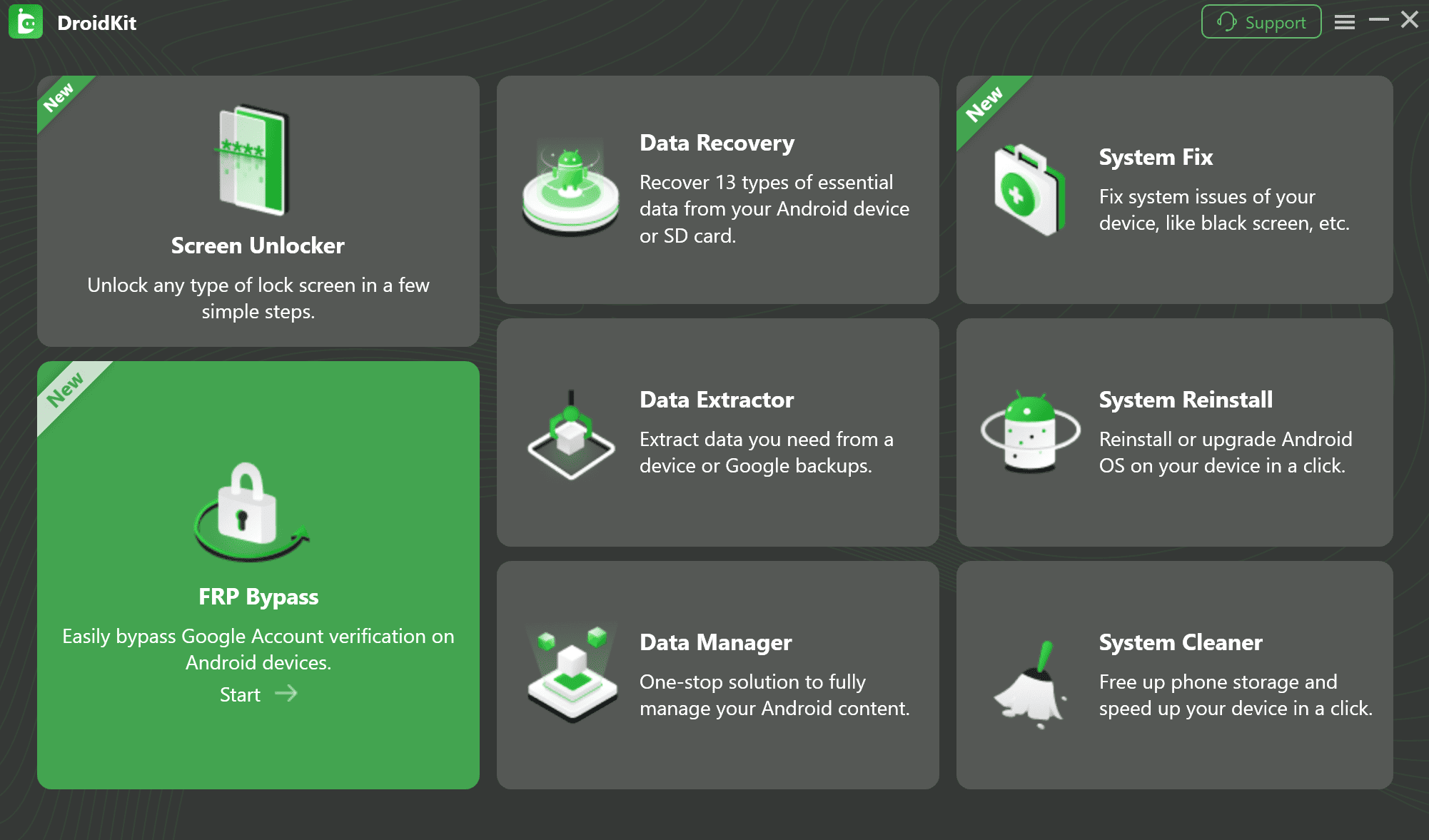
iMobie DroidKit – Guided FRP Bypass Option for Supported Android Devices
DroidKit offers a computer-based workflow with on-screen guidance for FRP bypass on supported devices. It may be useful when APK-based methods are blocked, outdated, or too difficult to match to your device.

General DroidKit workflow:
Step 1. Download and install DroidKit on your computer.
Step 2. Open DroidKit and choose the FRP Bypass mode.
Step 3. Connect your Android device and select the correct device brand and version.
Step 4. Follow the on-screen instructions for your supported device.
Step 5. Complete the process according to the guidance shown in the software.
For more FRP tool research, see the FRP tool guide.
FAQs About FRP Bypass APK
What is FRP Bypass APK?
FRP Bypass APK is a third-party Android APK often discussed for bypassing Google account verification after a factory reset. It is not an official Google or Android recovery method, so compatibility and safety vary by source, device model, Android version, and security patch.
Is FRP Bypass APK safe to download?
It can be risky because APK files may come from third-party sites, mirrors, or repackaged archives. Some files may be outdated, modified, or bundled with unwanted components. Avoid unknown sources and scan files before opening them.
Does FRP Bypass APK still work in 2026?
FRP Bypass APK may still work in limited older Android scenarios, but it should not be treated as a universal solution. Newer Android versions and recent security patches often block APK-based FRP paths.
Does FRP Bypass APK work on Android 14, Android 15, or Android 16?
Support for Android 14, Android 15, or Android 16 should not be assumed. APK-based FRP methods are usually less reliable on newer Android versions because setup paths and security behavior change over time.
Why does FRP Bypass APK say “App not installed”?
Common reasons include Android version mismatch, CPU architecture mismatch, blocked unknown-source installation, security patch restrictions, or a damaged APK file.
What is Google Account Manager APK used for in FRP bypass?
Google Account Manager APK is often mentioned in older FRP APK workflows, but it is version-sensitive and can fail or create risk if it does not match the device’s Android version.
Is VNROM APK the same as FRP Bypass APK?
VNROM APK is one of the FRP bypass APK names users commonly search for. It is not the same as every FRP bypass APK, and its compatibility depends on the device, Android version, and security patch.
Can I use FRP Bypass APK on a second-hand phone?
Only use FRP-related methods if you legally own the device or have clear authorization. If the phone is linked to the previous owner’s Google account, contact the seller first and ask them to remove the account properly.
Can FRP Bypass APK erase data?
FRP usually appears after a factory reset, so previous data may already be erased or inaccessible. Some additional reset or unlock actions may also affect device settings or data.
What is a safer alternative if FRP Bypass APK fails?
If FRP Bypass APK fails, try official account recovery, seller support, or device-specific guidance first. For supported devices, a guided desktop tool such as DroidKit may be considered after checking compatibility.
The Bottom Line
FRP Bypass APK remains a common search topic because users want a quick way to deal with Google verification after a factory reset. However, APK-based methods should be treated as limited, source-sensitive, and device-specific options rather than universal fixes. Their usefulness depends on the exact device model, Android version, security patch, setup behavior, APK source, and ownership status.
Start with official account recovery, seller support, or device-specific guidance whenever possible. If APK-based methods fail, a guided desktop option such as DroidKit may be considered for supported devices after compatibility is confirmed.
More Related Articles


Roger Smith is a senior technical writer with years of experience in providing Android solutions. He loves to help users solve various problems such as Android unlock, Android data recovery, and Android system repair.
Product-related questions? Contact Our Support Team to Get Quick Solution >
