UnlockTool Review: Download, FRP Bypass, Free Trial & Setup
UnlockTool searches usually split into four questions: where to download the current desktop client, whether the tool is actually free, how activation works, and why an FRP job fails after device connection. This guide separates free download from paid activation, explains the supported-device checkpoint, and shows what to diagnose before switching tools.
UnlockTool, also searched as Unlock Tool, is a desktop mobile servicing platform used for supported FRP operations, flashing, factory reset, screen-lock servicing, bootloader tasks, and other model-specific repair workflows.
Most users searching for UnlockTool download are really asking one of four questions: Where is the current setup file? Is UnlockTool free? Does it offer a free trial? And can it remove FRP on the exact phone in front of them?
Quick Answer: The UnlockTool client can be downloaded from the current UnlockTool file server, but downloading the setup file and using the activated service are not the same thing. Current UnlockTool resource pages list paid activation periods of 3, 6, and 12 months. Before buying activation, check the exact model, chipset, security environment, and whether the operation you need is currently supported.
For FRP specifically, UnlockTool is better suited to technicians and advanced users who already understand drivers, device modes, exact model selection, and repair logs. If your goal is only to deal with Google verification on one supported Android device, compare that workflow with a focused FRP solution before purchasing a broader technician platform.
Use mobile servicing software only on devices you own or are explicitly authorized to repair. Some repair operations may erase data or change the device software state, so confirm the exact procedure before starting.
What Is UnlockTool?
UnlockTool is a professional mobile phone servicing application. Rather than being a single-purpose FRP app, it provides different procedures according to the selected device brand, model, chipset, and available service operation.
Depending on the exact supported device, UnlockTool workflows may include:
- FRP-related servicing after a factory reset.
- Screen-lock and factory-reset operations on supported devices.
- Firmware flashing and software servicing.
- Bootloader-related procedures where available.
- Device information and diagnostic functions.
- MediaTek and Qualcomm servicing workflows.
- Brand-specific account and repair procedures where supported.
The main limitation is equally important: seeing a phone brand in the interface does not mean that every model, firmware build, security patch, or requested operation is supported.
For example, two phones sold under a similar retail name can use different chipsets or regional hardware. A procedure that works on one variant should not automatically be applied to another model code.
Who Is UnlockTool Best For?
| User Type | Fit | Reason |
| Repair technician | Strong fit | Can use model-specific service procedures and diagnose drivers, modes, and logs |
| Advanced Android user | Conditional fit | Needs to understand device identification and the requirements of the selected procedure |
| One-time FRP user | Compare options first | An activated professional servicing platform may be more than the job requires |
| Beginner looking for a free one-click tool | Weak fit | UnlockTool still requires activation, device preparation, and correct procedure selection |
What UnlockTool Can Do Depends on the Exact Phone
Compatibility should be checked at operation level, not only at brand level. A device may support firmware servicing but not the exact FRP procedure you need. Another model may require a specific connection mode before the relevant operation becomes available.
Before buying a license, write down:
- The complete phone model code.
- The chipset when known.
- The Android or firmware version.
- The current security patch when relevant.
- The exact task you need to perform.
If your goal is broader FRP tool selection rather than an UnlockTool-specific workflow, compare the available categories in the FRP bypass tool comparison. That page covers broader tool-selection intent, while this guide stays focused on UnlockTool download, activation, FRP use, and troubleshooting.
Is UnlockTool Free or Does It Have a Free Trial?
This is where search wording causes the most confusion. UnlockTool free download, UnlockTool free, and Unlock Tool free trial do not necessarily mean the same thing.
| Search Intent | What It Means in Practice |
| UnlockTool free download | Downloading the setup package does not automatically provide an activated service license |
| UnlockTool free | The current service is not presented as a permanently free professional activation |
| Unlock Tool free trial | Current activation resources advertise time-based paid plans rather than a separate permanent free tier |
| UnlockTool activation | The account needs an active service period before licensed operations can be used |
Current UnlockTool Activation Structure
Current UnlockTool resource pages list three activation durations:
- 3 months
- 6 months
- 12 months
Prices can vary across sellers and regions, so this guide does not hard-code a reseller price that may quickly become inaccurate. Check the current activation source and terms before paying.
Is There a Real UnlockTool Free Trial?
Do not confuse a downloadable installer with a free activated service period. Current UnlockTool resource pages emphasize paid 3-, 6-, and 12-month activation periods rather than a separate permanent free-use tier.
If a third-party page claims to provide unlimited premium access, lifetime activation, or a permanently free account, verify whether that offer is part of the normal UnlockTool account and activation workflow before entering credentials or running a modified package.
Should You Buy UnlockTool for One FRP Job?
That depends on the device and your longer-term use. A technician servicing many phones can evaluate the subscription as part of a broader repair workflow. A user with one Google verification problem should first confirm:
- Whether the exact device is supported.
- Whether the required FRP operation is available.
- Whether the user can complete the necessary driver and connection steps.
- Whether a focused FRP route is a better match for the situation.
For users comparing broader Google verification methods by brand or Android environment, the Android FRP bypass guide provides a more general starting point.
Is UnlockTool Safe to Download and Use?
There are two different safety questions:
- Did the software package come from the expected UnlockTool distribution path?
- Are you using the correct operation for the exact device?
A legitimate installer does not protect a phone from a wrong model selection, interrupted service procedure, mismatched firmware operation, or incorrect device mode.
Where to Download UnlockTool
The current UnlockTool file server publishes dated releases and download mirrors. Use the UnlockTool file server to review the current listed release instead of searching random file-sharing pages for filenames such as “UnlockTool cracked,” “UnlockTool premium free,” or “UnlockTool lifetime activation.”
Because releases change over time, use the newest release that is actually listed by the current distribution source rather than downloading an old archive simply because a blog title says “latest version.”
Download Safety Checklist
- Confirm the domain and download source before opening the file.
- Check that the filename and release information match the source page.
- Scan downloaded packages before running them.
- Do not disable system-wide security protection merely because an unknown archive tells you to.
- Avoid account sellers that require unnecessary access to your personal email or unrelated accounts.
- Do not use a shared or unknown account without understanding the licensing and security implications.
What If Security Software Flags the Program?
Do not automatically assume either that every alert proves malware or that every alert must be ignored. Start by confirming that the executable came from the expected source. Recheck the file and release information before changing security settings.
If a verified application needs a narrow local exception in a managed repair environment, use the smallest necessary rule. Avoid permanently disabling protection for an entire Downloads folder or a collection of unrelated repair utilities.
Operational Risk Matters Too
UnlockTool is designed around model-specific repair procedures. Common user errors include:
- Selecting a similar-looking but incorrect model.
- Starting the wrong service function.
- Using the wrong connection mode.
- Disconnecting the phone during an active operation.
- Running a firmware-related function without a recovery plan.
- Assuming one chipset workflow applies to another platform.
Use the tool only on a phone you own or are authorized to service, and back up data whenever the device condition allows it.
How to Download and Use UnlockTool for FRP
The exact FRP workflow varies by brand, chipset, and device state. The steps below describe the decision process rather than pretending that one connection sequence works on every phone.
Step 1. Check the Exact Device Before Downloading or Activating
Step 1. Find the complete model code of the locked Android phone.
Step 2. Confirm the chipset when possible.
Step 3. Check whether the exact model and required FRP-related operation are currently listed as supported.
Step 4. Read the connection and preparation requirements for that procedure before buying activation or changing the phone state.
Step 2. Download the Current UnlockTool Setup
Step 1. Open the current UnlockTool file server.
Step 2. Review the newest listed release information.
Step 3. Download the required setup package through the listed source.
Step 4. Scan the downloaded package before running it.

Download and prepare the UnlockTool desktop client.
Step 3. Install the Required Drivers
Step 1. Determine which connection mode and driver family the exact procedure requires.
Step 2. Install the appropriate driver package from the expected source.
Step 3. Restart the computer if the installation process requires it.
Step 4. Check Windows Device Manager when connecting the phone and confirm that the expected device interface appears without an unresolved driver error.
Do not keep changing FRP options when Windows cannot communicate with the phone correctly. Solve device detection first.
Step 4. Register, Activate and Log In
Step 1. Create the required UnlockTool account through the normal service workflow.
Step 2. Choose an activation period that matches your actual use.
Step 3. After activation is associated with the account, open the UnlockTool client.
Step 4. Sign in with the activated account and confirm normal access before connecting the repair device.
Step 5. Connect the Phone in the Mode Required by the Exact Procedure
Step 1. Use a stable data cable and a direct USB port.
Step 2. Follow the connection instructions for the exact brand, model, chipset, and operation.
Step 3. Confirm that UnlockTool identifies the connected phone correctly before starting the job.
Do not copy an EDL, Fastboot, Download Mode, BROM, or other low-level connection sequence from a different phone simply because the two devices share a brand name.
Step 6. Select the Exact FRP Operation
Step 1. Open the correct brand or platform section in UnlockTool.
Step 2. Select the exact model when the workflow requires model selection.
Step 3. Review the available operations for that device.
Step 4. Select the appropriate FRP-related procedure only when it is listed for the current device scenario.
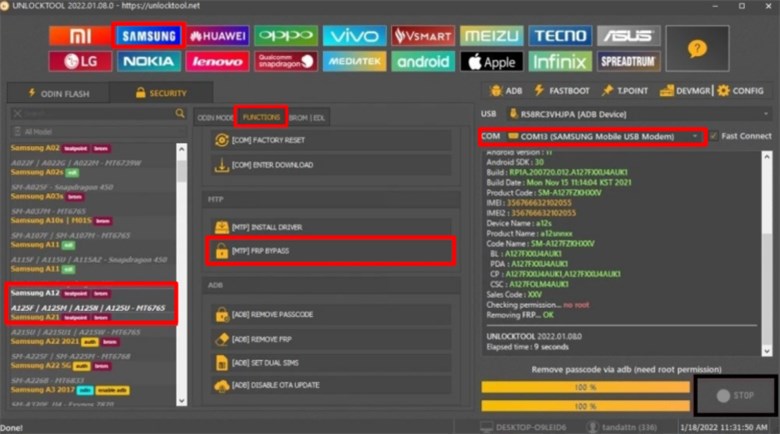
Select the device-appropriate FRP procedure in UnlockTool.
Step 7. Read the Log and Wait for the Procedure to Finish
Step 1. Keep the USB connection stable during the active operation.
Step 2. Read the progress log instead of disconnecting the device when the interface pauses.
Step 3. If the process fails, save the final error message and diagnose it before repeating the same operation.
Step 4. After successful completion, follow the tool’s restart or reconnection instructions.
A successful FRP-related operation on one phone does not prove that the same procedure applies to another model. Start each repair job with device identification and compatibility checking.
UnlockTool Not Working: Common Errors and Fixes
When UnlockTool fails, identify the stage first. A login failure, driver problem, unsupported model, and procedure failure need different fixes.
| Problem | First Check | Better Next Step |
| Login failed | Credentials, activation status, system time, and internet access | Verify the account before reinstalling the tool |
| Phone not detected | Driver, cable, USB port, and required device mode | Repair the connection layer before selecting FRP again |
| Waiting for device | Whether the phone entered the mode required by that procedure | Recheck the exact model instructions |
| FRP operation missing | Model and operation-level compatibility | Do not force a similar model workflow |
| Procedure failed | Final log lines, device state, firmware, and prerequisites | Diagnose the exact error before repeating |
| Old client behaves incorrectly | Current release listed on the file server | Update through the normal distribution route |
1. UnlockTool Login or Activation Failed
Step 1. Confirm that the username and password are correct.
Step 2. Check whether the activation period is actually associated with that account.
Step 3. Confirm that the PC date and time are correct.
Step 4. Check internet connectivity and whether local security rules are blocking the verified UnlockTool executable.
Step 5. Resolve the account problem before downloading random “pre-activated” or cracked copies.
2. UnlockTool Does Not Detect the Phone
Start with Windows detection, not the FRP button.
- Confirm the phone is in the mode required by the exact procedure.
- Check Device Manager for missing or conflicting drivers.
- Use a known-good data cable rather than a charge-only cable.
- Try a stable direct USB port.
- Recheck the exact model and chipset.
3. UnlockTool Stays on “Waiting for Device”
This usually means the software is expecting a connection state that has not been established. Recheck the device-specific preparation instructions. Do not assume that every Samsung phone uses the same mode or that every Qualcomm phone follows one universal EDL path.
4. The FRP Option Is Missing
A missing option may indicate that the selected device, software state, or current tool build does not expose the expected procedure. Confirm the exact model instead of selecting a neighboring device simply to make the button appear.
5. UnlockTool Says Procedure Failed
Read the last useful log lines before restarting the software. Check:
- Whether the exact model was selected.
- Whether the device stayed connected.
- Whether the required mode was maintained.
- Whether the phone’s firmware or security environment differs from the expected procedure.
- Whether the current UnlockTool release includes relevant support changes.
Repeating the same failed operation without understanding the log usually adds risk without changing the underlying compatibility problem.
6. The Downloaded Version Is Old
UnlockTool publishes frequent dated releases. If an old installer behaves differently from current instructions, check the current file server rather than relying on an archive reposted by an unrelated site.
7. Antivirus Blocks an Unknown UnlockTool Archive
First verify where the file came from. Do not solve an unverified download problem by permanently disabling protection. Obtain the expected release from the current distribution path, scan the package, and only then evaluate whether a narrow local rule is appropriate.
UnlockTool Alternative for a Simpler FRP Job
UnlockTool makes sense when a technician needs a broader servicing platform and is comfortable with model selection, drivers, device modes, and log-based troubleshooting. A different workflow may fit better when the user has only one supported Android device stuck at Google verification.
For supported devices, DroidKit FRP Bypass provides a guided desktop workflow with device-specific on-screen instructions.
Consider a Guided FRP Workflow When:
- Your main problem is Google verification rather than general mobile repair.
- You do not need firmware, bootloader, or technician servicing functions.
- You do not want to manually choose low-level device modes and repair operations.
- Your exact Android device route is supported by the guided FRP workflow.
How to Start the DroidKit FRP Workflow
Step 1. Download and install DroidKit on the computer, open the program, and choose FRP Bypass.
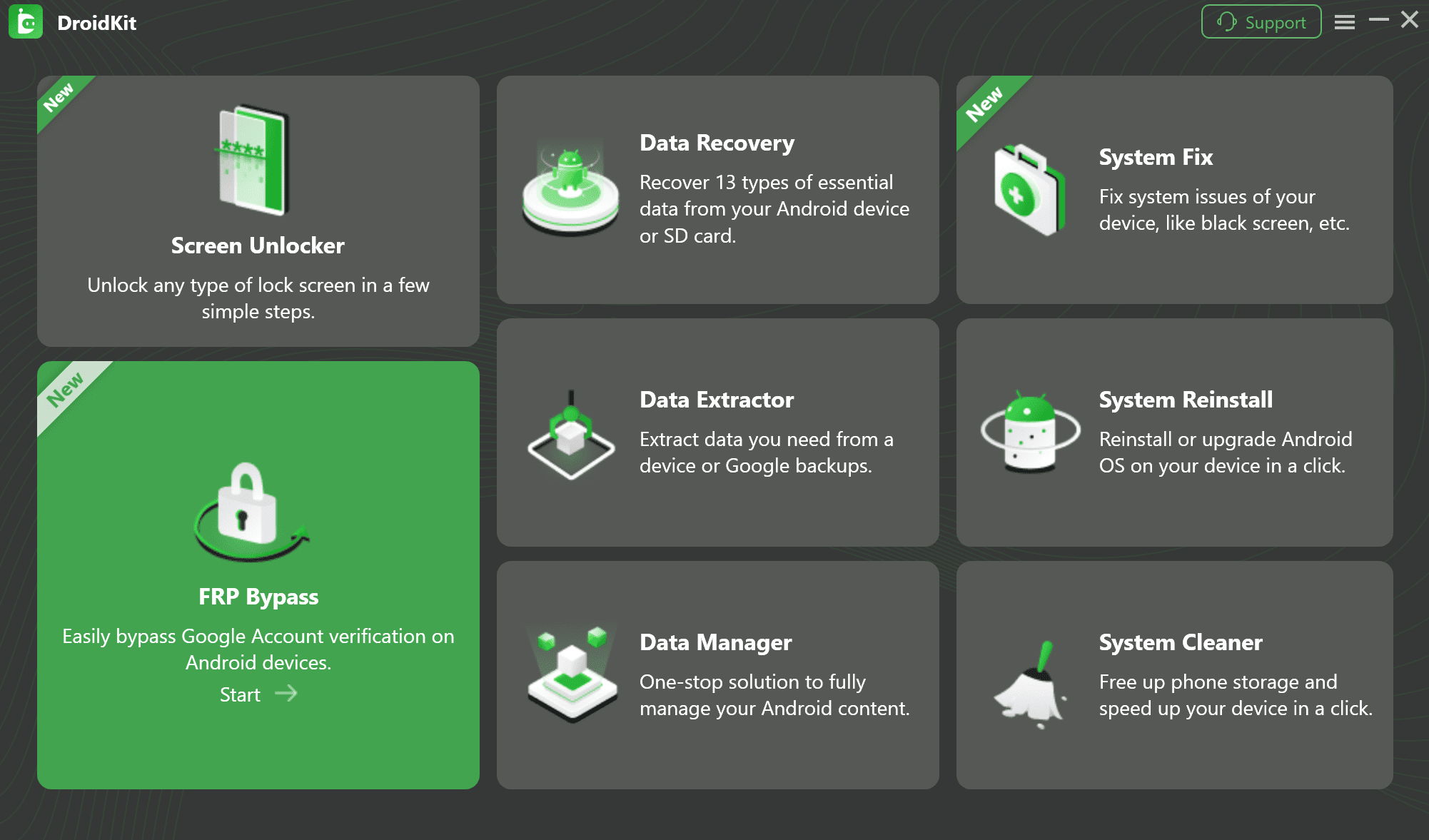
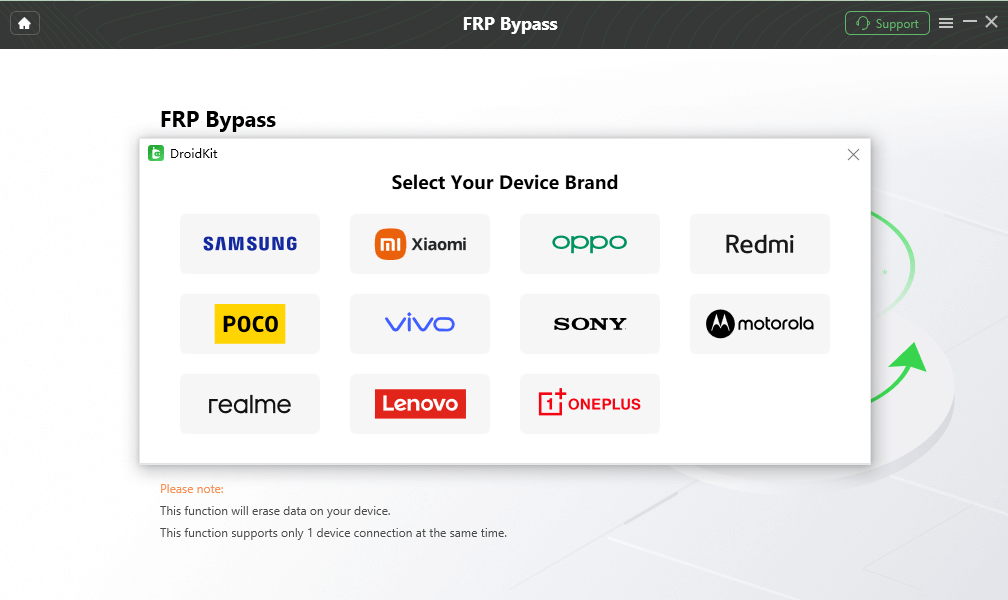
Step 2. Connect the locked Android phone with a USB data cable, click Start, and choose the correct device brand when prompted.
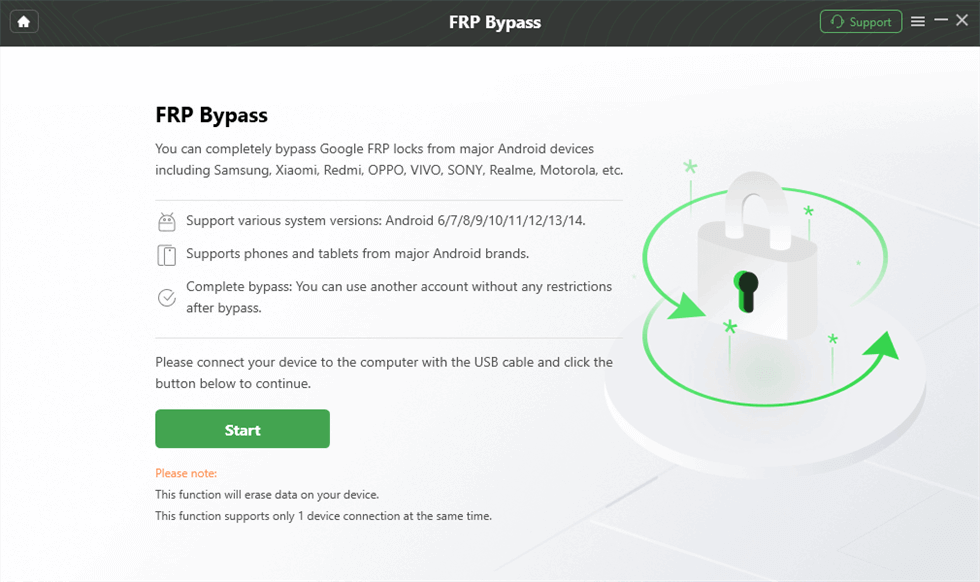
Step 3. Wait while the required configuration is prepared. Continue when the software prompts you to start the device-specific FRP workflow.
Step 4. Follow the on-screen instructions for the detected device route. The required steps can differ by brand and software environment.
Step 5. Keep the device connected until the software reports that the workflow is complete.
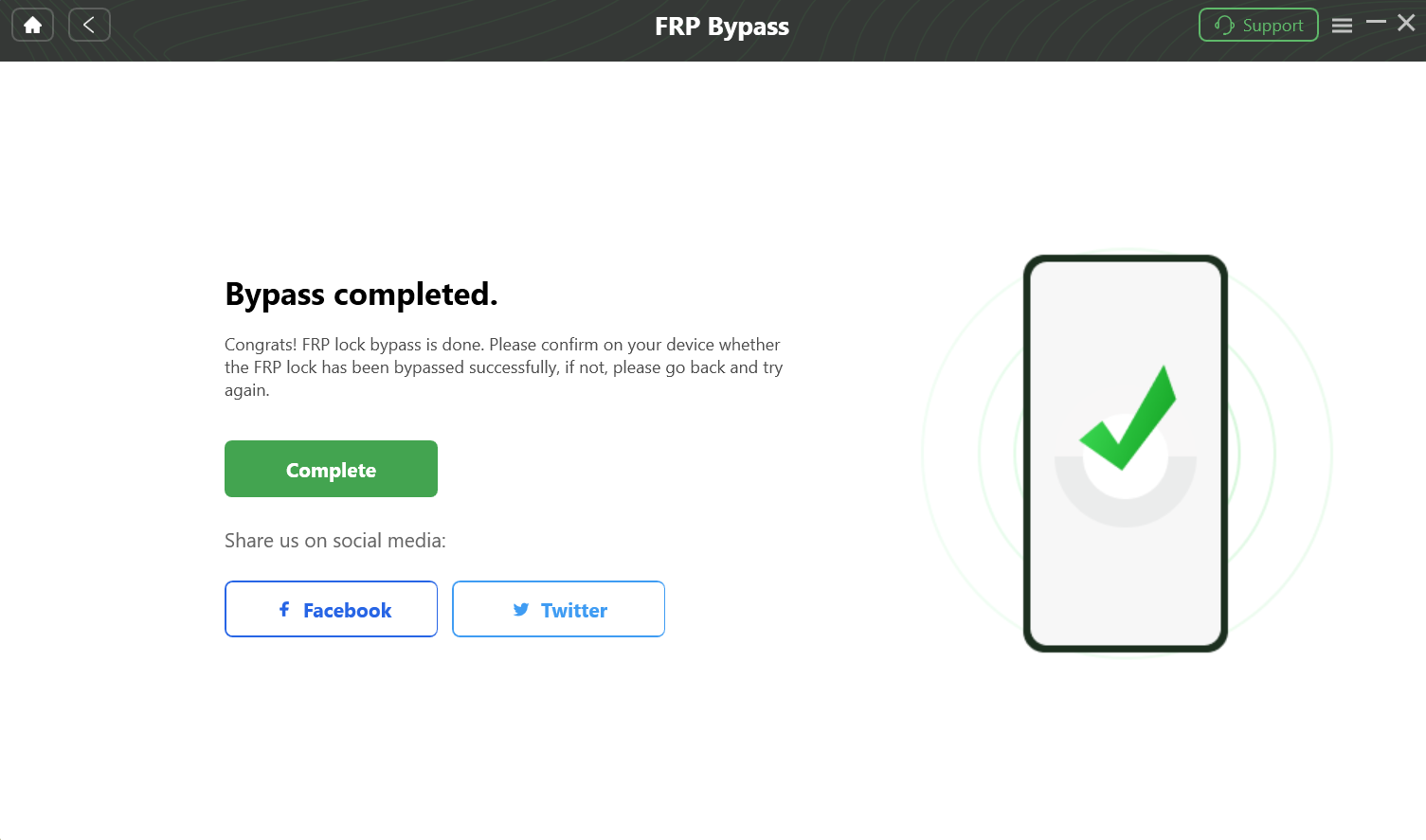
DroidKit is commercial software. Check the exact device route before purchasing. The reason to consider it is not that a consumer FRP application replaces every UnlockTool repair function; it is that a one-device FRP problem may not require a broader technician platform.
UnlockTool vs. DroidKit: Which One Fits Your Situation?
| Factor | UnlockTool | DroidKit FRP Bypass |
| Main audience | Technicians and advanced users | Users who want a guided FRP workflow for a supported device |
| Main scope | Multi-purpose mobile servicing | Focused FRP workflow within a broader Android toolkit |
| Activation model | Time-based service activation | Commercial software licensing |
| Device preparation | Can require manual drivers, mode selection, and procedure matching | Provides device-specific on-screen instructions for supported routes |
| Troubleshooting style | Technician workflow with logs and device-level diagnosis | Guided workflow focused on the supported FRP process |
| Best use case | Repair work across multiple devices and servicing categories | A supported device with a specific Google verification problem |
Choose UnlockTool When:
- You regularly service mobile devices.
- You need functions beyond FRP alone.
- You understand device drivers and service modes.
- You can diagnose procedure logs and model-level compatibility.
- A time-based activation makes sense for your workload.
Consider a Guided FRP Tool When:
- You only need to deal with a Google verification problem.
- You are not operating a repair shop.
- You prefer device-specific on-screen instructions.
- The exact device is supported by that workflow.
The better choice depends on the job, not the number of features in the software. A repair shop can benefit from a broader platform, while a one-time user may value a narrower guided process more.
FAQs About UnlockTool
Is UnlockTool free?
The setup package can be downloaded, but the professional service requires activation for licensed use. Current UnlockTool resource pages list 3-, 6-, and 12-month activation periods rather than a permanently free professional tier.
Does UnlockTool have a free trial?
Current activation resources emphasize paid time-based plans. Do not assume that a downloadable installer automatically includes a free activated trial. Check the current activation information before purchasing or entering account credentials on a third-party page.
Where can I download UnlockTool?
Use the current UnlockTool file server and review the newest listed release. Avoid downloading an old archive simply because an unrelated page labels it “latest version,” “premium free,” or “lifetime activated.”
Can UnlockTool bypass FRP?
UnlockTool provides FRP-related procedures for supported device scenarios. Availability depends on the exact model, chipset, software state, security environment, and operation available in the current tool version.
Why is UnlockTool not detecting my phone?
Check the exact device mode, USB driver, cable, USB port, and whether Windows identifies the phone correctly. Solve the detection layer before repeatedly changing FRP settings inside the tool.
Why does UnlockTool stay on Waiting for Device?
The software may be expecting a device connection state that has not been established. Recheck the exact procedure requirements for the model rather than copying a connection method from another phone.
Why does UnlockTool say Procedure Failed?
Read the final log lines, confirm the exact model, verify the required preparation steps, and check whether the firmware or security environment matches the supported procedure. Do not repeatedly run unrelated functions to work around an unexplained failure.
Is UnlockTool only for FRP bypass?
No. UnlockTool is a broader mobile servicing platform. Depending on supported devices and procedures, it can provide firmware, reset, bootloader, diagnostic, and other servicing workflows in addition to FRP-related functions.
Is UnlockTool an Android APK?
UnlockTool is distributed as desktop servicing software, not as a normal FRP APK installed directly on the locked Android phone. Be cautious when a download page presents an unrelated Android package under the UnlockTool name.
Should I disable antivirus to install UnlockTool?
Do not disable system-wide protection merely to run an unverified archive. First confirm the download source and release information, scan the package, and investigate the specific alert before changing security settings.
Which UnlockTool activation period should I choose?
Match the activation period to real usage. A technician should consider expected repair volume and whether the required devices and operations are supported. A one-time FRP user should first compare whether a narrower solution fits the job better.
Conclusion: Start with the UnlockTool Query You Actually Need to Solve
An UnlockTool download search should begin with the current file source and exact device support—not with a random archive promising free lifetime activation. A search for Unlock Tool free trial should distinguish a downloadable installer from paid service activation. And an UnlockTool FRP search should begin with model-level compatibility and the exact point where the procedure fails.
For technicians who need a broad servicing platform, UnlockTool can fit a multi-device workflow when the required models and operations are supported. For a user with one supported Google verification problem, a guided FRP route may be more appropriate than learning device modes, drivers, and repair logs for a broader professional platform.
More Related Articles


Roger Smith is a senior technical writer with years of experience in providing Android solutions. He loves to help users solve various problems such as Android unlock, Android data recovery, and Android system repair.
Product-related questions? Contact Our Support Team to Get Quick Solution >
