Vivo Y22 FRP Bypass: Unlock Tool & Manual Methods
Locked out of Vivo Y22 after reset? See when Android 14 blocks older TalkBack or ADB routes, how to choose a Vivo Y22 FRP unlock tool, and what to try before repeating failed steps.
Vivo Y22 FRP problems often show up after a reset, especially when the phone has been updated beyond the older TalkBack or ADB workflows. Many users search for a Vivo Y22 FRP unlock tool because the no-PC screens no longer match the older steps.
Below, you can compare a guided PC-based method, the TalkBack route for older firmware, ADB limitations, and the Android 14 warning signs that tell you a manual method is likely patched.
Table of ContentsHide
Quick Answer: Which Vivo Y22 FRP Bypass Method Should You Use?
Choose the Right Vivo Y22 FRP Bypass Method
Need More Vivo FRP Methods?
Vivo Y22 Specs and FRP Compatibility
Why Vivo Y22 Gets FRP Locked After Reset
Method 1: Vivo Y22 FRP Unlock Tool with DroidKit
Method 2: TalkBack and Google Settings Method for Vivo Y22
Method 3: Vivo Y22 FRP Bypass with ADB Commands
What If Vivo Y22 FRP Bypass Does Not Work?
Vivo Y22 FRP Bypass FAQs
Conclusion: Best Path for Vivo Y22 FRP Bypass
Quick Answer: Which Vivo Y22 FRP Bypass Method Should You Use?
The best Vivo Y22 FRP bypass method depends on your Android version, Funtouch OS patch, and whether you have access to a computer.
- Need a Vivo Y22 FRP unlock tool? Use a guided PC-based tool such as DroidKit when manual methods are blocked or too technical.
- Want to try without PC first? The TalkBack and Google Settings route may work on some older firmware, but it often fails on updated Vivo Y22 devices.
- Trying ADB commands? ADB usually works only if USB debugging was already enabled and your computer was authorized before the phone became locked.
- Using Android 14 or newer patches? Manual methods are less reliable, so a PC-based FRP workflow is usually more practical.
If TalkBack does not open Google Settings or your Vivo Y22 is on Android 14, use a guided PC-based FRP tool instead of repeating patched steps.
Choose the Right Vivo Y22 FRP Bypass Method
Use this table to choose the method that best fits your Vivo Y22 situation.
| Method | PC Needed? | Best For | Main Limitation |
| DroidKit FRP Bypass | Yes | Users who need a guided Vivo Y22 FRP unlock tool | Requires a Windows or Mac computer |
| TalkBack and Google Settings | No | Older Vivo Y22 firmware where accessibility routes still work | Often patched on newer Funtouch OS versions |
| ADB Commands | Yes | Advanced users with USB debugging already enabled | Does not work if USB debugging was not enabled before lockout |
| Google Account Recovery | No | Users who can recover the original Google account | Requires access to recovery email or phone number |
If you are comparing several FRP tools before choosing one, this best FRP bypass tools guide can help you evaluate tool-based options.
Need More Vivo FRP Methods?
This page focuses on the Vivo Y22. For other Vivo models or Vivo methods based on Android versions, start with the main Vivo FRP bypass guide. If your issue is the general Google verification screen after reset, see this guide to Google verification after factory reset.
Vivo Y22 Specs and FRP Compatibility
The Vivo Y22 was launched with Android 12 and Funtouch OS 12 in many regions. Depending on updates and regional firmware, some users may now see Android 13 or Android 14-related behavior, which can affect whether old TalkBack or ADB routes still work.
| Category | Vivo Y22 Specifications |
| Launch Date | September 2022 |
| Operating System | Android 12, Funtouch OS 12 |
| Display | 6.55-inch IPS LCD, 720 x 1612 pixels |
| Chipset | MediaTek Helio G85 |
| RAM / Storage | 4GB / 6GB RAM, 64GB / 128GB storage |
| Battery | 5000 mAh, 18W charging |
| FRP Note | Manual bypass methods depend heavily on Android version and security patch. |
Why Vivo Y22 Gets FRP Locked After Reset
FRP is triggered when a Google account was synced on your Vivo Y22 before a reset. After the reset, the phone may ask you to verify the previous Google account before setup can continue.
Common situations include:
- You forgot the Google account or password used on the Vivo Y22.
- You bought a used Vivo Y22 and the previous owner did not remove the Google account.
- You reset the phone from Recovery Mode before removing the Google account from Settings.
- You changed the Google password recently and Google temporarily blocks verification on the reset phone.
The safest option is to sign in with the original Google account or recover it through Google Account Recovery. If that is not possible, compare the methods below.
Method 1: Vivo Y22 FRP Unlock Tool with DroidKit
DroidKit FRP Bypass is a PC-based workflow that provides guided steps for supported Android FRP scenarios. It can be useful when your Vivo Y22 is stuck on Google verification and manual methods such as TalkBack or ADB are unavailable.
Use DroidKit if:
- You need a guided Vivo Y22 FRP unlock tool.
- Your Vivo Y22 is on Android 14 or a newer Funtouch OS patch.
- TalkBack does not open Google Settings or Help & Feedback.
- ADB cannot detect the phone because USB debugging was not enabled before lockout.
- You have a Windows PC or Mac and a stable USB cable.
Learn more about DroidKit FRP Bypass before starting the process.
Free Download * 100% Clean & Safe
Steps to Bypass Vivo Y22 FRP with DroidKit
Step 1. Download and install DroidKit on your computer. Launch it and choose FRP Bypass.

Choose FRP Bypass Mode
Step 2. Connect your Vivo Y22 to the computer with a USB cable, then click Start.
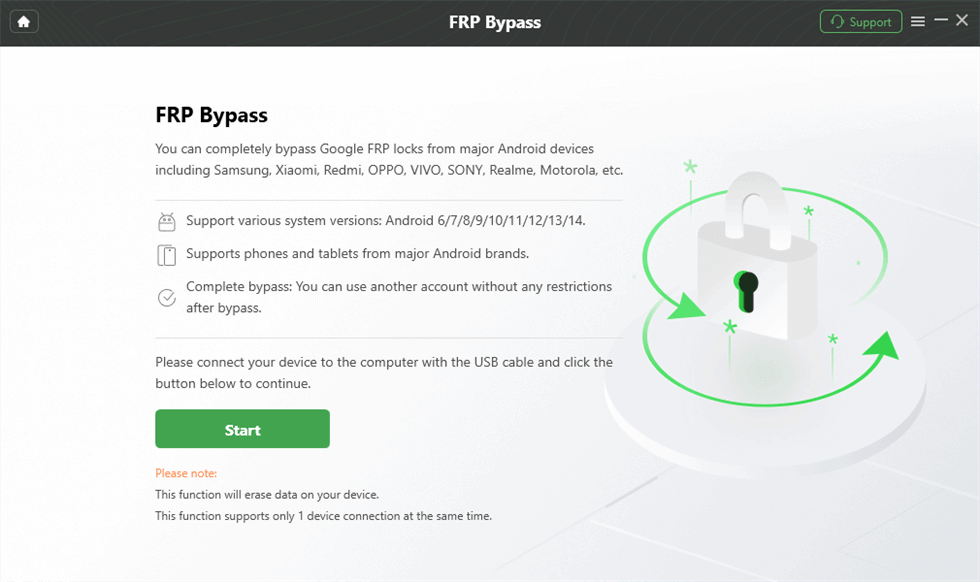
Connect the Device and Click Start
Step 3. Wait while DroidKit prepares the configuration file for your device. When it is ready, click Start to Bypass.
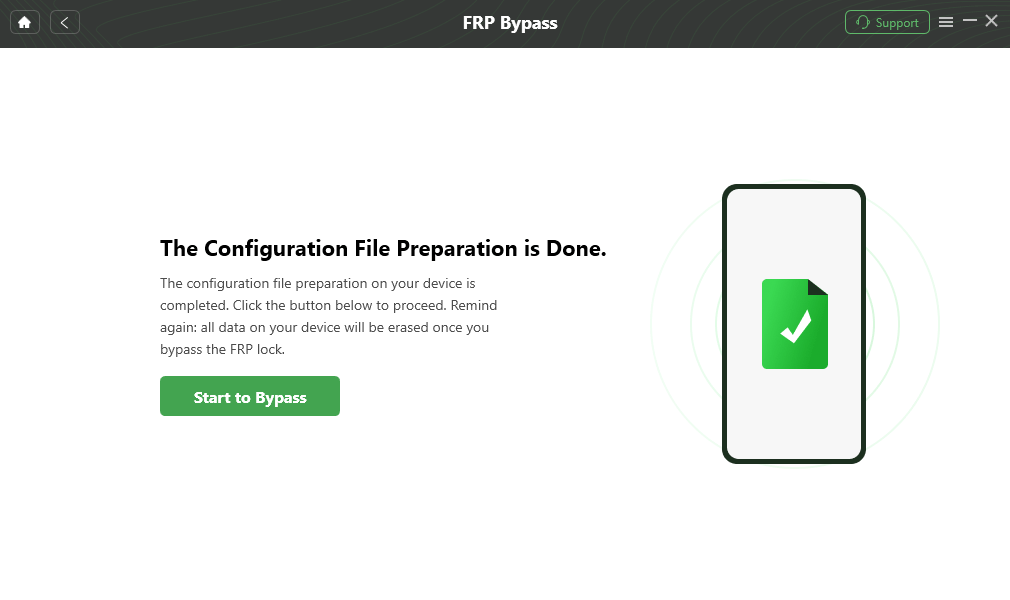
Click Start to Bypass
Step 4. Select the device system version or model option according to the on-screen interface, then click Next.
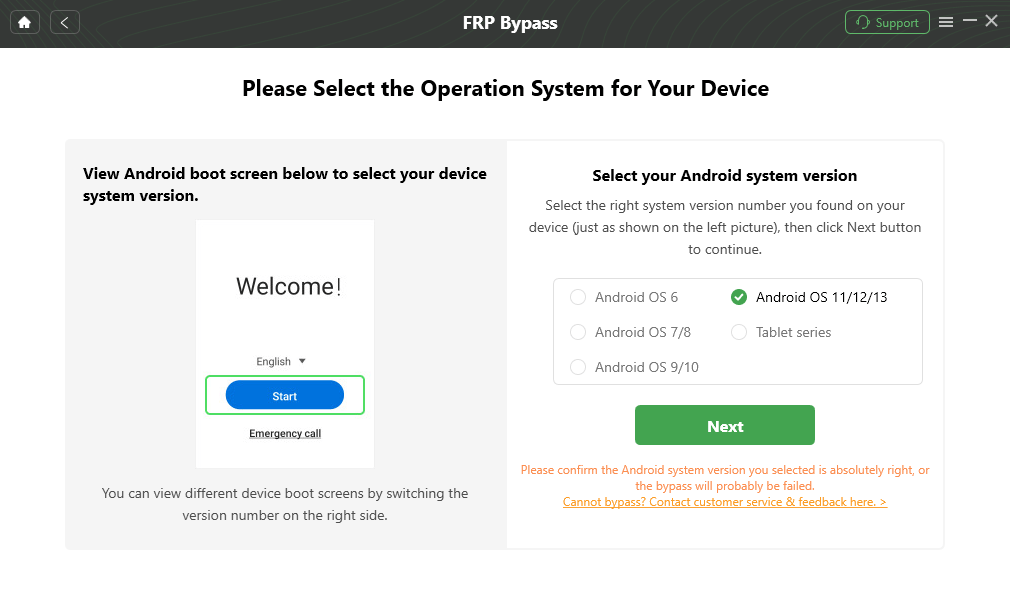
Choose System Version
Step 5. Follow the on-screen directions to complete the corresponding settings. The exact steps may vary by Android version and device status.
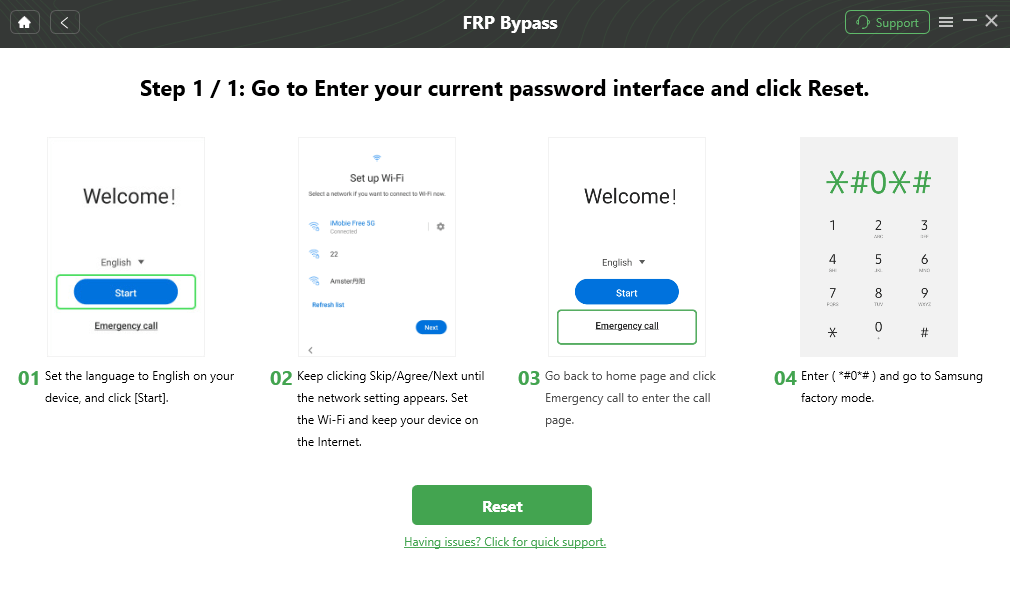
Complete Corresponding Settings
Step 6. Wait for the process to finish. Your Vivo Y22 may restart, and you can continue setup after the FRP process completes.

FRP Bypass Complete
Method 2: TalkBack and Google Settings Method for Vivo Y22
The TalkBack and Google Settings method is a no-PC route that may work on older Vivo Y22 firmware. It tries to reach Google Settings or system settings through accessibility menus.
Compatibility Note: This method is often blocked on newer Android 13/14 or updated Funtouch OS builds. Try it only once. If the screens do not match, switch methods.
Step 1. Connect your Vivo Y22 to a Wi-Fi network from the setup screen.
Step 2. On the welcome screen, press and hold Volume Up + Volume Down to activate TalkBack if the shortcut is available.
Step 3. Draw an L gesture on the screen to open the TalkBack menu.
Step 4. Open TalkBack Settings, then try to access Help & Feedback.
Step 5. If Help & Feedback opens, search for Voice Access or Google Settings-related help content.
Step 6. Try to open Google Settings or system Settings from the available path.
Step 7. If Settings opens, go to reset or account settings as shown on your device and follow the visible options.
If Help & Feedback, Google Settings, or Settings does not open, the TalkBack route is likely patched on your Vivo Y22. Do not keep repeating the same gestures.
Method 3: Vivo Y22 FRP Bypass with ADB Commands
ADB is an advanced method and is not a universal Vivo Y22 FRP bypass solution. It works only in limited situations, usually when USB debugging was already enabled before the phone became locked and the computer was already authorized.
Important: If your Vivo Y22 is already locked and USB debugging was not enabled before the reset, ADB commands will usually not detect or control the phone.
Step 1. Install the Android SDK Platform Tools on your computer.
Step 2. Connect your Vivo Y22 to the computer with a USB cable.
Step 3. Open Command Prompt or Terminal on the computer.
Step 4. Type the following command to check whether the phone is detected:
adb devices
Step 5. If the device is detected and authorized, advanced users may try FRP-related ADB commands only when they understand the risk.
Step 6. Restart the phone and check whether the setup screen changes.
If the command shows no device, unauthorized device, or permission denied, ADB is not suitable for your Vivo Y22 situation. Use another method instead.
What If Vivo Y22 FRP Bypass Does Not Work?
If a method fails, use the table below to identify the likely cause and the next practical step.
| Problem | Likely Reason | What to Try Next |
| TalkBack does not open Help & Feedback | The accessibility route is patched | Use a PC-based FRP workflow |
| Google Settings cannot be opened | Funtouch OS blocks setup access | Stop repeating the TalkBack path and switch methods |
| ADB does not detect Vivo Y22 | USB debugging was not enabled or computer was not authorized | ADB will not work; use another FRP method |
| Phone still asks for the previous Google account | FRP is still active after reset | Recover the Google account or use a supported FRP bypass method |
| Android 14 method does not match the screen | Security patch changed the setup flow | Use a guided Vivo Y22 FRP unlock tool |
If TalkBack, Google Settings, or ADB does not work, stop repeating the same route and switch to a guided Vivo FRP unlock tool.
Vivo Y22 FRP Bypass FAQs
What is the best Vivo Y22 FRP unlock tool?
The best tool depends on your Android version and security patch. DroidKit FRP Bypass is a guided PC-based option when manual Vivo Y22 FRP bypass methods are blocked or too technical.
Can I bypass Vivo Y22 FRP without a PC?
Sometimes. The TalkBack and Google Settings method may work on older firmware, but it often fails on updated Android or Funtouch OS versions. If the menus do not match, use another method.
Can I bypass Vivo Y22 FRP on Android 14?
Android 14 and newer security patches usually block older manual methods. A PC-based FRP workflow is generally more practical than repeating TalkBack or ADB steps.
Does ADB remove FRP from Vivo Y22?
ADB works only in limited situations. USB debugging must already be enabled and the computer must be authorized. If the phone is locked and ADB was not previously set up, this method usually will not work.
Will bypassing Vivo Y22 FRP erase data?
Some FRP bypass methods may erase data or require reset steps. If the phone was already factory reset, most local data may already be unavailable.
Why does Vivo Y22 still ask for the previous Google account after reset?
This happens because FRP is active. The phone expects the Google account that was synced before the reset. You can recover the account, ask the previous owner to remove it, or use a suitable FRP bypass method on a device you own.
Is there a free Vivo Y22 FRP unlock tool?
Some manual methods are free, such as TalkBack or ADB, but they often fail on updated firmware. Free routes may also require more technical steps and do not work in every case.
Conclusion: Best Path for Vivo Y22 FRP Bypass
Vivo Y22 FRP bypass depends on your Android version, Funtouch OS patch, and whether USB debugging or manual accessibility routes are still available. If you can recover the original Google account, that is the safest first option.
If TalkBack and Google Settings do not open, or ADB cannot detect the phone, do not repeat the same route. For users searching for a Vivo Y22 FRP unlock tool, DroidKit offers a guided PC-based workflow for supported FRP scenarios.
Free Download * 100% Clean & Safe
More Related Articles



Joy Taylor is a seasoned technical writer with over a decade of experience in mobile technology. At iMobie, she specializes in producing in-depth content on iOS data recovery, iPhone unlocking solutions, and iOS troubleshooting.
Product-related questions? Contact Our Support Team to Get Quick Solution >
