Why Does iPhone Say “iPhone Unavailable”? Security Lockout Explained
iPhone Unavailable appears after too many wrong passcode attempts, triggering a security lockout iPhone to protect data. If you know the passcode, wait for the timer. If not, recovery requires erasing the device and restoring from backup using iCloud, computer tools, or guided unlocking solutions for access again safely.
“iPhone Unavailable” Means iOS Is Blocking Access After Failed Passcodes
“iPhone Unavailable” usually appears after too many wrong passcode attempts. It means iOS is protecting the device by limiting access instead of allowing unlimited guesses.
Your next step depends on what the screen offers. Some devices show a waiting period. Some offer an erase option. Some require recovery through a computer. If you are not sure of the passcode, stop guessing. More wrong attempts can make the lockout worse and may lead to a situation where erasing the device is the only practical path.
Start with these checks:
- Does the screen show a timer?
- Does it show Erase iPhone or a similar option?
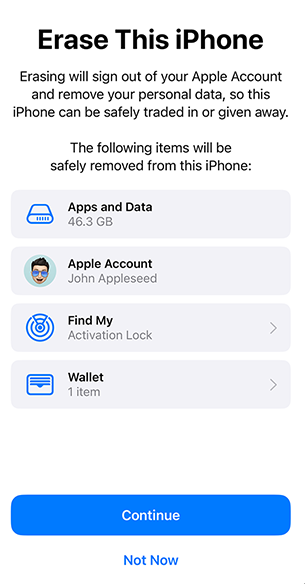
- Do you remember the Apple Account used on the device?
- Do you have an iCloud or computer backup?
- Can you connect the iPhone to a trusted computer?
Why iOS Triggers Security Lockout
The iPhone passcode is connected to device encryption. It is not just a visual lock screen. When the wrong passcode is entered repeatedly, iOS treats it as a possible attack and adds restrictions to slow down guessing.
This can happen because:
- You forgot the passcode.
- A child or someone else entered wrong attempts.
- A damaged screen or ghost touch entered numbers automatically.
- Face ID or Touch ID failed, and the device required the passcode.
- You changed the passcode recently and cannot remember the new one.
Security Lockout is designed to protect the data on the device. That protection is also why a true forgottenpasscode recovery normally involves erasing the iPhone rather than simply revealing the old passcode.
Can You Wait Out “iPhone Unavailable”?
Sometimes you can wait, but only if the screen shows a timer and you still know the correct passcode. When the timer ends, enter the correct passcode once carefully.
If the screen does not offer a timer, or if you no longer know the passcode, waiting will not magically unlock the iPhone. At that point, your choices usually move toward erase or restore options.
A safe decision rule:
| What you see | What to do |
| Timer shown and you know the passcode | Wait, then enter it carefully |
| Timer shown but you do not know the passcode | Stop guessing and prepare for recovery |
| No timer, erase option shown | Consider erase if you know the Apple Account and have backup expectations |
| No usable option | Use Finder/iTunes recovery or a trusted screen unlock workflow |
Do not try to change the clock, force random combinations, or keep restarting as a “fix.” Those actions do not solve the underlying passcode problem.
Official Recovery Options
The official path depends on the iPhone model, iOS version, and what the screen currently offers. Common paths include using an onscreen erase option, using Finder or iTunes on a computer, or using accountbased recovery where available.
Before erasing, check your backup situation. Removing a forgotten screen passcode normally erases the device. Afterward, you can restore from iCloud or a computer backup if one exists.
Use this checklist:
1. Stop entering guesses.
2. Check whether you have an iCloud or local computer backup.
3. Confirm you know the Apple Account used on the iPhone.
4. Try the onscreen erase option if it appears and you are ready for data erase.
5. Use Finder or iTunes recovery if the onscreen option is not available.
6. Restore from backup after setup if you have one.
When AnyUnlock Can Help With Screen Lockout
If official erase or restore steps feel too complicated, AnyUnlock can provide a guided desktop workflow for removing an iPhone screen lock. This is useful when you want a more straightforward process instead of manually navigating recovery steps.
At a high level, the workflow is:
1. Install AnyUnlock on a Windows or Mac computer.
2. Connect the locked iPhone.
3. Choose the screen unlock module.
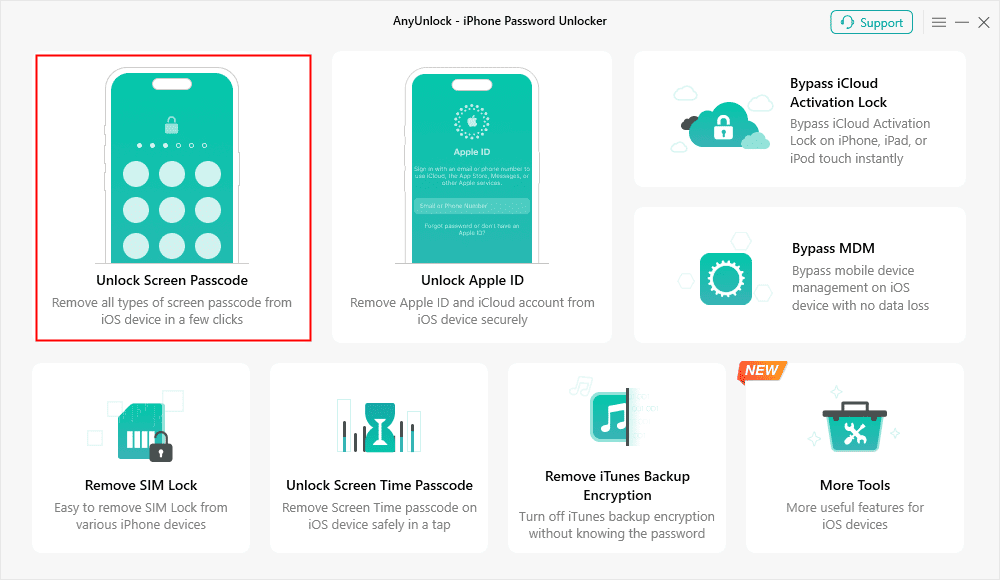
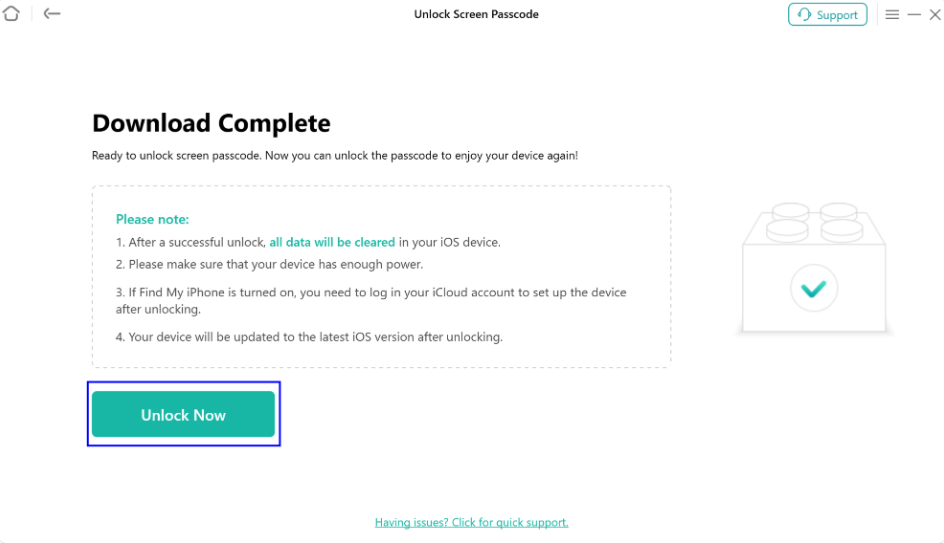
4. Review the warning that screen passcode removal will erase device data.
5. Follow the guided steps to remove the lock.
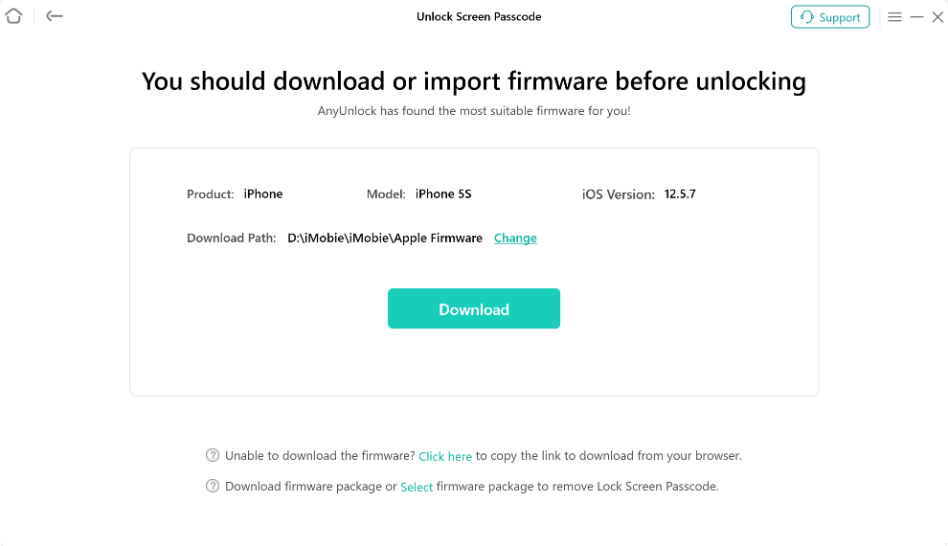
6. Set up the iPhone again and restore from backup if available.

AnyUnlock – One-stop iOS Unlocker
What if you get locked out of your iPhone? Or what if you forgot your Apple ID and its password? No worries, AnyUnlock unlocks any iOS lock for you with 1 click. No technology required. Only 3 steps.
The important limitation is data loss. Any technical method that removes a forgotten iPhone screen passcode must reset the device access state, which erases local data. AnyUnlock does not recover the old screen passcode or preserve unbackedup data during screen lock removal.
Common Mistakes to Avoid
Security Lockout is stressful, but rushed attempts can make recovery harder.
Avoid these mistakes:
- Continuing to guess: If you are unsure, stop.
- Assuming Apple ID recovery unlocks the passcode: Apple Account recovery and screen passcode recovery are different.
- Ignoring backups: Your backup determines what data can be restored after erase.
- Trusting “no data loss” screen unlock promises: Forgotten screen passcode removal normally requires erasing the iPhone.
- Disconnecting during restore or unlock: Keep the cable connected until the process finishes.
FAQ
Why does my iPhone say iPhone Unavailable?
It usually means too many wrong passcode attempts have been entered, so iOS is limiting access to protect the device.
Can I unlock iPhone Unavailable without erasing data?
If you know the correct passcode and the timer ends, you may be able to unlock normally. If you forgot the passcode, recovery usually requires erasing the device.
How long do I have to wait?
Follow the timer shown on your screen. If no timer or unlock option is available, waiting alone usually will not solve the problem.
Is iPhone Unavailable the same as Activation Lock?
No. iPhone Unavailable is a passcode lockout. Activation Lock appears during setup or activation and is tied to Find My and Apple Account verification.
Can AnyUnlock fix iPhone Unavailable?
AnyUnlock can help remove the screen lock through a guided desktop workflow, but removing a forgotten screen passcode erases the device. Restore from backup afterward if you have one.
What should I do if my screen is broken and entered wrong passcodes?
Stop using the damaged screen if it is causing ghost touches. You may need screen repair first, then use an erase or restore path depending on the device state.
Final Takeaway
“iPhone Unavailable” is a passcode security lockout, not a random error. If a timer appears and you know the passcode, wait and enter it carefully. If you forgot the passcode, prepare for an erasebased recovery path and restore from backup if possible.

AnyUnlock – Unlock Any iOS Password
Quickly and easily unlock your iPhone/iPad/iPod touch from various locks such as screen lock, MDM lock, iCloud activation lock, Apple ID, iTunes backup password, and more.
Free Download for all windows & 100% safe
Free Download for all mac & 100% safe
Free Download 100% Clean & Safe
More Related Articles



Wanda Norris is a junior author in iMobie specializing in iOS tips and solutions. She keeps a close eye on every iOS update to provide practical, easy-to-understand guides that help users solve problems and master their Apple devices.
Product-related questions? Contact Our Support Team to Get Quick Solution >
