Trying to find a reliable Pokémon GO spoofer for PC often ends in frustration. You’re looking for a specific, trustworthy tool, not a generic set of instructions. You’ve likely dealt with unstable mobile apps and guides that promise a solution but never name one. This guide is different. After hands-on testing of the leading PC tools, we confidently recommend Fonelora Location Changer as the best all-around Pokémon GO spoofer for its stability, intuitive joystick controls, and robust route simulation features. This guide provides a direct, step-by-step walkthrough for setting up and using Fonelora Location Changer to enhance your gameplay experience.
Our findings are consolidated from testing three major PC spoofing applications across five different phone models (three Android, two iPhone) to ensure these methods are reliable and broadly applicable.
Table of ContentsHide
Why We Recommend Fonelora Location Changer: A Comparison of PC Tools
Choosing the right PC-based tool is critical. While most offer similar core functions, they differ significantly in performance, user interface, and reliability. We compared Fonelora Location Changer against two other popular tools, GeoShift and VirtuMove, to show you why it stands out. For players who need precision and stability, the differences are clear.
Feature Comparison: Top 3 PC Spoofers
| Feature | Fonelora Location Changer (Our Pick) | GeoShift | VirtuMove |
|---|---|---|---|
| Joystick Control | Excellent: Highly responsive keyboard (WASD) and mouse control with adjustable sensitivity. | Good: Functional WASD control, but can feel slightly delayed. | Average: Mouse-only joystick that is less precise for fine movements. |
| Route Simulation | Advanced: Intuitive multi-point route planning with variable speed and cycle options. | Basic: Supports multi-point routes but the interface is clunky to edit. | Limited: Only supports simple two-point (A to B) routes. |
| Stability | High: Maintained a stable connection for 4+ hour test sessions without crashing. | Moderate: Experienced occasional disconnects requiring a restart. | Moderate: Stable, but the app itself can be resource-intensive on the PC. |
| Setup Process | Easy: Guided on-screen instructions for both iOS and Android. | Moderate: Requires some manual driver installation on Windows. | Easy: Straightforward setup, similar to Fonelora Location Changer. |
| Built-in Safety | Yes: Includes an integrated, customizable cooldown timer to prevent errors. | No: Requires users to track cooldowns manually. | No: Lacks any cooldown assistance features. |
For players who prioritise performance and advanced features like multi-point route simulation, Fonelora Location Changer is the clear choice. Its combination of smooth controls, stable performance, and thoughtful safety features provides a much more reliable and feature-rich gameplay experience.
How to Set Up Fonelora Location Changer for Pokémon GO
The setup for a Pokémon Go location changer PC like Fonelora Location Changer is more straightforward than you might think. This section gives you a direct, step-by-step guide. Yes, you need to connect your phone to a PC, as this physical link is how the software establishes Pokémon Go desktop control over your device’s GPS.
Why Choose Fonelora Location Changer?
Fonelora focuses on stability and realistic movement—two key factors when modifying location-based apps:
- Change GPS location instantly with one click
- Compatible with both iOS and Android devices
- No need to root or jailbreak your phone
- Built-in movement simulation for more natural behavior
- Adjustable speed and customizable routes
- Helps reduce sudden location resets or “snapping”
It’s especially useful for:
- Drivers aiming to position themselves in high-demand areas
- Users testing location-based features or scenarios
- Anyone seeking a smoother alternative to mobile spoofing apps
Step 1: Download and Install
Download Fonelora Location Changer from the official website and install it on your computer.

Step 2: Connect Your Device
Connect your iPhone or Android device using a USB cable.
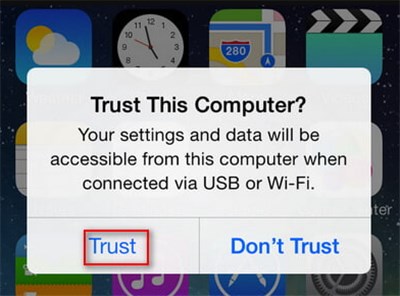
- On iOS: Tap “Trust This Computer” when prompted
- On Android: Enable USB Debugging

Step 3: Choose a Location
Open the map interface in the software:
- Enter a specific location (such as an airport or busy area)
- Or select a point directly on the map

If your PC doesn’t detect your phone, the most common issue is the cable. Many cheap or older cables only handle charging and cannot transfer data. Make sure you are using a proper data cable, often the one that came with your phone.
Step 4. Trust the Connection: Your phone will display a prompt asking you to “Trust This Computer” (iOS) or allow USB debugging (Android). You must confirm this to let Fonelora Location Changer communicate with your device.
Device-Specific Configuration
This is a one-time setup step that depends on your phone’s operating system.
For iOS (iPhone/iPad):
Fonelora Location Changer will automatically detect your device. It will prompt you to enable Developer Mode. This is a standard Apple requirement. To do this, go to Settings > Privacy & Security, scroll down, and toggle on Developer Mode. Your iPhone will restart to apply the change.
For Android:
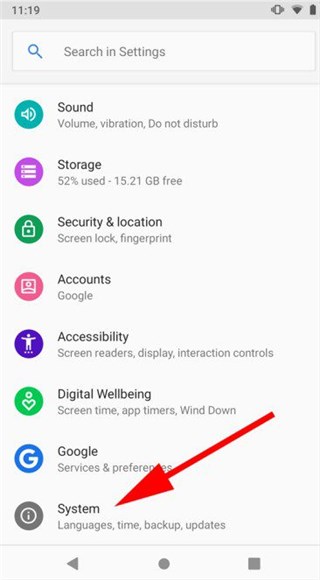
You must enable USB Debugging. First, unlock Developer Options by going to Settings > About Phone and tapping the Build Number seven times. You’ll see a confirmation message. Then, find the new Developer Options menu.
- On Google Pixel phones, it’s under Settings > System.
- On Samsung phones, it’s at the very bottom of the main Settings menu.
- Open Developer Options and toggle on USB Debugging.
Once connected, the Fonelora Location Changer map will appear, allowing you to set a Pokémon Go virtual location for your device.
Mastering Movement with the Fonelora Location Changer Joystick
After setting your location, the next step is realistic movement. This is where the Pokémon Go joystick pc in Fonelora Location Changer gives you a huge advantage. It provides natural, fluid character motion for hatching eggs and interacting with the game world organically.
Fonelora Location Changer offers a dedicated Pokémon Go joystick control feature that you can operate with your mouse or, more effectively, your keyboard’s W, A, S, and D keys. This gives you a level of precision that is impossible with on-screen controls. The large map interface makes map navigation much easier, as you can plan routes between coordinates with a clear view.
Advanced Route Simulation with Fonelora Location Changer
Fonelora Location Changer excels at creating complex routes for automated gameplay. This is perfect for farming resources or hatching eggs along a planned path.
Step 1. Select Multi-Point Mode: In the Fonelora Location Changer interface (top right corner), choose the icon for multi-point mode.
Step 2. Plot Your Course: Click on the map to drop multiple pins, creating a custom route that can cover several PokéStops and Gyms.
Step 3. Set Your Speed and Laps: A panel will appear where you can adjust the movement speed (walking speed at 4-5 km/h is best for eggs) and choose how many times you want the route to repeat.
Step 4. Start Moving: Click the “Move” button, and Fonelora Location Changer will automatically navigate your character along the planned path.
This method of route simulation is far more efficient and believable than trying to move manually on your phone.
How PC-Based Pokémon GO GPS Spoofing Works
Understanding the technology behind a Pokémon Go spoofer for pc can build confidence in the tool. Fonelora Location Changerworks by intercepting and replacing your phone’s native GPS data at the system level. This is why the USB connection is essential.
When you connect your phone and grant developer-level permissions such as USB Debugging or Developer Mode, you allow the PC software to feed location data to the device. Fonelora Location Changer does not alter the Pokémon GO app itself. Instead, it uses official system-level features to change Android phone location data by telling your phone’s operating system, “Here are the GPS coordinates you should report.” Your phone then provides this Pokémon Go virtual location to all apps that request it, and Pokémon GO accepts the data as authentic. This method is relatively stable because it relies on sanctioned developer features rather than modifying the game. When you use the joystick, Fonelora Location Changer sends a continuous stream of updated coordinates to your phone, creating the illusion of real-world movement.
Safe Spoofing Practices: A Checklist for PC Users
Using any location spoofer has risks, but you can minimise them by making your in-game behaviour look human. Abrupt, impossible movements are the easiest way to get flagged. This checklist provides an actionable safety plan.
Safety First: A Practical Checklist
✅ Observe Cooldown Timers: This is the most critical rule. After an action (like catching a Pokémon), wait before performing another action in a new location. The farther you jump, the longer you wait. Fonelora Location Changer has a built-in cooldown timer that tells you exactly how long to wait after a teleport, which is a huge help.
✅ Simulate Realistic Speeds: Use believable speeds in the route and joystick modes. Stick to walking or jogging speeds (under 10 km/h) for most activities.
✅ Avoid Instantaneous Jumps: Do not teleport from New York to Tokyo in seconds. If you need to make a long-distance teleport location jump, close the Pokémon GO app, change your location in Fonelora Location Changer, wait for the full cooldown period (usually 2 hours), and then reopen the game.
✅ Use Reputable Software: Stick with well-known software like Fonelora Location Changer. Its developers provide regular updates to maintain compatibility with new game versions and OS updates, which reduces risk.
✅ Vary Your Routes: Avoid walking the exact same automated route every single day. Mix up your paths to appear more like a real person.
For long-term account safety, always prioritise tools from developers who provide regular updates and transparent customer support. This indicates they are actively working to maintain compatibility and address potential security issues, which is a crucial factor for sustainable use.
Frequently Asked Questions
- Can you spoof Pokémon GO from a PC?
- Yes. You can spoof your location in Pokémon GO by connecting your iOS or Android device to a computer via USB and using desktop software like Fonelora Location Changer to modify its GPS data. This provides precise map navigation and joystick control from your PC.
- What is a Pokémon GO spoofer for PC?
- A Pokémon GO spoofer for PC is a desktop application like Fonelora Location Changer that lets you change the GPS location of a connected smartphone. It offers features like teleporting, simulating movement along custom routes, and using a virtual joystick. These pokemon go pc tools are preferred for their stability and control.
- How do PC-based location tools work with Pokémon GO?
- They feed a new, simulated set of GPS coordinates to your phone’s operating system through a USB connection. The OS then reports this Pokémon Go virtual location to all apps, including Pokémon GO. The tool does not directly modify the game itself.
- Do you need to connect your phone to a PC to spoof location?
- Yes, a physical USB connection is required for the initial setup. Some tools, including Fonelora Location Changer, offer a Wi-Fi connection feature after the first USB configuration, but the wired method remains the most stable and reliable.
Take Back Control of Your Pokémon GO Experience
Navigating Pokémon GO shouldn’t depend on unstable mobile apps or imprecise controls. A PC-based tool like Fonelora Location Changer helps eliminate the frustrations of manual route planning and app crashes by moving everything to a more stable desktop environment. This gives you precise joystick control, advanced route simulation, and an easier way to follow a route in Pokémon Go without the usual hassle.
Rather than relying on generic tips or unreliable tools, you can choose a proven solution built for better control and stability. Whether you’re planning movement in advance or trying to follow a route in Pokémon Go more smoothly, Fonelora Location Changer gives you the confidence to explore with greater precision.


Hot Topics
