How to Bypass FRP on Huawei P Smart Z (2026 Guide – No PC & PC Methods Tested)
Got a Huawei P Smart Z locked by a Google account? This comprehensive guide offers proven, step-by-step methods for a free FRP bypass in 2026, with or without a PC.
Locked out of your Huawei P Smart Z after a factory reset? This is caused by Google’s Factory Reset Protection (FRP), a security feature designed to prevent unauthorized access.
If you forgot your Google account details, don’t worry — there are still ways to regain access.
In this guide, we’ll walk you through:
- Free FRP bypass methods (no PC required)
- A more reliable PC-based solution
- Which method actually works in 2026
Huawei P Smart Z EMUI 12
⚠️ Important Notice: This guide is for legal owners who have forgotten their account details. Using these techniques on a device you don’t own is illegal and unethical.
Quick Answer
If your Huawei P Smart Z is stuck on the Google verification screen, you can bypass FRP using:
- A free TalkBack method (works only on Android 9/10, limited success)
- A PC-based FRP removal tool (higher success rate, works on newer security patches)
If free methods fail, using a professional FRP tool is usually the most reliable option.
Table of ContentsHide
Free Method 1: TalkBack FRP Bypass (No PC)
This is the most commonly used free method and may work on Huawei P Smart Z running Android 9 or 10.
Step-by-Step Guide:
1. Preparation: Charge your phone to at least 50% and connect to a stable Wi-Fi network from the welcome screen.
2. Activate TalkBack: From the “Hello” screen, place two fingers on the screen and hold them down until you hear a voice. This activates the TalkBack feature.
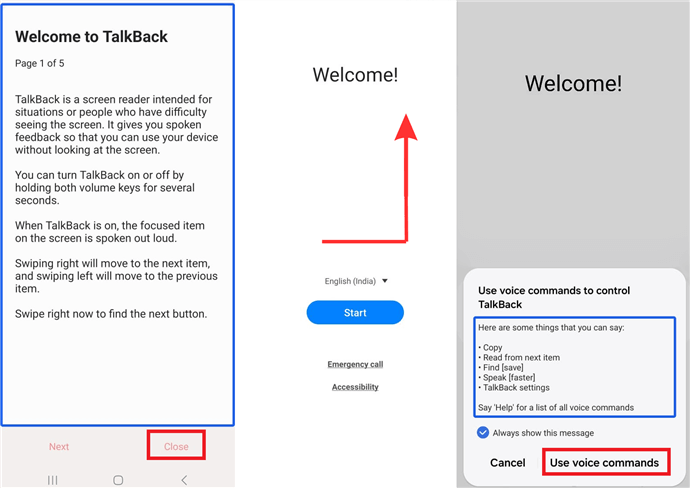
Activate Talkback Feature
3. Open Browser: Draw a large “L” shape on the screen to open a menu. Double-tap “TalkBack settings”. Press Volume Up and Volume Down simultaneously to suspend TalkBack. Then, go to “Help & feedback”, search for “Morse code,” and tap the YouTube video to open it. From YouTube, tap the user icon > Settings > About > Google Privacy Policy to launch the Chrome browser.

Double-tap “TalkBack settings”
4. Install Apps: In Chrome, search for a reliable FRP file website. Download and install both the Google Account Manager APK and the FRP_Bypass.apk.
5. Sign In: Open the FRP Bypass app, tap the three-dots menu, and select “Browser sign-in”. Log in with any Google account you have access to.
6. Complete Bypass: Restart your phone. It will now boot up without asking for the old account.
⚠️ Limitations:
- Often patched on newer security updates
- APK installation errors are common
- May fail on EMUI 12 devices
Free Method 2: Fastboot FRP Removal (PC Required)
If TalkBack doesn’t work, you can try a PC-based manual method using Fastboot.
Step-by-Step Guide:
1. Prepare Toolkit: On your Windows PC, download Huawei USB Drivers, Fastboot Drivers, and a Huawei FRP Eraser Tool from a trusted source like the XDA-Developers forum.
2. Enter Fastboot Mode: Install the drivers. Power off your phone completely. Press and hold the Volume Down button while connecting your phone to the PC with a USB cable. This will boot the phone into Fastboot Mode.
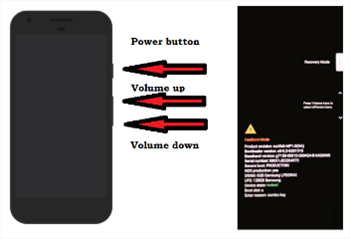
Enter Fastboot Mode
3. Erase the Lock: Open the Huawei FRP Eraser Tool on your PC. It should automatically detect your device. Click the “Erase FRP” button and wait for the process to complete.
4. Reboot: The phone will reboot automatically, and the FRP lock will be gone.
⚠️ Limitations:
- Requires technical knowledge
- Risk of errors if drivers/tools mismatch
- Not beginner-friendly
Why Free FRP Methods Often Fail
Many users try free methods first — but they don’t always work.
Here’s why:
- New Android security patches block old bypass tricks
- APK-based methods often fail with “Parse Error”
- Some features (like TalkBack shortcuts) are restricted
If your Huawei P Smart Z runs newer EMUI versions, free methods may not work at all.
Best Working Method (Higher Success Rate)
If you want a faster and more reliable solution, especially on updated devices, using a professional FRP removal tool is recommended. You can try an Android FRP removal tool like DroidKit (supports multiple Android versions and security patches).
Why this method works better:
- Works even when free methods fail
- No need to manually install APKs
- Step-by-step guided process
- Higher success rate on newer systems
Check the full guide here: Huawei FRP bypass solutions
How to Bypass FRP in 3 Simple Steps:
1. Download and Launch: Install DroidKit on your Windows PC or Mac. Open the program and select “FRP Bypass” mode.
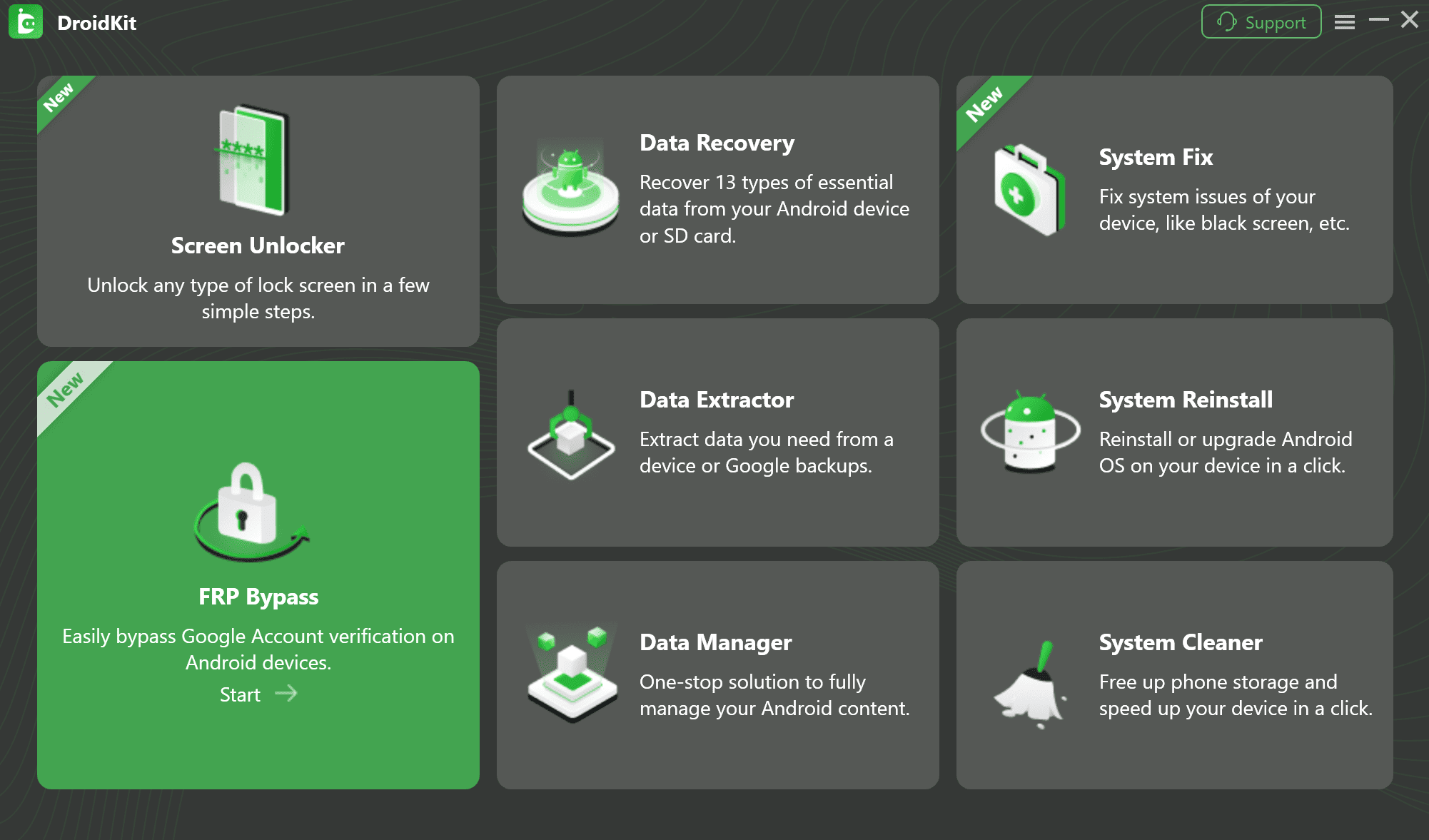
Select FRP Bypass Feature
2. Connect Device: Connect your Huawei P Smart Z to your computer and click “Start”. DroidKit will automatically prepare a configuration file.
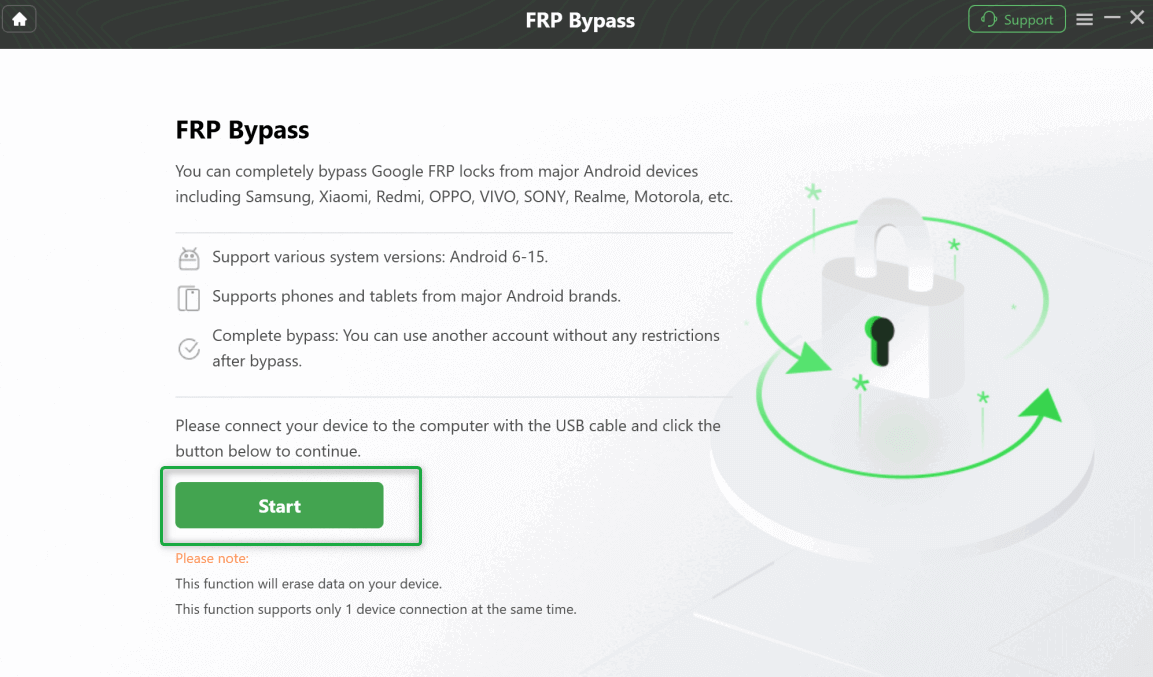
Connect Huawei P Smart Z
3. Remove the Lock: Follow the on-screen instructions to put your phone into recovery mode. The software will then begin the bypass process. Within minutes, the FRP lock will be removed.
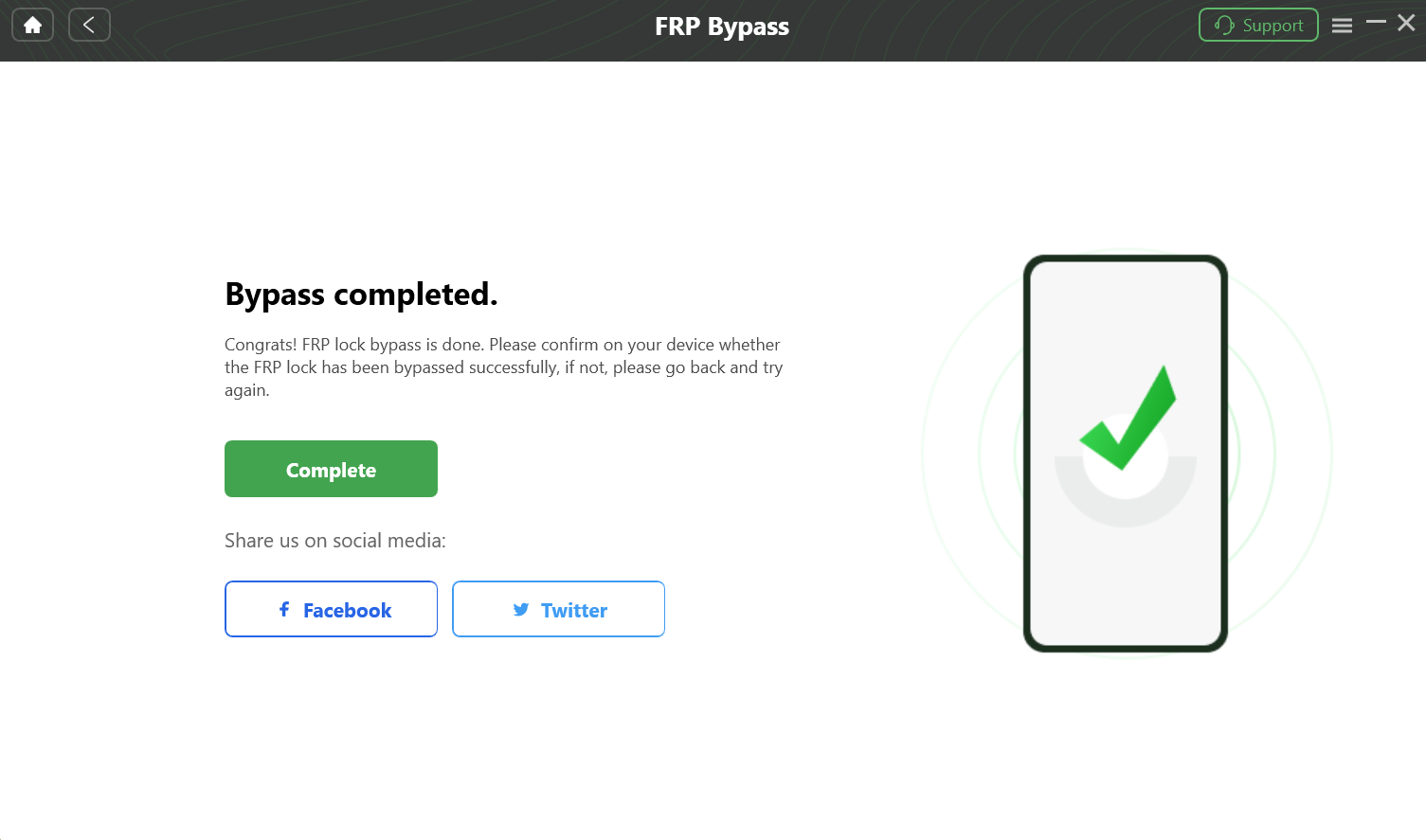
Remove FRP Lock
Which Method Should You Choose?
| Method | Difficulty | Success Rate | Need PC | Recommended |
| TalkBack | Easy | Low | ❌ No | Try first |
| Fastboot | Medium | Medium | ✅ Yes | Backup option |
| FRP Tool | Easy | High | ✅ Yes | ⭐ Best choice |
Final Steps: Secure Your Phone
Congratulations! To ensure everything is secure and stable, follow these two final steps:
1. Add Your Google Account: Go to Settings > Accounts and add your primary Google account.
2. Perform a “Clean” Factory Reset: Go to Settings > System & updates > Reset > Reset phone. Since you are now logged in, the phone will reset cleanly without the FRP lock.
Frequently Asked Questions (FAQ)
Q: Will this process erase my phone’s data?
A: Yes, all FRP bypass methods require a factory reset, which will wipe all personal data from the device. This is because the lock is triggered after the device has already been reset.
Q: Is bypassing FRP legal?
A: Yes, it is legal as long as you are the legal owner of the device. This guide is intended for owners who have forgotten their account details.
Q: Which method is the best for me?
A: If you prefer a quick, risk-free solution, the professional DroidKit tool is the best option. If you are comfortable with technical steps and pick a free solution, try the TalkBack method first, as it doesn’t require a PC.
Q: What should I do after the bypass is complete?
A: For stability and security, we strongly recommend performing a “clean” factory reset from the phone’s Settings menu after you have successfully bypassed the lock and added a new Google account.
Final Words
Bypassing FRP on Huawei P Smart Z is still possible in 2026 — but not all methods work equally well.
- Free methods are worth trying first
- But for stability and success, a PC-based solution is often required
Choose the method that best fits your situation and device version. Ready to get started? Download DroidKit for Free >>
More Related Articles



Jeremy Feron is a writer for iMobie with a deep passion for Android. He specializes in creating clear guides on Android tips and the latest updates, helping users navigate their devices and get the most out of new features.
Product-related questions? Contact Our Support Team to Get Quick Solution >
