Google FRP Bypass OPPO: What Works (and What Doesn’t) in 2026
This OPPO Google FRP guide is for users who already tried broad OPPO FRP advice and now need to verify the failure point: HeyTap vs Google lock, online-server claims, APK install errors, ColorOS 12/13/14 restrictions, or driver and Recovery Mode issues.
If your OPPO phone is locked after a factory reset, the first question is not which tool to download. It is whether the screen is asking for a Google account, an OPPO / HeyTap account, or a normal screen lock. This page is for OPPO users who are stuck on Google verification and are also seeing confusing advice about online servers, APK files, ColorOS 12 / 13 / 14, drivers, or PC tools.
This article keeps the angle narrow: Google FRP bypass OPPO, OPPO FRP online, OPPO server FRP, FRP bypass APK OPPO, OPPO HeyTap lock, and OPPO FRP bypass tool checks. For the broader OPPO method page, use the OPPO FRP bypass guide. If your phone shows the classic “This device was reset” Google prompt, the Google verification after reset guide explains the underlying lock behavior.
Table of ContentsHide
Quick Answer: Why OPPO Google FRP Methods Fail in 2026
Google FRP or HeyTap? Identify the Lock Before Using Tools
ColorOS 12/13/14: Why No-PC Routes Often Stop
OPPO FRP Routes Compared by Failure Point
OPPO FRP Without PC: When It Still Has a Chance
FRP Bypass APK for OPPO: Install Errors and Source Risk
OPPO FRP Online / Server: What Is Real?
OPPO FRP Tool Check: Drivers, Recovery Mode, and DroidKit
OPPO Google FRP Bypass Not Working: Fix the Exact Failure
FAQs About OPPO Google FRP in 2026
Conclusion
Quick Answer: Why OPPO Google FRP Methods Fail in 2026
Most OPPO FRP failures in 2026 come from one of five checkpoints: the lock is HeyTap rather than Google FRP, ColorOS blocks old setup shortcuts, the APK cannot install, the online-server claim is not technically realistic, or the PC tool cannot match the model, driver, Recovery Mode, and ColorOS version.
| Search / Symptom | Likely Reality | What to Check |
| OPPO FRP online server | Often a risky or misleading shortcut claim. | Check whether it asks for credentials, remote control, payment before compatibility, or unknown downloads. |
| FRP bypass APK OPPO | May work only on older builds where browser and install paths still open. | Check Web Search, APK source, Android version, and install permission. |
| OPPO FRP without PC | Depends on setup shortcuts still appearing. | Check TalkBack, Accessibility, browser, Settings, Wi-Fi text selection, and emergency-code response. |
| OPPO / HeyTap account lock | Not standard Google FRP. | Use HeyTap recovery or OPPO support with proof of ownership. |
| PC tool cannot detect OPPO | Usually cable, driver, Recovery Mode, chipset, or unsupported model issue. | Check USB data cable, ColorOS version, and tool instructions before retrying. |
Google FRP or HeyTap? Identify the Lock Before Using Tools
OPPO phones can show more than one kind of post-reset lock. A Google FRP workflow will not remove a HeyTap activation prompt, and a screen unlock method will not replace Google account verification.
| What the Screen Says | Lock Type | Correct Direction |
| “Verify your account” or asks for a Google account previously synced on the phone | Google FRP | Use Google account recovery, previous-owner removal, or a compatible OPPO FRP workflow. |
| Asks for OPPO Account, HeyTap, phone number, or activation password | OPPO / HeyTap lock | Use HeyTap recovery or OPPO support; do not use Google FRP APK as the fix. |
| Asks for PIN, pattern, password, fingerprint, or face unlock | Screen lock | Use OPPO screen lock recovery, not FRP online-server or APK methods. |
Ownership checkpoint: Use FRP or account recovery methods only on an OPPO phone you own or are authorized to service. If it is a used phone, the previous owner should remove the Google or HeyTap account first.
ColorOS 12/13/14: Why No-PC Routes Often Stop
Older OPPO no-PC videos often depend on a temporary setup-screen loophole: TalkBack opens Help, Wi-Fi text selection opens Web Search, a browser opens an APK download page, or Settings appears before setup is finished. ColorOS 12, 13, and 14 commonly remove or restrict those paths.
| ColorOS Situation | What Usually Breaks | Result |
| Older ColorOS / Android 10–11 | Some emergency, Wi-Fi, browser, or APK paths may still appear. | No-PC checks may be worth testing carefully. |
| ColorOS 12 | Browser and APK entry routes become less available. | APK workflows often stop before installation. |
| ColorOS 13 | Accessibility and setup shortcuts are more restricted. | TalkBack and browser tricks often fail. |
| ColorOS 14 or newer | Security patches close many old shortcuts. | Version-aware tool or account recovery route is more realistic. |
OPPO FRP Routes Compared by Failure Point
Use this table to identify why your current method stopped.
| Route | PC Needed? | Works Only If… | Common Failure Point |
| Google account recovery | No | You can verify the previous Google account. | Recovery phone, email, or trusted-device access is missing. |
| No-PC TalkBack / browser route | No | Setup still opens Help, browser, Settings, or Web Search. | ColorOS blocks the entry path. |
| FRP APK for OPPO | No | Browser, file download, installation, and permissions still work. | App not installed, APK crash, or unknown-source block. |
| Online / server claim | Unclear | The service can prove device-specific compatibility safely. | Fake buttons, credential requests, or unsupported claims. |
| PC tool | Yes | Model, ColorOS, driver, cable, and Recovery Mode match the workflow. | Device not detected or Recovery Mode mismatch. |
OPPO FRP Without PC: When It Still Has a Chance
No-PC methods are worth checking only when your OPPO setup screen still exposes a usable entry point. Do not continue a no-PC method after the key menu disappears.
- Emergency-code response: If a code opens nothing, the code path is closed.
- Wi-Fi text selection: If long-pressing IP text does not show Web Search, the APK path probably cannot start.
- Browser access: If Chrome or browser cannot open, a download link does not help.
- Settings access: If Settings never opens, account and screen-lock shortcut routes usually stop.
- APK installation: If unknown-source install is blocked, a different APK name rarely fixes the route.
FRP Bypass APK for OPPO: Install Errors and Source Risk
APK routes are attractive because they look simple, but on OPPO they are fragile. The route depends on the exact device, Android version, ColorOS build, file source, browser access, and install permission. Read the FRP Bypass APK safety guide before trying files from unknown mirrors.
| APK Symptom | Likely Cause | Next Step |
| App not installed | Android version mismatch, damaged file, blocked install, or incompatible package. | Stop downloading random versions and check model/version fit. |
| APK opens but Settings does not | ColorOS restricts the shortcut or required activity. | APK route is not suitable for this firmware. |
| Google Account Manager fails | Wrong package version or blocked system activity. | Do not stack multiple unknown APKs blindly. |
| Page asks for Google credentials | Potential phishing risk. | Do not enter credentials into untrusted apps or pages. |
OPPO FRP Online / Server: What Is Real?
Searches like OPPO FRP online, OPPO server FRP, and OPPO FRP online server often lead to pages that promise a remote unlock. Treat these claims carefully. An ordinary website cannot directly modify protected Android FRP areas from a browser.
Use this online FRP bypass guide to understand why many web-only promises are risky. Be especially cautious if a page asks for your Google credentials, requires remote control, hides compatibility until payment, or sends you through several APK download pages.
OPPO FRP Tool Check: Drivers, Recovery Mode, and DroidKit
When no-PC entry paths are gone, a PC tool can be checked only after you confirm the device details. For OPPO, the key points are model, ColorOS version, USB data cable, Recovery Mode behavior, and whether the tool’s instructions match your phone screen.
DroidKit FRP Bypass provides a desktop workflow for supported Android FRP scenarios. For comparison before choosing a route, see the best FRP bypass tools guide.
Free Download * 100% Clean & Safe
Step 1. Download and install DroidKit on your Windows or Mac computer. Open the program after installation.
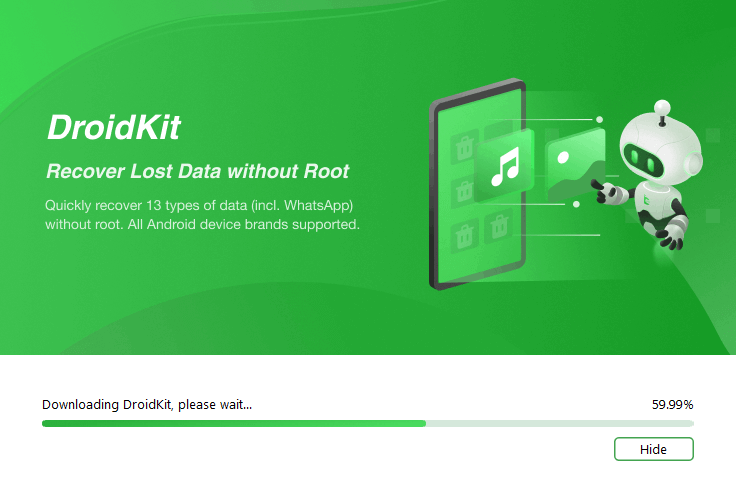
Install DroidKit on Your Windows or Mac
Step 2. Select FRP Bypass from the main screen.
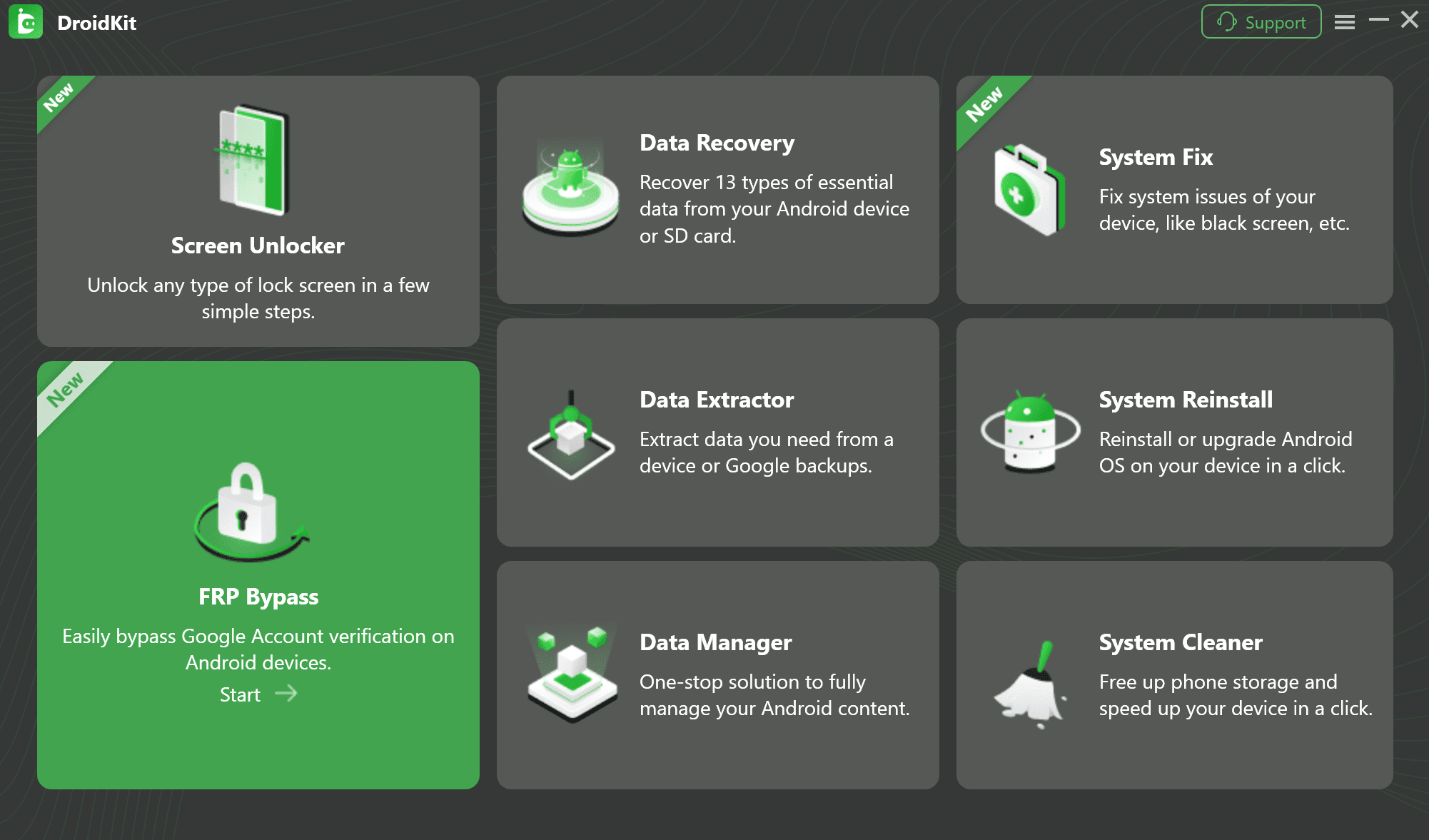
Select FRP Bypass from the Home Screen
Step 3. Connect the OPPO phone with a reliable USB data cable. Wait for the software to prepare the configuration file.
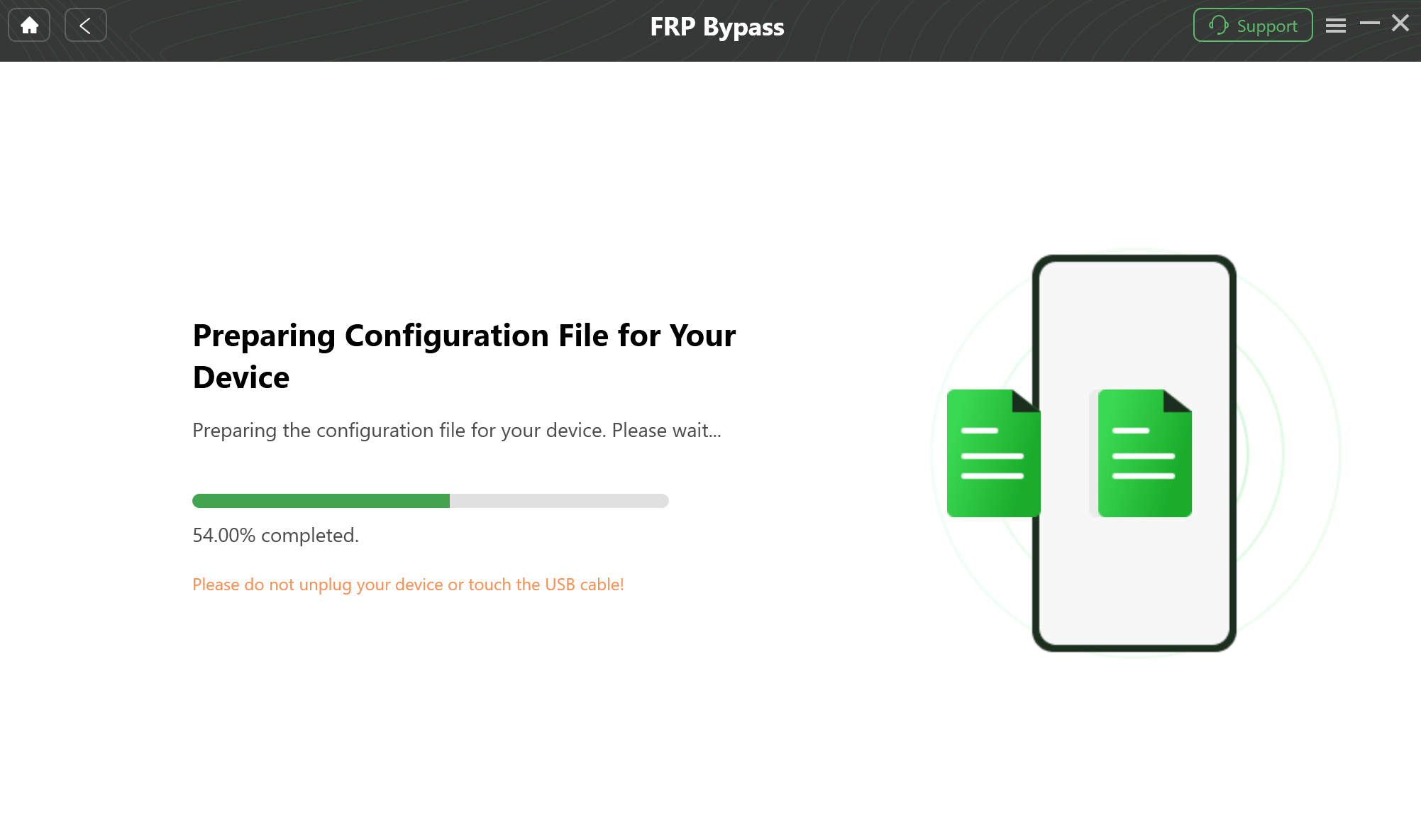
Prepare the Configuration File
Step 4. Follow the device instructions shown on screen. On many OPPO phones, you may need to power off the phone and use Power + Volume Down to enter Recovery Mode, but menu labels vary by model and ColorOS version.
Step 5. Select the ColorOS or system version shown by your phone and the tool, then follow the wipe or format prompts only if they match your device state.
Step 6. Keep the USB connection stable until the FRP workflow finishes. Set up the phone again with a Google account you control.
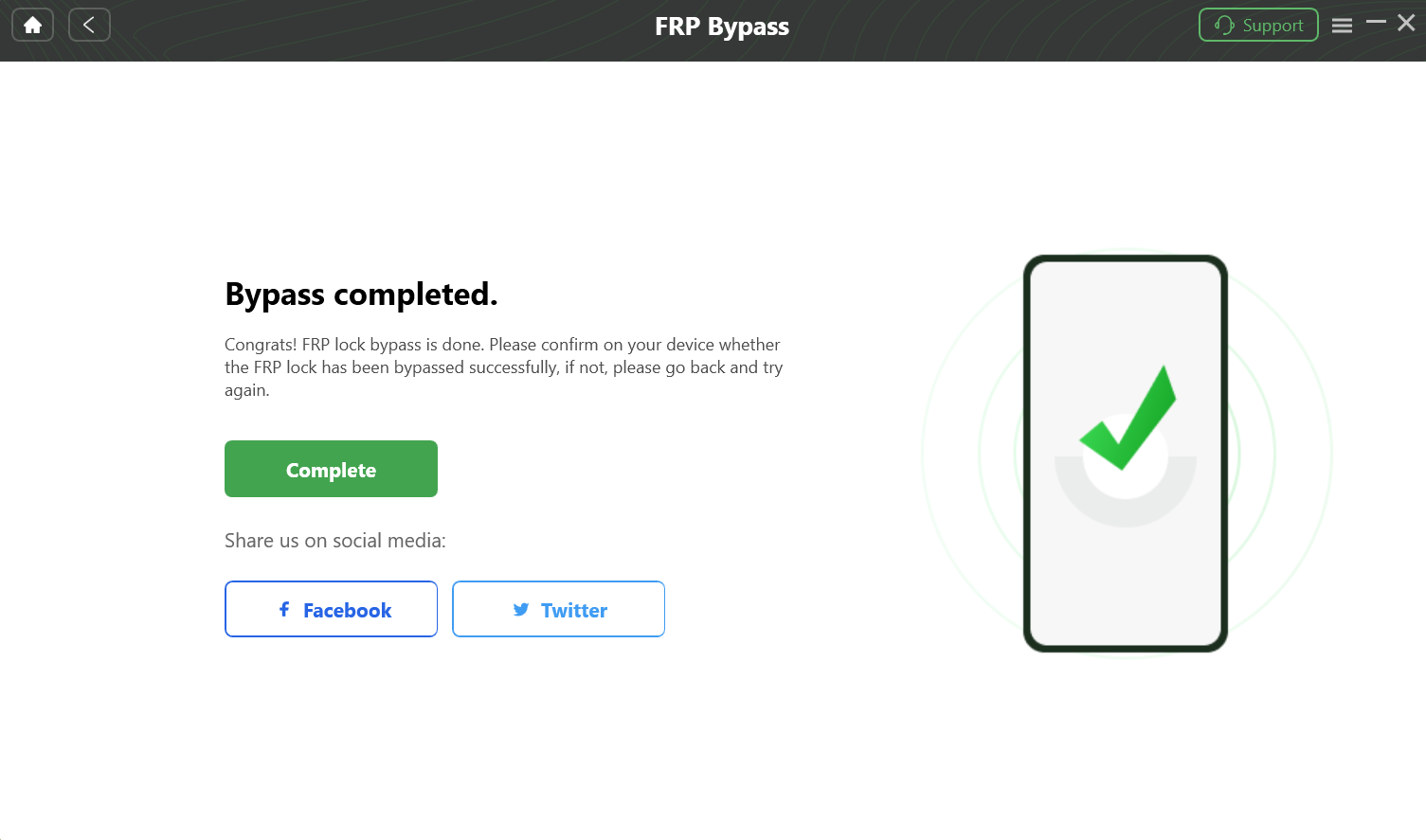
Complete the FRP Bypass Process
Tool checkpoint: Stop if the Recovery Mode screen, ColorOS version, or tool instructions do not match your phone. Guessing the wrong version can cause failure or data loss.
OPPO Google FRP Bypass Not Working: Fix the Exact Failure
Do not switch randomly between online pages, APKs, and tools. Match the next action to the error.
| Failure | What It Usually Means | Next Step |
| HeyTap prompt appears | The lock is not Google FRP. | Use HeyTap recovery or OPPO support. |
| No-PC video stops at browser step | ColorOS blocked the setup shortcut. | Use another route instead of repeating the video. |
| APK will not install | Wrong APK, blocked install, or incompatible Android version. | Stop testing random APK files. |
| Online server asks for credentials | Possible phishing or unsupported claim. | Do not enter Google account details. |
| PC tool does not detect device | Cable, driver, USB mode, Recovery Mode, or model support problem. | Use a data cable, change USB port, and recheck device mode. |
For a broader failure checklist, use this FRP bypass not working guide.
FAQs About OPPO Google FRP in 2026
Can I bypass Google FRP on OPPO without a PC?
Sometimes, but only when ColorOS still exposes a working setup entry point such as Web Search, browser access, Settings, or APK installation. On ColorOS 12, 13, 14, and newer patches, those paths are often blocked.
Is OPPO FRP online server real?
Be cautious. Many OPPO FRP online or server pages are misleading because a normal browser page cannot directly change protected Android FRP areas. Avoid pages that ask for Google credentials, remote control, or payment before compatibility is shown.
Is HeyTap lock the same as Google FRP?
No. Google FRP asks for the previously synced Google account after reset. HeyTap lock asks for OPPO / HeyTap account information. Google FRP tools or APKs should not be used as HeyTap recovery.
Why does FRP bypass APK fail on OPPO?
APK routes fail when browser access is blocked, unknown-source installation is unavailable, the APK version is wrong, or ColorOS restricts the activity the APK tries to open.
Will OPPO FRP bypass erase data?
Usually yes. FRP appears after a factory reset, so local data may already be erased or inaccessible. PC-based and recovery-based workflows may also require wipe or format steps.
What should I check before using an OPPO FRP tool?
Check the exact OPPO model, ColorOS version, Recovery Mode access, USB data cable, driver behavior, and whether the tool instructions match your phone screen.
Is OPPO Google FRP bypass legal?
It should only be used on an OPPO phone you own or are authorized to repair. Do not use FRP tools to access someone else’s phone, Google account, HeyTap account, or data.
Conclusion
OPPO Google FRP in 2026 is less about finding one magic code and more about identifying the blocked checkpoint. If the screen asks for HeyTap, use OPPO account recovery. If Web Search never appears, APK routes cannot start. If an online server page asks for credentials or unknown downloads, treat it as a risk. If a PC tool does not match the ColorOS or Recovery Mode screen, stop before continuing.
Use the main OPPO FRP guide for broad methods and model navigation. Keep this page for the harder follow-up questions: online/server claims, APK install errors, ColorOS restrictions, HeyTap confusion, and driver or Recovery Mode failure.
More Related Articles


Roger Smith is a senior technical writer with years of experience in providing Android solutions. He loves to help users solve various problems such as Android unlock, Android data recovery, and Android system repair.
Product-related questions? Contact Our Support Team to Get Quick Solution >
