Qualcomm FRP Bypass: QFIL, EDL 9008 & Tool Options
A Qualcomm FRP workflow usually breaks at one of four checkpoints: no stable 9008 connection, QFIL cannot use the port, the firehose programmer is rejected, or service authentication blocks the session. Use this guide to identify that failure point before changing drivers, programmer files, partitions, or FRP tools.
A Qualcomm FRP problem can involve more than the Google verification screen. If you are using QFIL or another Qualcomm service workflow, the process can stop much earlier: Windows may not detect a stable EDL 9008 port, the firehose programmer may be rejected, or the device may require service authentication before a low-level operation is allowed.
Those failures belong to different layers, so changing FRP tools at random is usually the wrong starting point. First identify where the Qualcomm workflow stops. A phone that never appears as Qualcomm HS-USB QDLoader 9008 has a different problem from one that connects correctly but returns a Sahara or firehose error.
This guide separates Google FRP from Qualcomm EDL, QFIL, firehose, and authentication issues. The QFIL sections are intended for advanced users working on a phone they own or are authorized to service. Do not erase a partition, load a programmer, or use a test-point diagram simply because it worked on another Qualcomm device.
If you need broader FRP recovery options rather than a Qualcomm-specific service workflow, start with the Android FRP bypass guide.
Table of Contents
- Qualcomm FRP Bypass: Start with the Failure Point
- Qualcomm FRP Tool vs Unlock Tool vs Auth Tool
- How Qualcomm EDL 9008 Fits into QFIL Service
- QFIL Workflow After 9008 and Firehose Checks Pass
- QFIL Not Working? Diagnose 9008, Sahara & Firehose Errors
- FRP Option Without Manual QFIL or Firehose Selection
- Which Qualcomm FRP Route Matches Your Blocker?
- Qualcomm FRP, QFIL & EDL FAQ
- The Checkpoint Tells You What to Fix Next
Qualcomm FRP Bypass: Start with the Failure Point
Before downloading another driver, programmer, or FRP utility, identify the last checkpoint that works. This narrows the problem much faster than treating every QFIL error as the same issue.
| What You See | Problem Layer | What to Check Next |
| No Qualcomm 9008 device appears in Windows | EDL entry / USB / driver | Check the cable, port, Qualcomm driver state, and the exact EDL entry procedure for the model. |
| Qualcomm 9008 appears but repeatedly disconnects | Connection stability | Fix the physical USB or driver problem before opening a QFIL service operation. |
| 9008 is stable but QFIL cannot use the expected COM port | Port / software connection | Confirm that QFIL is using the same COM port shown in Device Manager. |
| QFIL reaches the port but reports Sahara or firehose failure | Programmer handshake | Verify the exact model, platform, firmware branch, and programmer source. |
| The programmer is accepted but service authentication is rejected | Service authorization | Check the OEM or authorized service requirements rather than treating the error as Google FRP. |
| Partition Manager or the expected entry does not match the guide | Model-specific procedure mismatch | Stop and return to the correct device documentation. Do not erase a similarly named partition. |
| You have no verified programmer or reliable EDL procedure | Manual QFIL route is not ready | Use another authorized FRP route or evaluate guided FRP software for a compatible device. |
For a broader comparison of Android FRP utilities, see the Android FRP tool guide. That page focuses on tool selection; the sections below stay focused on Qualcomm EDL 9008, QFIL, firehose matching, and the failure points around them.
Qualcomm FRP Tool vs Unlock Tool vs Auth Tool
The phrase Qualcomm FRP tool is used for several different types of software. One tool may target Google verification, while another communicates with a Qualcomm chipset for firmware or service work. A third may depend on OEM authorization before it can perform low-level operations.
| Term | What It Usually Refers To | Do Not Confuse It With |
| FRP tool | A workflow intended to deal with Google account verification after a reset | Network unlock, bootloader unlock, or generic firmware servicing |
| Qualcomm unlock tool | A broad term that may include firmware, diagnostic, screen-lock, network, or service operations | A guaranteed Google FRP solution |
| QFIL / QPST | Qualcomm service software used with compatible EDL devices and device-specific resources | A universal one-click FRP utility |
| Qualcomm auth bypass tool | A term commonly associated with low-level service authorization restrictions | Google FRP itself |
Qualcomm Authentication vs Google FRP
Google FRP and Qualcomm service authentication are separate checkpoints. FRP appears during Android setup when the phone asks for a previously synced Google account. An EDL authentication failure happens at the service layer, where the device, programmer, OEM policy, or repair system may reject the requested low-level session.
This distinction becomes important when Windows already shows a stable 9008 port but QFIL cannot complete the programmer or authorization stage. Repeating an Android FRP APK route will not repair a rejected firehose session, and a generic “auth bypass” download should not be assumed to override an OEM-restricted service process.
If authentication is the blocker, verify the exact model, firmware branch, programmer source, and applicable service requirements before continuing.
How Qualcomm EDL 9008 Fits into QFIL Service
EDL, or Emergency Download Mode, is a low-level Qualcomm service mode. In a typical QFIL workflow, there are four checkpoints:
- The computer detects the device as a Qualcomm 9008 device.
- QFIL can access the correct COM port.
- A programmer that matches the device is accepted.
- The technician follows the model-specific service procedure for the required operation.
Diagnose those checkpoints in order. For example, changing firehose files makes little sense when Windows cannot maintain a stable Qualcomm HS-USB QDLoader 9008 connection.
What You Need Before Using QFIL
- Windows PC: QFIL is part of the QPST environment used on Windows.
- Qualcomm USB drivers: Use a driver package appropriate for the service environment.
- Reliable data cable: A charging-only or unstable cable can interrupt the EDL connection.
- Exact device resources: The programmer and any other required files must match the device procedure.
- Model-specific documentation: Do not infer a partition or service action from another phone using the same chipset family.
- Recovery plan: Partition-level service work can create boot problems if the wrong operation or file is used.
Why the Firehose Programmer Must Match
A firehose programmer is not a generic Qualcomm FRP file. It forms part of the communication path between QFIL and the device. Two phones can use Qualcomm platforms and still require different programmers because of differences in hardware, memory configuration, firmware branches, signing policy, or OEM service restrictions.
A visible 9008 COM port therefore does not prove the programmer is correct. Sahara or firehose errors commonly occur after Windows detects the phone but before the QFIL programmer handshake completes.
QFIL Workflow After 9008 and Firehose Checks Pass
This section describes the framework of a QFIL service workflow; it is not a universal partition-erasing recipe. Qualcomm implementations vary by manufacturer and model. Confirm the exact device procedure and partition map before performing any low-level operation.
1. Gather QFIL and the Exact Device Resources
Prepare QPST/QFIL, the Qualcomm driver package, a reliable USB cable, and the files required by the model-specific service procedure. Do not substitute a programmer just because the filename or chipset reference looks similar.
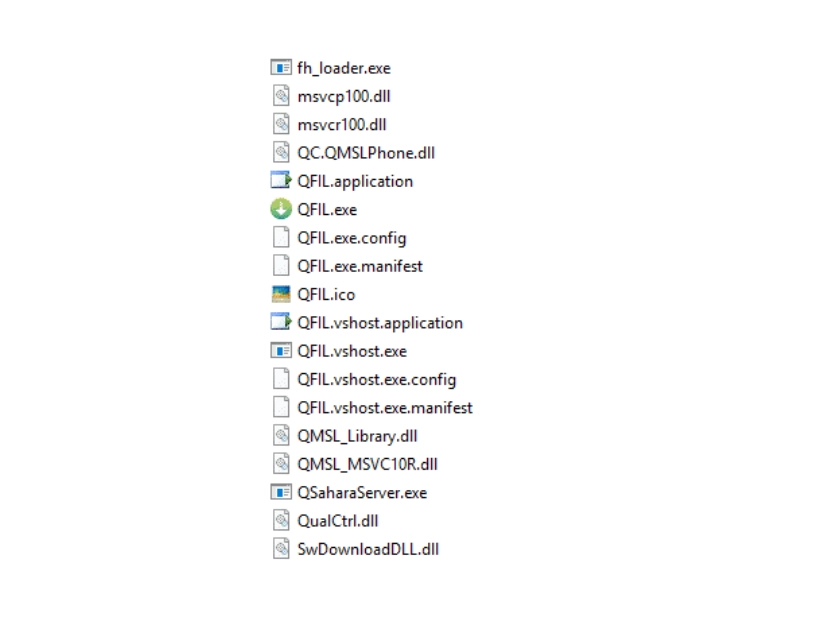
Prepare QFIL and the device-specific resources before starting the Qualcomm workflow.
If you are comparing QFIL with other FRP utilities rather than following a Qualcomm service procedure, use the FRP bypass tool comparison.
2. Install the Qualcomm Drivers and Check Windows
Step 1. Install the Qualcomm USB driver package from the source required by your service procedure.
Step 2. Restart Windows if the installer requires a restart.
Step 3. Connect the phone with a known-good data cable and open Device Manager.
Step 4. Do not move to programmer troubleshooting until the expected Qualcomm port is stable.
If an older driver package requires special Windows preparation, follow the documentation supplied with that driver package rather than disabling security protections unnecessarily.
3. Enter EDL Using the Procedure for the Exact Device
EDL entry differs by model and service state. Some devices can enter the required service mode through an approved software or service procedure; other repair procedures may involve hardware access. Do not use a motherboard or test-point image from another phone simply because the devices share a Qualcomm platform.
For model-specific repair references, the existing article points readers to technical communities such as XDA and GSM-Forum. Verify the exact model before relying on any hardware diagram.
Hardware caution: Board-level or test-point work can damage the device. If the diagram, board revision, or procedure cannot be verified for the exact phone, stop the hardware route.
Step 1. Power off the phone and follow the model-specific EDL procedure.
Step 2. Connect the device directly to the computer using a data-capable USB cable.
Step 3. Open Device Manager and check the Ports section.
Step 4. Continue only when Windows shows a stable Qualcomm HS-USB QDLoader 9008 connection.
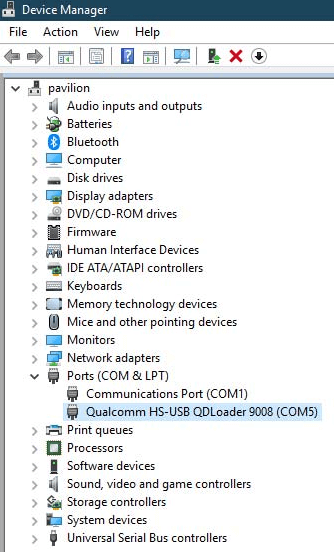
Confirm the Qualcomm HS-USB QDLoader 9008 connection before troubleshooting the programmer.
4. Verify the Port and Programmer in QFIL
Step 1. Open QFIL from the installed QPST environment.
Step 2. Confirm that QFIL is using the same Qualcomm COM port shown by Windows.
Step 3. Choose only the build or service mode specified for the exact device procedure.
Step 4. Load the firehose programmer verified for the device and firmware branch.
Step 5. Confirm that the programmer handshake completes before proceeding to any partition-level screen.
Step 6. Follow the device-specific service documentation for the required operation. Do not copy a partition name or erase instruction from another Qualcomm model.
Step 7. Let the documented operation finish before disconnecting or restarting the device.
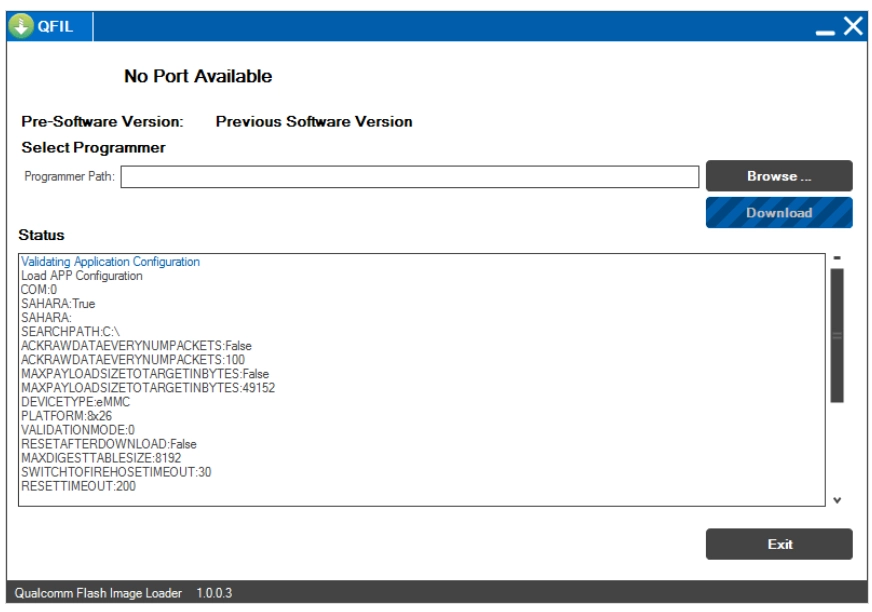
A stable 9008 port and a model-matched programmer are prerequisites for the QFIL service stage.
QFIL Not Working? Diagnose 9008, Sahara & Firehose Errors
Use the point of failure to decide what to troubleshoot. Work upward from the connection layer instead of changing several variables at once.
| Failure | Likely Layer | Do Not Do | Check Next |
| No Qualcomm 9008 port | USB / driver / EDL entry | Do not start swapping firehose files. | Verify driver installation, cable, USB port, and model-specific EDL entry. |
| 9008 port connects and disconnects | Connection stability | Do not begin a low-level operation on an unstable session. | Use a direct port and known-good data cable; recheck the driver state. |
| QFIL cannot use the COM port | QFIL / port selection | Do not assume the programmer is already the problem. | Match QFIL’s selected port to the port shown in Device Manager. |
| Sahara or firehose error | Programmer handshake | Do not cycle through random loaders. | Verify model, platform, firmware branch, programmer source, and service procedure. |
| Programmer file is rejected | Programmer compatibility / signing | Do not assume another phone in the same chipset family uses the same file. | Obtain the resource tied to the exact device procedure. |
| Partition Manager does not open or expected entry is missing | Procedure / partition-map mismatch | Do not erase a similarly named partition. | Return to model-specific service documentation. |
| Authentication is required | OEM / service authorization | Do not treat it as a Google FRP error or assume a universal auth tool will solve it. | Check the service or authorized repair requirements for the model. |
Why a Stable 9008 Port Comes First
If the phone never remains connected as Qualcomm HS-USB QDLoader 9008, solve the connection layer before changing QFIL settings. A programmer cannot complete a handshake over a session that is repeatedly dropping.
Why Sahara and Firehose Errors Come Later
A Sahara or firehose failure normally means the process has moved beyond basic Windows detection but has not completed the programmer stage. Recheck the exact model, platform, firmware branch, and programmer source before assuming that QFIL itself is broken.
When Authentication Is the Real Blocker
If the 9008 port and programmer stage reach an OEM or service authentication restriction, the blocker is no longer the same as Android’s Google verification screen. Confirm whether the model requires an authorized repair or service path instead of searching for a generic Qualcomm FRP workaround.
Decision point: Stop the manual QFIL route if you cannot establish a stable 9008 session, cannot verify the correct programmer, encounter an authorization requirement you cannot satisfy, or would need unverified board-level instructions to continue.
FRP Option Without Manual QFIL or Firehose Selection
A guided FRP application is a separate workflow from QFIL. It does not make an unstable 9008 port stable, repair a rejected firehose programmer, or remove an OEM service-authentication requirement. It is relevant when you do not need or do not want to perform the manual EDL/QFIL process and your device is covered by the application’s FRP workflow.
DroidKit FRP Bypass provides on-screen instructions for supported Android device scenarios without asking the user to manually select a QFIL firehose programmer.

Open the FRP Bypass feature in DroidKit.
When a Guided FRP Workflow Is More Relevant
- You do not have a verified firehose programmer for the exact Qualcomm model.
- You do not want to perform board-level or test-point work.
- You want an FRP workflow rather than a manual QFIL service procedure.
- You have a Windows or Mac computer available.
- The connected device is covered by the available FRP workflow.
Start the FRP Workflow in DroidKit
Step 1. Install DroidKit on the computer and open FRP Bypass.
Step 2. Connect the Android phone with a data-capable USB cable and follow the device-detection prompts.
Step 3. Continue only when the workflow shown by the software applies to the detected device. Use the on-screen instructions rather than substituting QFIL steps from another Qualcomm phone.
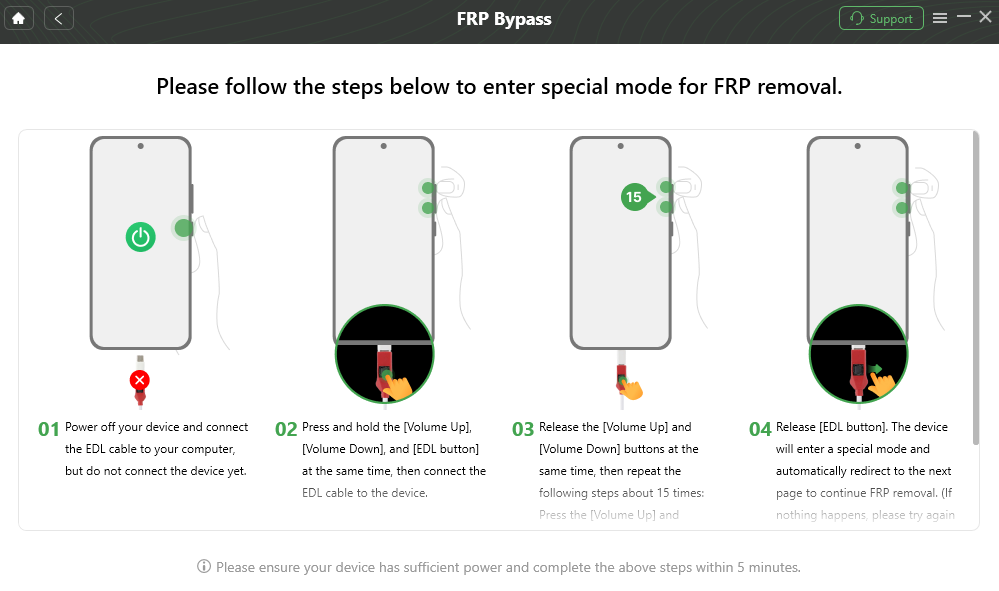
Follow the instructions shown for the detected FRP workflow.
Compatibility note: DroidKit is a separate FRP route, not a universal replacement for Qualcomm EDL service. Check the device workflow before purchasing or relying on the software.
Which Qualcomm FRP Route Matches Your Blocker?
| Your Situation | Better Starting Point | Why |
| You have the original Google account | Google account recovery or sign-in | There is no reason to start low-level Qualcomm service work if account verification can be completed normally. |
| You have a stable 9008 port, verified programmer, and documented device procedure | QFIL / QPST workflow | The connection and programmer prerequisites for the technical route are already in place. |
| The phone never appears in 9008 mode | Fix EDL entry / USB / driver first | QFIL programmer changes cannot repair a missing connection layer. |
| The 9008 port is unstable | Fix connection stability | Low-level service work should not begin over a session that repeatedly drops. |
| QFIL reports Sahara or firehose failure | Verify the programmer and device match | The COM port is visible, but the programmer stage has not completed. |
| The service session requires authentication | OEM / authorized service route | Service authorization and Google FRP are different problems. |
| You do not have a verified programmer or do not want manual EDL work | Another compatible FRP workflow | A separate guided FRP route avoids asking the user to perform manual QFIL/firehose selection. |
Chipset alone should not decide the route. For example, a Samsung phone using a Qualcomm platform can still have Samsung-specific setup behavior. In that case, use the Samsung FRP bypass guide rather than assuming that every Qualcomm-based Galaxy phone should start with EDL/QFIL.
Qualcomm FRP, QFIL & EDL FAQ
What is the best Qualcomm FRP tool?
There is no universal best tool. QFIL is relevant to experienced users who have a stable EDL 9008 connection, a verified programmer, and a documented device procedure. If you only need an FRP workflow and do not have the resources for manual QFIL service, a compatible guided FRP option may be more appropriate.
Is QFIL a Qualcomm FRP bypass tool?
QFIL is a Qualcomm service utility within the QPST environment, not a universal one-click FRP application. Any service operation performed through it depends on the exact device, programmer, partition map, and procedure.
Can Qualcomm FRP be handled without EDL mode?
Yes, depending on the device and FRP route. EDL 9008 is required for the QFIL service workflow discussed on this page, but another supported FRP workflow may use a different device-specific process.
Is a Qualcomm auth bypass tool the same as an FRP tool?
No. Google FRP is an Android setup and account-verification issue. Qualcomm or OEM authentication can block a low-level service session before the requested operation is accepted. Resolving one does not automatically resolve the other.
Why does my phone not show Qualcomm HS-USB QDLoader 9008?
Start with the connection layer: confirm the model-specific EDL entry method, Qualcomm driver state, USB cable, and USB port. Do not troubleshoot the firehose programmer until Windows can maintain the required device connection.
Why does Qualcomm 9008 keep connecting and disconnecting?
An unstable port usually points to the physical USB connection, driver state, device state, or EDL entry procedure. Resolve that instability before starting a QFIL operation.
What causes Sahara or Firehose errors in QFIL?
These errors can occur after Windows detects the COM port but before the programmer handshake completes. Recheck the exact device model, platform, firmware branch, programmer source, and service procedure instead of loading random firehose files.
Can I use the same firehose programmer on phones with the same Qualcomm chipset?
Do not assume so. Programmer compatibility can also depend on the exact device implementation, memory configuration, firmware branch, signing policy, and OEM service requirements.
What should I do if Partition Manager does not show the expected entry?
Stop and verify the model-specific documentation. Do not erase another partition because its name looks similar to one shown in a tutorial for a different device.
What does an authentication error mean after 9008 connects?
It can indicate that the low-level service session requires OEM, repair-platform, or other authorized access. That is a service-access issue rather than proof that Google FRP itself cannot be resolved.
Do Qualcomm FRP tools work on newer Android versions?
Compatibility depends on more than Android version. Brand, model, security state, EDL/service restrictions, and the selected FRP workflow all matter. Check the current device-specific requirements before using QFIL or another FRP application.
The Checkpoint Tells You What to Fix Next
Qualcomm FRP troubleshooting becomes much clearer when you separate the layers. No 9008 port means the EDL or connection stage is not ready. A stable port followed by Sahara or firehose failure points to the programmer stage. An authentication rejection belongs to the service-access layer, while Google FRP remains an Android account-verification issue.
If you already have a verified programmer and documented procedure, QFIL can remain the technical route for that device. If you cannot verify the EDL resources or do not want to perform manual Qualcomm service work, use another FRP route only after confirming that it supports the exact device situation.
More Related Articles


Roger Smith is a senior technical writer with years of experience in providing Android solutions. He loves to help users solve various problems such as Android unlock, Android data recovery, and Android system repair.
Product-related questions? Contact Our Support Team to Get Quick Solution >
