Samsung Face Recognition Not Working? 2026 Fix Guide
Struggling with a bricked phone? Our 2026 guide for the Phoenix Service Tool offers step-by-step instructions, error fixes, and safe download advice.
Table of ContentsHide
Why Samsung Face Recognition Might Stop Working
Method 1. Quick Fix: Reset Your Face Recognition Data
Method 2. Fix Face Recognition Failed After a Samsung Update (One UI 6.1)
Method 3. Fix Front Camera Problem
- 1. Test with the Stock Camera App
- 2. Test with a Video Call App
- 3. Use Samsung’s Own Diagnostic Tool
Method 4. Advanced Fixes for Samsung Face Recognition Not Working
What to Do If You’re Locked Out of Your Samsung Phone
It’s incredibly frustrating when your Samsung’s face recognition suddenly stops working. You count on it for quick, secure access to your phone, and when it fails—especially after a software update—it can disrupt your whole day. If you’re facing this issue, you’re not alone. Let’s walk through the solutions that actually work, starting with the most common fix.
Why Samsung Face Recognition Might Stop Working
Face recognition on Samsung phones relies on both software and hardware working together smoothly. When it fails, the causes usually fall into one of these categories:
- Software Updates: Major updates like One UI 6.0/6.1 can sometimes create conflicts with stored biometric data.
- Corrupted Face Data: Over time, the stored face template can become inaccurate or corrupted, especially if you’ve changed your appearance.
- App or System Conflicts: Some third-party apps with device permissions can interfere with the biometric system.
- Camera Hardware Issues: A blocked, dirty, or malfunctioning front camera will prevent face recognition from working.
- Power or Settings Restrictions: Power saving mode or certain lock screen settings may disable biometrics in the background.
The good news: almost all of these causes are fixable without needing professional repair. Let’s start with the easiest solution first.
Method 1. Quick Fix: Reset Your Face Recognition Data
Often, the data your phone uses for face recognition can become corrupted, especially after a software update. The most effective first step is to remove your old face data and register it again. This creates a fresh, accurate scan for the system to use and is a safe process that won’t affect any of your other data, apps, or settings.
Here’s how to do it correctly:
- Open Settings: From your app drawer or home screen, launch the Settings app.
- Navigate to Biometrics: Scroll and tap Security and privacy, then choose Biometrics.
- Access Face Recognition: Tap Face recognition. You’ll need to enter your PIN, pattern, or password to continue.
- Remove Existing Data: In the Face recognition menu, tap Remove face data. A pop-up will ask for confirmation; tap Remove to proceed.
- Re-register Your Face: After the old data is gone, tap Face recognition again to begin the new registration process.
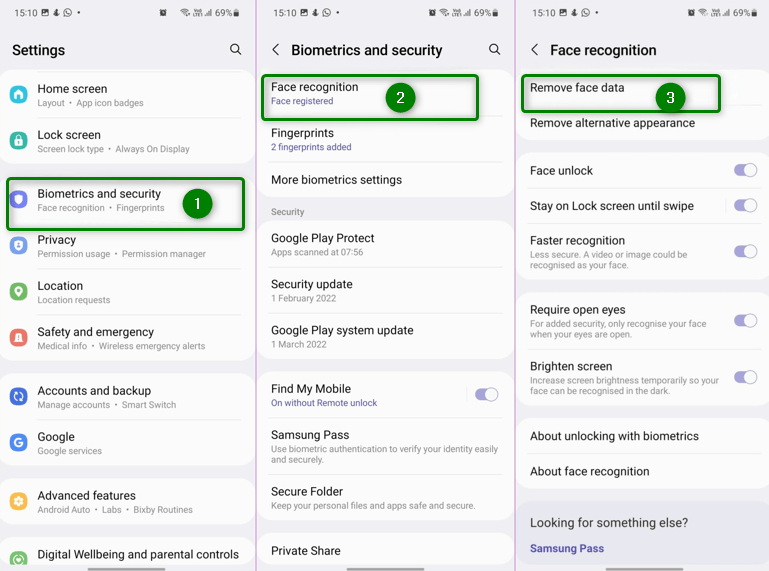
Reset Your Face Recognition Data
Tips for a Perfect Scan:
To get the best results when you re-register, keep these points in mind:
1. Find Good Lighting: Make sure your face is evenly lit from the front. Avoid strong light from behind you (backlighting) as it can create silhouettes.
2. Clear the Way: Remove sunglasses, hats, or masks. If you wear glasses, the system may ask you to remove them for the initial scan to get a clear picture of your features.
3. Hold Your Phone Steady: Keep the phone at eye level, about 8-20 inches away. Follow the on-screen guides to position your face inside the circle.
For many people, completing this reset is all it takes to get face unlock working perfectly again.
Method 2. Fix Face Recognition Failed After a Samsung Update (One UI 6.1)
If face recognition stopped working immediately after an update to One UI 6.0 or 6.1, the problem is almost certainly a software conflict. New updates can sometimes clash with old temporary files stored on your device. These two methods are designed to fix post-update glitches.
1. Clear the System Cache Partition
Clearing the cache partition is a powerful troubleshooting step that removes temporary system files without touching your personal data. It’s like a spring clean for your phone’s operating system, resolving conflicts caused by an update.
To do this, you’ll need to enter Recovery Mode.
Step 1. Power Off Your Phone: Make sure your Samsung device is completely shut down.
Step 2. Connect Your Phone: This is a critical step for newer models (Galaxy S20 and later). You must connect your phone with a USB cable to a PC, Mac, or another Samsung device like a tablet. This provides the necessary power to the motherboard to access Recovery Mode; a standard wall charger will not work.
Step 3. Enter Recovery Mode: Press and hold the Power button and the Volume Up button at the same time. Let go of both buttons as soon as you see the Samsung logo or the Android Recovery screen appear.
Step 4. Wipe the Cache: In the Recovery menu, use the Volume Down button to scroll down and highlight Wipe cache partition.
Step 5. Confirm the Action: Press the Power button to select it. Use the Volume Down button to select Yes, and press the Power button again to confirm.
Step 6. Reboot Your Phone: After the cache is cleared, the menu will reappear. Ensure Reboot system now is highlighted and press the Power button.
Once your phone restarts, test the face recognition. This process resolves most update-related biometric issues.
2: Use Safe Mode to Check for App Conflicts
Sometimes, a third-party app can interfere with your phone’s biometric systems. Safe Mode is a diagnostic state that loads only the core system apps, letting you test if an app you installed is the cause.
1. Enter Safe Mode: With your phone turned on, press and hold the Power button to bring up the power menu. Now, tap and hold the green Power off icon until the Safe mode option appears. Tap it to restart your phone in Safe Mode.
2. Test Face Recognition: You’ll see the words “Safe mode” at the bottom of your screen. Try to unlock your phone with your face.
3. Analyze the Results: If face unlock works in Safe Mode, a third-party app is the culprit. Restart your phone to exit Safe Mode and begin uninstalling your most recently downloaded apps one by one. Pay special attention to apps that have device admin permissions, such as custom launchers, screen overlay apps, or battery savers.
Method 3. Fix Front Camera Problem
Before you go any deeper into software fixes, it’s essential to confirm your front camera hardware is working correctly. If the camera is broken or blocked, no software setting will fix face unlock.
1. Test with the Stock Camera App
- This is the quickest way to see if the hardware is responding.
- Open the built-in Camera app.
- Tap the icon to switch to the front-facing (selfie) camera.
If you see a clear image of yourself and the app doesn’t freeze or crash, the camera’s basic functions are likely fine.
2. Test with a Video Call App
- Face recognition uses a continuous video feed, so this test ensures the camera can handle it.
- Open an app like Google Meet, WhatsApp, or Instagram.
- Start a video call or record a selfie video.
If the video is smooth and uninterrupted, the camera hardware is performing as expected. This strongly suggests your issue is software-related.
3. Use Samsung’s Own Diagnostic Tool
For a definitive hardware check, use the tool built right into your phone’s support system.
- Open the Samsung Members app. If you don’t have it, you can install it from the Galaxy Store.
- Tap the Support tab at the bottom of the screen.
- Select Phone diagnostics.
- Tap Camera from the list of tests and follow the prompts to test the front camera.
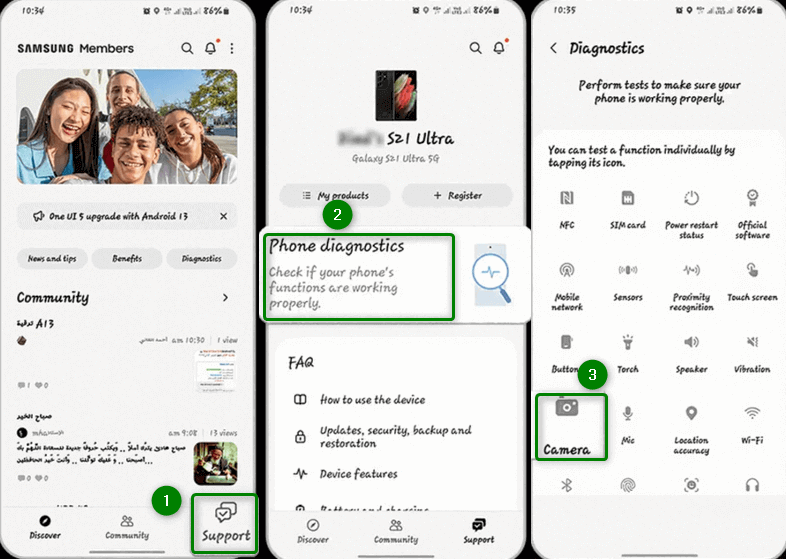
Use Samsung Diagnostic Tool
If your camera fails any of these tests, you likely have a hardware problem that needs professional repair. If it passes all three, you can be confident the issue lies within your phone’s software or settings.
Method 4. Advanced Fixes for Samsung Face Recognition Not Working
If the basic solutions haven’t solved the issue, a few overlooked settings could be interfering with face unlock. Double-check these options in your Biometrics and Security menu:
1. Stay on Lock screen until swipe → This setting can confuse users. Your phone may actually recognize your face and unlock, but it waits for you to swipe before showing the home screen.
Fix: Go to Settings > Security and privacy > Biometrics > Face recognition and toggle off Stay on Lock screen until swipe.
2. Power Saving Mode → Aggressive battery saving can disable background processes, including the biometric service that runs face unlock.
Fix: Pull down the Quick Settings panel and turn off Power saving mode, or go to Settings > Battery and device care > Battery and disable it.
3. Biometrics App Cache → A corrupted cache in the system’s biometrics app may block face recognition.
Fix: Go to Settings > Apps > Show system apps (via the filter icon). Find Biometrics, tap Storage, then choose Clear cache.
4. Camera Permissions → In rare cases, the face recognition service may lose its permission to access the camera.
Fix: Go to Settings > Security and privacy > Permission manager > Camera. Ensure any system app named Face recognition or Biometrics has camera access enabled.
👉 After checking these settings, many users will find that face unlock begins working normally again.
What to Do If You’re Locked Out of Your Samsung Phone (Face ID, PIN, Password Not Working)
In very rare cases, both face recognition and your PIN, pattern, or password can fail — leaving you completely locked out. Many people think a factory reset is the only option, but that means losing all your data. Fortunately, there’s an alternative.
A tool like DroidKitoffers a Screen Unlocker feature designed for situations where no credentials work. It allows you to bypass the lock screen and regain access to your phone without wiping everything.
Free Download * 100% Clean & Safe
⚠️ Note: This is a premium paid tool, so it should be considered a last resort if free methods fail and you cannot afford to lose your data.
Here’s the general process:
1. Download and install DroidKit on your Windows or Mac computer.
2. Open the app and select the Screen Unlocker feature.
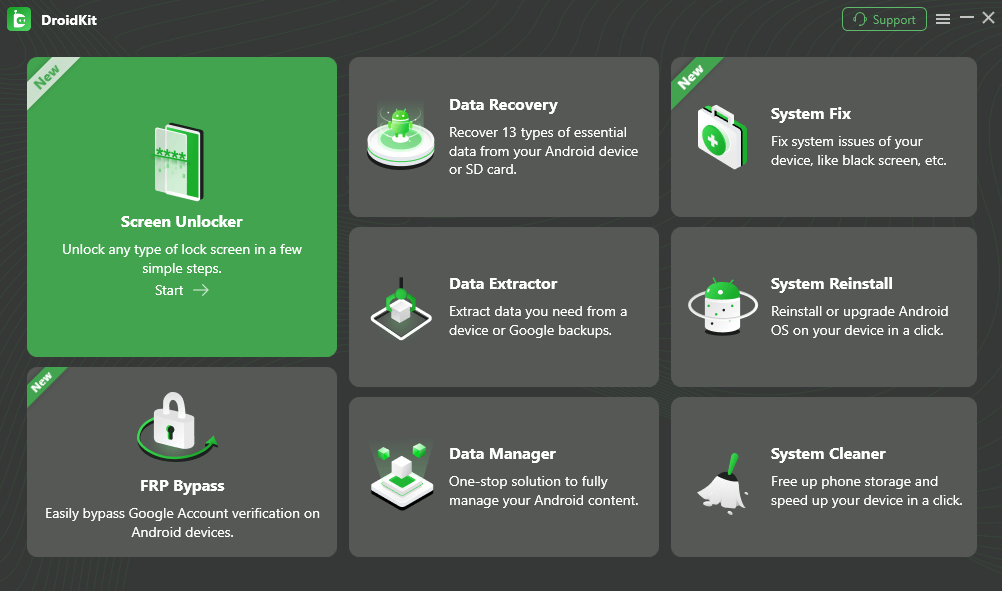
Choose Screen Unlocker
3. Connect your locked Samsung device via USB.
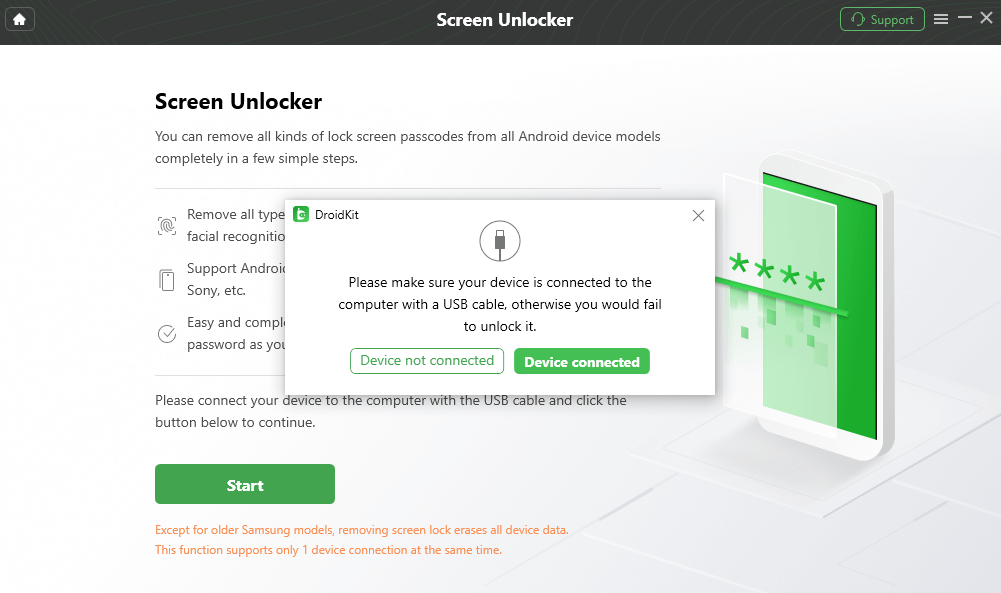
Connect Android Device via Cable
4. Follow the on-screen instructions to complete the unlocking process.
Conclusion
When Samsung face recognition stops working, it can feel like your phone has suddenly become far less convenient. The good news is that in most cases, the issue is not permanent. By resetting your face data, clearing cache partitions, checking for app conflicts, or adjusting overlooked settings, you can usually restore face unlock in just a few minutes.
Only in rare cases—such as when both face unlock and your PIN/password fail—will you need to consider a professional unlocking tool like DroidKit. That should be a last resort, but it’s reassuring to know there’s still a way back into your phone without losing all your data.
By following these troubleshooting steps in order, you’ll have the best chance of fixing Samsung face recognition not working and getting back the speed and convenience of secure, contactless unlocking.
Free Download * 100% Clean & Safe
Frequently Asked Questions (FAQ)
What does Samsung officially recommend first for face recognition issues?
Samsung’s primary recommendation is to remove and re-register your face data. You can do this in Settings > Security and privacy > Biometrics > Face recognition. This simple step resolves the majority of common glitches.
Are there known face recognition bugs in the latest One UI software?
While Samsung doesn’t publish a live bug list, user communities often highlight temporary biometric issues following major updates like One UI 6.0/6.1. If you suspect an update-related bug, wiping the system cache partition from Recovery Mode is the most effective fix.
How do I report a persistent face recognition bug to Samsung?
The best way is through the Samsung Members app. Go to the Support tab and use the Send feedback > Report an error option. This sends diagnostic logs from your device directly to Samsung’s engineers, helping them fix bugs in future updates.
What is the “factory reset” for face recognition?
There isn’t a specific reset just for face recognition. A full factory reset erases everything on your phone. It is a last-resort option if you are completely locked out and have no other choice. To do this, you would boot into Recovery Mode and select Wipe data/factory reset. Warning: This will permanently delete all your photos, contacts, apps, and settings.
More Related Articles


Roger Smith is a senior technical writer with years of experience in providing Android solutions. He loves to help users solve various problems such as Android unlock, Android data recovery, and Android system repair.
Product-related questions? Contact Our Support Team to Get Quick Solution >
