Samsung A12 FRP Bypass Without PC (Android 11) – 2026 Step-by-Step Guide
“I bought the A12 second-hand for my son. No PC, no SIM, nothing worked. I was ready to give up. But this TalkBack guide saved me. It actually worked.”
— Maria, Houston, TX
So you picked up a second-hand Samsung Galaxy A12, maybe for your child or just as a backup phone. You reset it to start fresh, and then boom—you hit that dreaded screen:
“This device was reset. To continue, sign in with a Google Account that was previously synced…”
You might be feeling confused, frustrated, maybe even a little panicked. No SIM card. No computer. No idea what FRP is.
Take a deep breath—you are not alone. And more importantly, you have options.
This guide is written for people just like you: real users, not tech experts, who just want their phone to work again. We’ll walk you through a method that works in 2026—no computer, no SIM required.
Quick Solution
If you just want the fastest way to unlock your Samsung A12 FRP lock, here are the two most common solutions:
• Method 1 – TalkBack Accessibility Method
Works without a PC or SIM card, but only on some Android 11 firmware versions.
• Method 2 – FRP Unlock Tool
Works on newer security patches and is easier for beginners.
Most users start with the TalkBack method below. If it doesn’t work on your device, you may need to use a dedicated FRP bypass tool.
What Is FRP and Why Is Your Samsung A12 Locked?
Factory Reset Protection (FRP) is Google’s way of keeping your device safe if it gets stolen. Once a Google account is linked and you set a screen lock, FRP kicks in automatically.
If you reset the phone without removing the Google account, the device gets locked. It won’t let you proceed until you enter that account—even if you bought the phone fair and square.
This is great for security, but tough if you bought the phone used and can’t reach the original owner.
If you’re dealing with similar problems on other Android devices, you can also read our full guide: How to Bypass Google FRP Lock on Any Android Phone
Why Samsung A12 (Android 11) Makes Things More Difficult
Your Galaxy A12 running Android 11 is trickier to unlock than older models. Here’s why:
- One UI 3.x blocks most classic bypass tricks
- TalkBack gestures may be restricted or patched
- No SIM? Then SIM-based methods are out
- No PC? Forget about ADB, flashing, or OTG APK tools
Many older tutorials from 2021–2022 no longer work due to security updates.
But the TalkBack accessibility method still works on some firmware versions, which we’ll explain below.
Which FRP Bypass Methods Still Work in 2026?
Here’s an honest breakdown:
| Method | Requires PC | Works on A12 (Android 11)? | Risk Level | Requires SIM |
| TalkBack Accessibility | ❌ | ✅ (on select builds) | Low | ❌ |
| YouTube/Chrome Deep Link | ❌ | ❌ (mostly patched) | Medium | ❌ |
| APK sideload (OTG/Flash drive) | ✅ | ❌ | High | ❌ |
| Odin/Flashing Tools | ✅ | ✅ | Medium | ❌ |
| SIM Card Trick | ❌ | ❌ (SIM required) | Medium | ✅ |
✅ Best no-PC, no-SIM method in 2026: TalkBack FRP method (if your firmware isn’t too new).
Step-by-Step: TalkBack FRP Bypass (Samsung A12, No PC)
You’ll Need:
- Wi-Fi connection
- Android 11 (preferably before May 2023 patch)
- A little patience
Let’s Do This:
1. Connect to Wi-Fi and reach the Google verification screen.
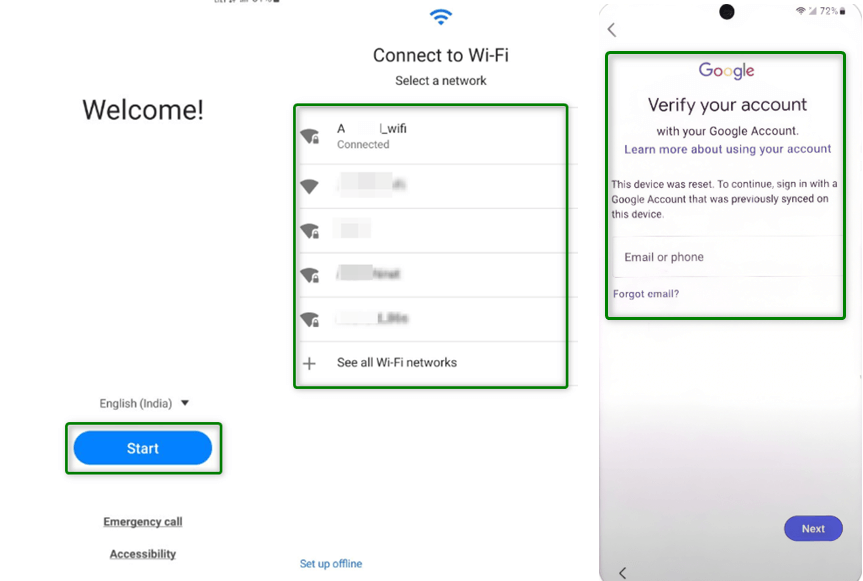
Google verification screen
2. Tap back to Language Selection > Vision Settings > TalkBack, and turn it ON.
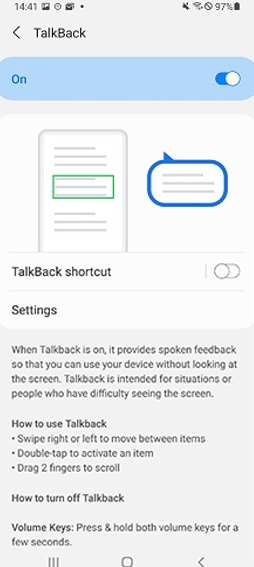
TalkBack Shortcut
3. Draw an “L” shape on the screen with two fingers.
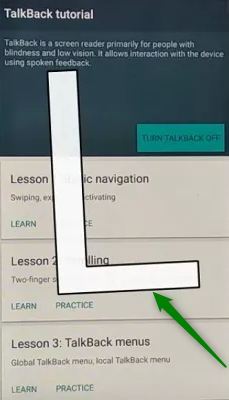
Draw an “L” shape on the screen
4. Tap TalkBack Settings, then press both volume keys for 3 seconds to pause TalkBack.
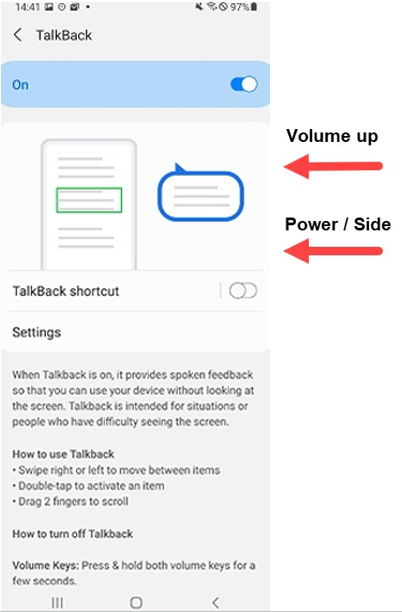
Pause TalkBack
5. In Settings, go to Help & Feedback > tap any topic > then tap Use Morse Code.
6. When YouTube opens, tap Share > Gmail > Add Account.
7. From Gmail, go to Settings > Manage Accounts > You’re in!
8. Disable Google Play Services > Add your Google Account > Re-enable it.
9. Restart the phone and complete the setup.
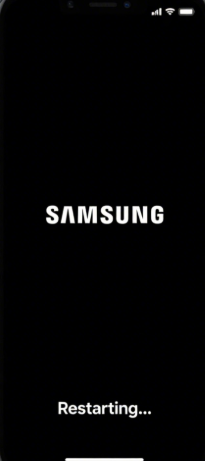
Restart the Device
If you reached this point — congratulations! The FRP lock should be removed.
When the TalkBack Method Doesn’t Work
The TalkBack trick only works on older Android 11 security patches.
If your Samsung A12 has a newer patch (May 2023 or later), you may notice:
• TalkBack gesture doesn’t trigger
• Help & Feedback is missing
• You cannot access Gmail or Settings
This means the method has been patched.
In this case, many users choose to use an FRP bypass tool that works regardless of firmware version.
If you’re working with other Samsung models that require different approaches, you may want to check guides like the Samsung Galaxy S24 FRP bypass without Google account or the Samsung Galaxy M33 FRP unlock guide.
Alternative Solution: FRP Unlock Tools
If manual methods fail, dedicated FRP tools can bypass the lock automatically.
| Tool Name | Free Trial | Features | Ease of Use |
| DroidKit (iMobie) | ✅ | Smart detection, beginner-friendly | ⭐⭐⭐⭐ |
| Tenorshare 4uKey | ✅ | Visual interface, auto detection | ⭐⭐⭐ |
| iMyFone LockWiper | ✅ | Supports many Samsung models | ⭐⭐⭐ |
| Odin (manual) | ❌ | Advanced, risky, but powerful | ⭐⭐ |
These tools typically guide you through the process step-by-step and detect the correct unlocking method automatically.
Example: Using DroidKit to Bypass Samsung FRP
1. Download and install DroidKit on your computer
2. Connect the Samsung A12 via USB
3. Select FRP Bypass mode
4. Follow the on-screen instructions
Is FRP Bypass Legal?
Yes, if:
- You own the phone
- You can show proof of purchase
- You’re not trying to unlock someone else’s device
No, if:
- The phone is lost or stolen
- You’re bypassing someone else’s account without consent
- When in doubt, stay on the ethical side.
Frequently Asked Questions (FAQ)
Can I bypass FRP on Samsung A12 without a PC?
Yes. The TalkBack accessibility method can work without a PC or SIM card on certain Android 11 firmware versions.
Why doesn’t the TalkBack method work on my phone?
Your device may have a newer Android security patch that blocks this exploit.
What is the easiest FRP bypass method?
For older firmware, the TalkBack method is the easiest.
For newer firmware, using an FRP bypass tool is often faster and more reliable.
Will FRP bypass delete my data?
No, your data is already wiped during the factory reset. Bypass doesn’t erase anything further.
Can I get locked again in the future?
Yes, if you reset without removing the Google account. Always unlink accounts before resetting.
Final Tips: Protect Yourself Going Forward
- Remove your Google account before factory reset
- Add a recovery phone/email to your Google account
- Always ask sellers to show “No FRP” before buying used phones
- Save this article—you may need it again later
Conclusion
FRP lock can feel overwhelming — especially when you don’t have a PC, a SIM card, or technical experience. But for the right firmware, the TalkBack method still works on the Samsung Galaxy A12 in 2026. If your device is newer, don’t panic. There are still safe, proven alternatives.
And if you’re dealing with a different Samsung model or Android version, explore our full Samsung FRP Unlock Series, covering both budget phones and the latest flagships. You’re not stuck — you just needed the right guide.
More Samsung FRP Bypass Guides



Jeremy Feron is a writer for iMobie with a deep passion for Android. He specializes in creating clear guides on Android tips and the latest updates, helping users navigate their devices and get the most out of new features.
Product-related questions? Contact Our Support Team to Get Quick Solution >
