How to Bypass Samsung Galaxy M33 FRP Lock in 2026 (Working Methods & Real Solutions)
This new updated guide covers Samsung Galaxy M33 FRP, urging official recovery methods first and warning against outdated hacks. If these fail, it recommends DroidKit or professional services, detailing costs, risks, privacy issues, troubleshooting, and post-unlock setup.
You performed a factory reset on your Samsung Galaxy M33—maybe it’s an inherited device or one you haven’t used in a while—expecting a fresh start, but instead, you’re stopped by Google account verification. This security feature, called Factory Reset Protection (FRP), can make it feel like your device is holding you hostage.
If you’re searching for a way to bypass Samsung Galaxy M33 FRP without the previous Google account, this guide will walk you through what actually works in 2026—and what no longer does.
Quick Answer: Can Samsung Galaxy M33 FRP Be Bypassed in 2026?
Yes — Samsung Galaxy M33 FRP can still be bypassed in 2026, but most old “no-PC” tricks no longer work on newer Android versions and security patches.
- If you still have access to the original Google account, official recovery is the safest solution
- If not, you’ll typically need a PC-based FRP bypass tool or authorized service
- Manual methods like APK tricks or accessibility exploits are no longer reliable
What FRP Is—and Why Your Galaxy M33 Is Asking for a Google Account
Factory Reset Protection (FRP) is a built-in security feature designed to prevent unauthorized access after a reset.
If your Samsung M33 was reset without removing the original Google account, the system will require that account during setup.
That’s why many users search for:
- Samsung M33 FRP bypass
- Google verification fix after reset
- bypass FRP without old Google account
The device simply cannot verify ownership without that login.
Start Here: Official Samsung M33 FRP Recovery Options (Recommended First)
Before you try anything complex or risky, work through these safer options:
1. Google Account Recovery
Use the official recovery flow (password reset, 2-step verification prompts, recovery email/phone). If you recently changed a password, a 24–72 hour security wait window may apply before the device accepts new logins.
2. Prove Ownership with Samsung/Authorized Service
If you can’t recover the Google account, contact Samsung Support or an authorized service center with purchase/ownership documents. Depending on local policy and proof provided, they may help restore access or re-provision the device.
3. Keep It Official When a Computer Is Required
If any official desktop action is needed, install Samsung’s official USB drivers first so the device is recognized correctly and you avoid flaky connections.
These routes are the safest, most compliant, and least likely to result in unexpected outcomes. Exhaust them before considering anything else.
Why “No-PC” Samsung M33 FRP Bypass Methods No Longer Work
You might see guides claiming:
- “FRP bypass in 5 minutes”
- “No PC needed”
- “Use TalkBack / APK / SIM trick”
Here’s the reality in 2026:
- Samsung patches block these exploits
- Android security is now version-dependent
- FRP is tied to firmware-level protection
- Old tricks rarely work on Galaxy M33
👉 If these methods fail (which is common), you need a solution built for modern Android security.
Best Working Solution for Samsung Galaxy M33 FRP in 2026
For users who cannot recover the original Google account, a professional FRP bypass tool is the most practical solution.
One commonly used option is DroidKit, which is designed to work with newer Samsung firmware and Android versions.
Why This Type of Tool Works
- Adapts to your device model and Android version
- Bypasses Google verification directly at system level
- Does not require original credentials
- Provides guided, step-by-step instructions
Who Should Use This Method?
This approach is best if:
- You forgot the original Google account
- You bought a second-hand Samsung M33
- No-PC methods don’t work
- You want a faster, at-home solution
- You prefer not to visit a repair shop
Compare Your Options
| Option | Best For | Limitations |
| Google Account Recovery | You remember account info | May require waiting |
| Authorized Service | You have ownership proof | Time-consuming |
| Local Repair Shop | Hands-off solution | Higher cost / privacy concerns |
| FRP Tool (PC-based) | Fast DIY unlock | Requires computer |
👉 If you want a faster solution without relying on recovery delays, many users choose a PC-based FRP tool like DroidKit as a practical workaround.
Why DroidKit Is the Go-To Solution for Your Samsung M33:
DroidKit directly addresses the pain points of a locked device by offering a streamlined process tailored for the latest security patches, making it a strong candidate for any Samsung M33 FRP 2026 challenges.
- High Success Rate: It creates a custom bypass solution for your exact phone model and Android version, which dramatically increases the chance of success.
No Credentials Needed: The process is designed to FRP bypass Samsung M33 without a pin or Google account details. It completely removes the old account so you can set up your own. - Genuinely User-Friendly: You don’t need to be an expert. DroidKit provides clear, step-by-step on-screen instructions that turn a complex procedure into a manageable task.
- Secure and Safe: The software is from a trusted developer and ensures your device’s system is not compromised during the bypass. Your phone remains fully functional.
Step-by-Step Guide to Using DroidKit for FRP Bypass
Follow these detailed steps to reclaim your Samsung Galaxy M33. We’ve added extra detail to make sure you’re never left guessing.
Step 1: Download and Launch DroidKit
First, download DroidKit onto your Windows or Mac computer from the official website. Install the program and open it. On the main screen, click on the FRP Bypass mode.
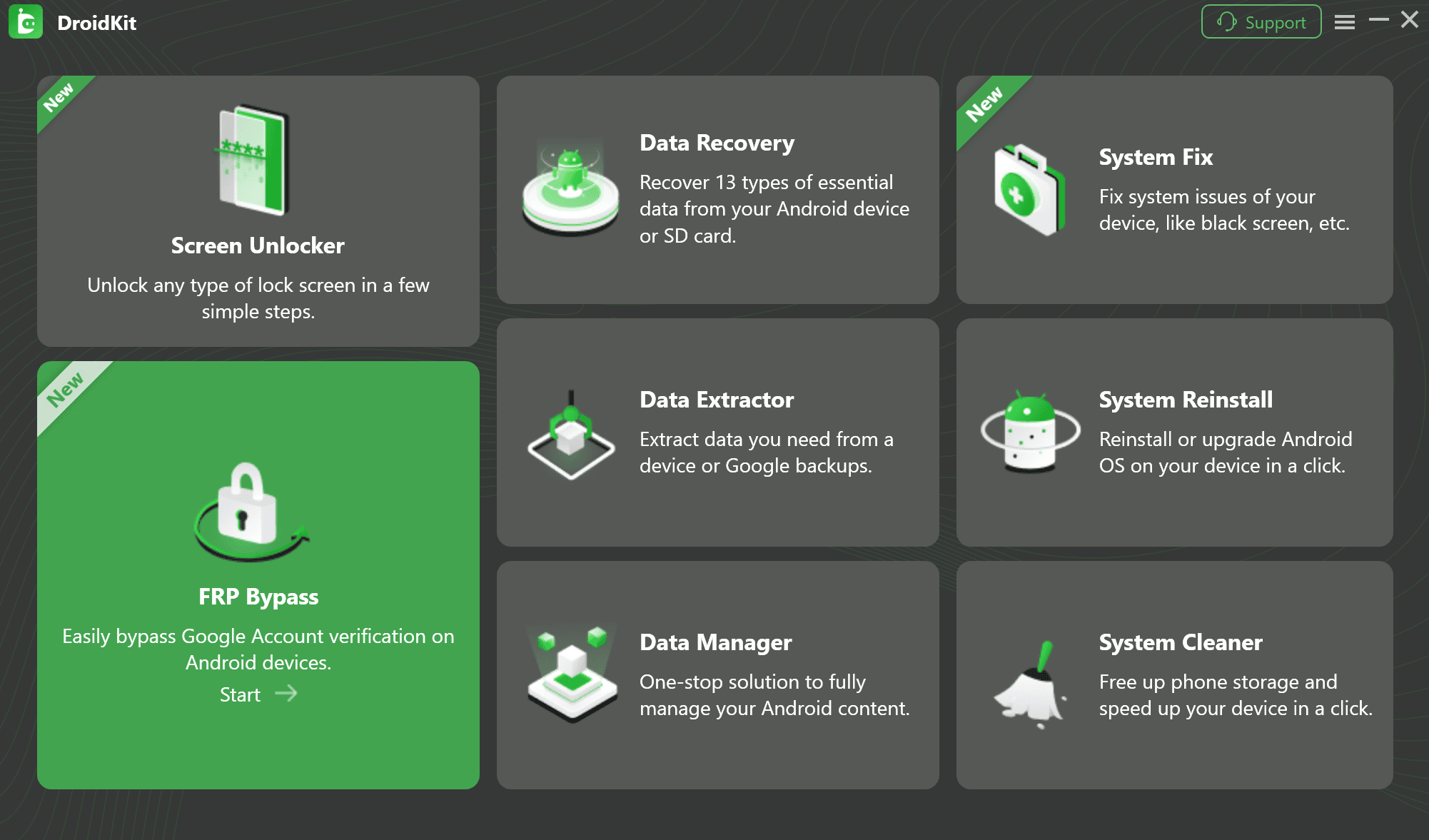
The main DroidKit interface
Step 2: Connect Your Samsung M33 and Start
Connect your locked Samsung M33 to the computer with the USB cable. On the DroidKit screen, review the information and click the Start button. The software will immediately begin to detect your device.
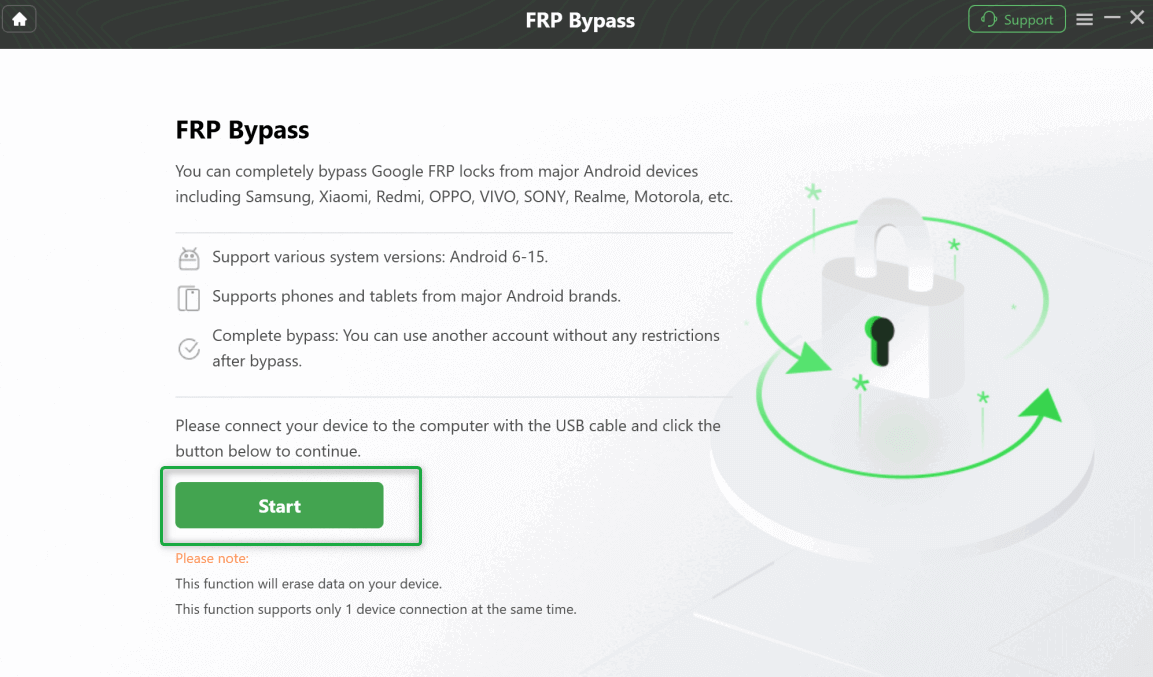
Connect Samsung M33 and Start
Step 3: Prepare the Custom Configuration File
Once your phone is detected, DroidKit will start preparing a custom configuration file for your Galaxy M33. This isn’t an instant process; it can take a few minutes as the software analyzes your device’s specific model and OS version to ensure the correct bypass method is used. Just let it run. You’ll see a progress bar indicating that it’s working.
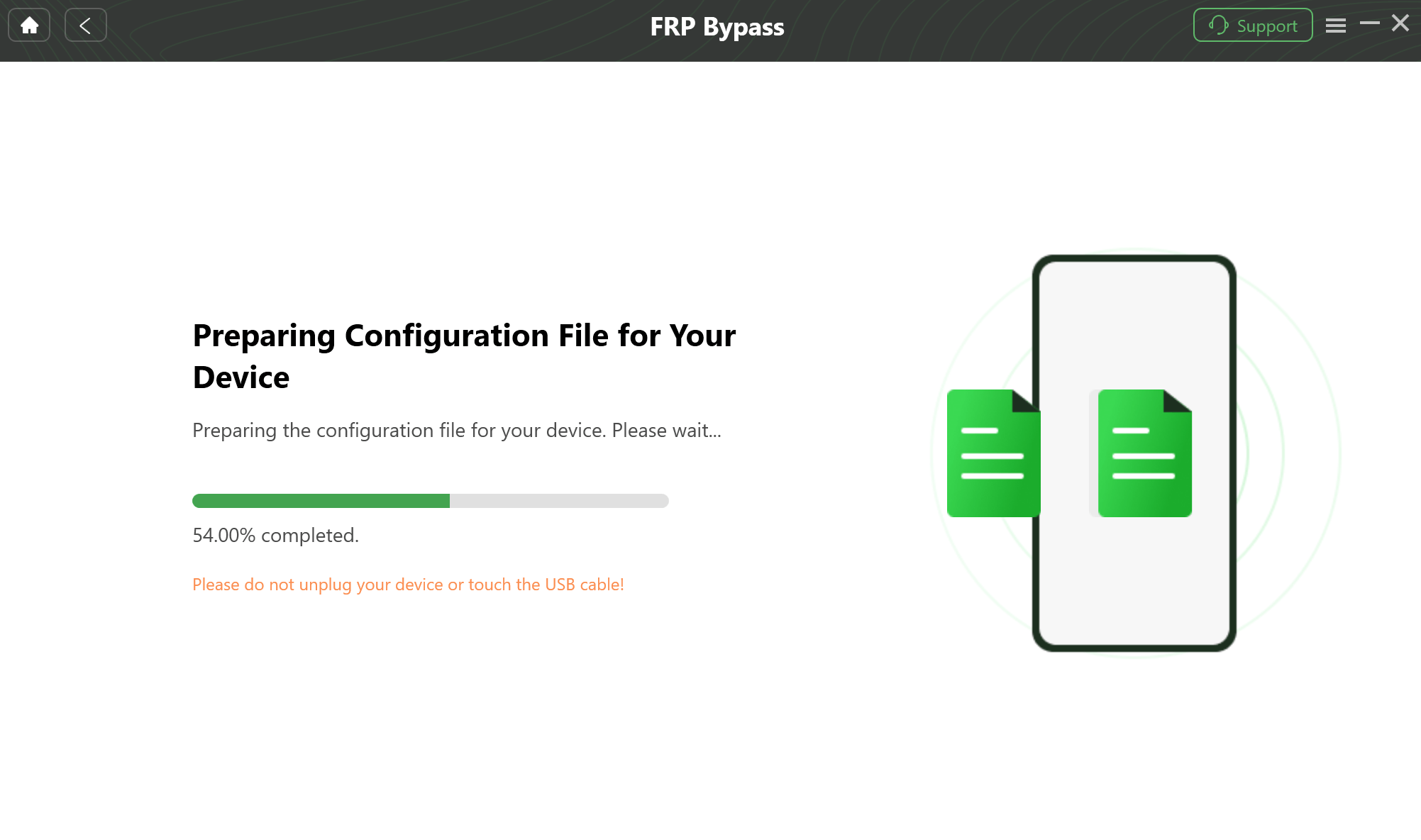
Prepare the Custom Configuration File
Step 4: Enter Recovery Mode (The Right Way)
DroidKit will guide you, but here are the exact steps to save you time. This is a crucial step that can be tricky.
- First, make sure the phone is connected to your PC via USB.
- Power the device off.
- Press and hold the Volume Up button and the Power button simultaneously.
- Keep holding them until the Samsung logo appears. Once you see the logo, you can release the buttons. The phone will now boot into the Android Recovery menu.
Step 5: Follow the Specific On-Screen Instructions
This is no longer a vague step. Once you’re in Recovery Mode, DroidKit will give you obvious instructions. Here is what you can expect to do:
- Find Your Android Version: The software will first ask you to look at the top of your phone’s Recovery Mode screen. You’ll see a line of text like samsung/m33xq/m33:13/…. The number after the colon (in this case, 13) is your Android version. You will need to select this version inside the DroidKit window.
- Wipe the Cache Partition: DroidKit will then instruct you to use your phone’s Volume buttons to navigate down the Recovery menu to the Wipe cache partition option. Press the Power button to select it. You’ll be asked to confirm; use the Volume buttons to highlight Yes and the Power button to select it. This cleans up temporary system files to prepare for the bypass.
- Enter the Code: Follow the next prompt in DroidKit, which will guide you back to the main Recovery menu.
These precise actions allow the software to apply the correct exploit for your system version.
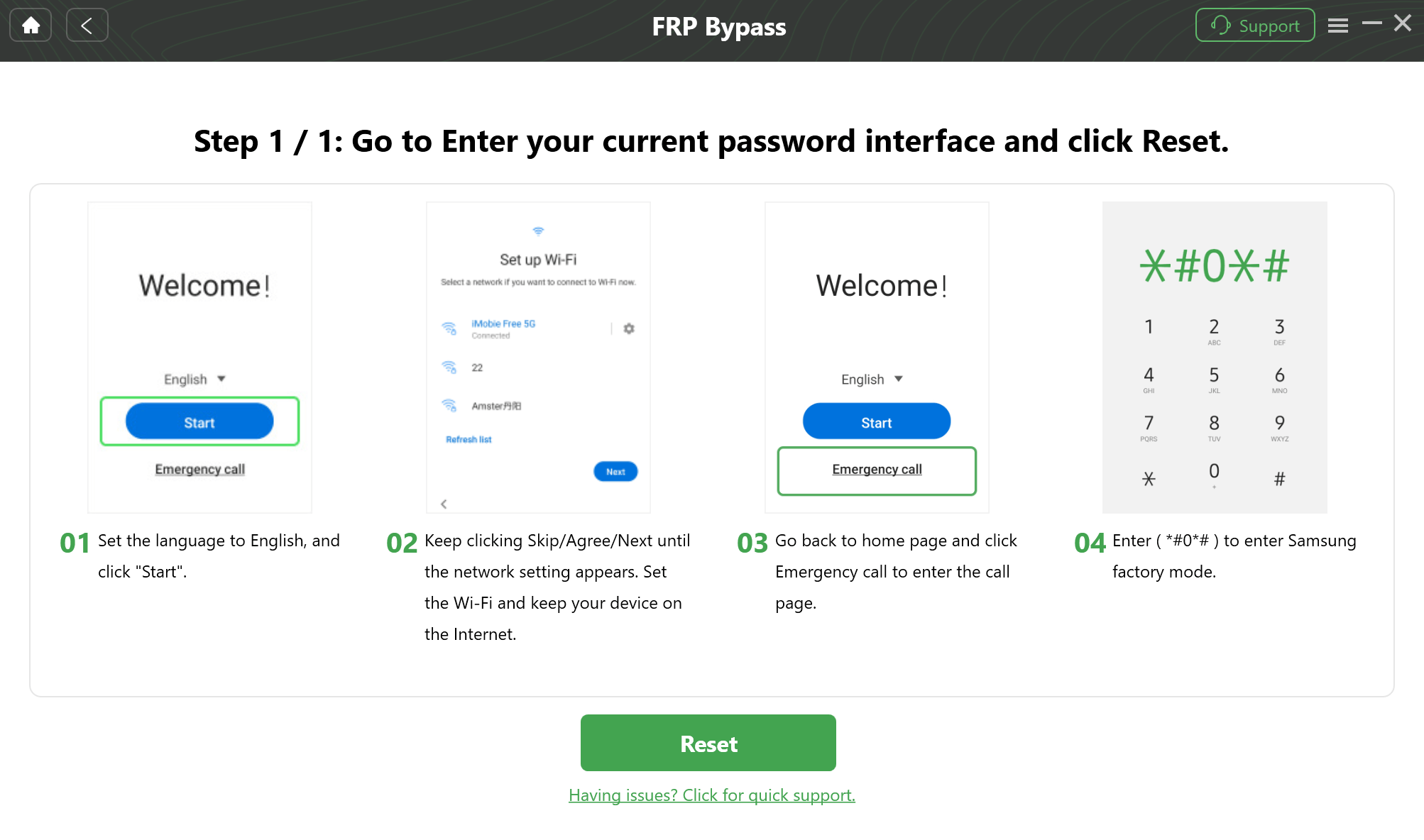
Follow the Specific On-Screen Instructions
Step 6: Complete the FRP Bypass
After wiping the cache, select Reboot system now from the Recovery menu on your phone. As your Samsung M33 restarts, DroidKit will execute the final stage of the bypass on your computer. This process removes the Google account lock from your phone’s firmware. Do not disconnect the phone during this phase.
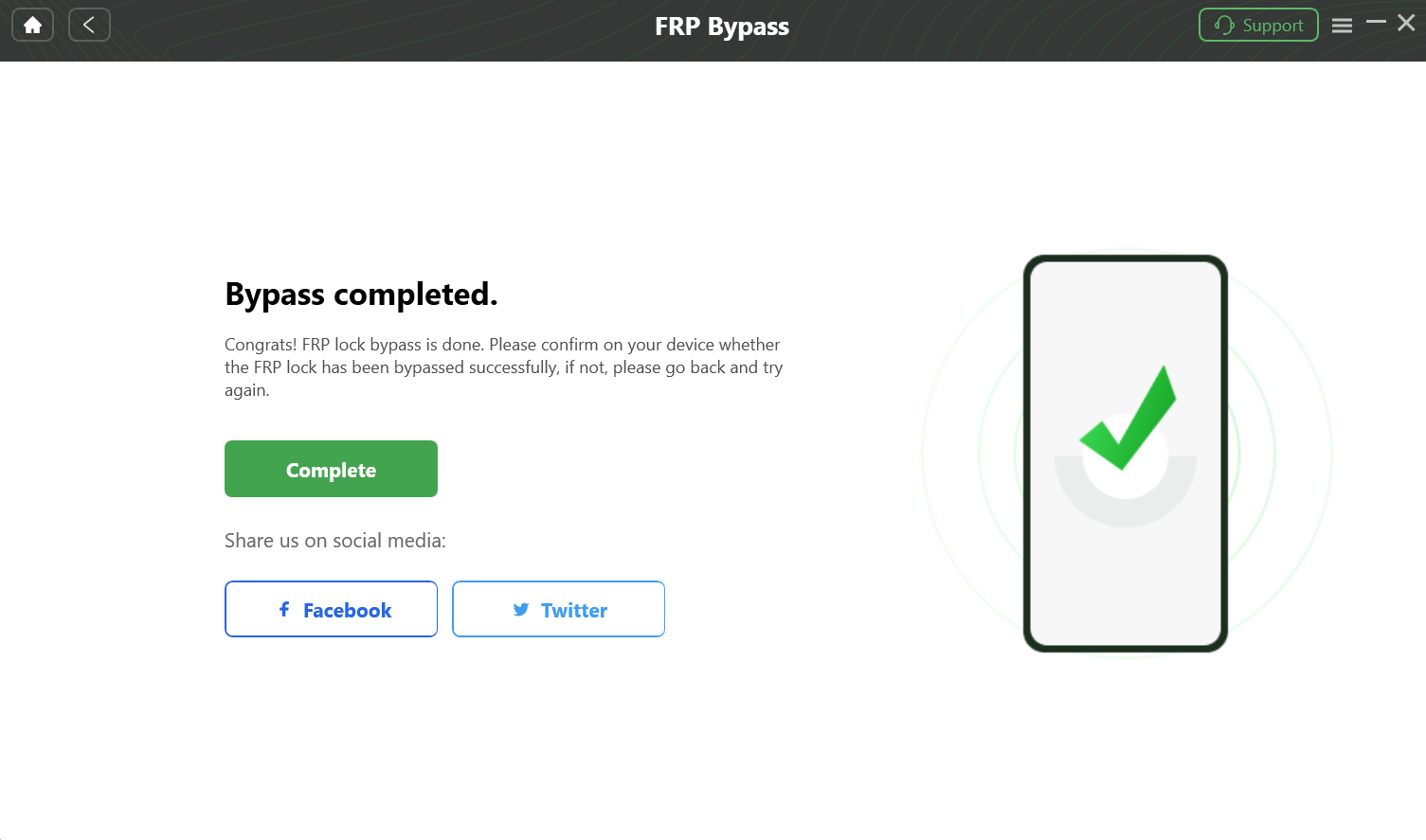
Complete the FRP Bypass
Step 7: Your Samsung M33 is Unlocked!
Your phone will restart one final time. This time, you’ll be greeted by the standard “Welcome!” setup screen, with no Google lock-in sight. You have successfully bypassed the Samsung Galaxy M33 FRP lock. You can now disconnect the phone and close DroidKit.
Samsung Galaxy M33 FRP Bypass Troubleshooting
Even with a great tool, you can hit a snag. Here are solutions to common problems:
Problem: My computer doesn’t recognize my phone.
Solution 1: Install Drivers. The most common cause is missing drivers. Search for “Samsung USB drivers for mobile phones” and install the official package from Samsung’s website. Restart your computer and try again.
Solution 2: Check Your Hardware. Try a different USB cable (some are for charging only and don’t transfer data). Also, try a different USB port on your computer.
Problem: I can’t get into Recovery Mode.
Solution: Double-check the critical tip in Step 4. The phone must be connected to the PC via USB before you press the button combination. The timing is also key: release the buttons the instant the Samsung logo appears. If you hold them too long, it might reboot normally.
Problem: The DroidKit process seems stuck.
Solution: First, be patient, as some steps can take several minutes. If it’s truly frozen for over 10-15 minutes, safely close DroidKit, restart both your phone and computer, and begin the process again. A stable internet connection is also required for the configuration file download, so check your connection.
After Unlock: What You Should Do Next
Congratulations! You’ve cleared the hurdle and have full access to your Samsung Galaxy M33. Here’s a quick checklist to ensure a secure and personalized setup:
1. Add Your Google Account: During the initial setup, add your own Google account. This is crucial as it enables FRP to protect your ownership from now on.
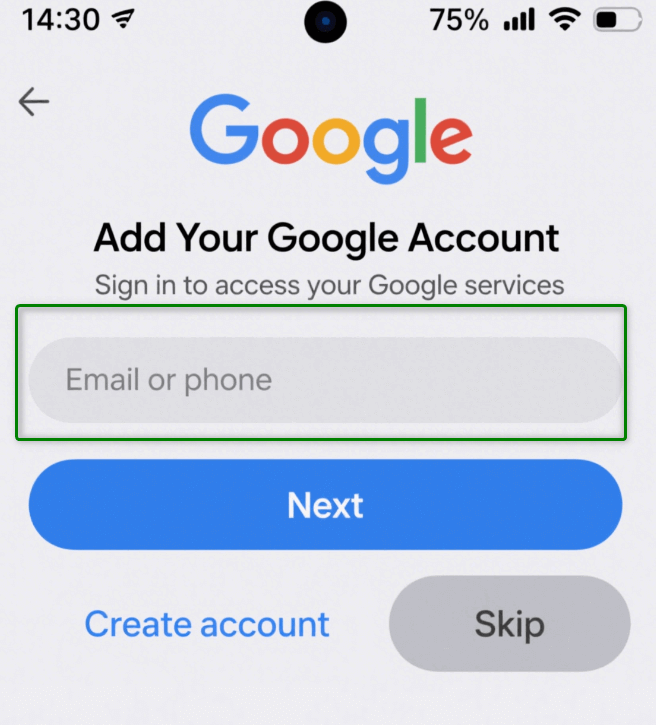
Add Your Google Account
2. Set Up New Security: Go straight to Settings > Security and privacy and set up a new screen lock (PIN, pattern, or password) that you’ll remember. This is also the perfect time to register your fingerprint or face for secure, convenient access.
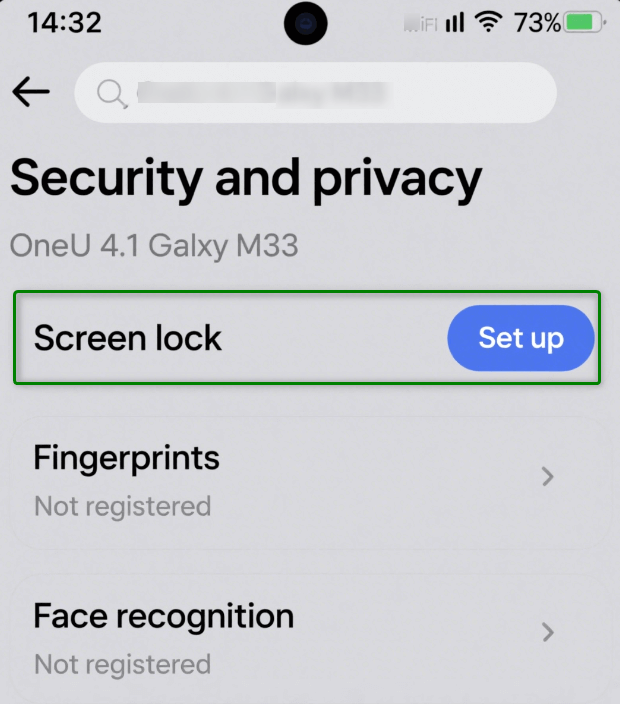
Set Up New Screen Lock
3. Check for System Updates: Navigate to Settings > Software update > Download and install. Installing any pending updates ensures your phone has the latest security patches and features.
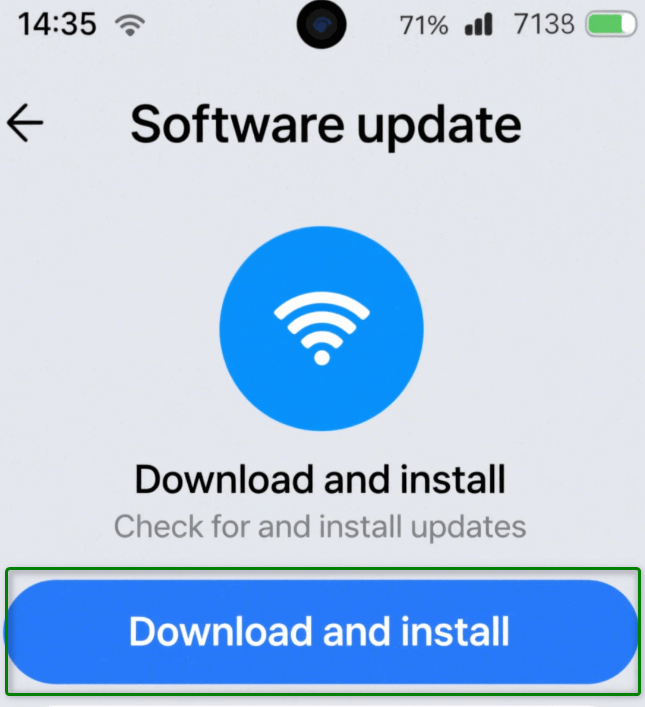
Check for System Updates
4. Sign In to the Galaxy Store: Use or create a Samsung account to sign in to the Galaxy Store for Samsung-exclusive apps and cloud services.
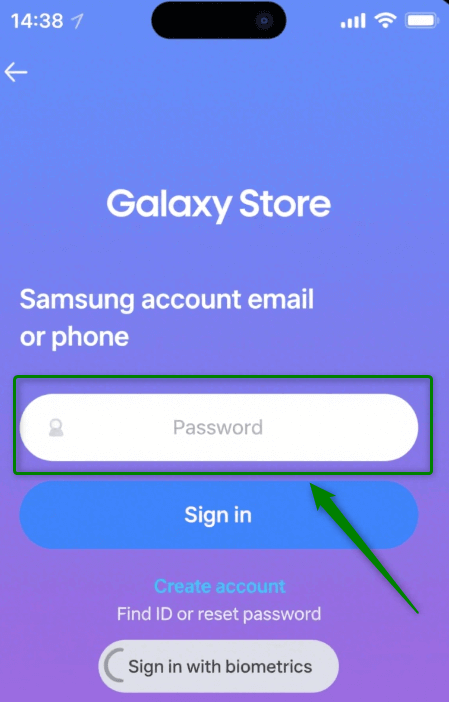
Sign In to the Galaxy Store
5. Test All Functions: Make a test call, connect to Wi-Fi, snap a photo, and play a video. A quick check confirms that all hardware and software are working perfectly after the bypass.
Frequently Asked Questions (FAQ)
Can I bypass FRP on a Galaxy M33 without a computer?
On modern firmware and security patches, the answer is effectively no. Start with official recovery and support.
Will any method preserve the existing data on the phone?
For privacy protection, you should assume data won’t be preserved. FRP’s purpose is to prevent unauthorized access to someone else’s information.
Are third-party tools like DroidKit safe for my Samsung M33?
Reputation varies. If you explore this path, choose well-known providers, understand costs and privacy implications, and avoid anonymous remote sessions. This article doesn’t list tools or provide reproducible steps.
Conclusion: Regain Control of Your Phone Today
Chasing outdated “no PC” hacks for a modern phone like the Samsung M33 is a recipe for frustration. While those methods had their day, the security on your device is far too advanced. The only reliable path forward is to use a powerful, dedicated tool that can communicate with your phone’s core system.
You now have a clear, honest, and detailed plan. Stop the cycle of failed attempts and choose a solution that respects your time and is proven to work.
Download DroidKit and follow the precise steps to regain access to your Samsung Galaxy M33.
More Related Articles



Joy Taylor is a seasoned technical writer with over a decade of experience in mobile technology. At iMobie, she specializes in producing in-depth content on iOS data recovery, iPhone unlocking solutions, and iOS troubleshooting.
Product-related questions? Contact Our Support Team to Get Quick Solution >
