Samsung S20/S20 FE FRP Removal 2026: Android 13 & Tool
Samsung S20 FRP removal depends on one key check: whether #0# Test Mode still opens. This guide explains when Google recovery is enough, when SamFW may work for S20/S20 FE, and how to proceed if Android 13 or newer security patches block the free route.
If your Samsung Galaxy S20, S20 FE, or S20 5G asks for the previously synced Google account after a factory reset, the phone is protected by Factory Reset Protection, also called FRP. FRP is useful for security, but it can also lock out legitimate owners who forgot the Google account, received the phone from a family member, or bought a second-hand device that was not removed from the previous owner’s account.
This updated guide focuses on Samsung S20 FRP removal, Samsung S20 FE FRP bypass, Samsung S20 FRP bypass Android 13, and Samsung S20 FRP unlock tool intent. You will compare Google account recovery, SamFW FRP Tool, the *#0*# Test Mode route, DroidKit, and troubleshooting steps for newer Samsung security patches.
Use FRP removal methods only on a Samsung device you own or are authorized to repair. If your device is not an S20-series phone, start with the broader Samsung FRP bypass guide. If you want to compare tool options before choosing a method, see this Samsung FRP tool guide.
Table of ContentsHide
Quick Answer: Can You Remove FRP on Samsung S20/S20 FE?
Samsung S20, S20 FE, and S20 5G: What to Check First
Samsung S20 FRP Bypass on Android 13 and Newer Patches
Which Samsung S20 FRP Method Should You Choose?
Method 1: Official Google Account Recovery
Method 2: Free Samsung S20 FRP Removal with SamFW Tool
What If *#0*# Test Mode Does Not Open?
Method 3: Samsung S20 FRP Removal with DroidKit
Samsung S20 FRP Removal Not Working: Common Fixes
3 Steps to Take After Removing FRP
A Quick Note on Ownership
Frequently Asked Questions
Conclusion
Quick Answer: Can You Remove FRP on Samsung S20/S20 FE?
Yes, Samsung S20 and S20 FE FRP removal may be possible, but the right method depends on whether the original Google account can be recovered, whether your phone still opens *#0*# Test Mode, and whether the device has newer Android 13 or security patch restrictions.
| Your Situation | Best First Method | What to Know |
| You know or can recover the previous Google account | Google Account Recovery | This is the safest official route. |
| Samsung S20/S20 FE still opens *#0*# Test Mode | SamFW FRP Tool | Free, but requires Windows PC, Samsung USB drivers, and a supported firmware route. |
| *#0*# does not open Test Mode | Use a guided PC-based method | The free SamFW route is likely blocked by the current security patch. |
| Samsung S20 FRP bypass Android 13 fails | Use Android 13-aware troubleshooting | Older TalkBack, APK, and dialer tricks are often patched. |
| You need a Samsung S20 FRP unlock tool | Compare Samsung FRP tools or use DroidKit | Tool success depends on model, Android version, patch level, and device mode. |
Samsung S20, S20 FE, and S20 5G: What to Check First
Before using any Samsung S20 FRP removal method, confirm which S20-series model you have and what screen you are seeing. A method that works on an older Galaxy S20 firmware may fail on S20 FE 5G after a newer security update.
| Model / Query | Common User Intent | Recommended Direction |
| Samsung S20 FRP bypass | User needs Google lock removal after reset. | Start with Google recovery, then SamFW or DroidKit depending on Test Mode. |
| Samsung S20 FE FRP bypass | User has S20 FE or S20 FE 5G locked by Google verification. | Check Android version and Test Mode before using free tools. |
| Samsung S20 FRP bypass Android 13 | User has a newer system where old tricks fail. | Use Android 13-specific guidance and avoid old TalkBack/APK routes. |
| Samsung S20 FRP unlock tool | User wants a PC tool after manual failure. | Compare Samsung FRP Tool options or use a guided workflow. |
| Samsung S20 FE 5G FRP unlock tool | User needs a tool for S20 FE 5G. | Use compatibility-aware PC methods and avoid unsupported files. |
Samsung S20 FRP Bypass on Android 13 and Newer Patches
Many Samsung S20-series phones have received newer Samsung security patches. If your query includes Samsung S20 FRP bypass Android 13, you should be careful with old no-PC tutorials. Older browser tricks, TalkBack routes, APK installs, and keyboard shortcuts may no longer open the required Settings or account screens.
For Android 13 behavior across brands, check this Android 13 FRP bypass guide. For Samsung-specific tools, compare the Samsung FRP tool options.
| Android / Security Situation | Manual Method Outlook | Best Next Step |
| Older firmware where *#0*# opens | SamFW may be worth trying. | Install Samsung drivers and test the SamFW route carefully. |
| Android 13 with blocked Test Mode | Free dialer route is unlikely to work. | Use a guided PC-based FRP method. |
| APK or TalkBack method fails | Setup route is patched. | Stop trying random APK files and switch method. |
| Phone was reset after password change | Google may require extra verification or waiting. | Use account recovery first. |
Which Samsung S20 FRP Method Should You Choose?
Use this table before downloading tools or repeating old steps. It helps you choose the method that matches your Samsung S20, S20 FE, or S20 5G situation.
| Method | Need Original Google Account? | Need PC? | Best For | Main Limitation |
| Google Account Recovery | Yes | No | Original owners or family members who can recover the previous account. | Requires access to recovery phone, email, or Google verification prompts. |
| SamFW FRP Tool | No | Yes, Windows PC | Older Samsung S20 firmware where *#0*# Test Mode still opens. | May fail if Test Mode, USB debugging prompt, or drivers are blocked. |
| DroidKit FRP Bypass | No, for supported scenarios | Yes, Windows or Mac | Users who want guided steps when SamFW or manual methods fail. | Requires supported device scenario and computer access. |
| TalkBack / APK / keyboard tricks | No | No | Mostly old tutorials and older Samsung firmware. | Often patched on Samsung S20-series devices with newer updates. |
Important: Reinstalling official firmware with Odin does not remove the Google FRP lock by itself. Odin can help repair software issues or restore matching official firmware, but after a successful flash, the Samsung S20 may still ask for the previously synced Google account during setup.
Only use Odin when you need to repair or reinstall firmware and you have confirmed the exact S20 model, region, and firmware version. Flashing the wrong files can cause boot problems or data loss. If your goal is only to regain access after Google verification, start with account recovery, then use a supported FRP workflow instead of treating Odin as a standalone bypass method.
Method 1: Official Google Account Recovery
Start with Google Account Recovery whenever possible. It is safer than using FRP tools, and it is the right path if the phone belongs to you, a family member, or a previous owner who can still access the account.
Step 1. On another phone or computer, open Google Account Recovery.
Step 2. Enter the email address or phone number linked to the Google account previously used on the Samsung S20 or S20 FE.
Step 3. Follow the recovery prompts. Google may send a verification code to a recovery phone number, backup email, or trusted device.
Step 4. After the account is recovered, return to the locked Samsung S20-series phone and sign in with the recovered Google account.
Step 5. If the password was changed recently, wait if Google requires a security waiting period before signing in on the reset device.
Second-hand phone note: If the Samsung S20 or S20 FE was bought used, ask the seller to remove the device from their Google account before using FRP tools.
If you need more context about the previous account screen, read this guide to remove a previously synced Google account.
Method 2: Free Samsung S20 FRP Removal with SamFW Tool
SamFW FRP Tool is a free Windows-based option that may work on some Samsung S20-series devices when the phone still allows access to *#0*# Test Mode. This method is more technical and not guaranteed on newer security patches.
For a fuller explanation of the tool and its limitations, see this SamFW FRP Tool review.
Important: Use SamFW only on a Samsung device you own or are authorized to repair. Download Samsung drivers and SamFW from official or trusted sources, and avoid repacked ZIP files from unknown mirrors.
Step 1: Check Whether *#0*# Test Mode Opens
Step 1. Power on the locked Samsung S20, S20 FE, or S20 5G and go to the welcome screen.
Step 2. Connect the phone to Wi-Fi.
Step 3. Go back to the welcome screen and tap Emergency call.
Step 4. Dial *#0*#.
Step 5. If the hidden Test Mode screen appears, you can continue with the SamFW method. If nothing happens, skip to Method 3.
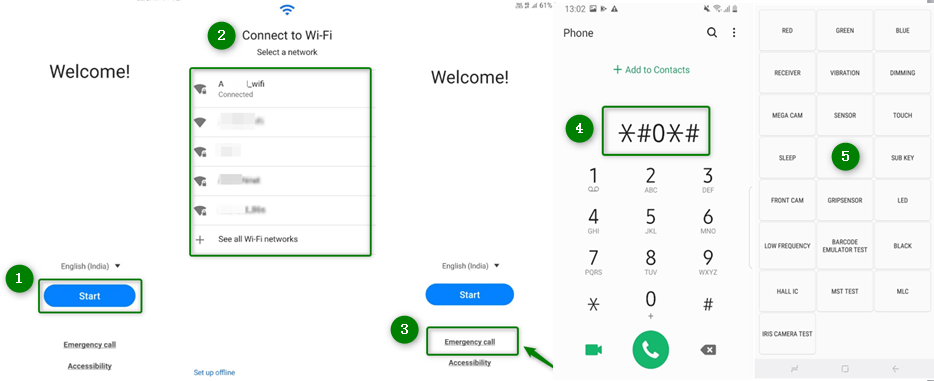
Set up Device to Access Test Mode
Step 2: Prepare Your Windows PC
Step 1. Download and install Samsung USB Drivers from Samsung’s official developer page.
Step 2. Download the latest SamFW FRP Tool from the official SamFW website or a trusted source.
Step 3. Extract the ZIP file to a folder you can easily find.
Step 4. Restart your PC if the Samsung USB driver installation requires it.
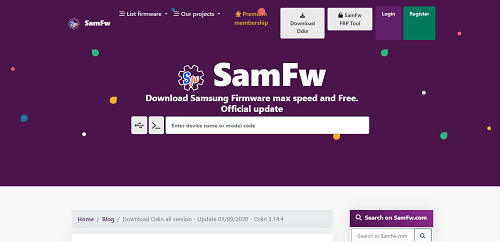
SamFW Official Webpage
Step 3: Run SamFW FRP Removal
Step 1. Keep the Samsung S20-series phone on the *#0*# Test Mode screen.
Step 2. Connect the phone to your Windows PC with a reliable USB data cable.
Step 3. Open the SamFW application. Wait until the tool detects the phone and shows a connected COM port.
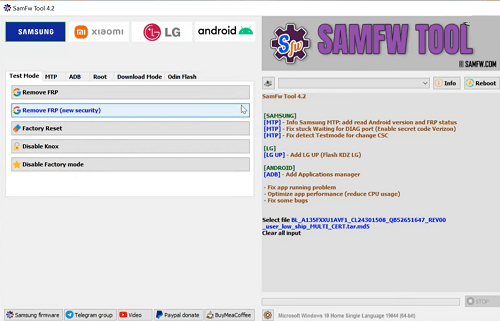
SamFW FRP Tool
Step 4. Click Remove FRP in SamFW.
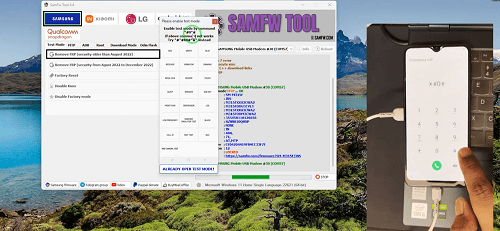
Initiate the FRP Removal
Step 5. Watch the Samsung S20 screen carefully. If an Allow USB debugging? pop-up appears, check Always allow from this computer and tap Allow.
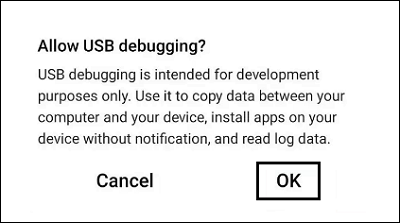
Allow USB Debugging
Step 6. Let the tool finish. The phone may restart. After restart, check whether the Google verification screen is removed.
What If *#0*# Test Mode Does Not Open?
If *#0*# does not open Test Mode, the SamFW route is probably blocked by your current Samsung firmware or security patch. This is common on updated Samsung S20 FE, S20 FE 5G, and Android 13 builds.
| Problem | Likely Reason | What to Do Next |
| *#0*# does nothing | Test Mode is blocked on your firmware. | Skip SamFW and use a guided PC-based method. |
| Test Mode opens but SamFW does not detect phone | Driver, cable, USB port, or tool issue. | Reinstall Samsung USB drivers and try another data cable. |
| USB debugging prompt never appears | The phone does not expose the required authorization prompt. | SamFW route may not work on this patch. |
| Tool finishes but FRP remains | The firmware is unsupported or the process was incomplete. | Use troubleshooting or another Samsung FRP method. |
If free Samsung tools keep failing, this FRP bypass not working guide can help you identify whether the issue is caused by drivers, Android version, or patched setup routes.
Method 3: Samsung S20 FRP Removal with DroidKit
If Google recovery is not possible and SamFW does not work, a guided PC-based option such as DroidKit can be a practical fallback for supported Samsung S20, S20 FE, and S20 5G FRP scenarios. It is especially useful when Test Mode is blocked, Android 13 routes fail, or you prefer on-screen instructions instead of technical trial and error.
DroidKit is a better fit when:
- Your Samsung S20 or S20 FE is stuck on Google verification after reset.
- You cannot recover the previous Google account.
- *#0*# Test Mode does not open.
- SamFW cannot detect the phone or complete FRP removal.
- You want guided steps on Windows or Mac.
- You want to avoid random FRP APK files or repacked tools.
Free Download * 100% Clean & Safe
How to Unlock FRP on Samsung S20 Using DroidKit
Step 1. Download and install DroidKit on your Windows PC or Mac. Launch the software and choose FRP Bypass.
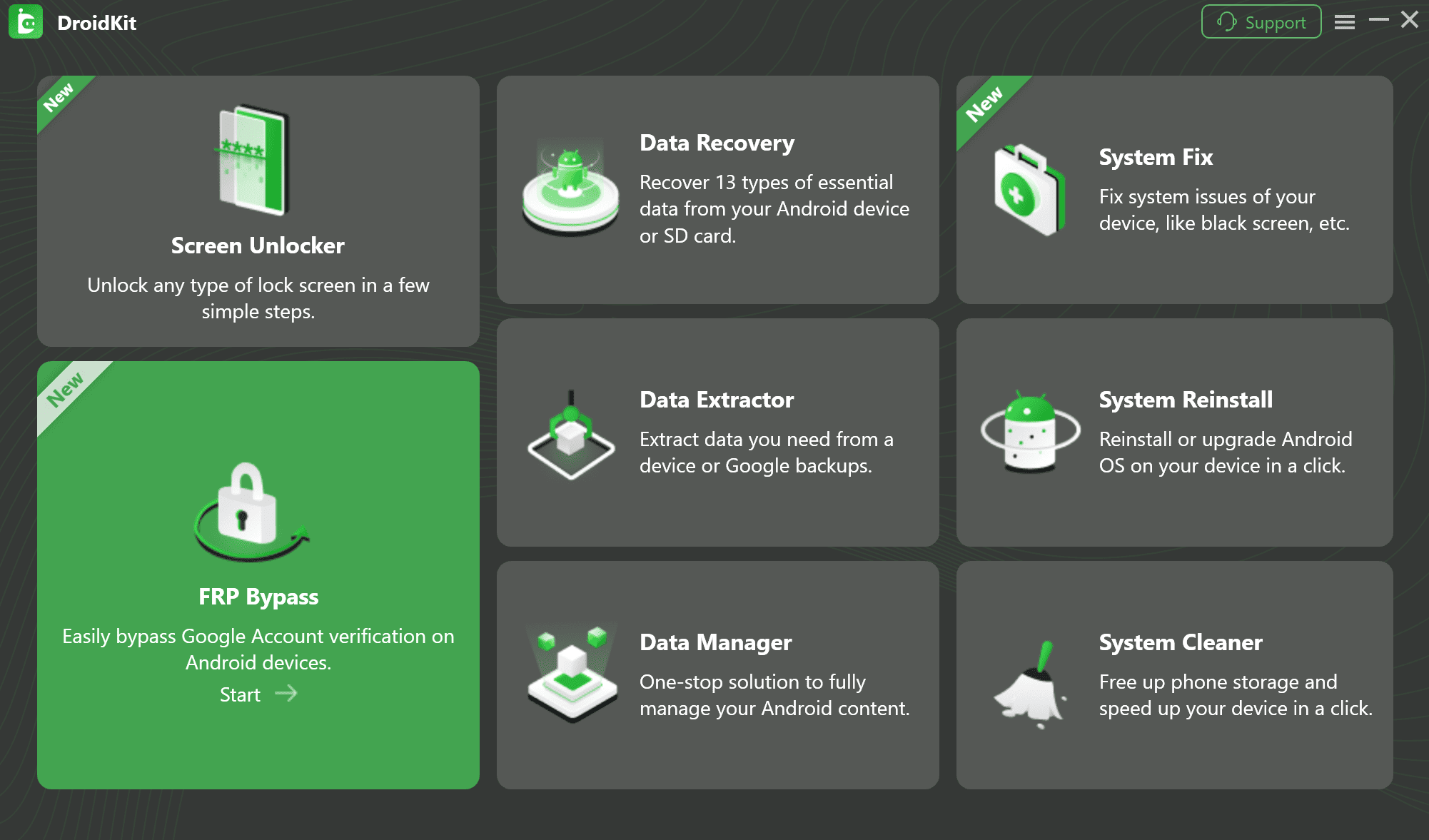
Select FRP Bypass Feature
Step 2. Click Start and connect your locked Samsung S20, S20 FE, or S20 5G to the computer with a reliable USB cable.
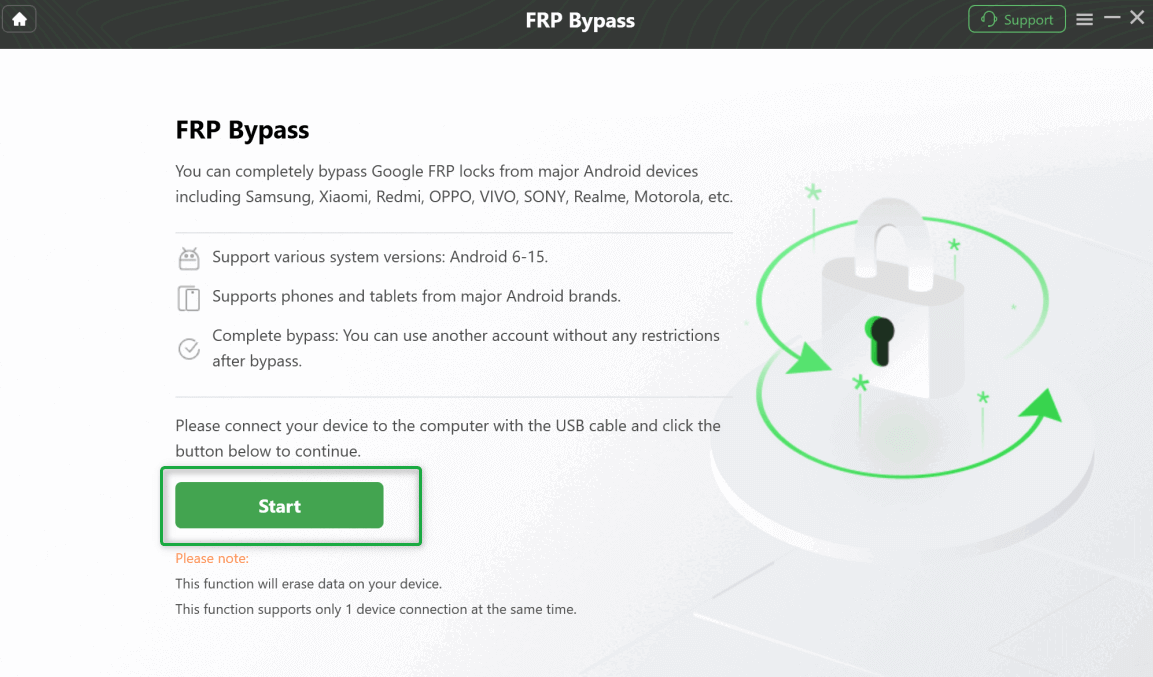
Connect the Samsung S20 and Start
Step 3. Let DroidKit prepare the configuration file for your device. When it is ready, click Start to Bypass.
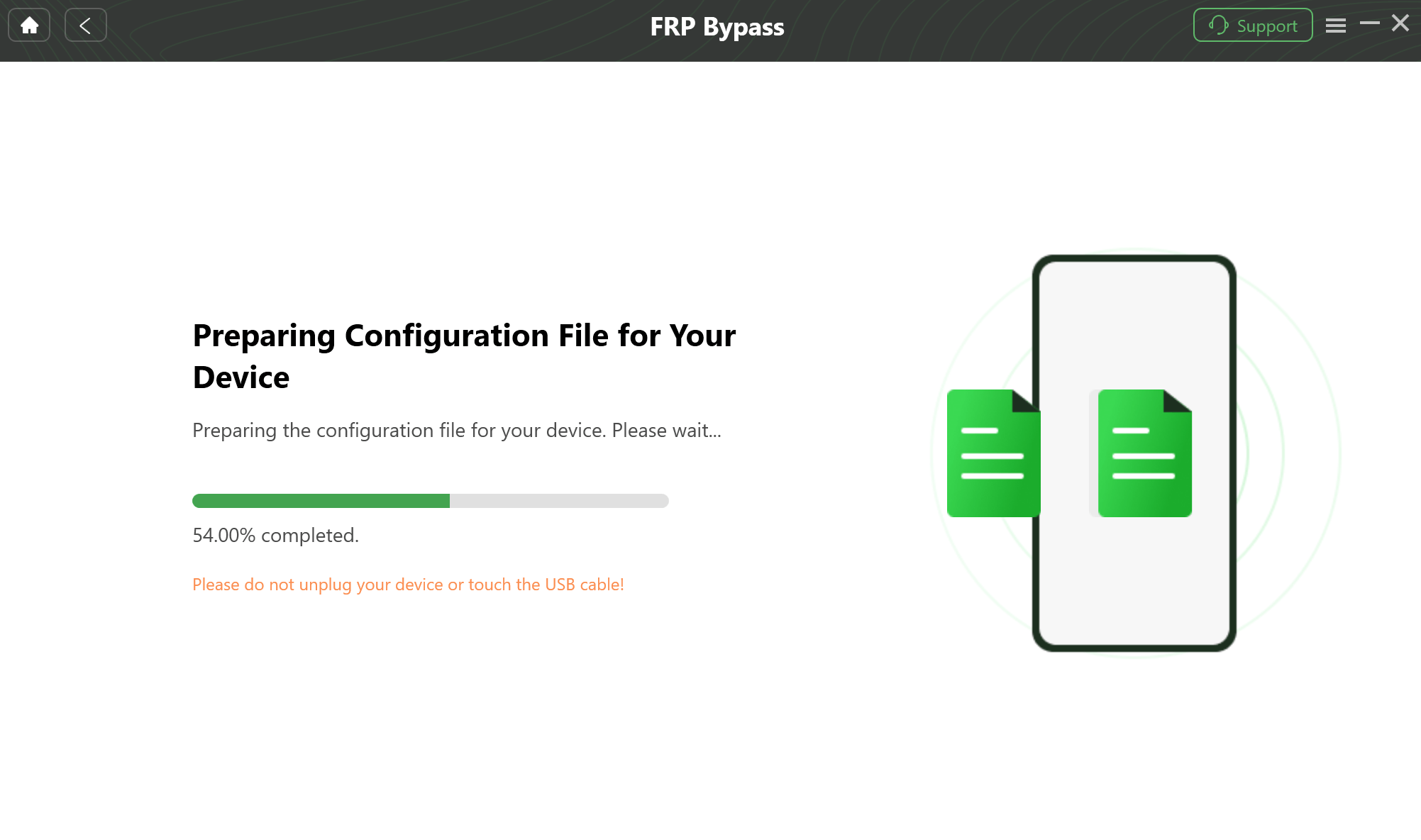
Prepare the Custom Configuration File
Step 4. Follow the on-screen prompts. You may need to select the Android system version and complete the corresponding settings shown in the interface.
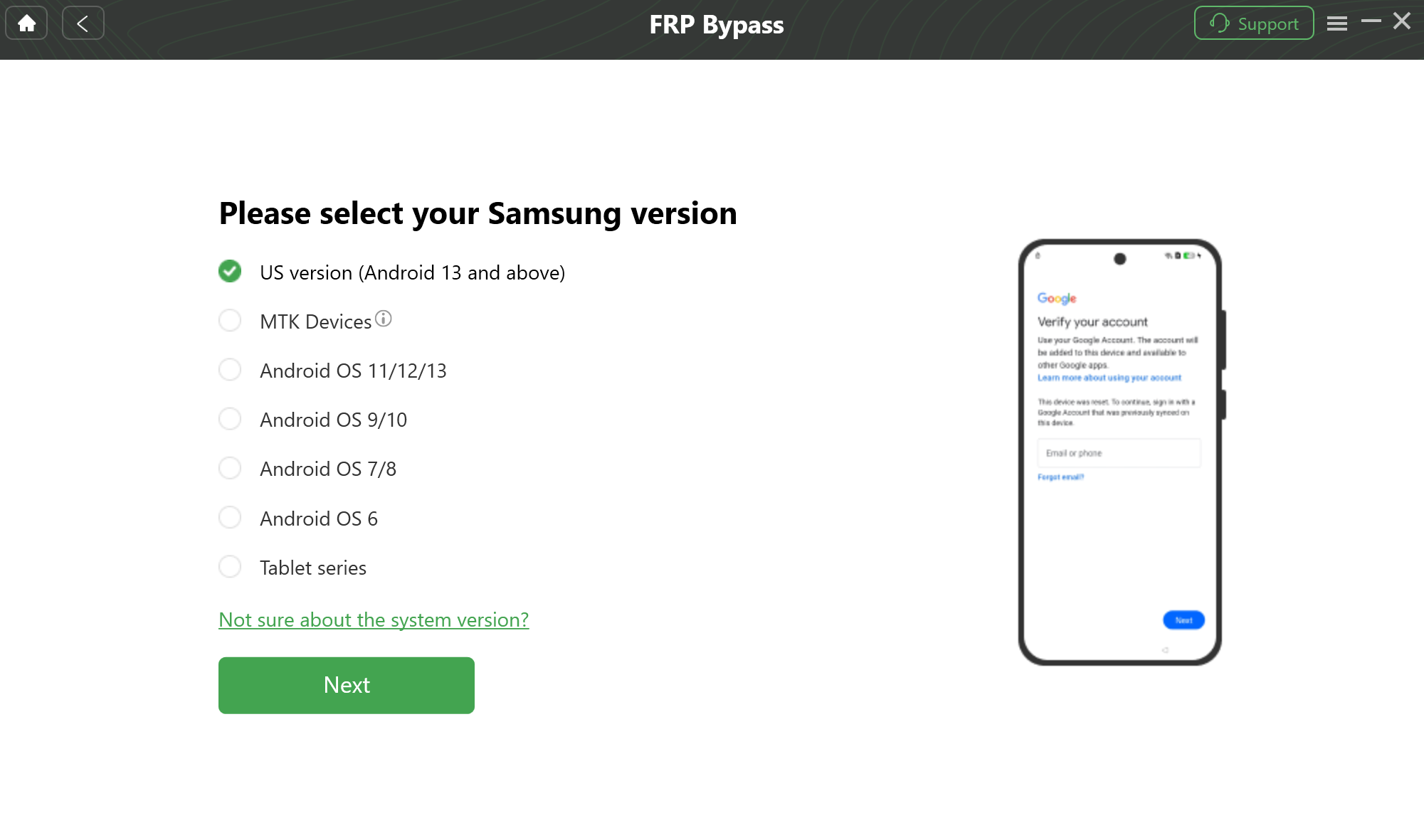
Select Your Android System Version
Step 5. Keep the phone connected while DroidKit processes the FRP removal. Do not unplug the device during the operation.
Step 6. When the process finishes, the phone may restart. Set it up again with a Google account you own.
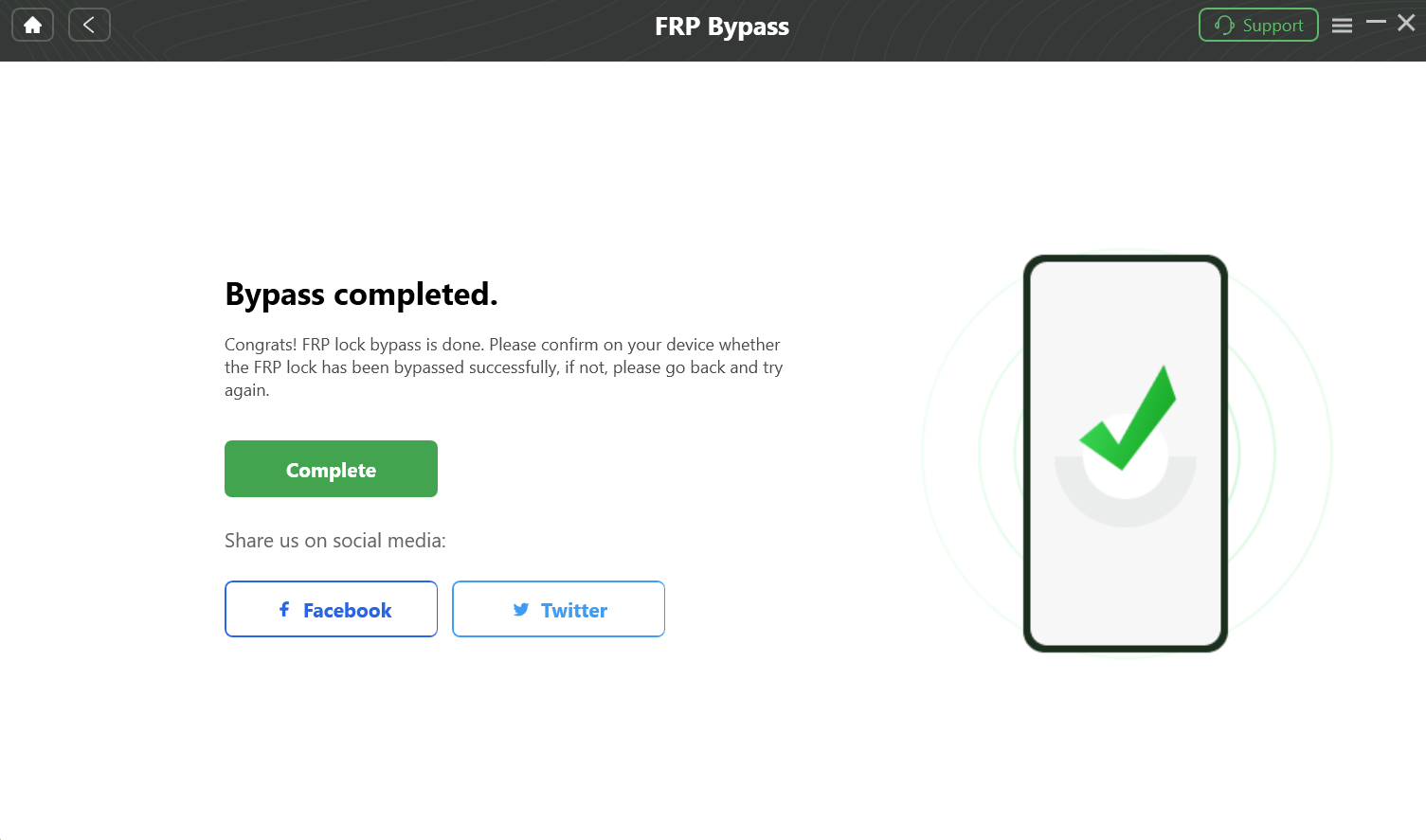
FRP Bypass is Done
Compatibility note: No FRP tool should be described as working on every Samsung phone or every firmware. Check device support first and use FRP tools only on your own or authorized device.
Samsung S20 FRP Removal Not Working: Common Fixes
If Samsung S20 FRP removal fails, do not keep repeating the same method. First identify the likely cause.
| Problem | Likely Cause | What to Try Next |
| Google account recovery fails | Recovery phone/email is unavailable or Google requires more verification. | Ask the original owner or wait if Google requires a security hold. |
| *#0*# does not open Test Mode | Samsung security patch blocks the route. | Skip SamFW and use another supported PC method. |
| SamFW does not detect the S20 | Bad cable, missing Samsung USB driver, or wrong mode. | Install Samsung USB drivers, change cable, and try another USB port. |
| USB debugging prompt does not appear | Firmware blocks the required prompt. | SamFW route may not be compatible with your phone. |
| Phone still asks for Google account after restart | FRP remains active or the method was incomplete. | Use account recovery or a supported Samsung FRP workflow. |
| Tool says unsupported model or version | Your model, Android version, or patch level is not supported by that tool. | Check compatibility before retrying or paying for a tool. |
3 Steps to Take After Removing FRP
After you regain access to your Samsung S20, S20 FE, or S20 5G, secure the phone properly so FRP does not create another setup problem later.
Step 1. Add your own Google account. Go to Settings > Accounts and backup > Manage accounts, then add the Google account you control.
Step 2. Set a new screen lock. Go to Settings > Biometrics and security and set a PIN, pattern, password, fingerprint, or face recognition.
Step 3. Check for software updates. Go to Settings > Software update and install official updates when appropriate.
Before selling or giving away the phone: Remove your Google account from Settings before factory resetting the Samsung S20. This helps avoid triggering FRP for the next owner.
A Quick Note on Ownership
Factory Reset Protection exists to protect lost or stolen devices. The methods in this guide are intended only for rightful owners or authorized repair situations. Do not use FRP tools to access someone else’s phone, Google account, or data.
Frequently Asked Questions
How do I bypass FRP on Samsung S20 without the original Google account?
If the original Google account cannot be recovered, your options are limited to supported FRP methods. SamFW may work only if *#0*# Test Mode opens. If free methods are blocked, a guided PC-based option such as DroidKit may be more practical for supported S20-series scenarios.
Does Samsung S20 FRP bypass still work in 2026?
Yes, but many old tricks no longer work consistently. Official account recovery, selected PC-based tools, and updated Samsung FRP workflows are more realistic than old TalkBack, APK, or keyboard methods.
Can I remove FRP on Samsung S20 without a PC?
In most updated S20-series cases, no-PC methods are unreliable. Newer Samsung updates often block on-device loopholes, so a computer is usually needed if account recovery is not possible.
What if *#0*# does not open Test Mode?
If *#0*# does not open Test Mode, the free SamFW route is unlikely to work. Your phone may have a newer security patch, so use another supported method.
Can SamFW remove FRP from Samsung S20 FE 5G?
It may work only if the phone supports the required Test Mode and USB debugging route. If Test Mode is blocked or the USB debugging prompt never appears, SamFW is unlikely to complete the process.
Does Samsung S20 FRP bypass Android 13 need a PC?
Often, yes. Android 13 and newer Samsung security patches commonly block old no-PC routes, so a PC-based workflow is usually more realistic after Google account recovery fails.
Will FRP come back after removal?
After you set up the phone with your own Google account, FRP protection can become active again for future factory resets. Remove the Google account before resetting if you plan to sell or give away the device.
Will Samsung S20 FRP removal erase data?
If the phone was already factory reset, most local data may already be erased. Some FRP workflows may also require reset steps, so assume data loss is possible unless the method clearly states otherwise for your exact device.
Is Samsung S20 FRP removal legal?
Samsung S20 FRP removal should only be used on a device you own or are authorized to repair. It should not be used to access lost, stolen, or unauthorized devices.
Conclusion
Samsung S20 FRP removal in 2026 depends on your account access, model, Android version, and security patch. If the original Google account can be recovered, use official recovery first. If *#0*# Test Mode opens, SamFW may be worth trying for technical users. If Test Mode is blocked, SamFW fails, or your S20 FE / S20 5G runs a newer Android 13 security patch, a guided PC-based method is usually a clearer fallback.
The safest path is to match the method to your actual device state instead of repeating outdated no-PC tricks. For supported Samsung S20-series scenarios, DroidKit can provide a guided workflow when account recovery and free methods do not work.
Free Download * 100% Clean & Safe
More Related Articles



Joy Taylor is a seasoned technical writer with over a decade of experience in mobile technology. At iMobie, she specializes in producing in-depth content on iOS data recovery, iPhone unlocking solutions, and iOS troubleshooting.
Product-related questions? Contact Our Support Team to Get Quick Solution >
