Samsung Tab A8 FRP Bypass Android 14: What Works for SM-X200
Locked out of your Samsung Tab A8 after a factory reset? This guide explains why most no-PC tricks fail on the SM-X200 Wi-Fi model, what still works on Android 13/14, and how to remove FRP with a PC-guided solution.
Locked out of your Samsung Galaxy Tab A8 after a factory reset? If the setup screen asks for a Google account that was previously synced with the tablet, Google Device Protection, commonly called Factory Reset Protection or FRP, is active. This guide focuses specifically on the Galaxy Tab A8 SM-X200 Wi-Fi model and the FRP routes users commonly encounter on Android 13 and Android 14.
The model number matters before you try anything. Many Samsung FRP tutorials are written for phones and depend on a dialer, SIM functions, test codes, or setup-screen shortcuts. Those instructions may not fit an SM-X200 Wi-Fi tablet. Android version, One UI build, and security patch can also change which TalkBack, APK, MTP, or browser-based entry points are available.
For other Galaxy tablets, use the Samsung tablet FRP guide. If you need Samsung-wide FRP methods instead of a Tab A8-specific route, see the Samsung FRP bypass guide.
Quick Answer: Can You Bypass FRP on Samsung Tab A8 Android 14?
FRP removal may be possible on a Galaxy Tab A8, but the right route depends on the exact model, Android version, One UI build, security patch, and whether you can still access the Google account previously used on the tablet.
For an SM-X200 Wi-Fi tablet, phone-based methods that require a dialer or SIM functions are not a good match. TalkBack, APK, MTP, browser-opening, and SamFW-style routes can also vary between Android 13/14 builds. If a tutorial shows menus or functions that do not exist on your tablet, do not assume the same method will work simply because the video also says “Galaxy Tab A8.”
If you still know the previous Google account, account recovery is the simplest route. If you cannot use that account and the tablet belongs to you, compare the available PC-based options for your exact device and software build.
SM-X200 No-Dialer Route Blocking the Usual FRP Methods?
DroidKit includes an FRP Bypass workflow for supported Samsung devices. If your Tab A8 does not match phone-based TalkBack, dialer, MTP, or SamFW instructions, you can connect it to a computer and follow the device route shown by the software.

Check Your Galaxy Tab A8 Model First
“Galaxy Tab A8” does not identify only one connectivity variant. Samsung lists the SM-X200 as the Galaxy Tab A8 Wi-Fi model, while the SM-X205 is an LTE model. This article is written primarily for SM-X200.
| Model | Variant | How to Use This Guide |
| SM-X200 | Wi-Fi | This is the primary model covered here. Do not rely on phone tutorials that require cellular or dialer functions. |
| SM-X205 | LTE | This is a different Tab A8 connectivity variant. Do not assume every SM-X200 limitation or method applies in exactly the same way. |
If you are unsure which version you have, check the model number shown on the tablet or its original packaging before following a device-specific tutorial. Also note your Android version if you can access that information, because the setup screens and available shortcuts can differ between software builds.
Important: Use FRP removal methods only on a tablet you own or are authorized to service. If the Galaxy Tab A8 was purchased second-hand, contacting the previous owner to remove or verify the previously synced Google account may solve the problem without using a bypass method.
Can You Bypass Samsung Tab A8 FRP Without PC?
A no-PC solution is attractive because it avoids installing software, but the SM-X200 Wi-Fi model removes one of the most common paths found in Samsung phone tutorials: a normal cellular dialer route. Methods that depend on calls, SIM functions, or phone-specific service codes therefore do not fit this tablet scenario.
Other no-PC approaches can depend on reaching TalkBack, Accessibility, a browser, an APK installer, Settings, or another setup-screen entry point. The availability of those paths can change with Android version, One UI build, and security updates. If a video shows a menu that is missing from your Tab A8, repeatedly performing the same sequence is unlikely to fix that mismatch.
If the tablet simply says it was reset and requires a previously synced account, the Google account verification after reset guide explains that scenario in more detail.
Why Tab A8 FRP Tricks Fail on SM-X200
Before downloading another APK or repeating another YouTube sequence, identify what the method depends on. Most failures on an SM-X200 fall into a few recognizable categories.
1. The Tutorial Requires a Phone Dialer
The SM-X200 is the Wi-Fi Tab A8 model. A tutorial that expects you to make a cellular call, insert a SIM card, open a phone dialer, or use a phone-specific call path is not designed around the same hardware scenario.
This is an important filter: if the first critical step does not exist on your tablet, do not spend time completing the rest of that tutorial.
2. TalkBack, Accessibility, or APK Screens Do Not Match
Older FRP guides often reach Settings through TalkBack, Accessibility, a keyboard shortcut, a browser, or an APK installer. On a different Android or One UI build, the required option may be moved, disabled, renamed, or unavailable during setup.
A missing menu is more useful as a diagnosis than as a reason to keep retrying. Record the Android version and the exact screen where the method stops, then choose a route that matches that build. For broader version-specific context, see the Android 14 FRP bypass guide.
3. Odin Reinstalls Firmware, but FRP Is a Different Layer
Odin is commonly associated with Samsung firmware flashing, which can make it look like a universal solution for any Samsung software problem. Firmware installation and Google account verification are not the same task.
- Odin: Used to install or restore compatible Samsung firmware.
- FRP: Google Device Protection can require verification of the account previously associated with the device after a protected reset.
Reinstalling stock firmware does not by itself mean the previous Google verification requirement has been removed. Do not flash random firmware packages solely because the tablet is FRP-locked.
Before You Try Any FRP Bypass Method
Before choosing between a free method and a desktop tool, check the routes that may solve the problem without adding more variables.
- Try the previous Google account. If you remember the account but not the password, use Google’s account recovery process.
- Contact the previous owner. This is especially relevant for a used Galaxy Tab A8.
- Use proof of purchase when available. Samsung states that users who cannot recover their Google account information can seek assistance with proof of purchase.
- Confirm SM-X200 versus SM-X205. Do this before following model-specific instructions.
- Check the software version where possible. Android and One UI differences can explain why two Tab A8 tutorials show different menus.
- Prepare a stable USB connection for PC methods. Charge the tablet and use a reliable USB-C cable before starting.
Samsung explains that Google Device Protection uses Google account information to verify the user after certain factory resets. If you need Samsung-specific tool options after checking the account and model, compare the Samsung FRP tool options before choosing a route.
Which FRP Route Fits Your SM-X200?
| Method | SM-X200 Fit | Android 13/14 Consideration | Best For | Main Limitation |
| Google Account Recovery | Yes, when you can verify the account | Not dependent on an old FRP loophole | Owners who can recover the previously synced Google account | Does not help when account ownership cannot be verified |
| TalkBack / Accessibility Routes | Build-dependent | Required screens may differ or be unavailable | Devices where the exact accessibility route is still present | Older tutorial steps may not match the current setup screen |
| Odin Firmware Flash | Not an FRP-removal method by itself | Firmware and FRP are separate issues | Compatible Samsung firmware installation or repair | Flashing firmware does not normally satisfy Google account verification |
| SamFW / MTP Utilities | Build-dependent | Can fail when the required MTP, ADB, browser, or setup route is unavailable | Users whose exact device build still exposes the required path | A successful route on another Samsung device may not exist on SM-X200 |
| DroidKit FRP Bypass | Check the supported route shown in the software | Uses a computer-guided workflow rather than a phone dialer sequence | Owners who need a PC-based option after the available no-PC paths do not match the tablet | Requires a Windows or Mac computer and device-specific instructions |
Remove FRP on Samsung Tab A8 SM-X200 with a PC
If the previously synced Google account cannot be recovered and the Tab A8 is yours, a computer-based route avoids depending on phone-only dialer steps. DroidKit is a desktop Android toolkit that includes an FRP Bypass feature and displays instructions according to the route available for supported devices.
Before Using DroidKit: DroidKit is paid desktop software. Compatibility and the instructions shown can depend on the connected device and system version. Check the route displayed by the software for your Galaxy Tab A8 rather than assuming that every screenshot or step applies to every firmware build.
Why Consider DroidKit for an SM-X200?
- No phone-dialer dependency: The workflow is performed through a computer instead of requiring a cellular dialer sequence.
- On-screen device instructions: The software walks through the available FRP route instead of requiring you to combine steps from several unrelated tutorials.
- Useful after a route mismatch: It gives SM-X200 owners another option when the TalkBack, MTP, APK, or SamFW instructions they found do not match their setup screen.
- No random FRP APK source required: You do not need to download an unknown APK bundle from an unofficial forum just to begin the process.
Step-by-Step: Remove FRP on Galaxy Tab A8 with DroidKit
Keep the tablet connected during the process and follow the instructions displayed for the detected device and system route.
What You’ll Need:
- Your locked Samsung Galaxy Tab A8.
- A Windows or Mac computer.
- A stable USB-C cable.
- A reliable internet connection.
- Sufficient battery power to keep the tablet running during the process.
Step 1. Download and install DroidKit on your computer. Launch it and select FRP Bypass from the main interface.
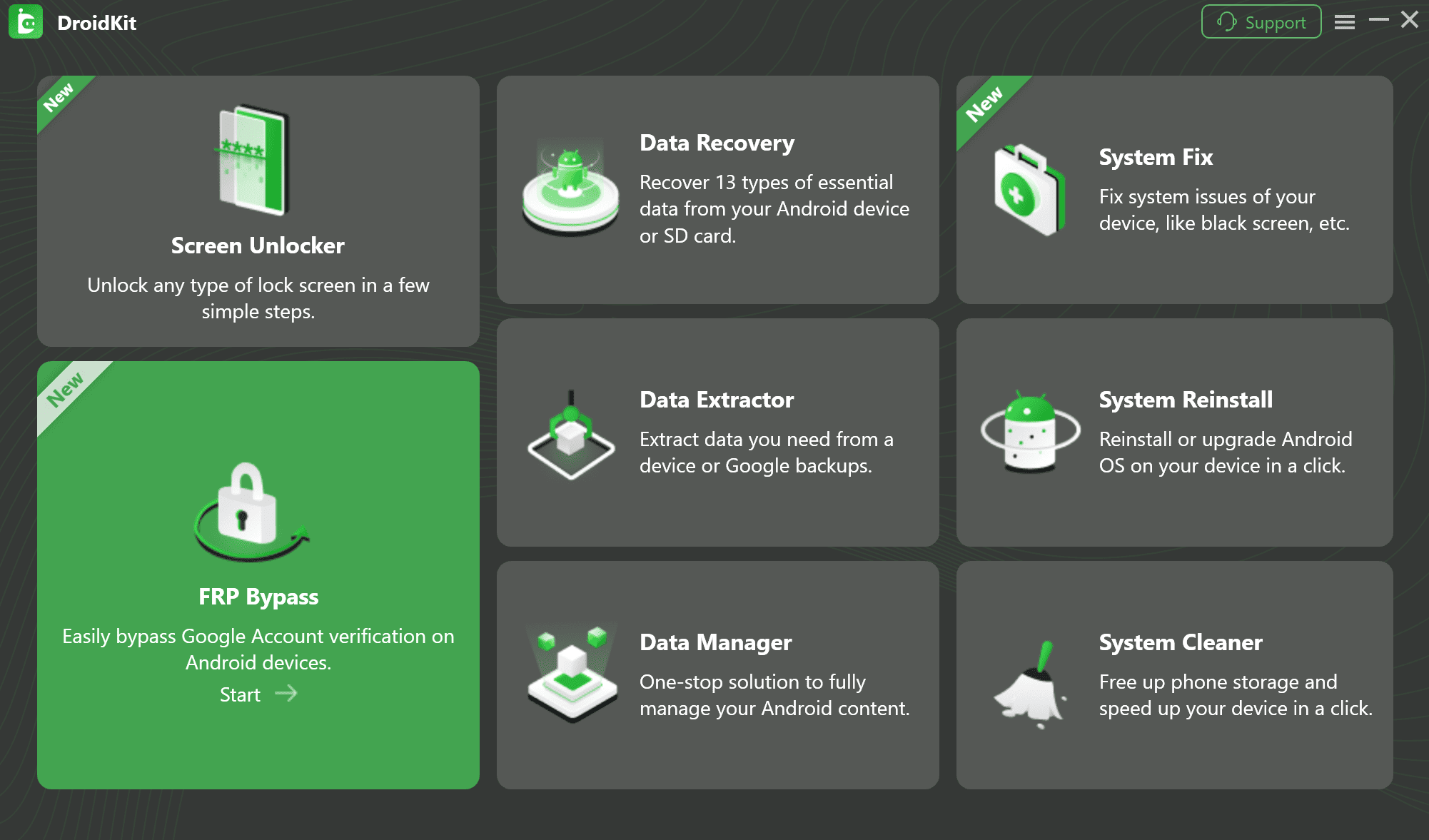
Select FRP Bypass Feature
Step 2. Click Start, then connect your locked Galaxy Tab A8 to the computer with the USB cable.
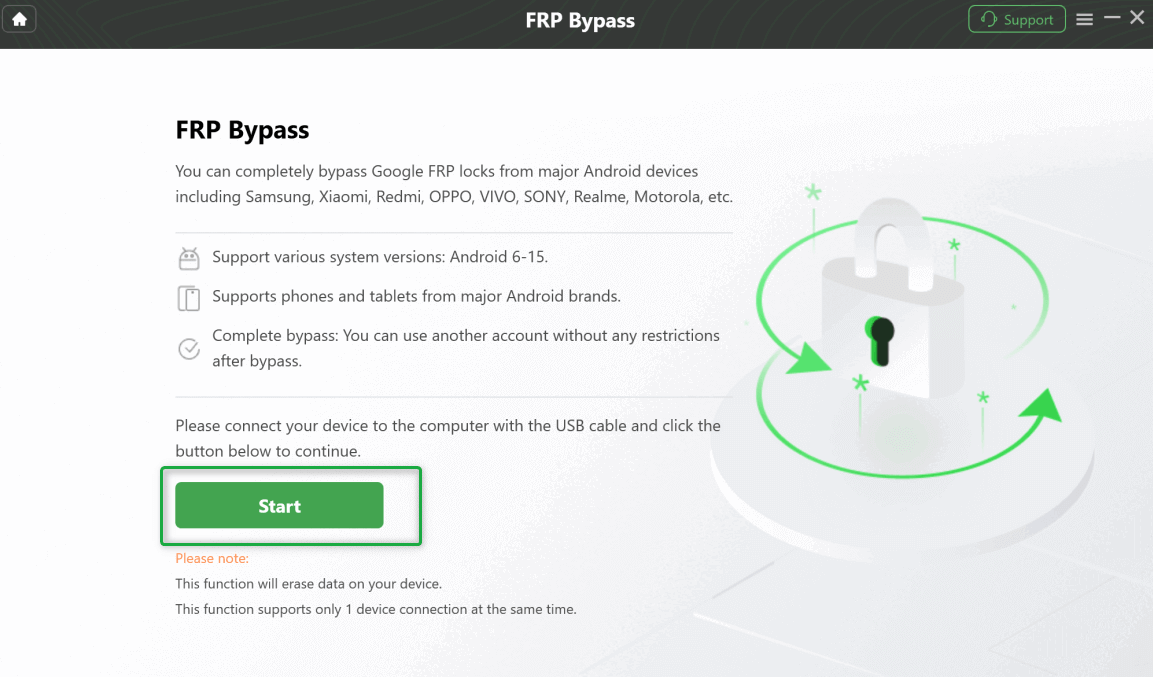
Connect Your Device and Start the Process
Step 3. Select the system version and device type that match the options displayed for your tablet. Choose Tablet Series if that is the route shown for your connected Tab A8, then click Next.
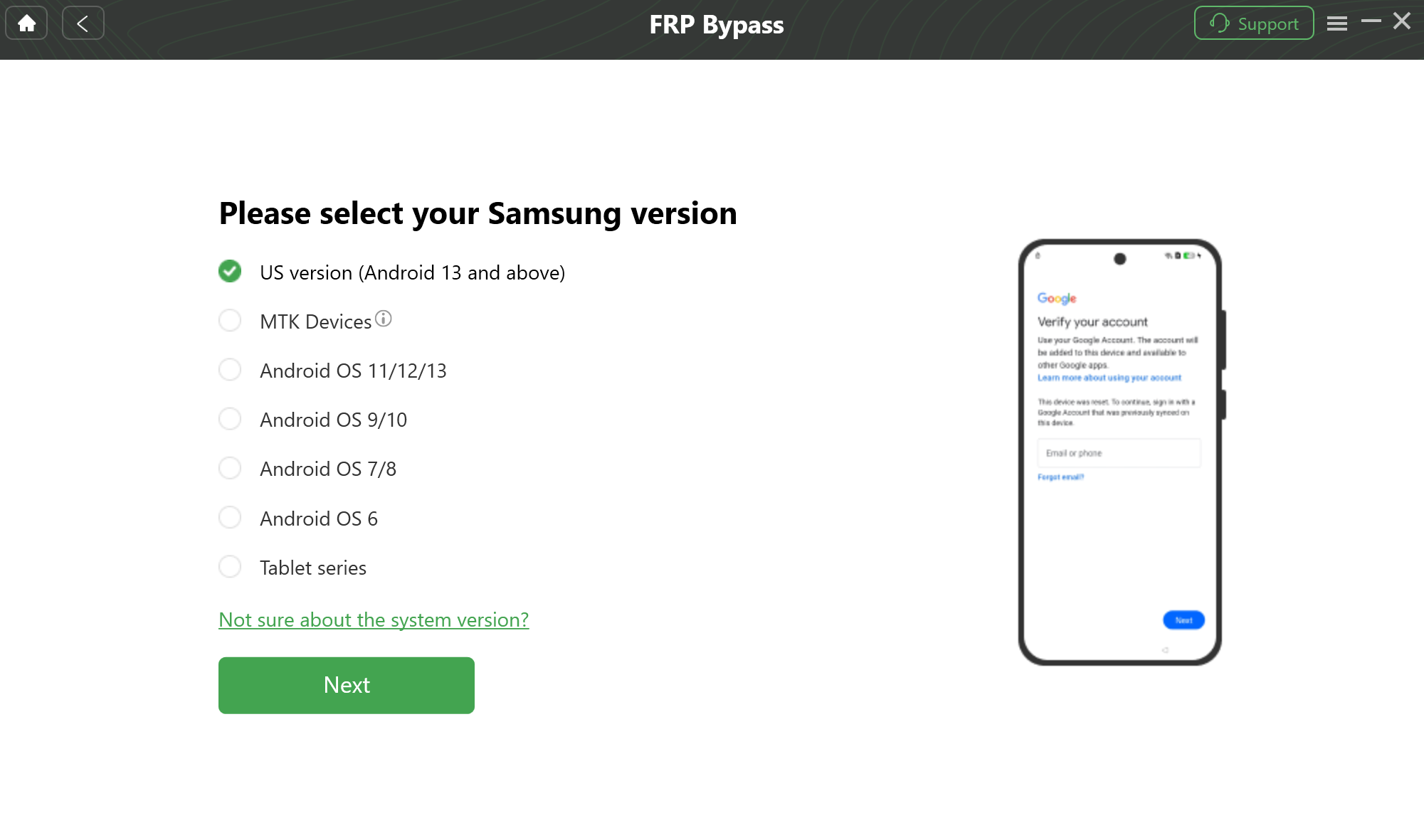
Select Your Android System Version
Step 4. Wait while DroidKit prepares the configuration required for the selected device route.
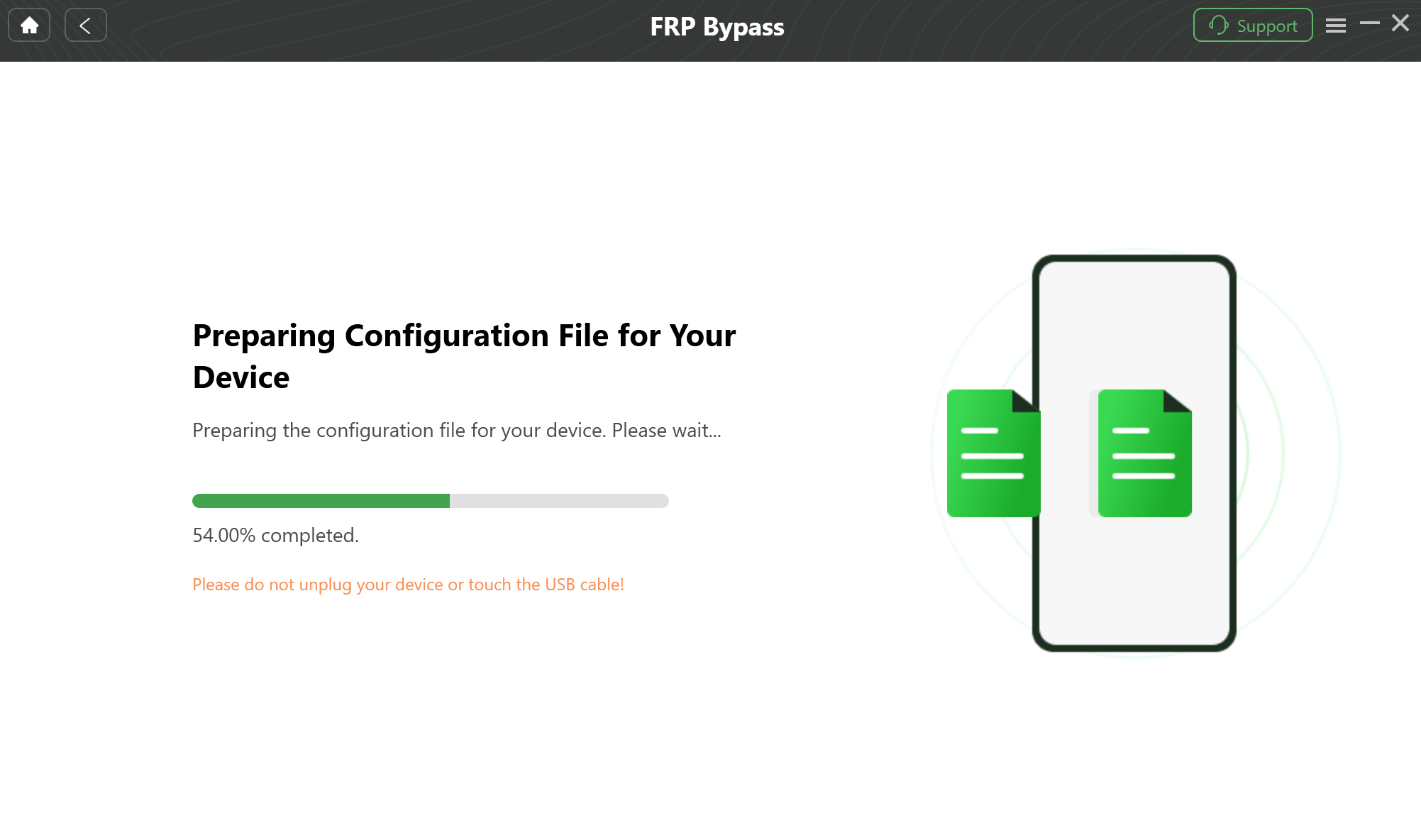
Prepare the Device-Specific Configuration
Step 5. Follow the on-screen instructions in DroidKit. The operations displayed can vary according to the selected system version and device route, so use the instructions on your screen rather than substituting steps from another Samsung model.
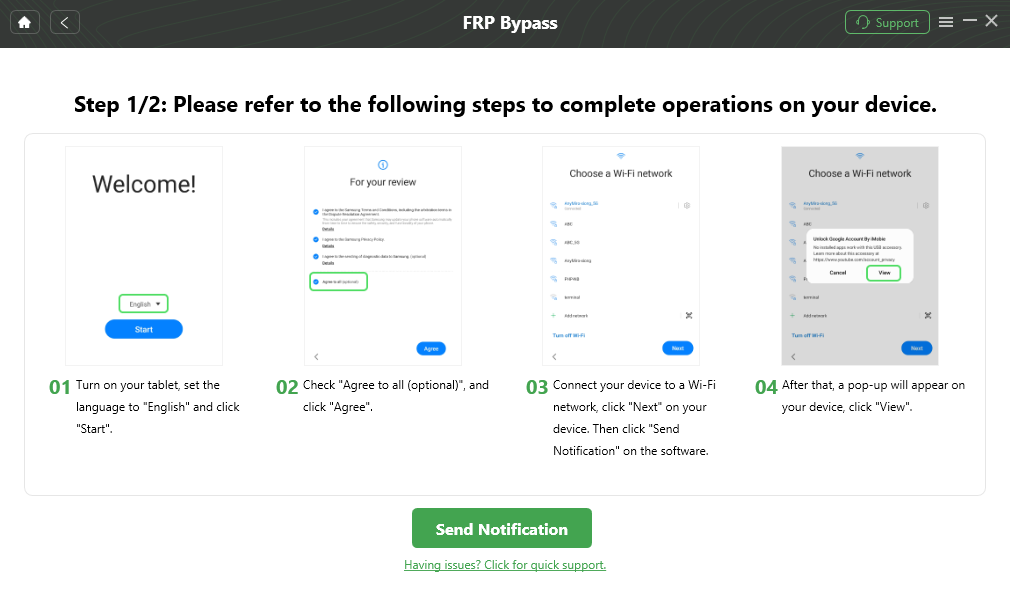
Follow the Instructions to Complete the Corresponding Settings
Step 6. Keep the USB connection in place while DroidKit completes the selected process. Do not disconnect the tablet unless the software instructs you to do so.
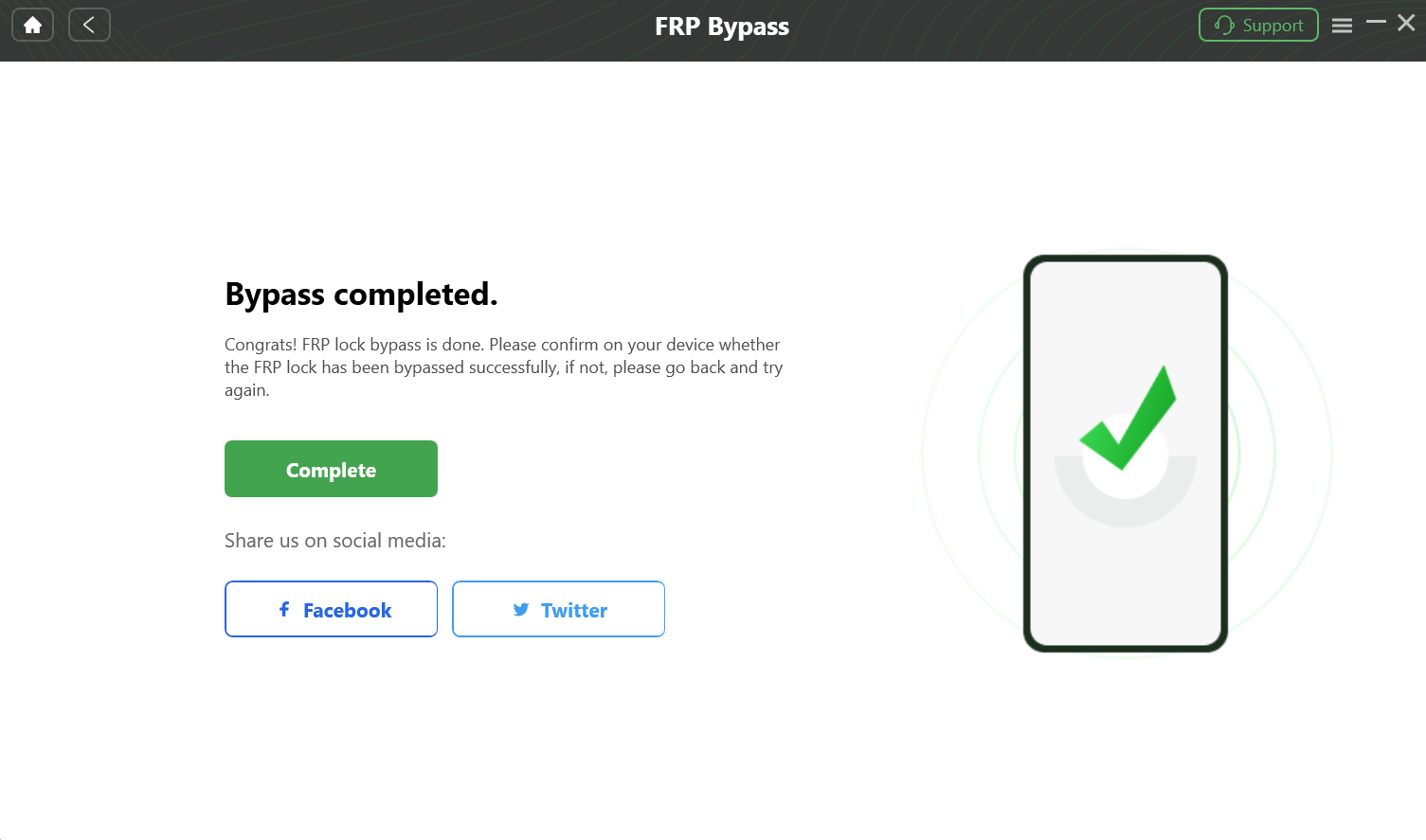
Complete the FRP Bypass
Before You Start the PC Process
- Confirm the model: Make sure the tutorial or route you choose is intended for your Tab A8 variant.
- Keep the tablet charged: Avoid beginning a system-level process with very low battery power.
- Keep the USB connection stable: Do not unplug the tablet in the middle of an instructed operation.
- Follow the displayed route: If the software shows different instructions from an older screenshot, follow the current on-screen instructions.
- Check the cable if detection fails: Reconnect the cable or try another reliable USB connection before changing unrelated settings on the tablet.
What About Free Tools Like SamFW?
SamFW and similar utilities are attractive because users may find free Samsung FRP functions in them, but success depends on the exact entry point the tool expects. A route may rely on MTP, ADB, a browser-opening action, test mode, or another setup-screen behavior that is not available on every Tab A8 build.
Use the failure point to decide what to do next. If the tool cannot detect the SM-X200, never opens the screen shown in the instructions, or tells you to use a phone-dialer step that your Wi-Fi tablet does not provide, that method does not currently match your device. Repeating the same steps will not create a missing hardware or software entry point.
If you are specifically comparing Samsung utilities rather than looking for another generic tutorial, the Samsung FRP tool guide explains additional tool choices and their limitations.
SamFW Stops Before the Expected Screen on SM-X200?
If the required SamFW, MTP, TalkBack, or dialer entry point is missing on your Tab A8 build, DroidKit gives you a separate computer-based route to check instead of repeating the same unavailable shortcut.
Frequently Asked Questions
Q1: Can I bypass FRP on Samsung Tab A8 Android 14?
FRP removal may be possible depending on your Tab A8 model, Android build, security patch, and the method available for that device. If you can recover the previously synced Google account, use that account first. If you cannot, identify the exact model and software route before trying a bypass tool.
Q2: Can I bypass Galaxy Tab A8 FRP without a PC?
Some no-PC techniques depend on setup-screen entry points that may or may not exist on a particular build. For the SM-X200 Wi-Fi model, phone-dialer and SIM-based routes do not fit the device. TalkBack, APK, MTP, and browser-based methods also depend on the Android and One UI build shown on your tablet.
Q3: Does the SM-X200 Wi-Fi model support phone-dialer FRP methods?
The SM-X200 is Samsung’s Wi-Fi Galaxy Tab A8 model, so tutorials built around cellular dialer or SIM functions are not the correct route for this device. Check the model number before following a Samsung phone tutorial that relies on those features.
Q4: Does Odin remove FRP on Samsung Tab A8?
Odin is used for Samsung firmware installation and repair. Reinstalling compatible stock firmware does not by itself satisfy the Google account verification required by FRP. Treat firmware flashing and Google Device Protection as separate issues.
Q5: Do SamFW or MTP methods work on Tab A8 Android 13/14?
It depends on the exact device build and the entry point the method requires. If SamFW cannot detect the tablet, the expected browser or setup screen never opens, or the instructions require a phone-dialer function that is not available on SM-X200, that particular route does not match your tablet.
Q6: Will Samsung Tab A8 FRP bypass erase data?
FRP normally becomes visible after a factory reset, which means local user data may already have been erased. Additional reset or system operations can also affect data. If you still have a valid account-recovery option and any recoverable data matters, use the official account route before performing further reset-related steps.
Q7: Where can I safely download Samsung USB drivers?
Use the official Samsung Android USB Driver page when a Windows-based Samsung connection requires the driver. Avoid unrelated driver bundles from unknown download sites.
Q8: How can I avoid triggering FRP again after I regain access?
Do not use the OEM unlocking switch as an FRP status indicator. Samsung explains that Google Device Protection is automatically enabled when a Google account is added and a lock screen is set, and that a Recovery-menu reset can require the previous Google account afterward. Before another factory reset, make sure you know the Google account credentials and, when you have normal access to the tablet, perform the factory data reset through Settings rather than forcing a Recovery-menu reset. See Samsung’s Google Device Protection guidance for the official reset behavior.
Conclusion
For a Galaxy Tab A8 FRP lock, the first useful question is not “Which bypass trick should I try?” but “Which Tab A8 do I have?” The SM-X200 Wi-Fi model does not fit phone-oriented dialer routes, while an SM-X205 is a different LTE variant. After that model check, Android version and the screens actually available on your build determine whether TalkBack, MTP, APK, or SamFW instructions are relevant.
If the previous Google account is recoverable, use it. If it is not and the tablet belongs to you, avoid treating Odin firmware flashing as Google-lock removal and choose a route that explicitly matches the connected device. A desktop option such as DroidKit becomes relevant when the no-PC instructions you found depend on entry points that are absent from the SM-X200 setup screen.
More Related Articles


Roger Smith is a senior technical writer with years of experience in providing Android solutions. He loves to help users solve various problems such as Android unlock, Android data recovery, and Android system repair.
Product-related questions? Contact Our Support Team to Get Quick Solution >
