What Is Gihosoft Android Data Recovery and How to Use it?
This is the full review on Gihosoft Android data recovery, including its pros and cons, and how to use it. Additionally, if you find it’s not perfect, try another tool DroidKit!
Losing essential files like photos, contacts, or messages from your Android device can be frustrating. Gihosoft Android Data Recovery is a reliable solution, allowing you to quickly and safely retrieve deleted or lost data. Common causes include accidental deletions, system crashes, or file system errors—and this tool acts as a lifeline, breathing new life into your precious files.
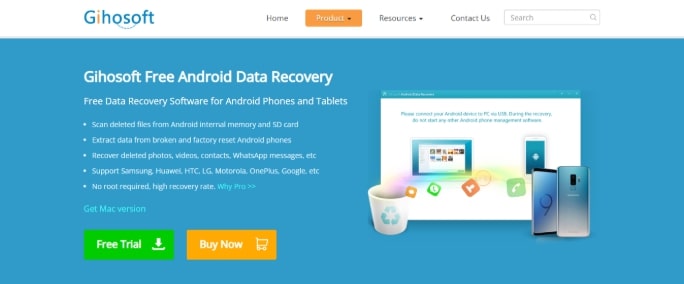
Gihosoft Free Android Data Recovery
In this guide, we’ll cover what Gihosoft Android Data Recovery is, how it works, and provide detailed step-by-step instructions for effective use. We’ll also introduce DroidKit as a versatile alternative that extends beyond recovery to offer comprehensive Android solutions.
Part 1. What is Gihosoft Android Data Recovery?
1. Overview of Gihosof Android Data Recovery
Gihosoft Android Data Recovery is a dedicated software tool designed to restore deleted or lost files from Android devices. It provides a straightforward way to recover important data lost due to accidental deletion, system crashes, formatting errors, or virus attacks.
The tool supports recovering various file types, including photos, videos, contacts, call logs, SMS messages, WhatsApp chats, music, and more. It’s compatible with major Android brands like Samsung, Huawei, LG, Sony, HTC, and Google Pixel. Users can connect their phone to a computer, scan for lost files, preview them on-screen, and selectively recover what they need.
What’s more, Gihosoft offers free and paid versions: the free edition lets you test basic features, while the Pro version unlocks full recovery capabilities. It’s a top choice for Android users facing data loss, thanks to its intuitive interface, secure downloads, lifetime support, and 30-day money-back guarantee.
2. Supported Devices & Supported Data Types
Gihosoft works with hundreds of Android phones and tablets from brands like Samsung, Huawei, HTC, LG, Motorola, OnePlus, Google Pixel, and Sony. It recovers data from both internal storage and SD cards, supporting all Android OS versions and operating on Windows (10/8/7/XP/Vista) and macOS (10.10 to 10.15).
It handles a broad range of data types: multimedia (photos, videos, music, audio), databases (contacts, text messages, call history), and documents (Word, Excel, PPT, PDF, TXT, RAR, ZIP). It also recovers WhatsApp and Viber chats with attachments. Users can preview and selectively recover files post-scan, streamlining the process.
| Features | Free | Pro |
| Device & storage support (internal + SD) | Yes | Yes |
| SMS, contacts, photos, videos, WhatsApp, Viber | Limited/No | Yes |
| Call history, audio, documents | Basic | Yes |
| Lifetime updates & support | No | Yes |
| Price | Free | $49.95 (Win) / $59 (Mac) |
3. Pros & Cons
| Pros | Cons |
| Supports a wide range of Android devices (Samsung, HTC, LG, Google, Huawei, etc.). | The free version is highly limited (e.g., no recovery for SMS, contacts, photos, videos, or WhatsApp). |
| Recovers data from both internal memory and SD cards. | |
| Pro version retrieves SMS, contacts, photos, videos, WhatsApp, Viber, and more. | |
| Allow preview before recovery for selective file restoration. | |
| Maintains original quality for photos, videos, and audio files. | |
| Offers a 30-day money-back guarantee and secure purchase. |
Part 2. How to Recover Data with Gihosof Android Data Recovery?
Follow these steps to recover your data:
Step 1: Download, install, and launch Gihosoft on your PC
Download the software from the official website, install it, and open it. Select the data types you want to recover (e.g., contacts, SMS, photos, or videos).
Step 2: Connect your Android device
Use a USB cable to connect your phone to the computer. Enable USB Debugging in your device’s Developer Options (go to Settings > About Phone > tap Build Number 7 times, then enable Debugging).
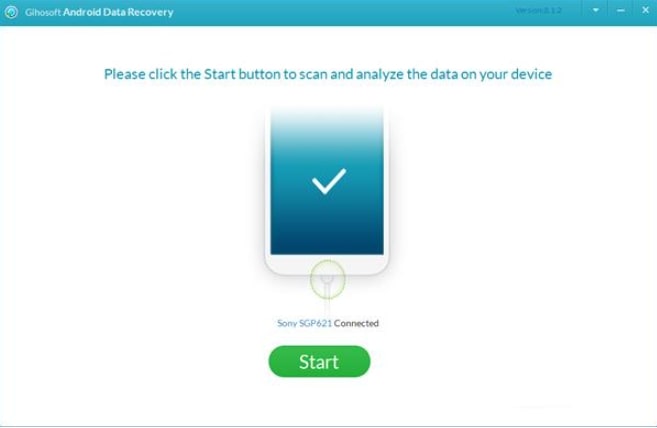
Connect Your Android Device
Step 3: Scan for lost files
Click “Start” to begin the scan. This may take a few minutes, depending on your storage size.
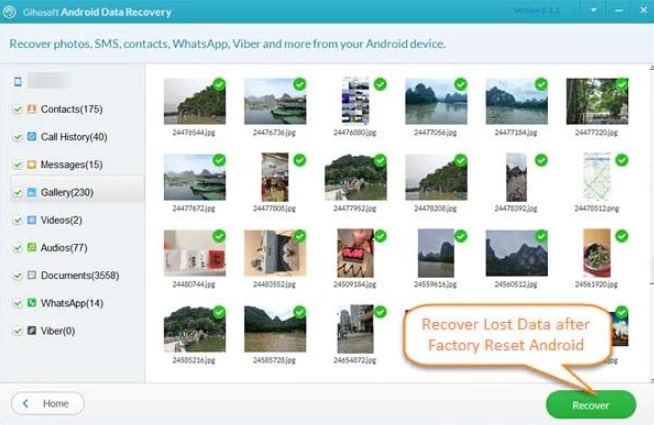
Scan For Lost Files
Step 4: Preview and recover
Once the scan completes, preview the found files. Select the ones you want and click “Recover” to save them to your computer.
For rooted devices, deeper scans are possible for better results.
Part 3. Is Gihosoft Safe and Trustworthy?
Gihosoft Android Data Recovery is generally safe and reliable, featuring a clear privacy policy, secure payments, and positive user reviews. When downloaded from the official website, it poses minimal risks, such as malware. It supports a wide array of Android devices effectively.
However, the free version’s limitations often push users toward the Pro edition. Recovery success varies by device and data loss scenario. To maximize safety, always download from the official site, enable device security, and maintain regular backups to prevent data loss.
Part 4. Best Gihosof Android Data Recovery Alternative | DroidKit
While Gihosoft is solid for basic recovery, many users seek a more robust option. DroidKit by iMobie excels with higher success rates, broader compatibility, and versatile modes—handling not just data loss but also system crashes, malware, and broken devices as an all-in-one Android toolkit.
Key features of DroidKit:
- Recover 13+ types of data from Android devices, including photos, videos, contacts, messages, WhatsApp, LINE, and more.
- Data can be gotten from the internal memory, the SD card, the SIM card, and the Google account.
- The software is capable of handling over 20,000 Android devices and is compatible with the Android versions from 6.0 to 15.
- DroidKit offers two recovery modes: Quick Recovery (no rooting is required) and Deep Recovery (rooting is required) for hard cases of data loss.
- If the data is lost in a fair situation, such as the deletion of a file, system error, malware attack, or SD card failure, the software can still help retrieve the lost data.
- The app also features additional functions, including screen unlock, FRP bypass, system repair, data manager, and data extraction from broken Android devices.
How to recover data with DroidKit (best alternative to Gihosoft)
In case you need a more advanced solution to recover your Android data, which is more probable to succeed, you can go through the following steps to get back your lost Android data:
Step 1: Download and launch DroidKit
Get the latest version for Windows or Mac from the official iMobie website, install it, and open the app.
Free Download * 100% Clean & Safe
Step 2: Select recovery mode
Choose “Data Recovery” from the home screen. Opt for “Quick Recovery from Device” (no root) or “Deep Recovery” (root required for advanced cases).
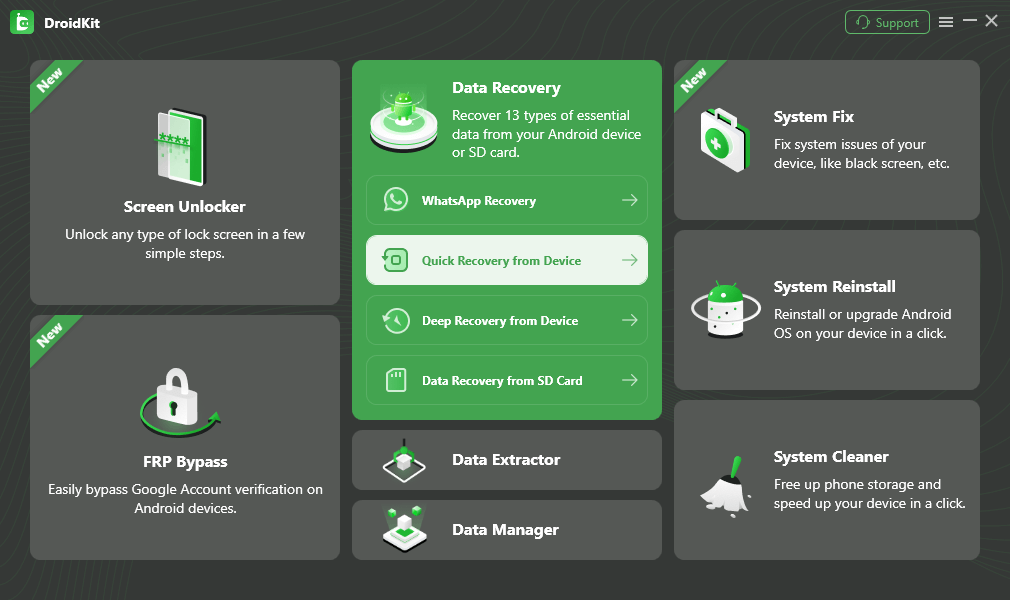
Choose Quick Recovery from Device from Data Recovery
Step 3: Choose data types
Select the files to recover (e.g., photos, videos, messages, contacts) and click Start.
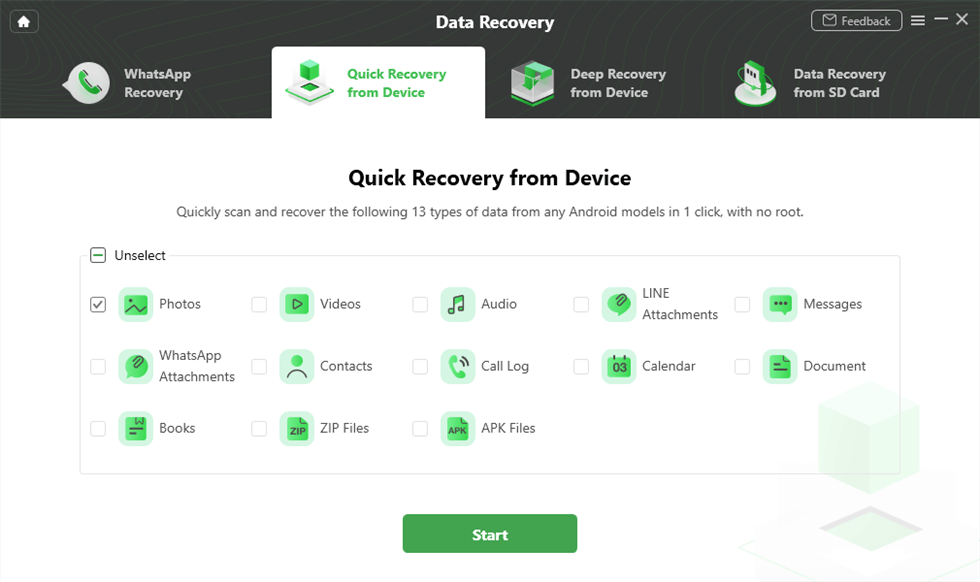
Select the Data Type that You Want to Recover
Step 4: Connect your device
Link your Android phone via USB and enable USB Debugging. Once detected, click Start to scan.
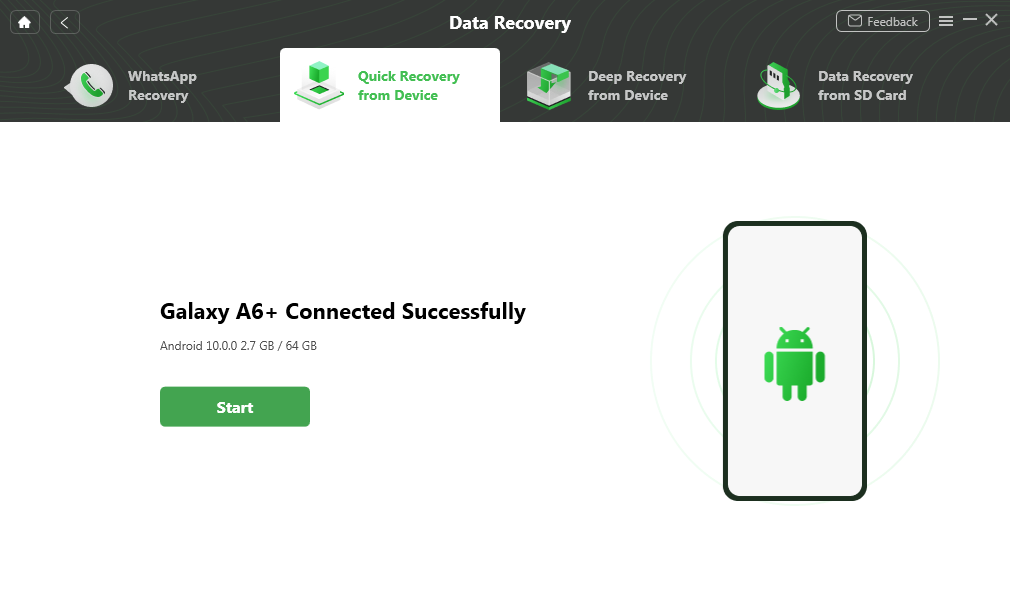
Connect your Samsung Phone and Continue
Step 5: Preview and select files
DroidKit scans for both existing and deleted files (time varies by storage size). Review the results and choose what to recover.
Step 6: Save recovered data
Decide to restore files to your phone or back them up to your computer. The process completes with a confirmation, and files are accessible at the chosen location.
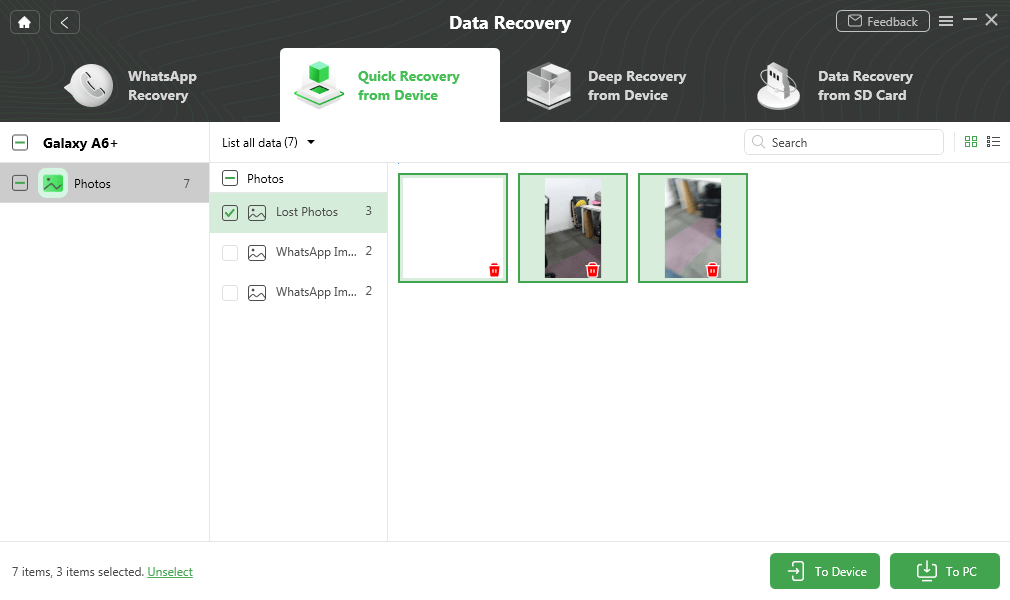
Preview and Select Deleted Photos to Retrieve
Conclusion
Gihosoft Android Data Recovery is an easy-to-use and efficient tool to recover deleted files like pictures, contacts, and messages from Android devices. It offers both free and pro versions, thus meeting the needs of users who require quick recovery of basic data or an extensive recovery of a wider range of file types. Moreover, its user-friendliness and selective recovery feature turn it into a trusted option for losing data daily.
For superior success rates, wider compatibility, and flexible modes, DroidKit is the stronger alternative. It deeply recovers data from phones, SD cards, and Google accounts while adding system repairs and unlocks. Choose based on your needs, but either tool serves as a vital safety net against data loss.


Roger Smith is a senior technical writer with years of experience in providing Android solutions. He loves to help users solve various problems such as Android unlock, Android data recovery, and Android system repair.
Product-related questions? Contact Our Support Team to Get Quick Solution >
