How to Factory Reset Android Without Password or Google Account
Forgot your Android password or Google account credentials? Don’t panic, learn how to factory reset your phone and regain access without password or Google account in this guide within minutes. No tech skills needed.
Android Phone Issues & Tips
iMobie DroidKit – Unlock Android without Password/Google Account
Free download iMobie DroidKit to check the available screen-unlock or FRP workflow for your Android device. Current DroidKit specifications list Android 6.0 and above, including Android 16, with support varying by device, lock type, and Android version. Free download does not necessarily mean the complete unlock or FRP bypass is free.

Before You Choose a Method
First identify which lock you are dealing with. A forgotten screen password and Google Factory Reset Protection (FRP) are different problems, and a factory reset can remove the local screen lock while still leaving FRP active.
| What You See | What It Usually Means | What to Do First |
| PIN, pattern, or password before normal phone use | Screen lock | Try the device/account recovery options for your model before erasing it. |
| “Verify your account” after a factory reset | Google Factory Reset Protection (FRP) | Sign in with a Google Account that was previously added and synced to the device, or recover that account. |
| Samsung Account sign-in request | Samsung Account issue | Use Samsung Account recovery rather than an FRP bypass method. |
| Organization or work-management message | MDM / enterprise management | Contact the organization or administrator. |
Important: Use these methods only on a device you own or are authorized to manage. A factory reset erases local data. On a protected Android device, resetting with hardware buttons does not automatically remove FRP; setup can still require the previous screen lock or a Google Account that was previously synced to the device.
If your goal is how to factory reset Android without password or Google account, you can usually start a hardware-button reset without knowing the current screen password, but that does not guarantee you can finish setup without Google verification afterward. The correct next step depends on whether you are dealing with only a screen lock or with FRP after reset.
How to Reset Android Phone without Google Account
You can often start a factory reset from Android Recovery Mode without entering the current screen password. However, this is not the same as removing the Google account or FRP. Google states that on a protected device, a reset performed with hardware buttons can still require the previous PIN, pattern, password, or a Google Account that was previously added and synced to the phone during setup.
Data warning: A factory reset erases apps, local files, settings, and other data stored on the phone. If the device is already locked, you may not be able to create a new backup first.
Because Recovery Mode button combinations vary by manufacturer and model, use the device maker’s current instructions. The general process is:
1. Power off the Android phone.
2. Use the manufacturer-specific hardware-button combination to enter Recovery Mode. Do not assume the same Power + Volume combination works on every Android phone.
3. Use the volume keys to highlight Wipe data/factory reset, then confirm with the Power button.
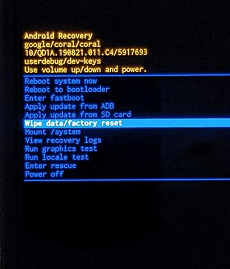
4. Confirm the data wipe and wait for the reset to complete.
5. Choose Reboot system now.
After reboot, if the phone shows Verify your account, FRP is active. At that point you will need an eligible previously synced Google Account, Google account recovery, or another authorized FRP solution that supports the exact device and Android version.
Factory Reset Android without Password or Google Account Easily
If the phone is already on the Google verification screen after reset, you are dealing with FRP rather than a normal screen lock. If the phone has not been reset and is only blocked by a PIN, pattern, or password, use a screen-unlock workflow instead. iMobie DroidKit provides separate FRP Bypass and Screen Unlocker modules, so choose the module that matches the lock you actually see.
Current DroidKit points to check:
- Its current specifications list Android 6.0 and above and 20,000+ Android phone/tablet models.
- The current FRP feature covers Samsung, Xiaomi, Redmi, OPPO, and other supported Android brands, with device- and Android-version-specific workflows.
- DroidKit’s 2026 update history specifically adds FRP support for newer Samsung devices on Android 16.
- Screen Unlock and FRP Bypass are different functions; removing a screen lock does not automatically remove FRP after a factory reset.
- Free download lets you install and check the workflow; verify current licensing before assuming the complete bypass is free.
Free Download * 100% Clean & Safe
How to Bypass Google FRP on a Supported Device:
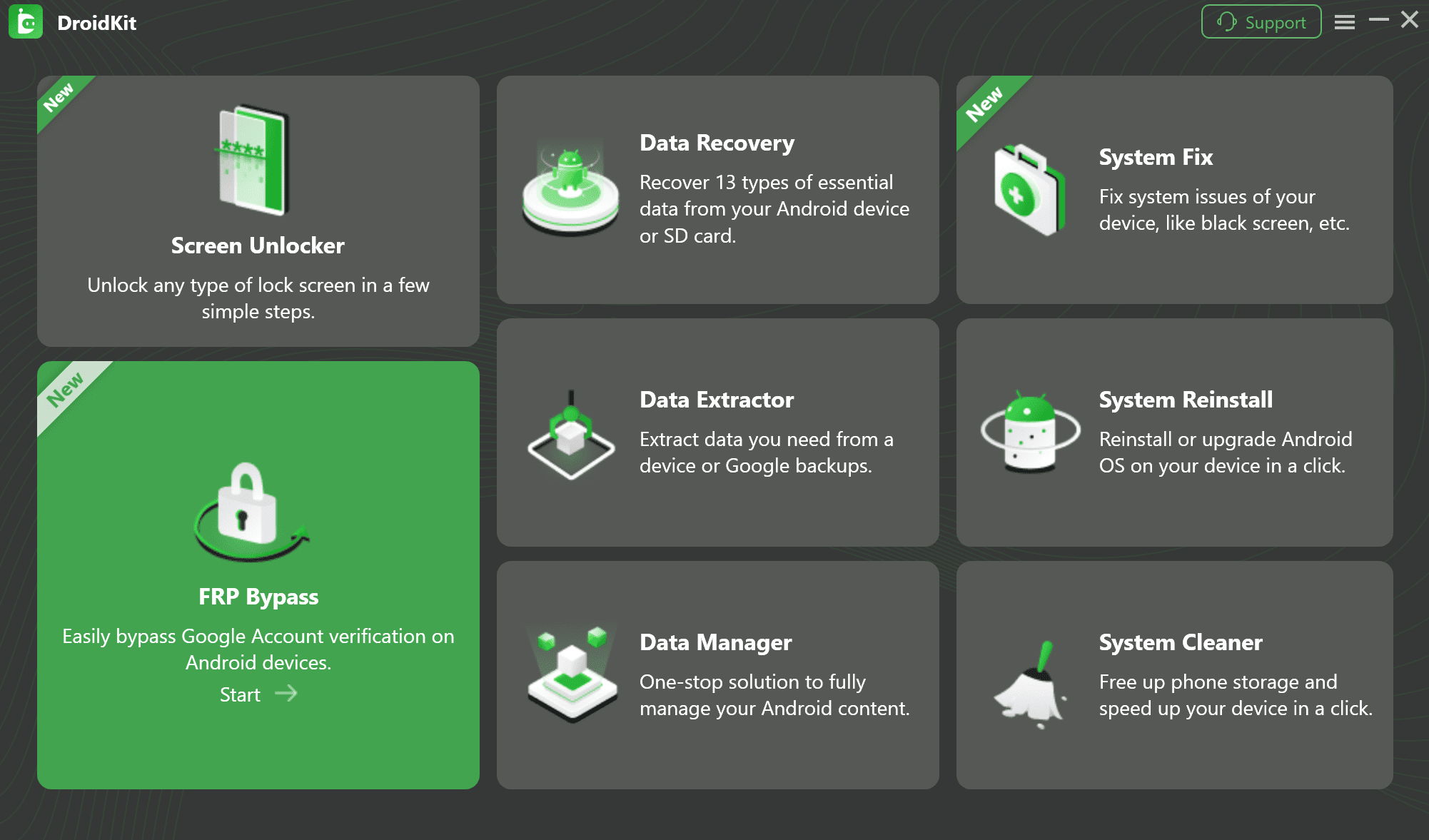
Step 1. Install DroidKit on a Windows or Mac computer and choose FRP Bypass. Use this mode only when the phone is already asking for previous Google account verification after reset.
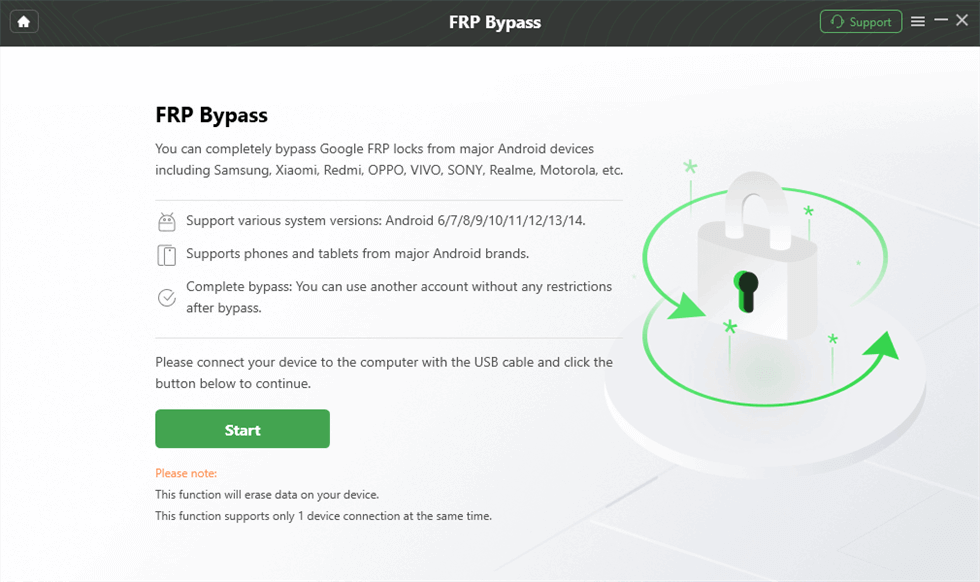
Step 2. Connect the authorized device to the computer and click Start. Confirm the detected brand/model information before continuing.
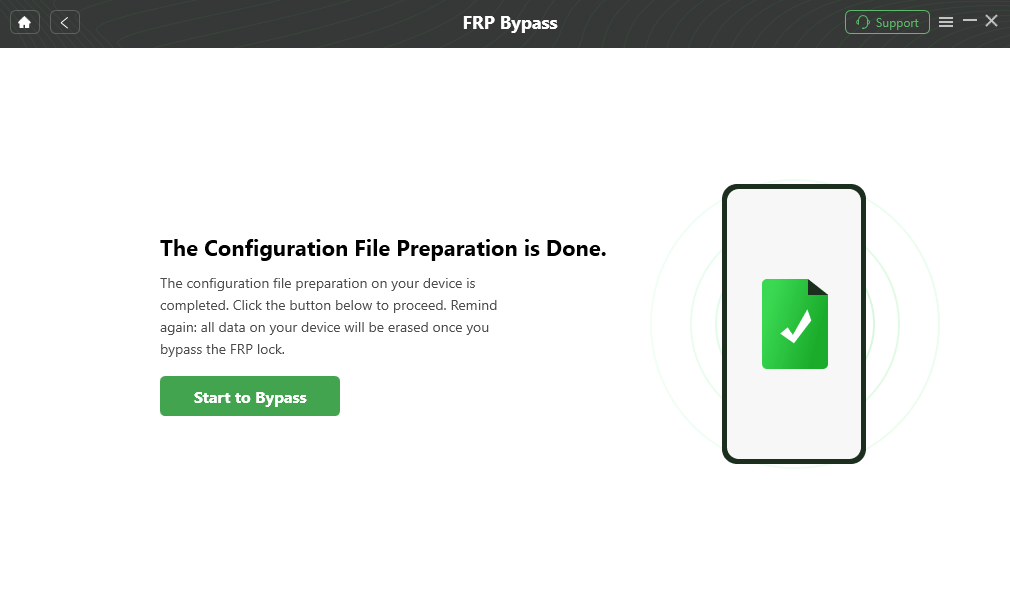
Step 3. Let DroidKit prepare the device-specific configuration. When prompted, choose the matching Android/system information and click Start to Bypass. The exact steps can vary by model, Android version, One UI/version, and security patch.
Step 4. Follow the on-screen device-specific instructions. Keep the phone connected until the software tells you it is safe to disconnect.
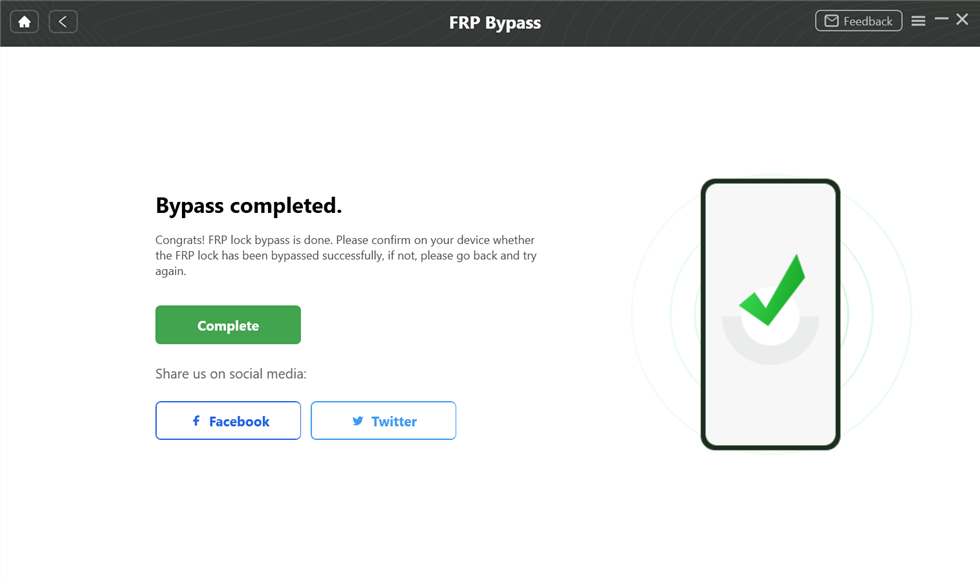
Step 5. When the completion screen appears, restart and set up the device. Confirm that you can complete setup with an account you are authorized to use.
How to Factory Reset Android Without Password:
If the phone has only a screen lock and has not yet reached Google verification after a reset, DroidKit’s Screen Unlocker is the relevant module. Current DroidKit specifications cover Android 6.0 and above, but data impact and supported unlock paths vary by model. Some supported Samsung models have a no-data-loss screen-unlock path; do not assume that applies to every Android device.
Screen-lock warning: Many Android screen-unlock or factory-reset workflows erase local data. Also, if FRP is enabled, removing the screen lock or factory-resetting the phone does not guarantee that Google verification will disappear afterward.
Here are the general DroidKit steps for an authorized locked device:
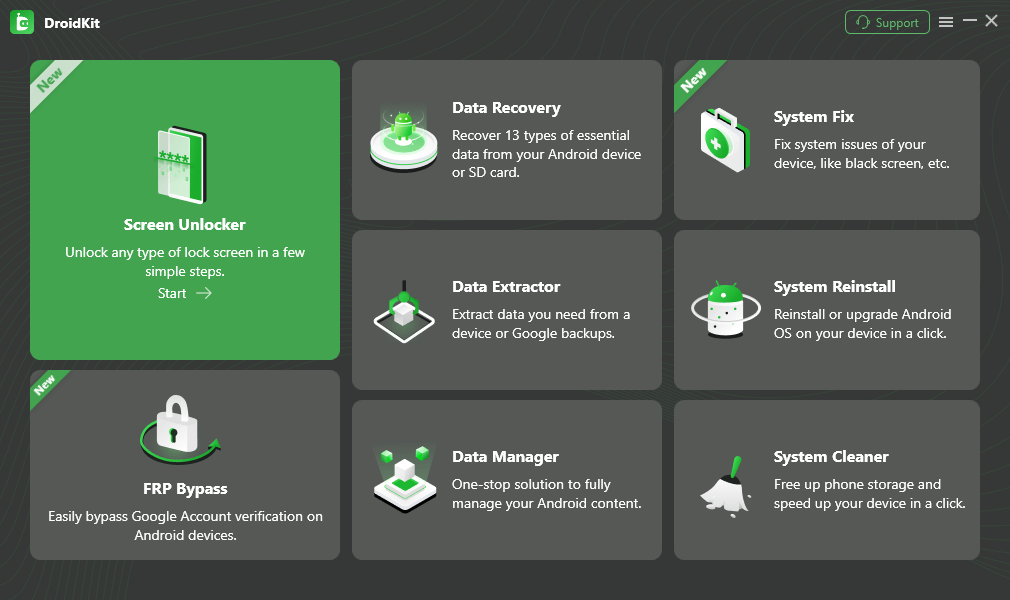
Step 1. Free download DroidKit and launch the software and tap on Screen Unlocker on the welcome page.
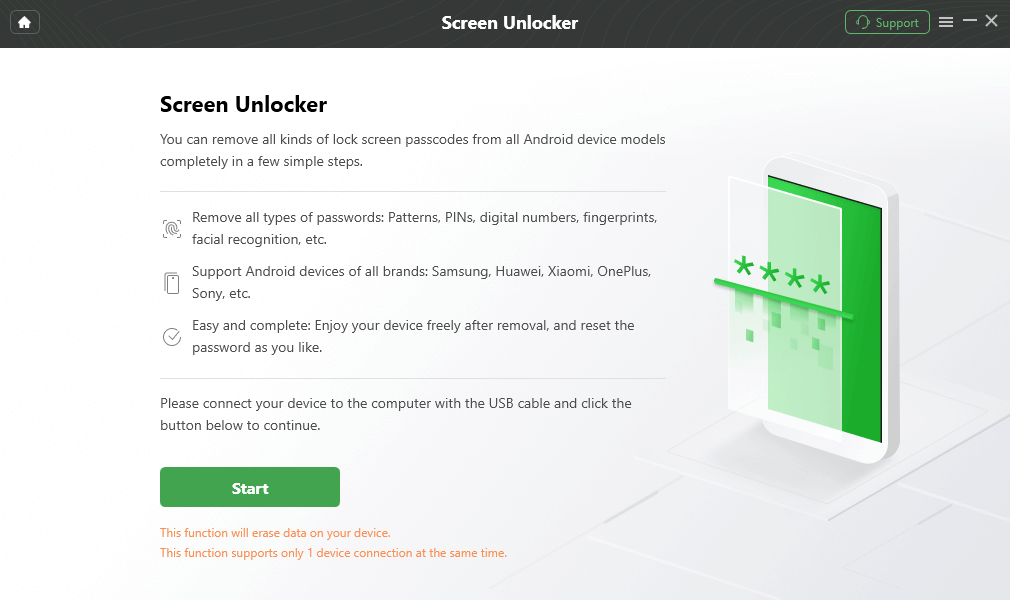
Step 2. Connect your locked device and tap on Start.
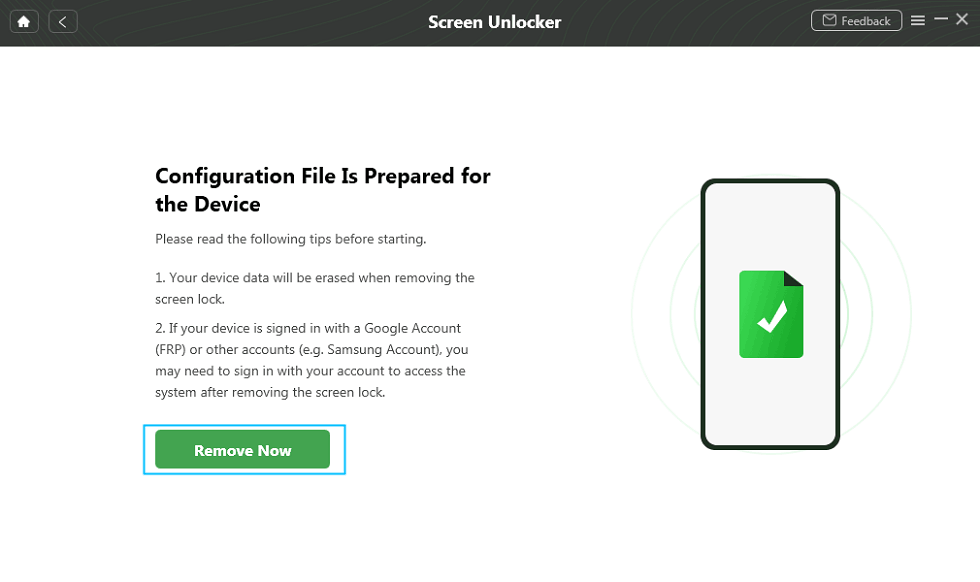
Step 3. After connecting the device, DroidKit will prepare a configuration file for your device > Click Remove Now button > Select your device brand and continue.
Step 4. Next, you need to put your device into recovery mode and wipe the cache partition on your device.
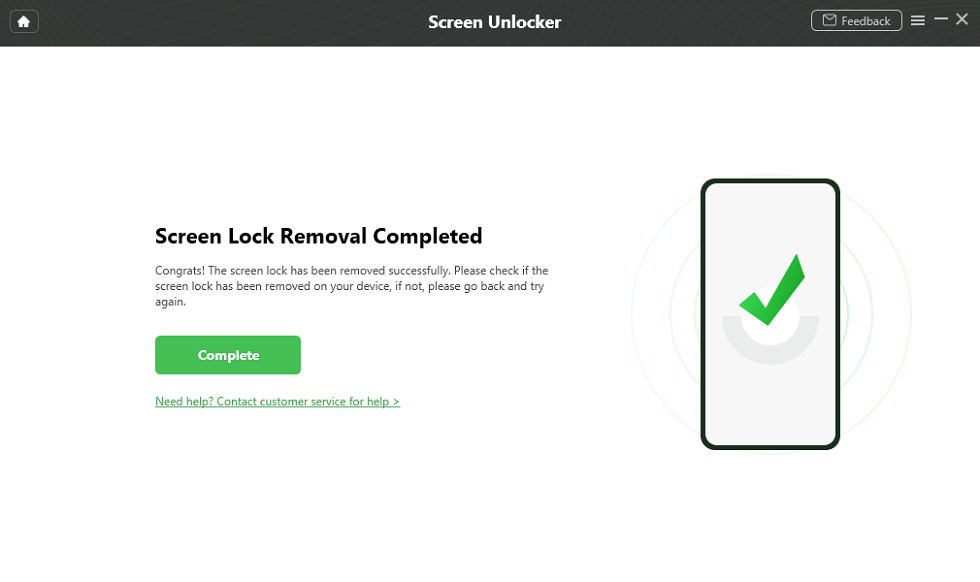
Step 5. Once the above steps are completed, the unlocking process will start immediately. Wait a minute, and you will get the lock screen removal completed page as below. Now, you can get access to your phone again.
Free Download * 100% Clean & Safe
How to Unlock Android with Google Account?
If the phone or FRP screen is linked to your own Google Account, account recovery is safer than trying to bypass the lock. Google’s current Find Hub can locate, secure, or erase a device, but it does not provide the old “set a temporary password to unlock the phone” workflow described in many outdated guides.
Use Forgot Pattern (Android 4.4 and Below)
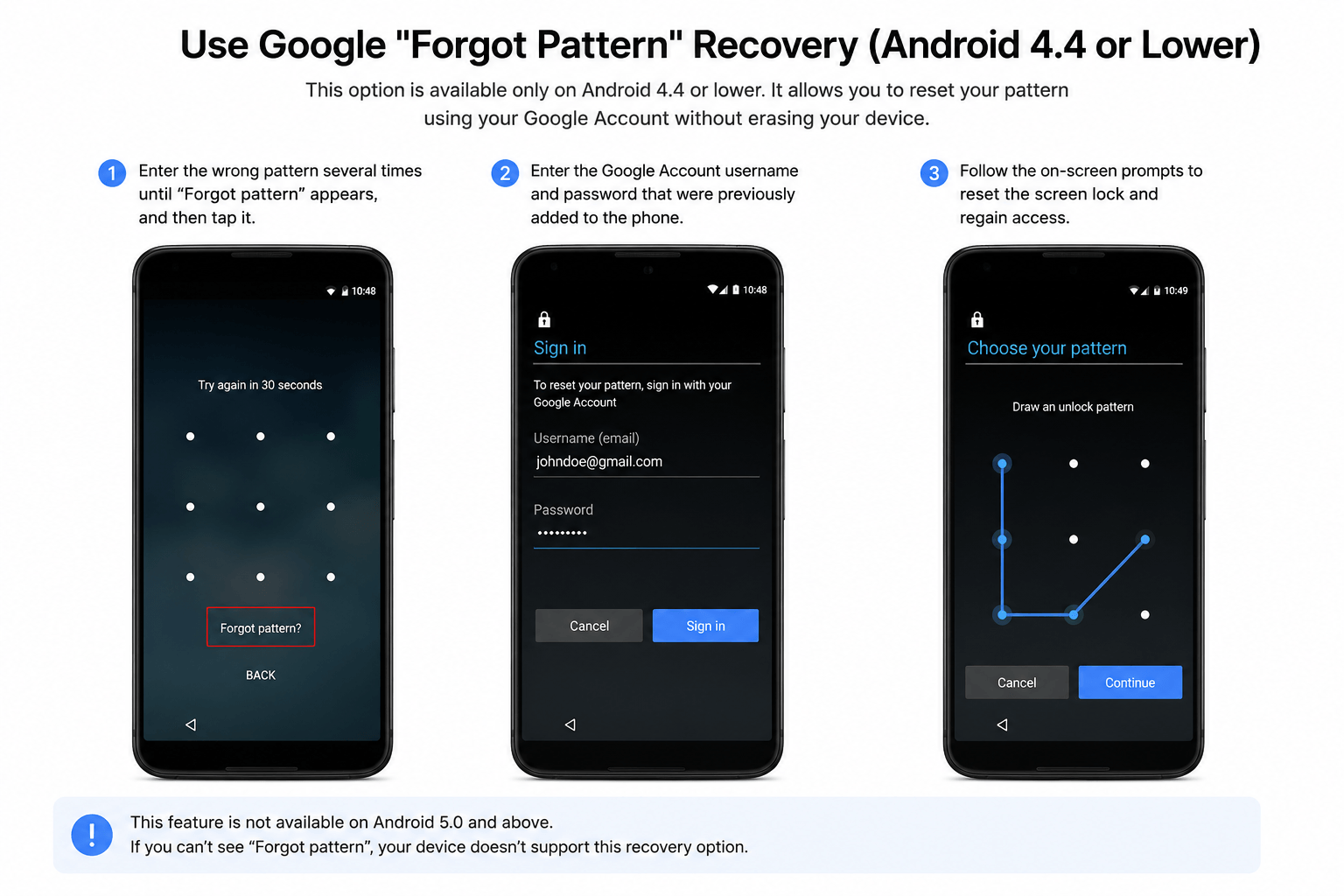
On some very old Android 4.4-and-earlier devices, the lock screen can offer Forgot pattern after repeated failed attempts. If that option appears, sign in with the Google Account associated with the phone and follow the prompts to reset the pattern. This is a legacy Android feature and should not be expected on current devices.
Recover Your Google Account or Use Find Hub
If you know which Google Account is associated with the phone but forgot the password, use Google Account recovery first. Google recommends making sure you know the Google Account username and password before a factory reset, because protected devices can require that information again during setup.
Find Hub is useful for locating, securing, or erasing a lost Android device. If you erase a protected phone remotely, Google states that you will still need a Google Account associated with that device to use it again. Therefore, Find Hub should not be described as a way to bypass FRP or replace an unknown screen password with a temporary one.
FAQs about Reset Android without Password/Google Account
Q1: Can I factory reset Android without the screen password?
Often yes, by using the manufacturer’s Recovery Mode button sequence. However, a factory reset erases local data, and on a protected device Google FRP can still require the previous screen lock or a Google Account that was previously synced to the phone during setup.
Q2: Does factory reset remove the Google account or FRP?
No—not necessarily. Google’s device-protection documentation states that a protected phone reset with hardware buttons can still require the previous PIN, password, pattern, or a previously synced Google Account. Factory reset removes local user data; it is not the same as disabling FRP.
Q3: How can I unlock an Android phone after factory reset without the old Google account?
First try to recover the Google Account that was previously synced to the phone, or contact the previous owner if the device was purchased second-hand. If those options are unavailable and you are authorized to use the device, check whether a current FRP tool supports the exact model, Android version, and security patch.
Q4: Is there a free Samsung FRP unlock tool?
Some manual methods and downloads are described online as free, but support can depend heavily on the Samsung model, Android/One UI version, and security patch. “Free download” also does not always include a complete FRP bypass. Avoid random APK files or unofficial FRP packages from unknown sources.
Q5: Can Samsung FRP be bypassed without a PC?
Some older no-PC methods rely on specific setup-screen behavior, keyboard routes, or security-patch gaps and may stop working after updates. On newer Samsung models, a current PC-based workflow can be more predictable when the old manual route is blocked. Always verify your exact model and Android version first.
Q6: Does Samsung model and Android version matter for FRP?
Yes. FRP behavior and available bypass workflows can vary by model, chipset, Android/One UI version, and security patch. For example, current DroidKit documentation uses device- and Android-version-specific Samsung instructions rather than one universal procedure.
Q7: Can I use Find Hub to set a temporary password and unlock my Android phone?
No current Google support page documents that old workflow. Find Hub can locate, secure, or erase supported devices, while Remote Lock locks a device and requires the existing local screen lock to unlock it again. Do not rely on older Android Device Manager tutorials that tell you to create a temporary password remotely.
The Bottom Line
For how to factory reset Android without password or Google account, the most important distinction is that resetting the phone and removing FRP are not the same thing. Recovery Mode can erase a locked Android phone without entering the current screen password on many models, but a protected device may still ask for the previous screen lock or a previously synced Google Account during setup.
Start with Google Account recovery or the previous owner when possible. If the device is yours or you are authorized to manage it and the phone is already stuck on FRP verification, DroidKit is one guided Windows/Mac option to compare for supported devices. Check the exact model, Android version, data impact, and license requirement before starting.
Free Download * 100% Clean & Safe
More Related Articles


Roger Smith is a senior technical writer with years of experience in providing Android solutions. He loves to help users solve various problems such as Android unlock, Android data recovery, and Android system repair.
Product-related questions? Contact Our Support Team to Get Quick Solution >
