Phoenix Service Tool Guide: Download, Credits, Server Status & Setup
Phoenix Service Tool is more than a Windows installer: many jobs depend on an account, operation credits, and an available server route. This guide explains where the current download comes from, why brand support is not the same as operation support, and what to check when Phoenix shows device, credit, authorization, or server errors.
A search for Phoenix Service Tool can look like a simple software-download query. In practice, Phoenix has several moving parts: the Windows client, your account, the credit balance, the operation selected for the phone, and the server behind that operation.
That last part is easy to overlook. A phone can be connected correctly while a server-backed operation is unavailable. Your account can be active while the selected job still needs more credits. A brand can appear in Phoenix while the exact model, firmware state, or requested operation still needs to be checked.
This is why the most useful way to understand Phoenix is not as another generic “flash and unlock tool.” It is a technician-oriented service platform whose workflow changes by brand and operation.
For readers comparing Phoenix against other professional and consumer FRP options, the FRP bypass tool comparison provides the parent decision layer. This article stays with Phoenix itself: download, account setup, credits, server status, supported brands, and Phoenix-specific errors.
Table of ContentsHide
What Is Phoenix Service Tool?
Before You Download: Understand the Phoenix Workflow
Phoenix Credits, Server Status & Operation Costs
Phoenix Service Tool Download & Account Setup
Supported Brand Does Not Mean Every Operation Is Supported
How to Use Phoenix Service Tool Without Guessing the Workflow
Phoenix Service Tool Errors: Server, Credits, Authorization & Detection
When “Phoenix Unlock Tool” Is the Wrong Search for the Job
Phoenix Service Tool FAQs
What Is Phoenix Service Tool?
Phoenix Service Tool is a Windows-based mobile servicing platform intended for technical phone-service work. Its available operations cover several categories, including firmware flashing, FRP-related operations, bootloader procedures, account-reset functions, partition work, diagnostics, and device-information tasks.
The exact operation path changes with the device family. Phoenix should therefore not be described as a program where every phone follows the same “load ROM, enter EDL, click Flash” sequence.
Different Phoenix workflows can involve different communication and service paths, including:
- USB servicing for supported device procedures.
- Fastboot-related operations.
- EDL-related operations in supported Qualcomm scenarios.
- Mi Assistant routes for certain Xiaomi operations.
- MTP-based procedures for supported Samsung services.
- Server authorization for credit-based operations.
For users whose actual problem is only Google verification after a reset, the broader Android FRP guide is useful because it begins with phone brand and Android environment rather than assuming a professional service platform is required.
Phoenix Tool, Phoenix Server Tool and Phoenix Unlock Tool
These search phrases point to different parts of the same user journey.
| Search Phrase | What the User Is Usually Looking For |
| Phoenix Service Tool | The complete desktop servicing platform |
| Phoenix Tool download | The current Windows installer and official download route |
| Phoenix Server Tool | Server-backed operations, availability, and credit costs |
| Phoenix Unlock Tool | FRP, account reset, bootloader, or other supported unlock-related operations |
| Phoenix Tool support model | Whether a specific model and requested operation are available |
The most important distinction is between brand presence and operation availability. Phoenix can support a brand while the exact procedure you need still depends on the phone model, firmware state, security environment, and server route.
Before You Download: Understand the Phoenix Workflow
Phoenix is easier to understand when you separate the job into four layers.
1. The Desktop Client
This is the Windows application you download and install. The official Phoenix website provides its current client through official download mirrors.
2. The Account
Phoenix uses registered user accounts. The desktop tool is not simply an offline portable flashing program whose complete workflow ends when the EXE opens.
3. The Credit Balance
Some operations consume Phoenix credits. Credits are added to the account through the Phoenix admin route or listed authorized resellers.
4. The Operation Server
Server-backed jobs can have their own availability and credit cost. Before assuming that a cable, driver, or phone is at fault, check whether the exact Phoenix service you intend to use is currently available.
Phoenix-specific rule: opening the client, detecting the phone, having enough credits, and reaching an online operation server are separate checkpoints. Do not troubleshoot all four as though they were one USB-driver problem.
Phoenix Credits, Server Status & Operation Costs
Phoenix does not reduce neatly to one universal price because service use can involve operation credits.
The official workflow is based on three actions:
- Create an account.
- Add credits through the available Phoenix purchase route or authorized reseller.
- Use credits for operations that carry a credit cost.
Different jobs can use different amounts of credit. The useful place to check is the live Phoenix Service Tool website, which displays current server availability and operation-level credit costs.
Why Server Status Matters Before You Start
Suppose Phoenix detects the phone but a server-backed service cannot proceed. Changing cables repeatedly may not address the actual blocker.
Check the sequence:
Step 1. Confirm that the phone is recognized in the connection state required by the selected operation.
Step 2. Confirm that the account is active.
Step 3. Check the credit balance.
Step 4. Check whether the exact server-backed operation is currently online.
Step 5. Only then diagnose operation-specific errors.
What Happens If a Credit-Based Operation Fails?
Do not assume that every failed job is refunded automatically. Keep the operation log, screenshots of the Phoenix result, and device information. Those details are important when a failed operation needs support review.
Also separate two different transactions:
- Adding credits to an account.
- Requesting review of credits consumed by a failed operation.
They do not necessarily follow the same refund process.
Phoenix Service Tool Download & Account Setup
The strongest non-brand query on this page is Phoenix Service Tool download, so the download path should be direct and unambiguous.
At the time of this update, the official Phoenix page lists version 10.0.0.4. Because the version can change, verify the number shown on the official page before comparing it with a mirror or old tutorial.
Download and Setup Sequence
Step 1. Open the official Phoenix Service Tool website.
Step 2. Use one of the download options presented by the official page.
Step 3. Install the client on a supported 64-bit Windows environment.
Step 4. Create a Phoenix account through the official registration flow.
Step 5. Sign in to the Windows client.
Step 6. Check whether the intended operation requires credits.
Step 7. When credits are needed, use the Phoenix admin route or a reseller shown on the official reseller list.
Step 8. Before connecting the repair device, identify the exact model and the operation you intend to run.
Do Not Build the Setup Around an Old Screenshot
Phoenix is actively versioned software. An old tutorial may show a different client layout, brand tab, credit cost, or service state.
Use screenshots to understand the general interface, but use the current client and current server information for the actual job.
Supported Brand Does Not Mean Every Operation Is Supported
Phoenix currently presents a broad multi-brand platform, but “Phoenix supports this brand” is not the same statement as “Phoenix performs this operation on every phone from this brand.”
Before purchasing credits or starting a job, identify:
- The complete phone model or model code.
- The regional or carrier variant when relevant.
- The current firmware or software state.
- The security patch or binary information when the operation depends on it.
- The exact operation: flash, FRP, reset, bootloader, account service, or diagnostics.
- The device mode expected by that operation.
- Whether a required server route is currently available.
Why “Phoenix Tool Support Model” Is the Better Question
A technician rarely needs to know only whether Phoenix has a Samsung or Xiaomi section. The practical question is narrower:
Does the current Phoenix workflow expose the required operation for this exact device state?
That question should be answered before credits are consumed or firmware work begins.
Do Not Generalize Connection Modes Across Brands
The old version of this article offered generic key combinations for Samsung, Xiaomi, and other brands. That is too broad for a multi-brand technician platform.
A Samsung MTP service, Xiaomi Mi Assistant FRP route, Qualcomm EDL operation, and Fastboot procedure are not interchangeable merely because they appear inside one program.
Use the mode required by the selected Phoenix operation and the exact device procedure. Do not choose a connection mode because it worked in a different brand tutorial.
How to Use Phoenix Service Tool Without Guessing the Workflow
There is no responsible single flashing sequence for every Phoenix-supported brand. The safest useful guide is therefore an operation-first workflow.
Part 1. Define the Job Before Connecting the Phone
Step 1. Record the complete phone model and software information available to you.
Step 2. Define the job precisely. “Unlock phone” is too broad. Determine whether the request is FRP removal, bootloader work, account reset, firmware flashing, factory reset, or another supported service.
Step 3. Check that the intended operation is available for the device scenario.
Step 4. Check the server and credit conditions attached to that operation.
Part 2. Prepare the Connection Layer
Step 1. Install the driver required by the selected device workflow.
Step 2. Use a reliable USB data cable and a stable computer port.
Step 3. Put the phone into the connection state required by the selected Phoenix procedure.
Step 4. Confirm device detection before starting a credit-consuming or write operation.
Do not change firmware, service mode, USB driver, and Phoenix account settings all at once. One change at a time makes the failure easier to locate.
Part 3. Run the Selected Phoenix Operation
Step 1. Open Phoenix Service Tool and sign in.
Step 2. Select the correct brand and operation path.
Step 3. Confirm the phone information shown by the tool where that information is available.
Step 4. Review the operation’s credit requirement and current server availability.
Step 5. Start the operation and keep the device connection stable.
Step 6. Save the final log or error result if the procedure does not complete.
Step 7. Do not repeat a chargeable operation blindly. First determine whether the failure belongs to connection, server availability, account balance, authorization, compatibility, or the device itself.
Phoenix Service Tool Errors: Server, Credits, Authorization & Detection
Phoenix troubleshooting becomes much easier when the error is assigned to the correct layer.
Phoenix Opens, but the Service Is Offline
The client can work while an individual server-backed operation is unavailable.
Before reinstalling drivers or resetting the account:
- Check the live server-status area.
- Find the exact operation, not only the brand.
- Wait for the service route to return if the blocker is server availability.
A server-status problem is not fixed by putting the phone into another mode.
The Account Has Insufficient Credits
This is an account-balance problem, not a USB problem.
Check the cost of the selected operation and the current credit balance before starting again. When buying additional credits, use a seller listed by Phoenix or the account purchase route provided by the platform.
Authorization Failed
An authorization error can occur after the phone is already detected, so do not automatically return to cable troubleshooting.
Check:
- Account login state.
- Internet connectivity.
- Credit balance.
- Server availability for the selected operation.
- Whether the exact device and procedure match the available service path.
Device Not Found
This failure happens earlier in the chain.
Check the physical and driver layer:
- USB cable supports stable data communication.
- The Windows driver is installed correctly.
- The phone is in the mode required by the selected operation.
- The USB port remains stable.
- The selected Phoenix workflow matches the device.
The Brand Is Listed, but the Operation Is Missing
Do not select a nearby model or unrelated operation simply to make a button available.
Brand-level support is broader than operation-level availability. Recheck the exact phone and service requirement, then contact Phoenix support when the requested operation is unclear.
The Operation Consumed Credits but Failed
Preserve evidence before running the job again:
- Operation log.
- Tool result screenshot.
- Exact model information.
- Photo or current state of the device where support asks for it.
A failed credit-based operation may need manual support review. Repeating it immediately can make the account history harder to diagnose and may consume more credits.
Firmware or Write Operation Stops Midway
Separate a write failure from a server-status failure.
Check the package or firmware match required by the exact Phoenix operation, the connection stability, device mode, and final log. Do not substitute a firmware file merely because it belongs to the same commercial phone family.
When “Phoenix Unlock Tool” Is the Wrong Search for the Job
Some users arrive here because Phoenix is exactly what they need: a multi-brand technician platform, server-backed servicing, and account credits that can be used across different repair jobs.
Other users search Phoenix unlock tool when the phone in front of them has one narrow problem—a Google verification screen after reset.
Those two users do not need the same workflow.
If you run a repair business, Phoenix’s account, credit, server-status, and operation structure may fit the way you already work. But if you have one compatible Android phone and do not need firmware flashing, bootloader work, account services, or a credit wallet for future repair jobs, the Phoenix workflow may be broader than the problem.
For that narrower FRP case, DroidKit FRP Bypass provides an iMobie FRP workflow focused on the device-verification problem rather than a multi-brand technician credit platform.
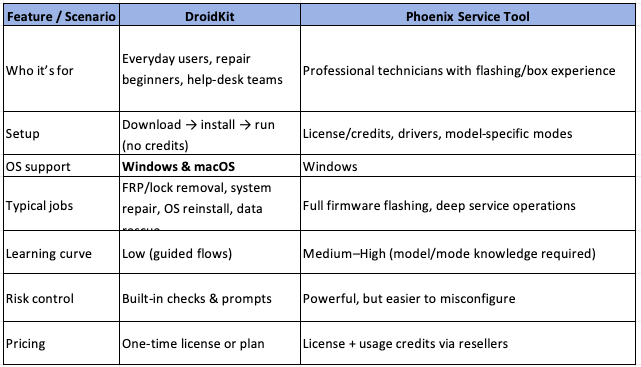
Choose between a technician servicing platform and a focused FRP workflow based on the actual job.
A Different Workflow for a Single FRP Job
Step 1. Install DroidKit on the computer and select FRP Bypass.
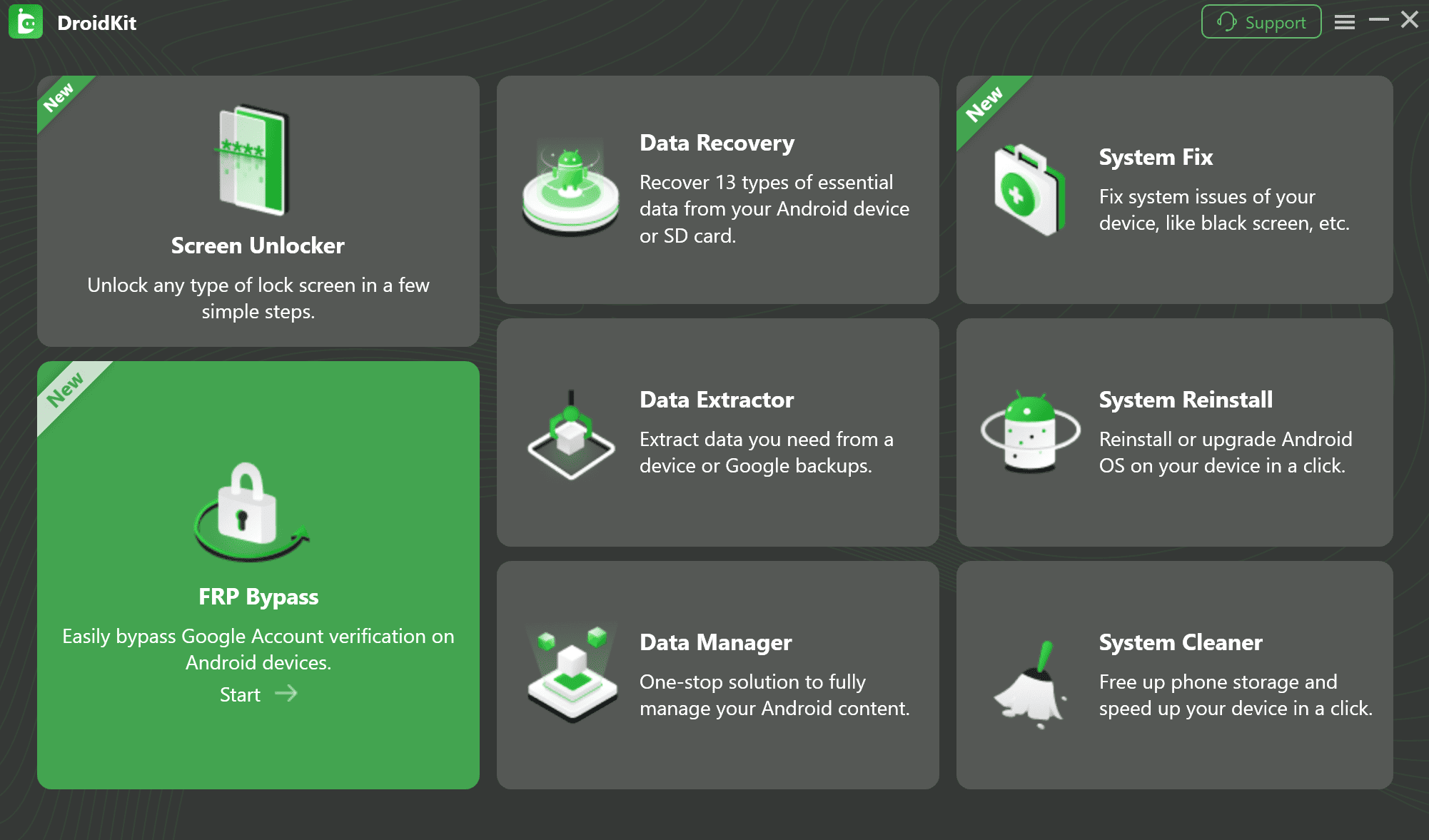
Choose the FRP Bypass function.
Step 2. Connect the Android device and let the software prepare the configuration required by the available device route.
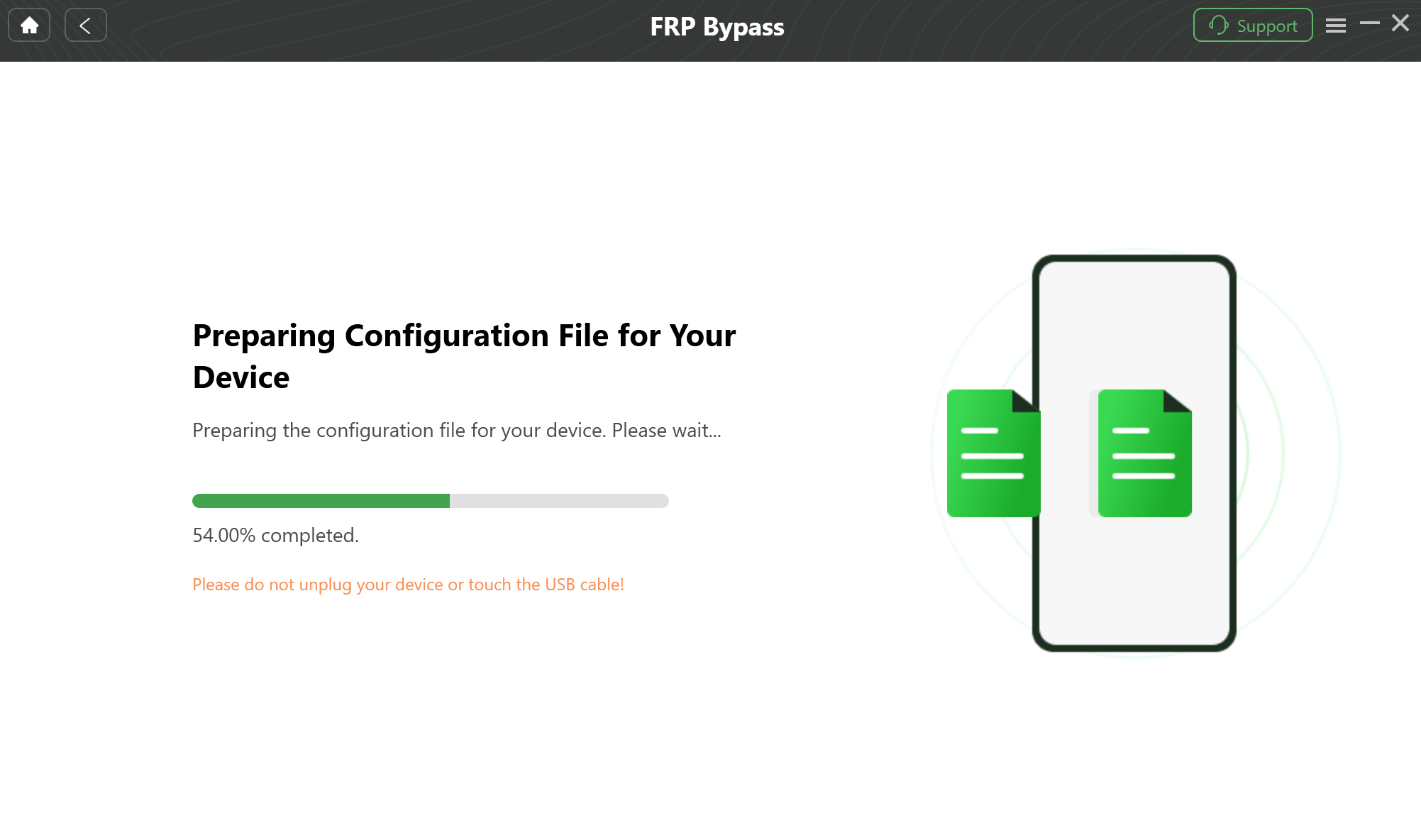
Wait for the required configuration process.
Step 3. Follow the device-side instructions shown by the software for the available route.
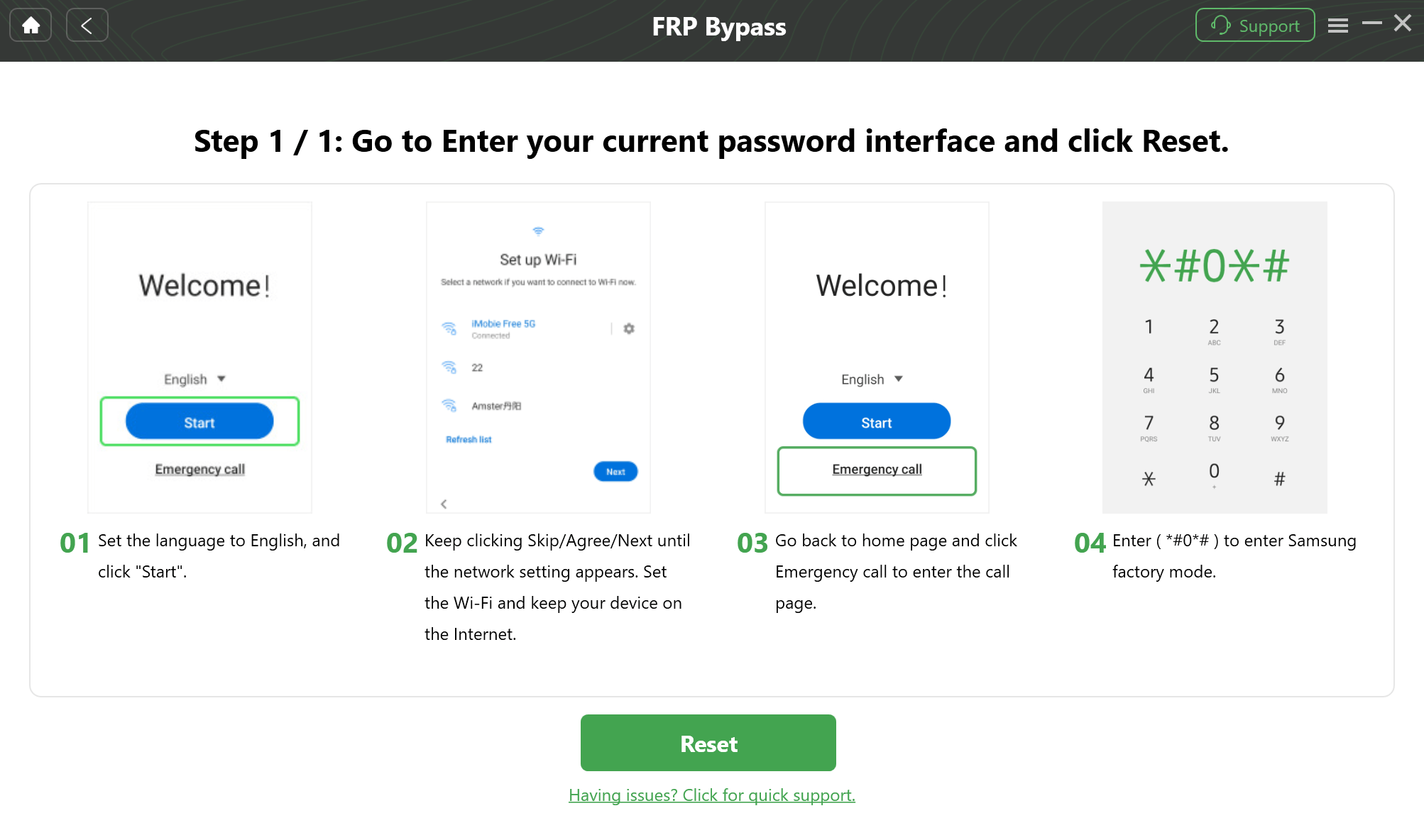
Complete the device-side steps shown by the software.
DroidKit is commercial software, and device compatibility should be checked before purchase. Its relevance on a Phoenix page is narrow: the visitor searched for an unlock tool but does not actually need a technician platform with multiple server services, credits, and cross-brand repair operations.
Phoenix Service Tool FAQs
Where can I download Phoenix Service Tool?
Use the download options presented on the Phoenix Service Tool website. The official page can change the listed client version over time, so compare the version on the official page before relying on an old video, archive name, or mirror post.
What is the latest Phoenix Service Tool version?
At this article’s update time, the official Phoenix website lists version 10.0.0.4. Because Phoenix is actively updated, verify the number shown on the official download page before installing or comparing builds.
What is Phoenix Server Tool?
Users searching “Phoenix Server Tool” are usually looking for Phoenix’s server-backed service layer. The official site displays service availability and credit costs for individual operations. A desktop client can open normally even when one particular server operation is unavailable.
How do Phoenix Service Tool credits work?
Credits are added to the user’s account through the Phoenix purchase route or authorized resellers and are consumed by operations that carry a credit cost. The cost can differ by operation, so check the current service information before beginning the job.
Do Phoenix credits expire?
The Phoenix FAQ says credits remain in the account until used under normal conditions, while the service terms reserve the right to expire credits on accounts inactive for more than 24 consecutive months. Review the current account terms when managing a long-unused balance.
Why is Phoenix Service Tool not detecting my phone?
First identify the exact Phoenix operation you selected. Then check the mode that operation expects, the Windows driver, USB cable, port stability, and whether Windows recognizes the device. A server outage is a separate problem from a phone that never reaches the required connection state.
Why does Phoenix say Authorization Failed?
Check account login, internet connection, credit balance, the selected server operation, and device eligibility for that procedure. Because Phoenix uses account and server-backed services, an authorization failure should not automatically be diagnosed as a driver error.
Can Phoenix Service Tool remove FRP?
Phoenix includes FRP-related operations for supported device scenarios. Do not infer universal FRP support from the product name or brand list alone; check the exact device and operation path before consuming credits or changing the phone state.
Does Phoenix Service Tool work without internet?
The current Phoenix service information requires an active internet connection for operations. The platform uses account, server, and credit functions, so it should not be treated as a completely offline flashing executable.
Does Phoenix Service Tool work on Mac?
The current Phoenix download and system requirements are Windows-oriented. The official page specifies 64-bit Windows 10 or later for the desktop tool.
What should I do if a Phoenix operation consumes credits and fails?
Save the operation log, screenshots, exact device information, and any other evidence requested by support. Failed operations are not necessarily refunded automatically; the Phoenix refund process can require manual review.
With Phoenix, Check the Server Before You Blame the Cable
Phoenix Service Tool is not difficult because it has one unusually complicated Flash button. It is complicated because a single repair job can cross several independent checkpoints: client version, account login, credit balance, device detection, operation availability, and server status.
That changes the troubleshooting order. A phone that is not detected belongs in the driver and connection layer. An offline service belongs in the server layer. Insufficient credits belong in the account layer. An unsupported or missing procedure belongs in the device-operation layer.
Mix those layers together and Phoenix troubleshooting becomes random. Keep them separate and an error message becomes much more useful.
For Phoenix Service Tool, the first diagnostic question is often not “Which driver should I reinstall?” It is “Which layer of the service actually failed?”
More Related Articles


Roger Smith is a senior technical writer with years of experience in providing Android solutions. He loves to help users solve various problems such as Android unlock, Android data recovery, and Android system repair.
Product-related questions? Contact Our Support Team to Get Quick Solution >
