Samsung Tab A7 Lite FRP Bypass Android 14/13: SM-T220 & SM-T225
The Wi-Fi SM-T220 and LTE SM-T225 do not share every Galaxy Tab A7 Lite FRP route. Android version alone is not enough: check the exact model, Samsung security patch and the first screen required by SamFw, DroidKit or a no-PC method before proceeding.
If a Samsung Galaxy Tab A7 Lite stops at Google verification after a factory reset, first identify which Tab A7 Lite you have. The SM-T220 is the Wi-Fi model, while the SM-T225 has LTE connectivity. That difference immediately changes whether a tutorial built around a cellular dialer, Emergency Call screen, SIM function, or Test Mode route is even relevant.
Android version matters too, but the Samsung security patch is the more important tool-compatibility checkpoint. Samsung’s official update histories show Android 14 / One UI 6.0 builds for both SM-T220 and SM-T225 with a December 2023 security patch, followed by later Android 14 updates. That matters because some FRP tools document patch-specific limits.
This guide stays focused on the Galaxy Tab A7 Lite. For other Galaxy tablets, use the Samsung tablet FRP bypass guide. For Samsung phones and tablets more broadly, use the Samsung FRP bypass guide.
Before changing anything on the tablet: if you still know a Google account previously synced to this Tab A7 Lite, use that account at the verification screen. For a second-hand tablet, ask the previous owner to resolve the account verification first. The technical routes below are for a device you own or are authorized to service.
Table of ContentsHide
Quick Answer: Which Tab A7 Lite FRP Route Fits Your Device?
SM-T220 vs SM-T225: Check Your Tab A7 Lite Model
Check Android Version and Security Patch
Before You Start a PC FRP Method
Tab A7 Lite FRP Methods Compared
Check DroidKit Compatibility Before Using It
SamFw Tool: Old Test Mode Route vs Current Options
Why the SamFw Route Does Not Match Your Tablet
Driver, USB and Tool Compatibility Troubleshooting
Can Tab A7 Lite FRP Be Bypassed Without a PC?
Samsung Tab A7 Lite FRP Bypass FAQs
Conclusion: Choose by Model, Patch and Entry Point
Quick Answer: Which Tab A7 Lite FRP Route Fits Your Device?
The most useful order is model → patch → required entry point → tool compatibility. Do not choose a method only because its title says “Tab A7 Lite Android 14.”
| Your Situation | What to Check | Recommended Direction |
| You know a Google account previously synced with the tablet | Whether you can recover and sign in to that account | Use Google verification rather than a bypass method. |
| You have SM-T220 | This is the Wi-Fi-only model | Reject tutorials whose first required step is a cellular dialer, SIM call, or Emergency Call route. |
| You have SM-T225 | This model includes LTE/mobile-network hardware | A cellular setup route is more plausible than on SM-T220, but still verify that the exact screen exists on your build. |
| Your tablet runs Android 14 | Check the Samsung security patch | Samsung’s official Android 14 update histories for T220/T225 begin with a December 2023 patch, which is later than DroidKit’s current Samsung FRP cutoff. |
| Your tablet runs Android 13 | Record the security patch date instead of assuming Android 13 is supported | DroidKit’s current Samsung restriction also applies when the patch is August 2023 or later. |
| You found an old SamFw Test Mode tutorial | Whether it requires Emergency Call, *#0*#, ADB and a USB debugging prompt | Do not treat that old route as universal; SamFw states the older ADB exploit was patched starting with Samsung’s January 2023 security update. |
| You want current SamFw | Whether the latest tool exposes an applicable route for the connected T220/T225 | Use the current tool and read device information first; do not force an old Test Mode sequence onto a mismatched tablet. |
| The PC cannot detect the tablet | Samsung driver, USB cable, port and device mode | Fix detection before deciding that the FRP method itself is unsupported. |
Android 14 warning: Do not download or purchase DroidKit specifically for a Galaxy Tab A7 Lite Android 14 FRP job under its current Samsung compatibility rule. The Android 14 builds shown in Samsung’s official T220/T225 update histories use security patches later than August 2023, while DroidKit currently lists Samsung August 2023-or-later patches as unable to use its FRP bypass workflow.
SM-T220 vs SM-T225: Check Your Tab A7 Lite Model
Many FRP tutorials use “Galaxy Tab A7 Lite” as though it identifies one hardware configuration. It does not.
| Model | Connectivity | Why It Matters for FRP |
| SM-T220 | Wi-Fi | Do not rely on a route whose first essential step requires a mobile dialer, SIM call, or cellular Emergency Call function. |
| SM-T225 | LTE / cellular + Wi-Fi | Cellular-related setup screens may exist, but firmware and security patch still determine whether a specific SamFw or Test Mode path is exposed. |
How to Identify Your Variant
Check the model number on the original box, device label, service information, Recovery/Download screen where available, or any documentation that came with the tablet. Look specifically for SM-T220 or SM-T225.
Do this before copying steps from a Samsung phone tutorial. On an SM-T220, a guide can be ruled out immediately if it depends on a normal cellular dialer. That is a hardware mismatch, not a missed button.
Check Android Version and Security Patch
The second checkpoint is software. A Tab A7 Lite can run Android 13 or Android 14 while exposing different FRP routes after later updates.
If the tablet is locked in Setup Wizard and normal Settings are unavailable, record as much of the firmware/build information as the tablet exposes in Recovery or Download Mode. The complete Samsung build identifier is more useful than assuming every Android 13 or Android 14 Tab A7 Lite behaves the same way.
| Example from Samsung Update History | Android | Security Patch | FRP Tool Implication |
| SM-T220 One UI 6.0 upgrade | Android 14 | 2023-12-01 | Later than DroidKit’s current Samsung August 2023 cutoff |
| SM-T225 One UI 6.0 upgrade | Android 14 | 2023-12-01 | Later than DroidKit’s current Samsung August 2023 cutoff |
| SM-T220 / T225 later Android 14 updates | Android 14 | 2024 and 2025 patch levels are listed in Samsung’s histories | Also later than the current DroidKit Samsung cutoff |
| Android 13 build | Android 13 | Varies | Check the exact patch. August 2023 or later falls under DroidKit’s current documented restriction. |
Do not use Android version as the purchase decision. “Android 13” does not mean “DroidKit supported,” and “Android 14” does not mean every PC tool supports the tablet. The vendor’s current patch and device-route rules take priority.
Before You Start a PC FRP Method
PC detection problems and method-compatibility problems are different. Prepare the connection first so you do not confuse the two.
- Confirm SM-T220 or SM-T225: eliminate routes that require hardware your variant does not have.
- Record Android/build information: use it when comparing security-patch and tool requirements.
- Use a USB-C data cable: a charging-only cable cannot provide the required PC communication.
- Use a stable USB port: connect directly to the computer when possible rather than through an unstable hub.
- Install Samsung USB drivers on Windows: use Samsung’s official driver source rather than a random driver bundle.
- Keep enough battery: avoid starting a system-level process when the tablet may shut down midway.
- Read the tool’s current compatibility page: a screenshot from an older version is not a substitute for today’s support rules.
For Windows driver installation, use the official Samsung Android USB Driver page.
Tab A7 Lite FRP Methods Compared
The table below separates the two Tab A7 Lite variants and the current tool limits instead of labeling one method “best” for every Android 14/13 tablet.
| Method | SM-T220 Fit | SM-T225 Fit | Main Compatibility Check | Main Limitation |
| Previous Google account | Yes | Yes | Can you recover a previously synced account? | Requires valid account ownership/recovery. |
| Old SamFw Test Mode / ADB route | Poor match when it requires a cellular Emergency Call/dialer sequence | Hardware route may be more plausible | Exact Test Mode/ADB path and security patch | SamFw states the older ADB exploit was patched starting with Samsung’s January 2023 security update. |
| Current SamFw Tool | Needs current device-route verification | Needs current device-route verification | Whether the latest tool exposes an applicable FRP function for the connected device | Generic Samsung or MediaTek features do not prove every T220/T225 build is supported. |
| DroidKit FRP Bypass | Only evaluate if the Samsung patch is before August 2023 and the current software provides an applicable route | Same requirement | Samsung security patch + current device matching | Current guide says Samsung August 2023-or-later patches cannot use FRP Bypass; FRP Bypass also erases device data. |
| TalkBack / browser / APK no-PC route | Build-dependent | Build-dependent | Whether the exact first setup-screen entry point exists | Missing browser, accessibility, installer or Settings access ends that specific route. |
If you want to compare other Samsung-specific software rather than force one of the methods above, see the Samsung FRP tool options.
Check DroidKit Compatibility Before Using It
The existing DroidKit section is worth keeping because some Tab A7 Lite users may be on an older Android 13 build. But the compatibility gate must come before the download button.
Do not use DroidKit for the Android 14 scenario described on this page under its current Samsung rule. DroidKit’s FRP Guide says Samsung devices with security patches dated August 2023 or later are currently unable to use FRP Bypass. Samsung’s official T220/T225 Android 14 update histories show patches beginning at December 2023.
When Is DroidKit Still Worth Checking on a Tab A7 Lite?
Evaluate it only when all of these conditions are true:
- The tablet is yours or you are authorized to service it.
- The Tab A7 Lite is on a Samsung security patch before August 2023.
- The current DroidKit device/version matching provides an applicable Samsung tablet route.
- You understand that DroidKit’s FRP Guide states the FRP Bypass function erases device data.
- You are prepared to stop if the device route displayed by the current software does not match your tablet.
DroidKit currently lists Samsung among its FRP device families and includes a tablet-series route for Android 9 and later, but those general statements do not override its Samsung security-patch restriction.
Eligible Older-Patch Workflow
Step 1. If your Tab A7 Lite passes the checks above, download and install DroidKit on a Windows PC or Mac.
Step 2. Launch DroidKit and choose FRP Bypass.
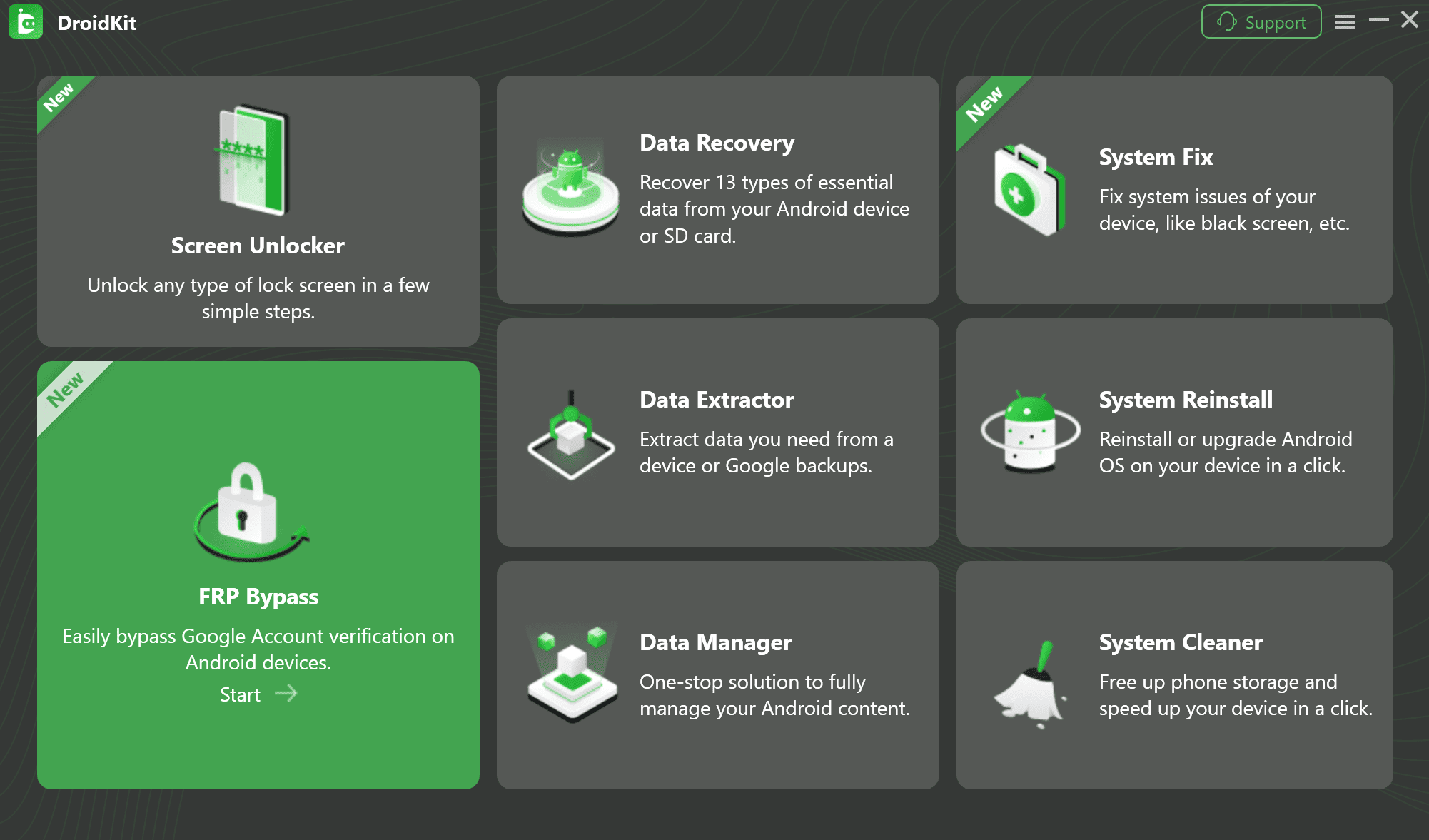
Choose FRP Bypass in DroidKit
Step 3. Connect the Tab A7 Lite with a reliable USB-C data cable and click Start.
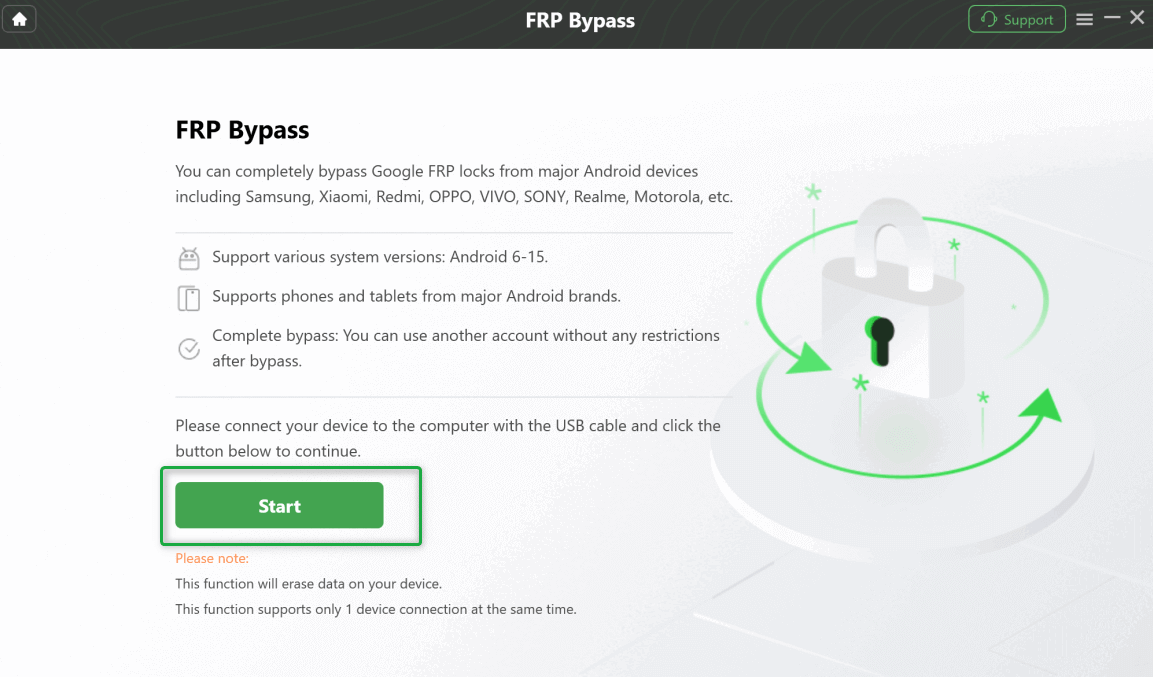
Connect the Tablet and Start the Supported FRP Route
Step 4. Select Samsung and the device/system route that matches the tablet. Do not choose another Android version simply to move to the next screen.
Step 5. Let DroidKit prepare the configuration for the selected route.
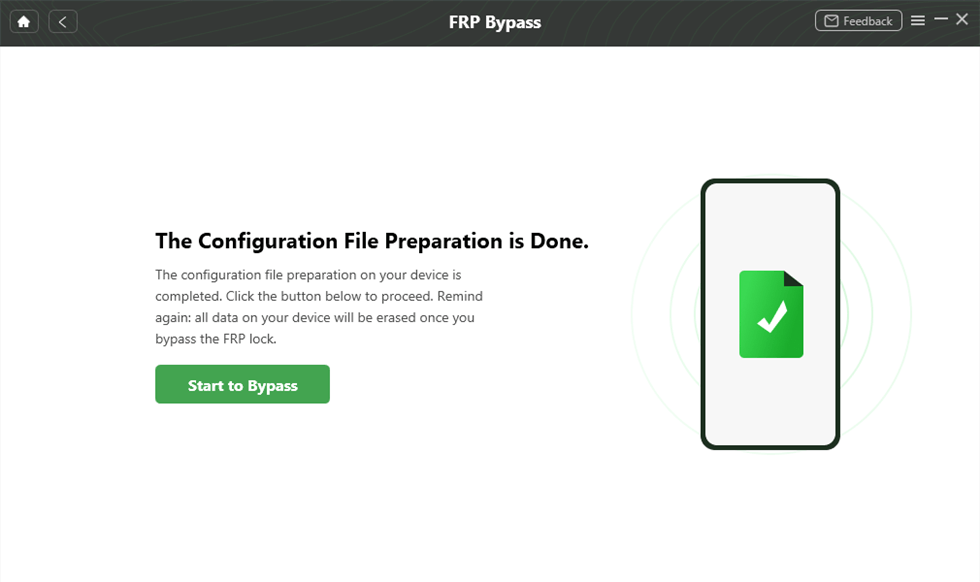
Prepare the Configuration for the Selected Device Route
Step 6. Follow the exact Samsung tablet instructions shown by the current software. If the displayed route requires an entry point that does not exist on your T220 or T225, stop rather than substituting a Samsung phone procedure.
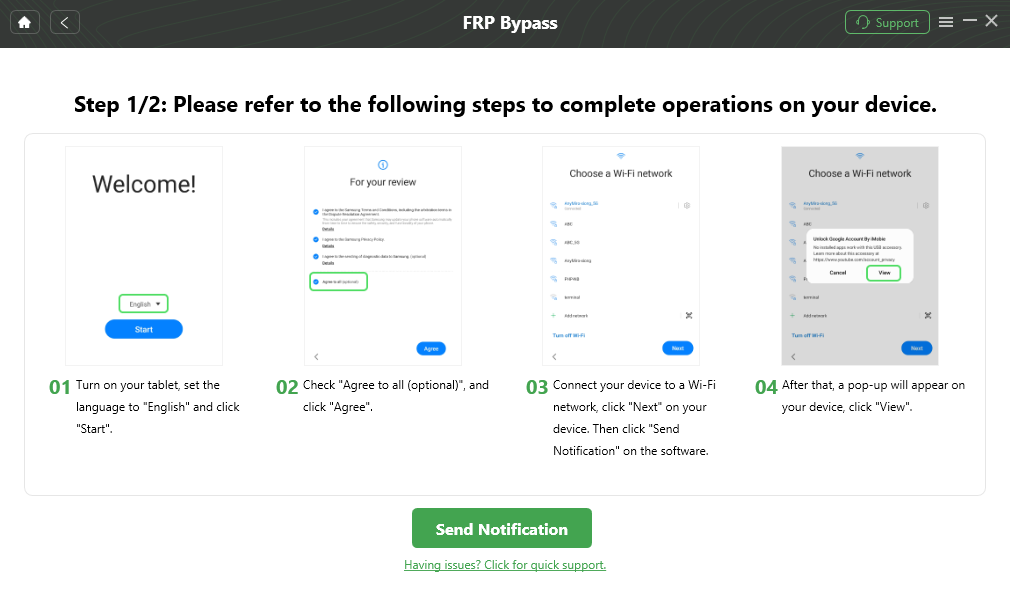
Example of Samsung Tablet Instructions Shown by DroidKit
Step 7. Keep the tablet connected while the supported process runs. Follow the completion and restart instructions displayed by the software.
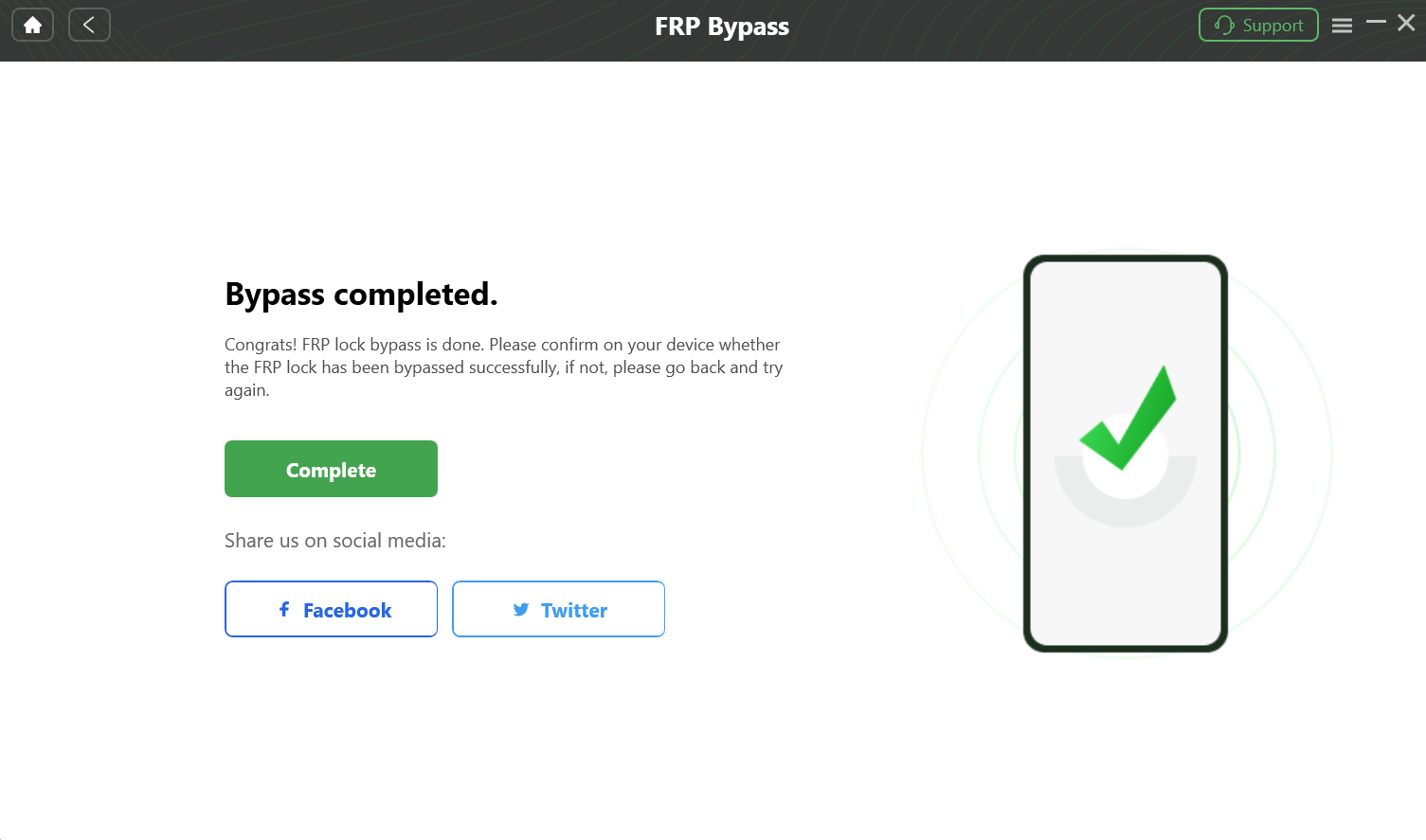
Complete the Supported FRP Process
You can review the current DroidKit FRP Guide before downloading so that its latest Samsung restriction and device instructions—not an older Tab A7 Lite article—control the decision.
SamFw Tool: Old Test Mode Route vs Current Options
SamFw needs a similar update in how it is described. The old “Emergency Call → *#0*# → Remove FRP → Allow USB debugging” sequence is only one historic SamFw route. It should not be treated as the current universal Galaxy Tab A7 Lite method.
SamFw’s current tool page lists version 5.9 and includes multiple Samsung, FRP and MediaTek-related functions added over time. SamFw also states on its FRP service page that the older ADB exploit was patched beginning with Samsung’s January 2023 security update.
What that means for this tablet: an Android 13/14 T220 or T225 should not be judged only by whether the classic USB debugging pop-up appears. Check what the current SamFw build actually offers for the connected device and current security environment.
How to Evaluate SamFw on SM-T220 or SM-T225
Step 1. Confirm the model first. If you have SM-T220, do not choose a legacy route that begins with a cellular Emergency Call sequence.
Step 2. Install the official Samsung USB driver and confirm Windows recognizes the tablet.
Step 3. Get the current SamFw Tool from its official SamFw tool page rather than an old mirror or repacked executable.
Step 4. Connect the tablet and use the tool’s device-information/detection functions before selecting an FRP operation.
Step 5. Continue only when the current tool exposes an FRP route that actually matches the connected tablet state. Do not select an old Test Mode sequence simply because it appears in a 2022 or 2023 video.
SamFw FRP Interface Example — Check the Current Route for Your Exact Tablet
Step 6. If SamFw asks for a dialer, Test Mode, ADB prompt or device mode that your T220/T225 cannot expose, stop that particular route. A different SamFw feature may exist, but this page does not assume generic Samsung or MediaTek functions equal confirmed support for every Tab A7 Lite build.
Why the SamFw Route Does Not Match Your Tablet
“SamFw not working” is too broad to diagnose. Find the exact mismatch.
| Symptom | What It Usually Means | Next Decision |
| SM-T220 tutorial requires Emergency Call or a cellular dialer | The route was designed around phone/LTE hardware that the Wi-Fi model does not provide | Reject that route immediately. |
| SM-T225 has Emergency Call but *#0*# / Test Mode does not lead to the expected state | The old sequence does not match the current firmware/security state | Check the current SamFw route instead of repeating the old one. |
| Tablet is detected but no USB debugging pop-up appears | The old ADB/Test Mode chain is not reaching an authorized ADB state | Do not keep reinstalling drivers if normal device detection already works. |
| SamFw cannot see the tablet at all | USB driver, cable, port or device-mode problem may exist | Fix PC detection first. |
| Current tool shows generic MediaTek functions | The tool supports MediaTek-related operations generally | Do not infer full T220/T225 FRP compatibility unless the connected device/route is actually supported. |
| Old free route fails on a post-January-2023 Samsung patch | It may be relying on the ADB exploit SamFw says was patched | Evaluate a different current Samsung route rather than repeating the same exploit. |
| Tablet restarts but Google verification returns | The selected process did not resolve the FRP state | Return to model/patch compatibility instead of treating the reboot as success. |
Driver, USB and Tool Compatibility Troubleshooting
This section separates a broken PC connection from an unsupported FRP route.
| Problem | Check First | What It Does Not Prove |
| PC does not recognize T220/T225 | Samsung USB driver, USB-C data cable, USB port and current device mode | It does not yet prove that SamFw or another FRP tool is incompatible. |
| Windows sees the tablet but the FRP tool does not | Tool-specific device mode, tool version and model detection | Installing the driver repeatedly may not solve a tool-route mismatch. |
| No “Allow USB debugging” prompt appears | Whether the selected method is the older ADB/Test Mode route | It does not automatically mean the USB cable is bad. |
| DroidKit is considered on an August 2023-or-later Samsung patch | Current DroidKit FRP Guide restriction | Retrying another Samsung profile does not remove that documented restriction. |
| Method completes but FRP is still present | Exact device/build support and the actual final state | A completed progress bar is not enough to confirm that verification was removed. |
Tablet Not Detected by Windows
Use a different data-capable USB-C cable, switch to a direct USB port, reinstall the official Samsung USB driver, and restart Windows if the driver was just installed. Confirm the device is visible to Windows before changing FRP-specific settings.
Tablet Detected, but SamFw Cannot Continue
At this point, stop treating the problem as a basic cable issue. Check whether the SamFw function you selected actually expects the same model state, dialer/Test Mode path, chipset mode or Samsung security environment.
DroidKit Shows a Route, but the Security Patch Is Too New
The documented Samsung patch restriction takes priority. If the tablet is August 2023 or later, do not continue merely because an older screenshot shows a Samsung tablet screen.
The Tablet Reboots to Google Verification Again
The route did not resolve the ownership verification on that build. Record the exact model, firmware/build and method that failed before trying another tool. This avoids repeating the same route under a different name.
Can Tab A7 Lite FRP Be Bypassed Without a PC?
A no-PC method should be judged by its first required screen rather than by an “Android 13” or “Android 14” label.
For SM-T220 Wi-Fi
The strongest filter is hardware. Any tutorial that requires a normal phone dialer, mobile call, SIM function or cellular Emergency Call path is a poor match for SM-T220.
Other routes may depend on TalkBack, Accessibility, a browser, Share, an APK installer, Settings or another Setup Wizard handoff. Continue only if the exact entry point shown in the guide exists on your tablet.
For SM-T225 LTE
The presence of LTE hardware means cellular-related screens are more plausible, but that still does not prove an old Samsung phone method works. The specific dialer/Test Mode/ADB handoff can be changed by firmware and security updates.
When to Stop a No-PC Route
- The required dialer does not exist on SM-T220.
- TalkBack starts but the next Help or Settings menu is missing.
- A browser handoff does not open.
- The method requires an APK but Setup Wizard cannot reach the installer.
- The required Settings activity is unavailable.
- The tutorial expects a Samsung screen that your T220/T225 does not show.
A missing first dependency is enough to rule out that particular no-PC method. It does not mean every possible FRP route is impossible.
Samsung Tab A7 Lite FRP Bypass FAQs
What is the difference between Galaxy Tab A7 Lite SM-T220 and SM-T225 for FRP?
SM-T220 is the Wi-Fi Galaxy Tab A7 Lite, while SM-T225 has LTE connectivity. That matters because an SM-T220 should not be expected to follow an FRP tutorial whose required path starts with cellular calling, a SIM function or a normal phone dialer. SM-T225 has cellular hardware, but firmware and security patch still determine whether a specific dialer/Test Mode route is available.
Can DroidKit bypass FRP on Galaxy Tab A7 Lite Android 14?
Not under DroidKit’s current Samsung compatibility rule. DroidKit states that Samsung devices with security patches dated August 2023 or later are currently unable to use its FRP Bypass workflow. Samsung’s official update histories for SM-T220 and SM-T225 show their Android 14 / One UI 6.0 builds with a December 2023 patch, followed by even newer Android 14 patches.
Can DroidKit work on a Galaxy Tab A7 Lite running Android 13?
Do not decide from “Android 13” alone. Check the Samsung security patch. If it is August 2023 or later, DroidKit’s current Samsung restriction applies. If the patch is earlier, you can then check whether the current DroidKit device/version matcher provides an applicable Samsung tablet route.
Does SamFw work on Galaxy Tab A7 Lite Android 14?
Do not assume the classic SamFw Test Mode/ADB tutorial represents current support. SamFw 5.9 contains multiple Samsung and FRP functions, while SamFw itself states that the older ADB exploit was patched starting with Samsung’s January 2023 security update. Verify the current route for the connected SM-T220 or SM-T225 instead of relying on the old USB-debugging sequence.
Can I use the SamFw Emergency Call method on SM-T220?
Do not rely on a cellular Emergency Call/dialer route for SM-T220 because it is the Wi-Fi model. If that is the first essential step in the tutorial, the method is already mismatched to the hardware.
Can the SamFw Emergency Call method work on SM-T225?
SM-T225 includes LTE connectivity, so the hardware situation differs from SM-T220. However, the specific Emergency Call, Test Mode and ADB sequence still depends on Samsung firmware and security patch. The older ADB exploit should not be treated as current universal support.
Why does SamFw not show the USB debugging pop-up?
If the tablet is otherwise detected correctly, the problem may be the old Test Mode/ADB route rather than the Samsung USB driver. SamFw says the earlier ADB exploit was patched starting with Samsung’s January 2023 security update. Check the current SamFw method instead of repeatedly reinstalling drivers.
Where should I download Samsung USB drivers for Tab A7 Lite?
Use Samsung’s official Android USB Driver page for Windows. A charging-only cable can still prevent detection even when the correct driver is installed, so use a USB-C cable that supports data transfer.
Can I bypass Tab A7 Lite FRP without a PC?
It depends on whether the exact Setup Wizard entry point required by the method exists. On SM-T220, cellular dialer/SIM routes do not fit the Wi-Fi hardware. On either model, TalkBack, browser, APK and Settings routes should be abandoned when the first required screen is missing.
Will Tab A7 Lite FRP bypass erase data?
The FRP screen normally appears after a factory reset, so local user data may already have been erased. Additional tool workflows can also reset data. DroidKit’s current FRP Guide explicitly states that its FRP Bypass function erases device data.
What should I do with a second-hand Tab A7 Lite that asks for the previous owner’s Google account?
Contact the previous owner and ask them to complete the Google verification or properly resolve the account relationship with the tablet. A seller-account issue should be addressed before experimenting with old Test Mode or APK routes.
Conclusion: Choose by Model, Patch and Entry Point
Galaxy Tab A7 Lite FRP bypass should no longer be reduced to “Android 14 needs a PC” or “SamFw failed, so use DroidKit.” The SM-T220 and SM-T225 have different connectivity hardware, Samsung patches have changed over time, and each FRP tool has its own current restrictions.
For SM-T220, eliminate cellular dialer routes first. For SM-T225, verify that any Emergency Call/Test Mode sequence still exists rather than assuming LTE support makes an old tutorial compatible. For Android 14 on either model, Samsung’s published update histories place the available builds beyond DroidKit’s current August 2023 Samsung FRP cutoff. For Android 13, check the actual patch date before considering the DroidKit workflow.
With SamFw, distinguish the older Test Mode/ADB sequence from the current 5.9 tool and its newer service functions. With any method, use the first missing menu, prompt or device mode as the diagnosis point. That model-and-patch check is more useful on a Tab A7 Lite than repeating a Samsung phone tutorial that was written for different hardware.
More Related Articles



Jeremy Feron is a writer for iMobie with a deep passion for Android. He specializes in creating clear guides on Android tips and the latest updates, helping users navigate their devices and get the most out of new features.
Product-related questions? Contact Our Support Team to Get Quick Solution >
