Samsung A30/A30s FRP Bypass 2026: Android 11 & Tool
Samsung A30/A30s FRP bypass depends on Android 9, 10, or 11, One UI build, and whether TalkBack, Smart Switch restore, Frproms, Technocare APK, or a PC tool can still open the required settings. This guide helps you choose a realistic route before downloading APKs or repeating blocked no-PC steps.
If your Samsung Galaxy A30 or A30s asks for the previously synced Google account after a factory reset, Factory Reset Protection is active. This lock is designed to protect the phone after reset, but it can also block legitimate owners who forgot the Google account, received the phone from a family member, or bought a second-hand device that was not properly removed from the previous owner’s account.
This guide focuses on Samsung A30 FRP bypass, Samsung A30s FRP bypass, Samsung A30s FRP unlock tool, and Samsung A30s FRP bypass Android 11. You will compare Google account recovery, DroidKit, Frproms-style no-PC steps, Technocare APK, and troubleshooting when TalkBack, Smart Switch restore, or APK installation no longer works.
Samsung A30 and A30s FRP results vary by Android 9, 10, or 11, One UI build, and whether TalkBack, Smart Switch restore, or APK access still appears during setup. Use the methods below only on a phone you own or are authorized to repair. For broader Samsung coverage, check the Samsung FRP bypass guide; for nearby A-series models, see the Samsung A Series FRP bypass guide.
Table of ContentsHide
Quick Answer: Which Samsung A30/A30s FRP Method Should You Try?
Samsung Galaxy A30 vs A30s: What Matters for FRP?
Samsung A30/A30s FRP by Android Version
Samsung A30/A30s FRP Methods Compared
Method 1: Try Google Account Recovery First
Method 2: Samsung A30/A30s FRP Bypass with DroidKit on PC
Method 3: Samsung A30s FRP Bypass Android 11 Without PC
Method 4: Samsung A30/A30s FRP Bypass Without PC via APK
Samsung A30/A30s FRP Bypass Not Working: Common Fixes
What to Do After FRP Is Removed
FAQs About Samsung A30/A30s FRP Bypass
The Bottom Line
Quick Answer: Which Samsung A30/A30s FRP Method Should You Try?
The best Samsung A30 or A30s FRP bypass method depends on your Android version, One UI build, security patch, and whether you can still open TalkBack, Samsung Cloud restore, Chrome, Galaxy Store, or Settings during setup.
| Your Situation | Best First Method | What to Know |
| You know or can recover the previous Google account | Google Account Recovery | This is the safest official route. |
| You need Samsung A30s FRP bypass Android 11 | Frproms / Smart Switch style route | Works only if TalkBack, Samsung Cloud restore, and setup paths still open. |
| You need Samsung A30 FRP bypass Android 10 | APK route may be worth checking | Technocare or Apex-style APK routes are risky and patch-dependent. |
| No-PC methods are blocked | DroidKit FRP Bypass | Use a guided PC workflow for supported Samsung FRP scenarios. |
| You want a Samsung A30 FRP unlock tool | Compare Samsung FRP tools first | Tool success depends on model, Android version, and patch level. |
Samsung Galaxy A30 vs A30s: What Matters for FRP?
Samsung Galaxy A30 and A30s were released in the same generation, but FRP behavior can still differ by Android version, One UI build, region, and security patch. The hardware specs matter less than the setup menus that are still available after reset.
| Item | Samsung Galaxy A30 | Samsung Galaxy A30s |
| Common Android range | Android 9, 10, and 11, depending on update history. | Often Android 10 or 11, depending on region and updates. |
| Common search intent | Samsung A30 FRP bypass, Samsung A30 FRP unlock tool. | Samsung A30s FRP bypass, A30s FRP unlock tool, Android 11 bypass. |
| No-PC method chance | Possible only when browser, keyboard, or APK routes still open. | Possible only when TalkBack, Smart Switch restore, or setup routes still open. |
| PC method relevance | Useful when APK or no-PC methods fail. | Useful when Android 11 routes are blocked. |
Samsung A30/A30s FRP by Android Version
Android version is one of the biggest factors in Samsung A30/A30s FRP bypass. A method that works on Android 9 may fail on Android 11 after a security update.
| Android Version | Method Outlook | Recommended Direction |
| Android 9 | Some older keyboard, browser, or APK routes may still appear. | Check Google recovery first, then no-PC routes only if menus match. |
| Android 10 | Technocare / Apex-style APK routes may appear in old tutorials. | Use APK methods carefully and verify file safety before installing anything. |
| Android 11 | Frproms, TalkBack, Smart Switch restore, and Universal Switch routes are common search paths. | Try only if each required menu appears; otherwise switch methods. |
| Newer security patch | Manual routes may be blocked even if the phone still shows Android 11. | Use troubleshooting or a supported PC-based workflow. |
For broader version behavior, see this Android 11 FRP bypass guide.
Samsung A30/A30s FRP Methods Compared
Use this table before trying multiple methods. It helps you avoid repeating a patched no-PC route or downloading APK files that do not match your device.
| Method | PC Needed? | Best For | Main Limitation |
| Google Account Recovery | No | Users who can recover the previously synced Google account. | Requires recovery phone, email, or verification access. |
| DroidKit FRP Bypass | Yes | Users who want guided steps for supported Samsung A30/A30s FRP scenarios. | Requires a Windows or Mac computer and compatibility check. |
| Frproms / Smart Switch route | No, but needs another Samsung phone | Android 11 cases where TalkBack and Samsung Cloud restore paths still open. | Complicated and often blocked by setup or security changes. |
| Technocare / FRP APK route | No | Older Android 10-style workflows where Chrome and install paths still open. | APK files can be risky, outdated, or blocked. |
| Samsung FRP tools | Usually yes | Users comparing tool options after manual methods fail. | Each tool has model, driver, patch, and device-mode limits. |
Method 1: Try Google Account Recovery First
Before using APK files, TalkBack routes, or PC tools, try recovering the Google account that was previously synced on the Samsung A30 or A30s. This is the safest route if you own the phone or can contact the original owner.
Step 1. On another phone or computer, open Google Account Recovery.
Step 2. Enter the Gmail address or phone number linked to the locked Samsung A30/A30s.
Step 3. Follow Google’s recovery prompts using your recovery phone number, backup email, or trusted device.
Step 4. After the account is recovered, return to the Samsung setup screen and sign in with the recovered account.
Step 5. If the Google password was changed recently, wait if Google requires a security hold before the account can be used on the reset device.
Second-hand phone note: If the phone is still linked to the seller’s Google account, ask the seller to remove the account properly before trying bypass methods.
Method 2: Samsung A30/A30s FRP Bypass with DroidKit on PC
If official recovery is not possible and no-PC methods are blocked, a guided PC-based option can be more practical. DroidKit FRP Bypass provides on-screen instructions for supported Samsung FRP lock scenarios, so you do not have to guess APK versions or repeat outdated TalkBack steps.
DroidKit is useful when:
- Your Samsung A30 or A30s is stuck on Google verification after reset.
- TalkBack does not open Google Assistant, YouTube, or Settings.
- Smart Switch restore or Samsung Cloud restore does not complete.
- Technocare APK or Apex Launcher cannot install or open.
- You want a guided workflow on Windows or Mac.
You can also compare more Samsung FRP tool options before choosing a tool.
Free Download * 100% Clean & Safe
Step 1. Open DroidKit on your computer and click FRP Bypass from the main screen.
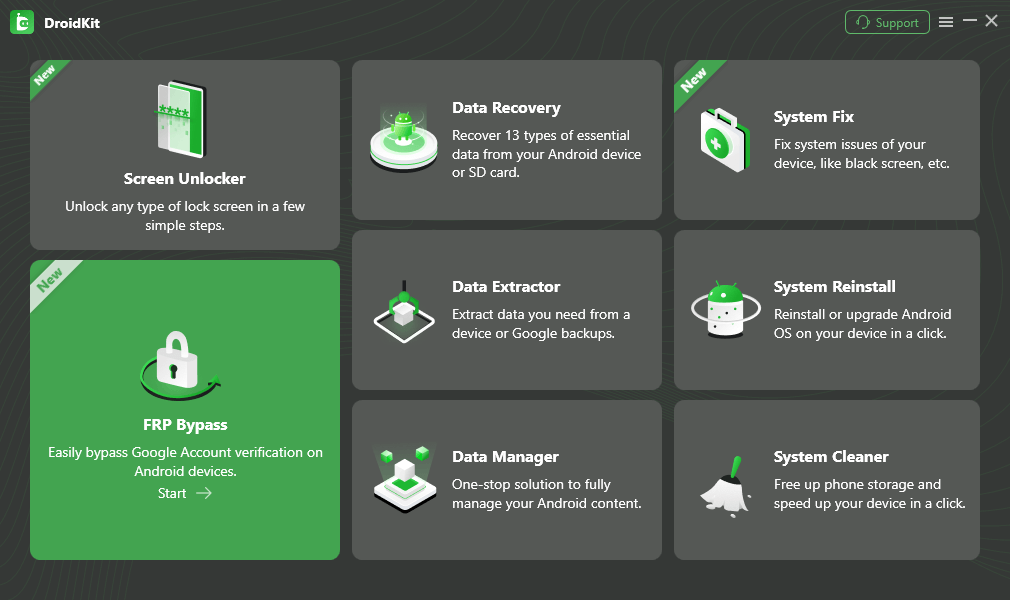
Choose FRP Bypass Mode
Step 2. Connect your Samsung A30 or A30s to the computer with a USB cable. Wait until it is detected, click Start, and choose Samsung as the device brand.
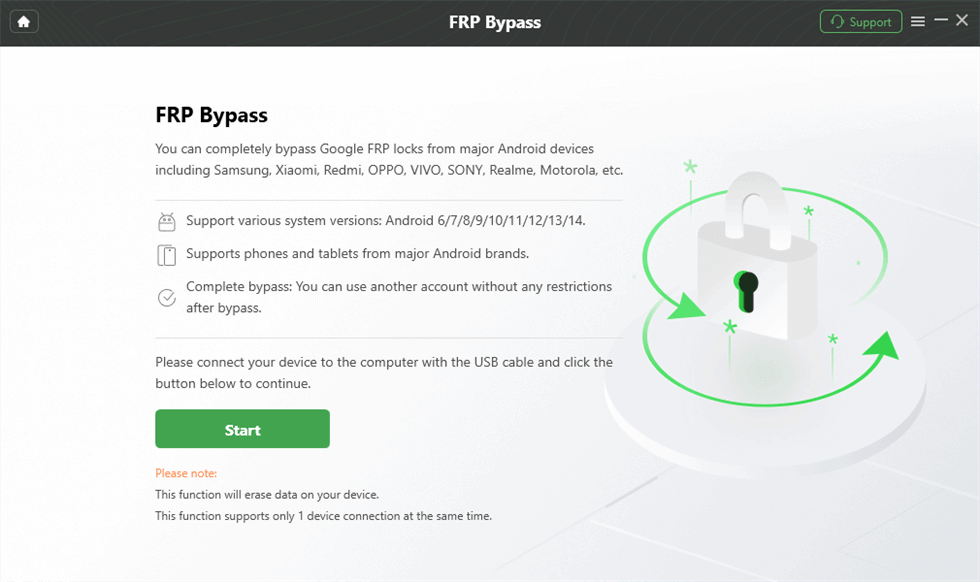
Connect Device to Computer
Step 3. Wait while DroidKit prepares the configuration file for your phone. When it is ready, click Start to Bypass.
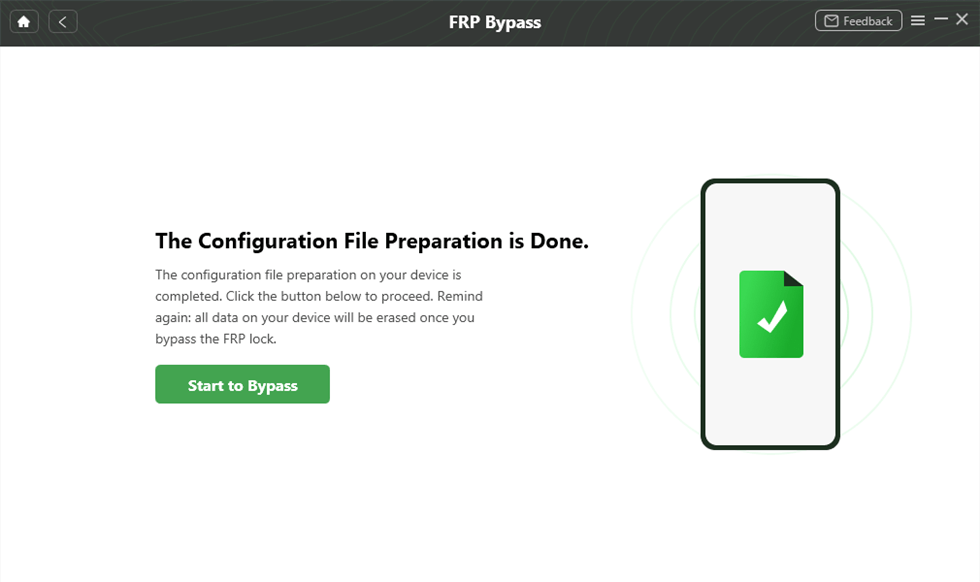
Complete Configuration File Preparation
Step 4. Select your phone’s Android version from the next window. If your A30/A30s runs Android 9, 10, or 11, choose the matching option shown in the interface.
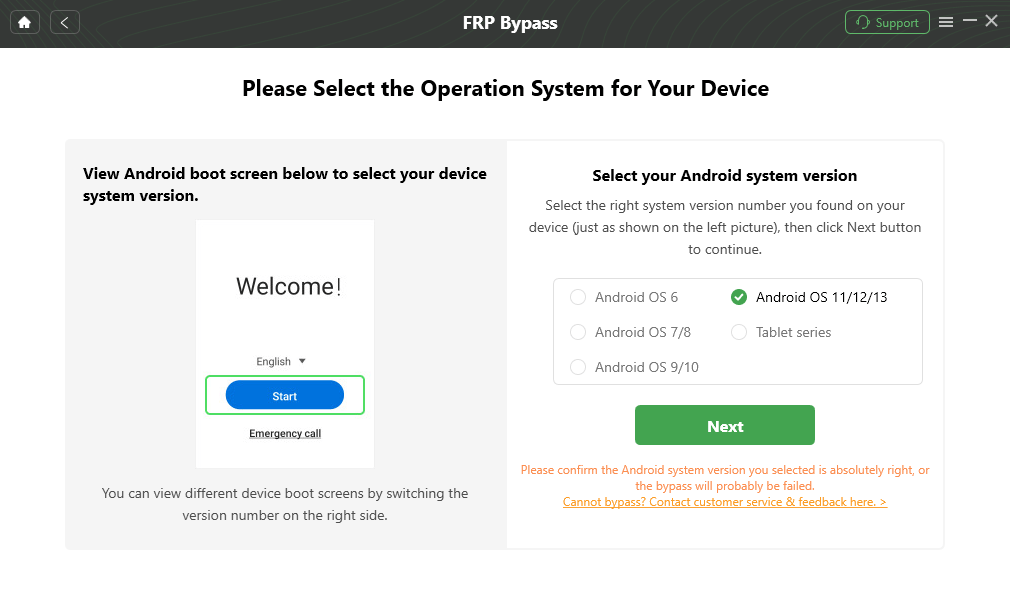
Choose System Version
Step 5. Follow the on-screen guide for the selected Samsung version. The steps may vary by Android version and device state.
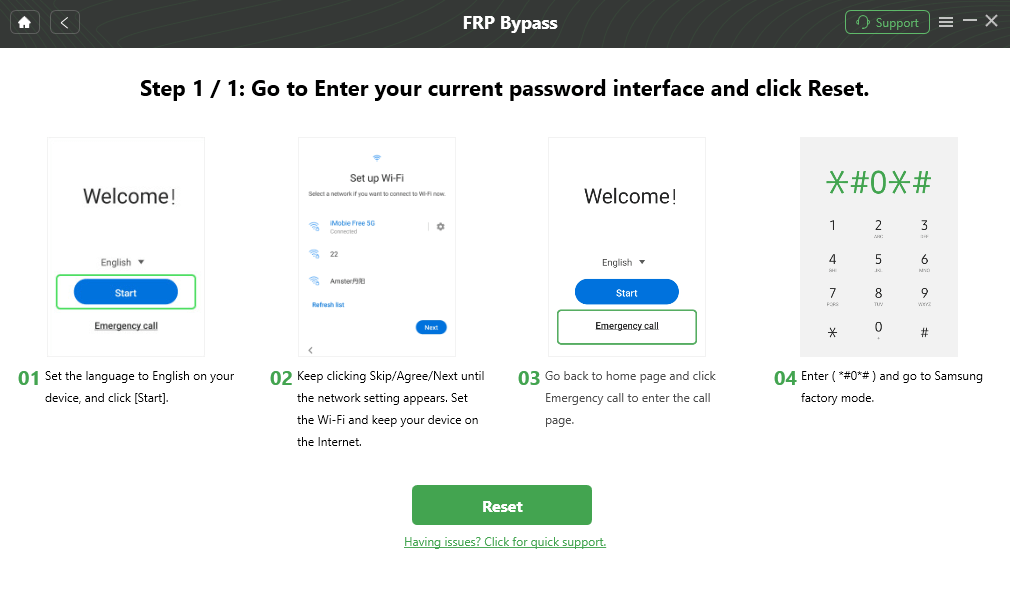
Complete Corresponding Settings
Step 6. Wait for the FRP workflow to finish. Your phone may restart after the process is complete.
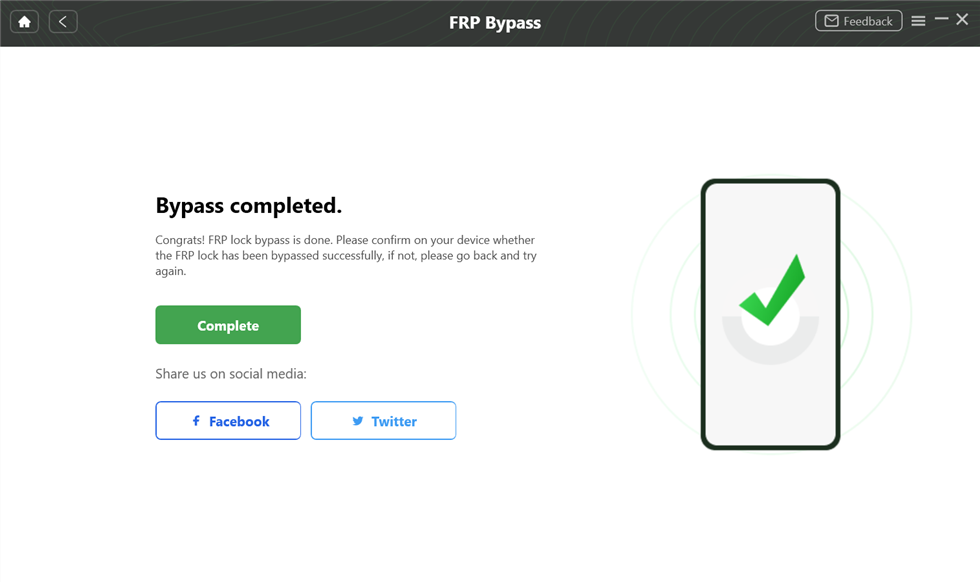
FRP Bypass Complete
Compatibility note: No FRP tool should be described as working on every Samsung phone or every firmware. Check device support first and use FRP tools only on your own or authorized device.
Method 3: Samsung A30s FRP Bypass Android 11 Without PC
Some Samsung A30/A30s Android 11 tutorials use TalkBack, Google Assistant, YouTube, Samsung Cloud restore, Smart Switch, Activity Launcher, and Package Manager. This route is complicated and works only when the required menus still appear. It may also require another Samsung phone signed in with a Samsung account you control.
Before you start: Do not use this method on a phone you do not own. If TalkBack, Google Assistant, YouTube, Samsung Cloud restore, or Galaxy Store is blocked, stop and choose another method.
Step 1. On another Samsung phone signed in with your Samsung account, install Activity Launcher and Package Manager if the method requires them, then back up the apps to Samsung Cloud.
Step 2. Turn on your locked A30/A30s. On the welcome screen, press the required key combination to enable TalkBack if your device supports it.
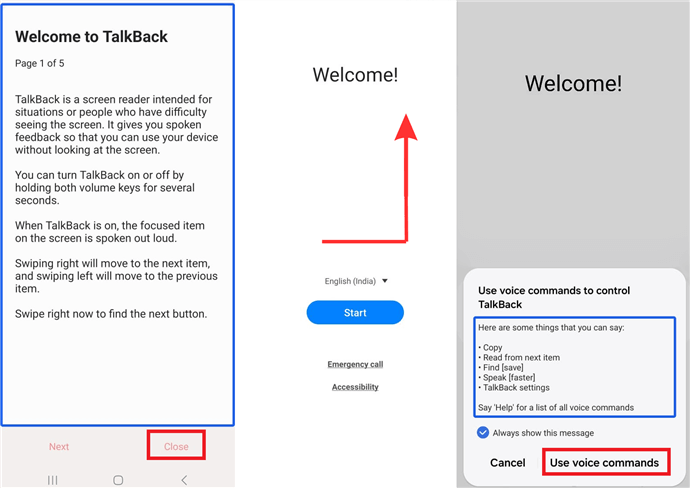
Activate TalkBack
Step 3. If the TalkBack menu opens, use the available voice command or Help path to open Google Assistant, YouTube, or a browser route.
Step 4. Use the browser path only if it opens normally. Avoid downloading files from random pages with fake buttons, redirects, or unclear instructions.
Step 5. Open Settings if the route allows it. Go to Accounts and backup and check whether Bring data from old device or Smart Switch can open the needed Samsung restore path.
Step 6. Restore the required apps from Samsung Cloud only if the method matches your device and account. Do not restore apps from an unknown account.
Step 7. If the method asks you to use Universal Switch, open Accessibility > Interaction and dexterity > Universal switch and enable only the options shown on your device.
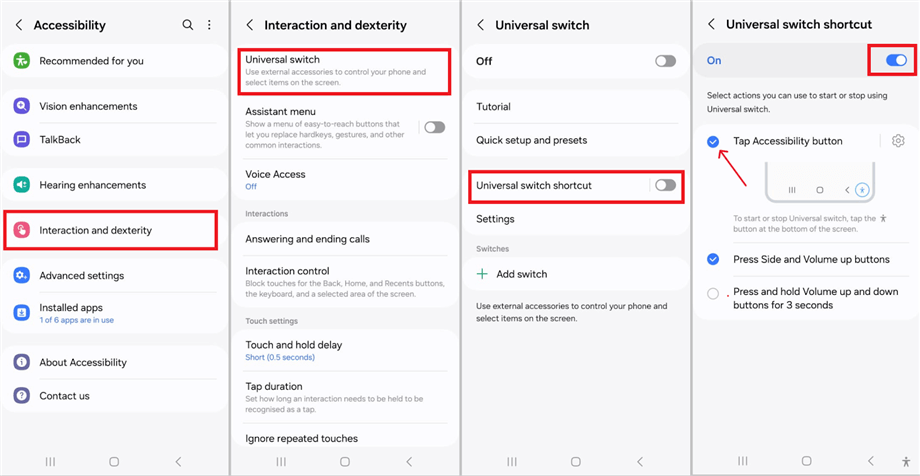
Turn on the Universal Switch Shortcut
Step 8. If Activity Launcher or Package Manager opens, follow only the visible steps that match your Android 11 build. If Setup Wizard, Google Play Services, or required activities do not appear, the method is not suitable for your firmware.
Step 9. Restart the phone and check whether setup can continue with your own Google account.
Checkpoint: This route is highly patch-dependent. If any key menu is missing, do not keep repeating the same Android 11 no-PC method.
Method 4: Samsung A30/A30s FRP Bypass Without PC via APK
Some Android 10-style Samsung A30/A30s methods use browser access, Technocare APK, Apex Launcher, Google Account Manager, or other APK files. APK methods can be risky because files may be outdated, modified, or incompatible with your Android version.
Before trying APK files, read this FRP Bypass APK safety guide. If you specifically see Technocare in an old Samsung tutorial, compare this Technocare APK FRP guide before installing files from unknown sources.
Step 1. Set up your A30/A30s until you reach the Wi-Fi screen. Tap Add network and check whether keyboard or settings shortcuts still open.
Step 2. If your method uses Swipe, Touch & Feedback, follow the menu path only if it appears on your phone.
Step 3. If the ringtone or permission route opens Settings, use it to reach Chrome or app settings only when the options are visible.
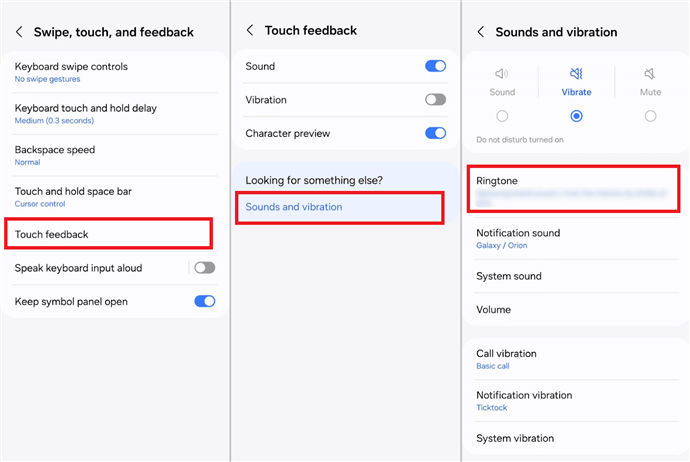
Click Touch Feedback > Sounds & Vibration > Ringtone
Step 4. If Chrome opens, verify any APK source before downloading. Avoid fake download buttons, password-protected archives, or files that ask for unnecessary permissions.
Step 5. If the method uses Apex Launcher, Technocare APK, or Google Account Manager, install only the version that matches your Android version and device environment.
Step 6. If the launcher opens the home screen, go to Settings and check whether account options are available.
Step 7. Add only a Google account you own. Do not enter credentials into an app or page you do not trust.
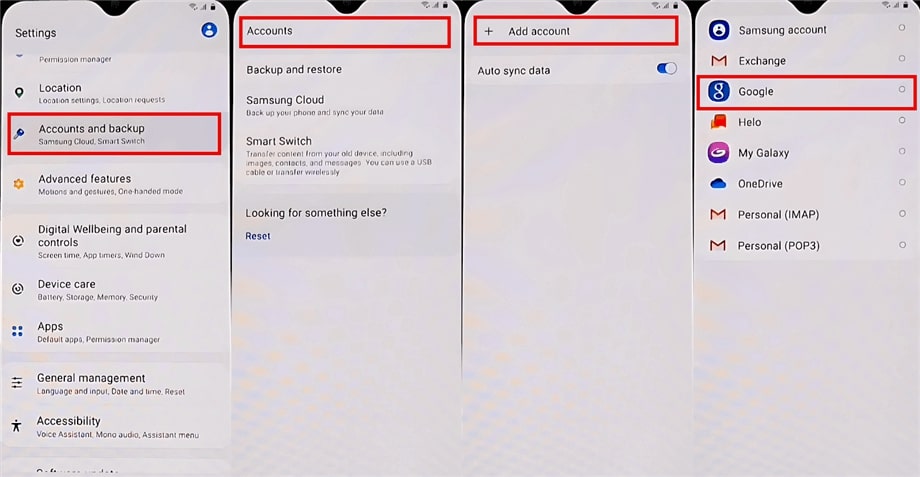
Add Your Google Account
Step 8. Remove any temporary APKs used during the process, restart the phone, and check whether setup can continue normally.
APK warning: If the APK will not install, crashes, or asks for suspicious permissions, stop using that file. Downloading more random APK copies usually increases risk rather than solving FRP.
Samsung A30/A30s FRP Bypass Not Working: Common Fixes
If Samsung A30s FRP bypass does not work, identify the cause before trying another route. Most failures come from patched setup paths, wrong Android version, APK mismatch, or blocked Samsung restore menus.
| Problem | Likely Cause | What to Try Next |
| TalkBack does not open the required menu | The accessibility route is blocked or unavailable. | Use account recovery or a supported PC-based workflow. |
| Google Assistant or YouTube does not open | Setup wizard blocks the browser path. | Stop using the Frproms-style route and choose another method. |
| Samsung Cloud restore does not show apps | The backup account, restore path, or Smart Switch route does not match. | Check the Samsung account and avoid using unknown backups. |
| Activity Launcher or Package Manager is missing | Apps were not restored or the route is patched. | Do not repeat the same no-PC steps; switch methods. |
| Technocare APK or Apex Launcher will not install | Wrong APK version, blocked unknown-source install, or damaged file. | Check APK safety and Android version compatibility. |
| Chrome or Settings does not open | The setup shortcut is patched. | Use Google recovery, Samsung-specific guidance, or a PC option. |
| Phone still asks for Google account after reset | FRP remains active. | Recover the original account or use a compatible FRP method. |
If multiple methods fail, read this FRP bypass not working guide before downloading more APK files or repeating patched steps.
What to Do After FRP Is Removed
After you regain access to your Samsung A30 or A30s, set up the phone properly so you do not get locked out again after another reset.
- Add your own Google account. Use an account you control and keep recovery options updated.
- Set a new screen lock. Add a PIN, password, pattern, fingerprint, or face unlock if available.
- Remove old temporary apps. Delete APKs or launchers used only during troubleshooting.
- Install official updates carefully. Security updates may patch old FRP routes, but they also improve device safety.
- Remove the Google account before selling. Always remove your Google account before factory resetting or giving away the phone.
FAQs About Samsung A30/A30s FRP Bypass
Can Samsung A30 FRP be bypassed?
Samsung A30 FRP may be bypassed in some legitimate ownership situations, but the method depends on the exact model, Android version, One UI build, security patch, and available setup menus. Google account recovery should be tried first.
What is the best Samsung A30s FRP unlock tool?
The best tool depends on your device state and compatibility. If no-PC methods are blocked, a guided tool such as DroidKit may be practical for supported Samsung A30/A30s FRP scenarios. You can also compare Samsung FRP tools before choosing.
Does Samsung A30s FRP bypass Android 11 without PC still work?
It may work only when TalkBack, Google Assistant, YouTube, Samsung Cloud restore, Smart Switch, Activity Launcher, and required setup paths still open. If any key path is blocked, the method is unlikely to work.
Can I bypass Samsung A30 FRP without a PC?
Sometimes. No-PC methods may work on older or less-patched Android 9/10/11 builds, but they often fail when browser, Settings, Galaxy Store, or APK installation routes are blocked.
Is Technocare APK safe for Samsung A30 FRP bypass?
Technocare APK methods can be risky if downloaded from unknown sources. The file may be outdated, modified, or incompatible with your Android version. Use APK methods only if you trust the source and understand the risk.
Why is Frproms not working on Samsung A30s?
Frproms-style steps may fail because TalkBack, YouTube, Samsung Cloud restore, Smart Switch, Activity Launcher, or Package Manager routes are blocked by your firmware or security patch.
Will Samsung A30/A30s FRP bypass erase data?
FRP usually appears after a factory reset, so most local data may already be erased or inaccessible. Some FRP workflows may also require reset or settings changes, so data loss is possible.
Is Samsung A30/A30s FRP bypass legal?
FRP bypass should only be used on a Samsung A30 or A30s that you own or are authorized to repair. Do not use FRP tools to access someone else’s device, Google account, or data.
The Bottom Line
Samsung A30/A30s FRP bypass depends on Android version, One UI build, security patch, and whether the required setup routes still open. If you can recover the previous Google account, use that first. If your A30s runs Android 11 and TalkBack, Smart Switch restore, or Activity Launcher still works, a no-PC route may be worth checking carefully.
If Frproms-style steps, Technocare APK, or browser routes are blocked, stop repeating the same method. For supported Samsung A30/A30s scenarios, DroidKit can provide a guided PC-based workflow, while Samsung FRP Tool pages can help you compare other options.
Free Download * 100% Clean & Safe
More Related Articles



Joy Taylor is a seasoned technical writer with over a decade of experience in mobile technology. At iMobie, she specializes in producing in-depth content on iOS data recovery, iPhone unlocking solutions, and iOS troubleshooting.
Product-related questions? Contact Our Support Team to Get Quick Solution >
