Samsung S22 FRP Bypass Android 12
Locked out of your Samsung S22 after a factory reset? This guide compares practical Samsung S22 FRP bypass options for Android 12, including a PC-guided DroidKit unlock tool, official Google account recovery, and the limits of Samsung account-based methods.
Samsung S22 FRP Unlock Tool for Android 12
If your Samsung S22 is stuck on Google verification after a factory reset and you cannot access the previously synced Google account, DroidKit provides a computer-based FRP bypass workflow with step-by-step guidance. It is a practical option when official account recovery is not available.

Factory reset your Samsung Galaxy S22 and now the setup screen asks for the previously synced Google account? That means Factory Reset Protection, also called FRP, has been triggered. FRP is designed to protect your phone from unauthorized access after a reset, but it can also lock you out when you forget the original Google account or buy a second-hand Samsung S22 that was not properly removed from the previous owner’s account.
This Samsung S22 FRP bypass guide focuses on Android 12 users. You will compare three practical routes: a PC-guided DroidKit unlock tool, official Google account recovery, and Samsung account-based options with clear limitations. If you need a broader Samsung model guide, you can also check the Samsung FRP bypass guide.
PART 1: Before You Bypass FRP on Samsung S22
Samsung S22 FRP lock usually appears after a factory reset when the phone still remembers the Google account that was synced before the reset. On Android 12, the device may ask you to verify that same Google account before you can continue setup.
Before trying any Samsung S22 FRP bypass method, check these points:
- Use the original Google account first if you still own it or can recover it.
- Make sure the Samsung S22 is your own device or you have permission from the owner.
- Prepare a stable USB cable if you plan to use a computer-based FRP unlock tool.
- Do not download random APK files or follow outdated shortcuts if your Android 12 security patch blocks them.
- Understand that some FRP-related operations may erase device settings, apps, or local files.
If your main issue is the “verify your account” screen after reset, this Google account verification after reset guide can help you understand the problem in more detail.
PART 2: Which Samsung S22 FRP Bypass Method Should You Choose?
Not every method works for every Samsung S22. Use the comparison table below to choose the most suitable route before starting.
| Method | PC Needed | Best For | Main Limitation |
| DroidKit FRP Bypass | Yes, Windows or Mac | Users who cannot access the previously synced Google account and want guided Samsung S22 FRP steps | Requires a computer and USB connection |
| Google Account Recovery | No | Users who still own and can recover the original Google account | Does not work if you cannot verify the original account |
| Samsung SmartThings Find | No | Users who had Samsung account services enabled before being locked out | May not remove Google FRP after a factory reset |
For users searching for a Samsung S22 FRP unlock tool, DroidKit is the most direct route in this guide. For users who still have access to the original Google account, Google Account Recovery should be tried first because it is the official path.
PART 3: How to Bypass FRP on Samsung S22 Android 12
Below are three ways to handle Samsung S22 FRP lock. Start with the method that matches your account access and device condition.
Method 1: Samsung S22 FRP Bypass with DroidKit Unlock Tool
If you do not know the previously synced Google account, a guided FRP unlock tool can save time. DroidKit is designed to help remove Google account verification after a factory reset on supported Android devices. It is suitable when you have a Windows or Mac computer and want on-screen instructions instead of manually testing hidden Android shortcuts.
You can also compare more Samsung FRP tool options before choosing a method.
Free Download * 100% Clean & Safe
Step-by-Step Guide to Using DroidKit
Step 1. Download and install DroidKit on your computer. Launch it and select FRP Bypass mode from the main screen.

Choose FRP Bypass Mode
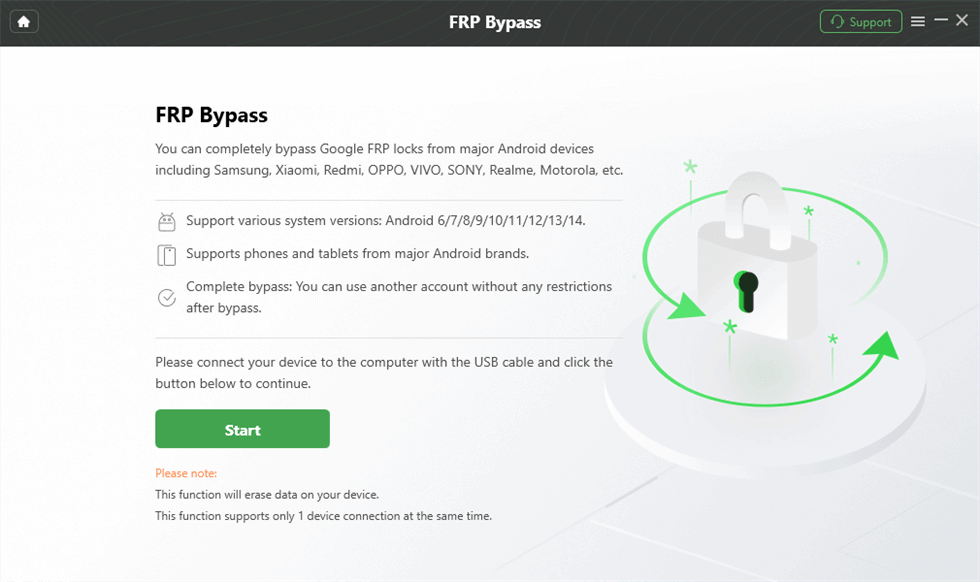
Step 2. Connect your Samsung S22 to the computer with a USB cable and click Start on the FRP Bypass screen.
Connect Device and Click Start
Step 3. Choose your device brand from the next window. Select Samsung.
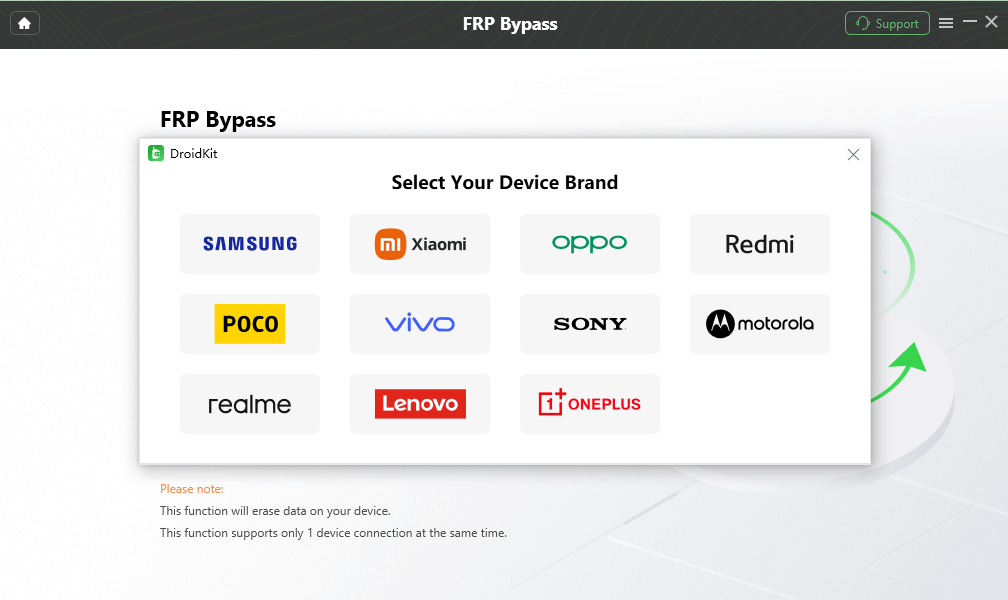
Choose Device Brand
Step 4. Wait while DroidKit prepares a configuration file for your device. When the file is ready, click Start to Bypass.
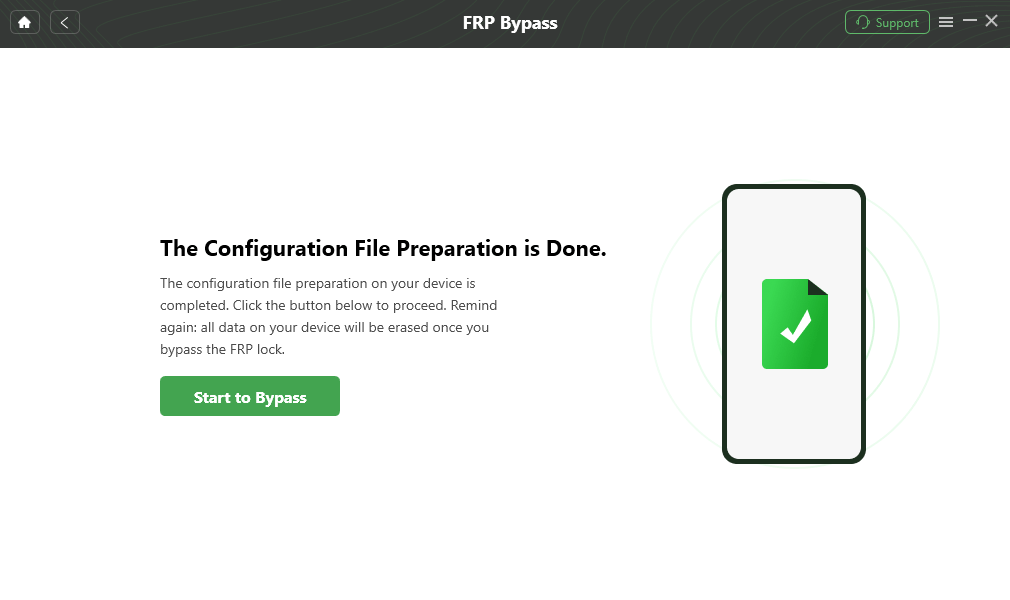
Click Start to Bypass
Step 5. Check the boot screen options in DroidKit and choose the Android version or boot screen that matches your Samsung S22.
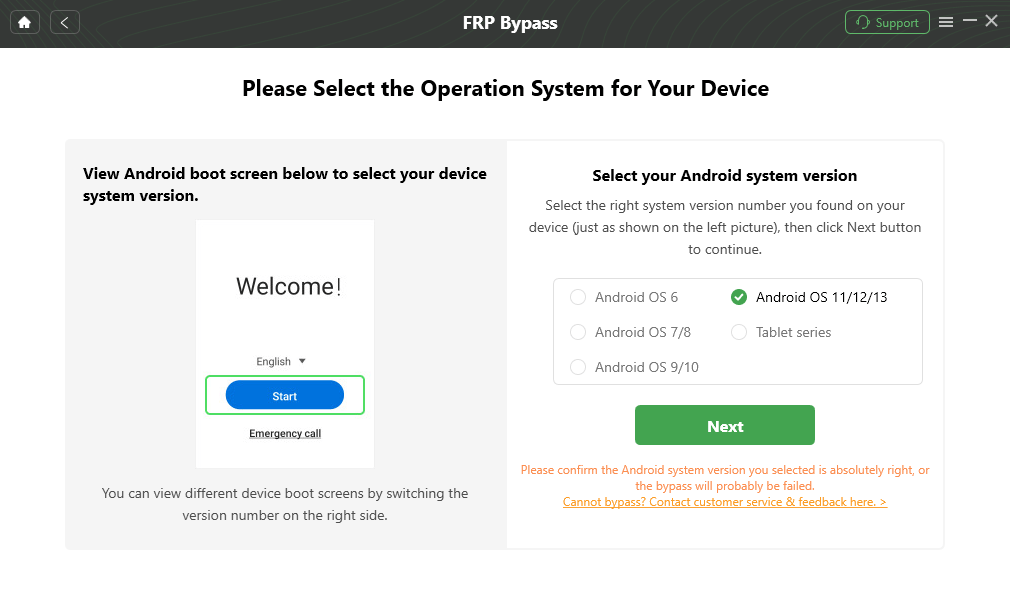
Choose System Version
Step 6. Follow the on-screen instructions to complete the required settings on your Samsung S22. After you are done, click Reset.
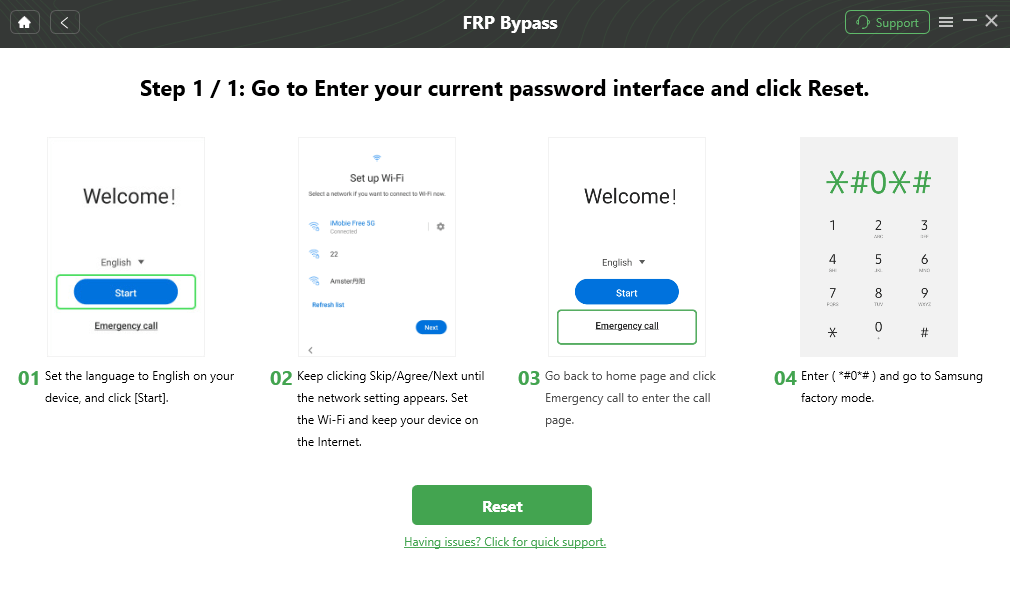
Go to Enter your Current Password Interface and Click Reset
Step 7. DroidKit will start the FRP removal process. Wait until the process is complete.

FRP Bypass Complete
After the FRP bypass process finishes, restart and set up your Samsung S22 with a Google account that belongs to you.
Method 2: Use Google Account Recovery If You Know the Original Account
Google Account Recovery is the safest official option if you still own the previously synced Google account. It does not bypass ownership verification; instead, it helps you regain access to the correct account so you can pass FRP normally.
Step 1. On the Google verification screen, tap Forgot email? or Forgot password? if the option appears.
Step 2. Follow Google’s recovery instructions. You may need to verify your identity with a recovery email, phone number, backup code, or another signed-in device.
Step 3. After recovering the Google account, return to your Samsung S22 setup screen and sign in with that account.
Step 4. If Google asks you to wait after a password reset, wait for the required security period and try again.
- Pros: Official method, no third-party tool required.
- Cons: Only works when you can recover the original Google account or prove account ownership.
If the phone still shows the previous account requirement, read this guide on how to remove the previously synced Google account.
Method 3: Check Samsung SmartThings Find Only in Limited Cases
Samsung’s device-finding service may help in some Samsung account or screen-lock situations if it was enabled before you were locked out. However, it should not be treated as a guaranteed FRP bypass method after a factory reset. Google FRP and Samsung account services are different lock systems.
Step 1. Visit Samsung SmartThings Find and sign in with the Samsung account previously used on the device.
Step 2. Choose your Samsung S22 from the registered device list if it appears.
Step 3. Check whether any remote unlock or device management option is available for your device status.
Step 4. If the device is offline, not listed, or still asks for Google verification after reset, this route will not solve FRP. Use Google Account Recovery or a Samsung FRP unlock tool instead.
- Pros: No computer required if the Samsung account service is available.
- Cons: It may not remove Google FRP after a factory reset and only works in limited pre-enabled cases.
What If Samsung S22 FRP Bypass Does Not Work?
If Samsung S22 FRP bypass does not work, identify the failure reason before trying another random method. Android 12 security patches and account verification rules can block many outdated routes.
| Problem | Possible Reason | What to Try Next |
| Google account recovery fails | You cannot verify the original account or recovery information is outdated | Try a guided FRP unlock tool if you own the device |
| Samsung account option does not show the S22 | The device was not linked, is offline, or the service was not enabled before lockout | Do not rely on SmartThings Find for Google FRP; use another method |
| DroidKit does not detect the phone | USB cable, connection mode, or driver issue | Try another cable, USB port, or reconnect the Samsung S22 |
| The phone still asks for the previous Google account | FRP is still active after reset | Use the original Google account if possible or retry with the correct device/version option |
| Online shortcuts do not match your phone | The guide may be outdated or made for another Samsung model/security patch | Use Samsung S22-specific steps or compare more Android FRP bypass methods |
In general, if official account recovery is unavailable and Samsung account tools do not help, a PC-guided Samsung FRP tool is the next practical option. Avoid downloading unknown APK files or repeating methods that are clearly blocked on your Android 12 build.
Samsung S22 Still Stuck on Google Verification?
When Google account recovery is not available and Samsung account options do not remove the FRP screen, DroidKit can guide you through a computer-based Samsung S22 FRP bypass process. Use it only on a device you own or have permission to unlock.
PART 4: Samsung S22 FRP Bypass FAQs
Q1: Can I bypass FRP on Samsung S22 Android 12?
Yes, you can try to bypass FRP on Samsung S22 Android 12, but the available method depends on your account access, device state, and security patch. If you can recover the original Google account, use Google Account Recovery first. If you cannot access the account, a PC-guided FRP unlock tool may be needed.
Q2: What is the best Samsung S22 FRP unlock tool?
DroidKit is a practical Samsung S22 FRP unlock tool for users who want guided steps on a computer. It is especially useful when the phone is stuck on Google verification and the previously synced Google account is not available.
Q3: Can I bypass Samsung S22 FRP without a computer?
You can try Google Account Recovery without a computer if you still own and can verify the original Google account. Samsung SmartThings Find may help only in limited Samsung account or screen-lock cases. If neither option works, you may need a computer-based method.
Q4: Does Google Account Recovery remove FRP?
Google Account Recovery does not remove FRP by force. It helps you regain access to the original Google account so you can pass the FRP verification screen normally. It will not help if you cannot verify the account ownership.
Q5: Can Samsung SmartThings Find bypass FRP after factory reset?
Samsung SmartThings Find should not be considered a guaranteed FRP bypass method after a factory reset. It depends on whether the Samsung account service was enabled, whether the device is connected, and what options are available for that device. Google FRP may still require the previously synced Google account.
Q6: Will Samsung S22 FRP bypass erase my data?
FRP usually appears after a factory reset, so most local data may already be removed. Some FRP-related steps can also erase device settings, apps, and local files. If you still have the original Google account, use official account recovery first to avoid unnecessary reset operations.
Q7: Is it legal to bypass FRP on Samsung S22?
Bypassing FRP should only be done on a Samsung S22 that you own or have permission to unlock. FRP exists to prevent unauthorized access, so do not attempt to unlock a device that does not belong to you.
PART 5: Conclusion
Samsung S22 FRP bypass on Android 12 is possible, but the safest method depends on your situation. If you still own the original Google account, Google Account Recovery is the official route. If Samsung account services were enabled before lockout, SmartThings Find may be worth checking, but it is not a guaranteed Google FRP solution after a reset.
If you cannot access the previously synced Google account and the device is yours, DroidKit offers a guided Samsung S22 FRP unlock workflow on a computer. Choose the method that matches your account access, device state, and technical level, and avoid unverified shortcuts that may not work on your Android 12 security patch.
Free Download * 100% Clean & Safe
More Related Articles



Joy Taylor is a seasoned technical writer with over a decade of experience in mobile technology. At iMobie, she specializes in producing in-depth content on iOS data recovery, iPhone unlocking solutions, and iOS troubleshooting.
Product-related questions? Contact Our Support Team to Get Quick Solution >
