How to Fix FaceTime Waiting for Activation Error [8 Fixes]
Stuck with the “Facetime waiting for activation” error on your iPhone? Read this article to find the possible causes and eight practical ways to solve this issue quickly. No matter the reason for the Facetime activation error, we have solutions that will work best for you.
Facetime waiting for activation for more than a day? You’re not alone.
Several iPhone users have reported seeing a “waiting for activation” or “FaceTime activation failed” message when trying to activate the app.
Usually, FaceTime activation can take up to 24 hours. However, if you’re past this time and FaceTime is still not activated, don’t panic. There are easy ways to fix it. And we’ll guide you through them step by step!
This article provides 8 practical ways to solve the waiting for activation error on FaceTime. These methods are effortless to follow and will get your video chatting back into action!
Let’s get started!
Part 1. Why Is My FaceTime Still Waiting for Activation?
Several factors are responsible for the Facetime waiting for activation error. These can result from technical issues with iOS software or random glitches.
Let’s look at some of the most probable reasons for this message.
- Regional Restrictions
Facetime may not be available in your country. Apple has launched it in a select few regions. These include the US, Europe, Latin America and the Caribbean, Africa, Asia Pacific, the Middle East, and India. - Outdated Software
Outdated software can lead to random crashes and errors with apps. Not using the latest iOS version can be another cause for this error. - Poor Network Connectivity
Another reason Facetime is not activating is a slow network connection. As a video chatting app, it requires a stable network connection to work optimally. - iOS System Issues
Random bugs and glitches with the iOS system can cause FaceTime activation failure. This is particularly applicable when using beta updates or the latest iOS version. - Inactive Phone Number
Facetime uses a confirmation message for activation. Using an inactive phone number or an iPhone without a SIM card can lead to waiting for the activation error.
Regardless of the reason, there are easy ways to fix the Facetime Activation error. Let’s look into them in the section below.
Part 2. 8 Ways to Fix FaceTime Waiting for Activation
Are you ready to solve the FaceTime activation error? We’ve got eight effective solutions for it below. Try all of them to see which works best for your device.
Way 1. Check Your Phone Number
One of the most common fixes for the “Facetime waiting for activation” error is ensuring your phone number is correct and active. It should be able to send and receive messages. This is essential because Apple sends a message to your phone to check its status and give it a pass for activation.
So, check if you have registered the correct number with your iPhone. Here are some simple steps to do it.
Step 1. Unlock your iPhone and access the “Settings” app.
Step 2. Scroll down and select the “Phone” option.
Step 3. A new screen will open up. Here, tap “My Number” to check your phone number.
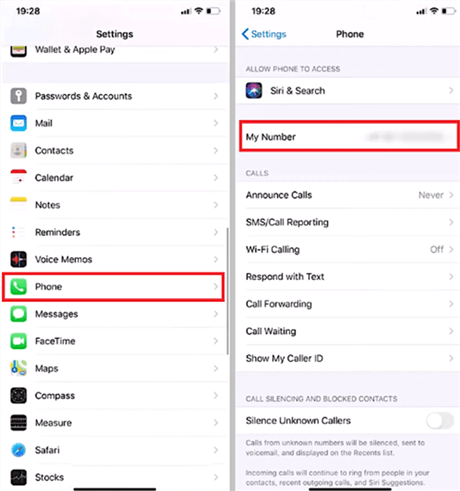
Find My Number under the Phone Category
Let’s move forward to the next solution to fix this issue.
Way 2. Restart FaceTime
You might still face the Facetime waiting for activation error even though your phone number is correct and active. In that case, a quick restart can help. Turn off your FaceTime app and then turn it on again.
Here are the steps you can use to restart FaceTime.
Step 1. Go to your iPhone’s “Settings.” Scroll down to find the “FaceTime” app. Click on it and continue.
Step 2. Look for the toggle switch next to “FaceTime.” Tap on it to turn the toggle off, which will disable FaceTime.
Step 3. Power off your iPhone. Wait for one to two minutes before turning it back on. Then go to “Settings > FaceTime” and tap the toggle to switch the app back on.
Step 4. Close the background tabs for Settings and FaceTime. Then, open the FaceTime app again. It should be back to working usually.
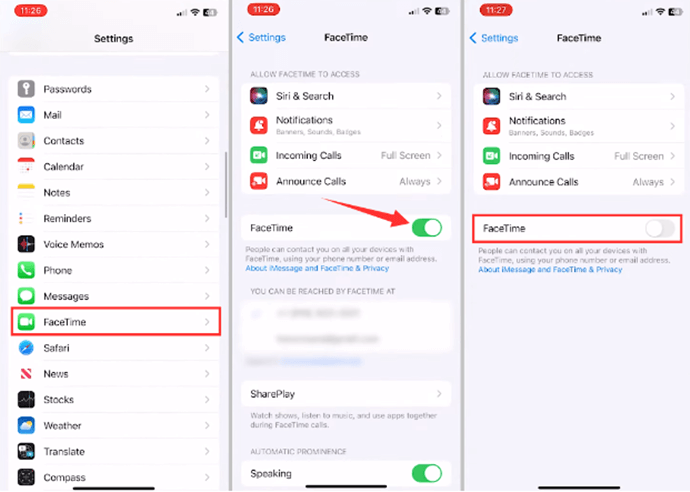
Restart Facetime in Settings
Let’s see another easy way to fix this error if this one does not work for you!
Way 3. Check Network Connection
FaceTime uses a stable internet connection to communicate with Apple’s servers. If the network connection is unstable, the activation request may not reach the servers properly.
This is because a poor connection can cause delays. Furthermore, some parts of the activation data may not be sent or received. Connecting to a stable network would be a quick fix.
Here’s how you can check your iPhone’s network connection.
Step 1. Open your iPhone’s “Settings” menu and press the “WiFi” option.
Step 2. See if the WiFi is turned on and connected to a network. An “Unsecured network” or “No internet connection” next to the network means your connection is not optimal.
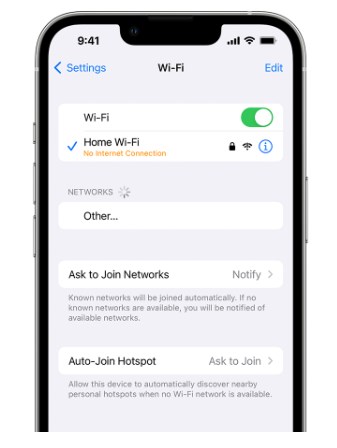
Check the network connection
Step 3. Tap the small “i” next to the network and choose “Forget This Network.” Then, connect to a stable network using the available options.
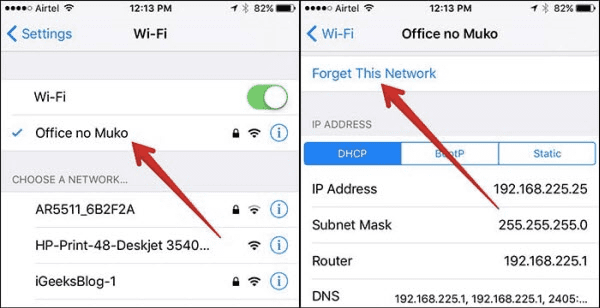
Forget the Connected Network
Step 4. If connecting to a stable network does not work, try resetting your network connection. To do this, go to Settings > General and tap “Transfer or Reset iPhone.”
Step 5. Press “Reset” to open the reset options and choose “Reset Network Settings.”
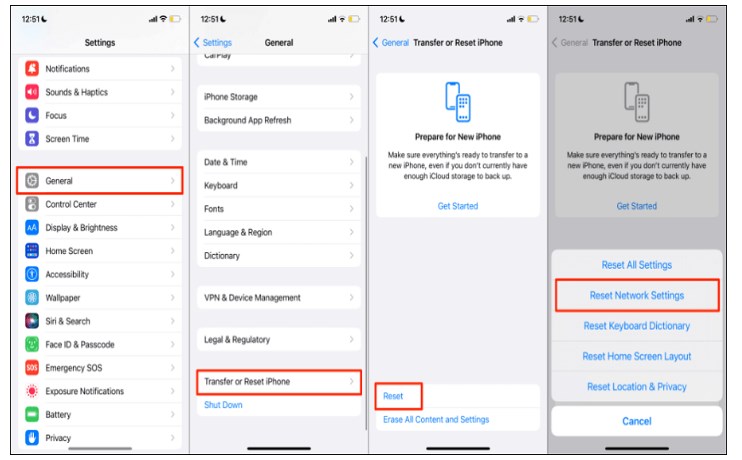
Reset Network Settings
Be aware that resetting network settings will erase all of your saved WiFi passwords.
Still dealing with the “Facetime activation failed” error? Keep reading for another quick fix for it.
Way 4. Check Your Date & Time Zone Settings
FaceTime activation requires proper communication between your phone and Apple servers. These servers check the date and time of your device to establish a secure connection. Using the wrong time zone settings can lead to FaceTime waiting for activation errors.
You can quickly fix this using your phone’s correct date and time. Find the steps for it below.
Step 1. Go to your iPhone’s “Settings” menu and tap “General.”
Step 2. Scroll down and press the “Date & Time” option. This will open the settings for the date and time zone.
Step 3. Tap the toggle for “Set Automatically” to turn this feature on.
Step 4. That’s it. Return to FaceTime and check whether it’s still stuck on the activation error.
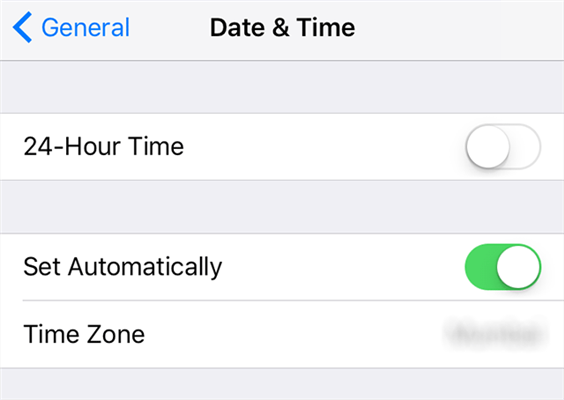
Set Automatic Date and Time on iPhone
If your phone is already set to automatic time zone, this method is not for you. Let’s move on to the next fix for the waiting for activation error on FaceTime.
Way 5. Re-sign into Apple ID
FaceTime is associated with your Apple ID, and therefore, it is activated once you activate your phone. But if that is not possible and you were unable to do the activation, then resetting the Apple ID could solve it. To do this, you’ll need to sign out and sign back into your Apple account.
Let’s see how to do it with the following steps.
Step 1. Access your iPhone’s “Settings” app and press your name at the top.
Step 2. Move down to the end and tap the “Sign out” button. Enter your password and tap “Turn off” to sign out.
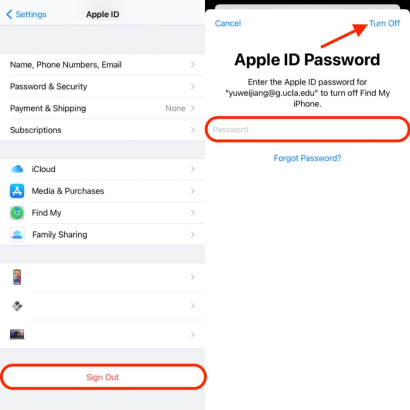
Sign out of Apple ID on Your iPhone
Step 3. Restart your iPhone, and when it turns back on, go to “Settings” again.
Step 4. Press the “Sign in” option at the top to log in with your Apple ID and password.
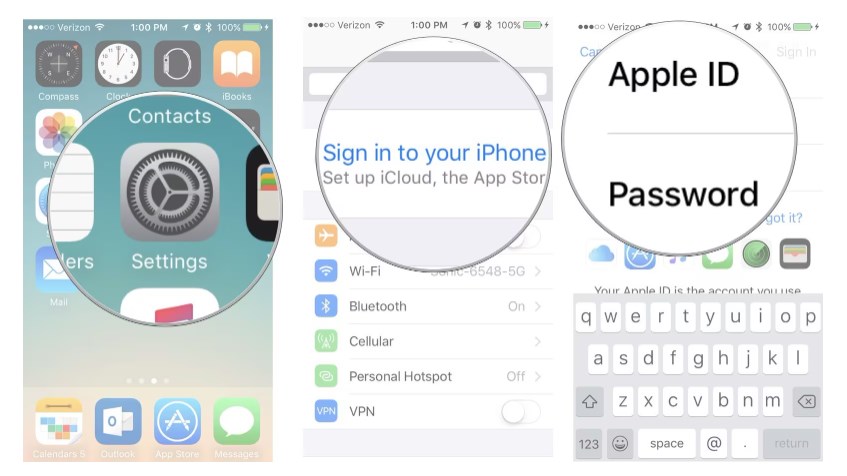
Sign in with your Apple ID
Now, try to activate Facetime again, and you will be fine. However, if it does not work, don’t panic. There is another way to fix the activation error. Keep reading to learn about it.
Way 6. Turn on Airplane Mode and Then Turn It off
The Facetime waiting for activation error may be a random glitch in your iOS system. It might be interfering with network connectivity and causing an activation error. A simple fix would be to turn on airplane mode and turn it off moments later.
It can be done easily. Here are the steps for it.
Step 1. Unlock your iPhone and swipe down from the top right on the Home Screen.
Step 2. Tap the small airplane icon at the top left to turn on “Airplane Mode.” The icon will turn orange once it’s turned on.
Step 3. Wait 10 to 20 seconds. Then tap the “Airplane” icon again to turn it off. It should turn grey now.
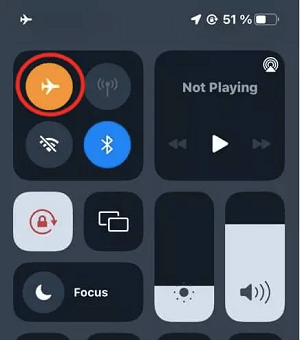
Turn on/off Airplane Mode
This should resolve the issue for you! However, this solution may only work for some. Let’s see another way to fix the Facetime activation error.
Way 7. Upgrade iOS
FaceTime activation errors sometimes result from an outdated iOS system. You might be using an older software version that is incompatible with the FaceTime app, which can result in random crashes and errors with iOS apps, including FaceTime.
A quick fix for this is to get the latest updates. Continue below to find out how it’s done.
Step 1. Open your iPhone’s “Settings” app and press the “General” option.
Step 2. Select “Software Update.” This will trigger the iPhone to look for the latest update, which will then appear on the screen.
Step 3. Press the “Download and Install” button on the available update and tap “Install” again to begin.
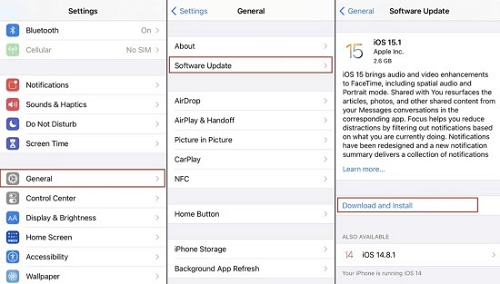
Use Software Update
You should have at least 50% battery charging before installing the update. Also, connect your device to a WiFi network to ensure a smooth update process.
Your phone may already be up to date if you don’t see any updates available. In that case, we have a sure fix below that will instantly resolve all the hidden issues with the iOS system.
Way 8. Repair the iOS System
While the Facetime waiting for activation error may result from random glitches, sometimes a hidden problem with the iOS system can cause this error. These issues are hard to diagnose and solve on your own.
However, a specialized iOS system repair tool can do the job easily. AnyFix is an advanced system repair tool that removes all the issues with your iOS system. With three different repair options, you can fix your iOS system with and without erasing your data!
Free Download * 100% Clean & Safe
Let’s see how to use AnyFix to get past the FaceTime activation error.
Step 1. Download and install AnyFix on your computer and open it. Choose the “System Repair” tool from the main screen and click “Repair Now.”
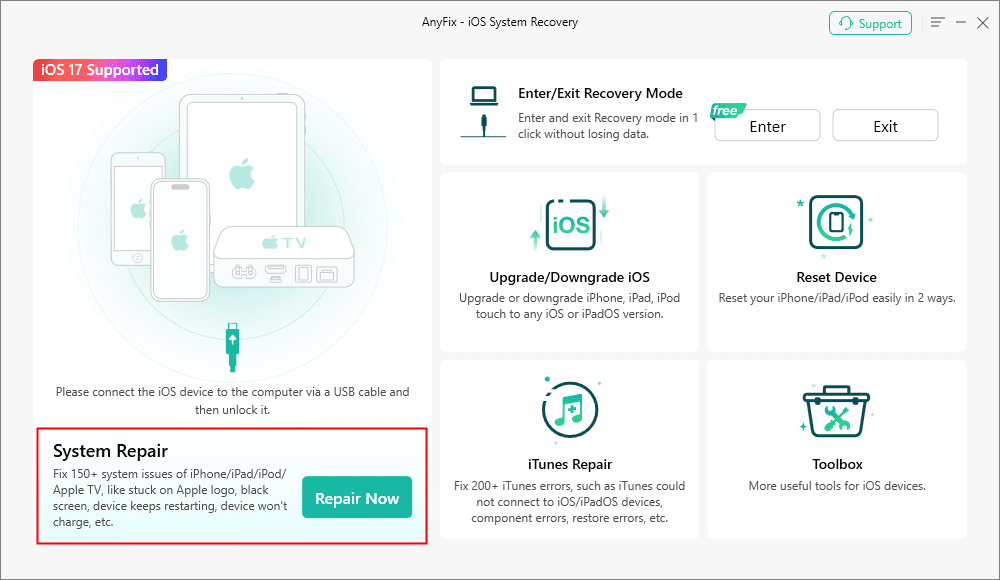
Click System Repair
Step 2. Link your iPhone and computer with a USB cable and unlock your phone. You will see the following screen once your phone is detected. Click “Start Now” to begin.
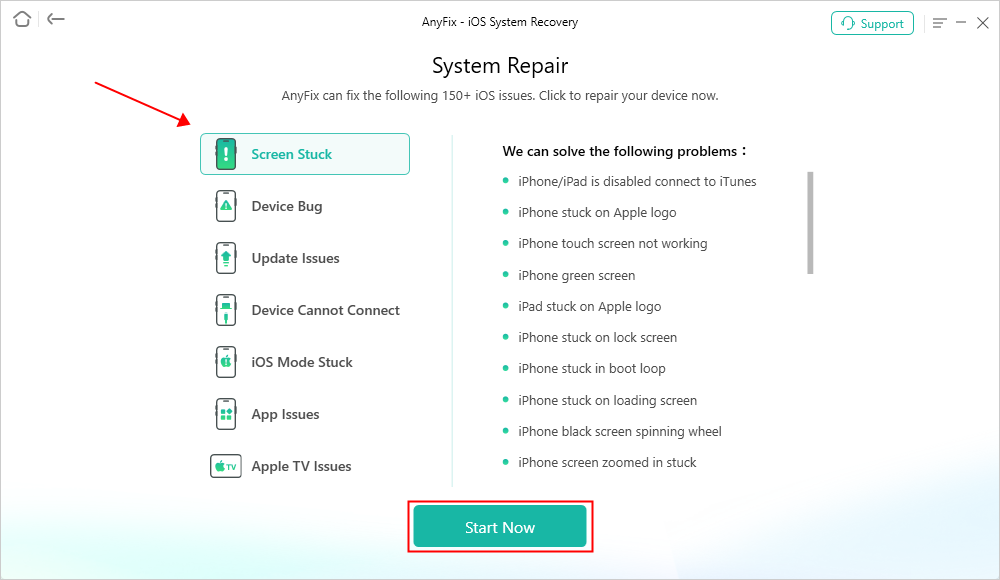
Click Start Now
Step 3. Select the level of repair you want from the next screen. Choose “Standard Repair” to preserve your phone’s data, and click the “Standard Repair” button.
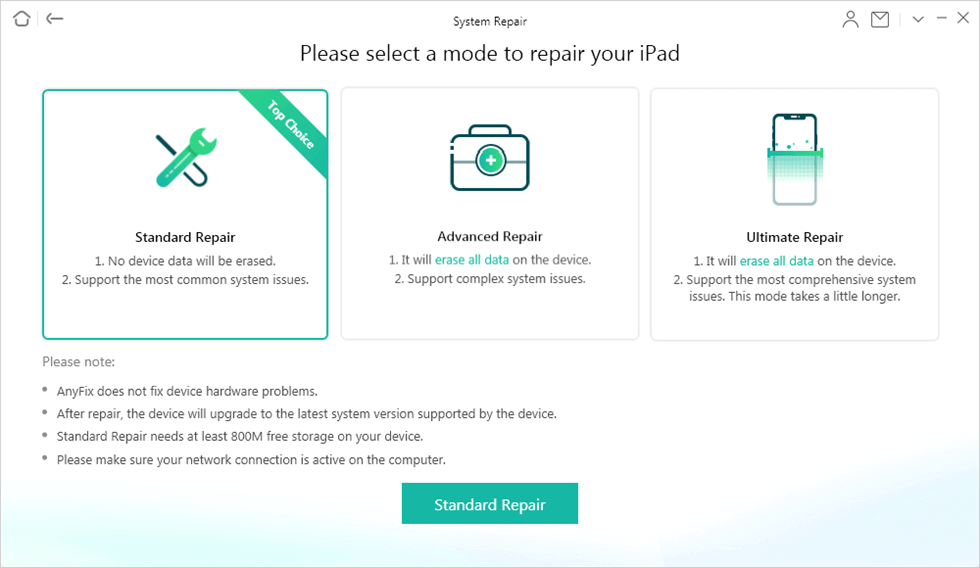
Click Standard Repair
Step 4. AnyFix will now search for the configuration profile to fix your iPhone’s system. Check the firmware information and click “Download” to get the file.
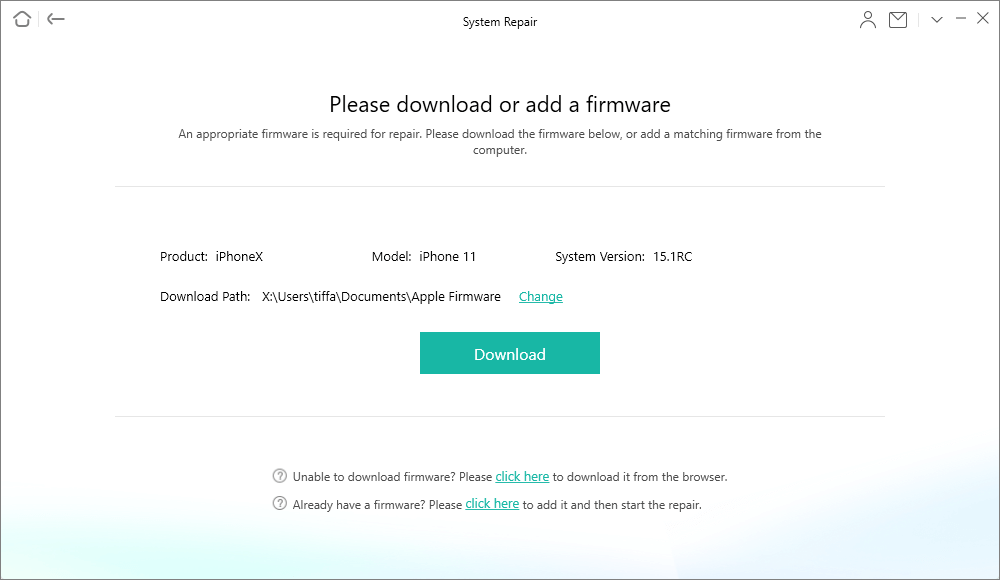
Click Download to Add a Firmware
Step 5. Once the firmware downloads, you can verify it by looking at the window below. Click “Start Standard Repair” to initiate the repair process.
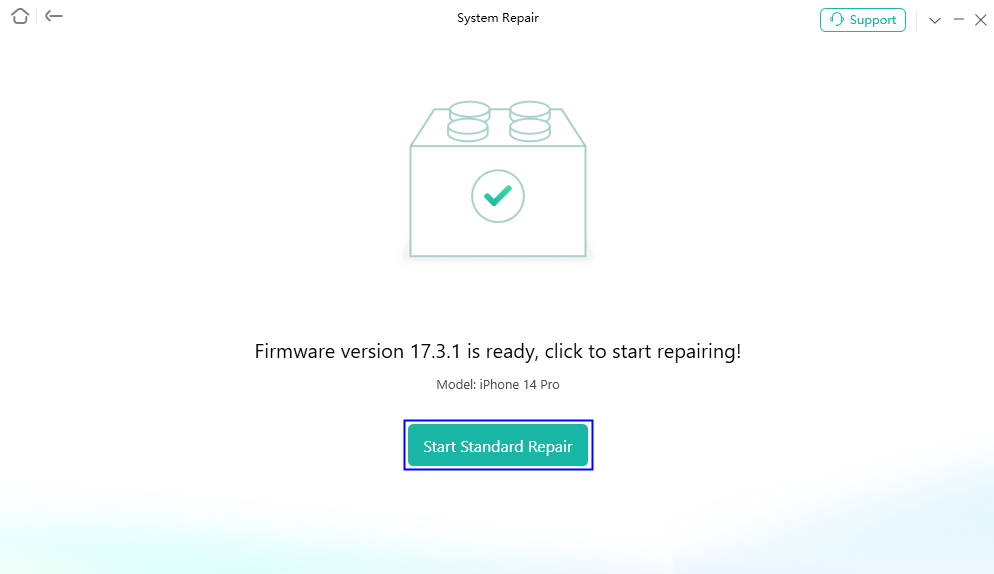
Click Start Standard Repair
Step 6. AnyFix will begin the repair process to fix your iOS glitches. A “Repair Completed” message will show up, indicating the completion of the repair process.
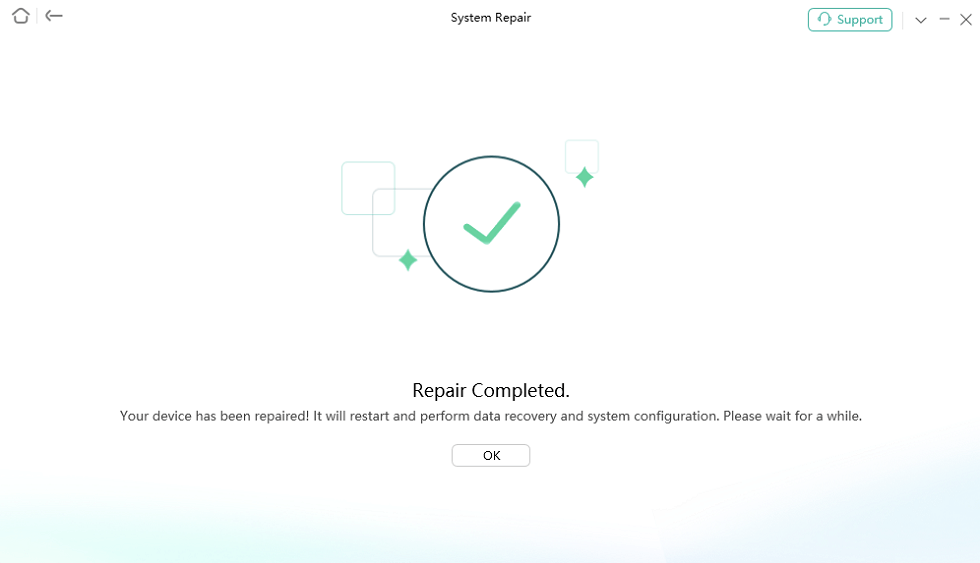
Repair Completed Successfully
And you’re all done fixing your iOS system! AnyFix makes this process effortless with its one-click solutions, which are easy to use, even for beginners! Now, you won’t have to deal with the Facetime activation error if a software glitch is responsible for it!
Final Thought
Facetime waiting for activation problems can result from several issues. These include regional restrictions, outdated software, system bugs, poor network connectivity, or an incorrect phone number.
We have provided eight practical ways to fix this issue. These solutions are effortless to follow and can help resolve the Facetime activation problem.
But among them, AnyFix offers a quick and sure way to overcome this error. It is effortless to use and requires no technical steps. Go ahead and use these methods to get your video chatting back in action!
Free Download * 100% Clean & Safe
iOS System Repair
iPhone System Repair
- Latest Guide on Fixing iPhone Ear Speaker Not Working Issues
- How to Fix iPhone Keeps Turning On and Off [7 Ways]
- How to Fix iPhone Stuck on Hello Screen
- Your iPhone 12/11 Won’t Turn on – Here is What You Can Do to Fix It
- [Solved] iPhone Restore Error 1 in iTunes
- How to Fix iPhone Auto-Correct Not Working [7 Ways]
- 11 Quick Ways to Fix iPhone Freezing and Lagging [Solved]
- Why My iPhone Keeps Restarting & How to Fix It
- 9 Ways to Fix iPhone Screen Glitching and Flickering
- [Fixed] iPhone Stuck on Apple Logo Storage Full
- [Full Guide] How to Fix iPhone Update Stuck
- How to Fix iPhone Won’t Charge Past 80% [New!]
- Quick Fixes if your iPhone won’t Restore in Recovery Mode
- How to Renew Wi-Fi Lease on Your iPhone?
- How to Stop iPhone Camera from Shaking [New!]
- WhatsApp Keeps Crashing on iPhone? 7 Fixes
- Fix Apple ID Sign in Request Keeps Popping Up
- Fix Erase All Content and Settings Not Working
iPad System Repair
Other iOS System Recovery
- Why Is There a Blurry Square on My Screen?
- How to Solve Cannot Verify Server Identity Problem
- How to Downgrade iOS without SHSH Blobs [2026]
- How to Fix Weak Security Wi-Fi on iPhone
- Ultimate Guide to Fix Haptic Keyboard not Working
- How to Fix iMessage Waiting for Activation
- 8 Easy Ways to Fix iOS 16 Photo Cutout Not Working
- How to Fix iOS 17 Alarm Not Working [7 Ways]
- How to Fix “Last Line No Longer Available” Error
- How to Fix FaceTime Screen Share/SharePlay Not Showing
- 6 Ways to Fix Shared With You Not Showing
- [6 Way] Fix Unable to Complete Touch ID Setup
- [Solved] How to Fix Your SIM Sent a Text Message Issue on iPhone
- The Developer of This App Needs to Update It to Work? How to Fix



Senior writer of the iMobie team as well as an Apple fan, love to help more users solve various types of iOS & Android-related issues.
Product-related questions? Contact Our Support Team to Get Quick Solution >
