How to Transfer Text Messages from iPhone to Computer 2025
To transfer text messages from iPhone to computer, you can use iCloud, iTunes, Finder, screenshots, or third-party software like AnyTrans. This methods help you download iPhone messages to PC as PDF, txt or html format. Check the following guide and learn the detailed steps to save text messages from iPhone to computer.
iPhone Data to Computer
AnyTrans – Download Text Messages from iPhone to Computer
Free download AnyTrans to transfer text messages from iPhone to computer as a PDF, txt, or HTML format. It supports transferring all messages from iPhone to computer in just one click, including the latest iPhone 17.

Messages app is an important tool for you to contact and communicate with your family, friends, or workmates. There are many text conversations, photos, videos, and other attachments saved in the Messages app. To avoid text messages that could disappear due to various factors, such as iOS upgrades, jailbreak, water damage, etc, you need to transfer those messages to the computer as a backup. And sometimes, you want to print text messages from iPhone in PDF format. For whatever reason, there are useful ways for you to transfer iPhone messages to a computer for free, as well as useful methods on how to save text messages from iPhone to computer in other formats.
Transfer Text Messages from iPhone to Computer
Quick Overview of Transferring iPhone Messages to Computer
Here is the comparison table of each method’s behavior on the basis of 1000 messages to transfer.
| Method | Time | Difficulty |
| AnyTrans | < 3 Minutes | Very Easy |
| iCloud | 10 Minutes | Easy |
| iTunes/Finder | 15 Minutes | Moderate |
| Screenshots | Unavailable | Moderate |
Transfer Messages from iPhone to Computer in One Click
Due to the system restrictions of iOS, you cannot access iPhone messages on a computer directly. In this case, a data transfer tool like AnyTrans is more convenient for downloading messages from iPhone to computer. It helps transfer data from iPhone to Windows PCs or Mac computers in a few seconds. According to multiple tests, 1000 text messages can be transferred within 3 minutes, thus saving you much time in waiting. You can check more benefits of using AnyTrans for iPhone message transfer:
- View text messages and iMessages on the computer directly.
- Supports transferring more than 24 other types of iOS data, like photos, videos, notes, music, calendars, bookmarks, etc.
- Work well on transferring messages to your new iPhone and even transferring messages from iPhone to iPhone without iCloud.
- Help you make a full backup of iPhone data, including messages, and you can view them on a computer at any time.
Follow the steps below to transfer SMS from iPhone to computer in AnyTrans:
Step 1. Download AnyTrans and install it on your computer > Launch it > Connect your iPhone to the computer (PC or Mac) with a USB cable. Choose the Device Manager in the main interface.
Free Download * 100% Clean & Safe
Step 2. Choose the Messages category to enter the Messages manage page.
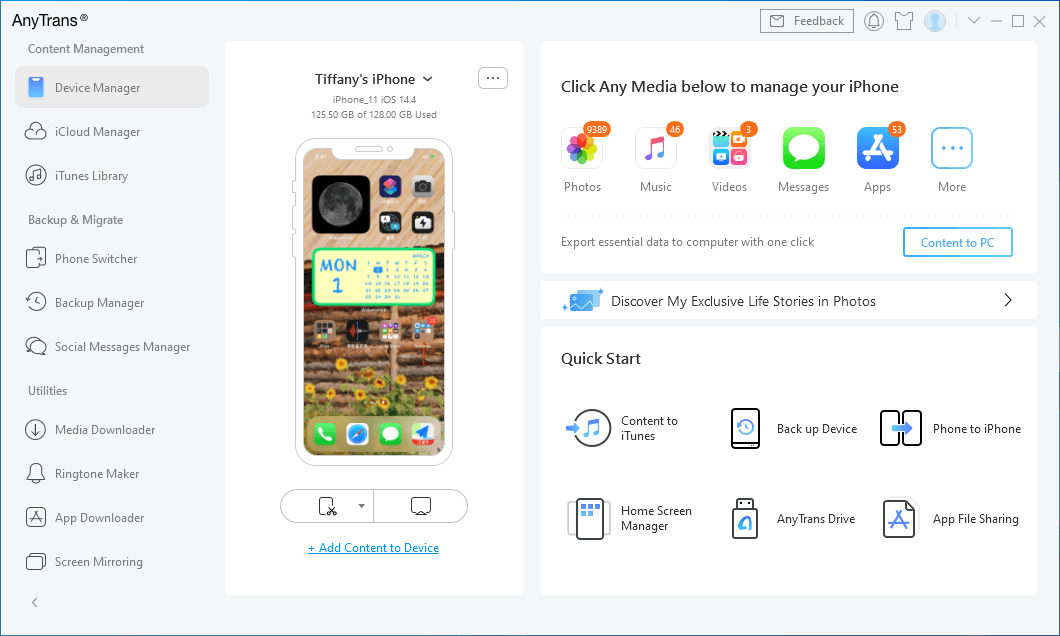
Transfer Messages from iPhone to Computer via AnyTrans
If this is the first time you try AnyTrans, it will ask you to make a backup of your iPhone and then AnyTrans can access the text messages on your iPhone. It takes a few minutes, please be patient.
Step 3. Preview and select text messages you want to transfer. Tap To PC button in the upper right corner to transfer text messages to the computer.
Step 4. Under the To PC button, you can choose to export iPhone messages to .txt, .html, or .pdf format.
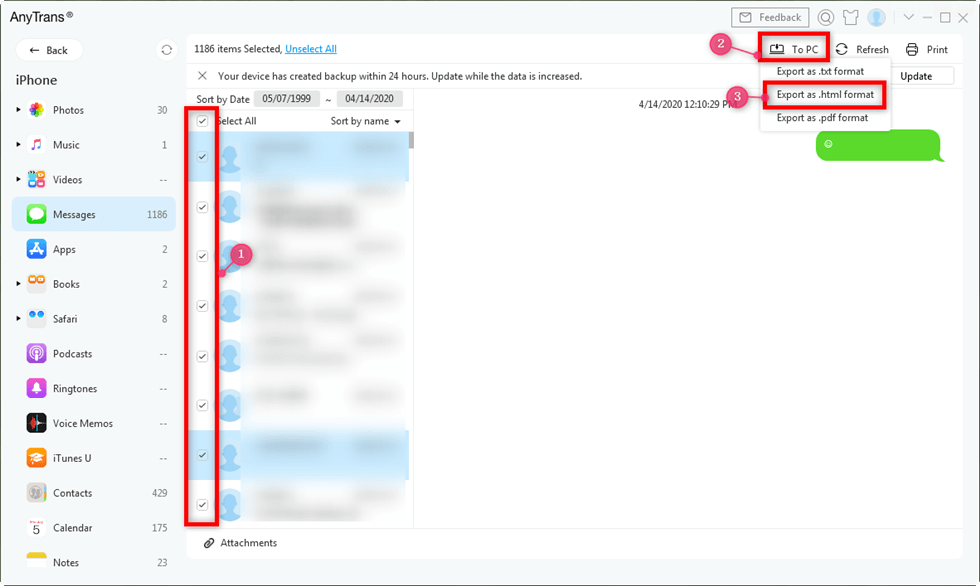
Export iPhone Messages to TXT, PDF, or HTML
Here are the differences of each format and what they are best for:
- PDF: Preserve the full message thread layout, including chat bubbles, emojis, timestamps, and attachments — ideal for printing or archiving.
- TXT: Export plain text conversations without formatting, perfect for quick reading or lightweight storage.
- HTML: Retain rich formatting and interactivity, allowing you to view messages in any web browser with a structured layout and media content.
After transferring, you can view the messages on your computer directly.
Transfer iPhone Messages to Computer Using iCloud Sync
To transfer messages from iPhone to computer, iCloud is an easy built-in solution. It can back up and sync your iPhone messages across your Apple devices. Although it doesn’t provide flexible export formats like AnyTrans, it does make sure that your messages are safely stored in the cloud and can be accessed at any time on your iPhone, iPad, or Mac. That makes iCloud a good option for users who want their messages to be automatically backed up but without third-party software.
How to use iCloud to transfer messages from iPhone to computer:
Step 1. Go to Settings > [your name] > iCloud on your iPhone. Tap “Show All” under Apps Using iCloud.
Step 2. Enable “Messages” to turn on iCloud sync.
Step 3. You have 2 options to download the messages from iCloud on Windows and Mac.
For Windows, go to the iCloud website and sign in to the same Apple ID on your computer. Then use the print function on the iCloud website to download iPhone synced messages.
For Mac, you can log in to the same Apple ID and enable iCloud sync. Then the messages will be synced on your Mac computer automatically.
Transfer iPhone Messages to Computer with iTunes/Finder Backup
iTunes or Finder can also help save iPhone messages to computer for free. They create a backup of your iPhone on the computer, including all the messages. Then you can save the backup on your computer. Please note that you are not allowed to view the exact content of your messages due to iTunes/Finder encryption.
Steps to Transfer Messages from iPhone to Computer with iTunes:
Step 1. Connect your iPhone to your Windows or Mac computer and launch iTunes if it doesn’t open automatically.
Step 2. Trust the computer on your iPhone.
Step 3. Click Back Up Now to back up your iPhone to the computer.
Step 4. Then your iPhone backup, including Messages and all other data, would be stored. And whenever you want to restore messages from iTunes backup, it’s useful.
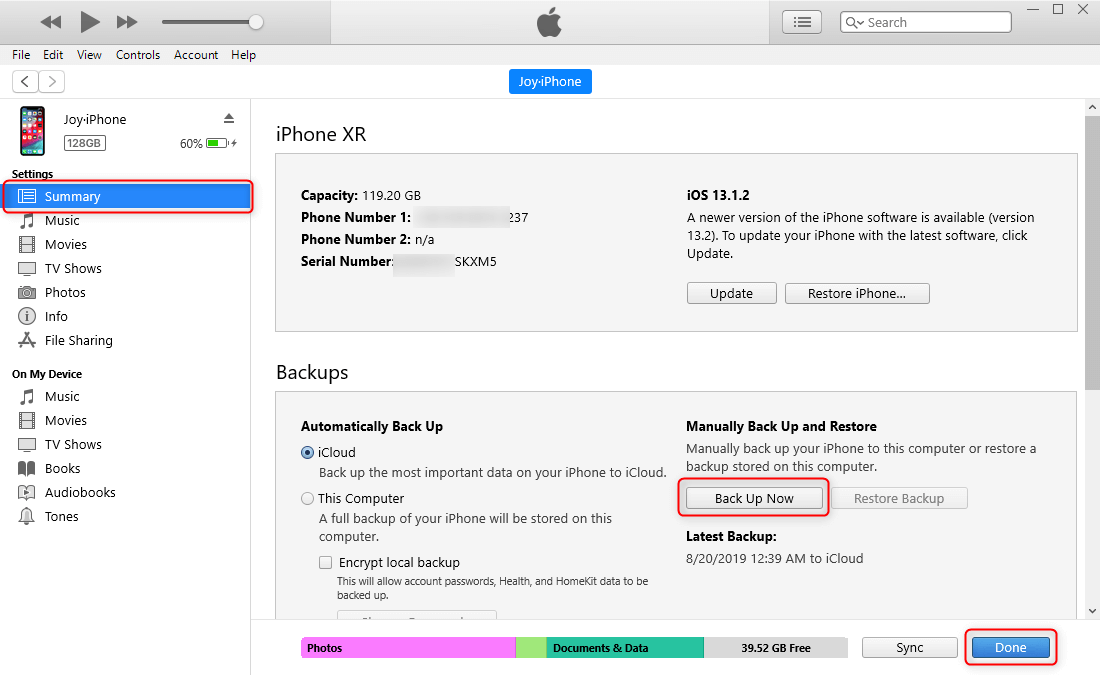
Backup iPhone to iTunes
Where to Find iTunes Backup on Computer
After backing up your iPhone to computer, you can find the backups but you are not allowed to view them. You can also check the full guide on where iTunes backups are stored on computer.
Step 1. On a Windows computer, the location of your iTunes backup folder is: \Users\(username)\AppData\Roaming\Apple Computer\MobileSync\Backup\
Step 2. You can use “Search Bar” on your PC to search “%appdata%”, and then go to Apple Computer > Mobile Sync > Backup, to find all backup files on your Windows computer.
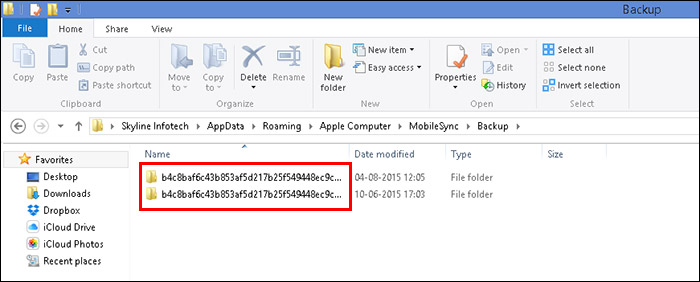
Find iTunes Backup Location on Windows
Step 3. On a Mac computer: ~/Library/Application Support/MobileSync/Backup/
Step 4. To access backup files, you can go to Finder menu bar > Go > Go to Folder…, > Type into the location > Click “Go”. Or on iTunes menu bar > iTunes > Preferences… > Devices, control-click a backup and go to show it in Finder.
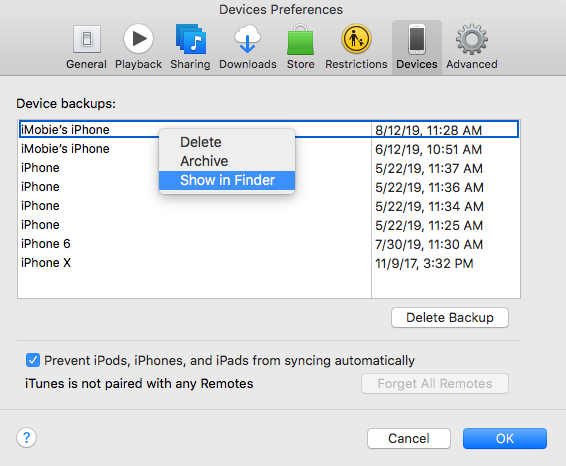
View iPhone Backup on Mac
Screenshot iPhone Messages and Transfer to Computer
For a quick solution, you can also screenshot the messages and transfer them to your computer. This method is available for transferring a few messages on iPhone. If you have a large number of SMS, it can be time-consuming. Here’s how:
Step 1. Open the Messages app on your iPhone.
Step 2. Find those you want to save to a computer. Then take screenshots one by one.
Step 3. Transfer the message screenshots to your computer.
- On Windows: Use iTunes to transfer the screenshots from iPhone to PC.
- On Mac: Use AirDrop to send the screenshots directly.
Bonus Tip. How to View and Export Messages from iTunes Backup
Users who have backed up iPhone messages with iTunes may wonder if it’s possible to view and export the messages from the backups. Yes, PhoneRescue for iOS allows you to view and export text messages from iTunes backup. Here’s how:
Step 1. Download and install PhoneRescue for iOS on your computer.
Free Download * 100% Clean & Safe
Step 2. Run the software > Select Recover from iTunes Backup > Click the right arrow to continue.
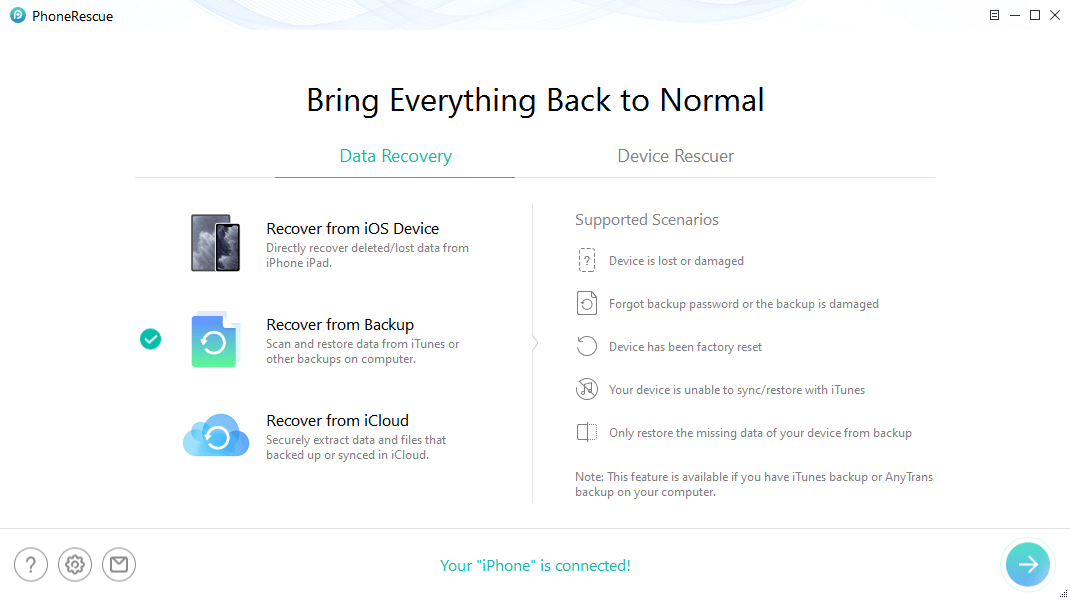
Choose Recover from Backup
Step 3. Select the iTunes backup you want to restore messages from> Click the right arrow > A screen will pop up asking you to choose data types. Choose Messages > Click the OK button.
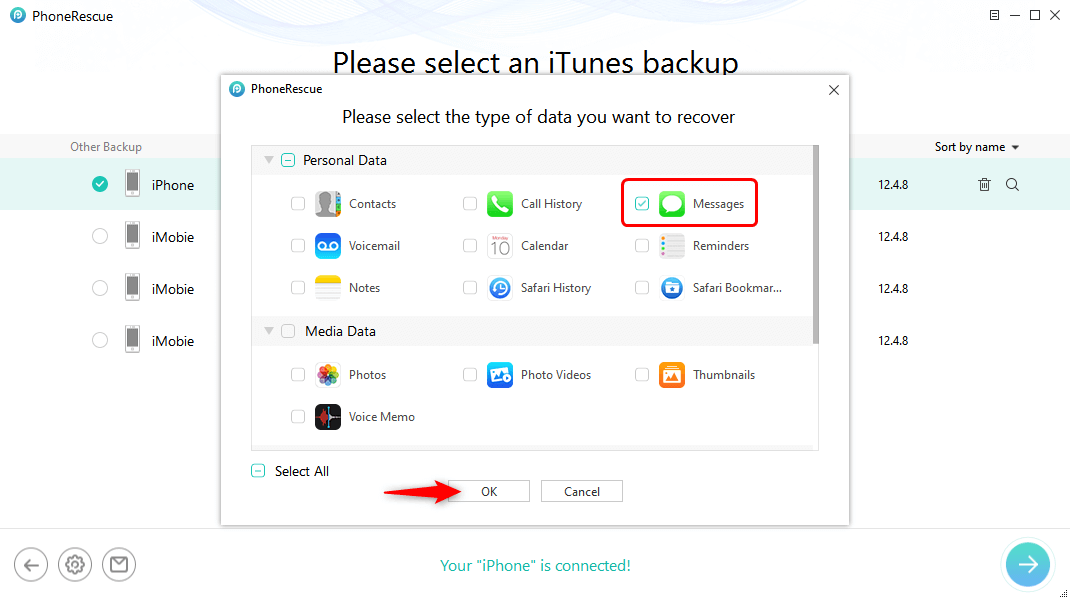
Choose Messages to Scan
Step 4. Now, you can preview the Messages and select the items you want to save on your computer > Click on To Computer.
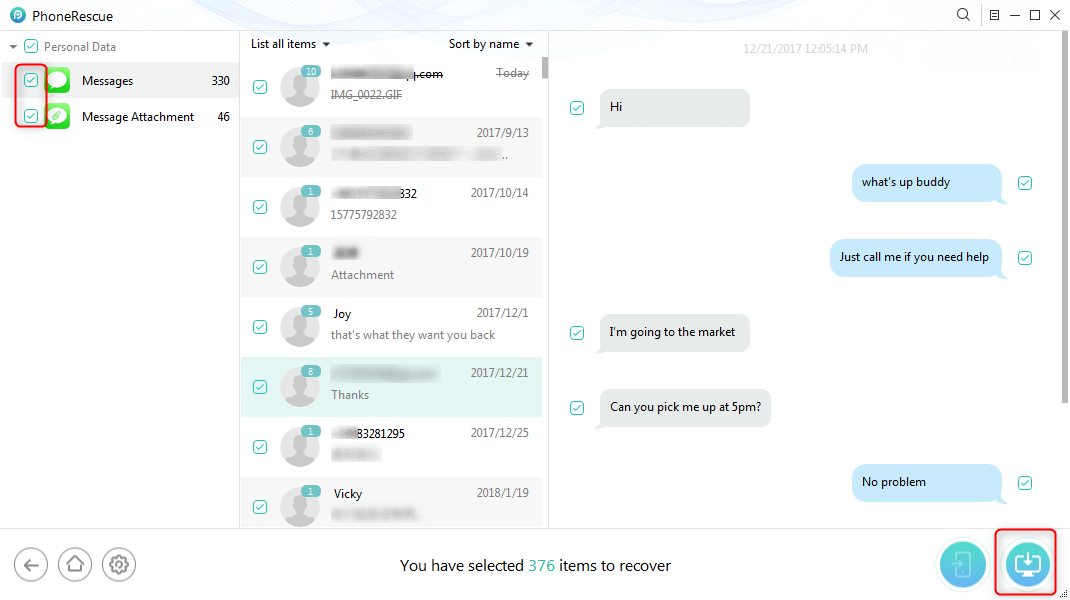
Preview and Choose to Recover Texts
Wait for the exporting process. Once finished, your messages will be saved to the computer.
FAQs About Transferring Text Messages from iPhone to Computer
1. How can I see my iPhone text messages on my Windows computer?
You can view iPhone messages on Windows computer by transferring them with iTunes, Finder, using iCloud sync, or sending the message screenshots. For an easier way to access your iPhone messages on Windows, AnyTrans is a recommended tool. It allows you to save text messages from iPhone to computer entirely or selectively, without backing up the whole iPhone database.
2. How to transfer text messages from iPhone to computer for free?
Using iCloud sync, iTunes/Finder backup, or AirDrop message screenshots can help transfer text messages from iPhone to computer for free. You should note that these methods can be time-consuming if you want to transfer the messages only.
3. Can you export text messages from an iPhone?
Yes, you can export text messages from iPhone to PDF, TXT, or html files in AnyTrans. You can also choose a specific message and export it via email from your iPhone.
The Bottom Line
That’s all about how to transfer text messages from iPhone to computer. By syncing iPhone messages on iCloud, backing up your iPhone in iTunes/Finder, or taking screenshots of important SMS, you can download text messages from iPhone free. For an easy and quick solution, AnyTrans stands out as the best choice. It helps transfer iPhone messages selectively in multiple formats. Try AnyTrans now and enjoy a smooth iPhone-to-computer message transfer experience.
Free Download * 100% Clean & Safe
More Related Articles



Joy Taylor is a seasoned technical writer with over a decade of experience in mobile technology. At iMobie, she specializes in producing in-depth content on iOS data recovery, iPhone unlocking solutions, and iOS troubleshooting.
Product-related questions? Contact Our Support Team to Get Quick Solution >
