How to Recover Permanently Deleted Text Messages on iPhone
You can recover deleted text messages on iPhone by checking the recently deleted folder, restoring iPhone from a backup, or using a third-party iPhone data recovery tool like PhoneRescue for iOS. Each method comes with convenience and limitations. Read this article and choose the best way to recover your deleted text messages.
Vital iPhone Data Recovery Tips
iPhone Contact Recovery
iPhone Message Recovery
PhoneRescue for iOS – Ultimate Way to Recover iPhone Messages
PhoneRescue for iOS allows you to recover deleted text messages from the internal storage if you don’t have a backup. It can also help recover iPhone messages from an iTunes or iCloud backup. You can select the messages only to recover, no need to restore the whole iPhone data.
Your iPhone’s Message app stores vital texts and iMessages worth keeping. But what to do if you mistakenly deleted the messages while cleaning your iPhone storage, or your messages disappear after an iOS update, iPhone restore, or device jailbreak? In this case, you may wonder how to retrieve deleted text messages on iPhone and whether you can get a permanently deleted SMS back. Well, the answer is YES on most occasions.
In this post, we will introduce 7 proven ways to recover deleted texts on iPhone, no matter whether you have a backup or not. Check the following guide and rescue your important messages immediately.
How to Retrieve Deleted Text Messages on iPhone
Quick Review of Each Method for iPhone Messages Recovery
| Method | Time Estimate | Ease of Use | Backup Required | Overwrites Current Data |
| Recently Deleted Folder | 1 Minute | Very Easy | No | No |
| PhoneRescue for iOS (from internal storage) | 3 Minutes | Very Easy | No | No |
| PhoneRescue for iOS (from iCloud) | 5 Minutes | Easy | Yes | No |
| PhoneRescue for iOS (from iTunes) | 5 Minutes | Easy | Yes | No |
| iCloud Backup | More than 20 minutes | Moderate | Yes | Yes |
| iTunes/Finder Backup | More than 30 minutes | Moderate | Yes | Yes |
| Contact Network Provider | Unpreditable | Difficult | No | Varies from different providers |
1. Recover Deleted Messages on iPhone in the Recently Deleted Folder
If your iPhone is running iOS 16 or later, you can easily find the deleted text messages in the Recently Deleted folder. This function allows you to get back deleted messages within 30 days. After that, they will be permanently deleted from your iPhone. Here’s how:
Step 1. Open the Messages App, tap Edit on the conversations page.
Step 2. On the conversation page, choose one of the options to execute:
- Tap Edit in the top-left corner, then tap Show Recently Deleted.
- Tap Filters in the top-left corner, then tap Recently Deleted.
Step 3. Choose the conversations with the messages you want to restore, then tap Recover.
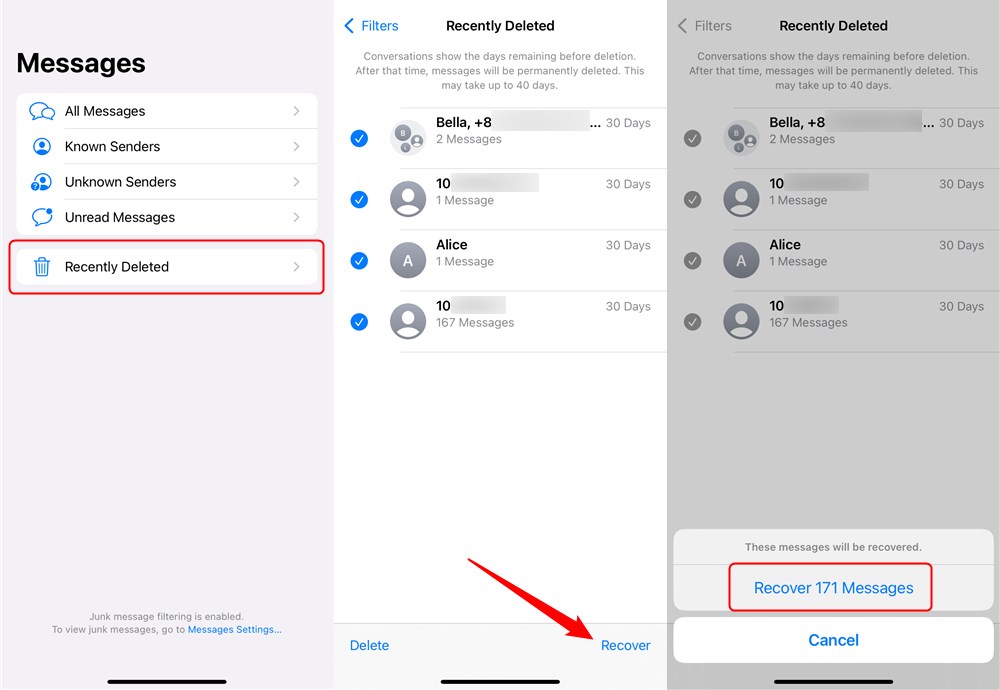
Recover Deleted iPhone Messages without Computer
Limitations:
- This method is only available on iOS 16 or later.
- Messages are recoverable for up to 30 days after deletion.
- Not effective for older deletions or permanent losses.
2. Recover Permanently Deleted Messages on iPhone Without Backup
Struggling to recover texts without a backup or past the 30-day limit? PhoneRescue for iOS is the best iPhone data recovery. This professional tool addresses key user concerns: safety, high success rate, and simplicity. It scans your iPhone’s internal storage to recover deleted messages, even those permanently deleted, without risking your data or requiring technical expertise. With three recovery modes—Recover from iOS Device, Recover from Backup, and Recover from iCloud – PhoneRescue ensures the highest recovery rate.
So, if you want to retrieve deleted text messages on iPhone without backup, Phonerescue for iOS is the first and best way to preview the messages and get them back:
Step 1. Download PhoneRescue for iOS to your PC or Mac computer, and install and run it.
Free Download * 100% Clean & Safe
Step 2. Connect your iPhone to the computer using a USB cable, choose Recover from iOS Device and click Right Arrow to continue.
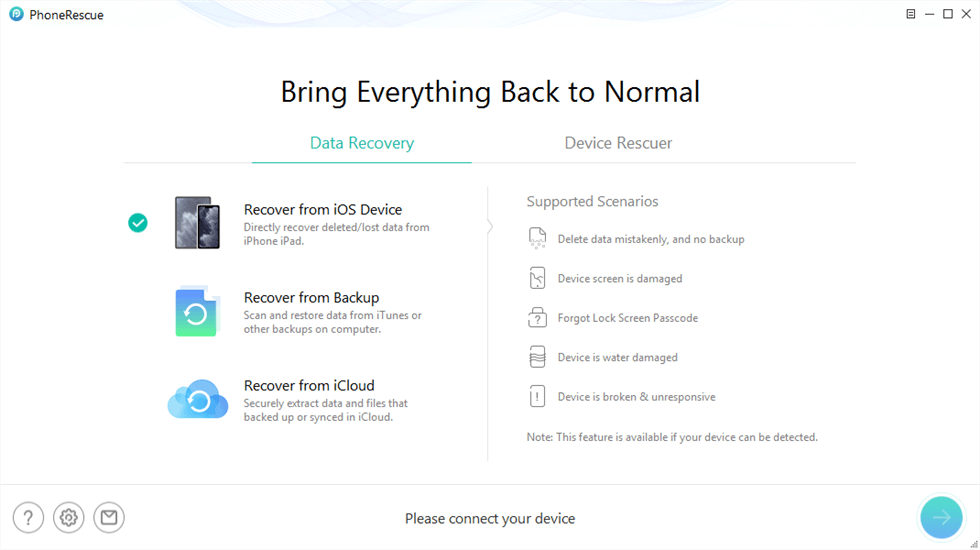
Choose Recover from iOS Device
Step 3. Check the Messages category and click Okay to scan only the deleted messages on iPhone.
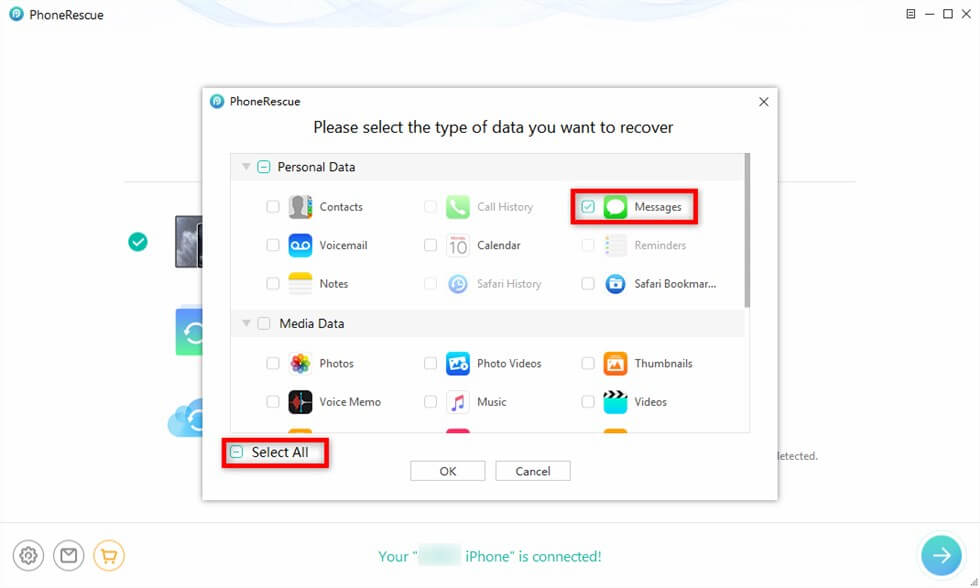
Choose Messages to Scan
Step 4. Preview and recover deleted text conversations. After scanning, you can see the text conversations below. Check the items that you want to recover, and click the To Computer or To Device button to retrieve them back to your computer or your iPhone.
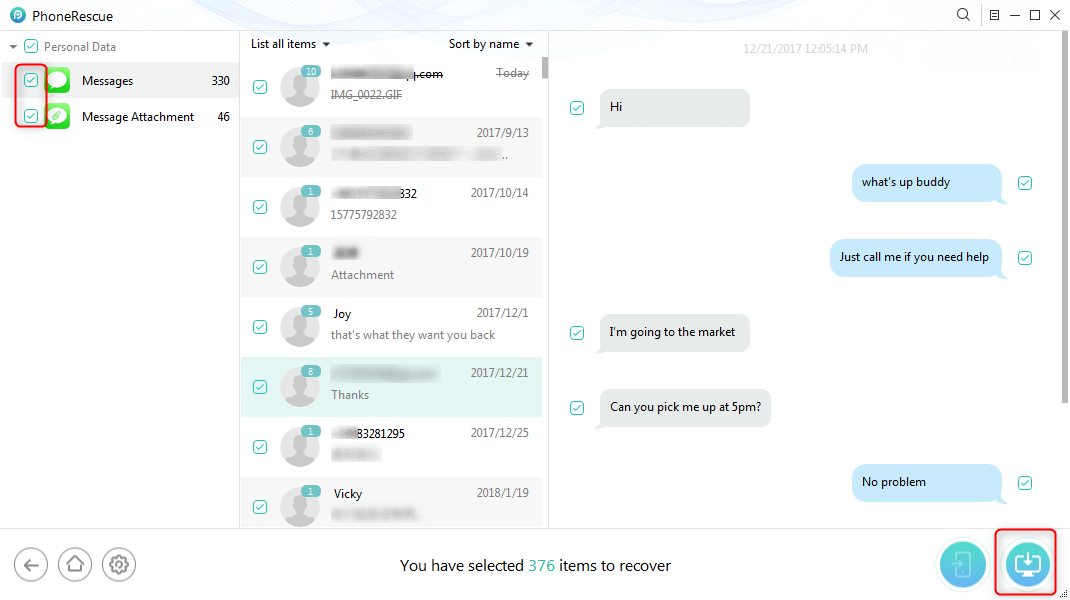
Preview and Choose to Recover Texts to Computer or iPhone
Recovering from the iOS Device enables you to directly get deleted/lost messages back from your iPhone or iPad. The steps are simple & quick, with no tech skills needed. iPhone messages, including WhatsApp messages, can be recovered in clicks. Besides, you can preview and choose messages to recover with more flexibility.
3. Recover Permanently Deleted iPhone Messages from iCloud Backup
Option 1. Recover from iCloud Backup Locally
Restoring iPhone from an iCloud backup can help recover permanently deleted text messages. This method will overwrite all your iPhone data after recovering. If you are certain that deleted messages are stored in the backup, you can now follow our instructions to restore your iPhone from iCloud here.
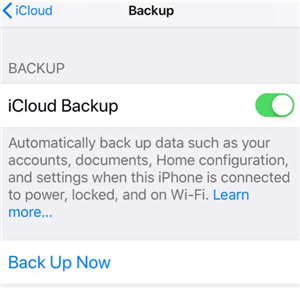
Recover Messages from iCloud Bakcup
Here is how to retrieve iPhone messages from iCloud backup:
- Run the Settings app on your iPhone, go to General > Reset, and tap Reset All Content and Settings.
- Input your passcode to continue the erase, and this will delete all media and data and reset all settings.
- Wait for some time until your iPhone finishes the erase. (The screen will show only the Apple icon.)
- After the erase is finished, now you can start setting up your iPhone. (Language, country, and keyboard)
- Input password to connect to the WiFi and activate your iPhone. And set up passcode, Touch ID, or Face ID.
- Input your Apple ID and password. On the App & Data Screen, tap Restore from iCloud backup and then log in to your iCloud.
- Choose Backup and start to restore messages and everything to your iPhone.
Option 2. Recover with PhoneRescue for iOS
If you don’t want to restore all of your data on iPhone, you can also use PhoneRescue for iOS to recover deleted messages separately. Here’s how:
Step 1. Open PhoneRescue for iOS and select Recover from iCloud.
Step 2. Sign in to your iCloud account. Now you should log in with your Apple ID and password, PhoneRescue will extract data from iCloud.
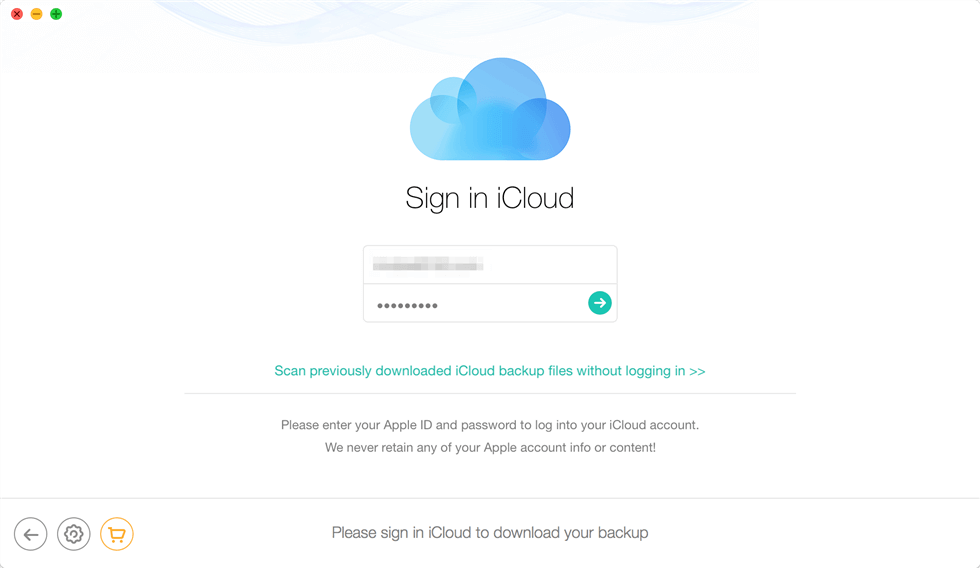
Sign in iCloud in PhoneRescue
Step 4. Click iCloud Backup.
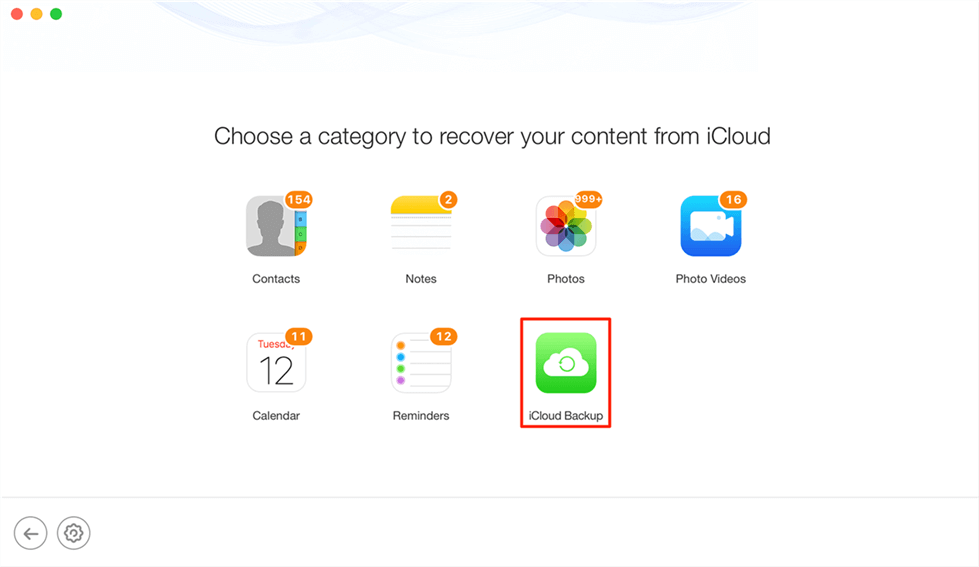
Choose iCloud Backup
Step 5. Download backup based on its creation time, size, and iOS version, and then select only Messages to get all message conversations on your iCloud backup.
Step 6. Preview the conversations on iCloud backup, check the items you want to recover, and click To Device to recover them to your iPhone. Or click To Computer to save text messages and iMessages to the computer.
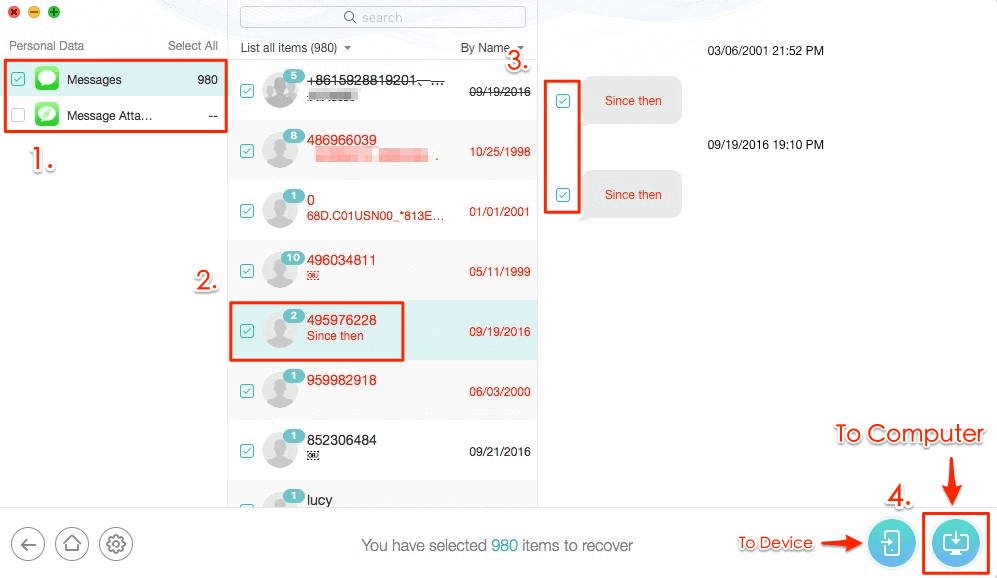
Recover Messages to iPhone or Computer
Further Reading: How to Fix iCloud Restore Stuck >
4. Recover Permanently Deleted iPhone Messages from iTunes/Finder Backup
Option 1. Use PhoneRescue for iOS
As we mentioned before, PhoneRescue for iOS also allows you to recover messages from iTunes backup or another backup on computer. It allows you to preview the contents in the backup files and restore only the deleted messages to your iPhone, with no need to reset your iPhone. Besides, it can also automatically compare the data between the iPhone and its backup to accurately find what you’ve lost. You can even save them as printable documents like HTML.
Step 1. Download PhoneRescue for iOS to your computer, install and run it on your computer.
Step 2. Select Recover from Backup will help you get data back from iTunes or other backups on the computer, and then click the right arrow at the bottom right corner of this screen.
Step 3. Select iTunes backup based on size, creation time and iOS version to find where the deleted texts are stored. If you click the “Only Scan Backup” button, PhoneRescue will scan and display all data in the backup. However, if you click the “Compare” button, PhoneRescue will compare data located in the backup with data in your device. And then it will only display data that don’t exist in your device.
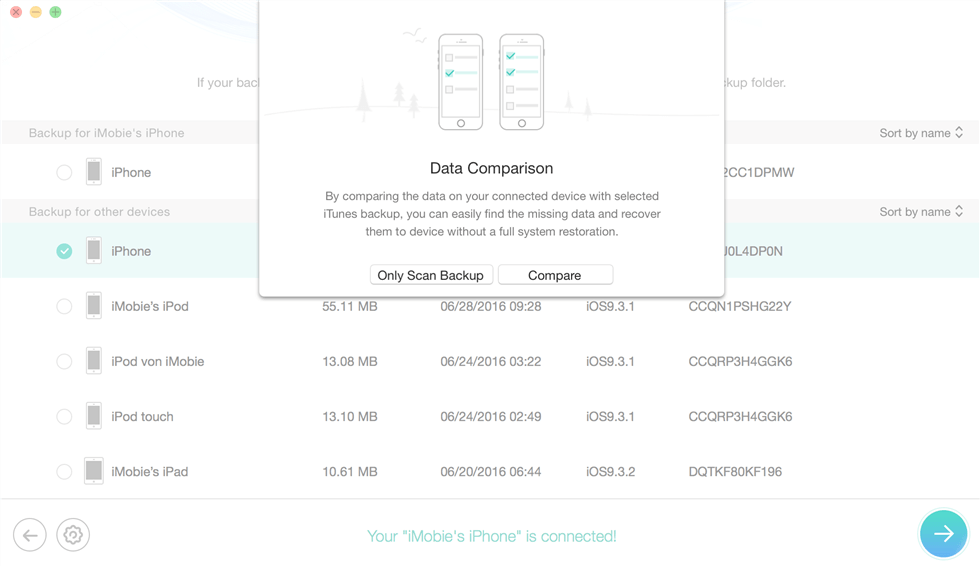
Compare iTunes Backup
Step 4. Check Messages to continue. You can check Select All or only Messages and click OK to get all text messages and iMessages on iTunes backup.
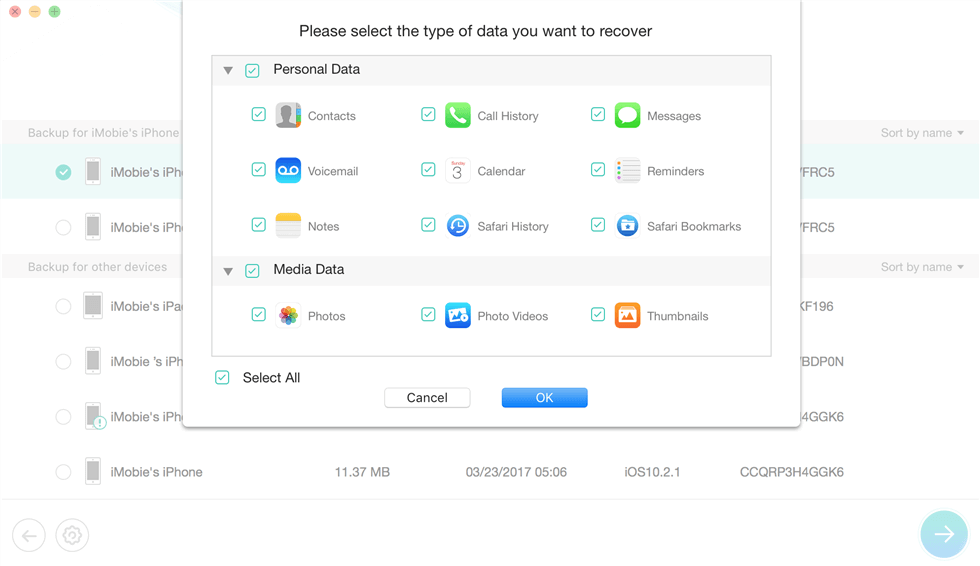
Choose Messages in iTunes Backup
Step 5. Preview all messages conversations on your iTunes backup, select the messages you want to retrieve, and click To Device to restore the deleted messages to your iPhone or choose to recover to your computer.
Option 2. Restore iPhone Backup in iTunes/Finder
If you are sure that the iTunes backup contains the messages that you’ve lost or deleted, this could be another way to retrieve deleted text messages on your iPhone. But restore will erase the contents on your iPhone and then put all data from the backup to your device. Not only the messages but also the photos, contacts, and everything will be restored from the iPhone backup to your device. Please turn off Find My iPhone before the restoration.
If you are not sure whether the iTunes backup contains the deleted SMS or iMessage, you can use some of top best iPhone backup viewers to have a look at the content in the backup files.
1. On Windows PC and macOS Mojave and earlier
On the Windows PC or macOS Mojave and earlier you can use iTunes to restore iPhone messages:
Step 1. Run iTunes and connect the iPhone to the computer.
Step 2. Click Summary and click Restore Backup.
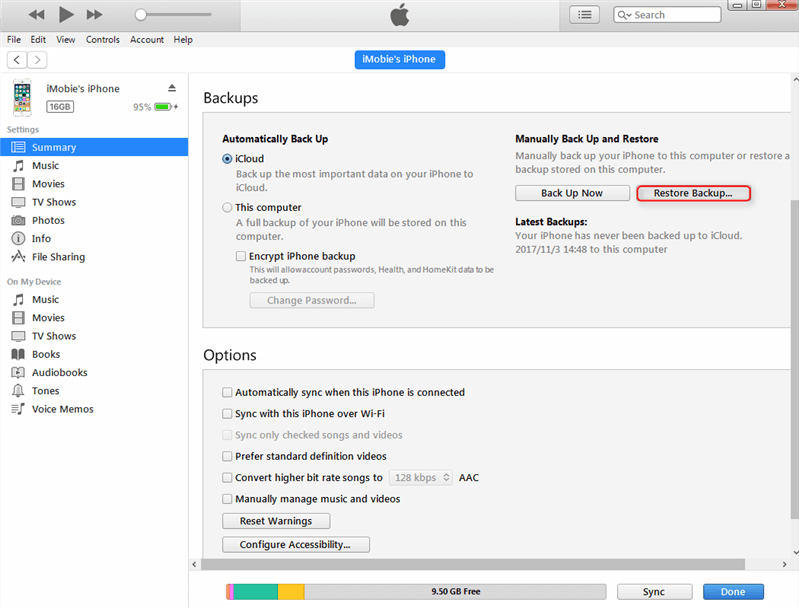
Restore iPhone Messages from iTunes Backup
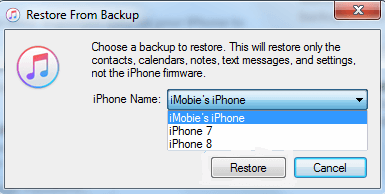
Step 3. Choose a backup and click Restore to start.
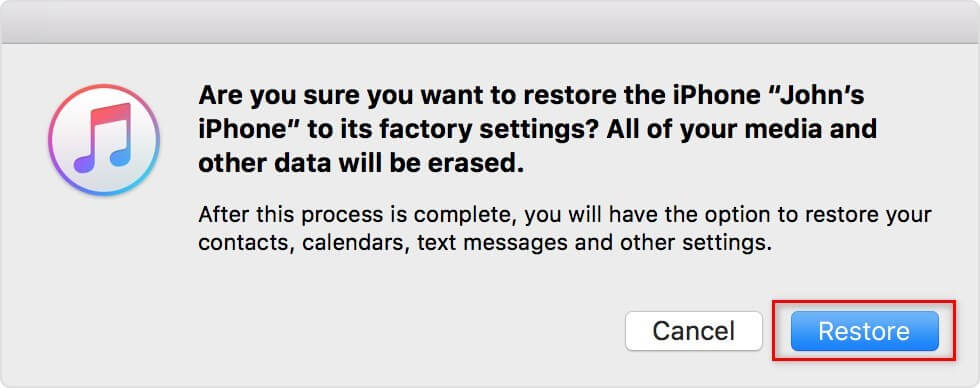
Step 4. Click Restore to restore iPhone messages.
2. On macOS Catalina and later
You can use Finder to restore your iPhone deleted messages on macOS Catalina and later:
- Connect your iPhone to your Mac computer. Open Finder and find your iPhone under Locations.
- Click on your iPhone and choose Manage Backups to select a backup you think will contain the deleted iPhone messages, then click OK.
- Then click on Restore iPhone… to start restoring your iPhone backup.
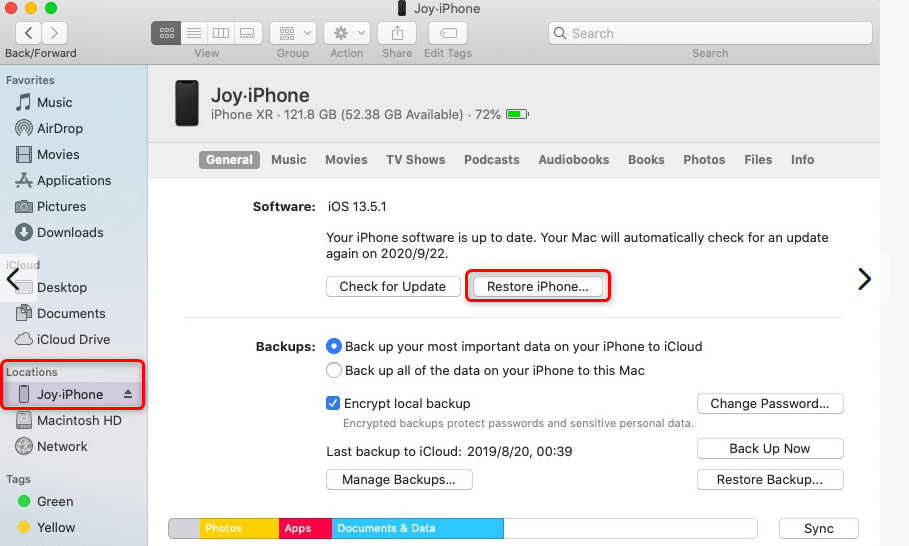
Restore iPhone Messages with Finder
Further Reading: Fix iTunes Preparing iPhone for Restore Stuck >
Method 5. Contact Your Network Provider
Besides the recovery from your iPhone, you can also contact your cellular provider and see if they can help retrieve deleted messages on iPhone. Some network providers may retain the SMS and call records from your card for a limited time. Here’s how:
- Contact the customer service of your network provider, such as AT&T.
- Provide your account information and purchase history (if necessary).
- Request your text message recovery if possible.
This method may not be available for iMessage recovery, and the process can be time-consuming. Moreover, not all providers allow you to retrieve the deleted messages on your iPhone.
FAQs About iPhone Messages Recovery
Looking to bring back lost text messages? These are the most commonly asked questions by users just like you:
1. Can permanently deleted texts be recovered on iPhone?
Yes, you can recover permanently deleted texts on iPhone from an iTunes, Finder, or iCloud backup. Please note that the backup should be created before deleting your messages. If you don’t have a backup, try PhoneRescue for iOS. It can help recover permanently deleted messages from iPhone internal storage directly.
2. How to recover permanently deleted text messages?
To recover permanently deleted text messages, you can restore your iPhone from an iTunes or iCloud backup. This restore will overwrite all data on your iPhone, make sure you have backed up your new data before restoring. Alternatively, third-party tools like PhoneRescue for iOS can scan your device and retrieve deleted messages even without a backup, depending on how long ago they were deleted.
3. How to recover deleted text messages on your iPad?
You can restore messages on iPad the same way as on iPhone:
- Check iCloud Settings: Go to Settings > [your name] > iCloud > Messages to see if iCloud sync is enabled.
- Restore from Backup: If not synced, restore your iPad from an earlier iCloud or iTunes backup that contains the messages.
If no backup is available, try using a tool like PhoneRescue for iOS to scan and recover messages directly.
4. How to retrieve deleted text messages on iPhone 11?
On iPhone 11, you can retrieve deleted text messages by restoring from a relevant iCloud or iTunes backup.
- If you recently deleted the messages and use iOS 16 or later, you can also check the “Recently Deleted” folder in the Messages app.
- For deeper recovery without losing data, tools like PhoneRescue for iOS can scan and recover messages directly.
The Bottom Line
There are 7 methods you can try to recover deleted text messages on iPhone, from a simple check in the recently deleted folder, to a whole iPhone restore in iTunes or Finder, you can get back the lost SMS with or without a backup. For those who have permanently deleted the messages but don’t have a backup, PhoneRescue for iOS is ready to help. Download it now and recover your previous messages from iPhone in a few clicks!
PhoneRescue – iPhone Data Recovery
- Recover deleted messages/iMessages from iPhone without backup.
- No harm to the existing data and no need to restore your iPhone.
- Recover iPhone messages from iTunes or iCloud backup directly.
- Support all iPhone models and iOS versions, 100% clean & safe.
Free Download100% Clean & Safe
Free Download100% Clean & Safe
Free Download * 100% Clean & Safe
More Related Articles



Joy Taylor is a seasoned technical writer with over a decade of experience in mobile technology. At iMobie, she specializes in producing in-depth content on iOS data recovery, iPhone unlocking solutions, and iOS troubleshooting.
Product-related questions? Contact Our Support Team to Get Quick Solution >
