How to Transfer Data from Huawei to Samsung [6 Ways]
To transfer data from Huawei to Samsung, you can use Smart Switch, Google account sync, Bluetooth, or manual transfer via computer. For a faster, safer, and more complete solution, DroidKit supports moving photos, contacts, messages, and more between devices with one click.
Android Transfer Tips
Android Data Transfer
Android Photos Transfer
Android Contacts Transfer
One of the things Samsung does really well is launching new phone models every few months. This way, consumers are not tied to a phone, and they can get a new one whenever they want. If you have decided to go for one of these phones, ditching your old Huawei device, you will likely be interested in learning how to transfer data from Huawei to Samsung.
After all, your data is what gives your phone meaning and purpose, and you will want to transfer all of your old data from your Huawei phone over to your shiny new Samsung device. Luckily, there are multiple easy ways to get your data moving, and this guide covers those for you, including using an Android file transfer tool for a smooth experience.
Read on to learn how you can transfer from Huawei to Samsung easily and seamlessly.
How to Transfer Data from Huawei to Samsung Easily & Securely
To transfer data from Huaiwei to Samsung, Android data transfer tools would be a simple solution. Here in this part, 2 great Huawei to Samsung data transfer tools are recommended. Let’s take a look.
# 1. DroidKit – Transfer Data from Huawei to Samsung [One-click]
One of the best apps you can use to transfer data from Huawei to Samsung is DroidKit – Android Phone Toolkit. It is a complete Android solution to help you solve all Android problems, including transferring data from Android to Android. With DroidKit, you can move photos, videos, music, contacts, call logs, messages, app data, and even documents. It supports selective transfer, so you can preview files and choose what you actually need instead of copying everything blindly. Its user-friendly interface and operation make it easy for anyone to use this tool.
Main Features of DroidKit:
- Transfer all – All Android data can be transferred, such as photos, videos, music, contacts, messages, WhatsApp data, etc.
- Transfer in the way you like – You can preview and select part of the files to transfer. Or you can directly transfer all data in 1 click.
- Simple and fast – Only need to click the button to transfer data, no technical requirements. Thousands of data points can be transferred within 1 minute.
- Support all Android devices – Huawei, Samsung, Xiaomi, LG, etc. All Android brands and devices are supported.
Free Download * 100% Clean & Safe
Follow the steps below to transfer data from Huawei to Samsung now:
Step 1. Open DroidKit on your computer and choose Android Mover in Data Manager mode.
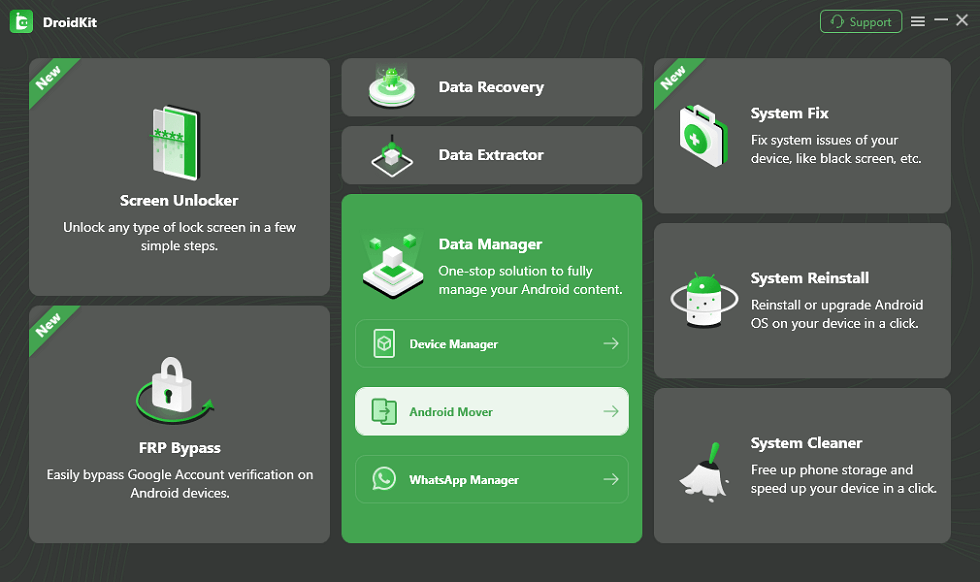
Choose Android Mover
Step 2. Then click on the Migrate Now button in the Android to Android block.
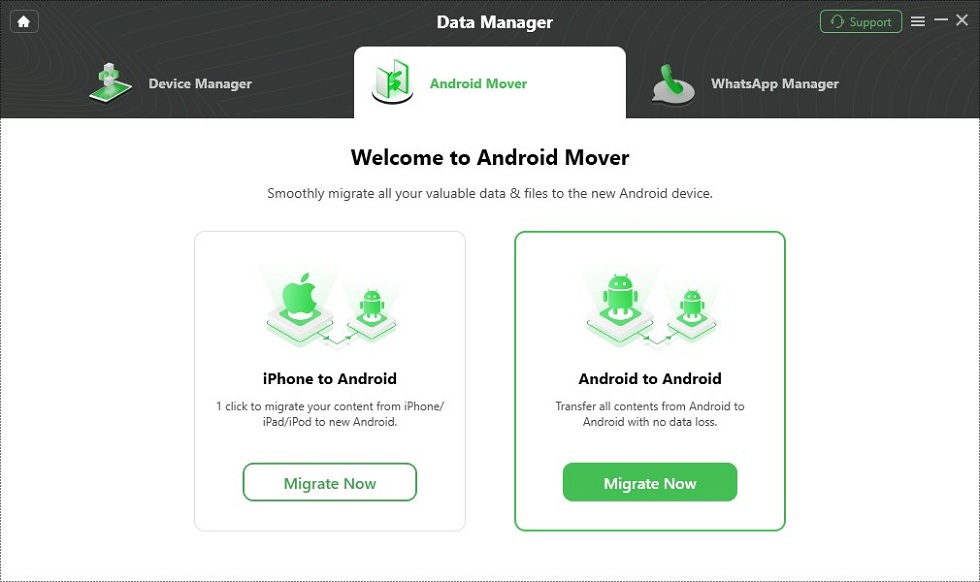
Choose Android to Android
Step 3. You need to use USB cables to connect your Huawei and Samsung phones to the computer. Once done, click Migrate Now again.
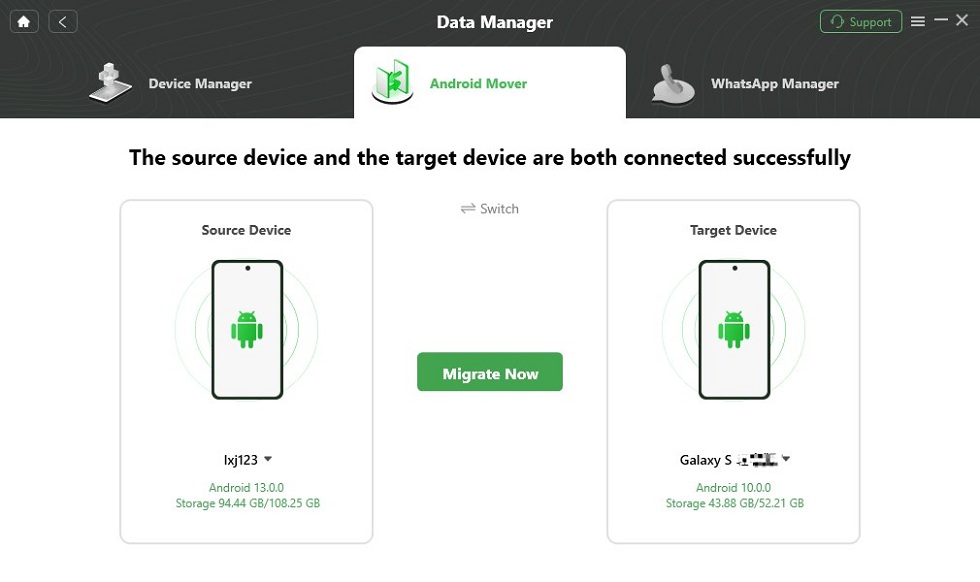
Click on Migrate Now
Step 4. You will see some data type options. You can choose what you want to transfer and then tap on Next.
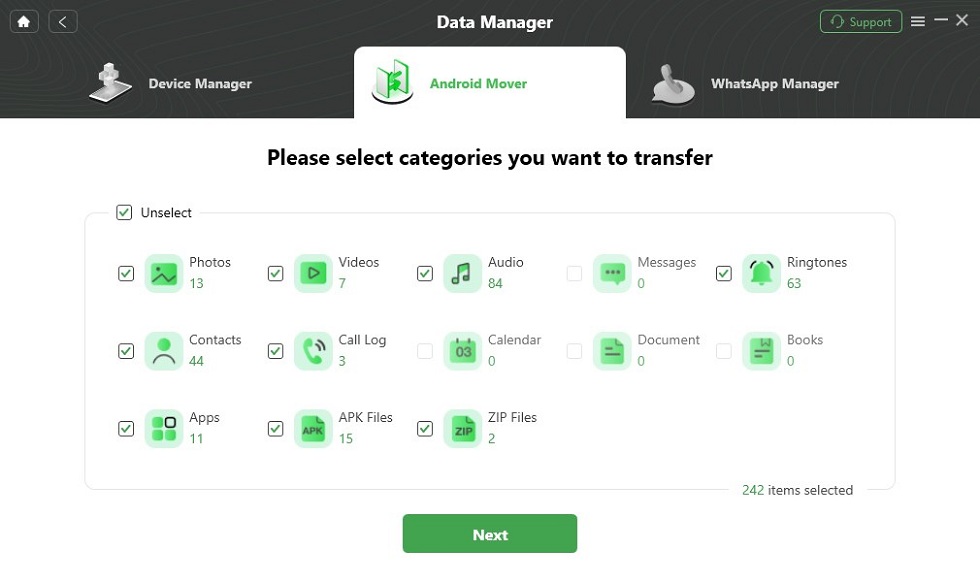
Select Data You Want to Transfer
Step 5. DroidKit will start transferring your data. Please wait for a while and you will see the screen below when it is completed.
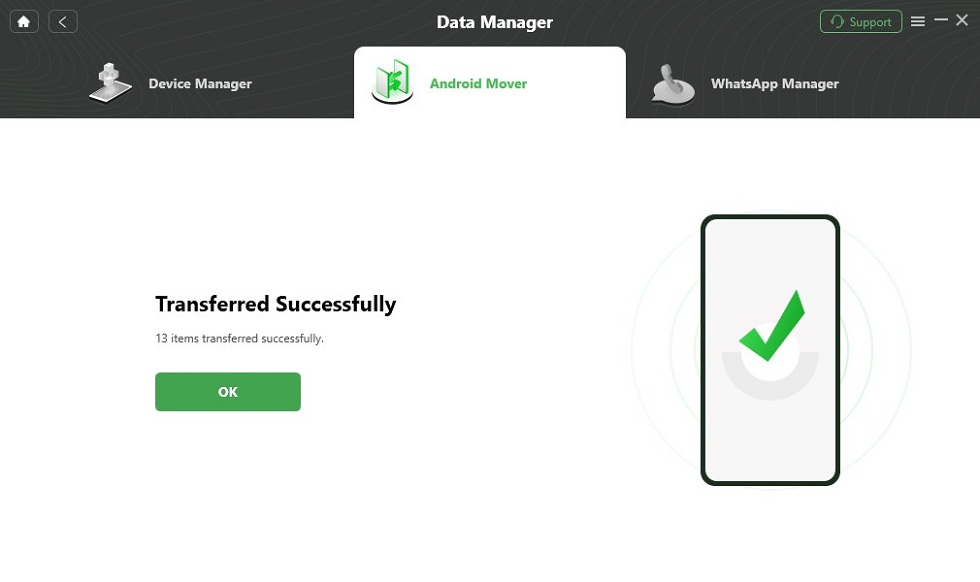
Data Transferred Successfully
Your shiny new Samsung phone should now be fully loaded with all of your existing data. You can now continue your work from where you left off on your old device.
# 2. PhoneTrans – The Most Reliable Huawei to Samsung Transfer Utility
PhoneTrans is one of the most perfect phone-to-phone data transfer tools. It supports transferring data selectively and wholly from one device to another. That’s to say you can transfer Huawei data to Samsung as you like. No matter photos, contacts, messages, or any other data, you can move them from Huawei to Samsung in clicks via PhoneTrans.
Let’s take a look at how to transfer Huawei data to Samsung with PhoneTrans:
Step 1. Download and install PhoneTrans on your computer. Meanwhile, connect your Huawei and Samsung to the computer with USB cables.
Free Download * 100% Clean & Safe
Step 2. Now run PhoneTrans on your computer. Choose Phone to Phone on the left panel and choose Quick Transfer on the right. And then tap Start Transfer to go on.
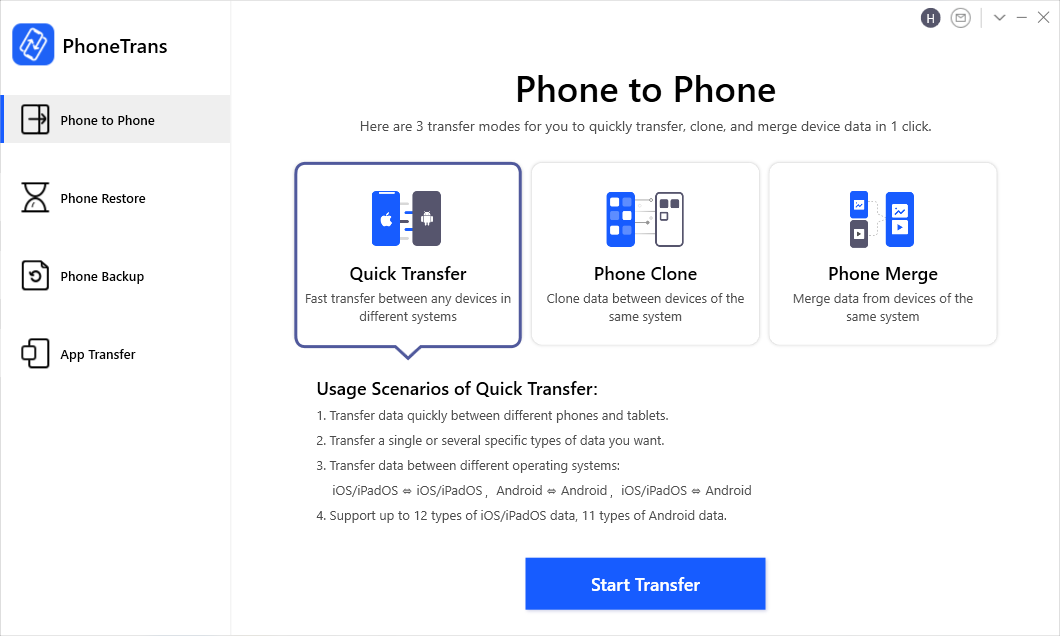
Choose Phone to Phone – Quick Transfer
Step 3. Follow the on-screen instructions of PhoneTrans. Now you will see all the data you can transfer from Huawei to Samsung. You can select the data you want to transfer and click on Transfer Now to start Huawei data transfer.
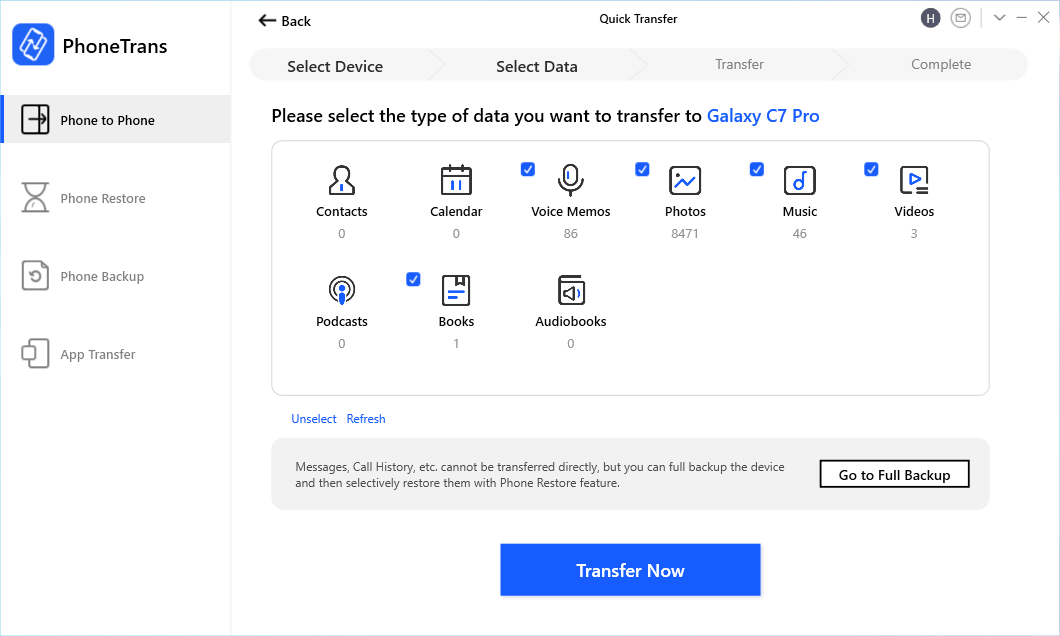
Select Any Data from Huawei to Samsung
Transfer Data from Huawei to Samsung with Smart Switch
Mobile phone companies have lately been doing a great job of making data transfer tasks easier. If you are in the loop, you probably know that most companies have their own apps to help you transfer data from your old phone to the new phone. Samsung is no exception, and they have an app that helps you move your data from any of your old phones to your new Samsung device.
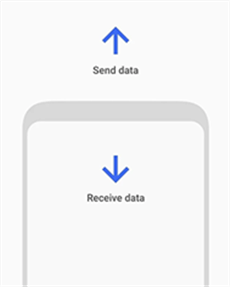
Send Data Using Smart Switch
The app is called Smart Switch, and as the name suggests, it lets you smartly switch data from any other device to a Samsung device. All the app requires you to do is install it on both of your phones, tap on a few options, and your job is done. Your data then becomes available on your new device. The following shows how the app actually works to help you do a Huawei to Samsung transfer:
Step 1. Launch the Play Store on both of your devices and install the Smart Switch app.
Step 2. Launch the app on your Huawei phone and tap on Send data. It is because this is the phone you will be sending your data from.
Step 3. Open the app on your Samsung phone and tap on Receive data.
Step 4. It will ask what type of connection you want to use. Unless you really want to use a wired method, tap on Wireless to copy your data without cables.
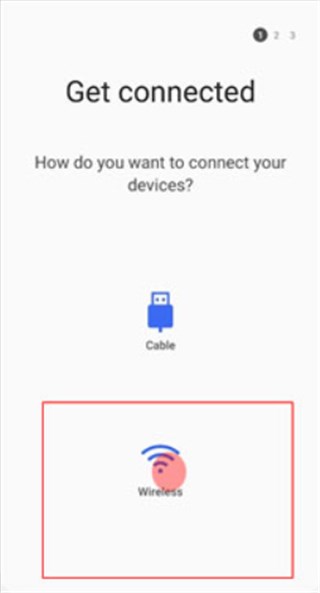
Tap Wireless
Step 5. A prompt will appear on your new device saying that your phone is trying to send you data. Tap on Yes to confirm the action and to allow your phone to receive data from your Huawei.
Step 6. Then you can choose the content you want to send to your new phone. Checkmark all the file types you want to send and continue.
Step 7. The app will start migrating your data, and you should see the live progress on your screen. You will be notified when the process is finished.
Step 8. There you go. All of your Huawei data should now be transferred to your Samsung device. You can open the apps on your new phone and verify it for yourself.
Transfer Data from Huawei to Samsung with Google Account
When your Huaiwei and Samsung devices are connected to the same Google account, you can synchronize your data across them. This is a perfect way to transfer your contacts, call history, messages, and more from Huawei to Samsung. Here is how to do:
Step 1. Unlock your Huawei phone, go to its Settings > Account > Google, and turn on the option to sync your data.
Step 2. Select what you wish to sync, like contacts, Gmail, app data, and so on.
Step 3. Go to the same settings on your Samsung phone and enable the option to sync your data on it. This will move the synced files on your Google account to your Samsung phone.
Transfer Data from Huawei to Samsung with Google Drive
In addition to syncing, you can back up your data to Google Drive and then restore it to your Samsung device. It allows you to create full backups of your devices on the cloud, and you can use the service to copy data from your Huawei phone to your Samsung phone. Keep in mind that your Google account must have sufficient storage space available beforehand to carry out the transfer from Huawei to Samsung using this method. Follow the steps below:
Step 1. Launch the Settings app on your Huawei phone and tap on the option that says System.
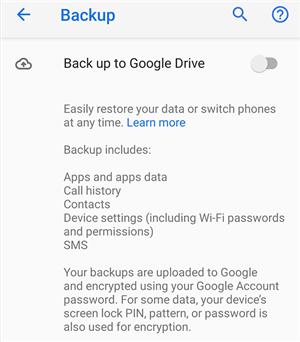
Transfer Data Through Google Backup
Step 2. Tap on Backup on the following screen and then enable the option that says Back up to Google Drive.
Step 3. Your device will now start uploading all of the Google backup-compatible files to the cloud. You need to wait for it to finish the process and it will take some good time.
Step 4. Start setting up your new Samsung device and sign in using the same Google account that you used on your Huawei device.
Step 5. It will prompt you to restore the backup, and you need to let it do so. After that, your Huawei data should be restored on your Samsung device and your task is done.
How to Transfer Data from Huawei to Samsung with Bluetooth
When it comes to full data migration and phone switching, Bluetooth is not the most convenient way to transfer your files. One of the reasons why you will not want to use it is that it runs at very lower speeds. Second, it requires both of your phones to be in close proximity to each other.
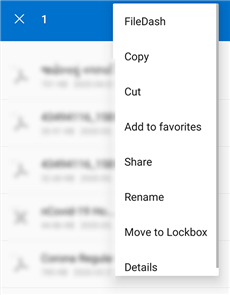
Share Your Phone Data
The only scenario where you might want to use Bluetooth is when there are only a few small files to be transferred. In that case, this is a really great method as all it requires you to do is turn the feature on both of your phones, and you can start sharing your files. You need to make sure both of your phones are close to each other, and then you can use the following steps to transfer your data.
Step 1. Open the notifications area on both of your phones and turn on the Bluetooth option.
Step 2. On your Huawei device, launch the file manager app and access the files you want to transfer to your Samsung phone.
Step 3. Select the files to be transferred, tap on the three dots at the top-right corner, and choose Share. It lets you transfer your chosen files using various ways.
Step 4. You will see all the available ways to transfer your data. Select the option that says Bluetooth to share your data using this wireless service. Your files will then be received on your new Samsung device now.
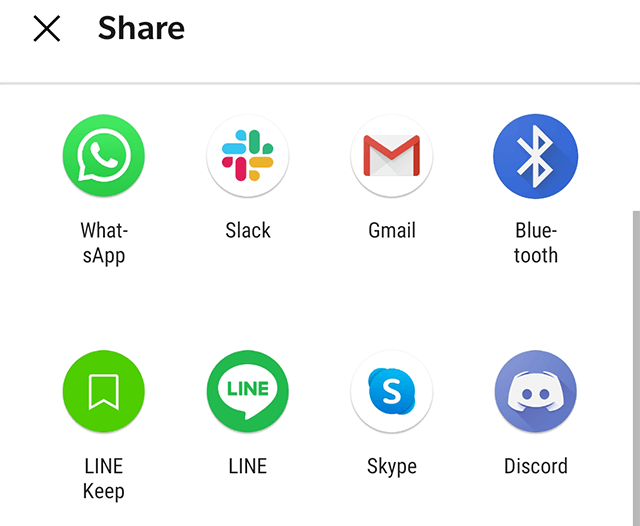
Use Bluetooth to Share Data
How to Transfer Data from Huawei to Samsung Manually
To transfer data from Huawei to Samsung, you can also transfer files manually using a computer and USB cables. It eliminates the need for third-party software. However, this approach involves browsing and copying folders individually, which can be time-consuming and prone to mistakes. Here are the steps:
Step 1. Connect your Huawei phone to the computer via USB and choose File Transfer/MTP mode.
Step 2. Open File Explorer and copy folders such as DCIM, Music, or Documents to your computer.
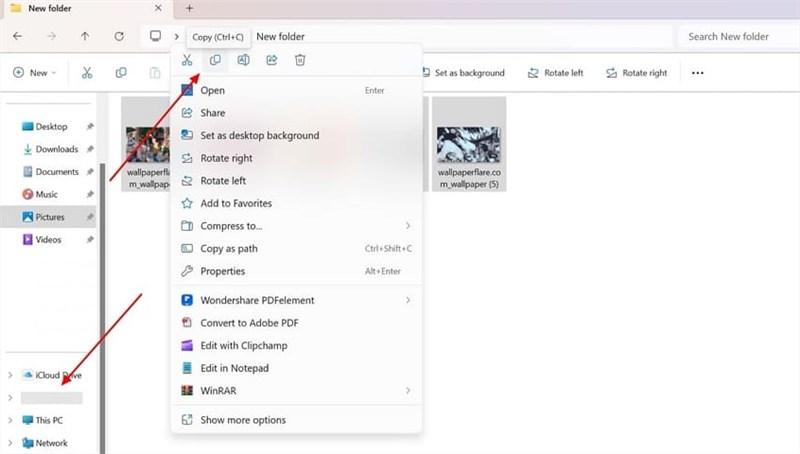
Transfer Data from Huawei to Samsung Manually
Step 3. Disconnect the Huawei device, then connect your Samsung phone and enable File Transfer/MTP mode.
Step 4. Paste the copied folders into the appropriate locations on your Samsung phone.
FAQs about How to Transfer Data from Huawei to Samsung
Q1. Does Huawei connect to Samsung?
Yes, Huawei can connect to Samsung. You can link the two phones directly with a USB cable, or use wireless options like Smart Switch to move files between them.
Q2. How do I transfer data from a broken Huawei to a Samsung?
To transfer data from a broken Huawei to Samsung, DroidKit is a better choice. It can extract photos, contacts, and other files from a non-working device and safely move them to your Samsung phone.
Q3. How to Transfer Huawei Data to Samsung Galaxy S25?
To transfer Huawei data to a Samsung Galaxy S25, you can rely on Smart Switch, Google account sync, or DroidKit. These methods let you move photos, contacts, messages, and app data quickly to your new device.
Q4. How to transfer data from Huawei to Samsung without Smart Switch?
To transfer data from Huawei to Samsung without Smart Switch, you can connect both phones to a computer, copy folders manually.
The Bottom Line
In conclusion, this guide introduces 6 practical solutions for how to transfer data from Huawei to Samsung. Among them, DroidKit stands out as the most efficient and reliable option, offering one-click transfers, broad compatibility, and a secure process without data loss. With DroidKit, you can move photos, contacts, and other important files seamlessly to your new Samsung device. Download DroidKit today to enjoy a smooth, fast, and worry-free transfer experience.
More Related Articles



Jeremy Feron is a writer for iMobie with a deep passion for Android. He specializes in creating clear guides on Android tips and the latest updates, helping users navigate their devices and get the most out of new features.
Product-related questions? Contact Our Support Team to Get Quick Solution >
