Download AnyUnlock to Remove Various Locks from iOS Device
Free Download For Win & Mac | 100% Clean & Secure
 Basic Information
 Unlock Screen Passcode
 Unlock Apple ID
  Bypass iCloud Activation
  Bypass MDM
 Remove SIM Lock
 Unlock Screen Time Passcode
 Remove iTunes Backup Encryption
 Turn Off Camera Sound
 iOS Password Manager
 iTunes Backup Password Recovery
 Find Apple ID
 iDevice Verification
 Turn off Find My iPhone
  FAQs
FAQs Need Further Help?
Find Apple ID
To protect user’s privacy and data safety, Apple adds protection to Apple ID in the Activation Lock interface, and the complete Apple ID could not be seen. How to do if you just forget the Apple ID?
Firstly, we would like to share some problems our customers encountered:
“ I forget my Apple ID on my iPhone X.”
“ How do I find my Apple ID for my iPad.”
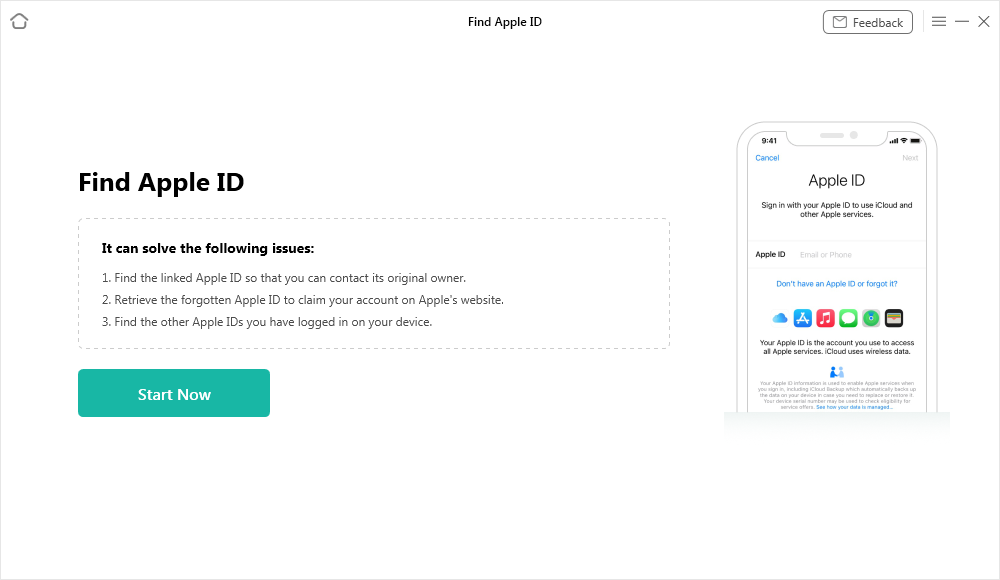
If you just encounter the similar situation above (forget Apple ID and password), don’t worry. You can try “Find Apple ID” mode to find Apple ID with a few clicks. The following instructions will help you do it.
Tech Specs
| Windows OS | Windows 11, 10, 8, 7, Vista, both 32bit and 64bit |
| macOS | macOS 10.13 (High Sierra) and above |
Important Information You May Concern
We take your satisfaction in priority. We truly hope you will have a happy experience with iMobie. Thus, we highly recommend you to read the restrictions before purchasing AnyUnlock - iCloud Activation Unlocker. If your device or iOS version is not supported, please do not purchase it.
| Supported iOS Version | Device Model | Jailbreak Effect |
| iOS 12.0 - iOS 15 (iOS 12.4.5 & 12.4.6 excluded) |
iPhone 5s to iPhone X iPad 4 - iPad 7 iPod touch 6 - iPod touch 7 |
1. Cannot use SIM cards to make calls and use cellular data to surf the Internet. 2. Cannot make FaceTime and send iMessages. 3. Cannot log in to a new iCloud account in the account settings. 4. Cannot be used with iTunes. |
Differences between Free & Activated Version
| Benefits | Free Version | Activated Version |
| Find Apple ID |  |
 |
Step 1. Download AnyUnlock - iPhone Password Unlocker on Computer.
Before you start to find Apple ID, get the tool downloaded on your computer. Please make sure the network is stable while downloading and installing AnyUnlock - iPhone Password Unlocker on your computer.
Step 2. Connect Your iPhone/iPad/iPod touch to Computer via a USB Cable.
When the installing process is completed, please launch it on your computer and choose “More Tools” Mode.
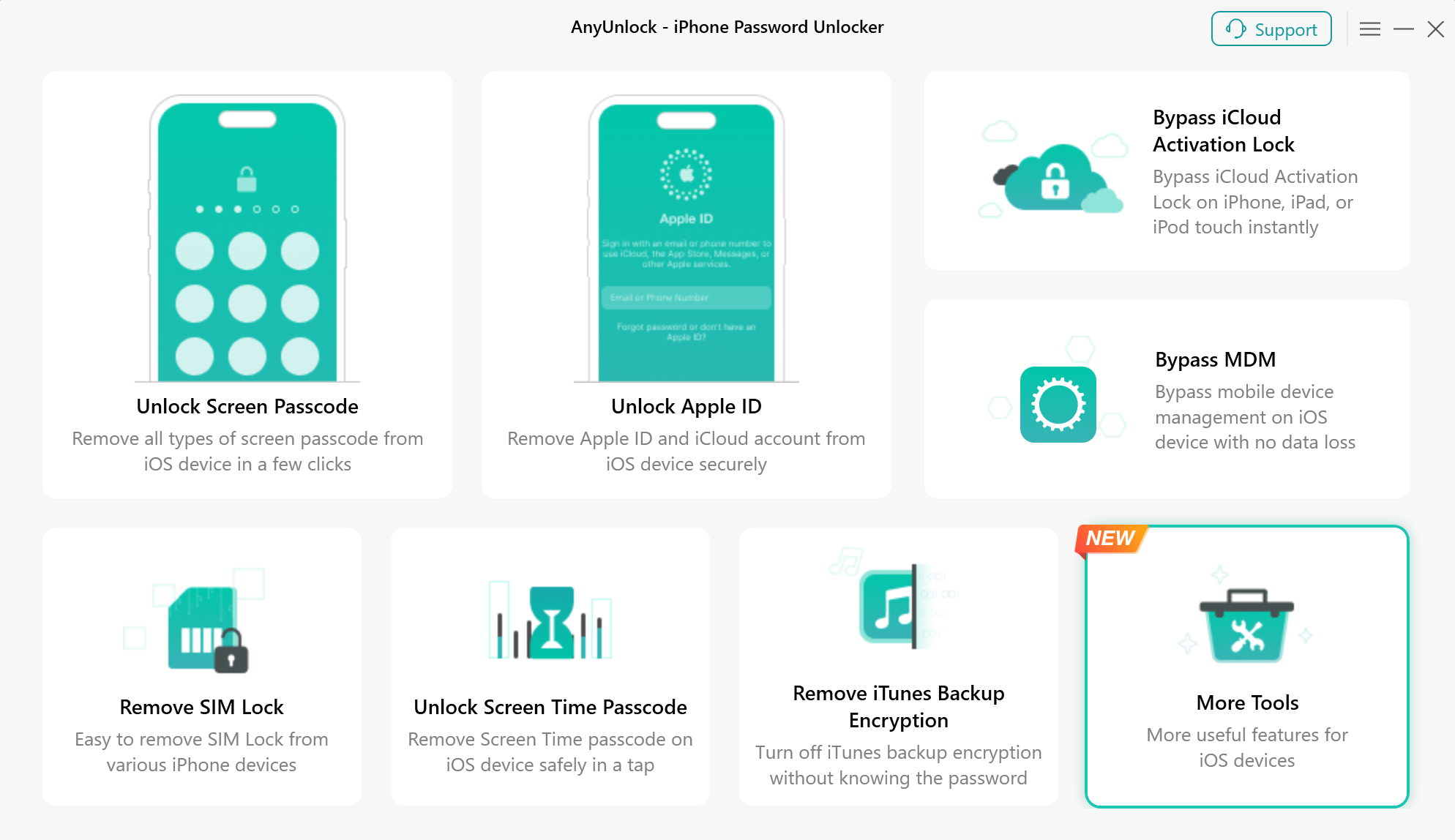
Choose More Tools Mode
Then, please choose the “Find Apple ID” mode to use the function.
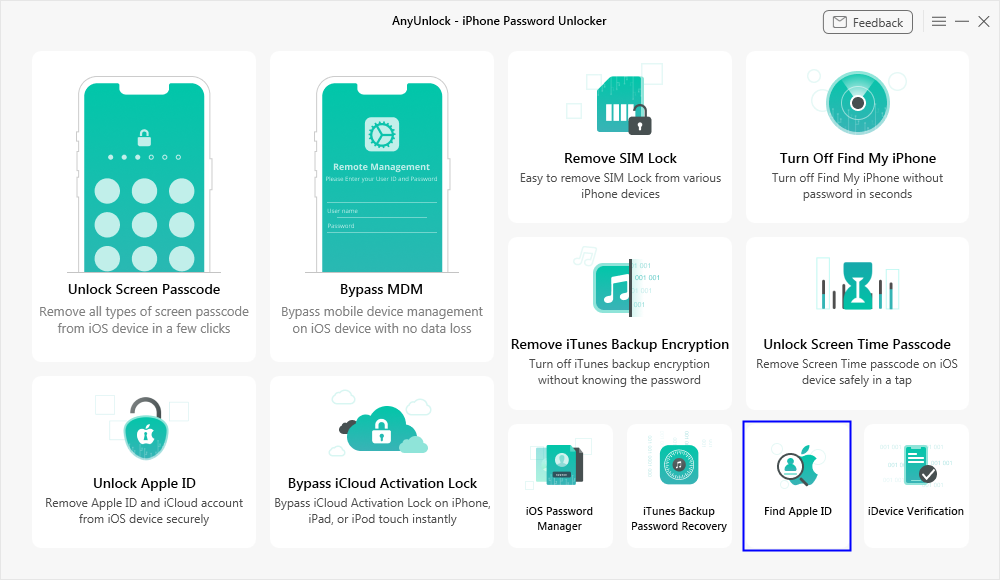
Choose Find Apple ID Mode
Currently, Find Apple ID mode only supports devices running iOS 12.0 - iOS 15 (iOS 12.4.5 & 12.4.6 excluded).These are the supported device models:
1. iPhone 5s to iPhone X
2. iPad 4 to iPad 7
3. iPod touch 6 to iPod touch 7
Please connect your iOS device to computer via a USB cable. Once your device is detected, you will see the interface as below.
Your Device is Detected by AnyUnlock - iPhone Password Unlocker
Then, please click “Jailbreak Now” button and read the “Terms of Use” carefully before using. If you agree to it, please check the option.
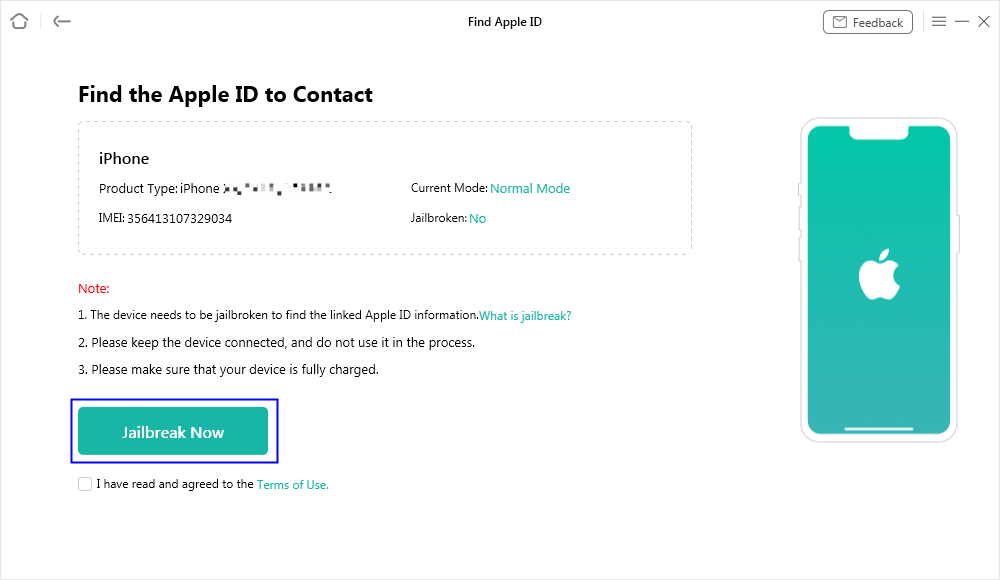
Click Jailbreak Button
Step 3. Jailbreak Your iOS Device.
Then, you will see the interface below. You can jailbreak your iOS device by yourself or use our recommended jailbreak tutorial to do it.
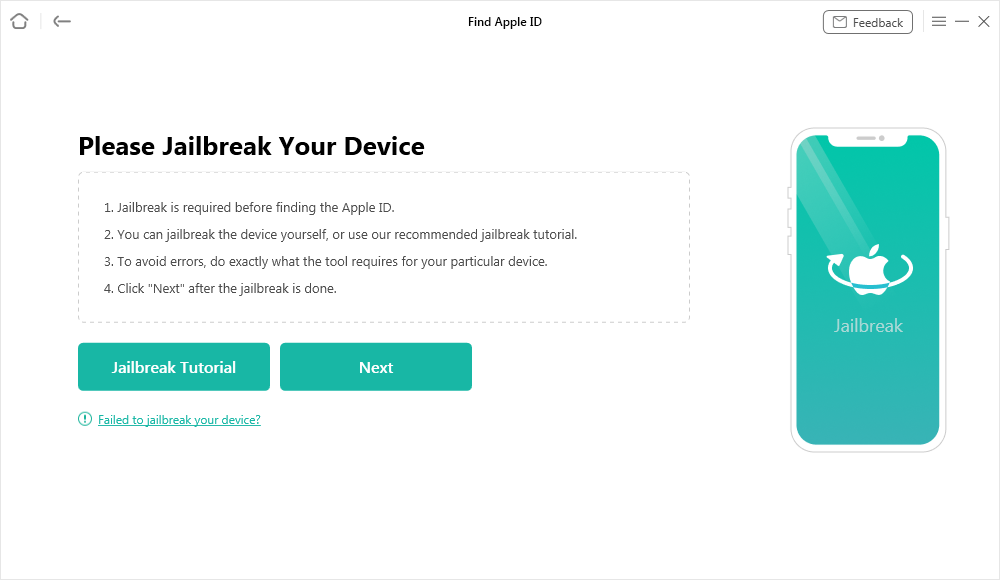
Jailbreak Interface
After the jailbreak is done, please click “Next” button.
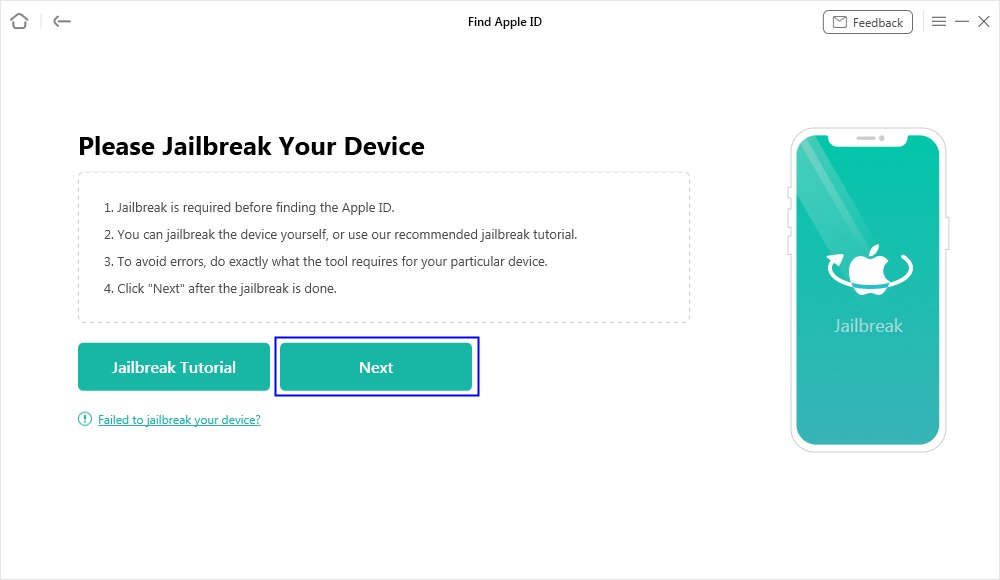
Jailbreak is Done
The possible effects after the jailbreaking:
a. Cannot use the iOS device's function of Phone Call, Cellular Data.
b. Cannot make FaceTime calls or send iMessages.
c. Cannot sign in to iCloud with your new Apple ID from Settings.
d. Cannot be used with iTunes.
Step 4. Start to Find Apple ID.
After you click the “Next” button, you will see the interface as below. And you can view the basic info about your device. Then, please click “Find Now” button.
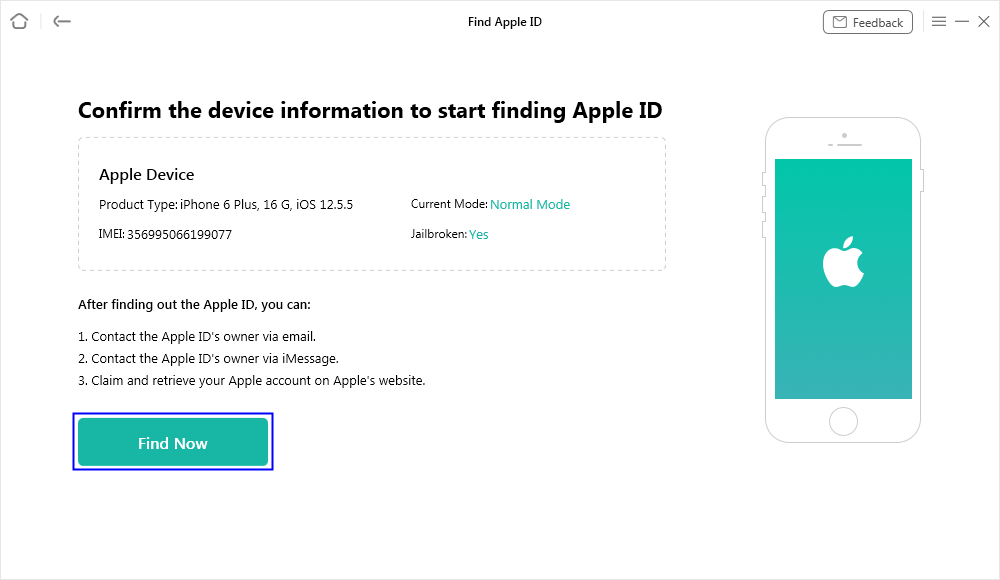
Click Find Now Button
After selecting the option, our software will start to find Apple ID automatically. Please keep your device connected to computer via the USB cable during the process.
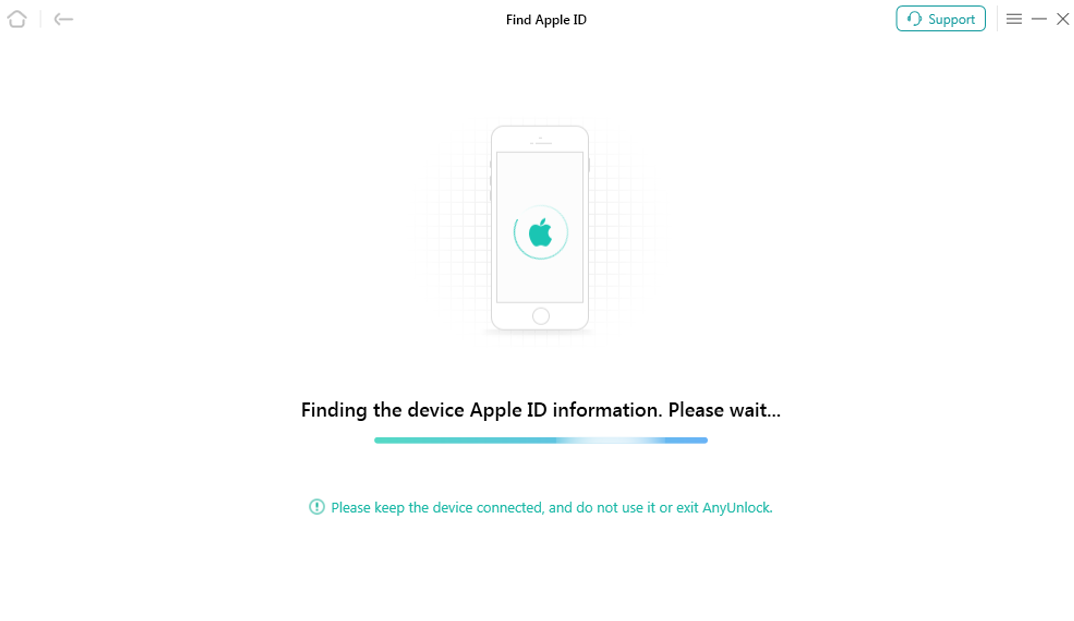
Start to Find Apple ID
Step 5. Succeed in Finding Apple ID.
When the process is finished, you can view the detailed Apple ID account information in the list. You can click “Export as TXT Format” option to download the info, or click “Done” option to exit the interface.
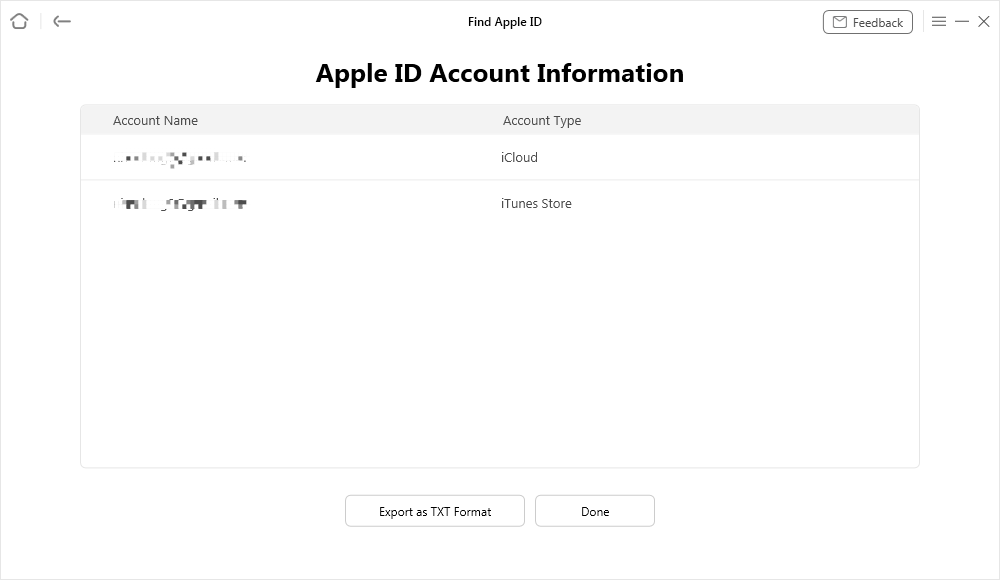
Apple ID Account Information
1. If your device data had been erased before, AnyUnlock - iPhone Password Unlocker is unable to help you get account information.
2. If your iOS device gets bricked in the jailbreak process and there is a device data loss, AnyUnlock - iPhone Password Unlocker is also unable to help you get account information.
AnyUnlock Find Apple ID FAQs
1. What is AnyUnlock's Find Apple ID feature?
AnyUnlock's Find Apple ID feature helps you identify Apple ID information previously used on your iPhone, iPad, or iPod touch. It can be useful if you have forgotten the account associated with your device and need to check the available account information.
2. Can AnyUnlock find the Apple ID linked to my iPhone?
Yes. AnyUnlock can help find Apple ID information stored on a supported iOS device. Connect your device to your computer, select the Find Apple ID feature, and follow the on-screen instructions to scan for available account information.
3. Do I need to know my Apple ID password to use AnyUnlock's Find Apple ID feature?
No. You do not need to know your Apple ID password to use this feature. However, your device must meet the feature's compatibility requirements, and you may need to complete additional steps before the software can retrieve the available account information.
4. Which iPhone and iOS versions does AnyUnlock support for finding Apple ID?
AnyUnlock supports selected iPhone, iPad, and iPod touch models for finding Apple ID information. Compatibility depends on your device model, iOS version, and the current software version. Check the latest official compatibility information before starting.
5. Do I need to jailbreak my iPhone to find my Apple ID with AnyUnlock?
Yes. The procedure described in the Find Apple ID guide requires jailbreaking your iPhone before scanning for account information. Read the on-screen instructions carefully and understand the potential risks of jailbreaking before proceeding.
6. How do I find my Apple ID using AnyUnlock?
Launch AnyUnlock on your computer and select Find Apple ID. Connect your iPhone using a USB cable, follow the instructions to prepare your device, and complete the required jailbreak steps. Then click Find Now and wait a few moments for AnyUnlock to scan and display the available Apple ID information on the screen.
7. Can I export the Apple ID information found by AnyUnlock?
Yes. According to the official guide, AnyUnlock allows you to export the retrieved Apple ID information as a TXT file. This can help you keep a reference copy of the information identified during the scan. Please store the exported file in a safe and secure location, as it may contain sensitive personal information and account details.
8. Will finding my Apple ID with AnyUnlock erase my iPhone data?
The Find Apple ID feature is designed to retrieve available account information rather than erase your device. However, the required jailbreaking process may affect device security or stability. We recommend backing up your iPhone before proceeding.
9. What should I do if AnyUnlock cannot detect my iPhone or find my Apple ID?
First, check that your iPhone is properly connected to your computer and tap Trust if prompted. Make sure your device and software meet the compatibility requirements, and follow the jailbreak instructions carefully. If the scan still fails, restart AnyUnlock and try again. If the issue persists, contact the iMobie Support Team with your device model, iOS version, and a screenshot of the error message.
10. What should I do if I find my Apple ID but still cannot access my iCloud account?
Finding your Apple ID does not automatically restore access to your account. If you know the account email address but have forgotten the password, use Apple's official account recovery process to reset it. If your device displays the iCloud Activation Lock screen, you may need to complete Apple's account verification or use the appropriate support process for your situation.

Try It Out & Share Your Feedback!

We'd love to hear how AnyUnlock is working for you.
Give it a try and share your thoughts—your feedback helps us keep improving.
If you're enjoying AnyUnlock, we'd be so grateful if you could leave us a review on Trustpilot. Your support helps others discover AnyUnlock and motivates our team!

Thank you for being part of the iMobie community — we couldn’t do it without you!
Try It Out & Share Your Feedback!
We'd love to hear how AnyUnlock is working for you.
Give it a try and share your thoughts—your feedback helps us keep improving.
If you're enjoying AnyUnlock, we'd be so grateful if you could leave us a review on Trustpilot. Your support helps others discover AnyUnlock and motivates our team!
Thank you for being part of the iMobie community — we couldn’t do it without you!